Print the guide and keep it next to your phone while you do the steps.
Tip: untick “Headers and footers” in the print dialog to leave out the web address.
Download and start using Kivra
Pay and Swish
 Android
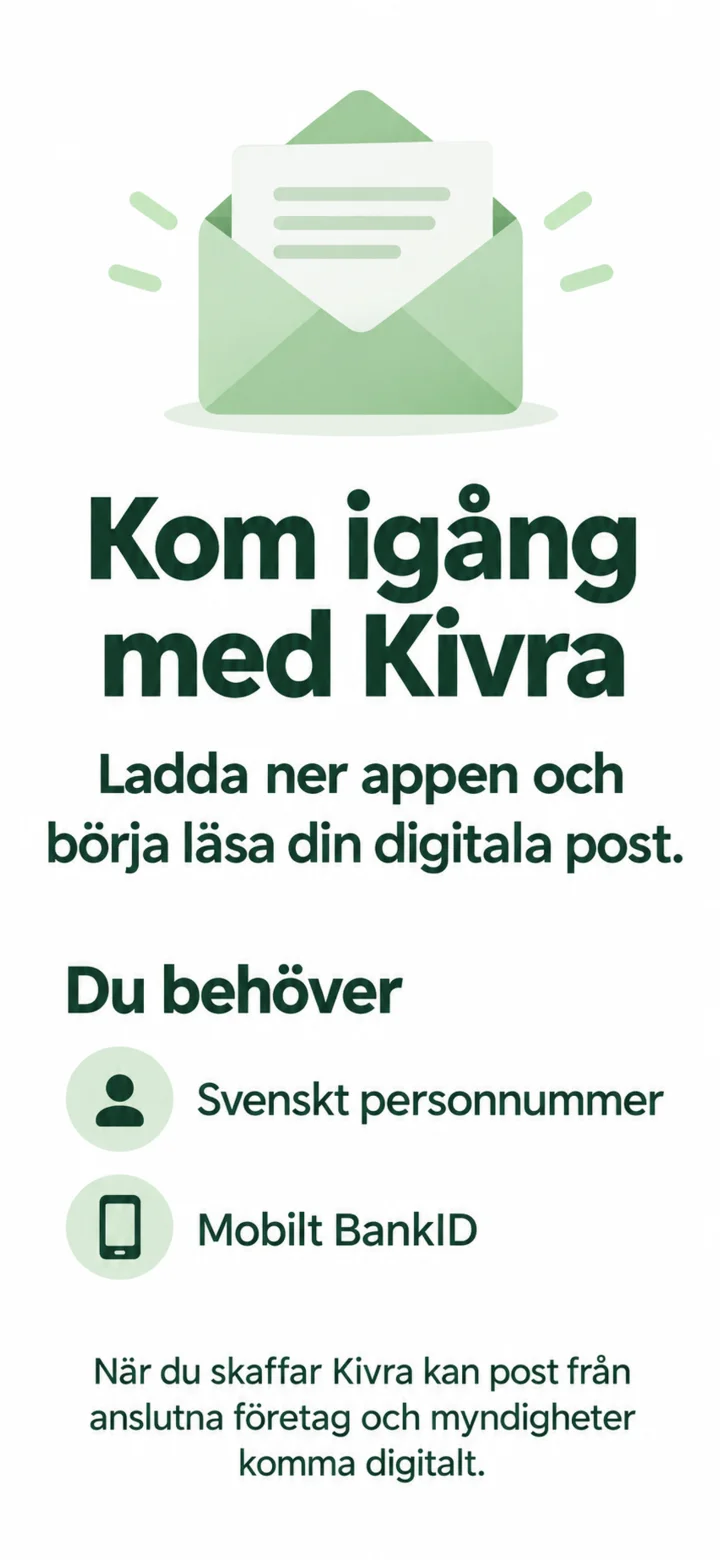 1Step 1 of 13 · Android
Now we're going to download Kivra and create an account. You'll need Mobilt BankID and a Swedish personal identity number.
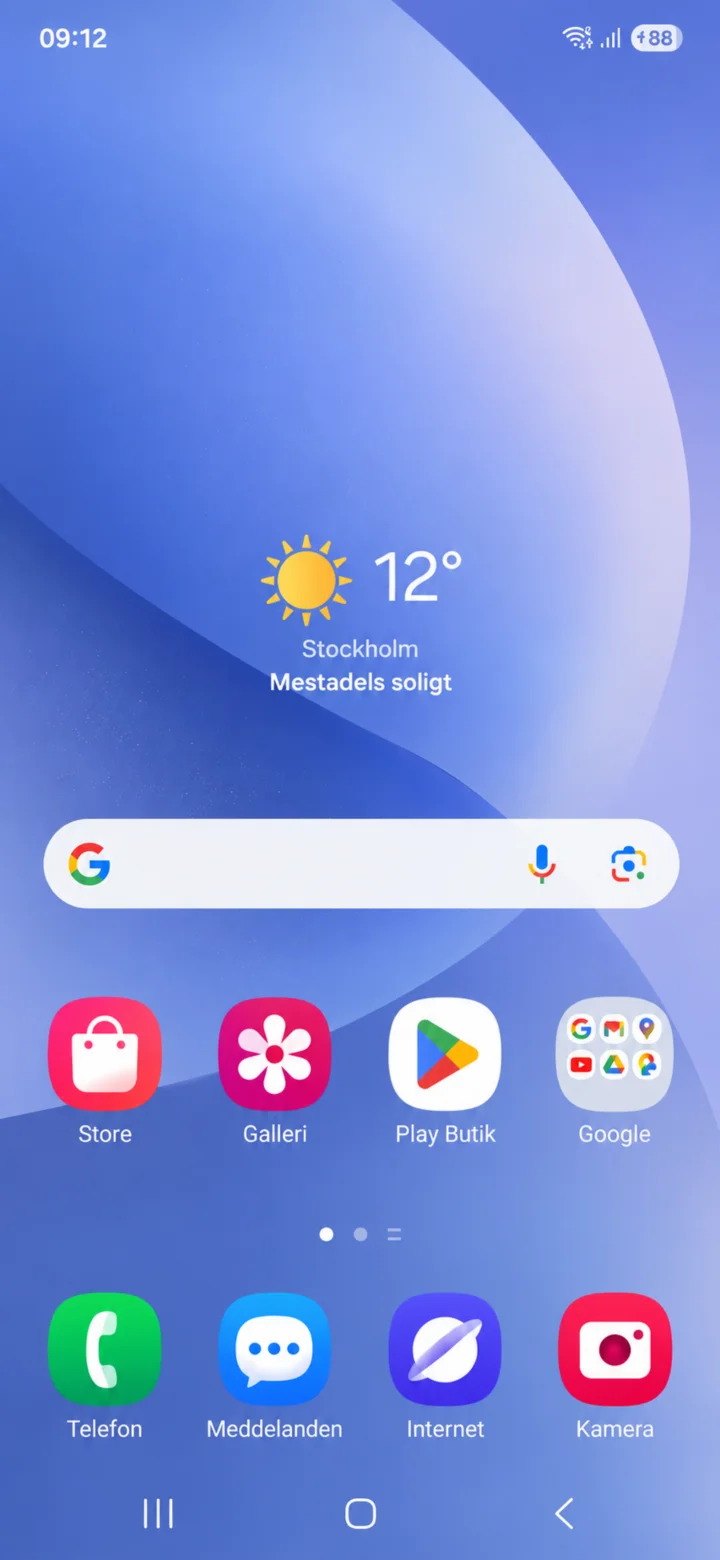 2Step 2 of 13 · Android
Start on the home screen and tap Google Play Butik.
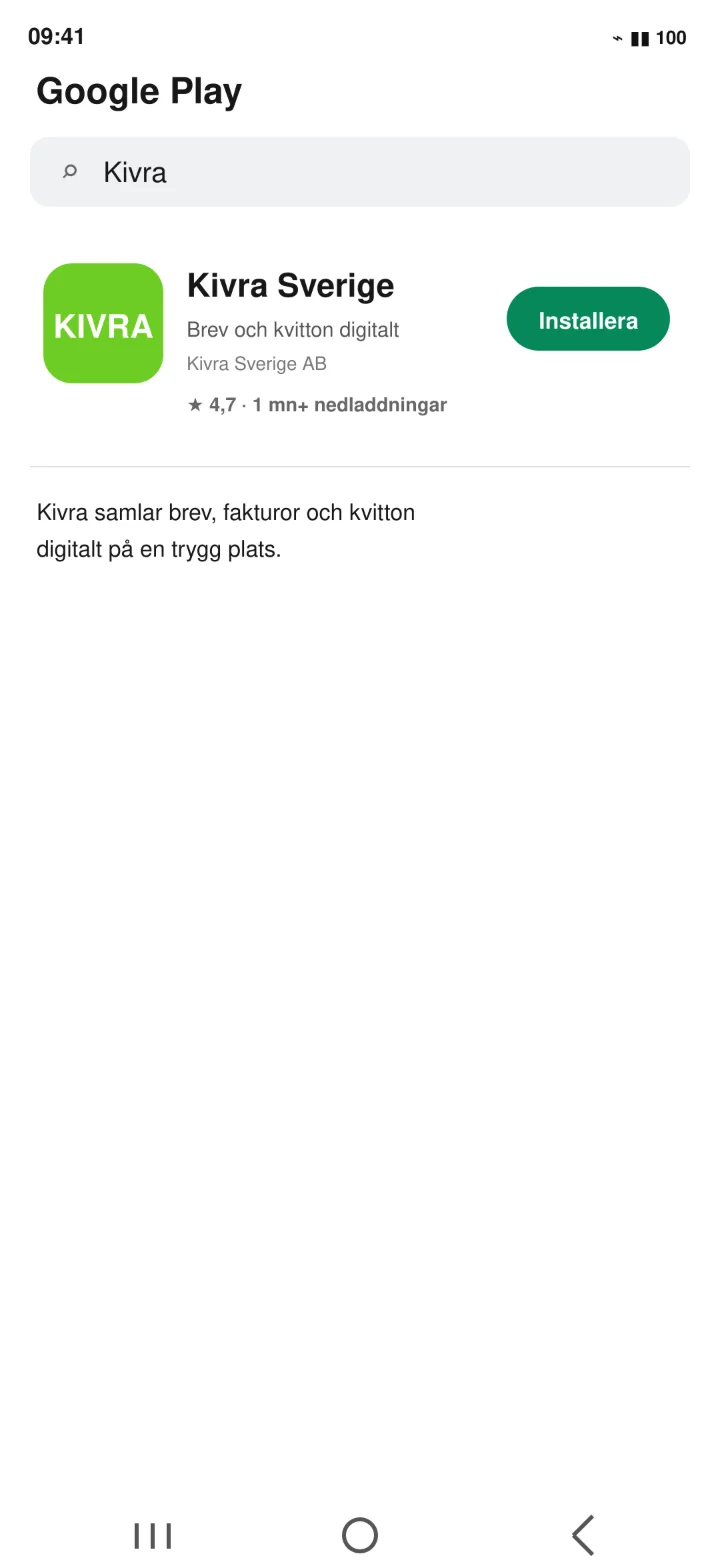 3Step 3 of 13 · Android
Search for Kivra and tap ”Installera” (Install).
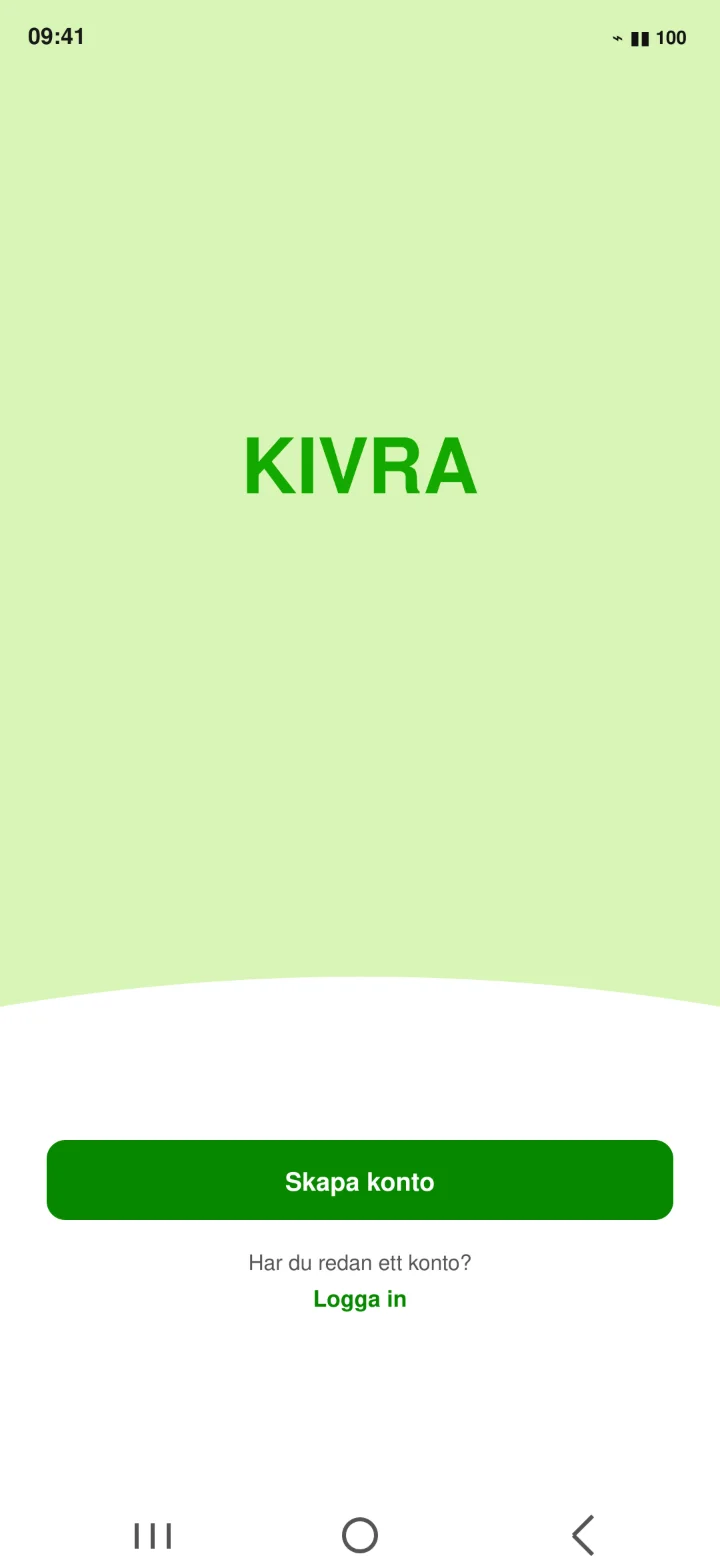 4Step 4 of 13 · Android
Open Kivra and tap ”Skapa konto” (Create account).
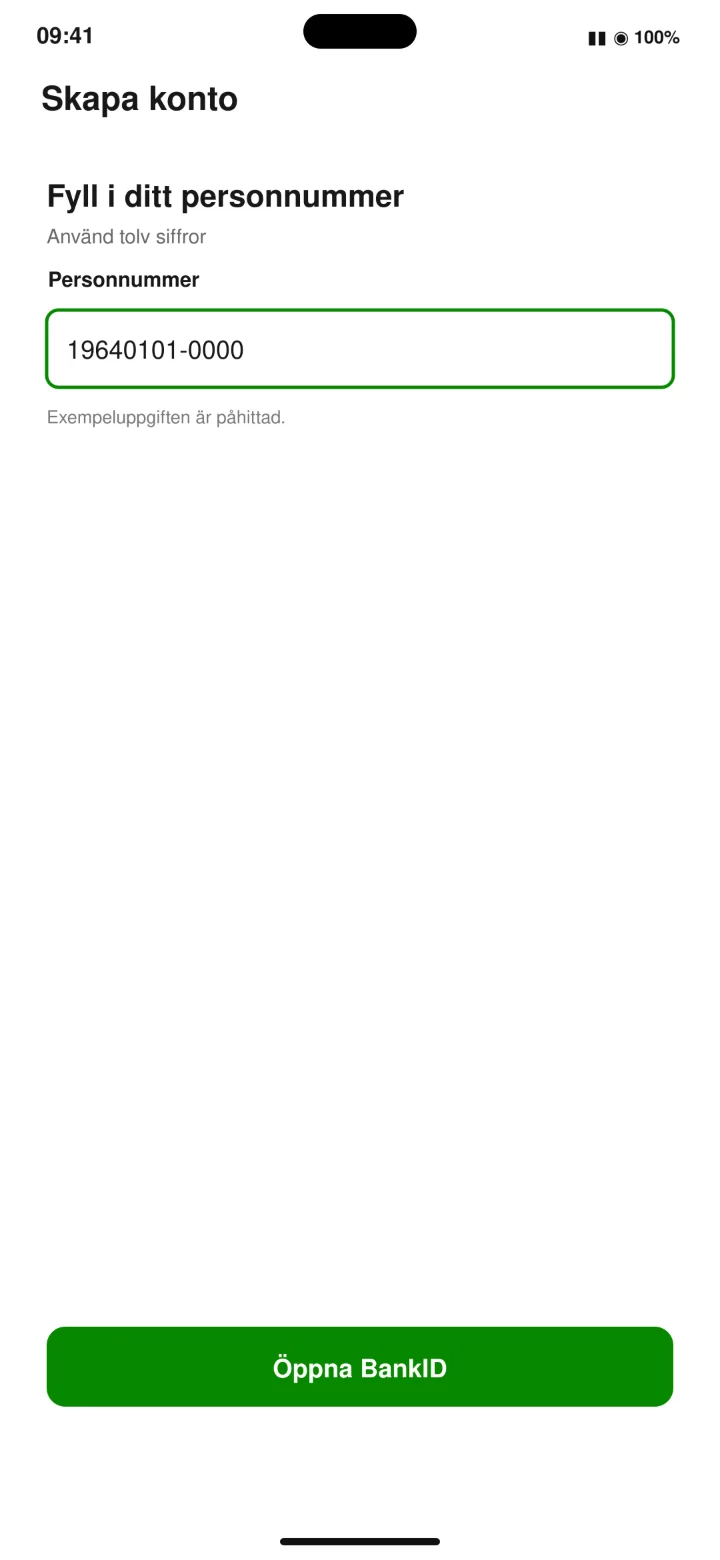 5Step 5 of 13 · Android
Enter your twelve-digit personal identity number and tap ”Öppna BankID” (Open BankID).
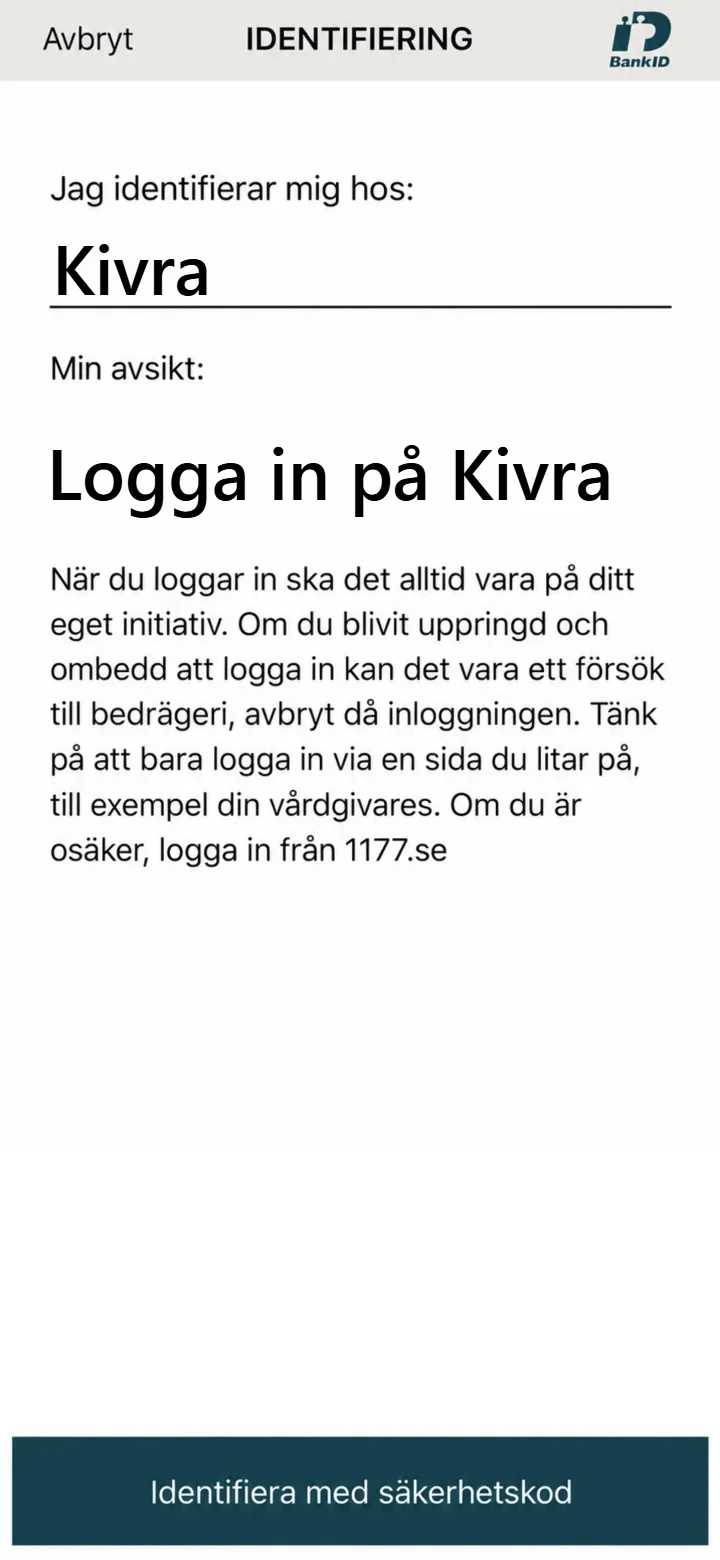 6Step 6 of 13 · Android
Tap the button ”identifiera dig med säkerhetskod” (identify yourself with security code).
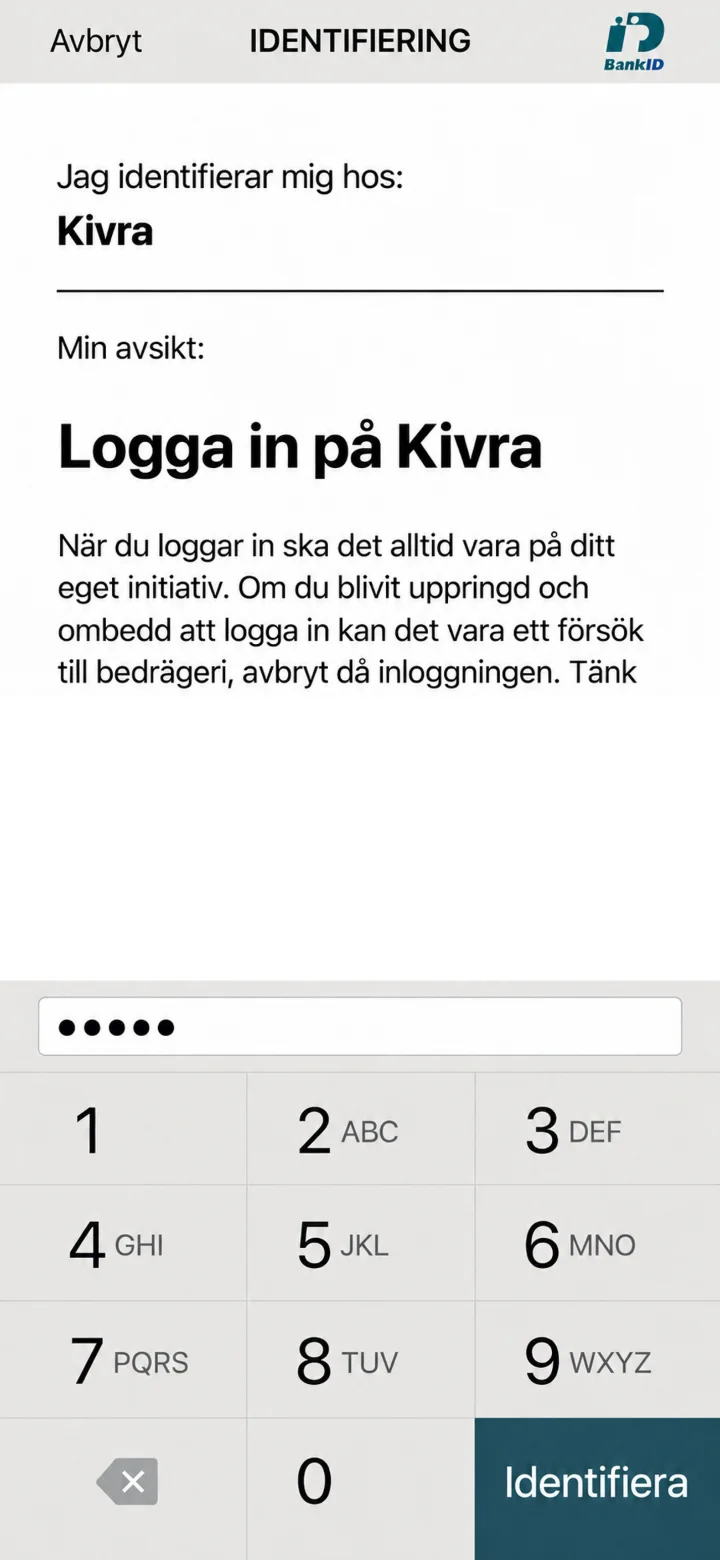 7Step 7 of 13 · Android
Enter your 6-digit security code and tap ”indentifiera” (identify). Now Kivra will open again.
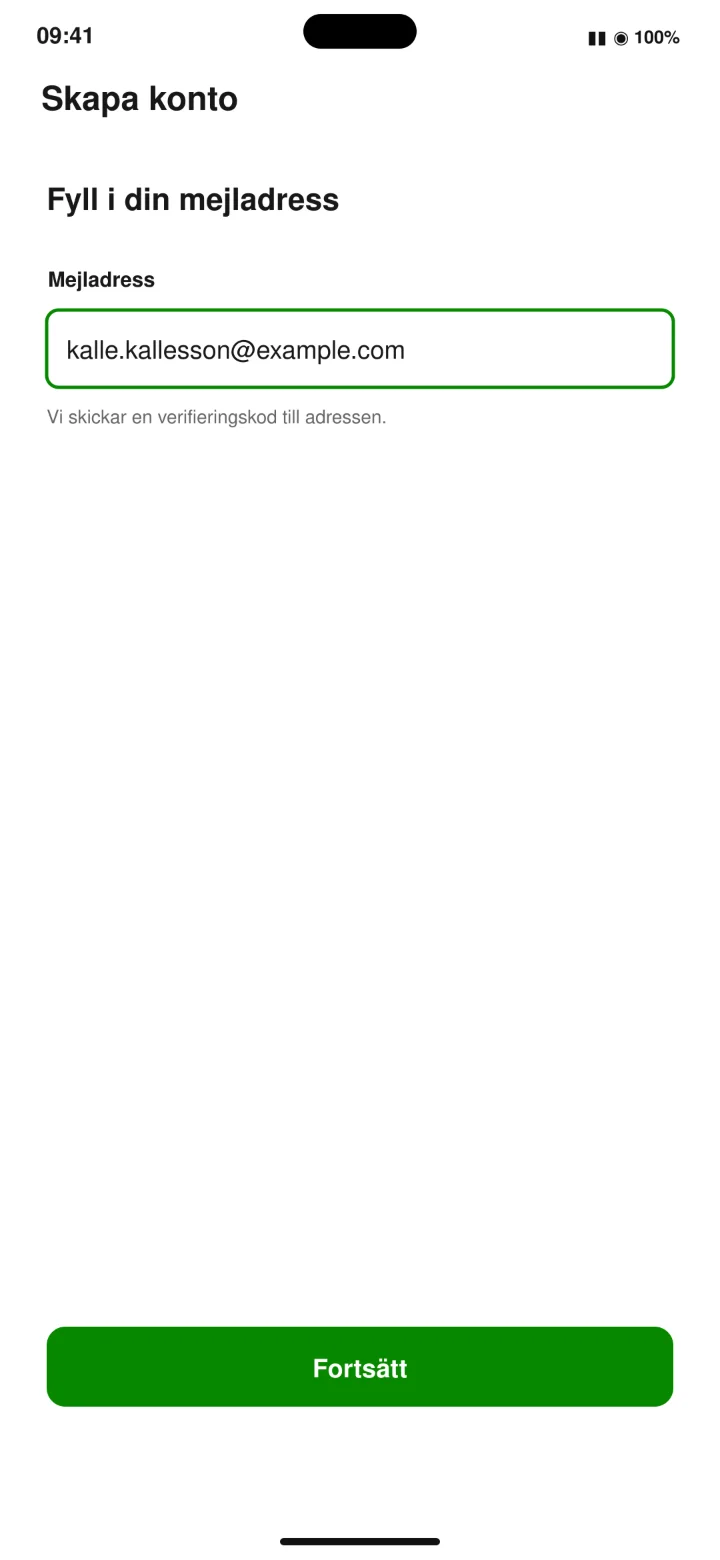 8Step 8 of 13 · Android
Fill in your email address and tap ”Fortsätt” (Continue).
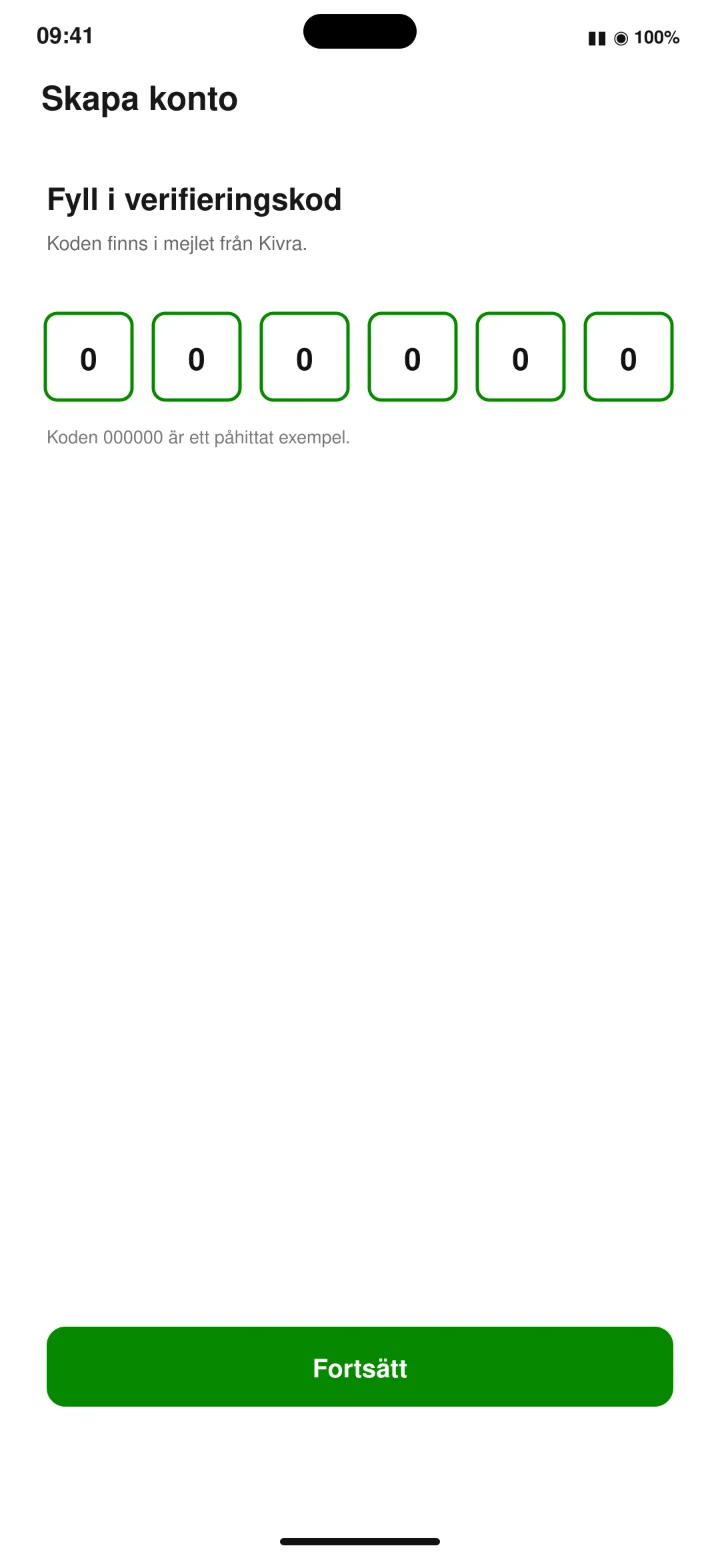 9Step 9 of 13 · Android
Open the email from Kivra. Copy or write down the six-digit code. Then enter that code in the app.
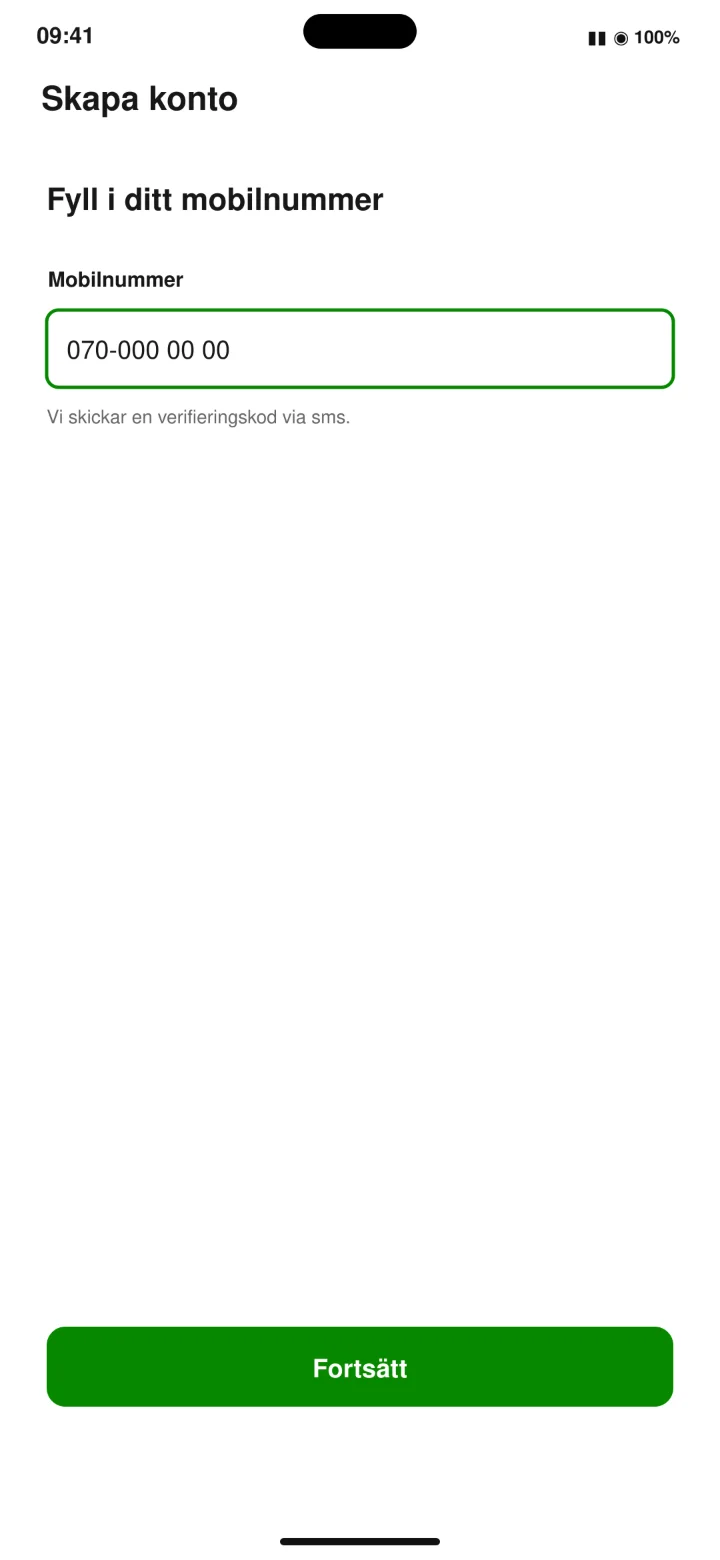 10Step 10 of 13 · Android
Fill in your mobile number and tap ”Fortsätt” (Continue).
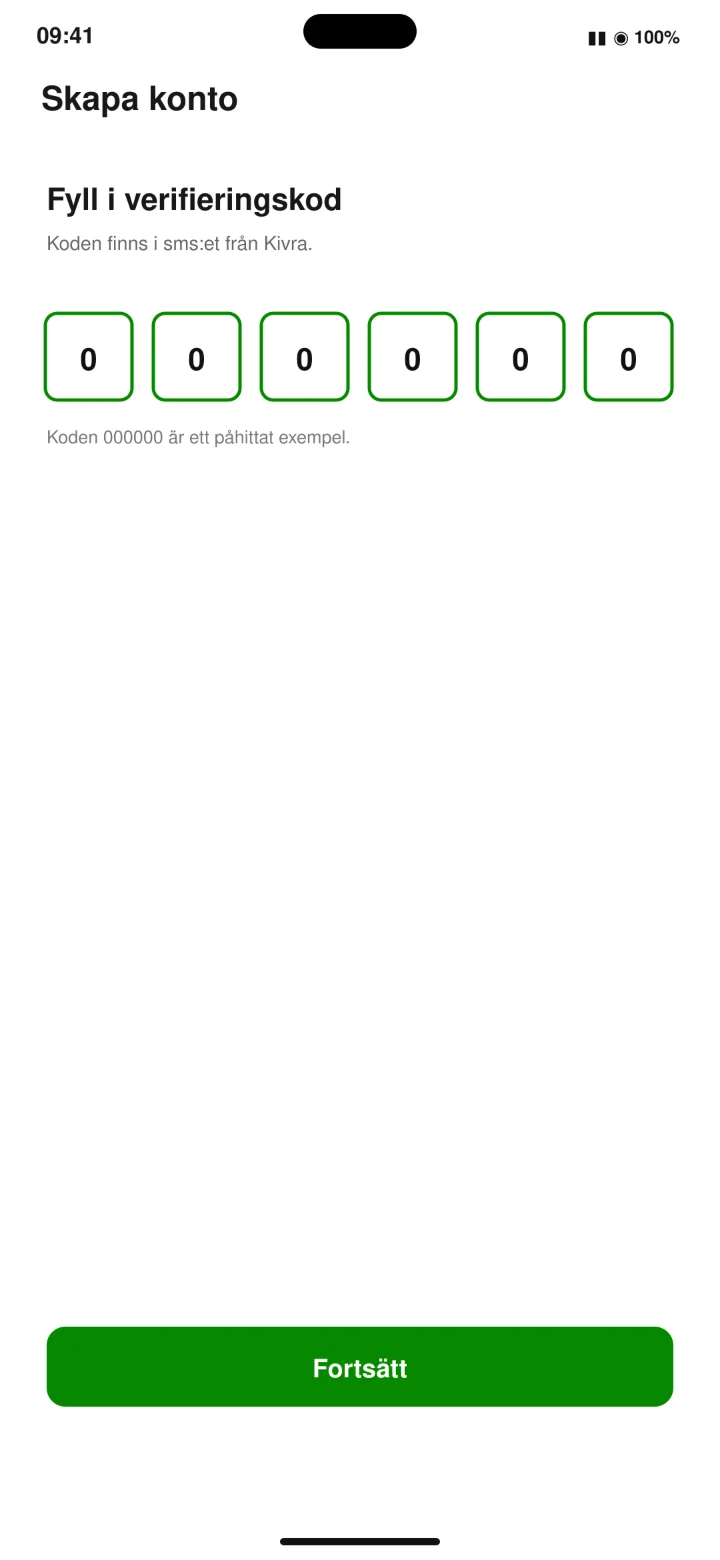 11Step 11 of 13 · Android
Open the SMS from Kivra. Then enter the code in the app and tap ”Fortsätt” (Continue).
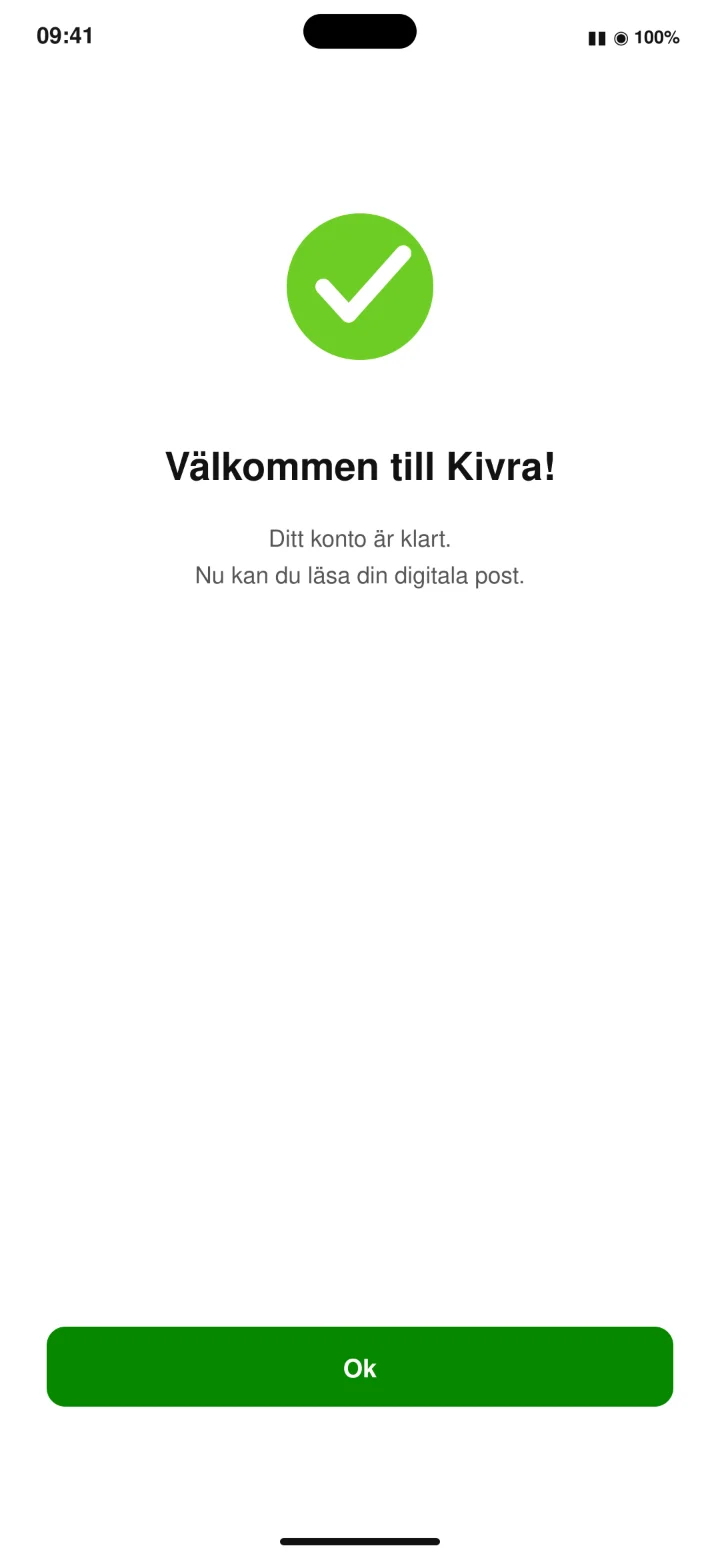 12Step 12 of 13 · Android
Your Kivra account is ready. Tap ”Ok” (Ok).
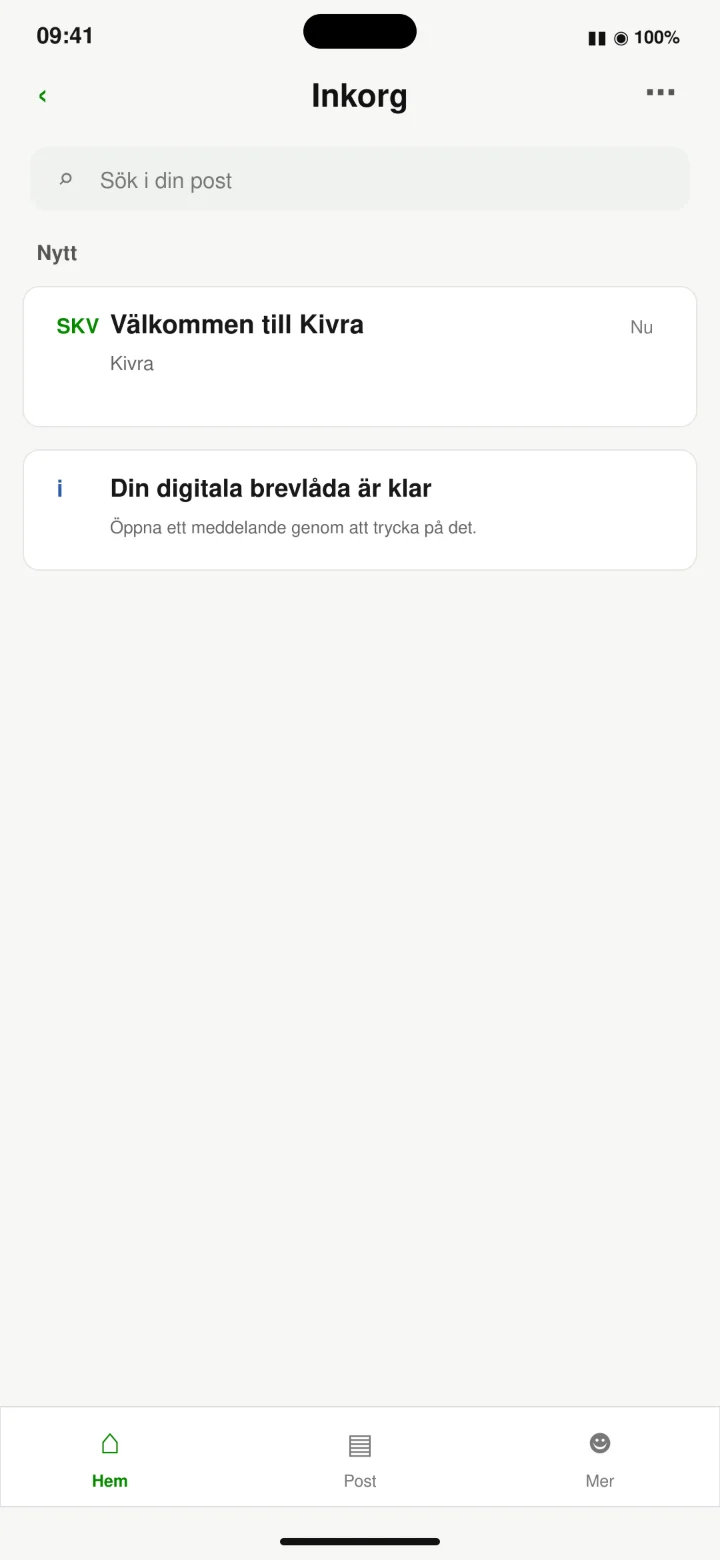 13Step 13 of 13 · Android
Kivra is now ready to use. This is your inbox. Here you'll see letters, invoices, and other important messages.