Print the guide and keep it next to your phone while you do the steps.
Tip: untick “Headers and footers” in the print dialog to leave out the web address.
Which language should the printout be in?SvenskaEnglishSuomiالعربية (Arabiska)Bosanski/Hrvatski/Srpskiفارسی (Persiska)PolskiEspañol
Make the text larger on your phone
Mobile phone and tablet
 Android
Scan to listen to the guide
 1Step 1 of 6 · Android
Vi ska nu lära oss att göra text och andra saker på skärmen lättare att se.
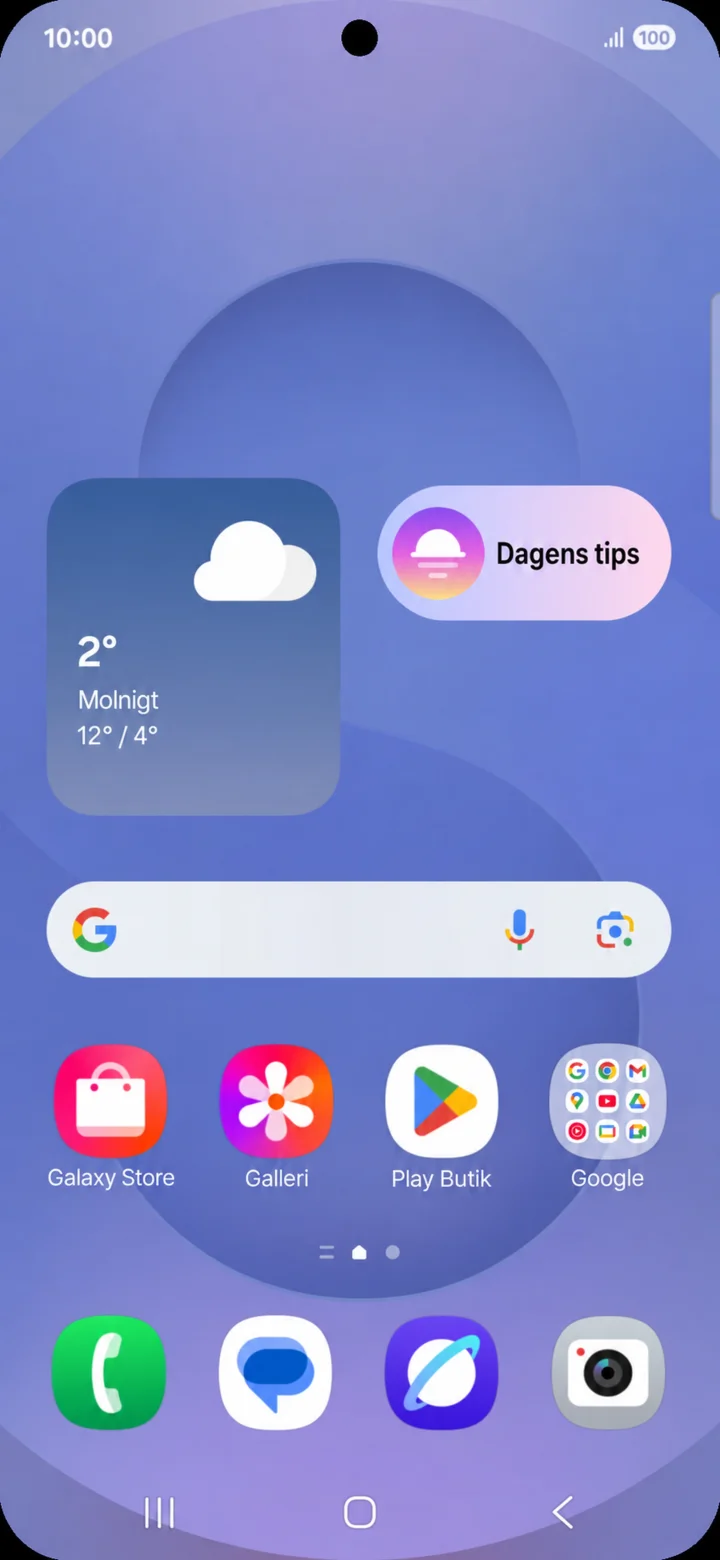 2Step 2 of 6 · Android
Start from the home screen. Swipe down from the top edge of the screen.
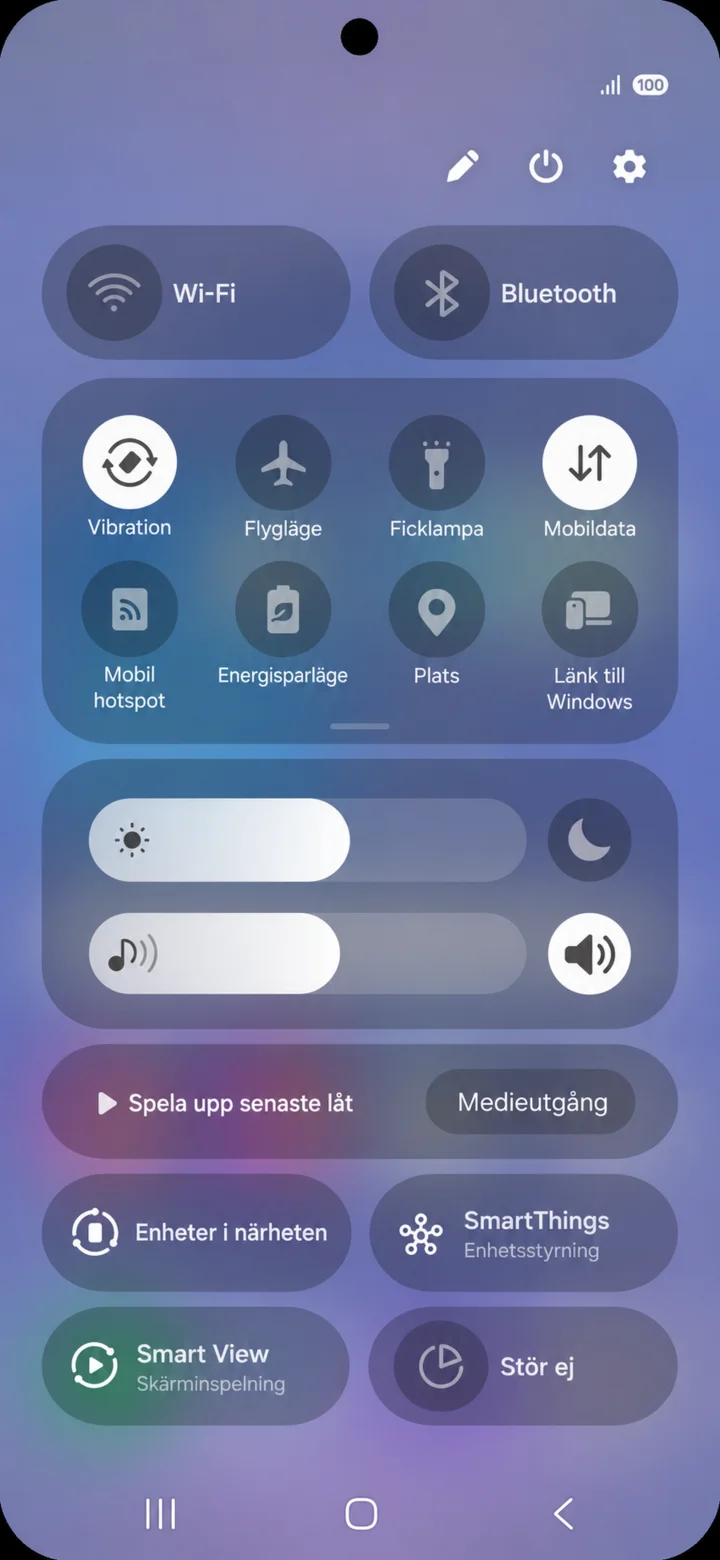 3Step 3 of 6 · Android
Tap the cogwheel icon in the top right to open ”Inställningar” (Settings).
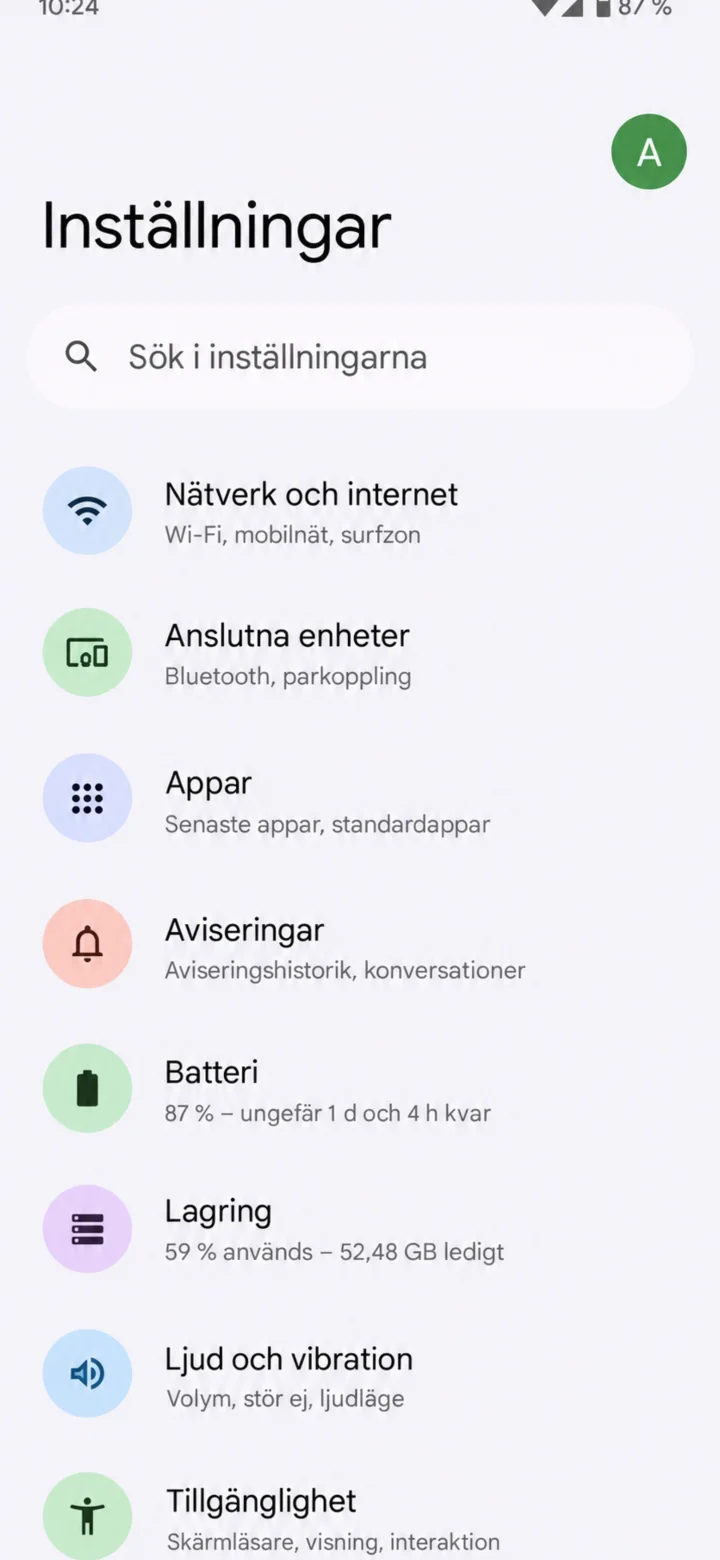 4Step 4 of 6 · Android
In ”Inställningar” (Settings), choose ”Tillgänglighet” (Accessibility).
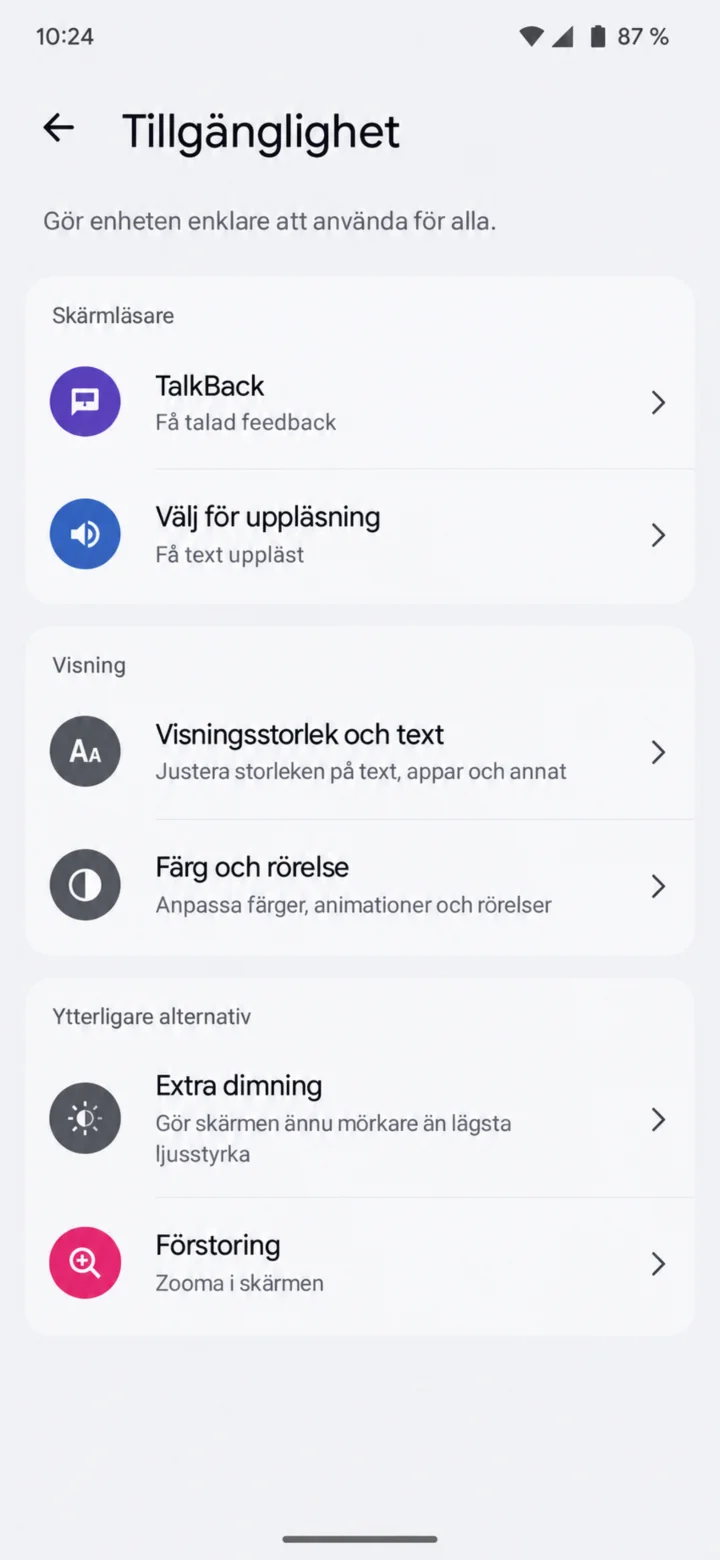 5Step 5 of 6 · Android
Choose ”Visningsstorlek och text” (Display size and text). The menu name might vary slightly between different Android phones.
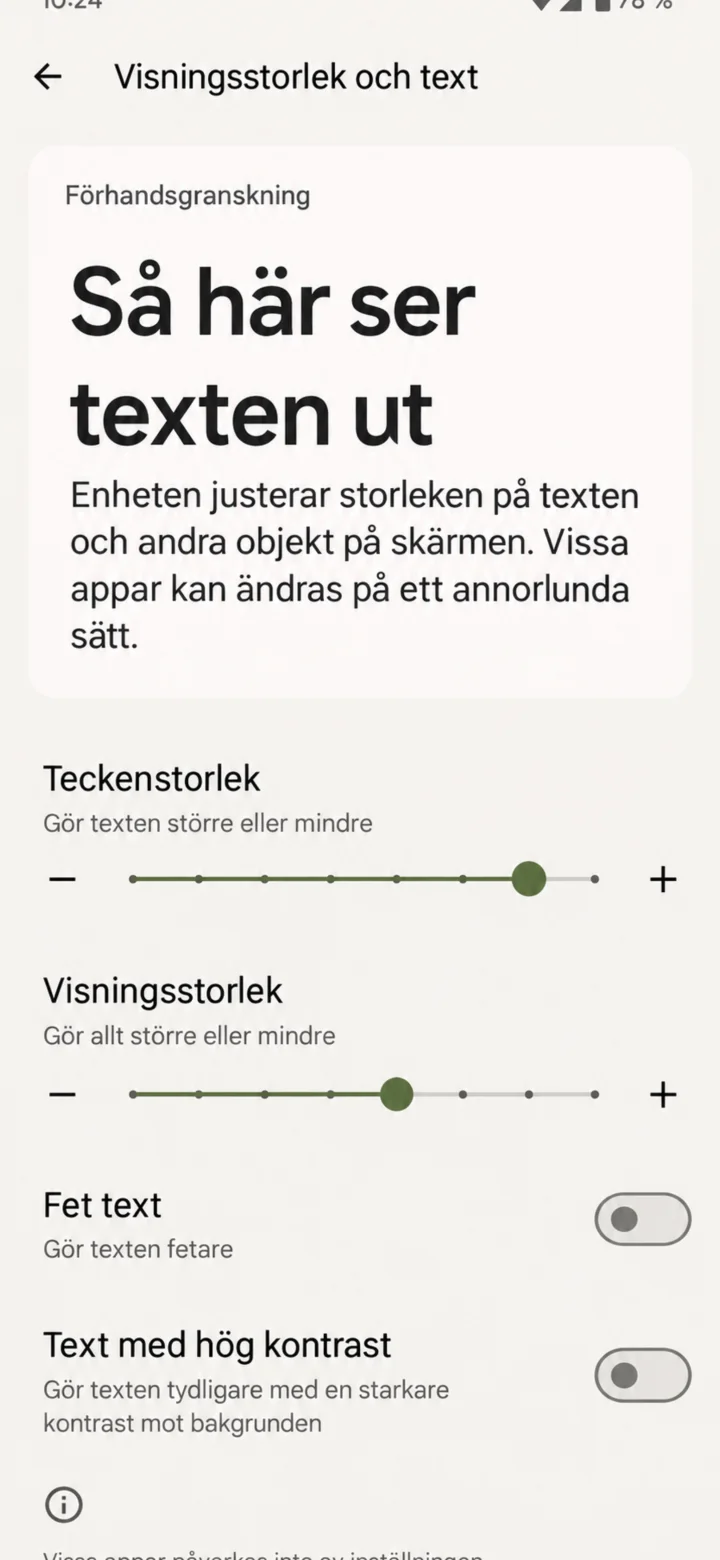 6Step 6 of 6 · Android
Drag the slider for ”teckenstorlek” (font size) to the right. You can also make other objects on the screen larger.