Print the guide and keep it next to your phone while you do the steps.
Tip: untick “Headers and footers” in the print dialog to leave out the web address.
Which language should the printout be in?SvenskaEnglishSuomiالعربية (Arabiska)Bosanski/Hrvatski/Srpskiفارسی (Persiska)PolskiEspañol
Add and call a favorite contact
Mobile phone and tablet
 Android
Scan to listen to the guide
 1Step 1 of 7 · Android
Now we're going to add a contact as your favorite. We'll use Kalle as an example.
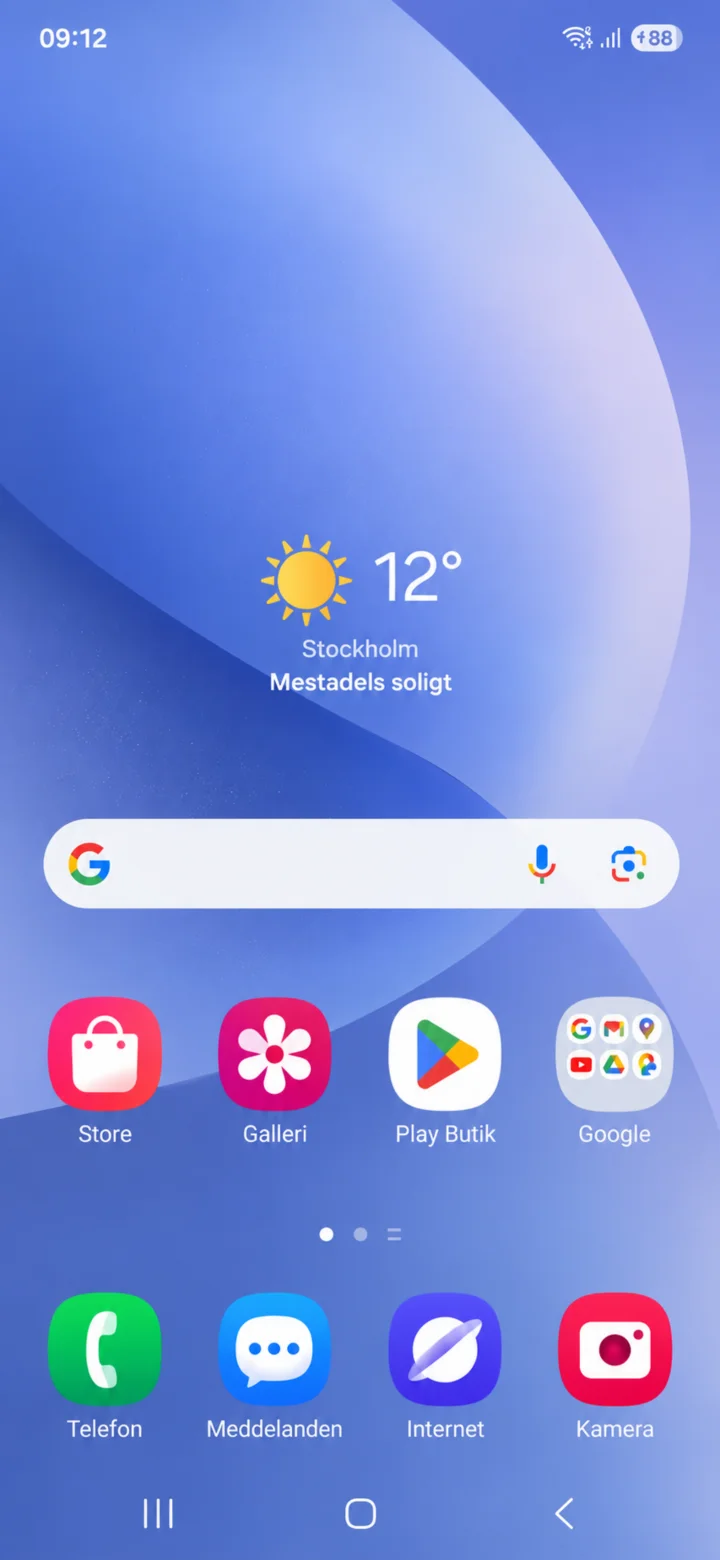 2Step 2 of 7 · Android
Start on the home screen and tap Telefon (Phone).
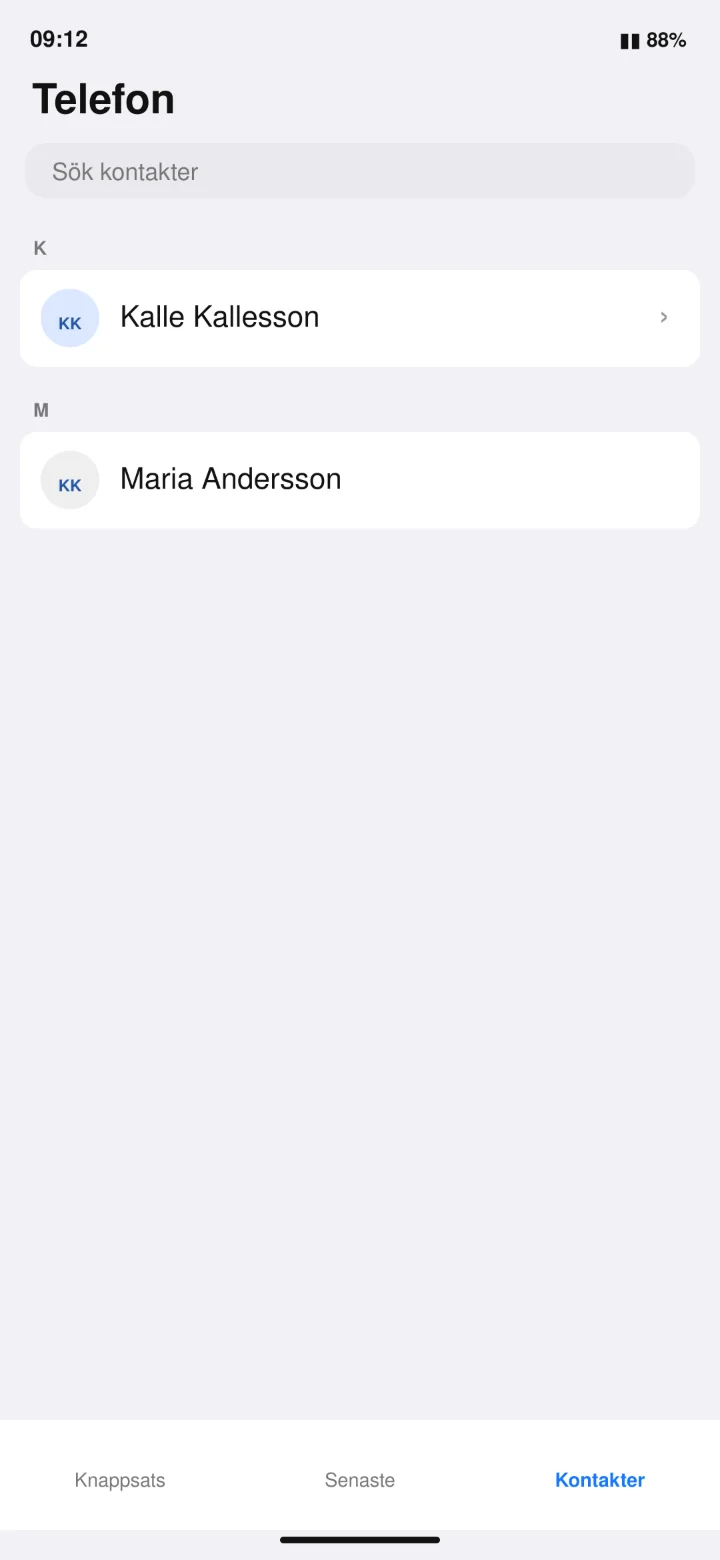 3Step 3 of 7 · Android
Tap Kontakter (Contacts) and choose Kalle Kallesson.
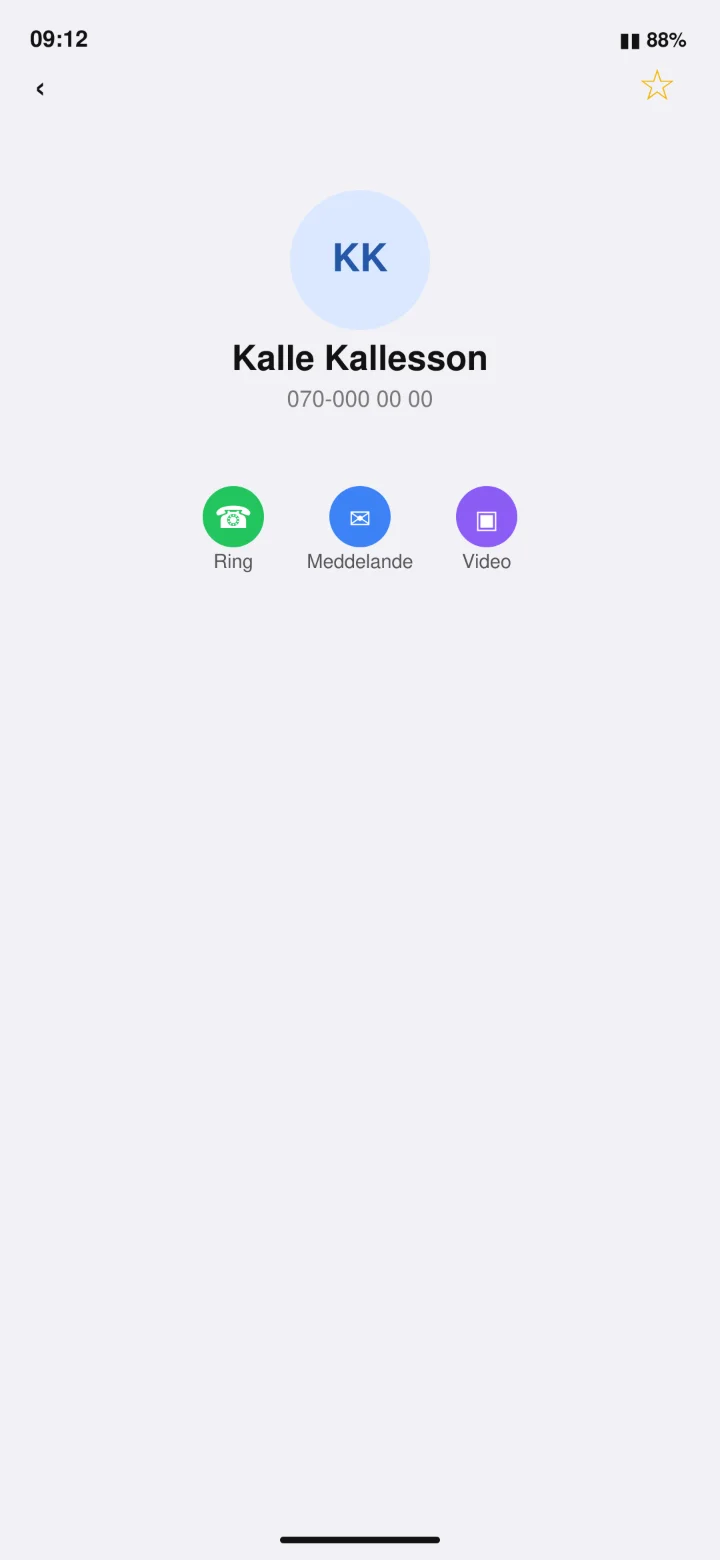 4Step 4 of 7 · Android
Tap the empty star in the top right corner.
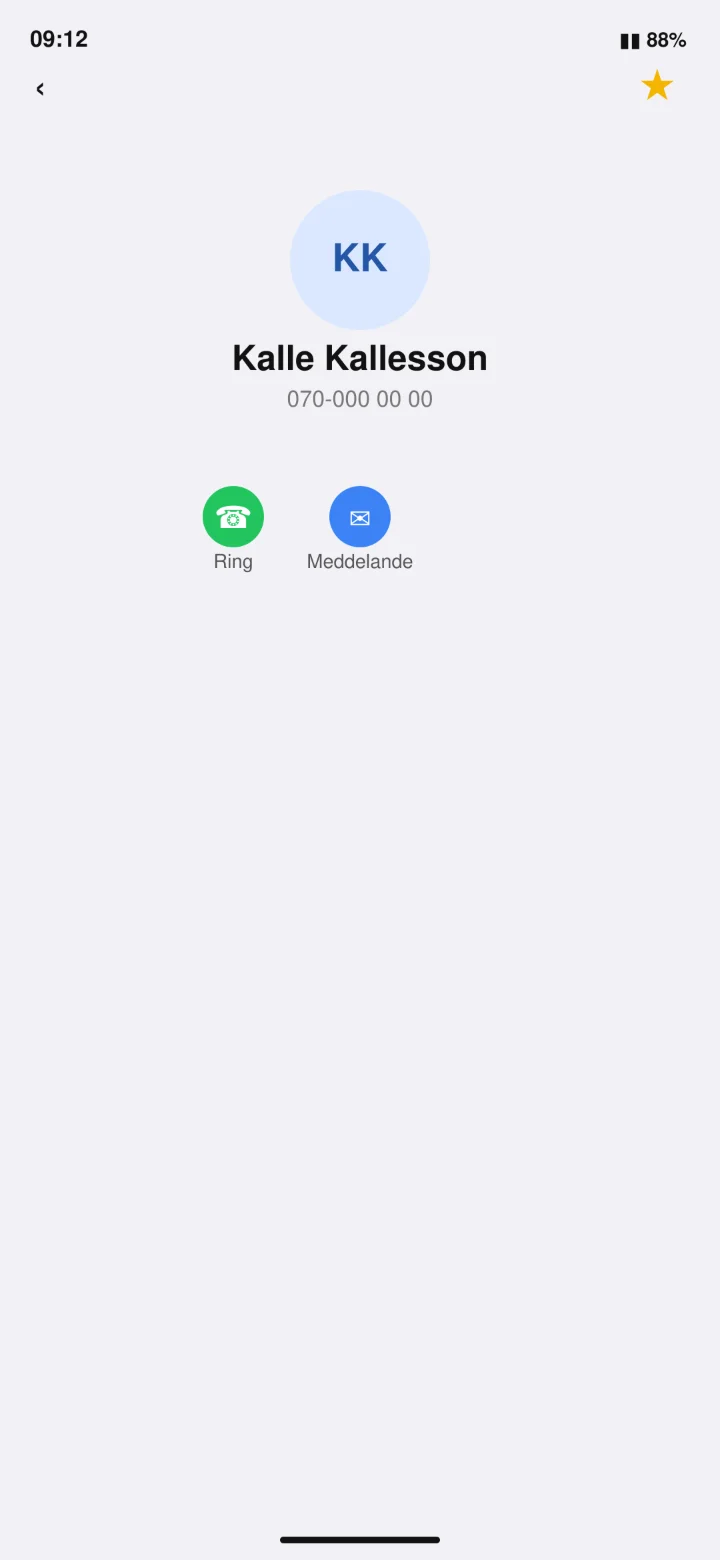 5Step 5 of 7 · Android
When the star is yellow, Kalle is saved as a favorite.
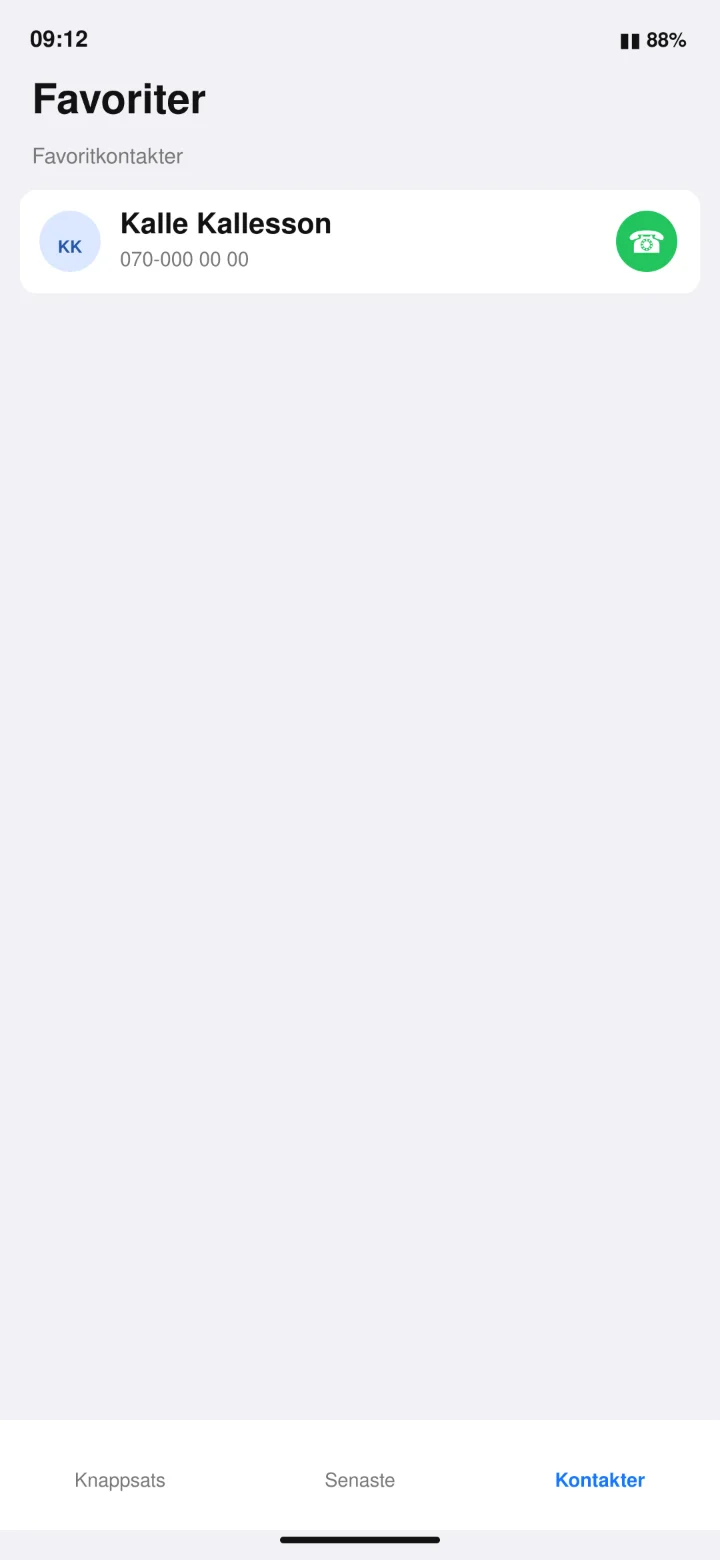 6Step 6 of 7 · Android
Open Favoriter (Favorites) and tap the green handset next to Kalle.
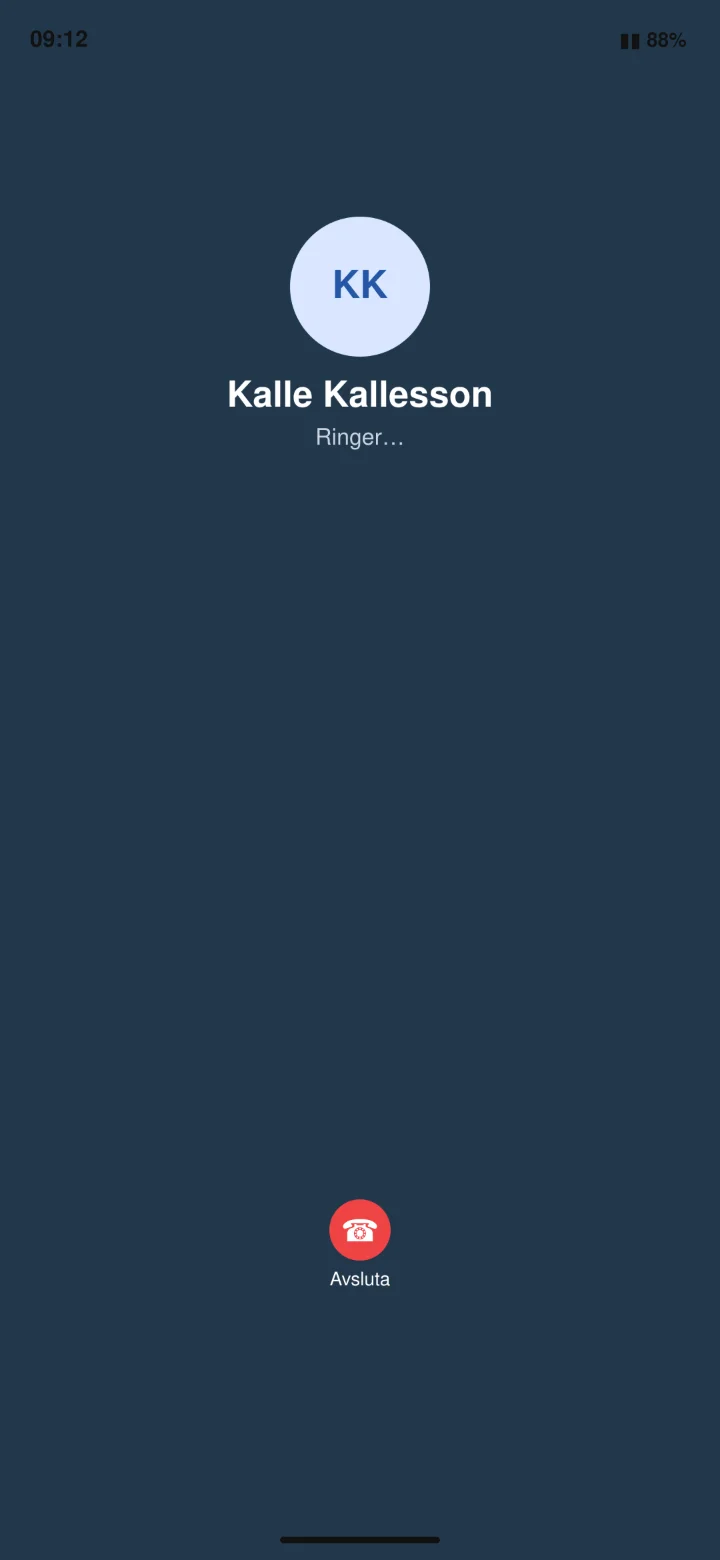 7Step 7 of 7 · Android
Your phone is now calling Kalle Kallesson.