Print the guide and keep it next to your phone while you do the steps.
Tip: untick “Headers and footers” in the print dialog to leave out the web address.
How to send pictures in WhatsApp
Keep in touch
 Android
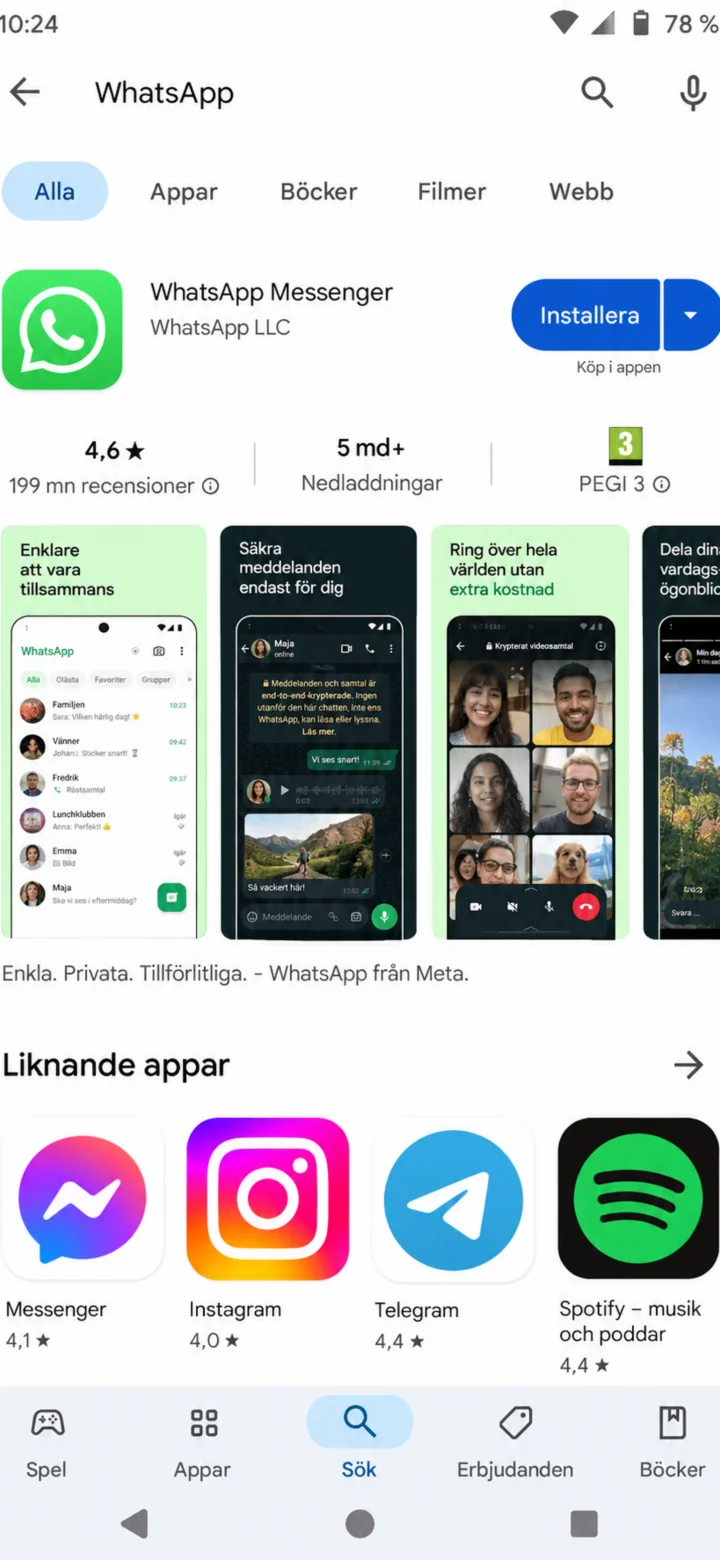 1Step 1 of 11 · Android
Open Google Play and search for WhatsApp.
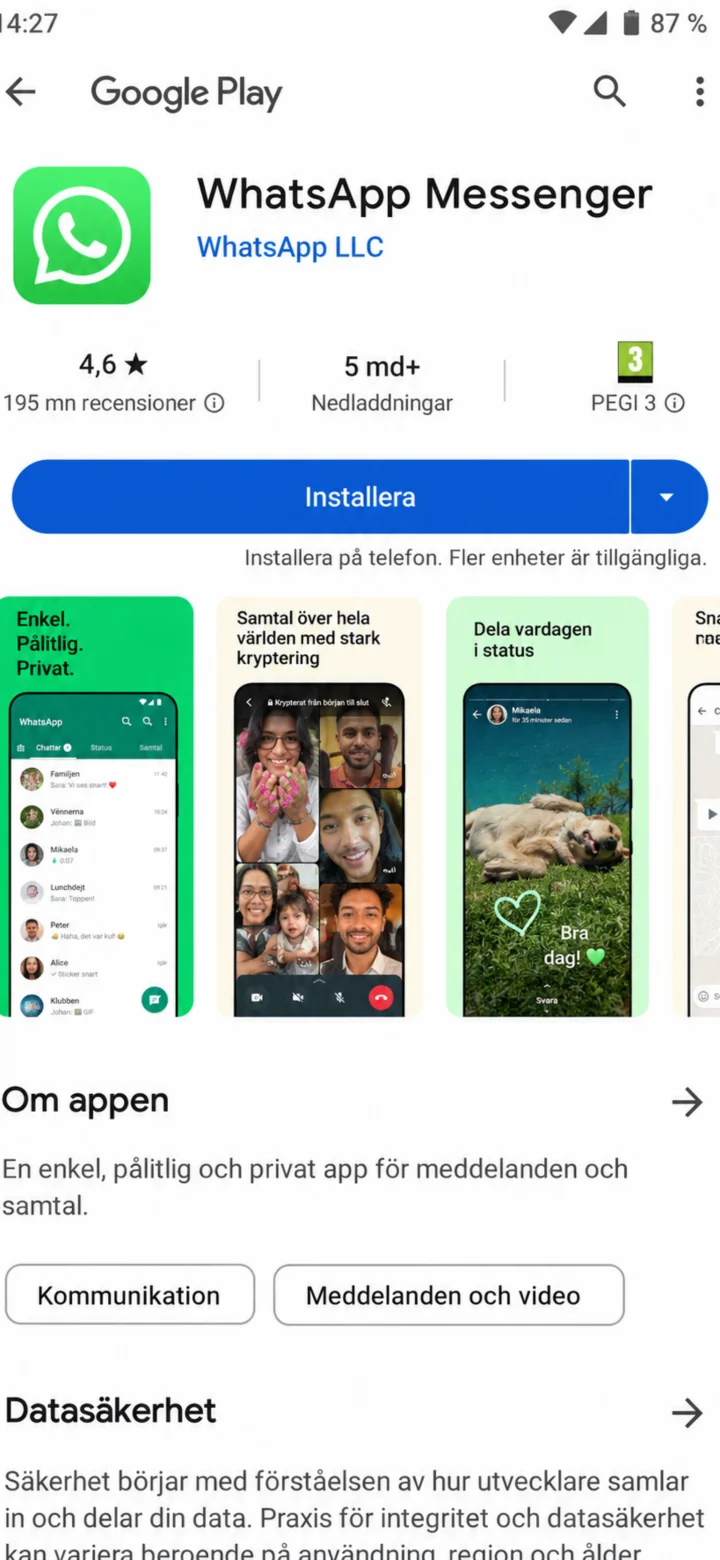 2Step 2 of 11 · Android
Check the app's name, then tap ”Installera” (Install).
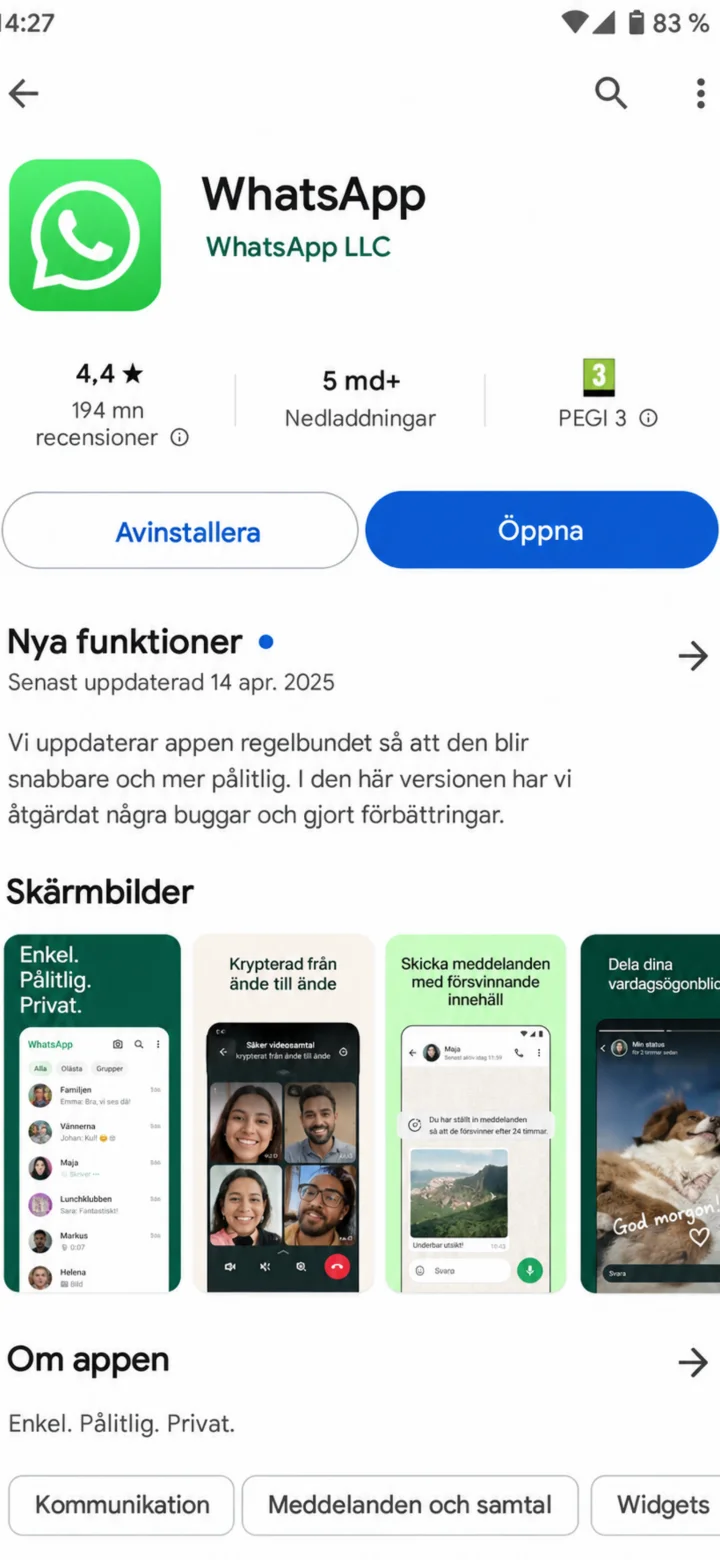 3Step 3 of 11 · Android
Once the installation is finished, tap ”Öppna” (Open).
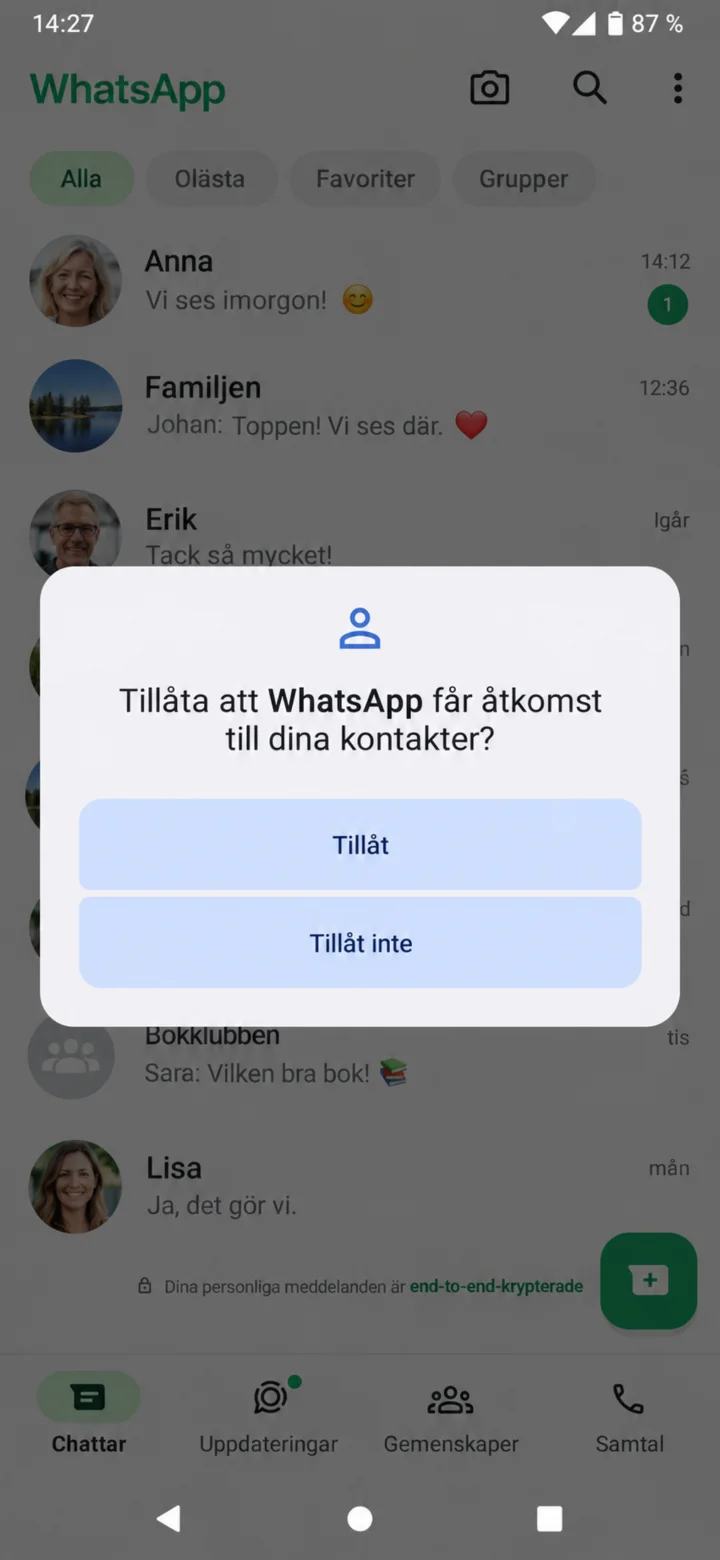 4Step 4 of 11 · Android
Allow access to your contacts if you'd like to find people from your phone book easily.
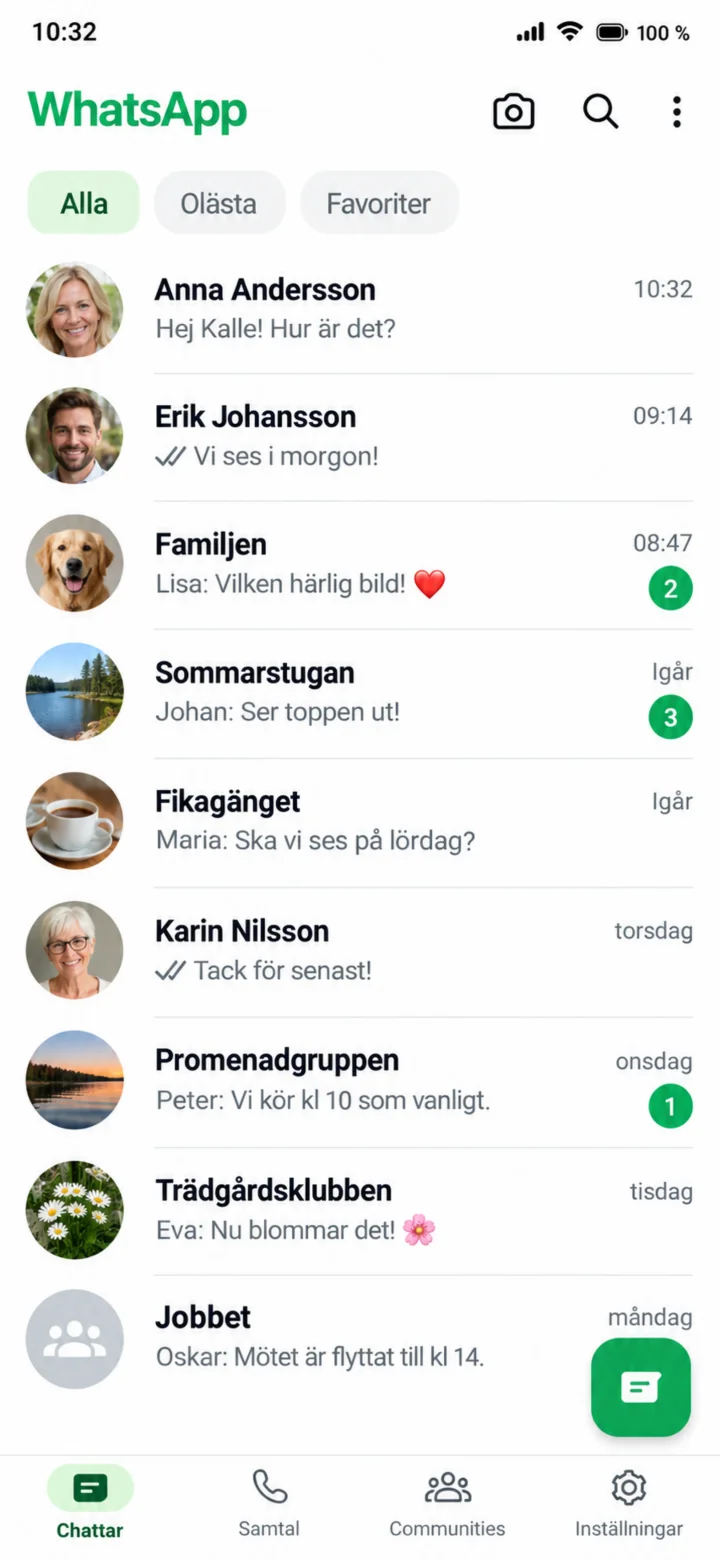 5Step 5 of 11 · Android
Open WhatsApp and tap on the person you want to send a message to.
 6Step 6 of 11 · Android
Now that the chat is open, tap in the ”Meddelande” (Message) field at the very bottom.
 7Step 7 of 11 · Android
Write your message, then tap the green send button.
 8Step 8 of 11 · Android
To send a picture, tap the paperclip or the plus sign.
 9Step 9 of 11 · Android
Tap ”Galleri” (Gallery) to choose a picture from your phone.
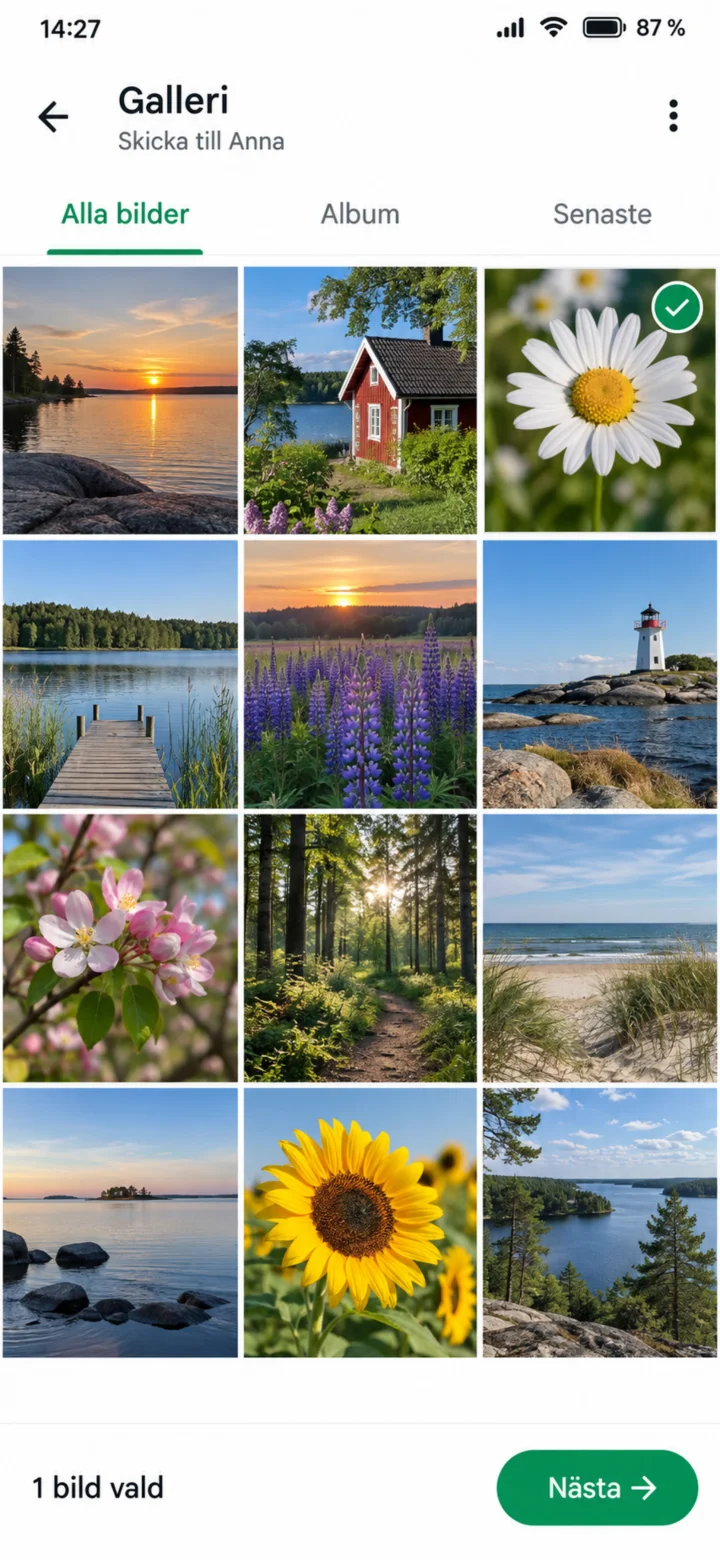 10Step 10 of 11 · Android
Tap the picture you want to send, then choose ”Nästa” (Next).
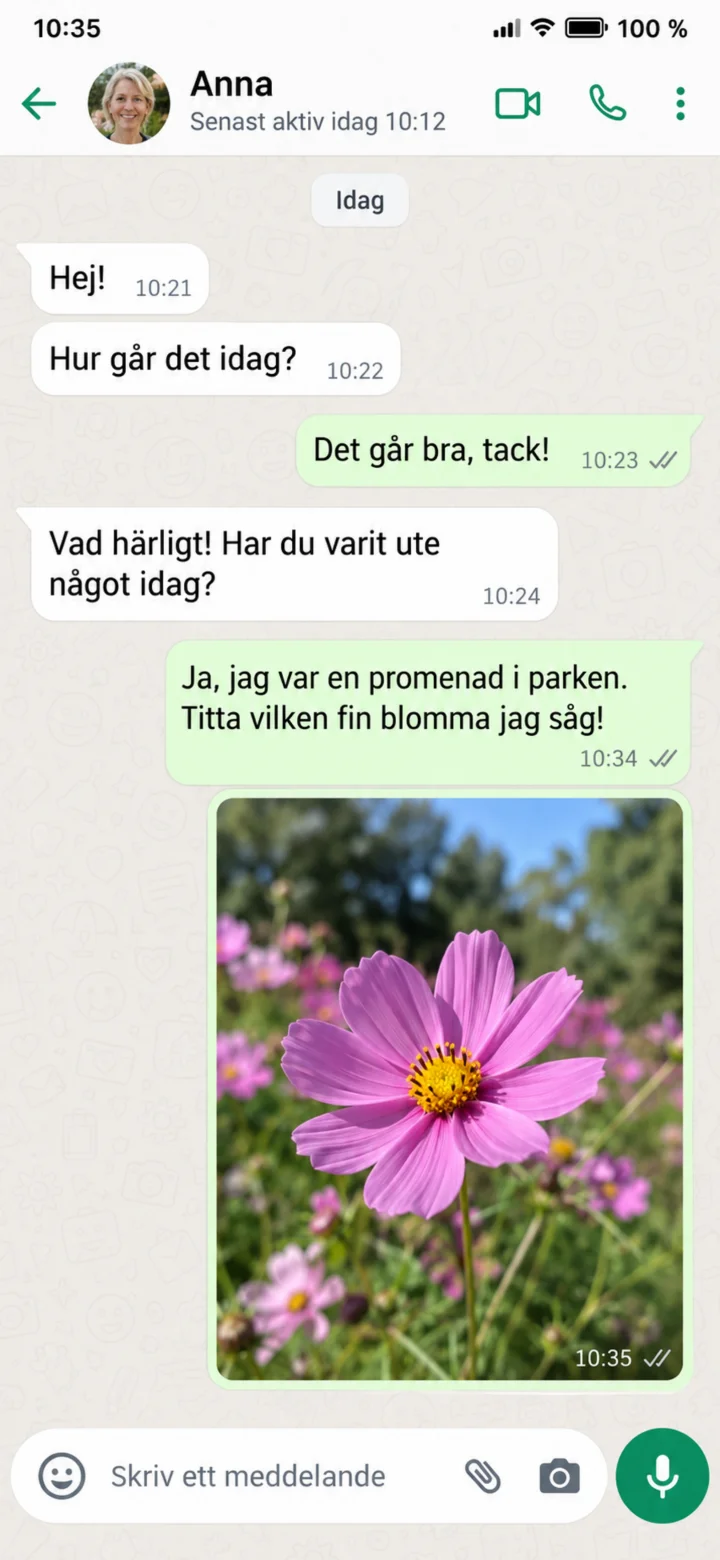 11Step 11 of 11 · Android
The picture will now appear in the chat. The checkmarks will show you that it has been sent.