Print the guide and keep it next to your phone while you do the steps.
Tip: untick “Headers and footers” in the print dialog to leave out the web address.
Facebook – Get Started
Keep in touch
 iPhone
 1Step 1 of 8 · iPhone
Open the App Store and search for Facebook. Make sure the app is from Meta and tap ”Hämta” (Get) or ”Öppna” (Open).
 2Step 2 of 8 · iPhone
When Facebook opens, choose ”Logga in” (Log in) if you already have an account. Choose ”Skapa nytt konto” (Create new account) if you don't have one.
 3Step 3 of 8 · iPhone
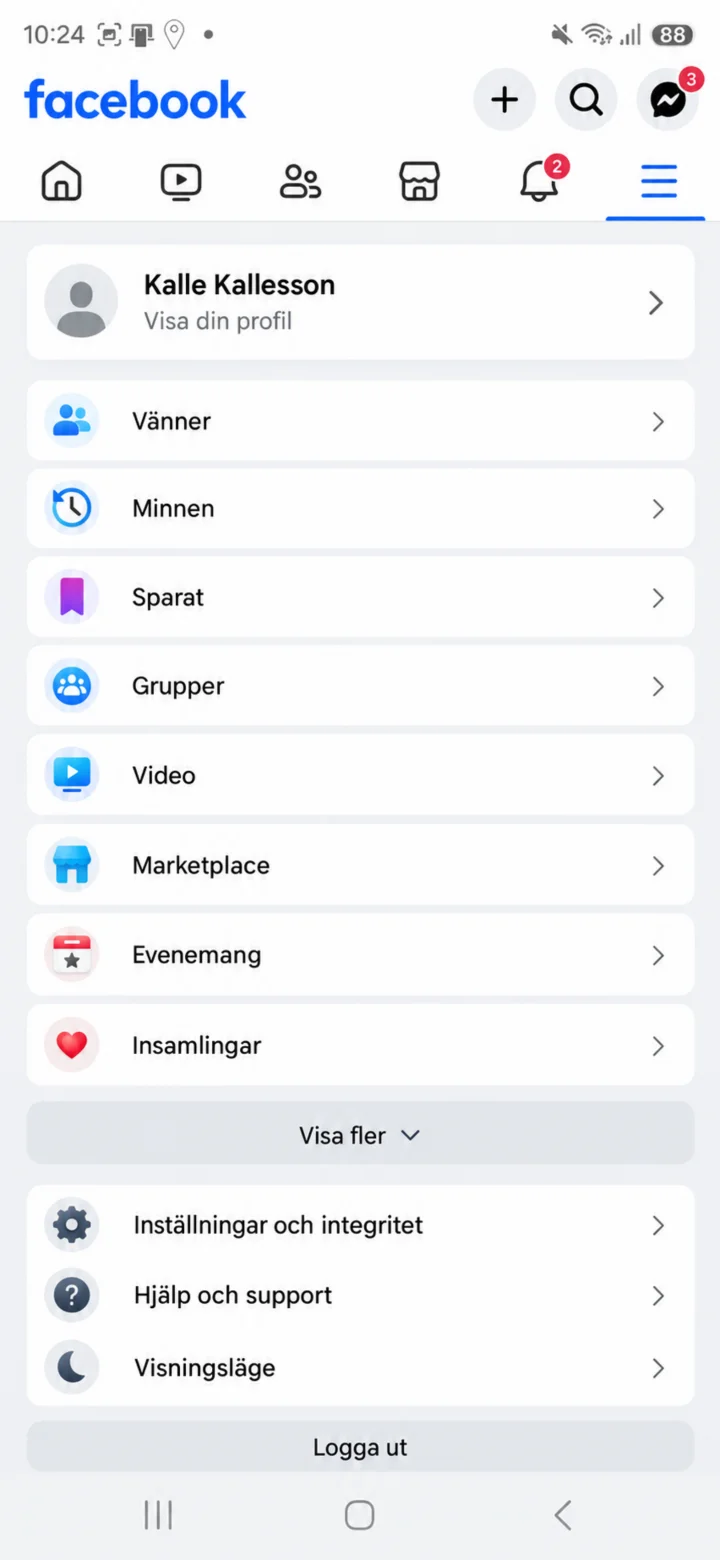
Now you're on Facebook. On the home page, you'll see posts from different people and companies that you can tap and read. To set up your profile, tap the menu button with three lines to go to your profile.
 4Step 4 of 8 · iPhone
Tryck på ditt namn eller Visa din profil högst upp i menyn. Då öppnas din Facebook-profil.
 5Step 5 of 8 · iPhone
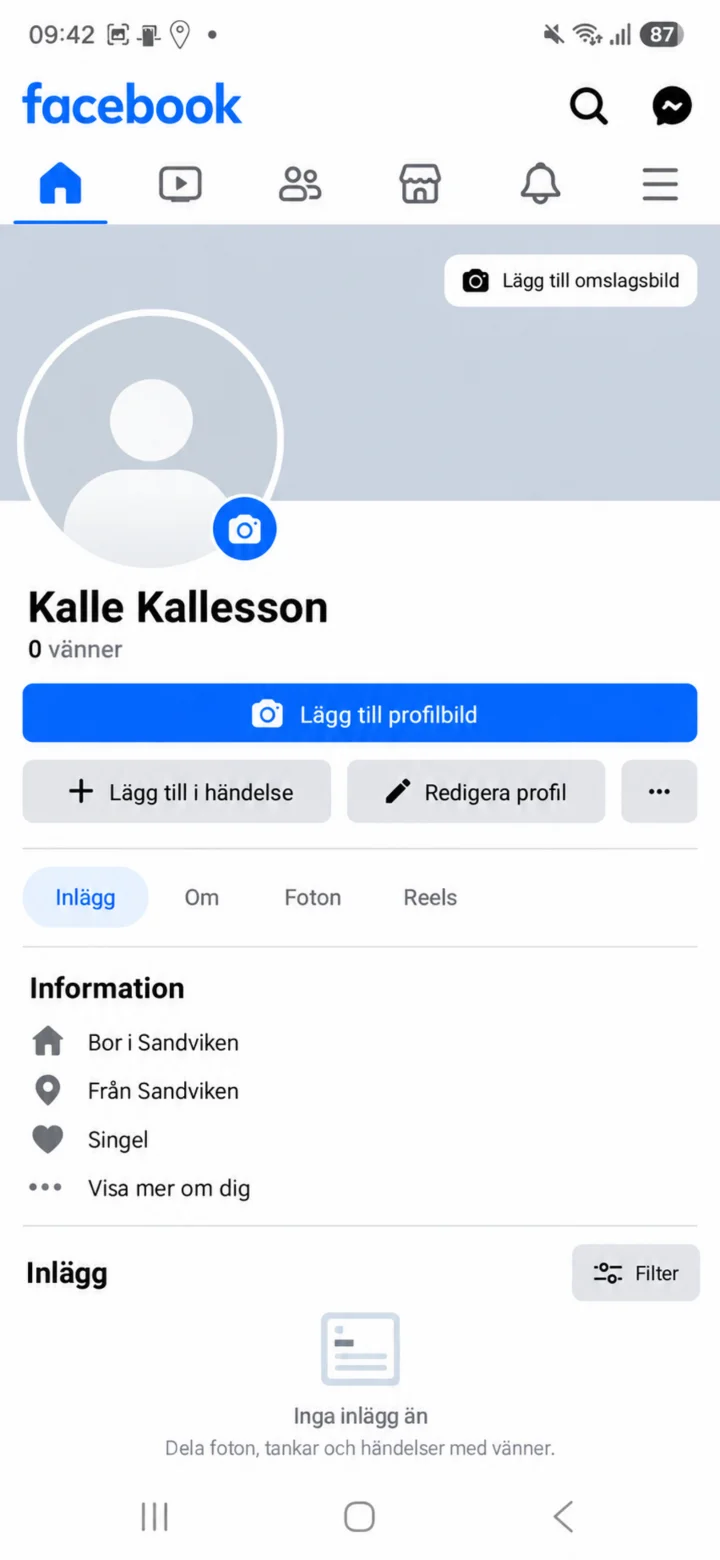
On your profile page, tap ”Lägg till profilbild” (Add profile picture) next to the empty profile picture.
 6Step 6 of 8 · iPhone
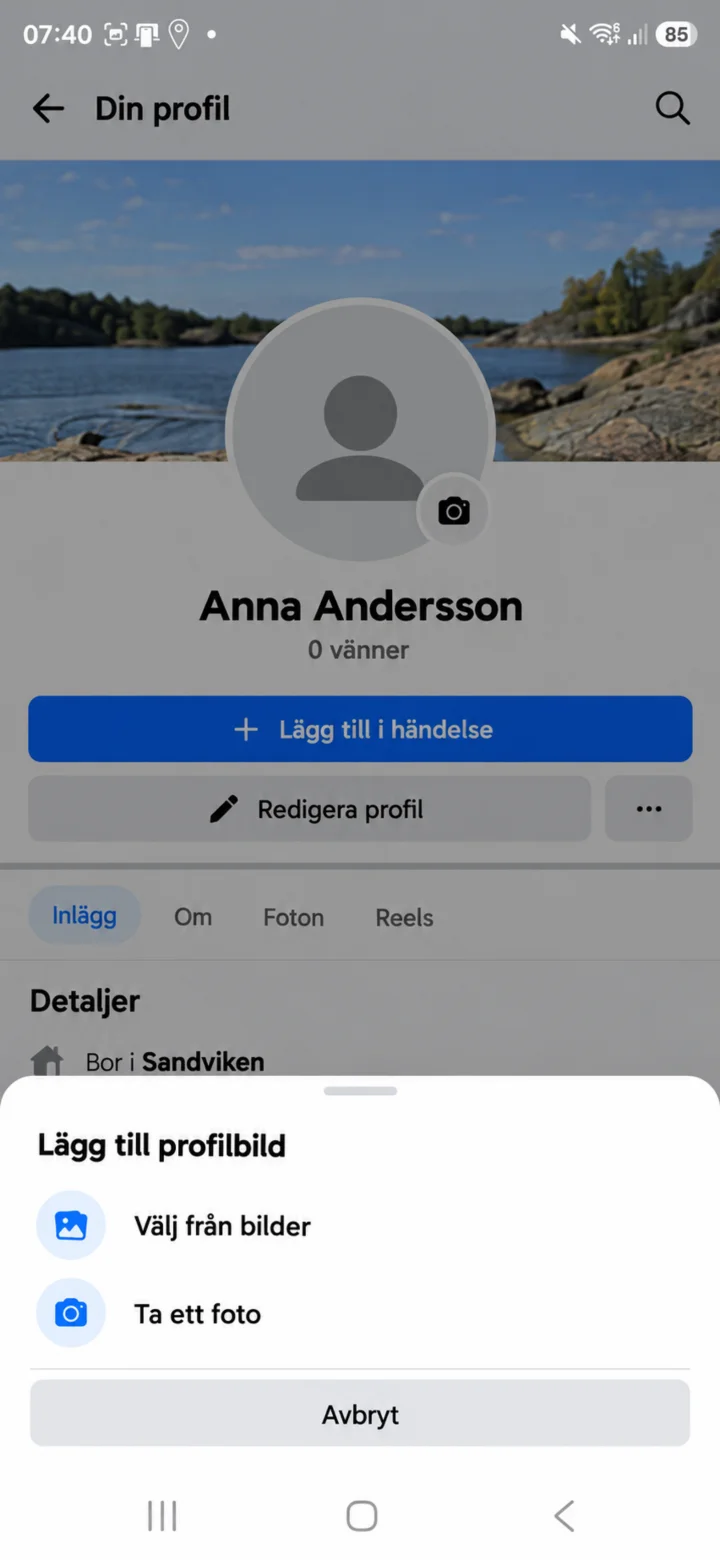
Choose ”Välj från bilder” (Select from photos) if the picture is already on your phone. Choose ”Ta ett foto” (Take a photo) if you want to take a new picture.
 7Step 7 of 8 · iPhone
Now the picture is uploaded. Move the picture so your face is clearly visible. Then tap ”Spara” (Save).
 8Step 8 of 8 · iPhone
Now your new profile picture is displayed on your Facebook profile. You can later tap ”Redigera profil” (Edit profile) if you want to change something.