Print the guide and keep it next to your phone while you do the steps.
Tip: untick “Headers and footers” in the print dialog to leave out the web address.
How to get Mobilt BankID
Pay and Swish
 iPhone
 1Step 1 of 12 · iPhone
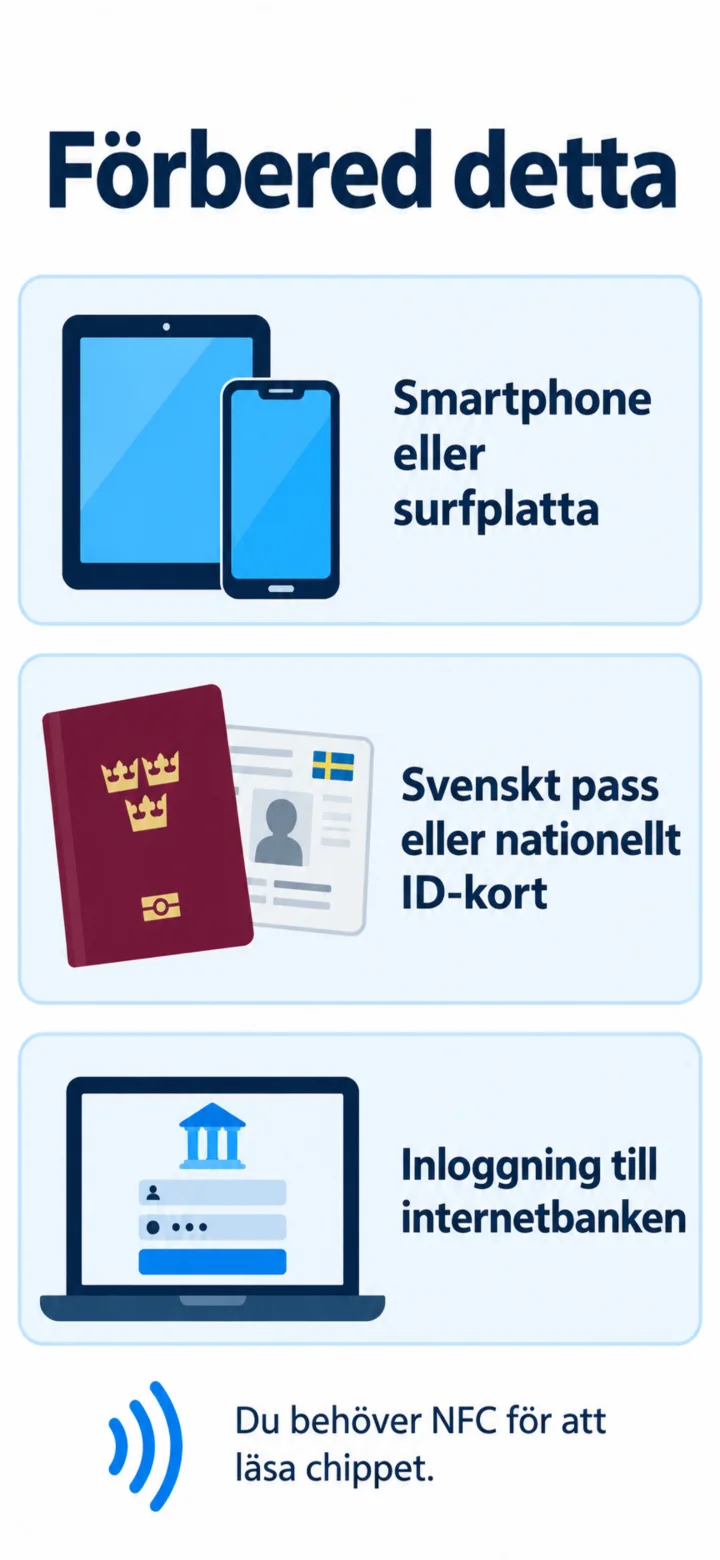
Hello! Here I'll show you how to get Mobilt BankID. You can pause whenever you want and play again. To get started, you'll need a mobile phone or tablet, a Swedish passport or national ID card, and login details for your internet bank.
 2Step 2 of 12 · iPhone
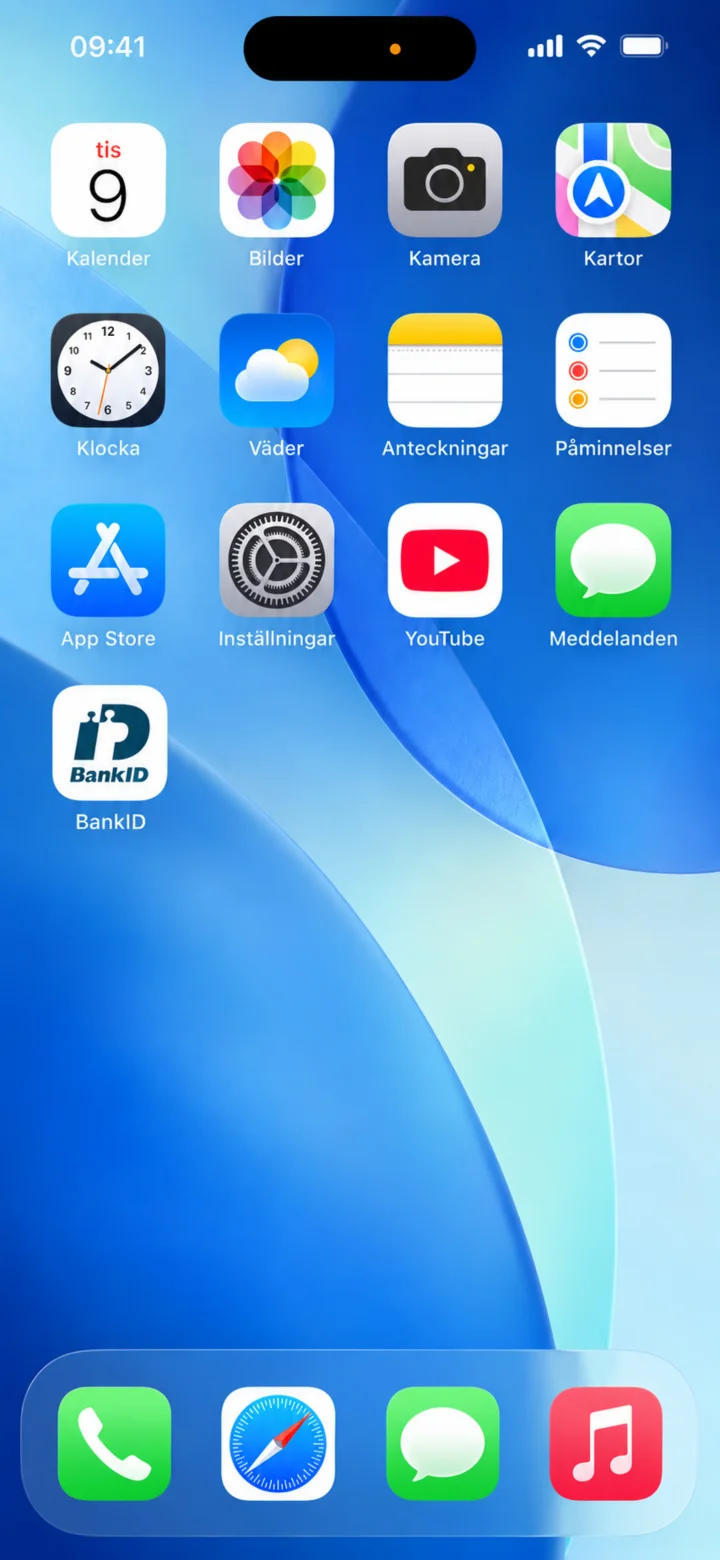
Open the App Store.
 3Step 3 of 12 · iPhone
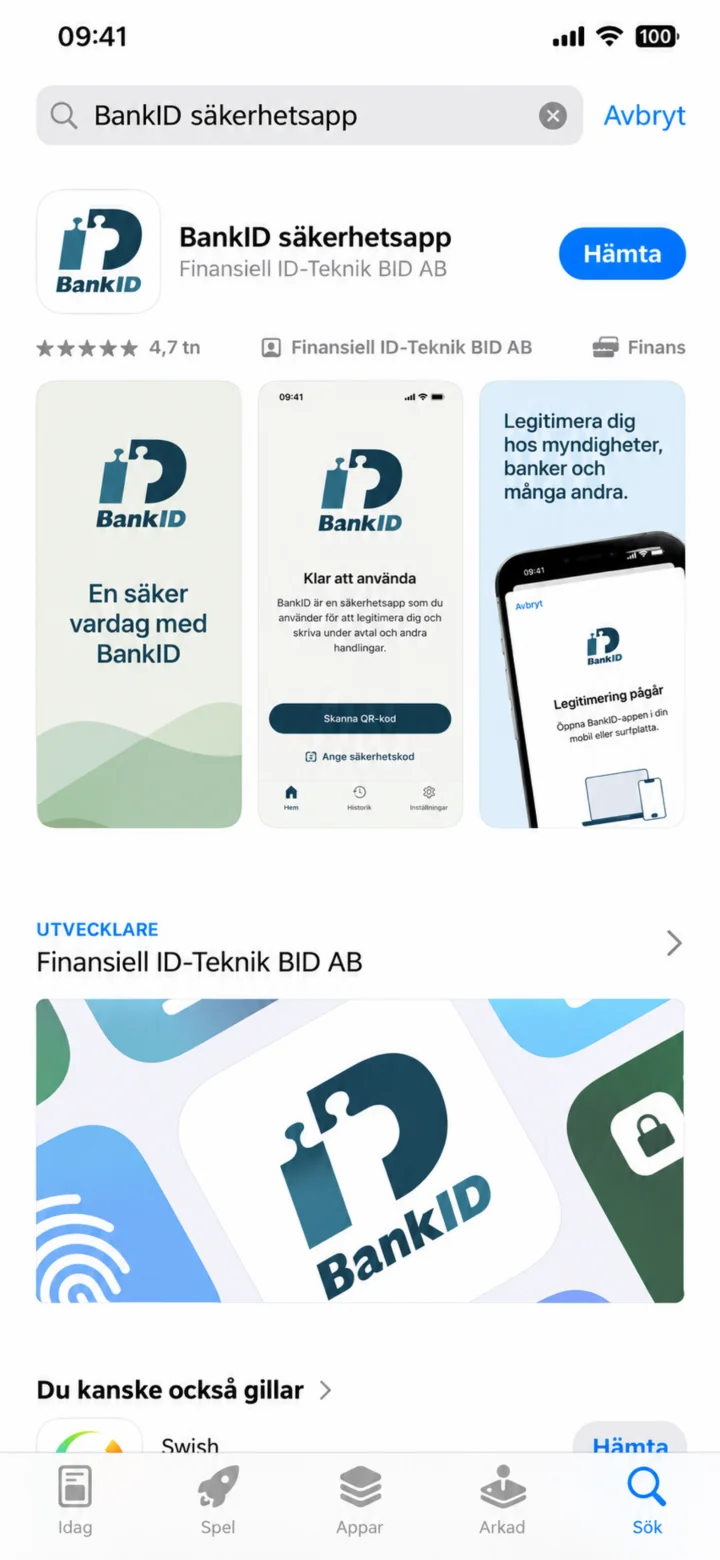
Type BankID in the search bar. Tap the blue button that says ”Hämta” (Get).
 4Step 4 of 12 · iPhone
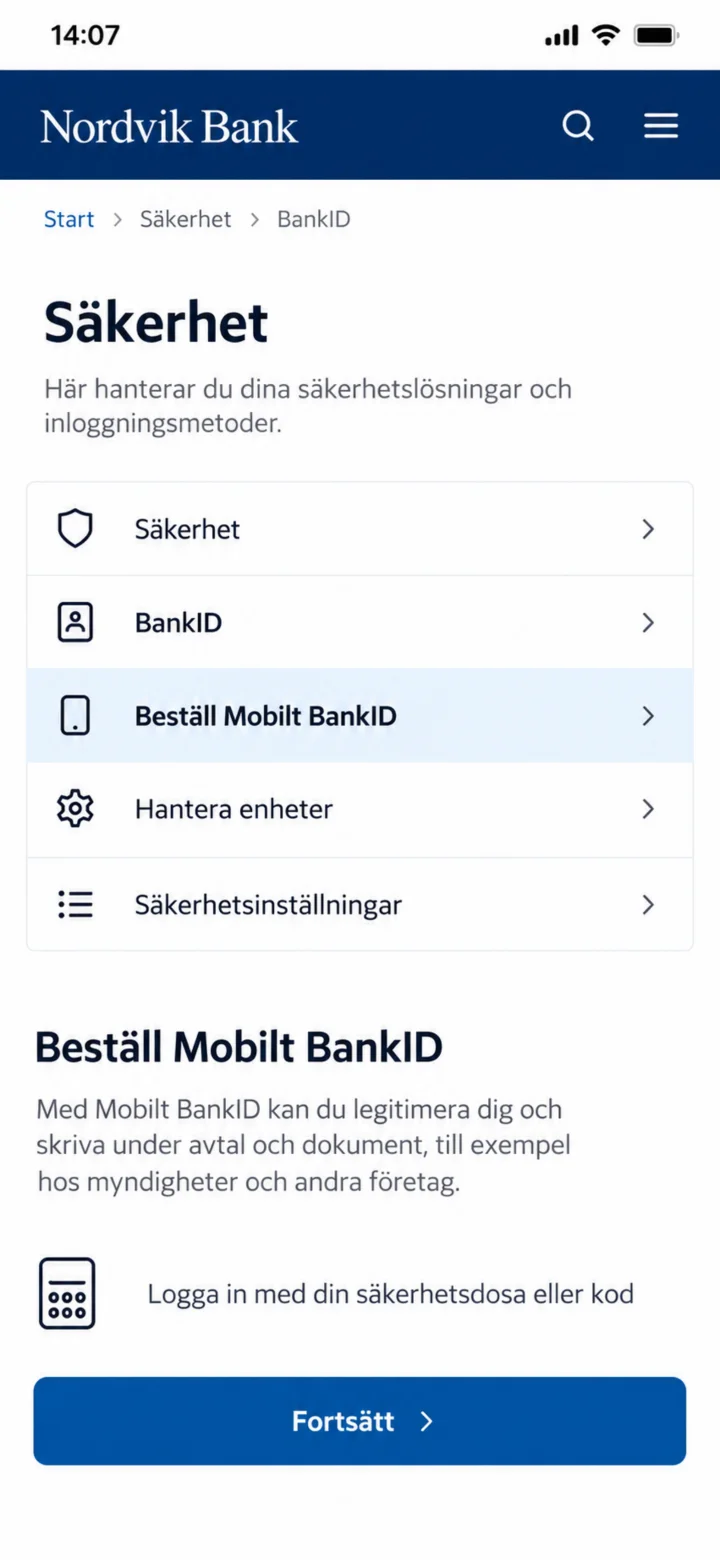
Now you are in your bank's app. Tap the blue button ”Fortsätt” (Continue) at the bottom to order Mobilt BankID.
 5Step 5 of 12 · iPhone
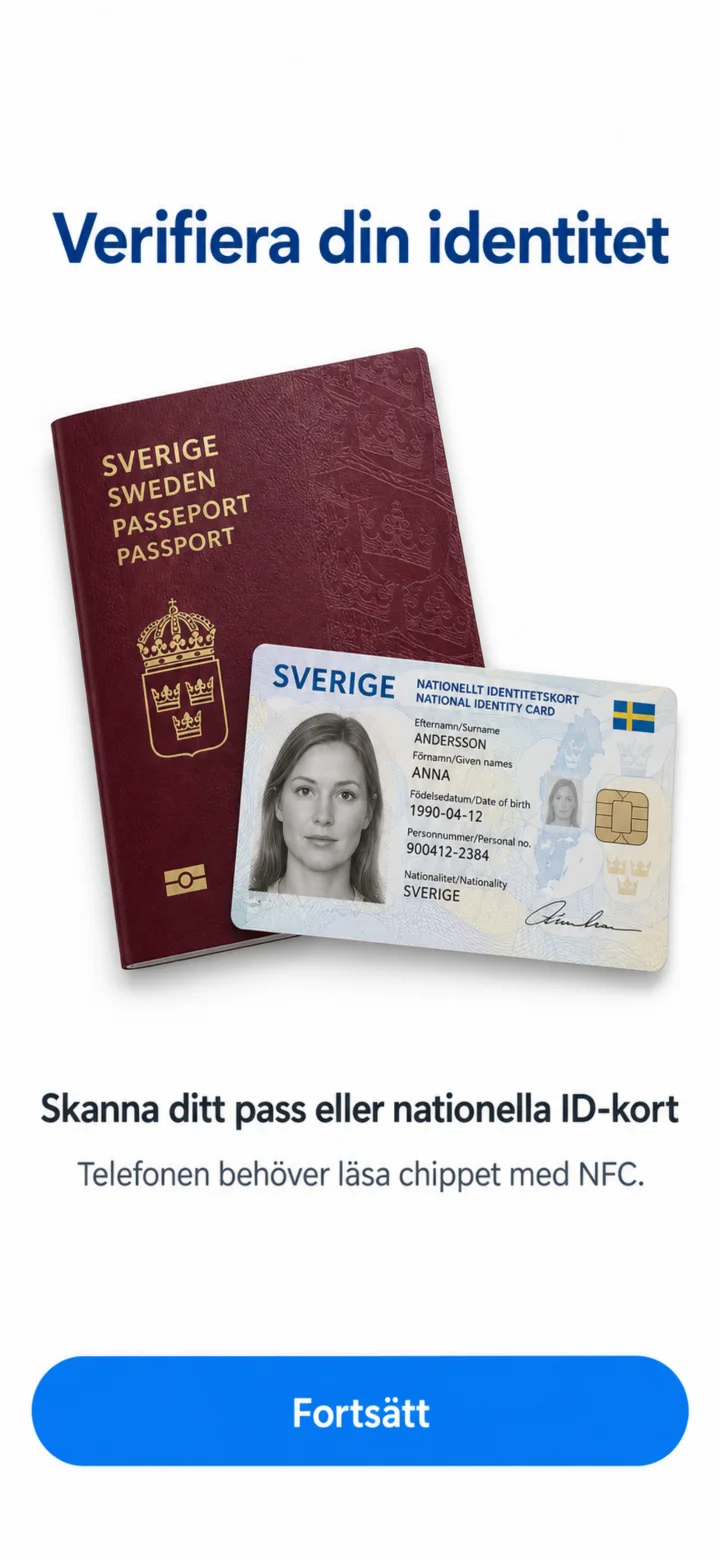
Here you see that you need to verify your identity with your passport or national ID card. Tap the blue button ”Fortsätt” (Continue) at the bottom.
 6Step 6 of 12 · iPhone
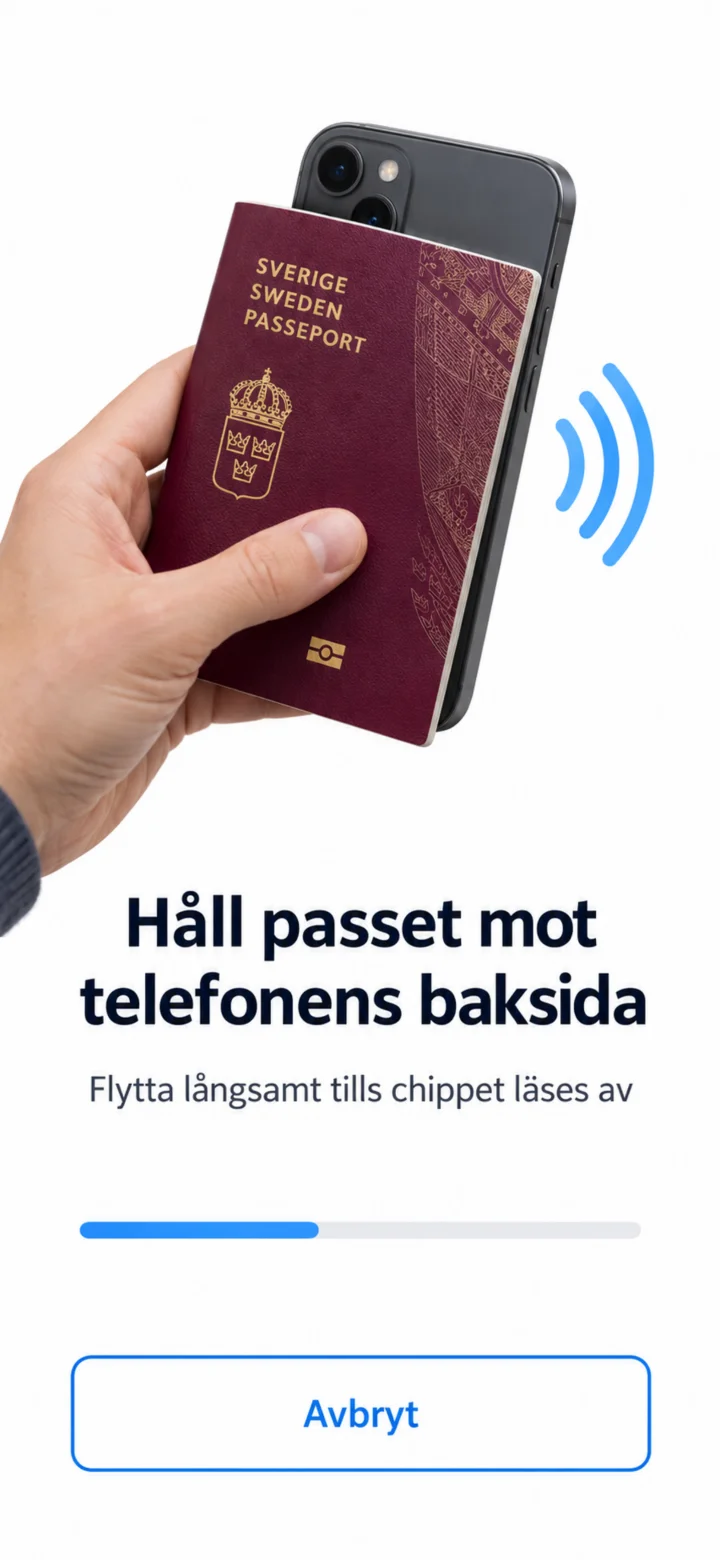
Now you should hold your passport or ID card against the back of your phone. Move it slowly until the phone reads the chip. You don't need to tap anything here.
 7Step 7 of 12 · iPhone
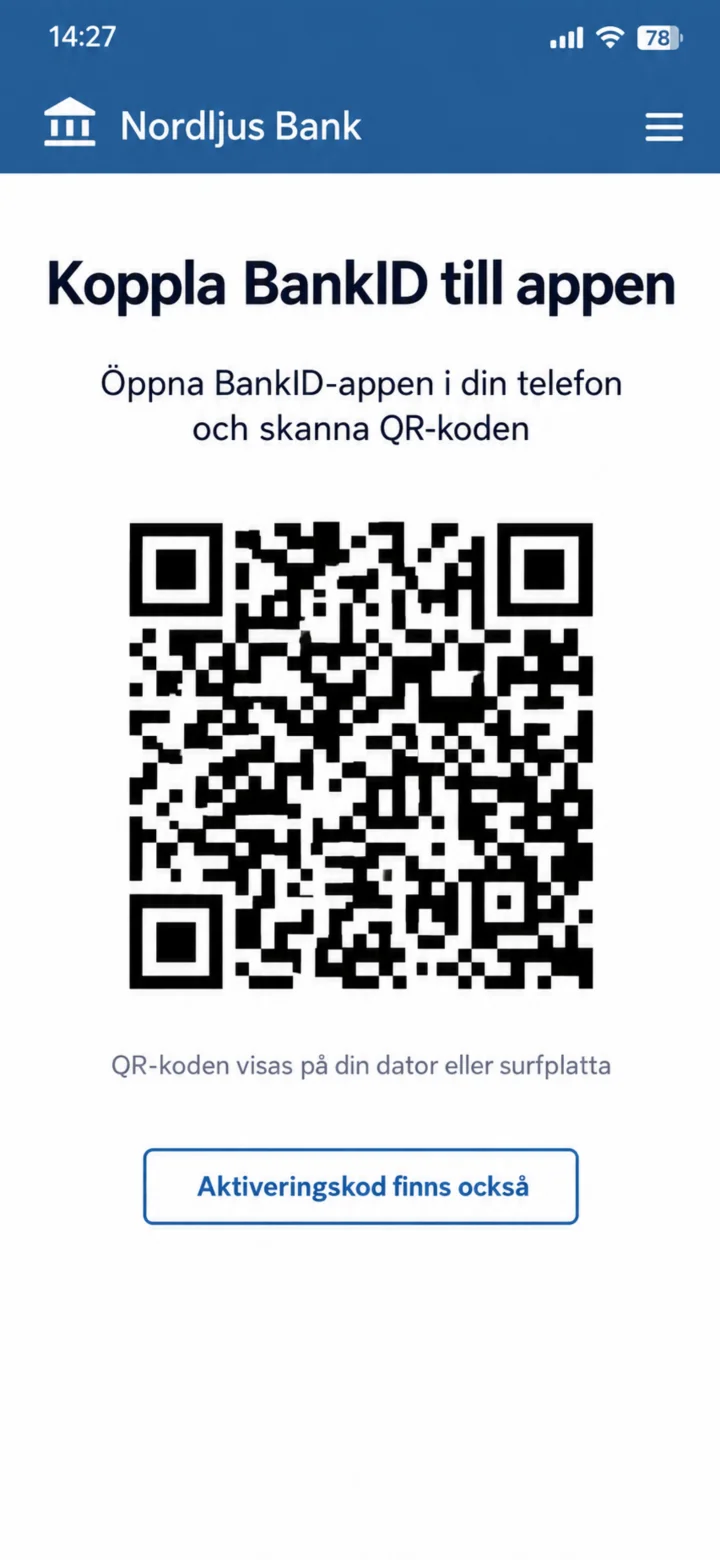
A QR code is now displayed on the screen. You should now open the BankID app that you downloaded earlier and scan this code. You don't need to tap anything on this screen. If you don't have another screen to display the QR code on, you can tap ”Använd aktiveringskod” (Use activation code) at the bottom.
 8Step 8 of 12 · iPhone
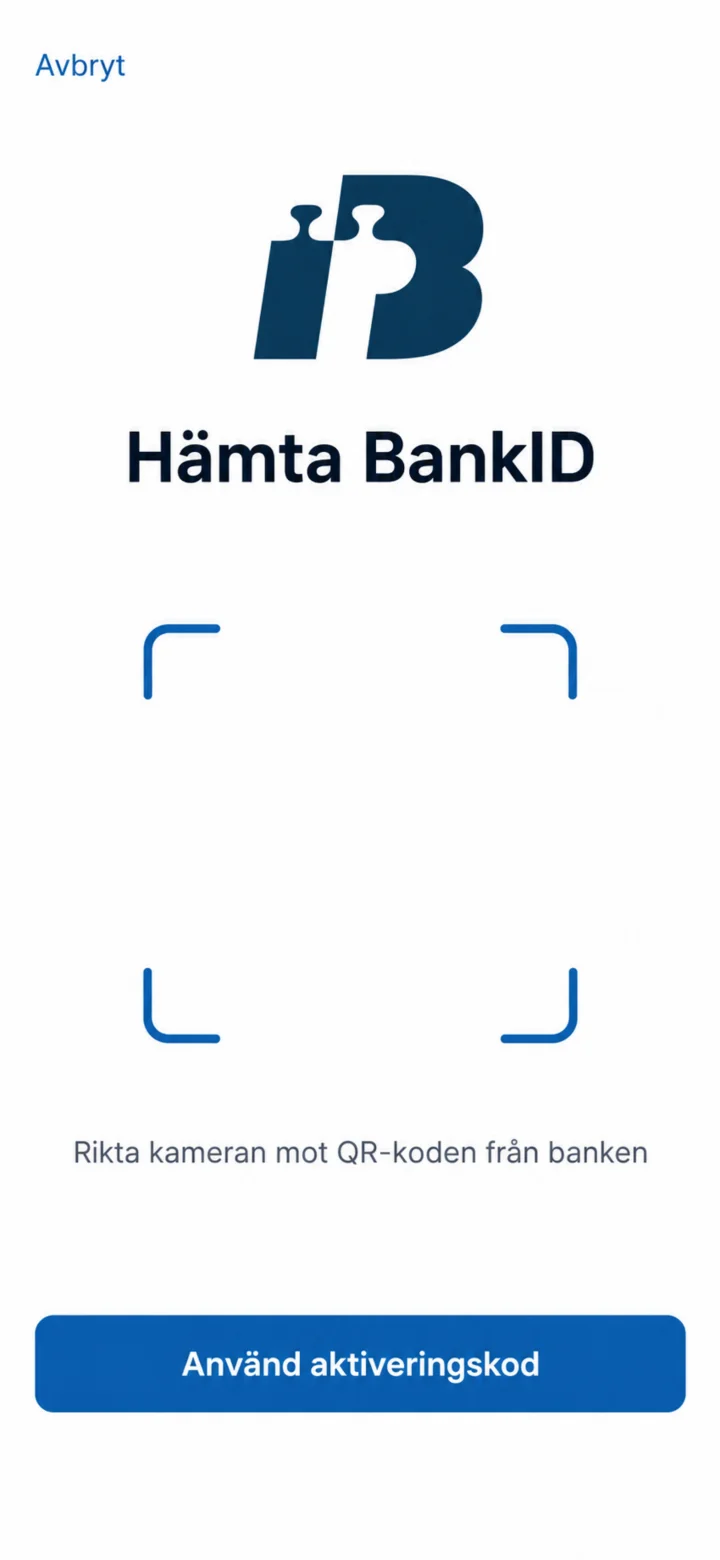
Now you are in the BankID app. Point your phone's camera at the QR code that was displayed in your bank's app. If you don't have another screen to display the QR code on, you can tap ”Använd aktiveringskod” (Use activation code) at the bottom.
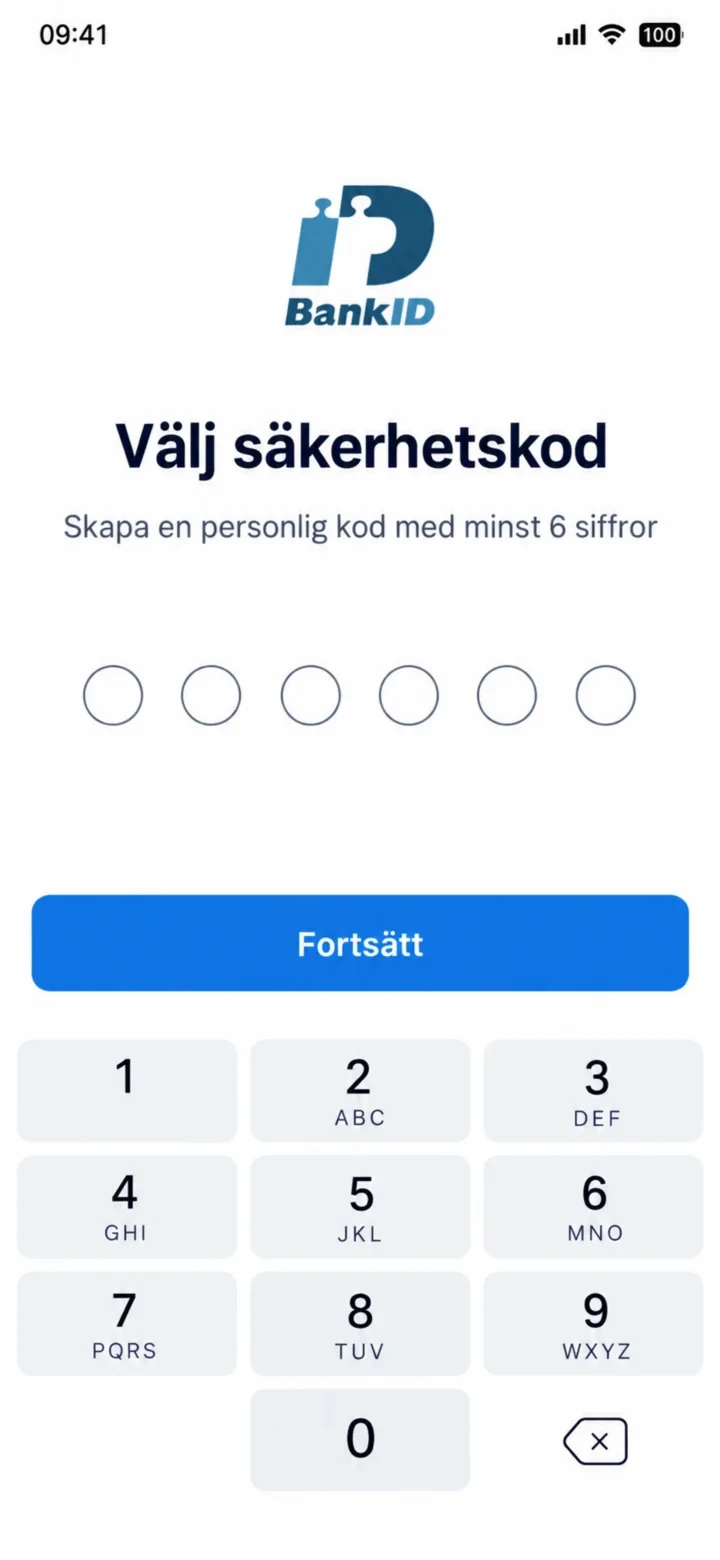 9Step 9 of 12 · iPhone
Now you should choose a personal security code with at least six digits. Enter your code and then tap the button ”Fortsätt” (Continue).
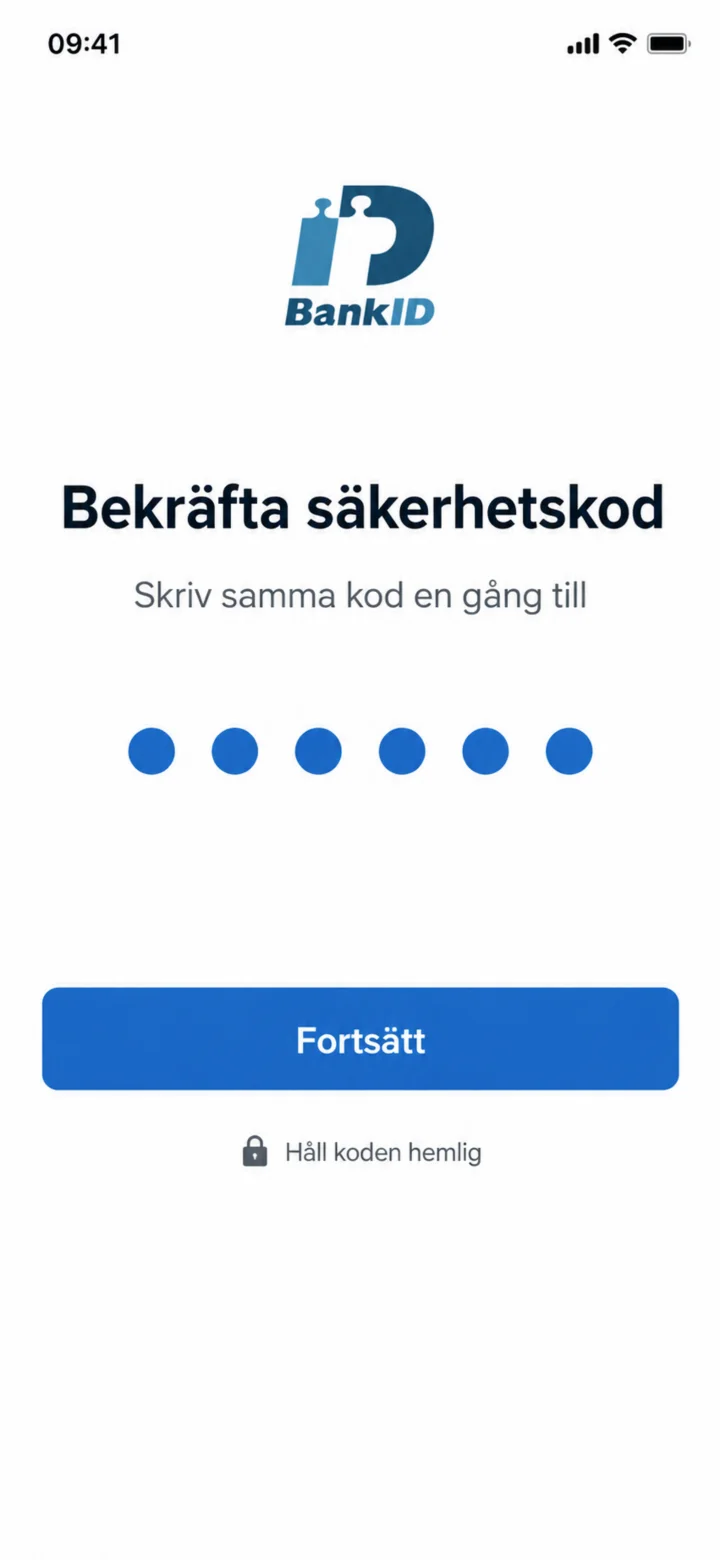 10Step 10 of 12 · iPhone
Enter the same code once more to confirm it. Then tap the blue button ”Fortsätt” (Continue).
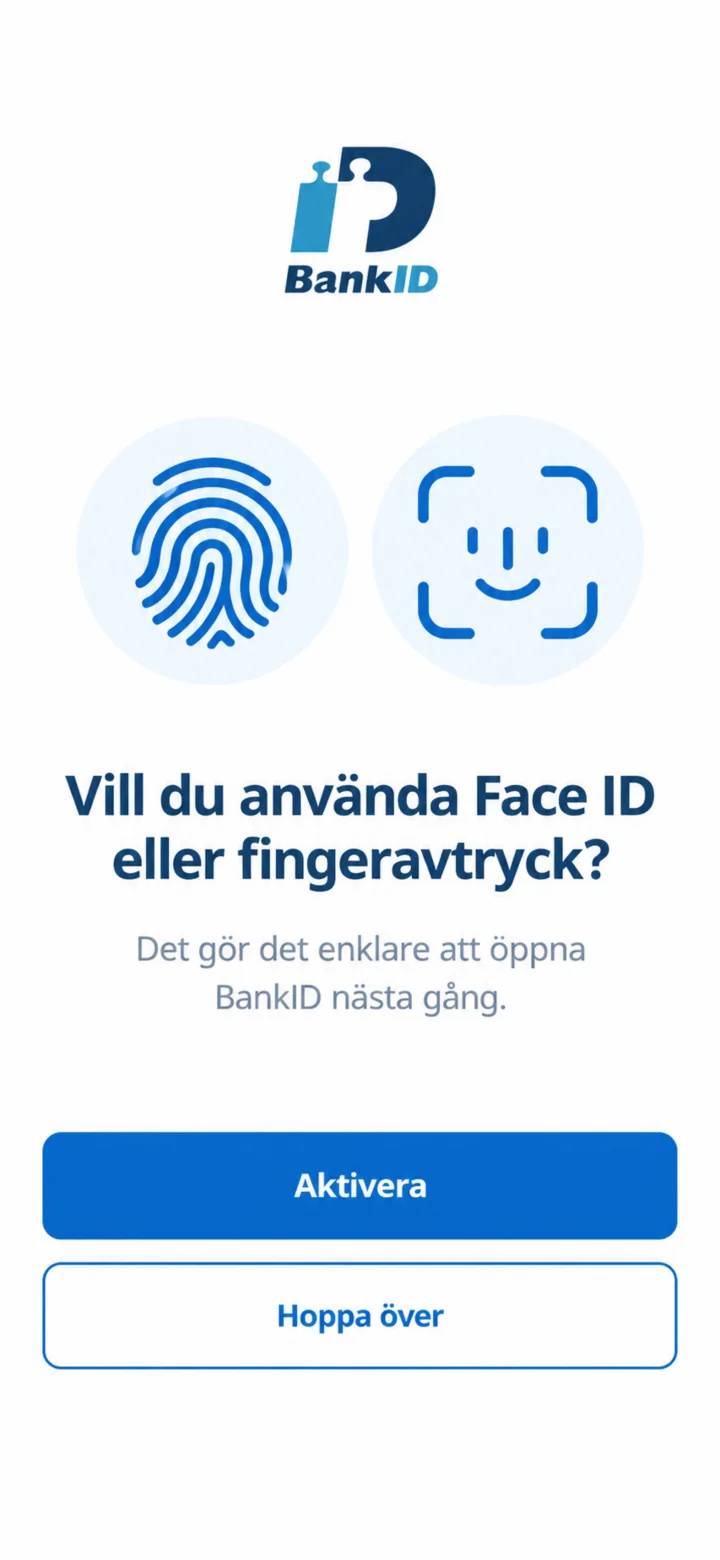 11Step 11 of 12 · iPhone
Here you can choose if you want to use Face ID or fingerprint to open BankID more easily next time. If you are unsure or don't want to, you can tap ”Hoppa över” (Skip) at the bottom.
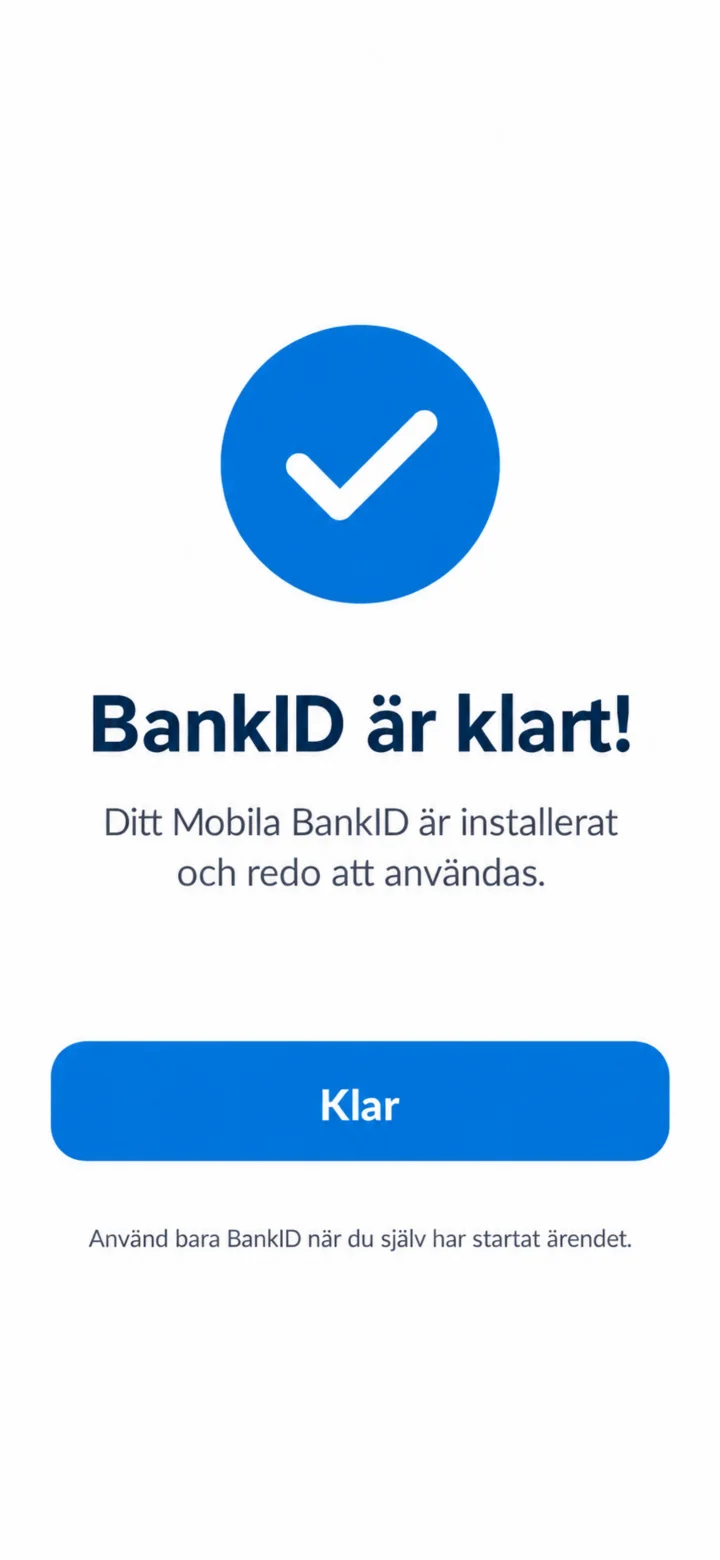 12Step 12 of 12 · iPhone
Congratulations! Your Mobilt BankID is now installed and ready to use. Tap the blue button ”Klar” (Done) to finish.