Print the guide and keep it next to your phone while you do the steps.
Tip: untick “Headers and footers” in the print dialog to leave out the web address.
How to save and change delivery in the PostNord app
Useful apps
 iPhone
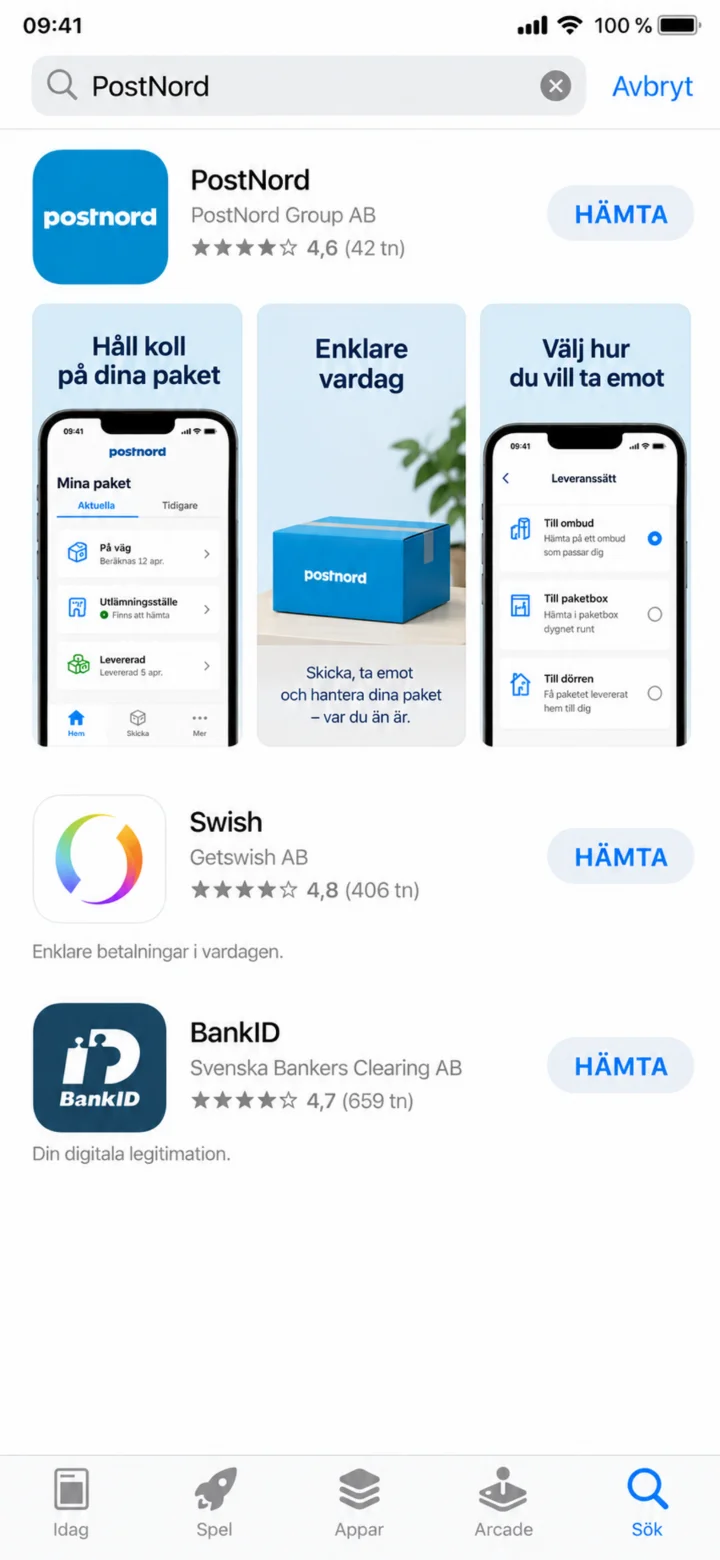 1Step 1 of 10 · iPhone
Open the App Store and search for PostNord.
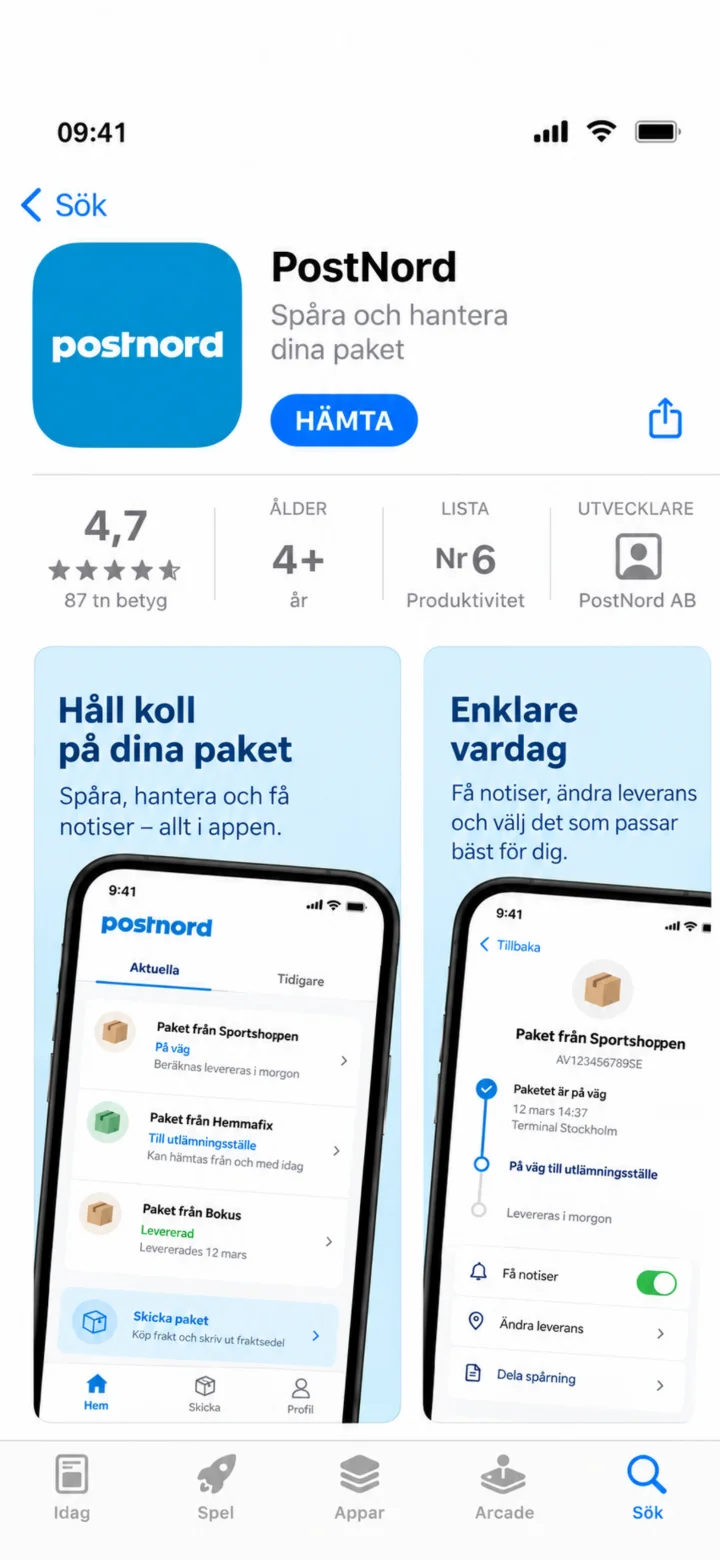 2Step 2 of 10 · iPhone
Tap ”Hämta” (Get) to install the PostNord app.
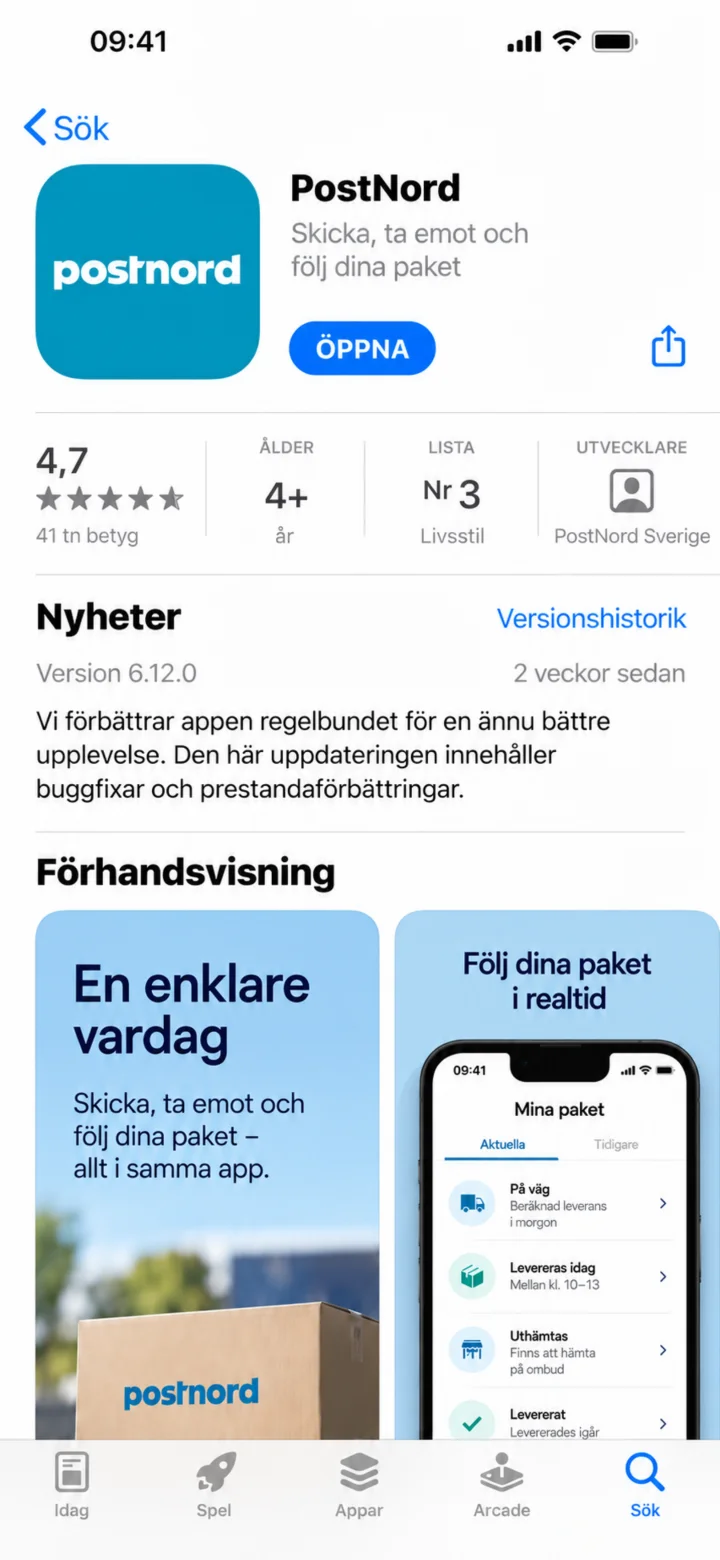 3Step 3 of 10 · iPhone
Once the installation is complete, tap ”Öppna” (Open).
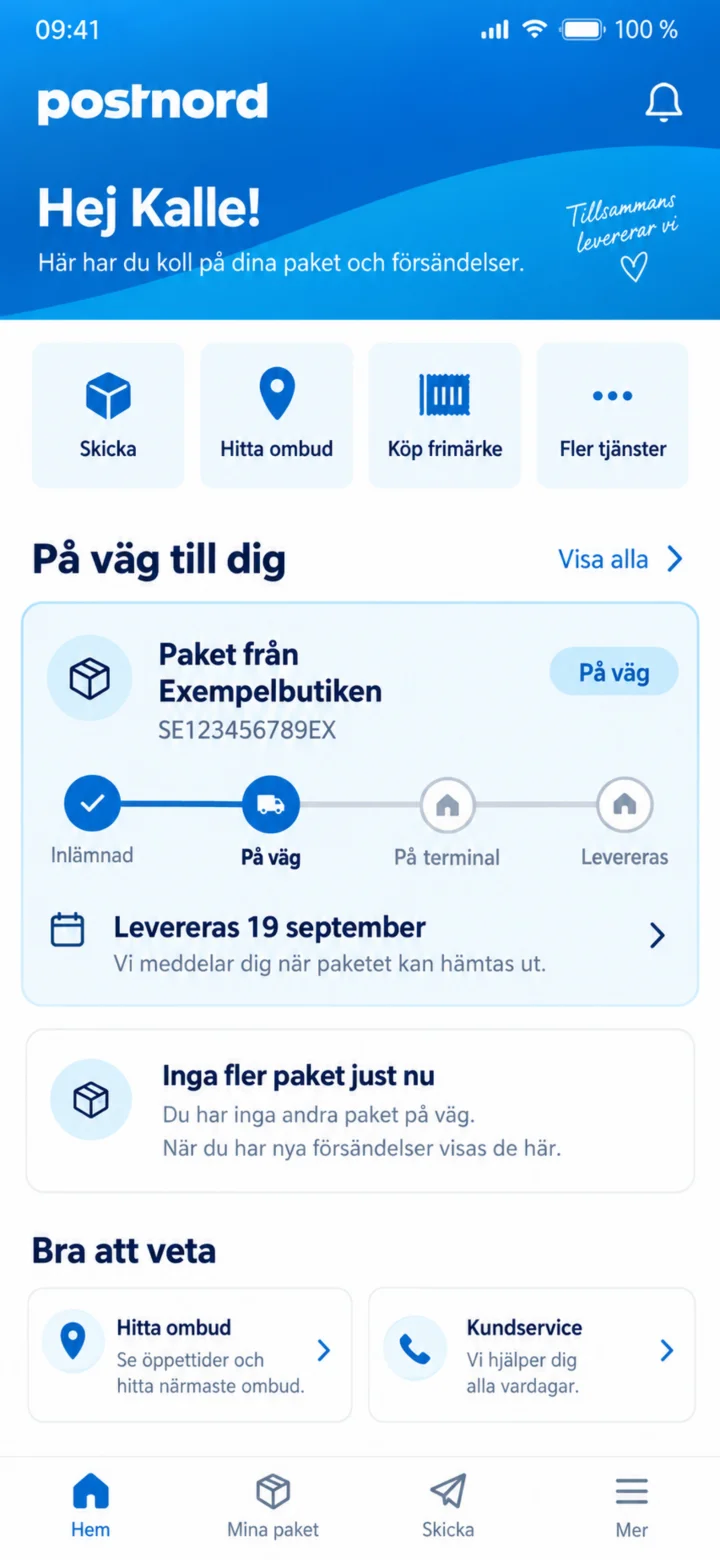 4Step 4 of 10 · iPhone
On the home screen, tap the package from Exempelbutiken (Example Store).
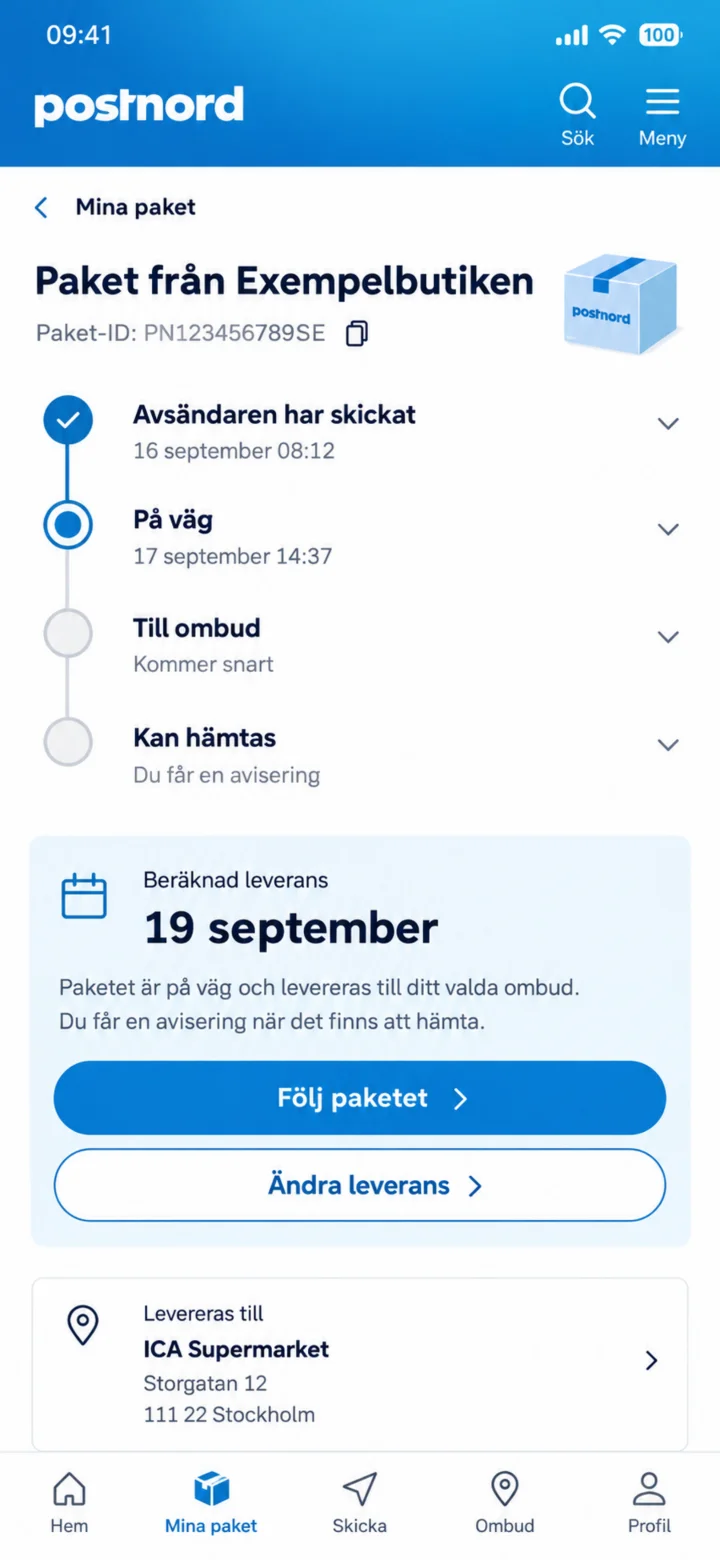 5Step 5 of 10 · iPhone
Här ser du paketets läge och beräknad leverans. Tryck på Följ paketet.
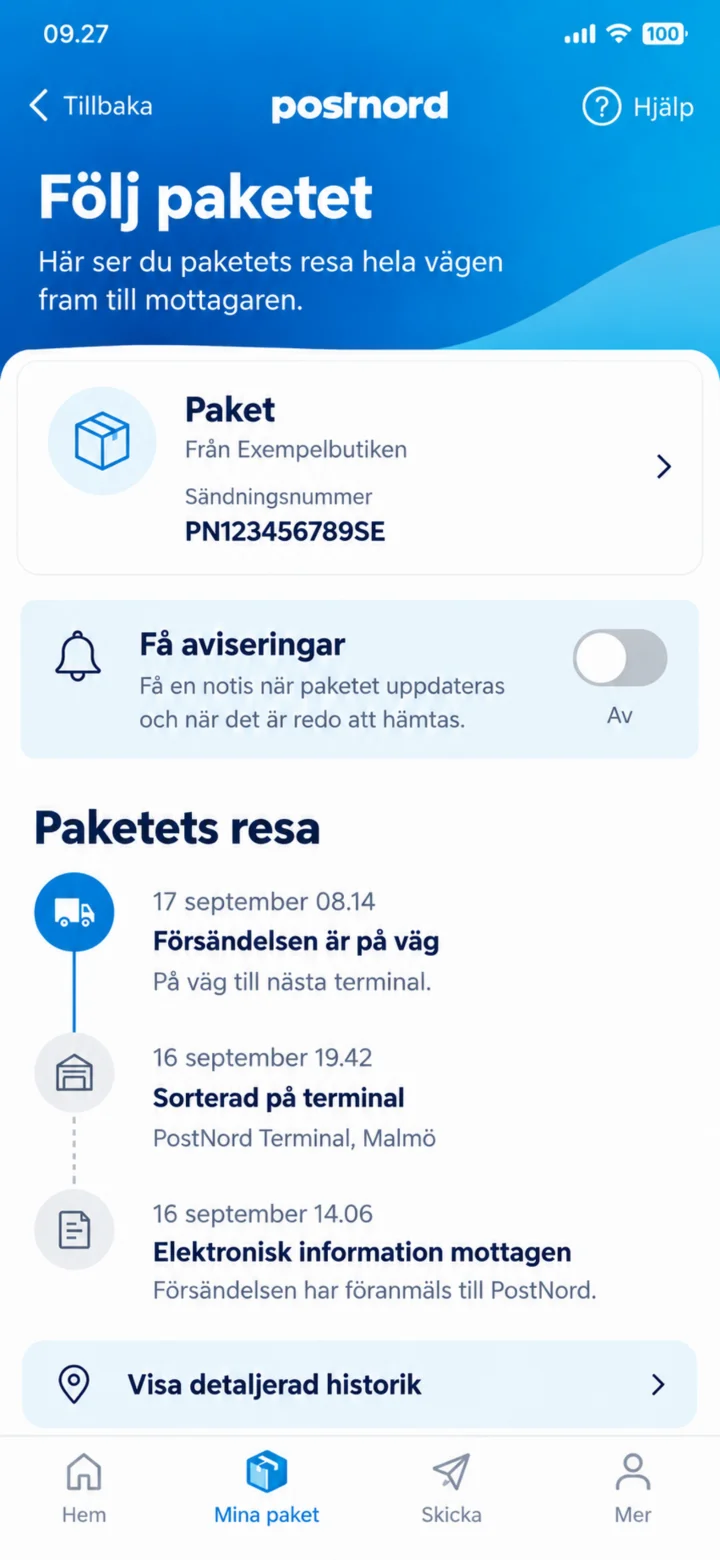 6Step 6 of 10 · iPhone
To get information when the package moves, turn on ”Få aviseringar” (Get notifications).
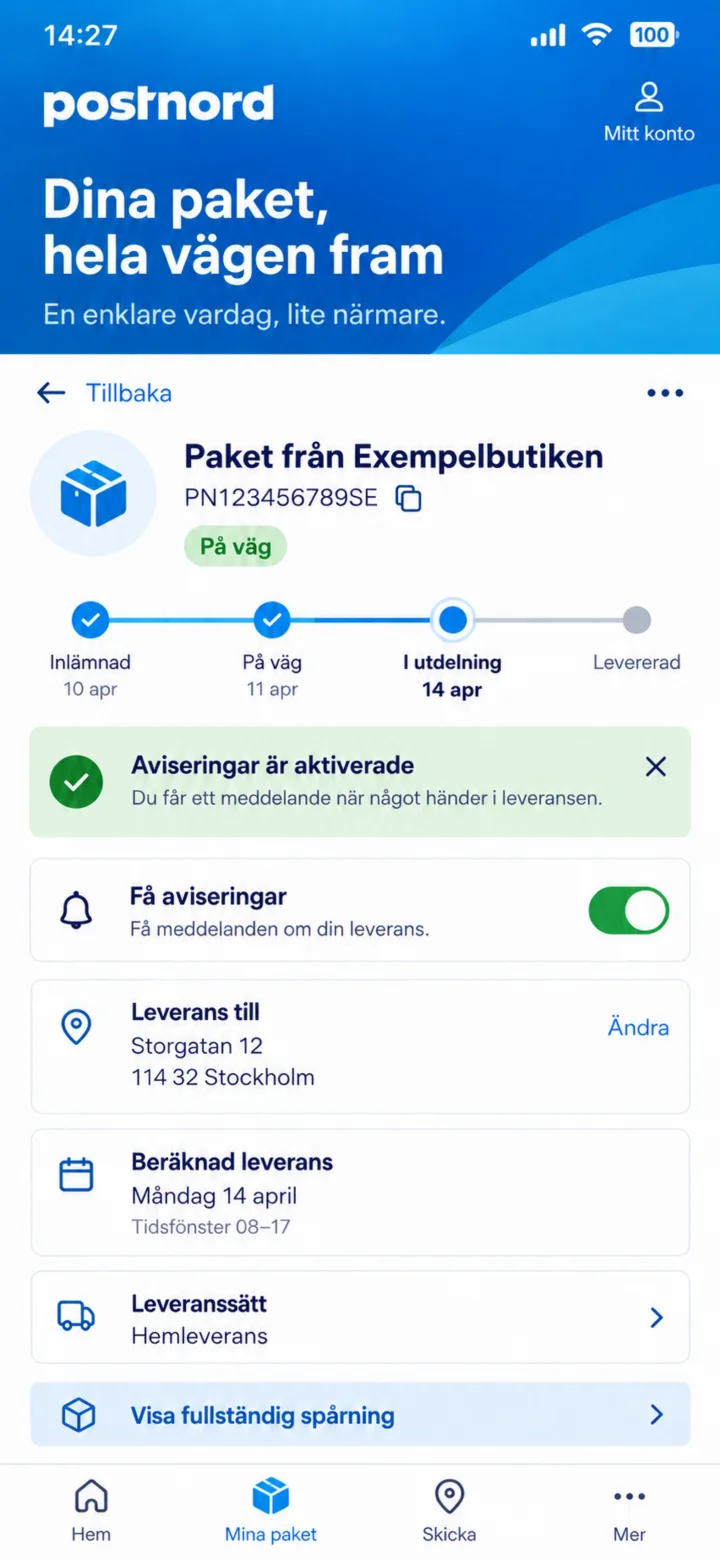 7Step 7 of 10 · iPhone
The green button shows that notifications are activated.
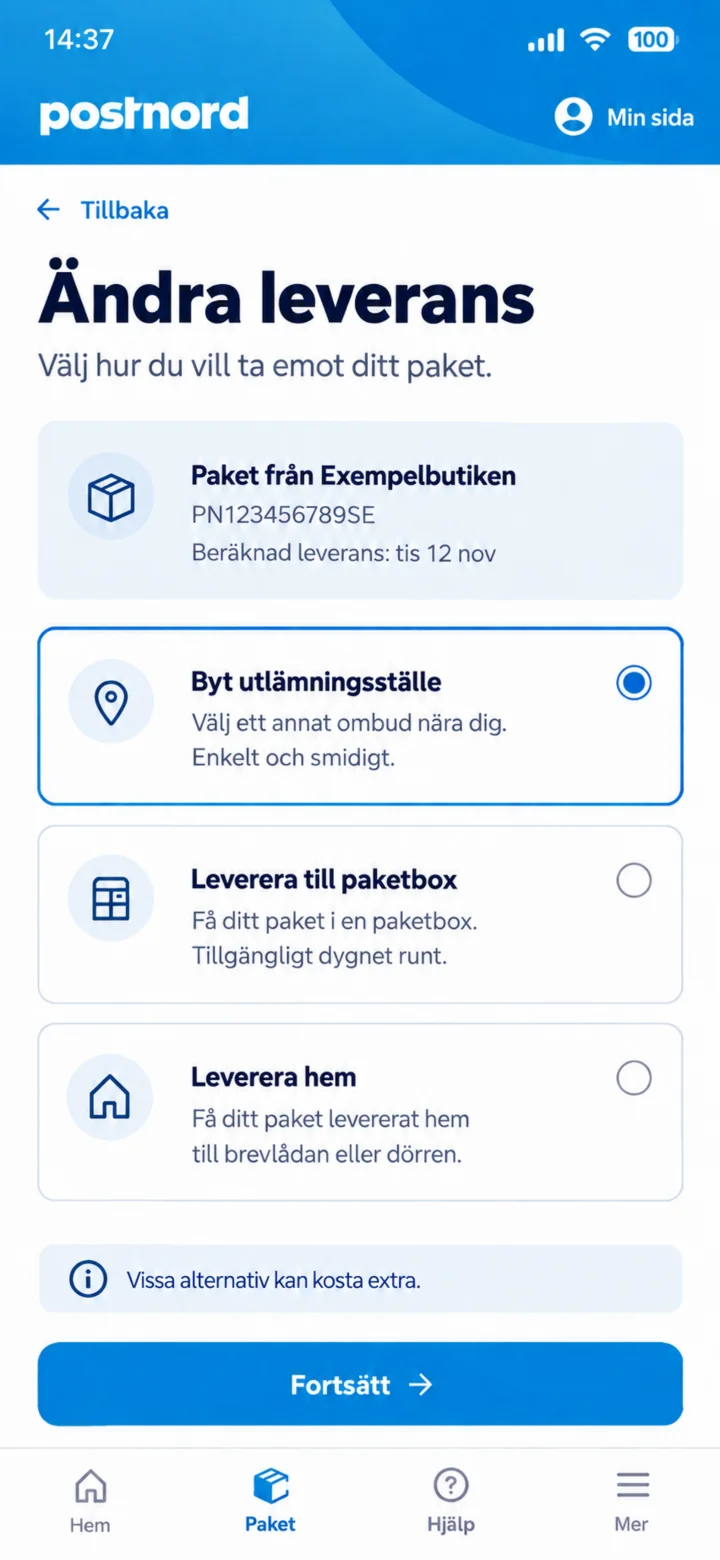 8Step 8 of 10 · iPhone
Tap ”Ändra leverans” (Change delivery) and choose ”Byt utlämningsställe” (Change pick-up point).
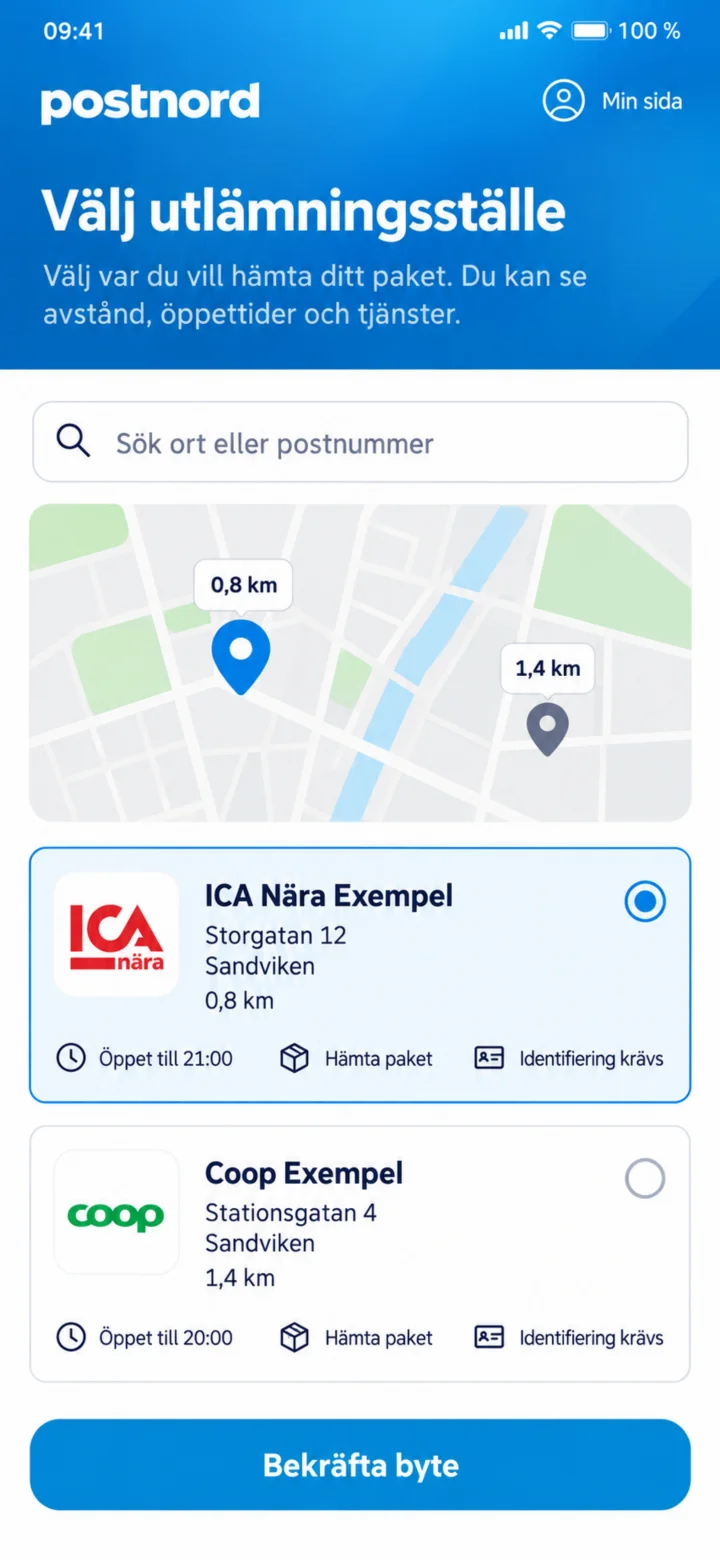 9Step 9 of 10 · iPhone
Välj ett nytt utlämningsställe och tryck på Bekräfta byte.
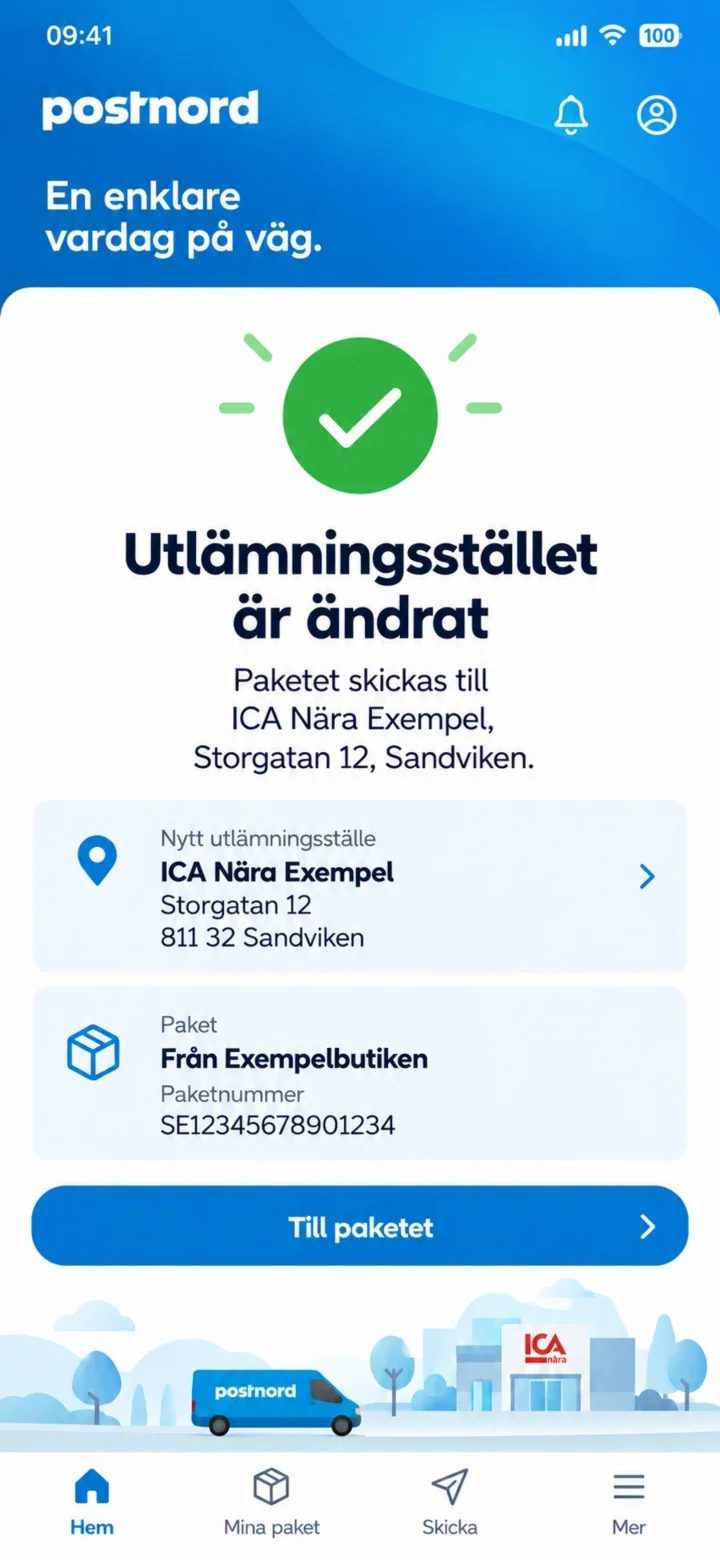 10Step 10 of 10 · iPhone
The pick-up point has been changed. Please check the new address.