Print the guide and keep it next to your phone while you do the steps.
Tip: untick “Headers and footers” in the print dialog to leave out the web address.
ICA Shop Online
Useful apps
 iPhone
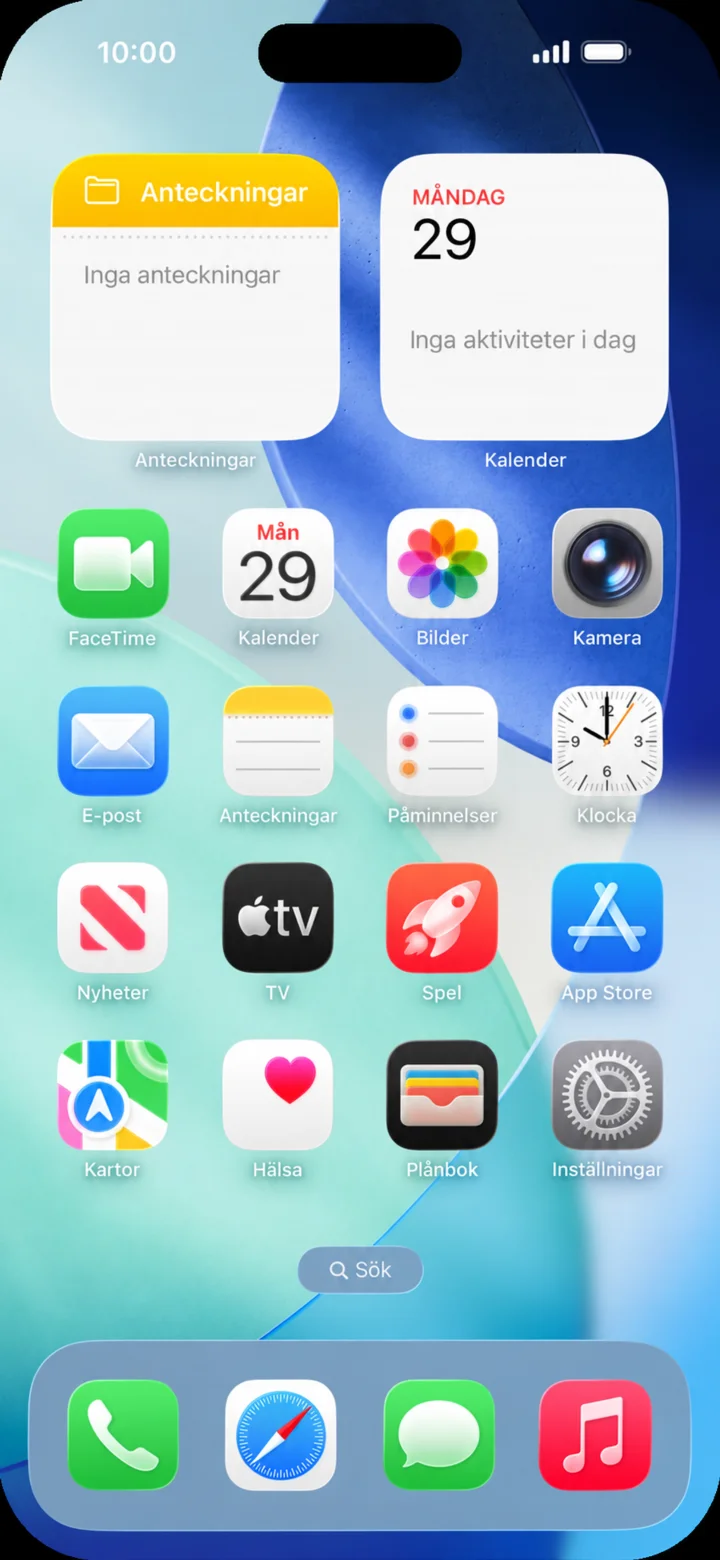 1Step 1 of 7 · iPhone
Hello! Here I'll show you how to shop for groceries online using the ICA app. You can take your time and stop whenever you want. First, let's find the app. Tap the icon called Appstore.
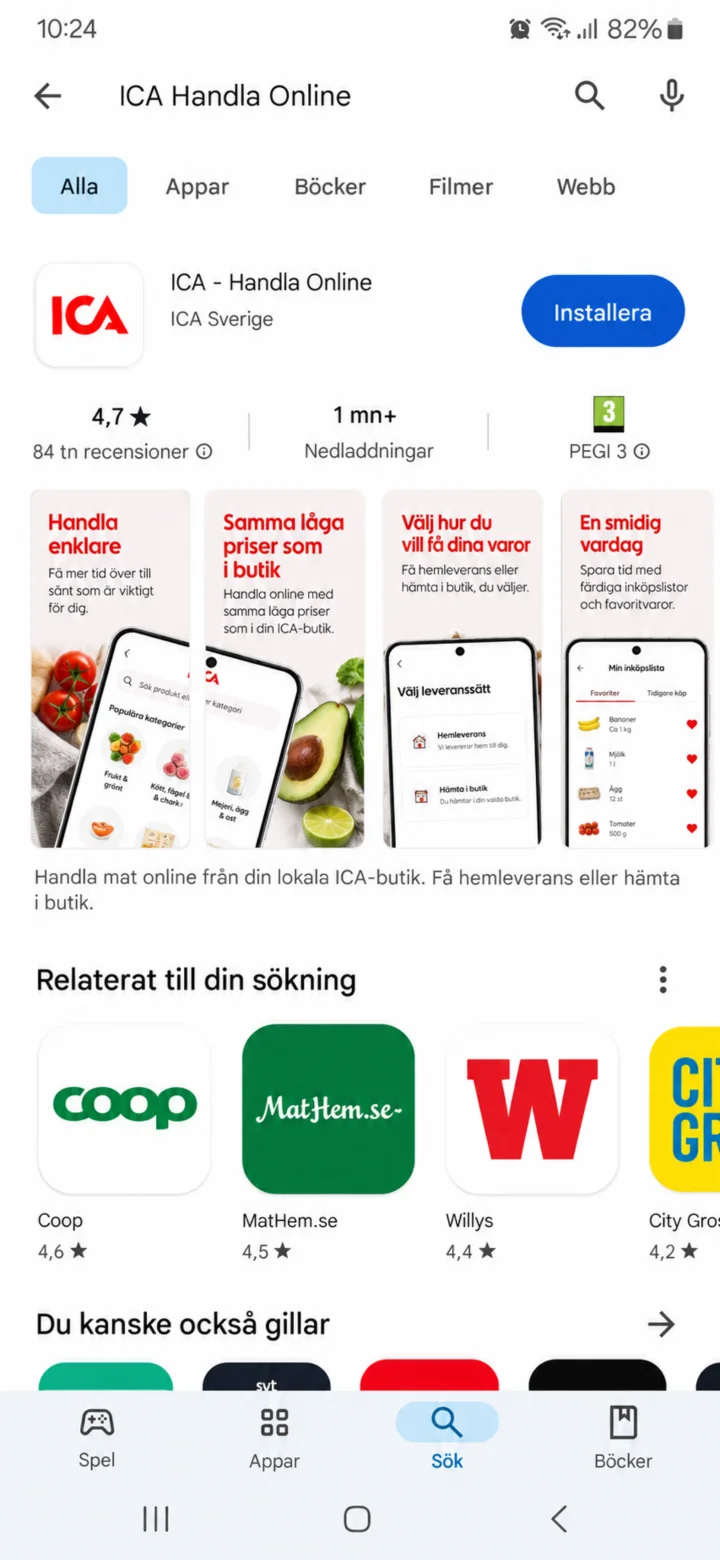 2Step 2 of 7 · iPhone
The app is being installed. This might take a little while. You can stay on this screen until the button changes to ”Öppna” (Open).
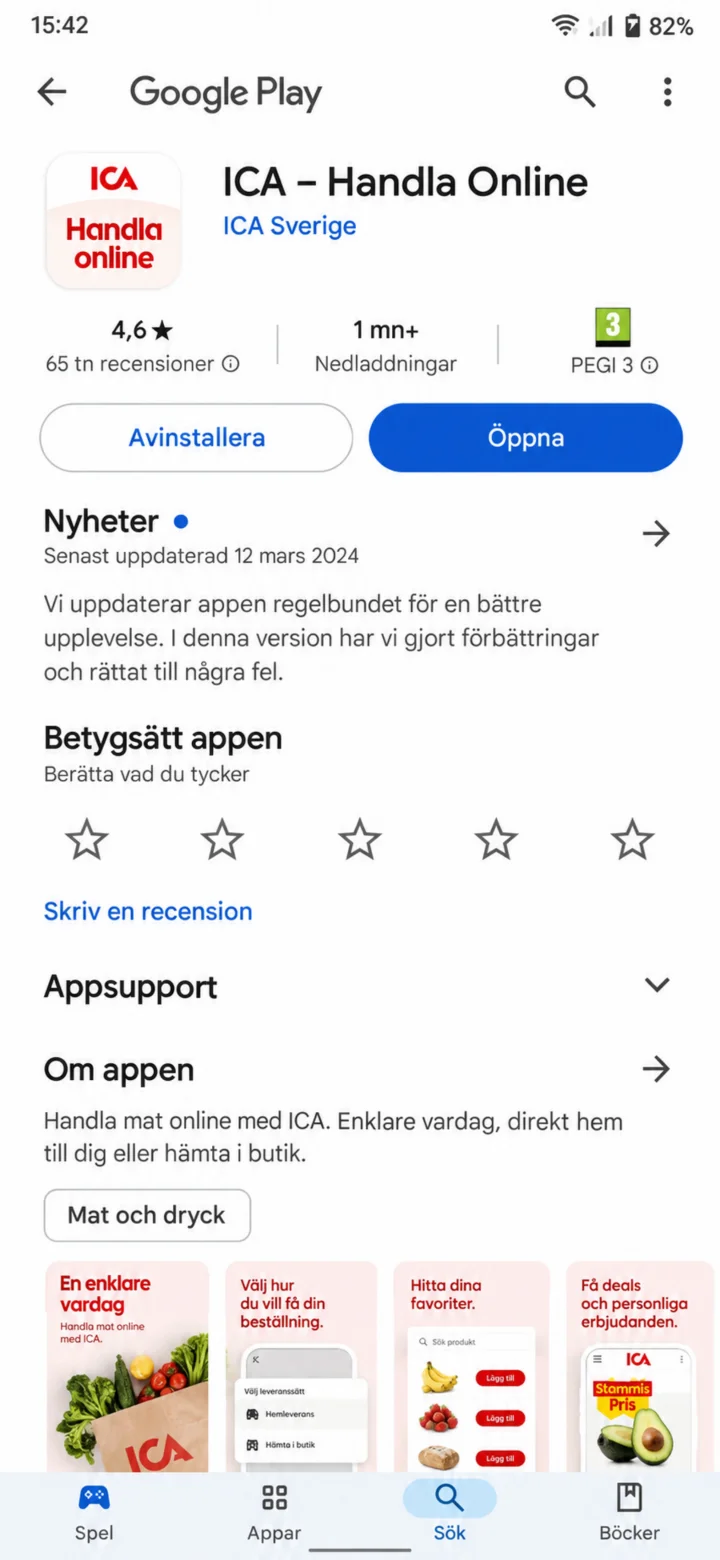 3Step 3 of 7 · iPhone
Tap the blue button ”Öppna” (Open) to start the app.
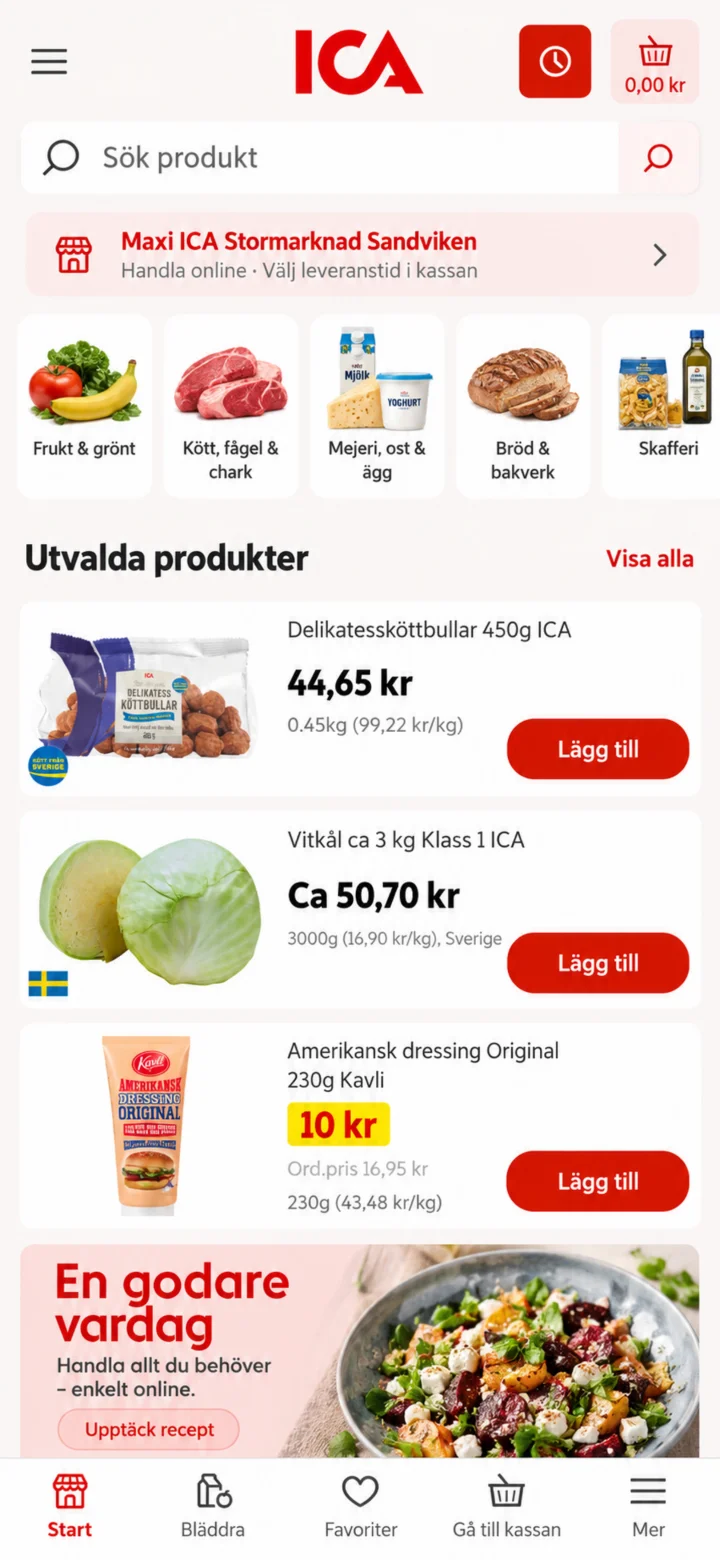 4Step 4 of 7 · iPhone
Welcome to the ICA app! To find what you want to buy, tap the search bar at the top where it says ”Sök produkt” (Search product).
 5Step 5 of 7 · iPhone
Now you'll see different kinds of cucumber. Tap the red button ”Lägg till” (Add) next to the cucumber you want to buy.
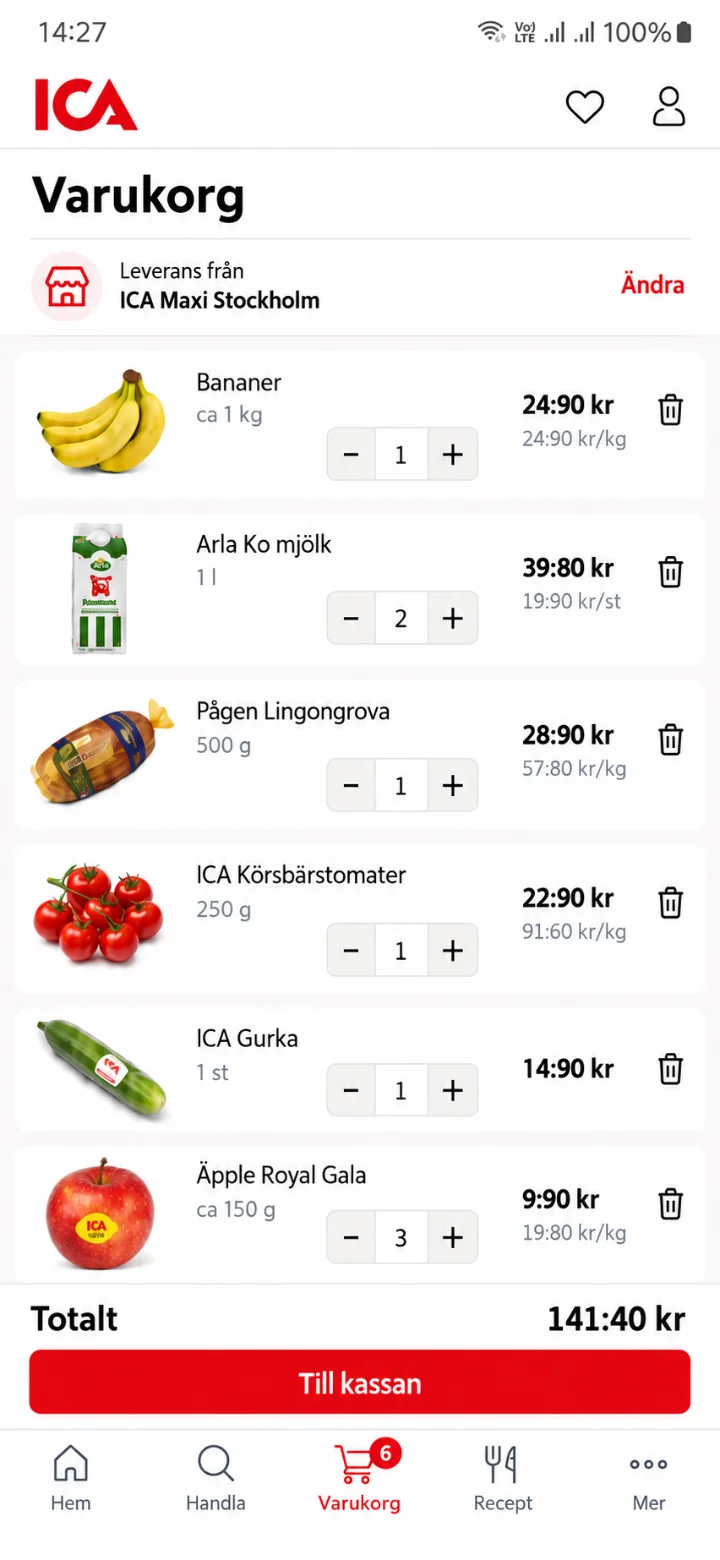 6Step 6 of 7 · iPhone
Here you'll see your shopping cart with the items you've added. When you're happy with your order, tap the red button ”Till kassan” (To checkout) at the bottom.
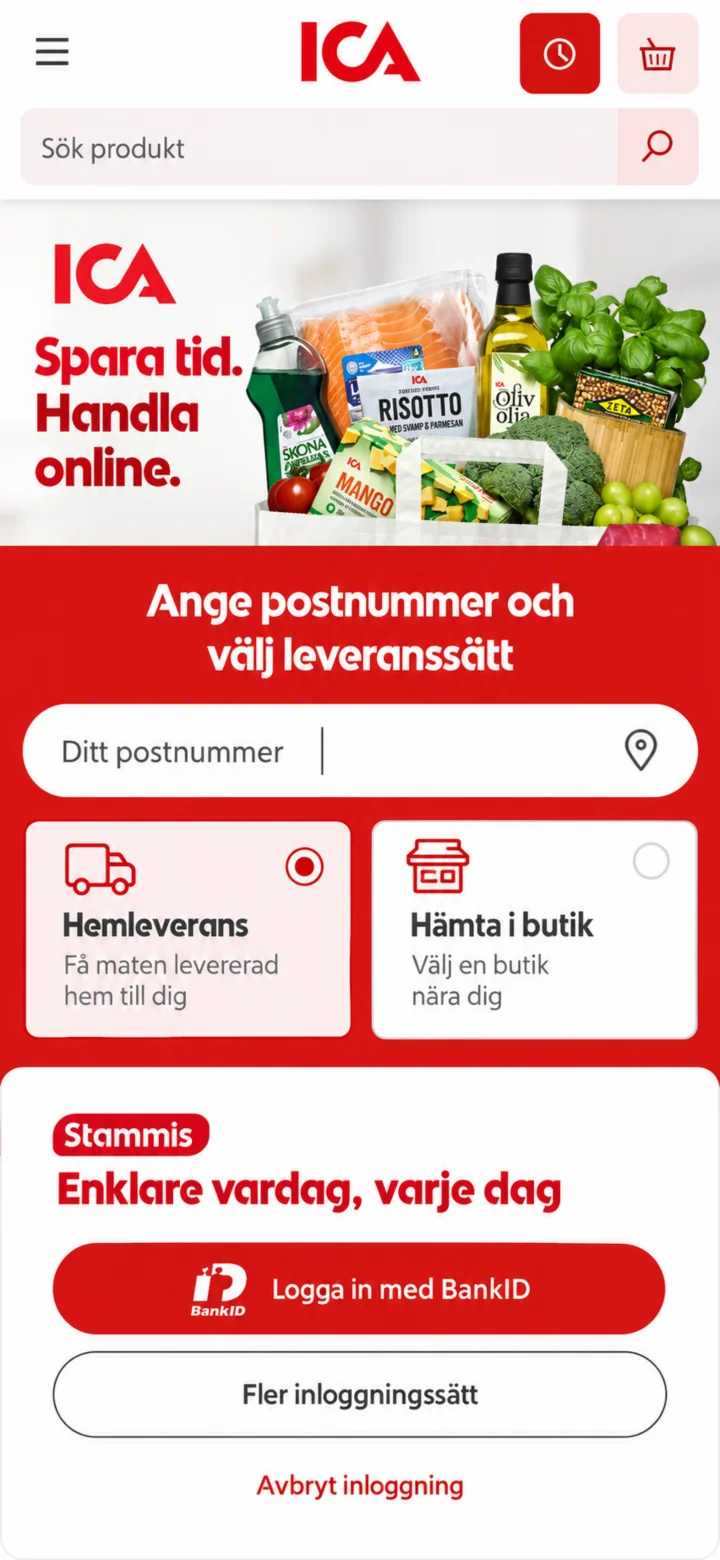 7Step 7 of 7 · iPhone
Now you're at the checkout! Here you'll enter your postal code and choose if you want your groceries delivered to your home or if you want to pick them up in the store. Then you can log in with BankID to complete the purchase. Done! Now you know how to shop for groceries with the ICA app.