Print the guide and keep it next to your phone while you do the steps.
Tip: untick “Headers and footers” in the print dialog to leave out the web address.
Which language should the printout be in?SvenskaEnglishSuomiالعربية (Arabiska)Bosanski/Hrvatski/Srpskiفارسی (Persiska)PolskiEspañol
Have text on the screen read aloud
Mobile phone and tablet
 iPhone
Scan to listen to the guide
 1Step 1 of 6 · iPhone
We're going to learn how to let your phone read the text on the screen aloud.
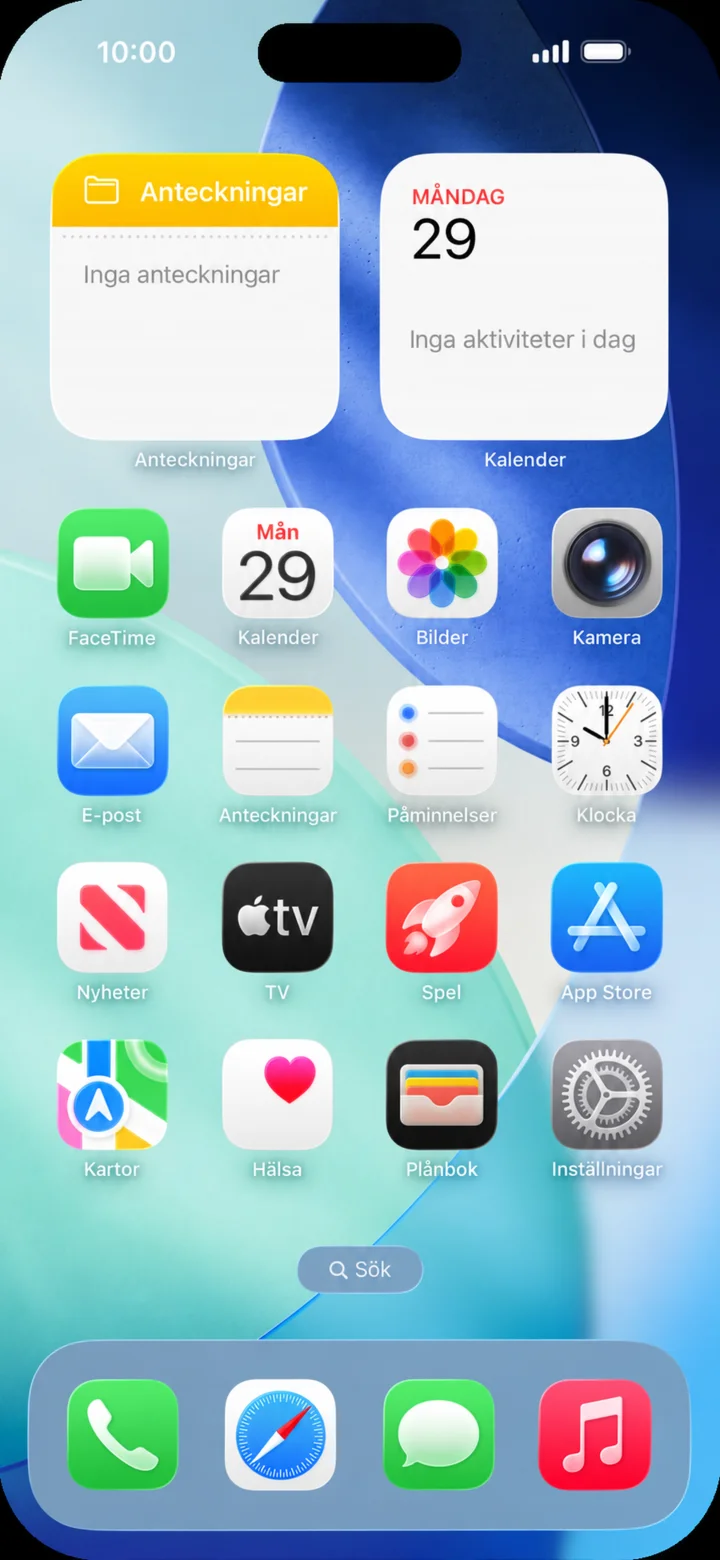 2Step 2 of 6 · iPhone
Start from the home screen. Tap on Inställningar (Settings).
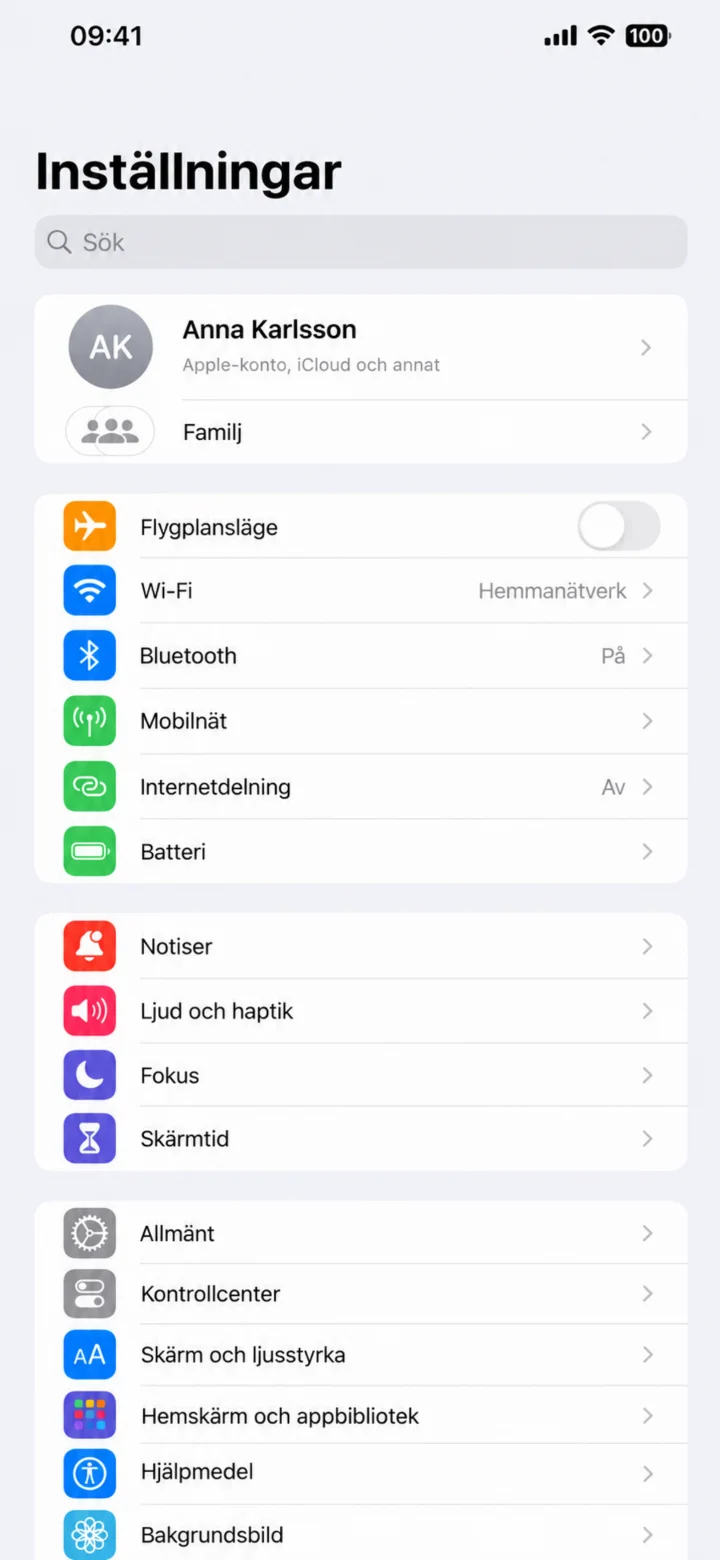 3Step 3 of 6 · iPhone
In Inställningar (Settings), choose Hjälpmedel (Accessibility).
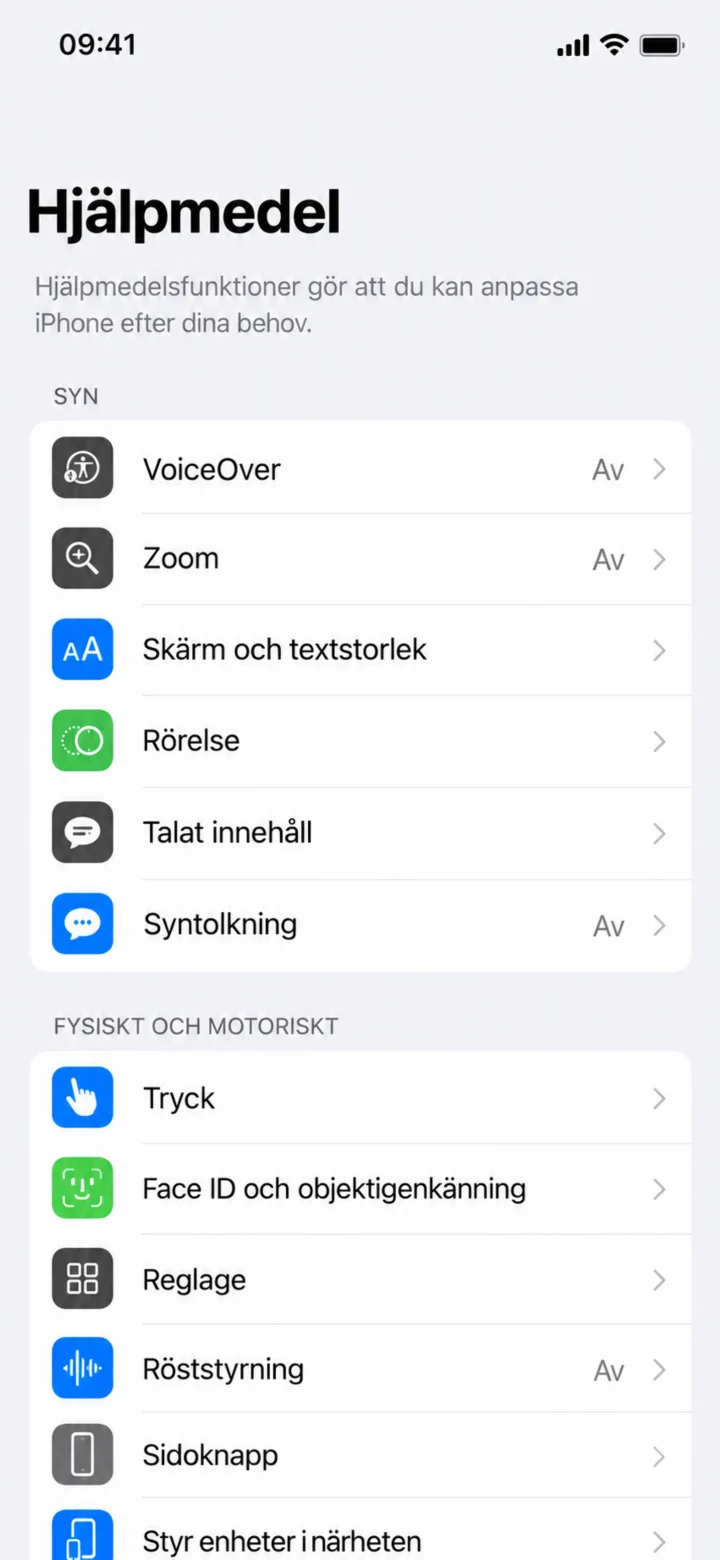 4Step 4 of 6 · iPhone
Under Syn (Vision), choose Talat innehåll (Spoken Content).
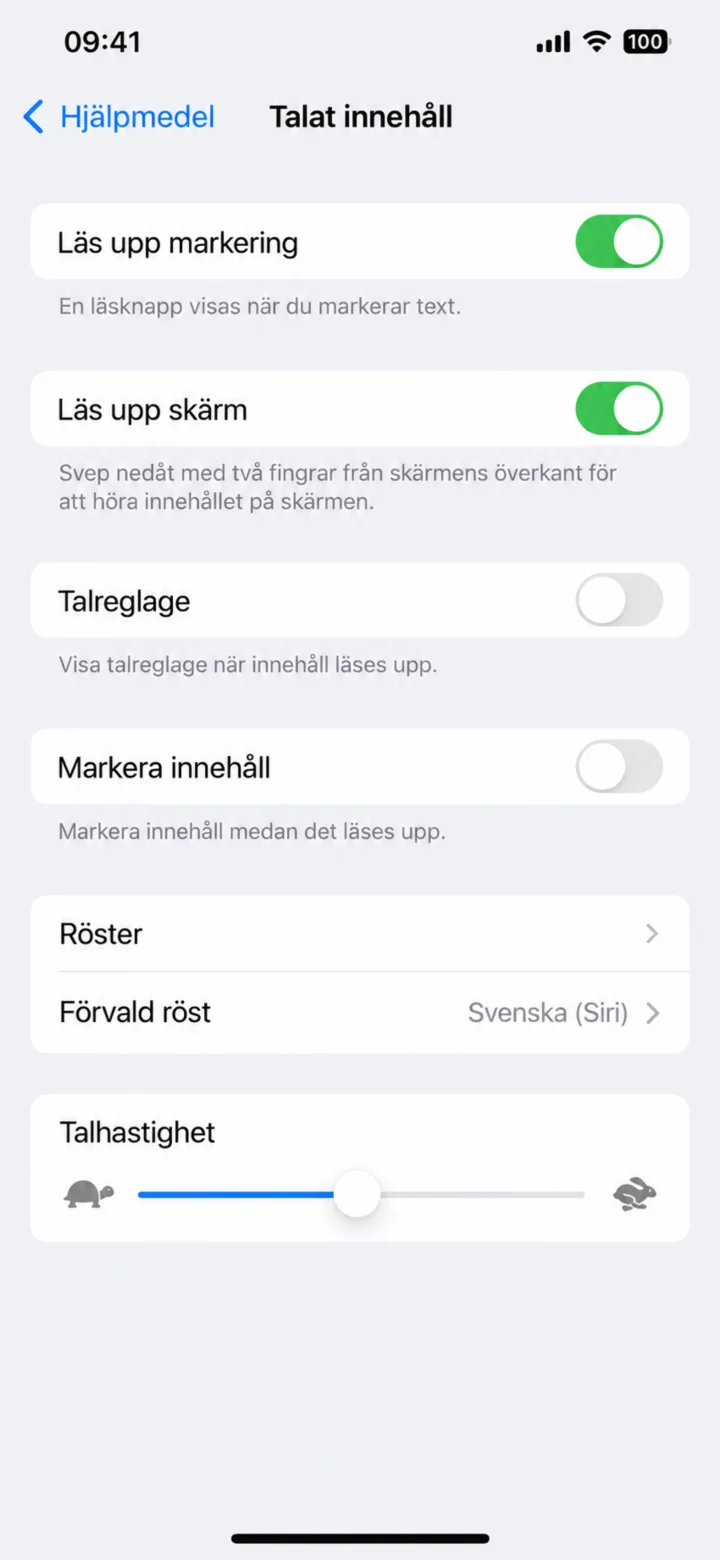 5Step 5 of 6 · iPhone
Turn on Läs upp skärm (Speak Screen). You can also choose a Swedish voice and adjust the speaking speed.
 6Step 6 of 6 · iPhone
Swipe down with two fingers from the top of the screen. Use the speech controller to pause or change the speed.