Print the guide and keep it next to your phone while you do the steps.
Tip: untick “Headers and footers” in the print dialog to leave out the web address.
Biblio – guide for the library app
Useful apps
 iPhone
 1Step 1 of 9 · iPhone
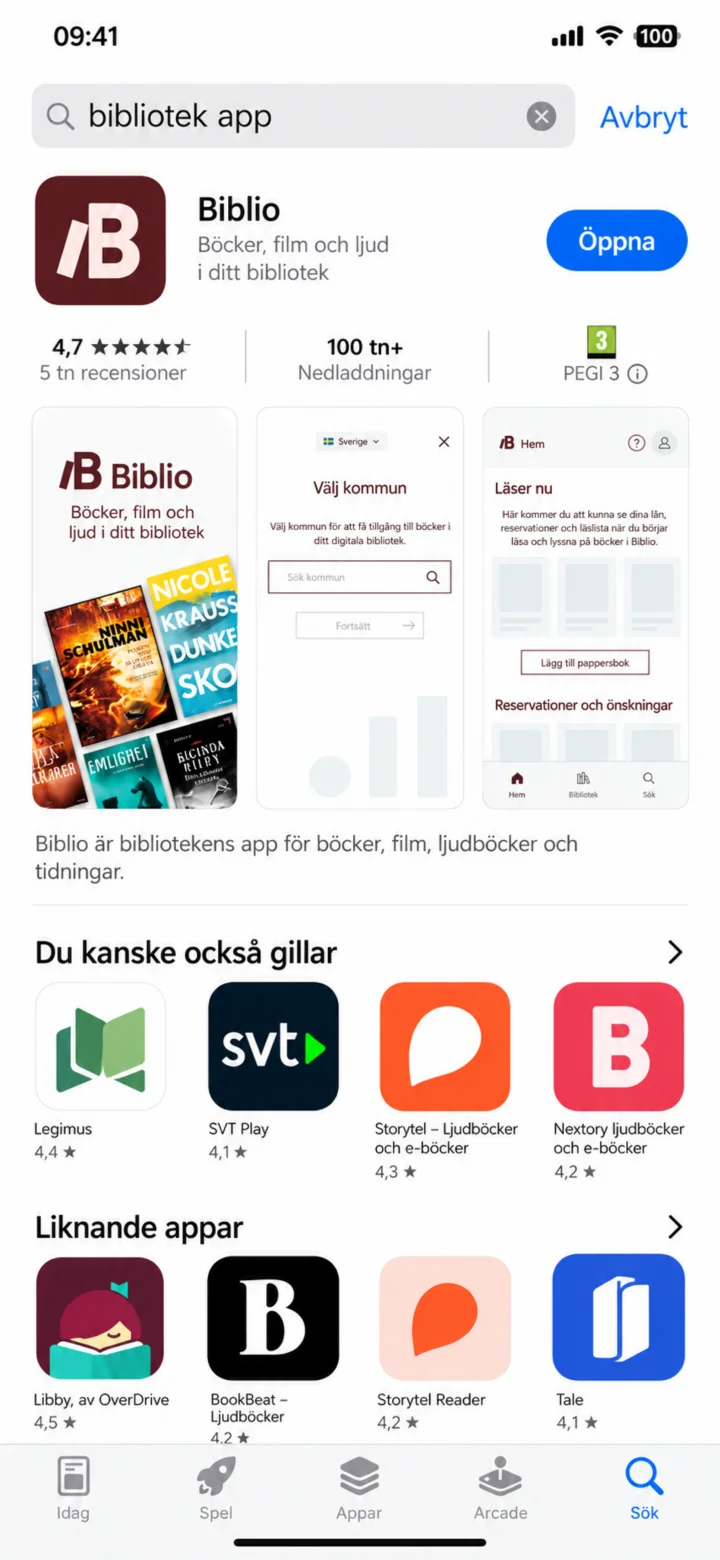
On your iPhone, open the App Store and search for 'bibliotek app' (library app). Choose Biblio and tap ”Öppna” (Open).
 2Step 2 of 9 · iPhone
When Biblio starts, you'll see the app's symbol on a dark burgundy background.
 3Step 3 of 9 · iPhone
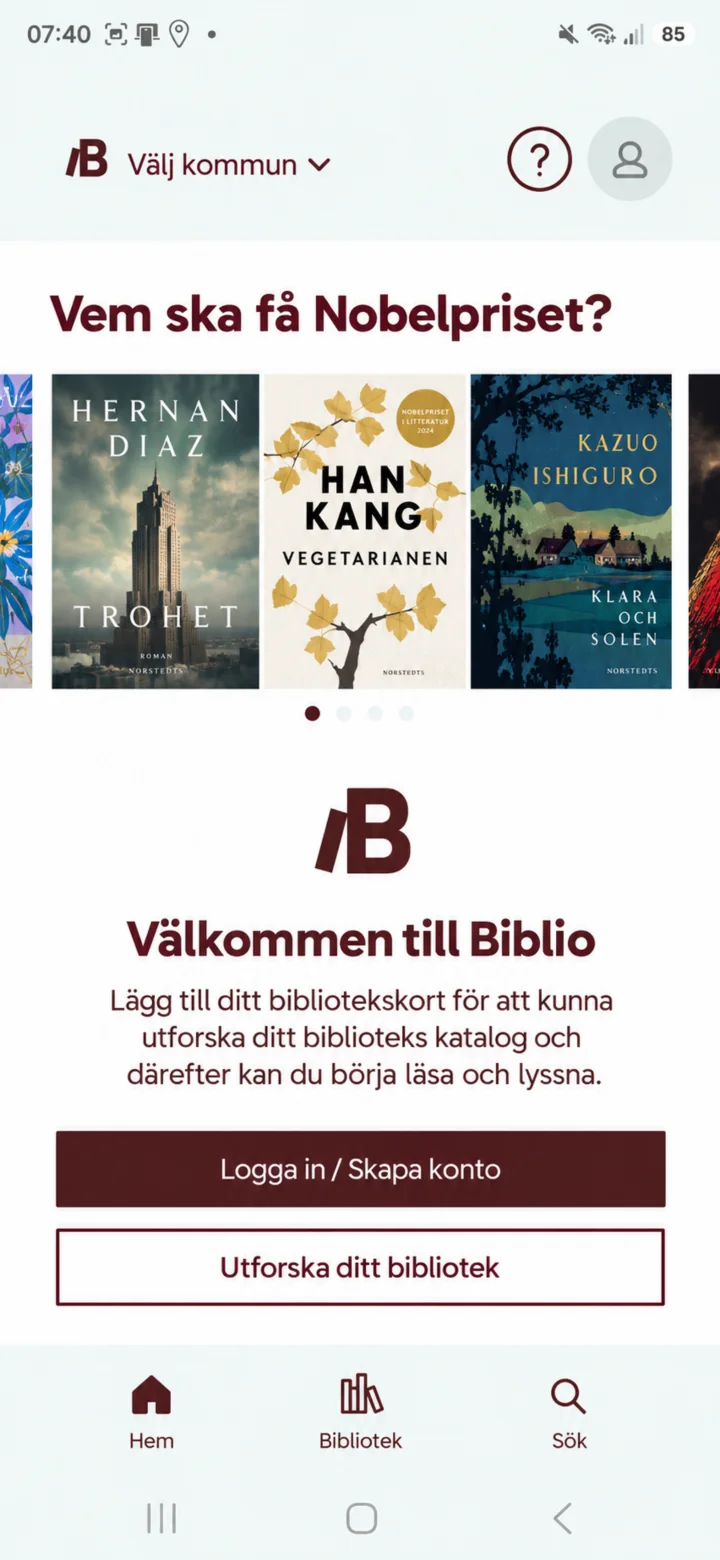
On the welcome screen, you can log in or create an account, or explore your library.
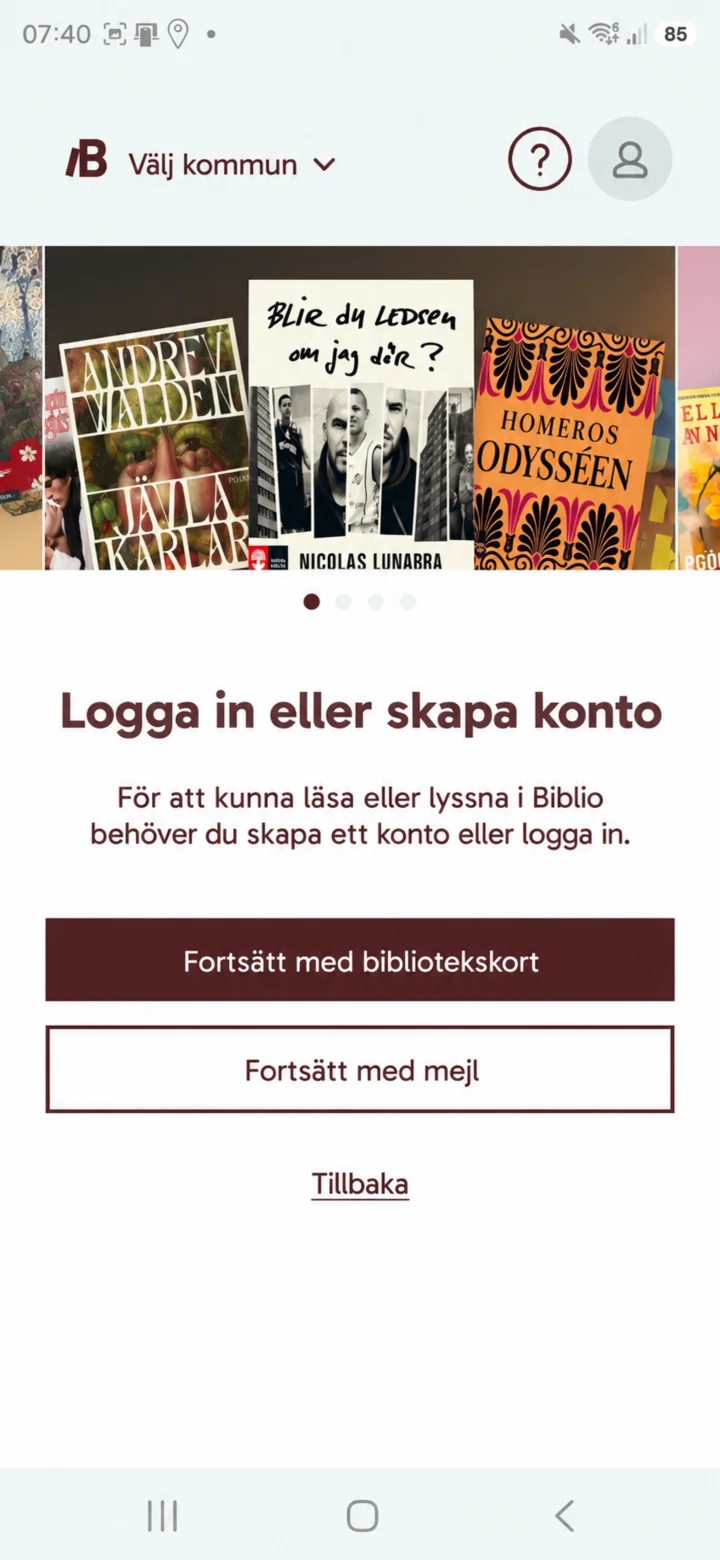 4Step 4 of 9 · iPhone
Choose ”Fortsätt med bibliotekskort” (Continue with library card) or ”Fortsätt med mejl” (Continue with email). You can also tap ”Tillbaka” (Back).
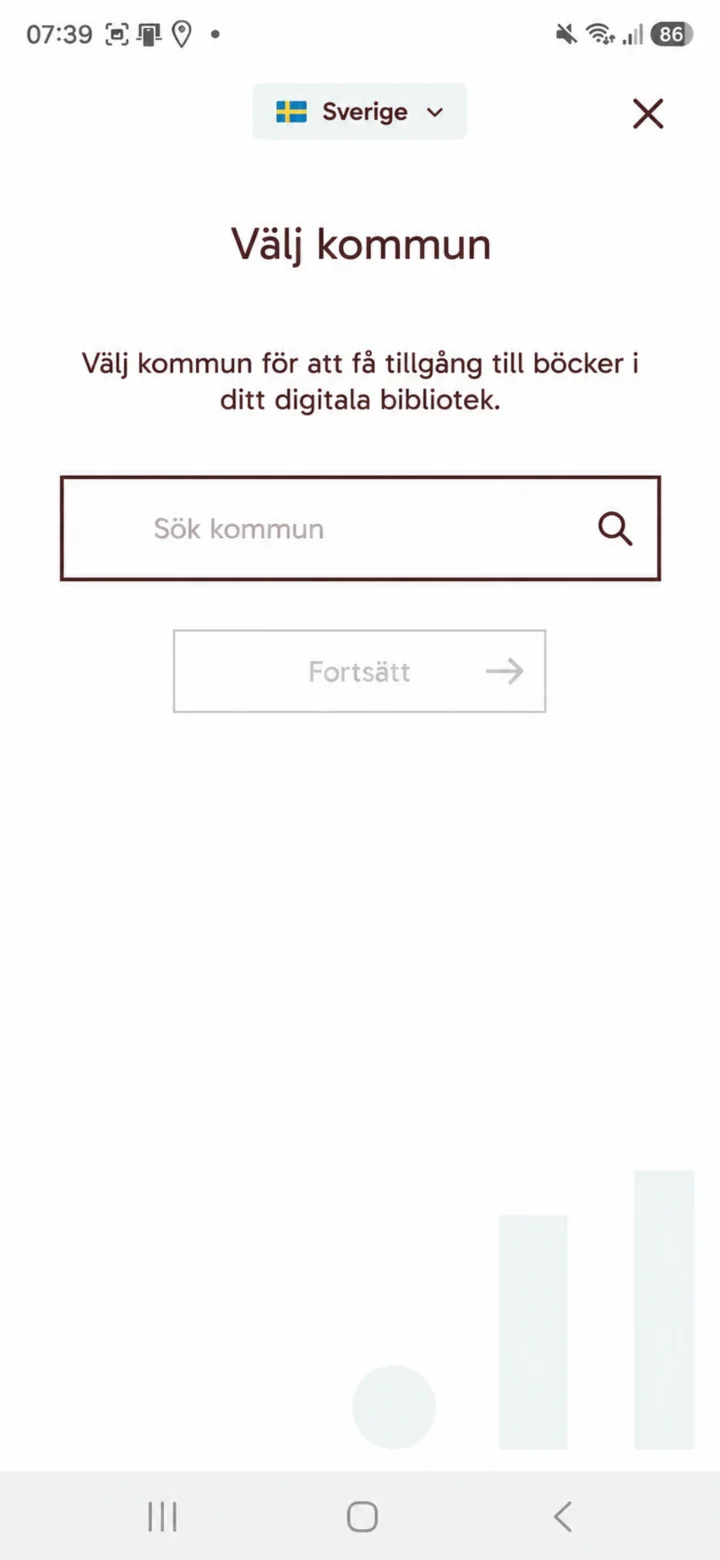 5Step 5 of 9 · iPhone
Choose Sverige (Sweden) and search for your municipality. In this example, we're searching for Sandviken and tapping ”Fortsätt” (Continue).
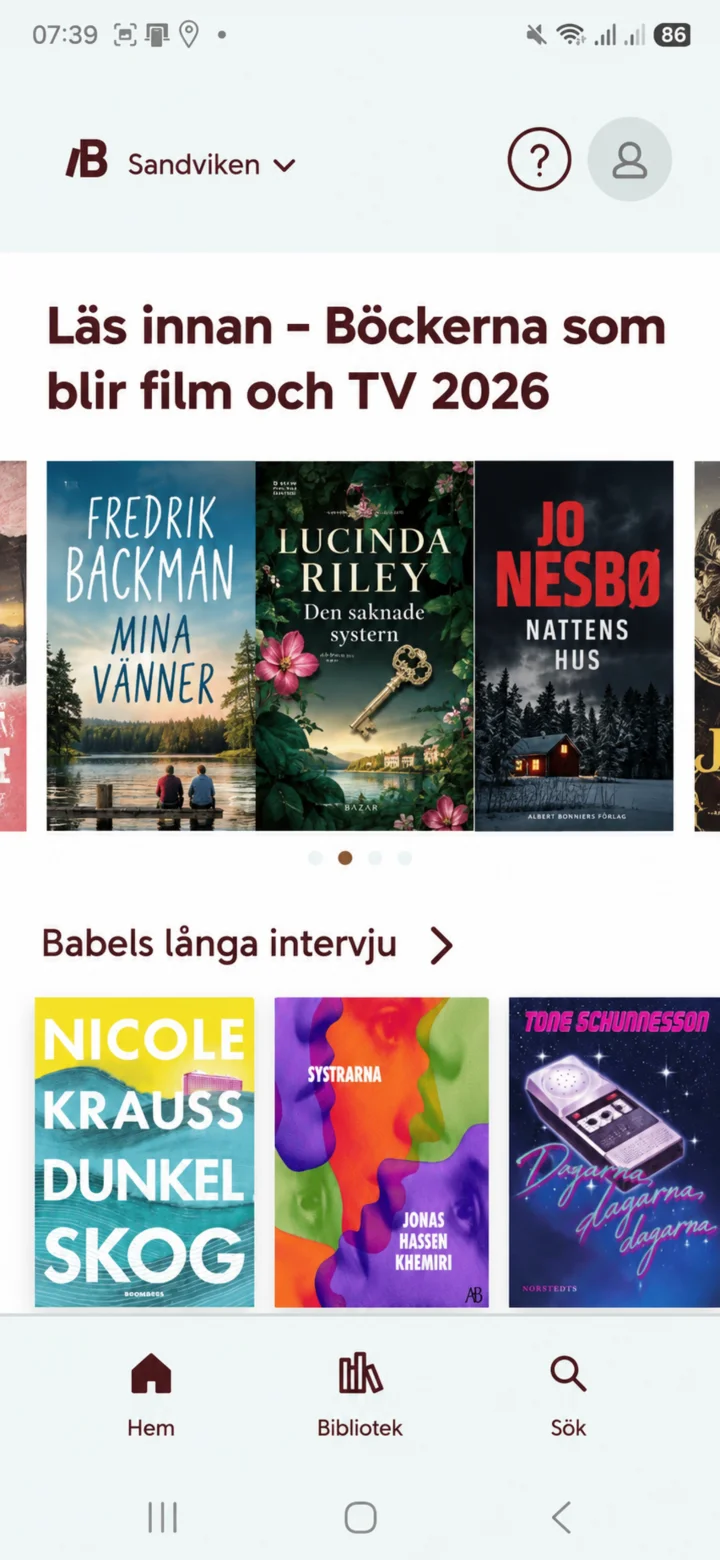 6Step 6 of 9 · iPhone
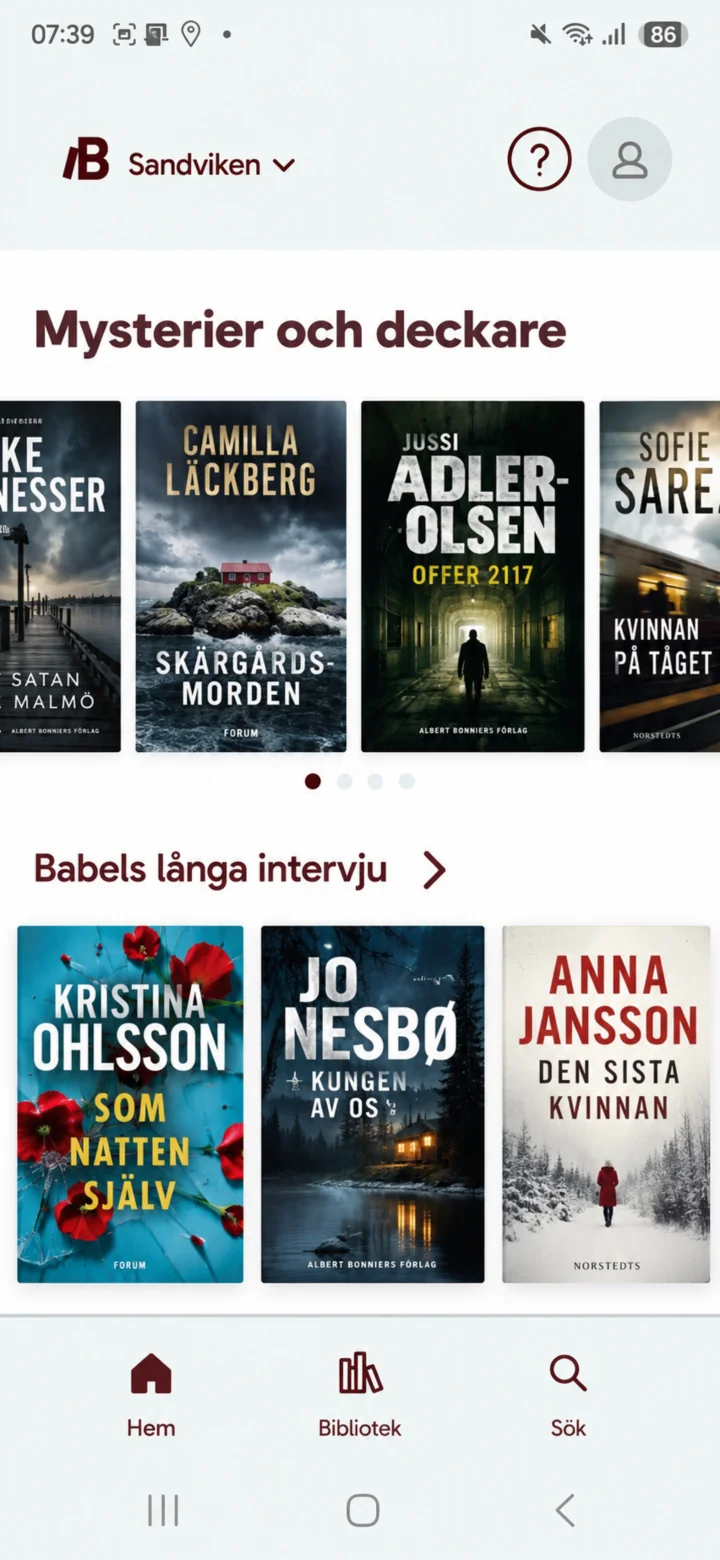
On the home page, you'll see book recommendations, current themes, and shortcuts to ”Hem” (Home), ”Bibliotek” (Library), and ”Sök” (Search).
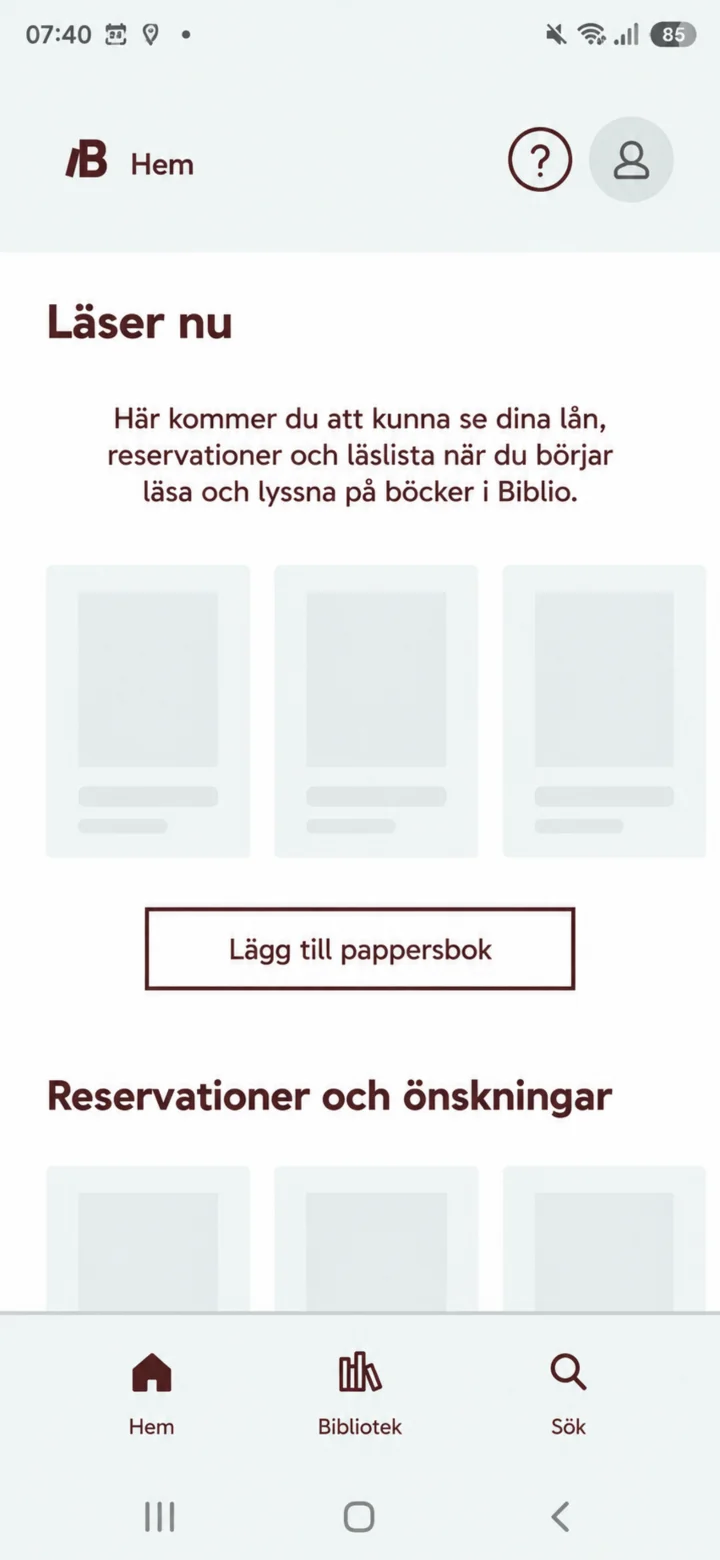 7Step 7 of 9 · iPhone
Under ”Läser nu” (Reading now), you can see your loans, reservations, and reading list once you've started reading or listening.
 8Step 8 of 9 · iPhone
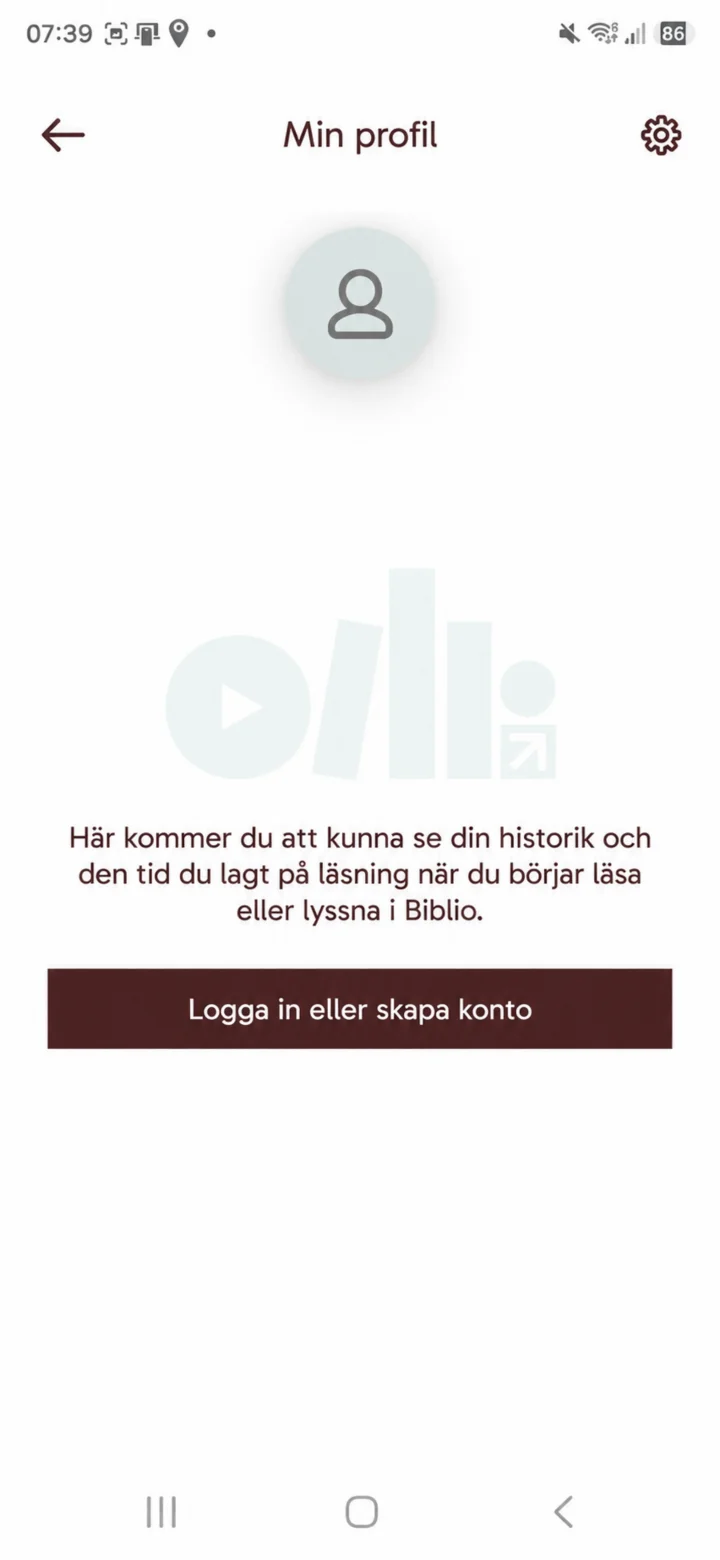
In ”Min profil” (My profile), you can later see your history and the time you've spent reading. Tap ”Logga in eller skapa konto” (Log in or create account) to get started.
 9Step 9 of 9 · iPhone
Bläddra i kategorier som Mysterier och deckare och öppna boktips från biblioteket.