Print the guide and keep it next to your phone while you do the steps.
Tip: untick “Headers and footers” in the print dialog to leave out the web address.
Which language should the printout be in?SvenskaEnglishSuomiالعربية (Arabiska)Bosanski/Hrvatski/Srpskiفارسی (Persiska)PolskiEspañol
Add an emergency contact
Mobile phone and tablet
 Android
Scan to listen to the guide
 1Step 1 of 8 · Android
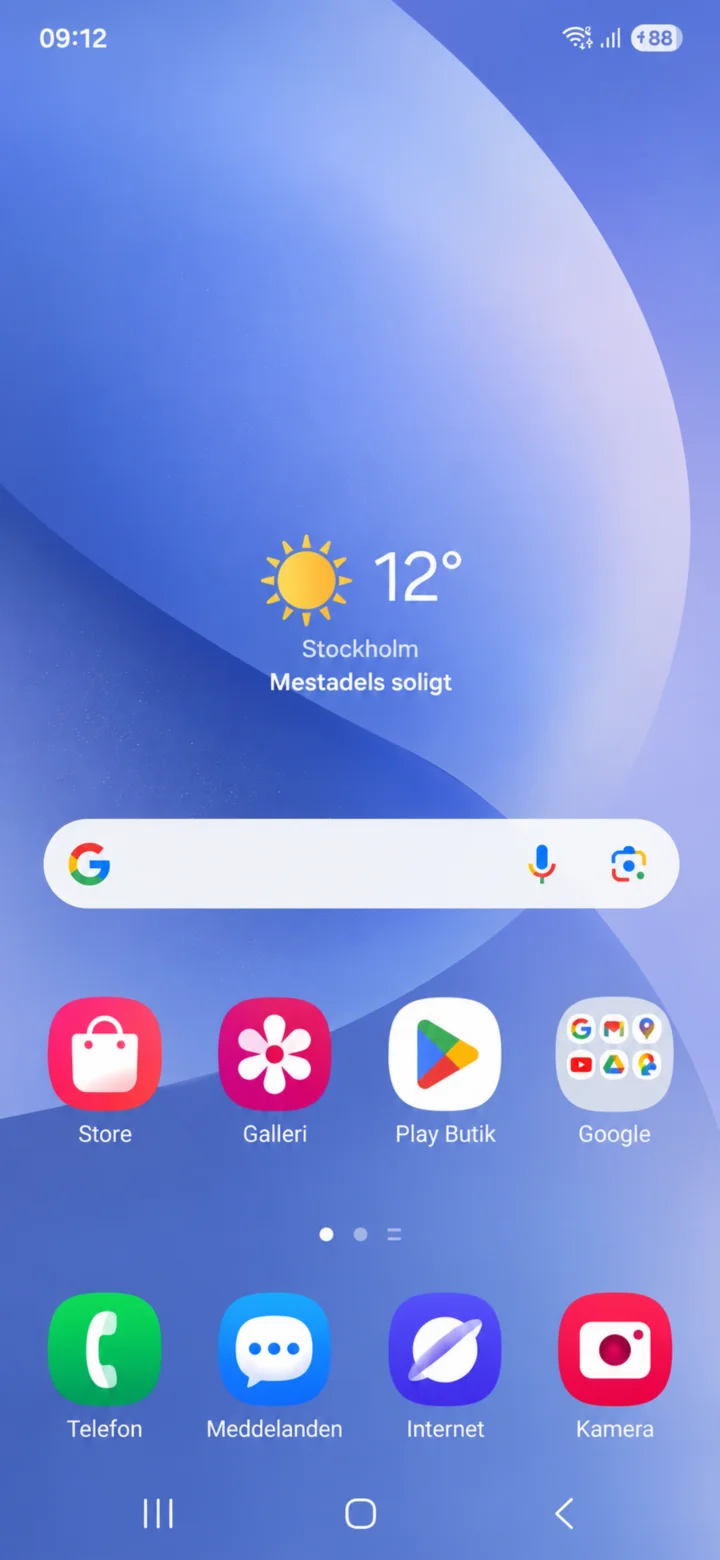
Now, let's add an emergency contact to your phone.
 2Step 2 of 8 · Android
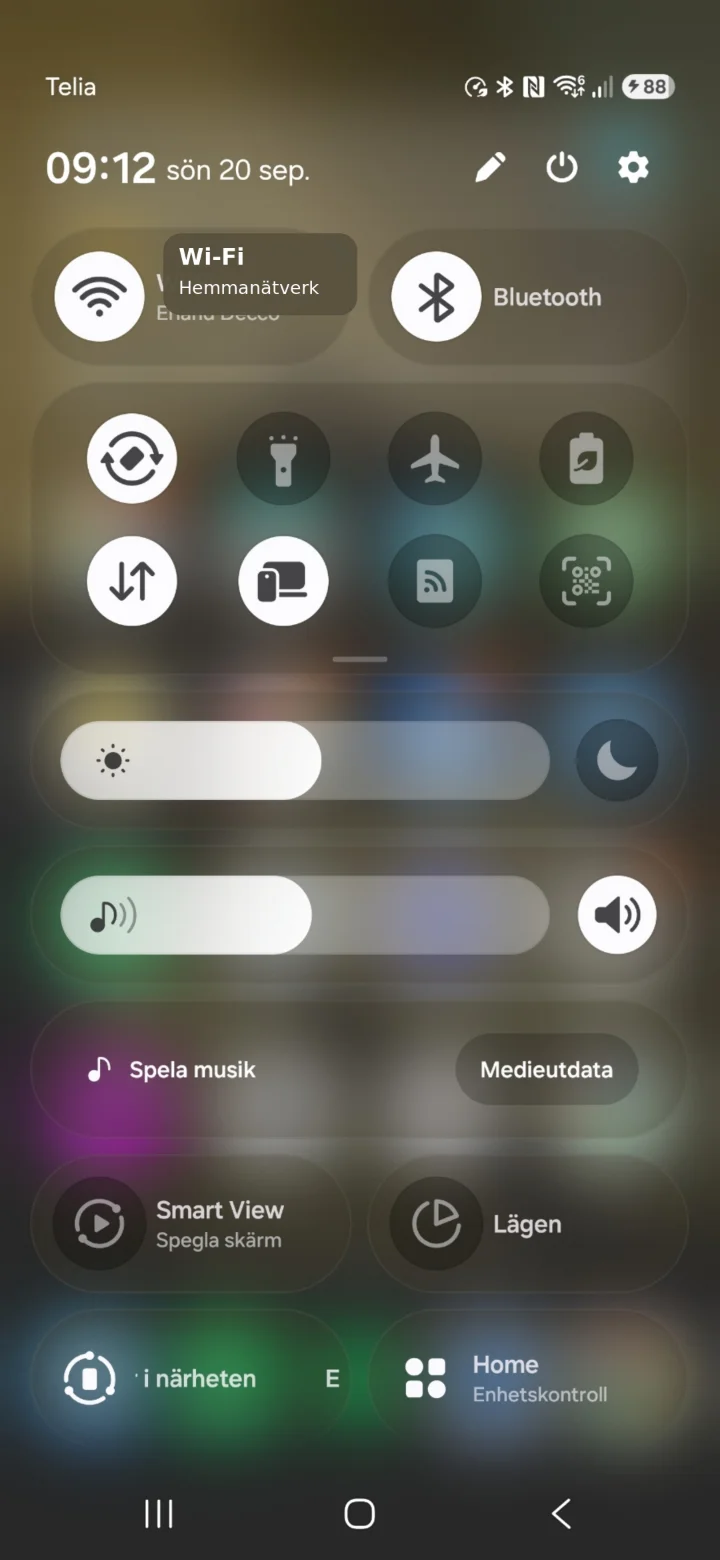
Swipe your finger from the top of the screen downwards to open your settings.
 3Step 3 of 8 · Android
Tap on the cogwheel (gear icon) in the top right corner.
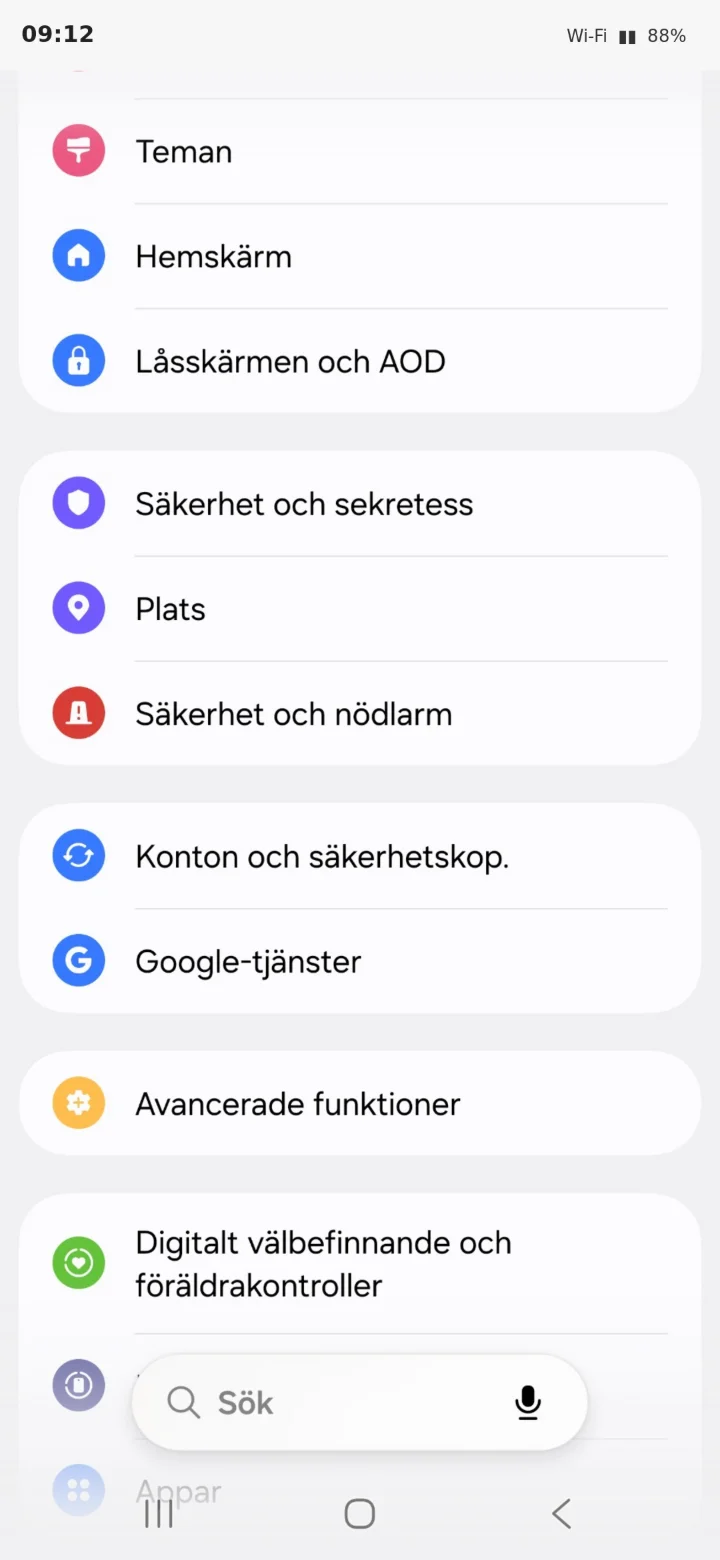 4Step 4 of 8 · Android
Scroll down and tap on Säkerhet och nödlarm (Security and emergency alarm).
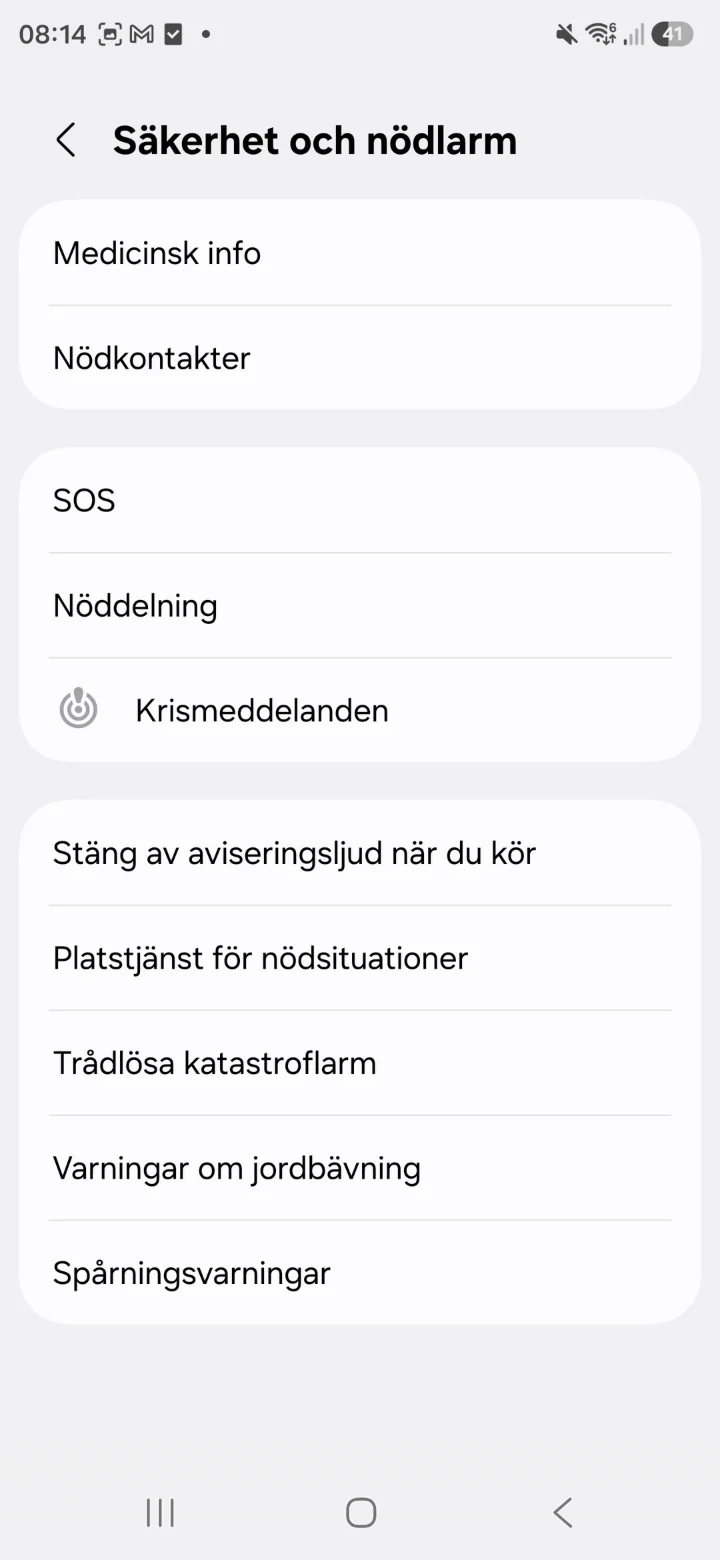 5Step 5 of 8 · Android
Tap on Nödkontakter (Emergency contacts).
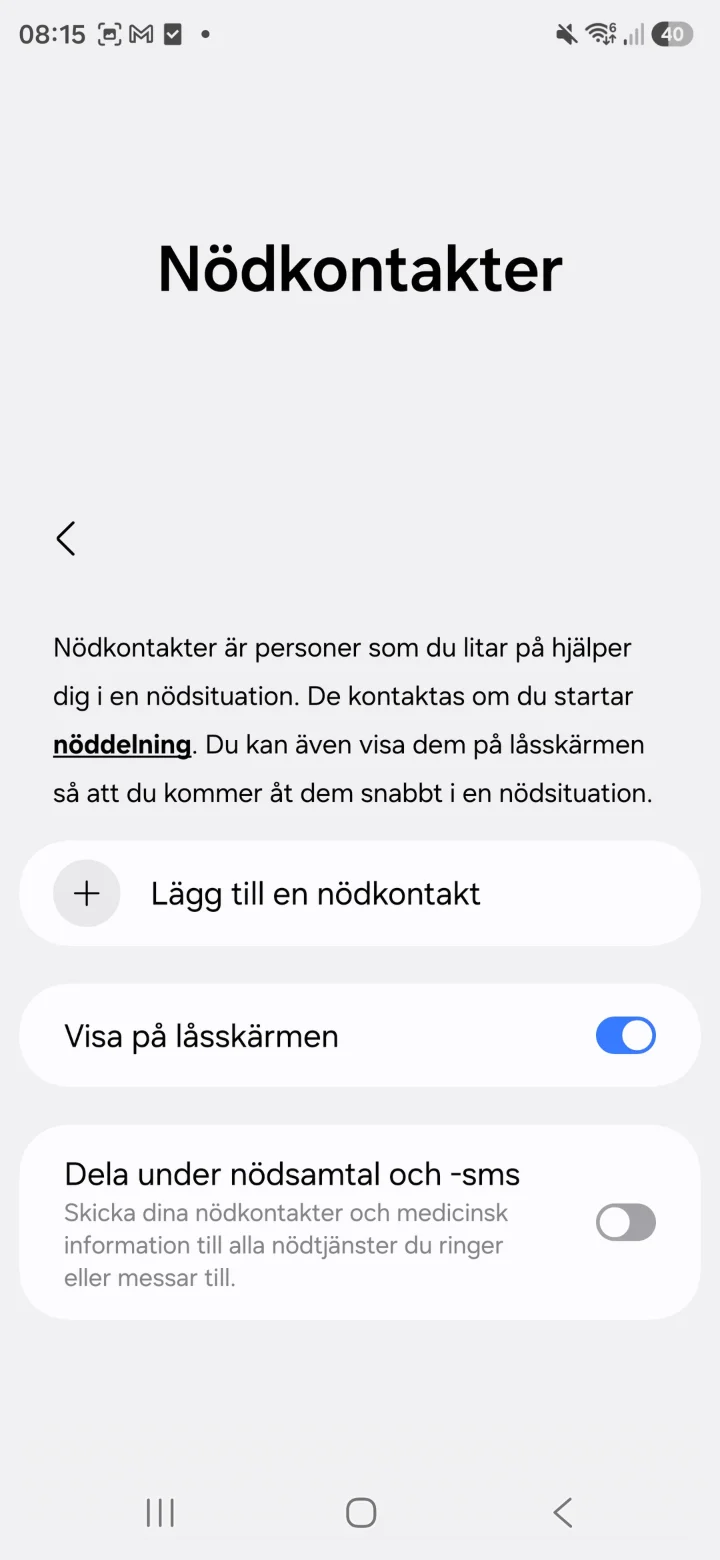 6Step 6 of 8 · Android
Tap on Lägg till en nödkontakt (Add an emergency contact).
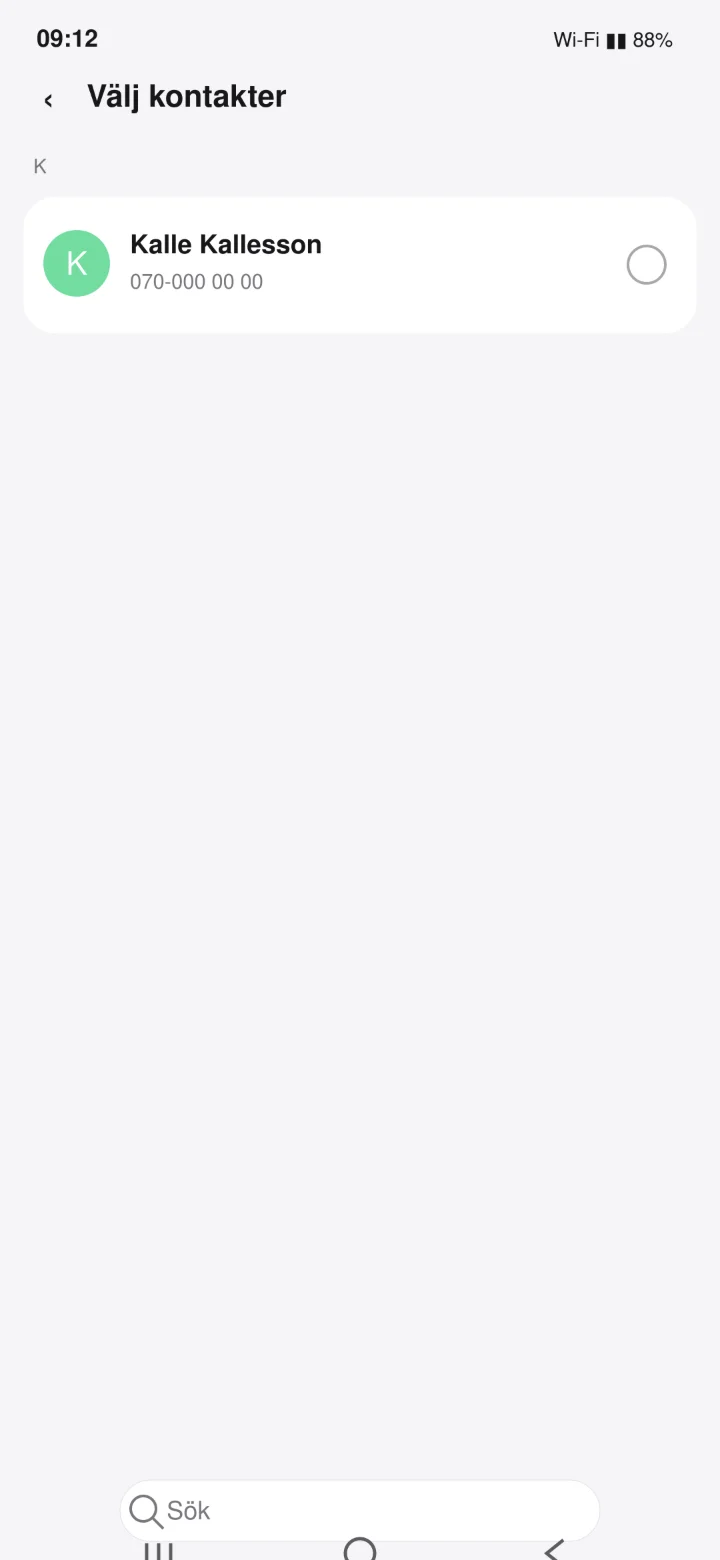 7Step 7 of 8 · Android
Search for the name you want to add. In this example, I'm using Kalle Kallesson.
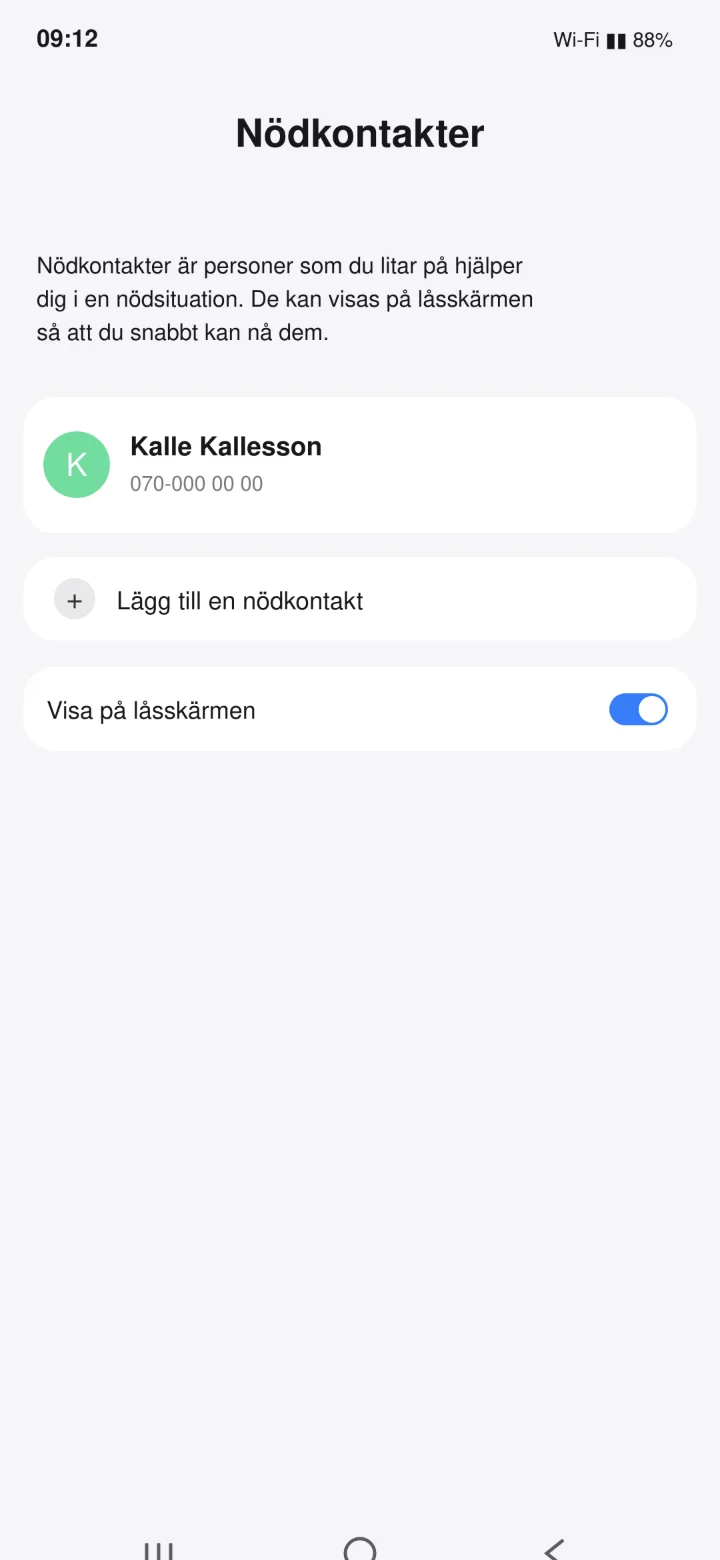 8Step 8 of 8 · Android
Kalle Kallesson is now added as an emergency contact.