Print the guide and keep it next to your phone while you do the steps.
Tip: untick “Headers and footers” in the print dialog to leave out the web address.
Instagram – Get Started
Keep in touch
 Android
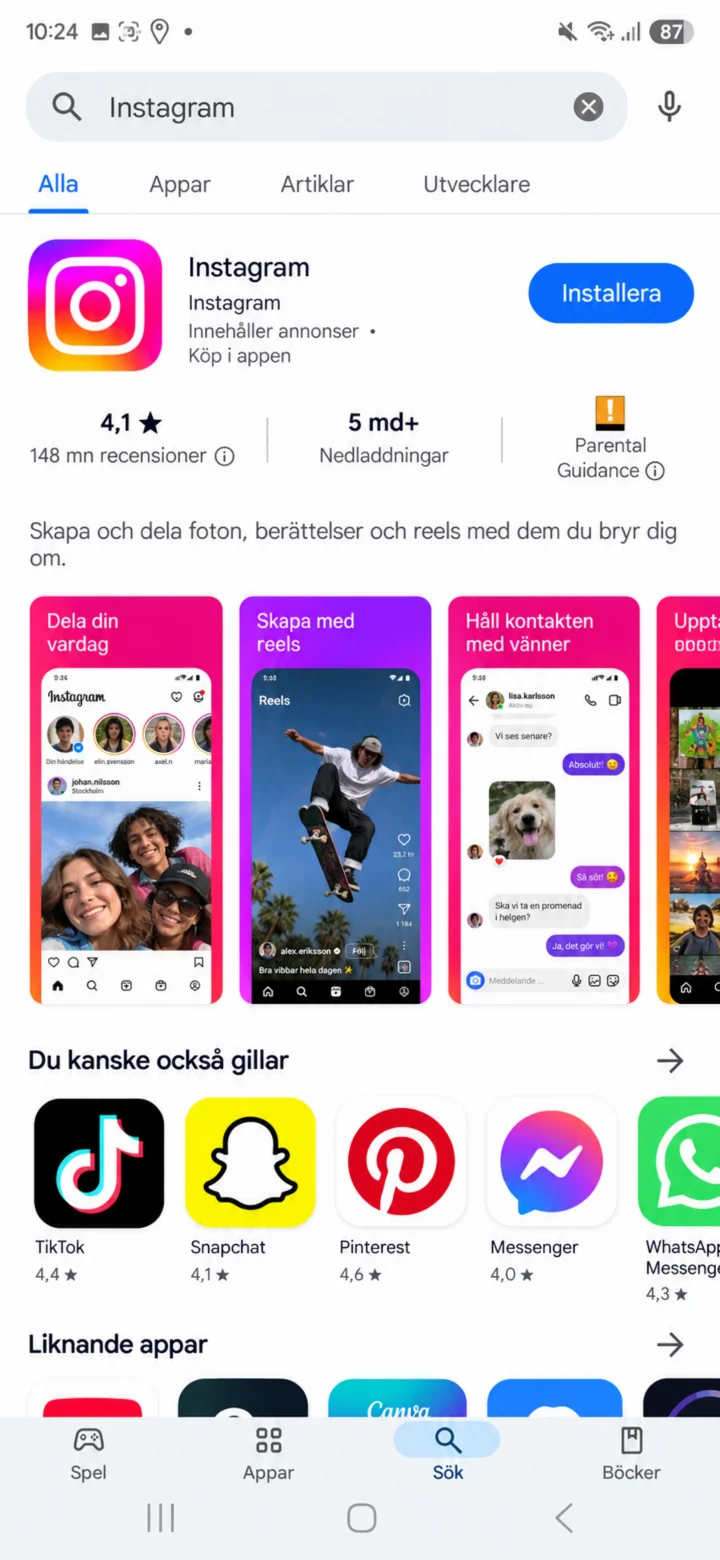 1Step 1 of 8 · Android
Open Google Play and search for Instagram. Make sure it's the official app and then tap ”Installera” (Install) or ”Öppna” (Open).
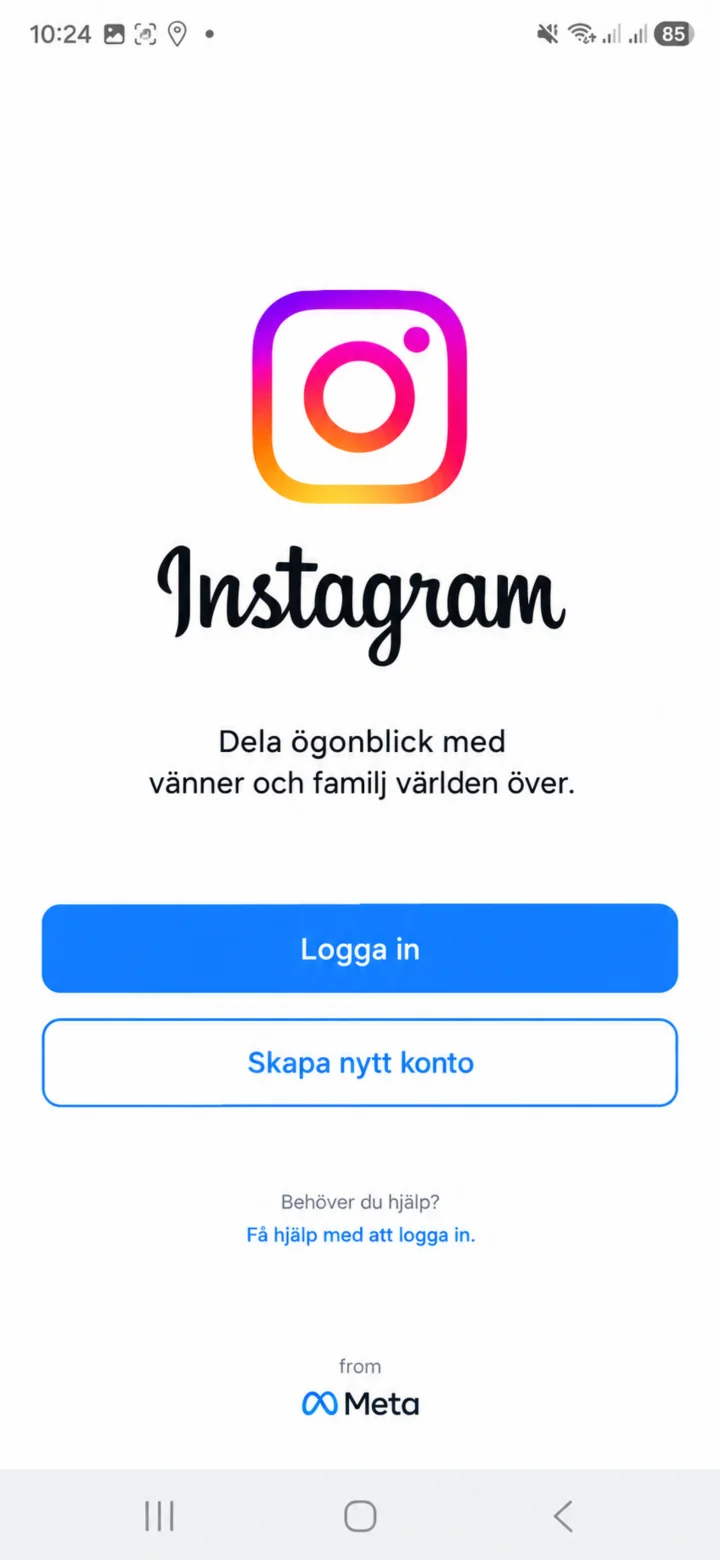 2Step 2 of 8 · Android
When Instagram opens, choose ”Logga in” (Log in) if you already have an account. Choose ”Skapa nytt konto” (Create new account) if you don't have one.
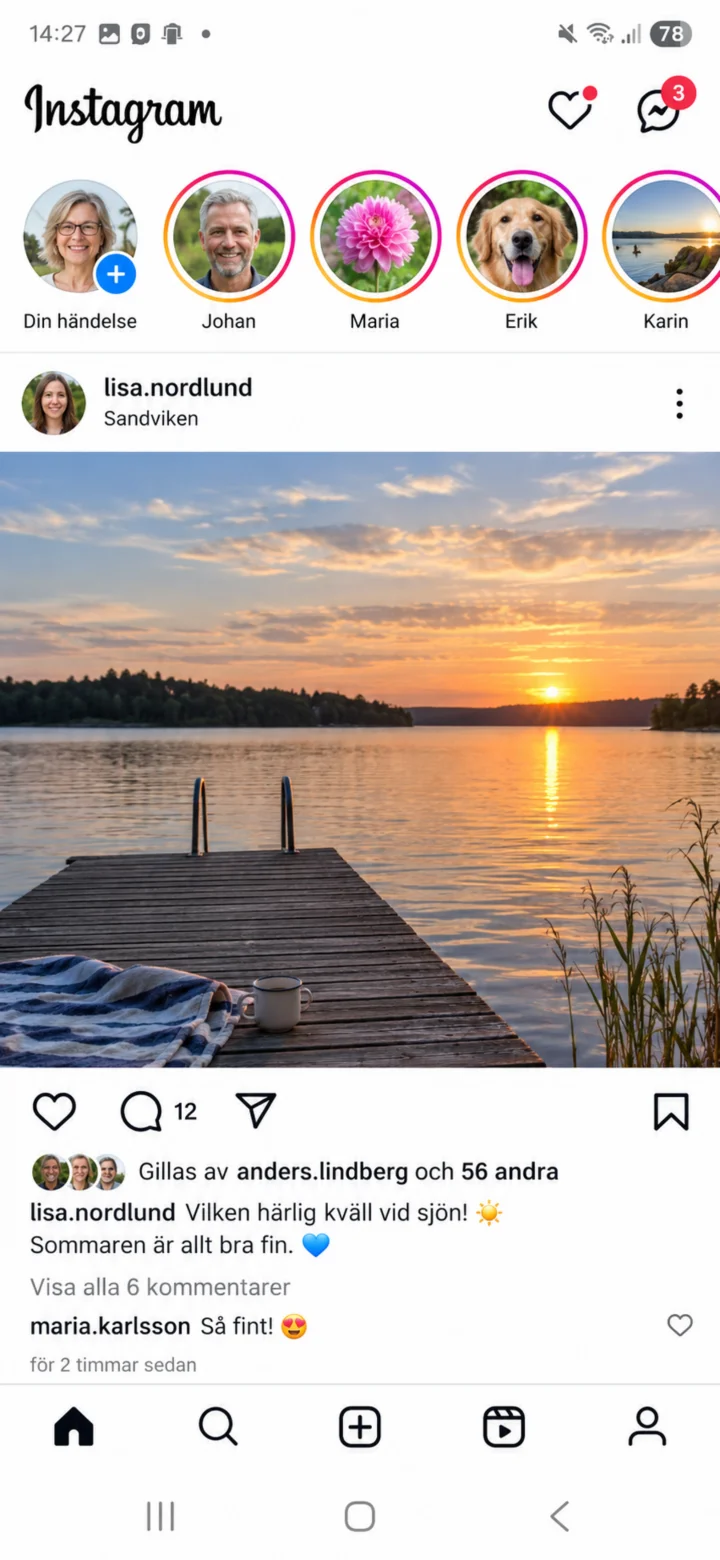 3Step 3 of 8 · Android
Now you're in Instagram! On the home page, you'll see posts and stories that have been published. If you want to set up your profile, tap the profile icon in the bottom right corner to open your profile.
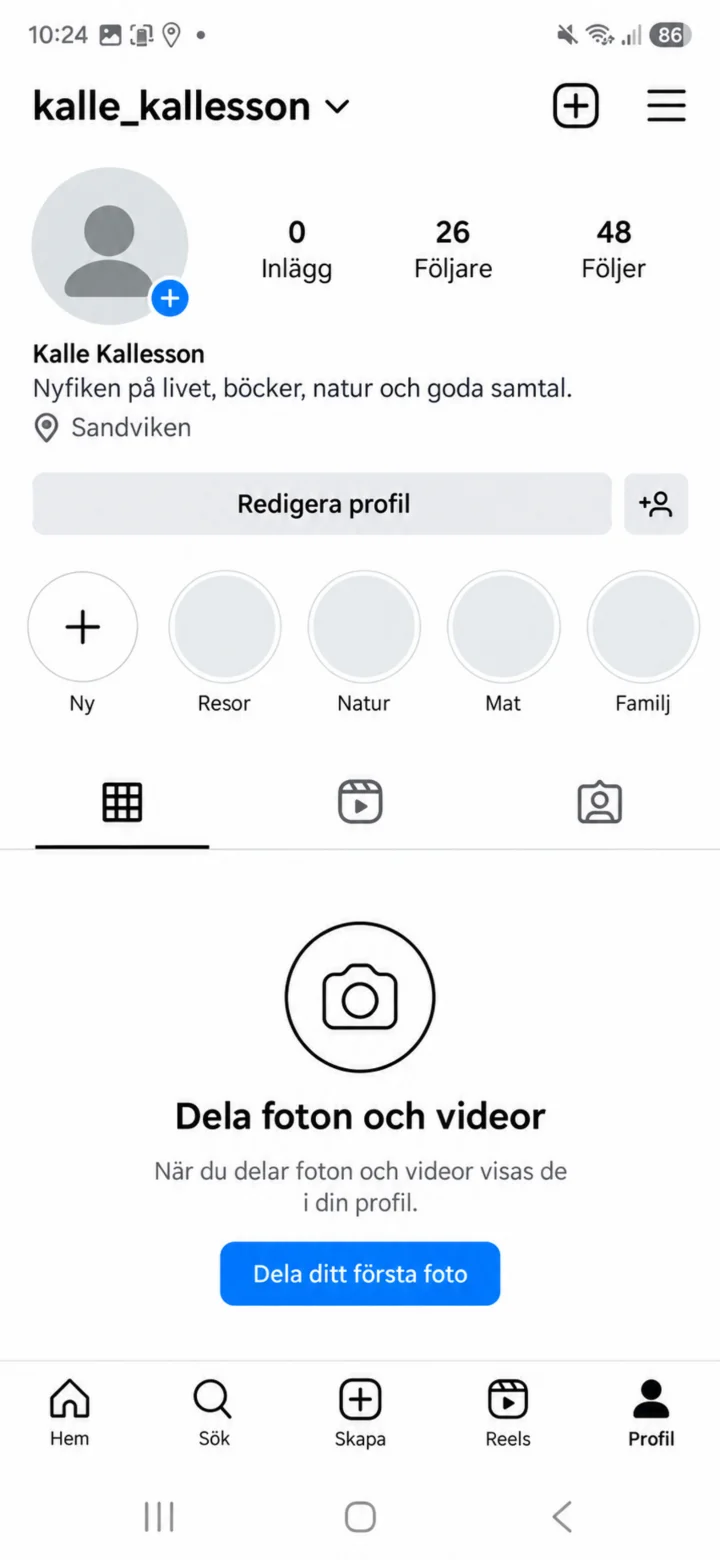 4Step 4 of 8 · Android
On your profile, you'll see your posts and the ”Redigera profil” (Edit profile) button. Tap ”Redigera profil” (Edit profile) to change your information.
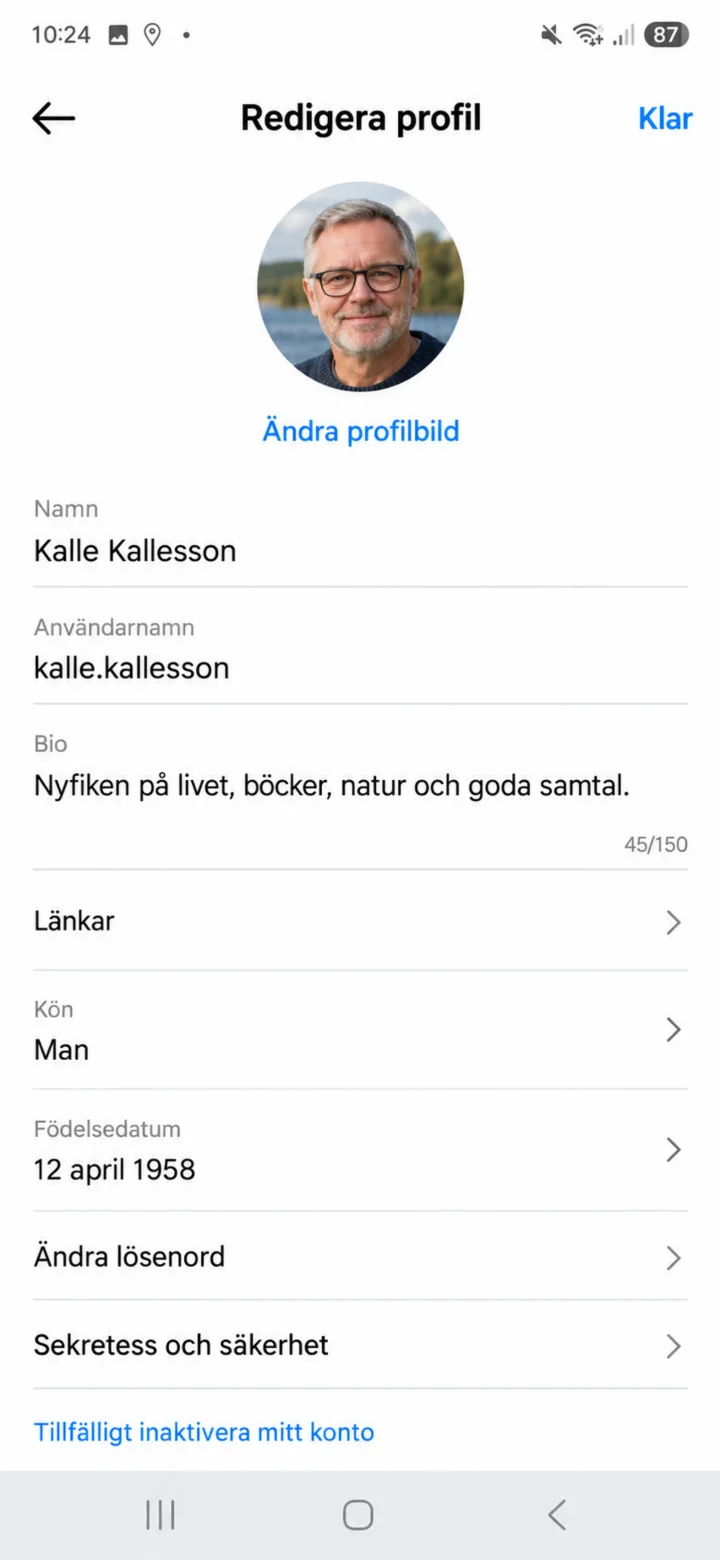 5Step 5 of 8 · Android
On the ”Redigera profil” (Edit profile) page, tap ”Ändra profilbild” (Change profile picture).
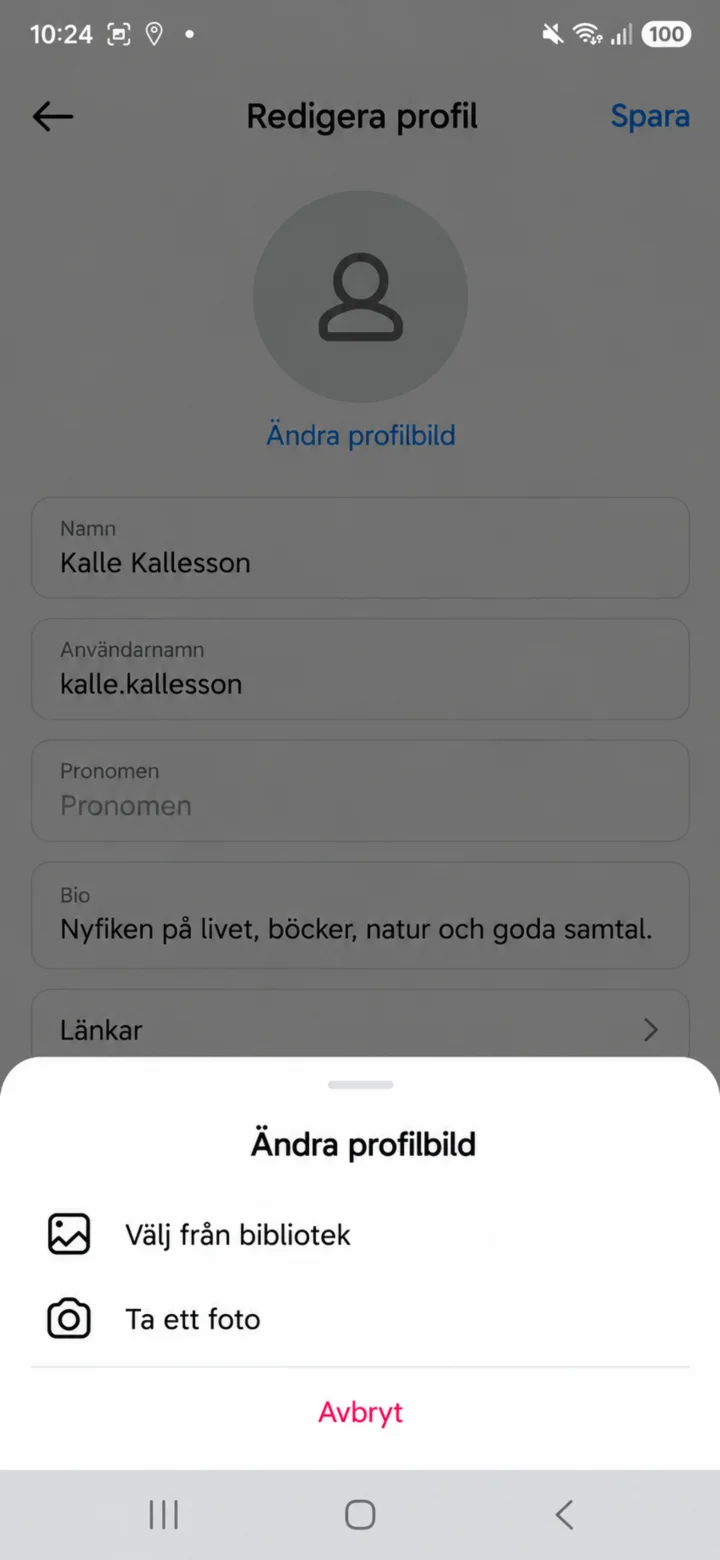 6Step 6 of 8 · Android
Choose ”Välj från bibliotek” (Select from library) if the picture is already on your phone. Choose ”Ta ett foto” (Take a photo) if you want to take a new picture.
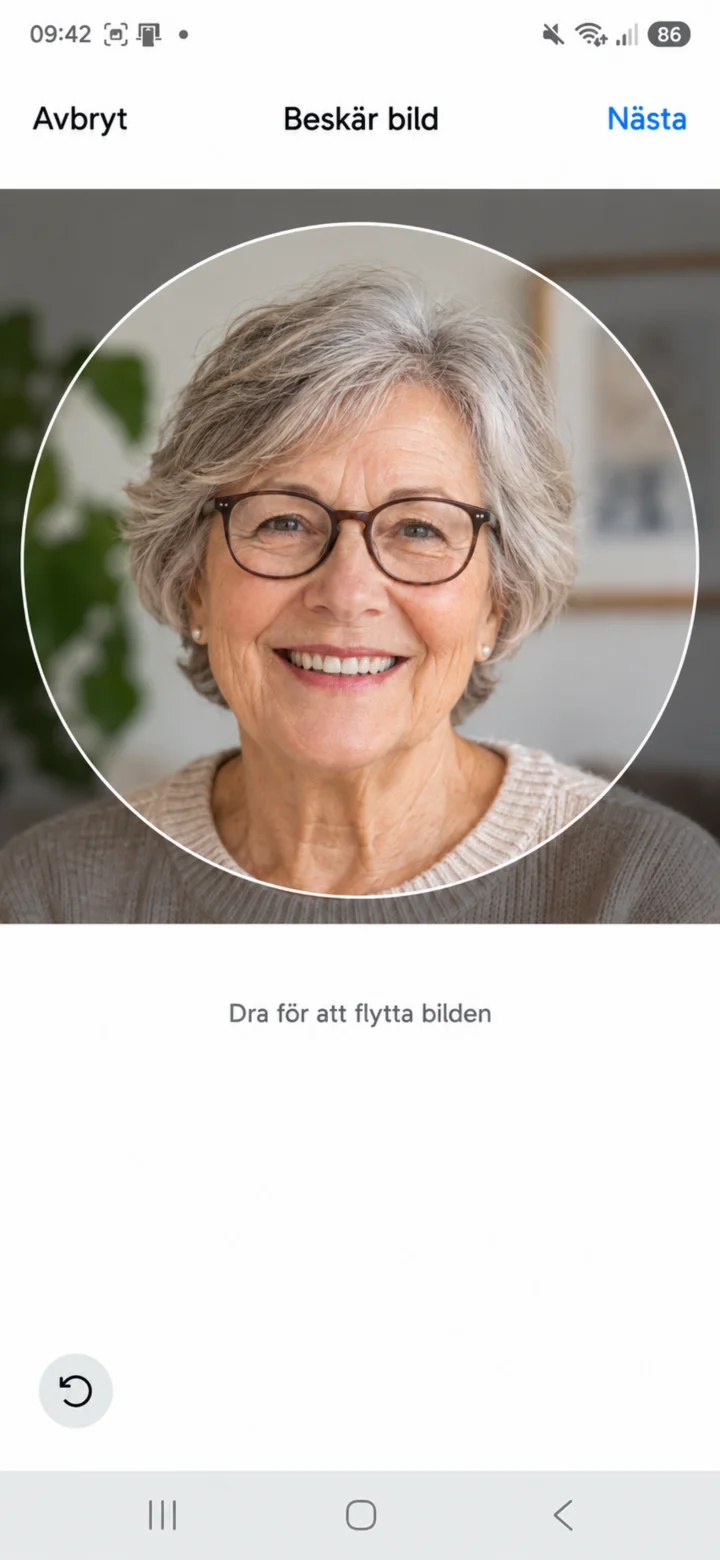 7Step 7 of 8 · Android
Drag the picture so your face is clearly visible in the circle. Then tap ”Nästa” (Next).
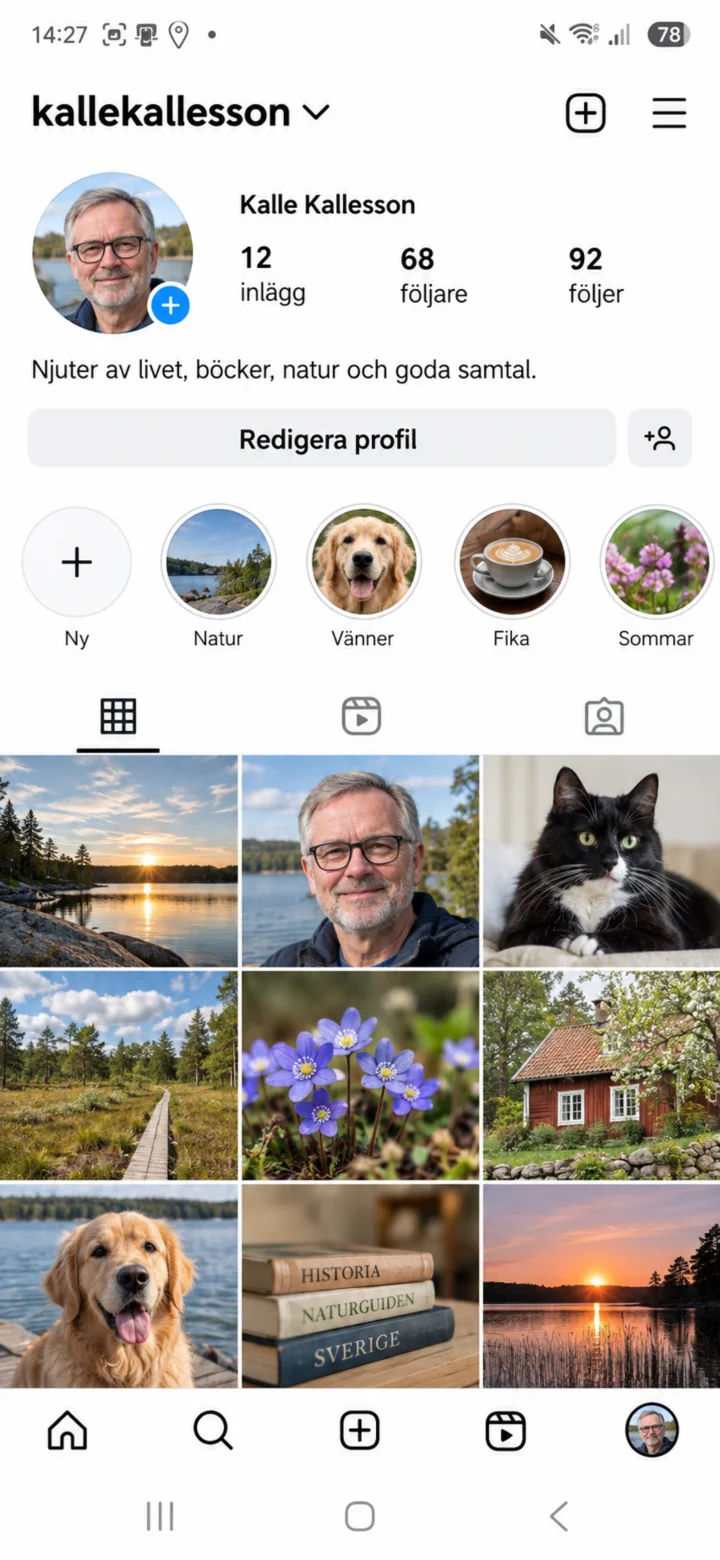 8Step 8 of 8 · Android
Now your new profile picture will appear on your Instagram profile. You can change it again anytime via ”Redigera profil” (Edit profile).