Every guide in the topic, each starting on a new page. 44 steps in total.
Tip: untick “Headers and footers” in the print dialog to leave out the web address.
Pay and Swish
Step-by-step guides · 5 guides
 iPhone
Contents
- 1.Download and start using Kivra12 steps
- 2.How to get Mobilt BankID12 steps
- 3.How to pay a bill with Kivra6 steps
- 4.How to pay with Swish7 steps
- 5.How to use Swish to send money7 steps
Download and start using Kivra
iPhone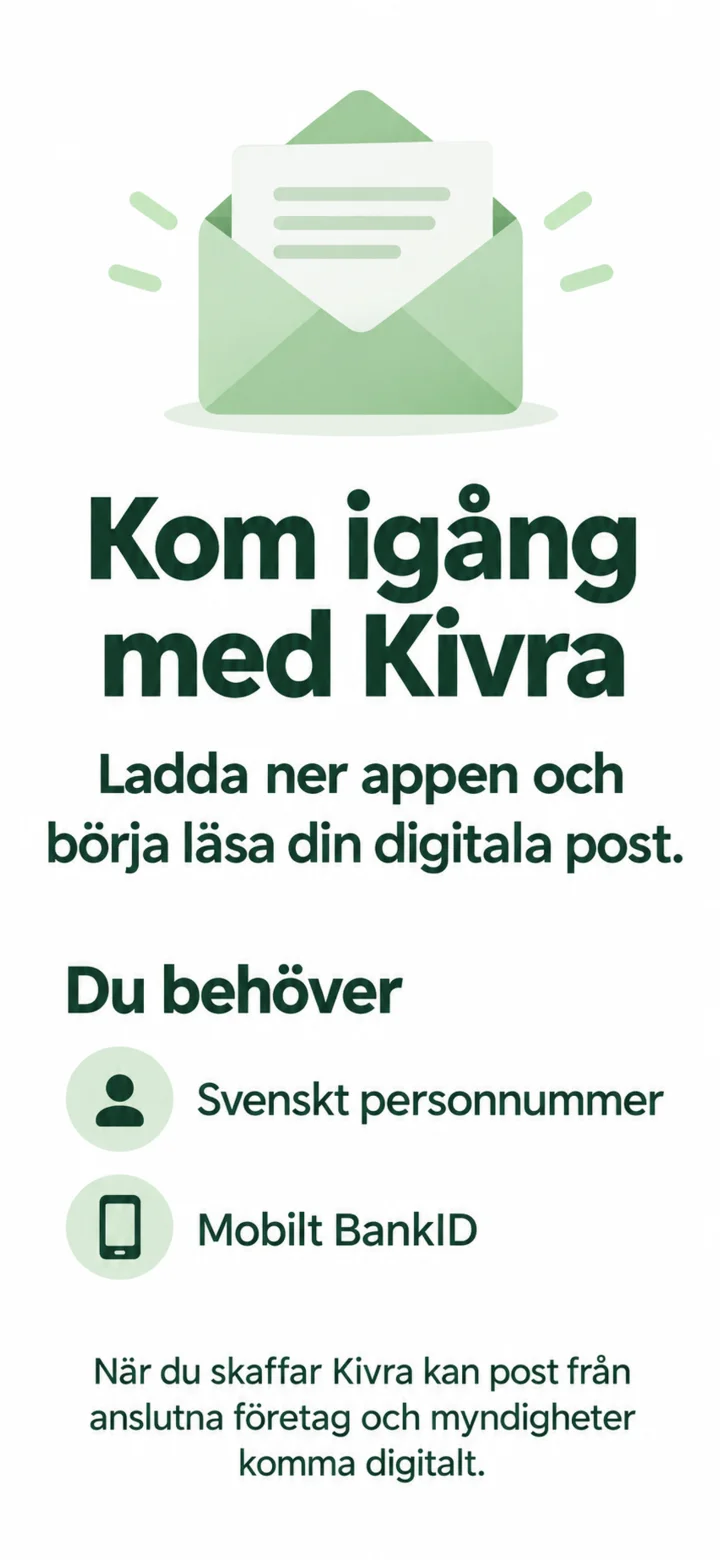 1Step 1 of 12 · iPhone
Now we're going to download Kivra and create an account. You'll need Mobilt BankID and a Swedish personal identity number.
 2Step 2 of 12 · iPhone
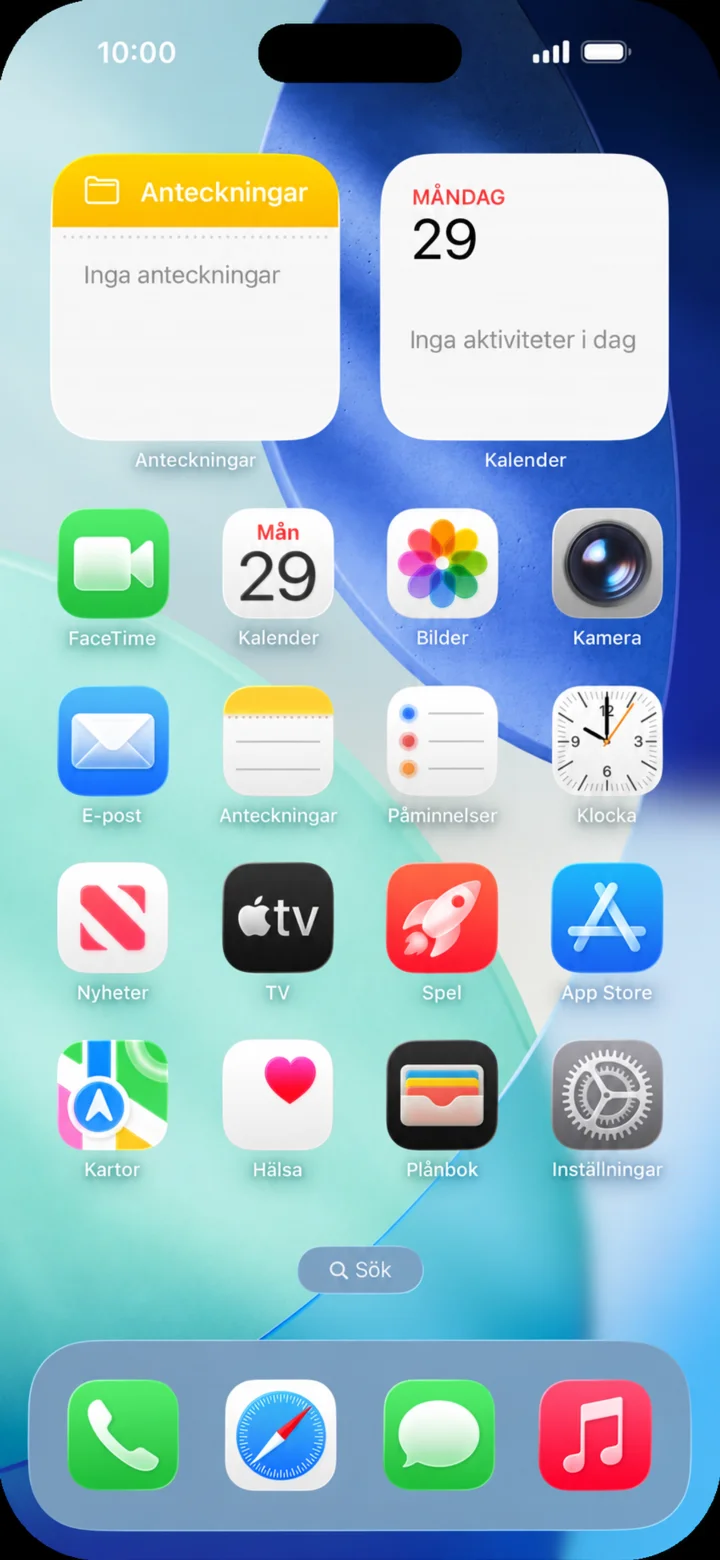
Start on the home screen and tap App Store.
 3Step 3 of 12 · iPhone
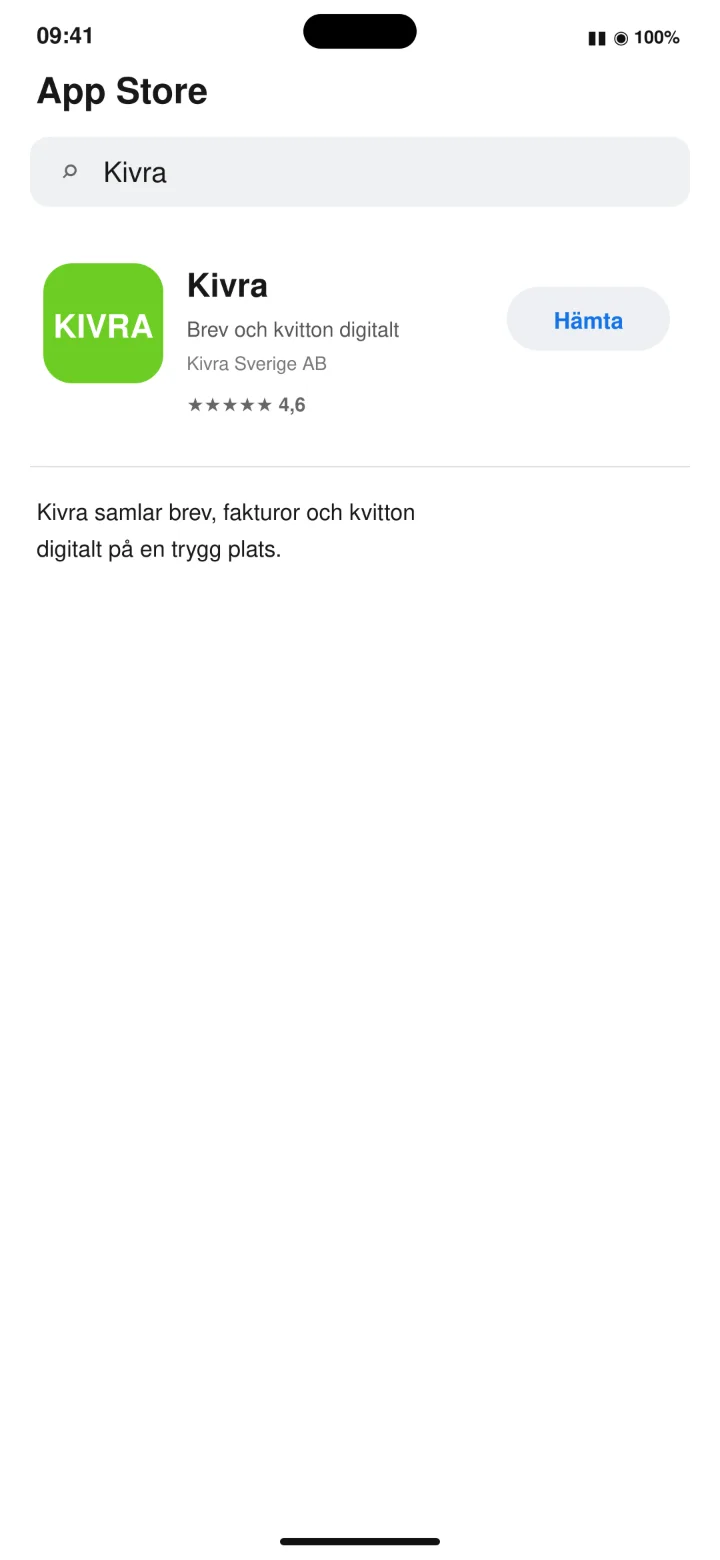
Search for Kivra and tap ”Hämta” (Get).
 4Step 4 of 12 · iPhone
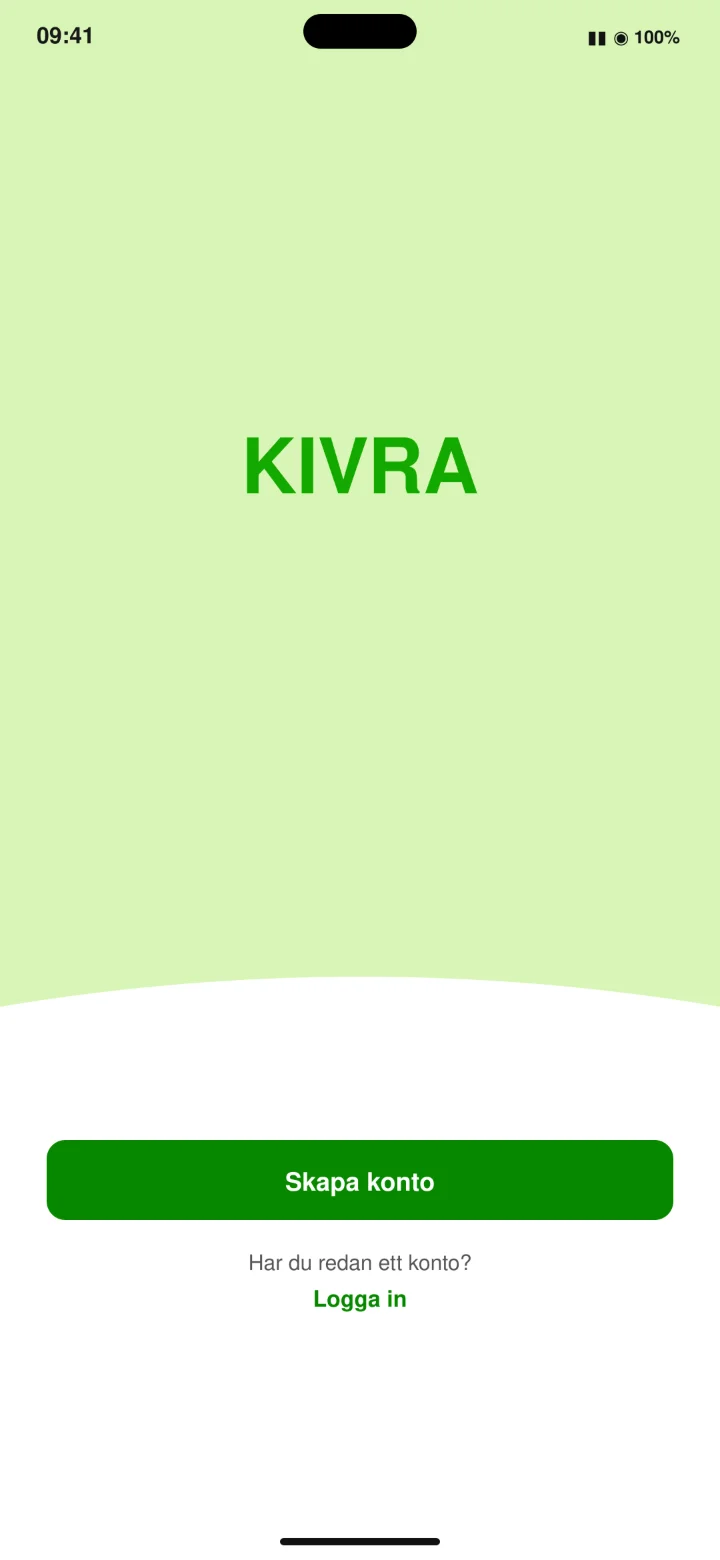
Open Kivra and tap ”Skapa konto” (Create account).
 5Step 5 of 12 · iPhone
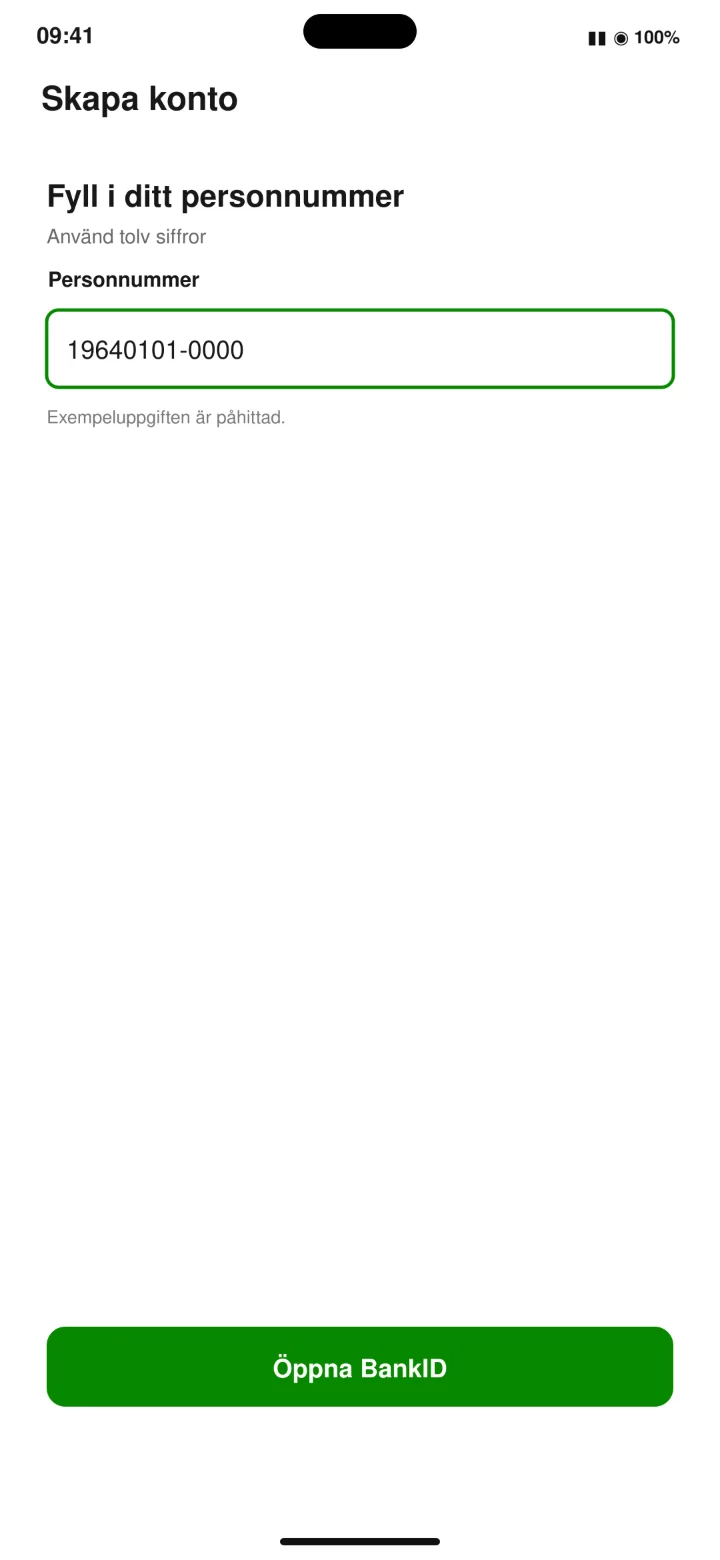
Enter your twelve-digit personal identity number and tap ”Öppna BankID” (Open BankID).
 6Step 6 of 12 · iPhone
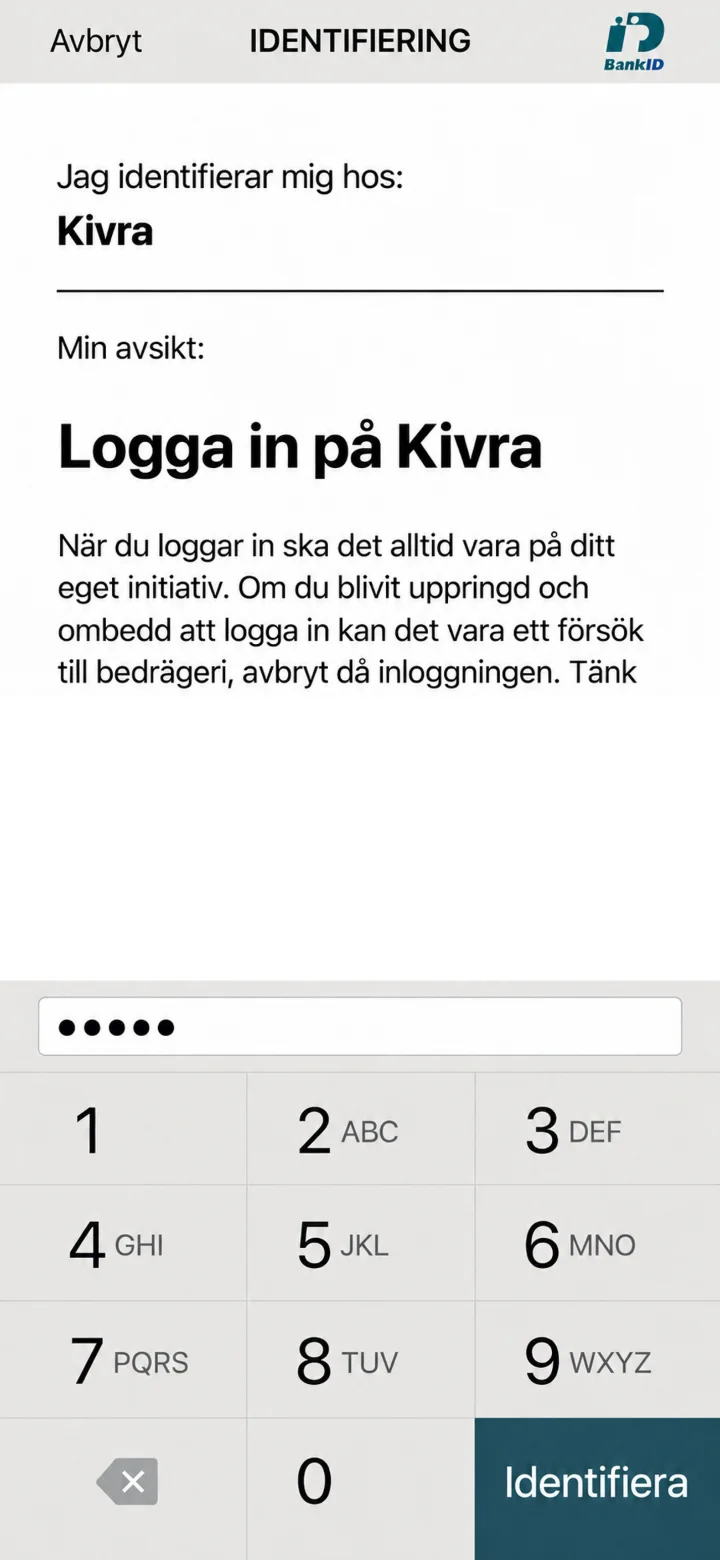
Enter your 6-digit security code and tap ”indentifiera” (identify). Now Kivra will open again.
 7Step 7 of 12 · iPhone
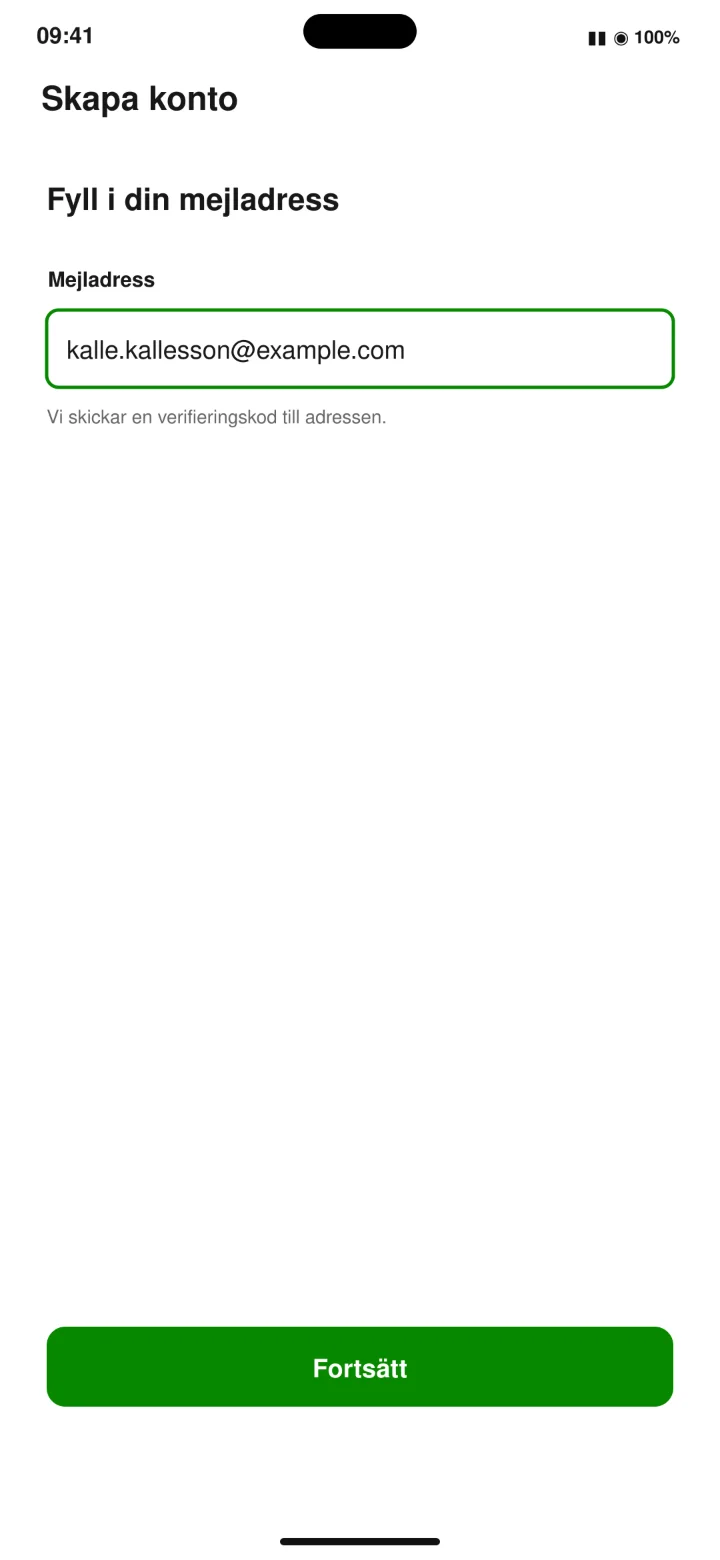
Fill in your email address and tap ”Fortsätt” (Continue).
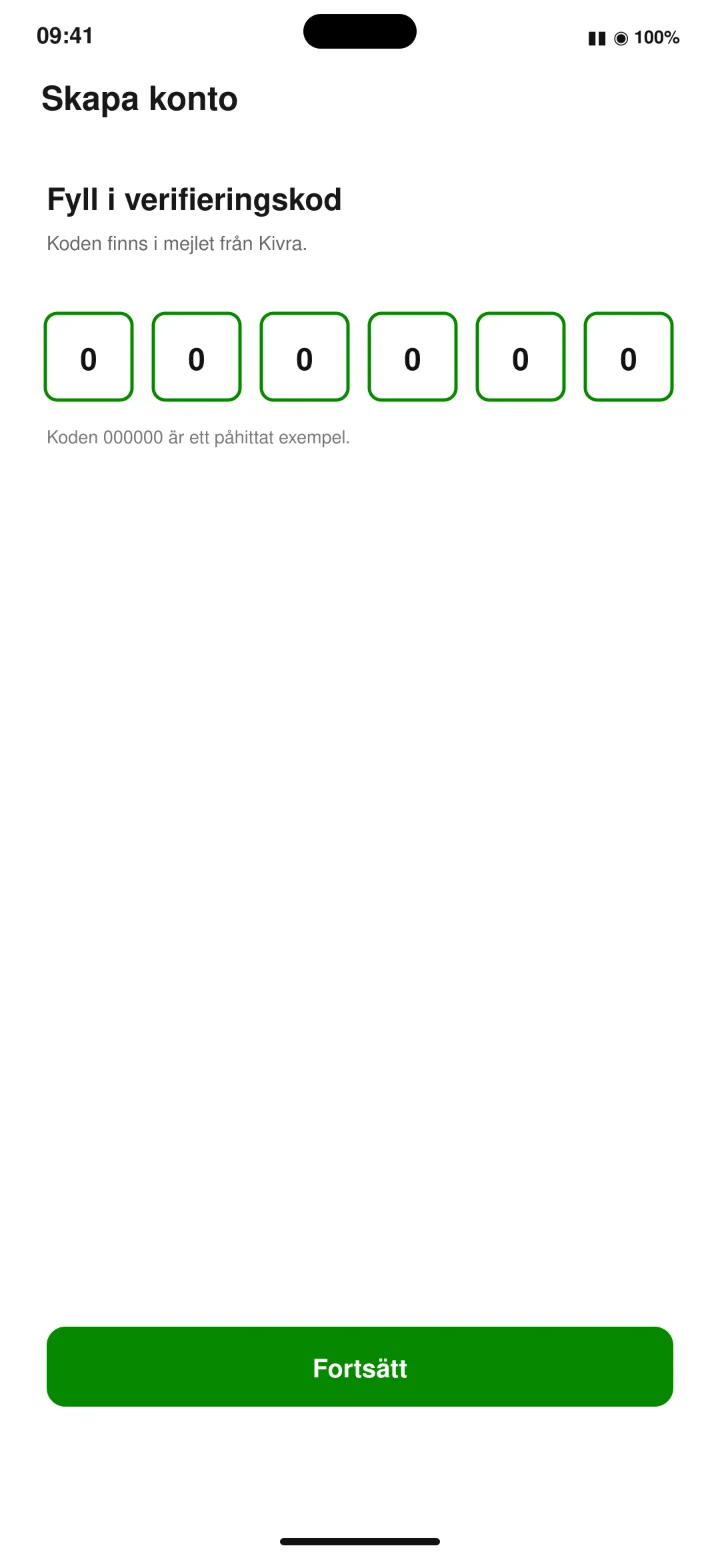 8Step 8 of 12 · iPhone
Open the email from Kivra. Copy or write down the six-digit code. Then enter that code in the app.
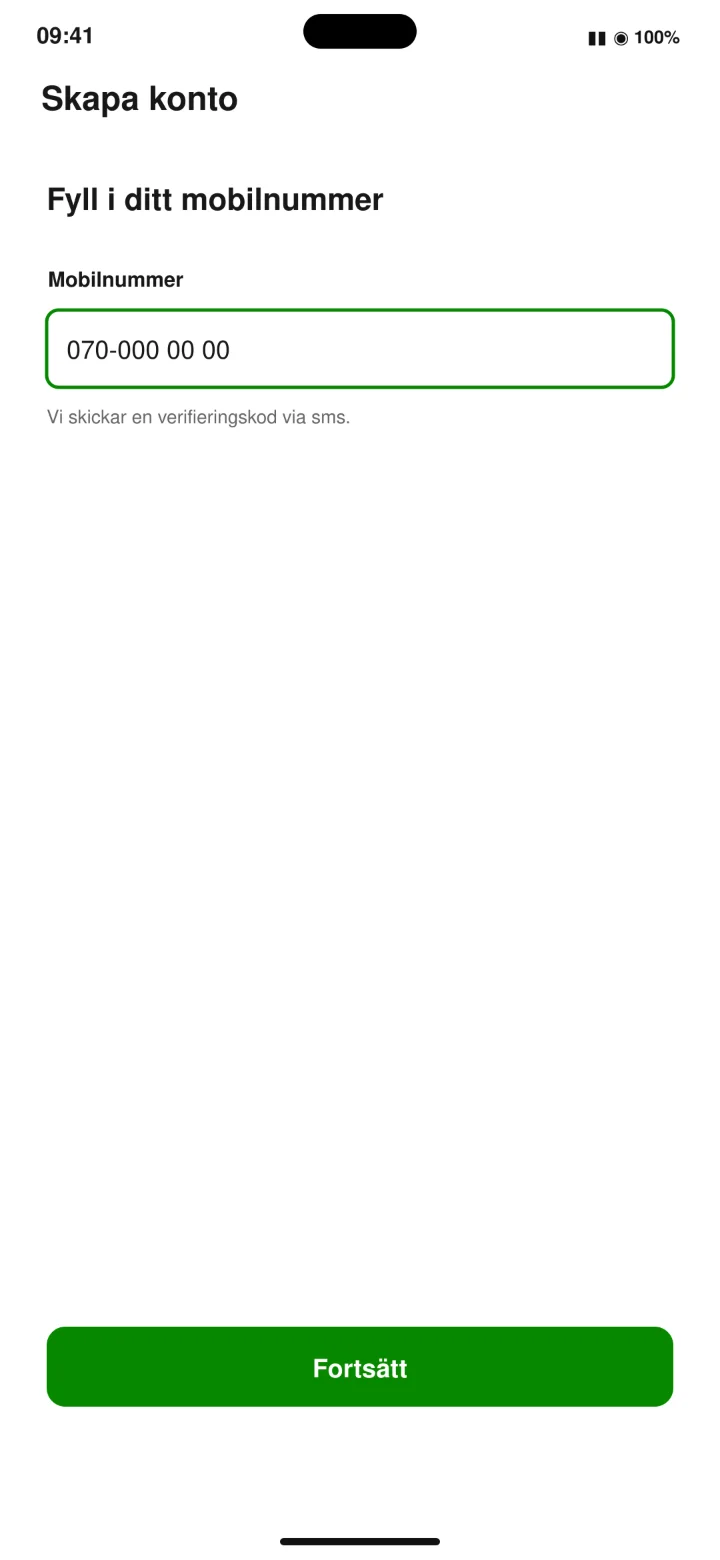 9Step 9 of 12 · iPhone
Fill in your mobile number and tap ”Fortsätt” (Continue).
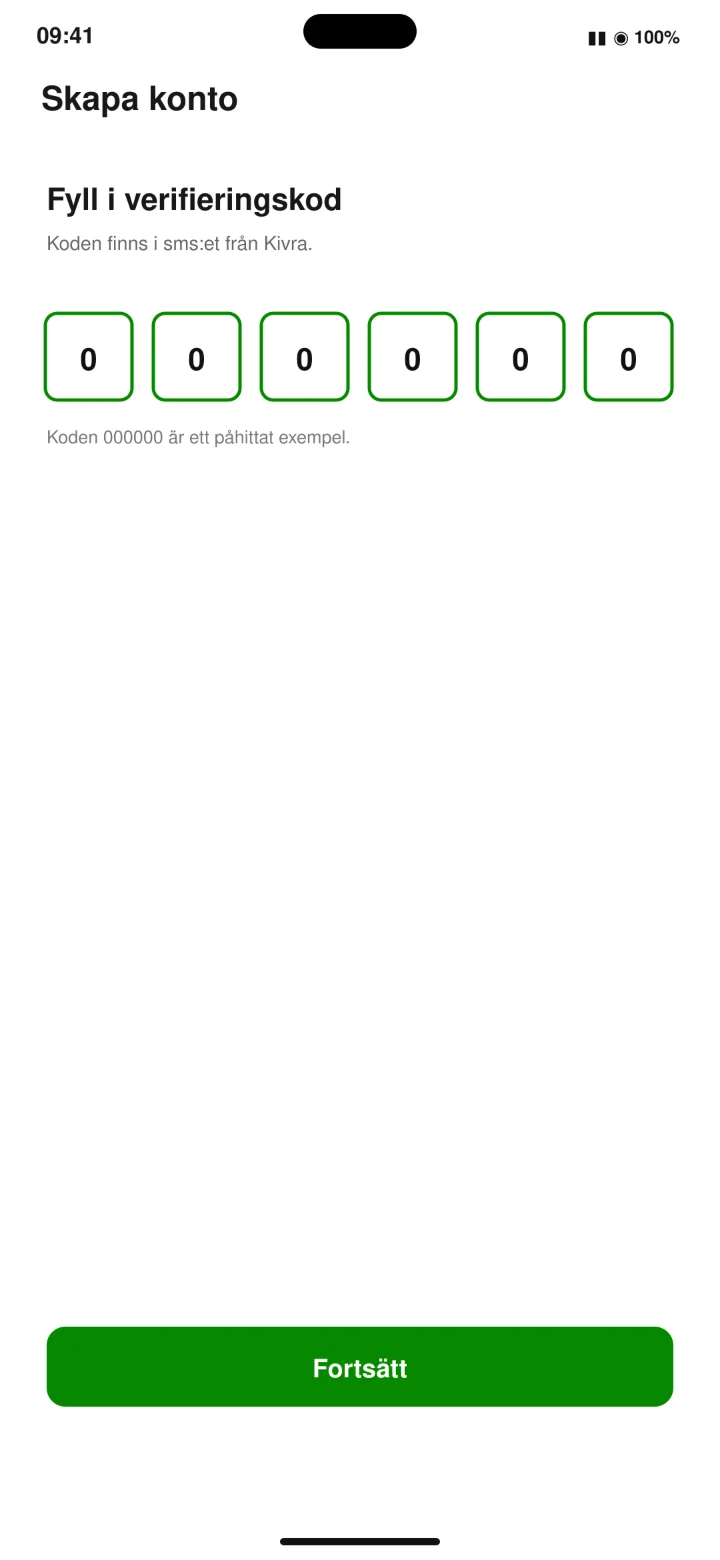 10Step 10 of 12 · iPhone
Open the SMS from Kivra. Then enter the code in the app and tap ”Fortsätt” (Continue).
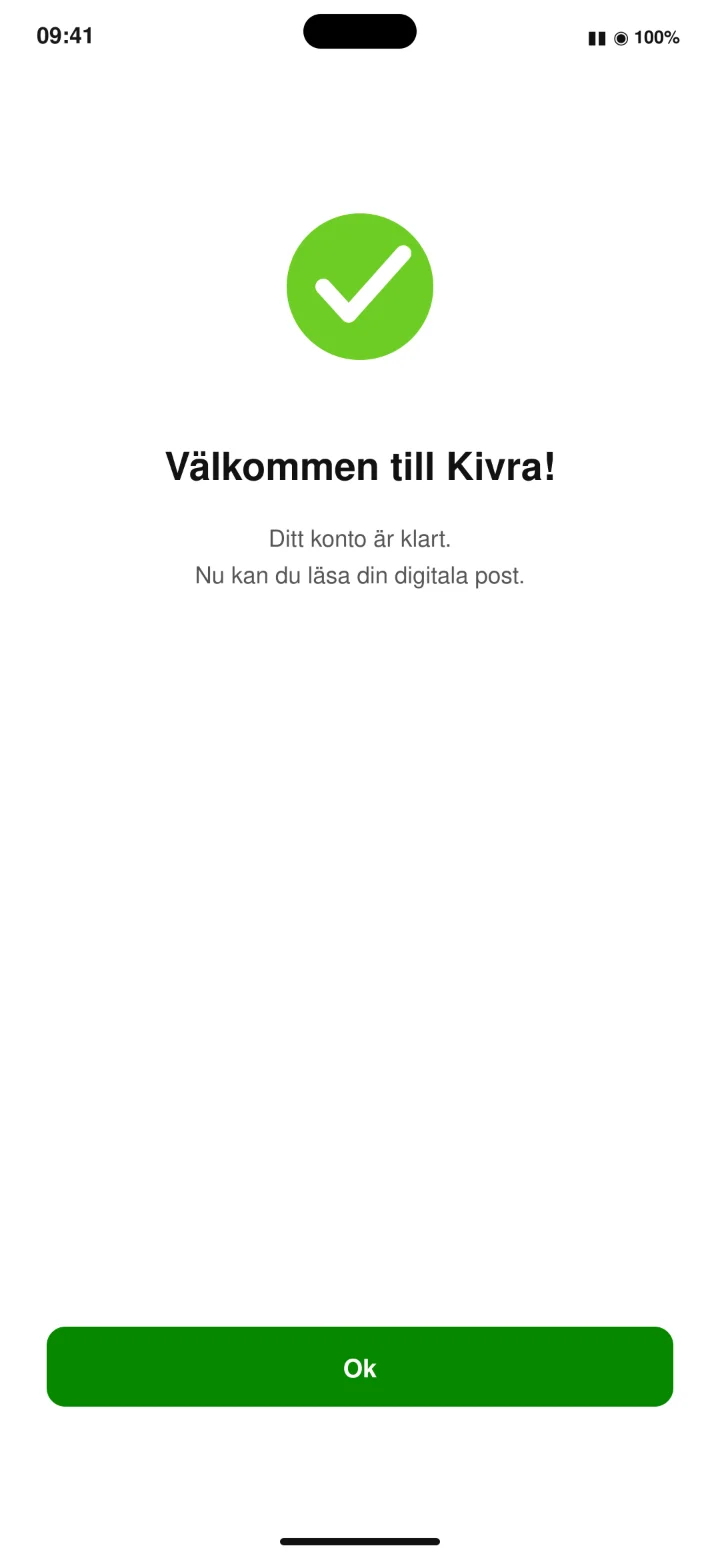 11Step 11 of 12 · iPhone
Your Kivra account is ready. Tap ”Ok” (Ok).
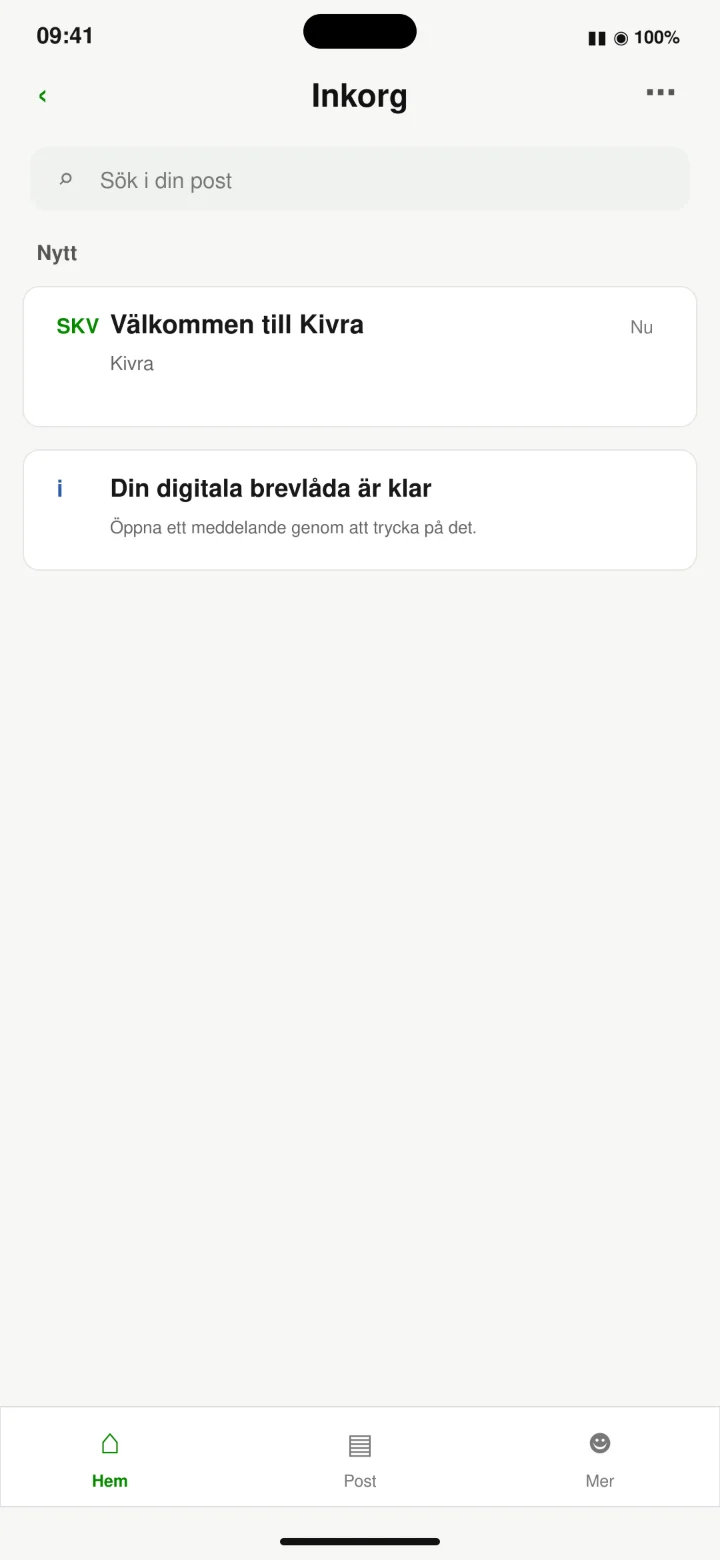 12Step 12 of 12 · iPhone
Kivra is now ready to use. This is your inbox. Here you'll see letters, invoices, and other important messages.
How to get Mobilt BankID
iPhone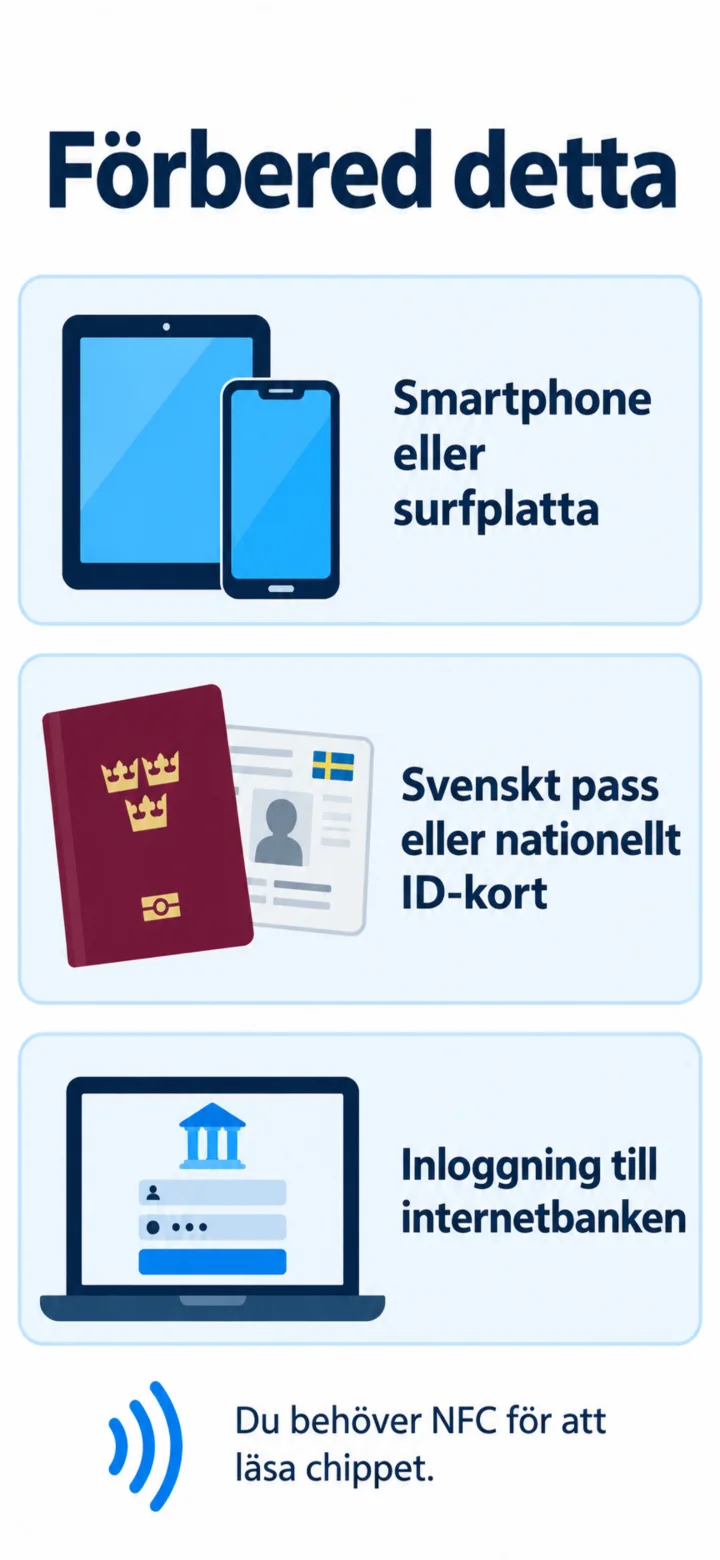 1Step 1 of 12 · iPhone
Hello! Here I'll show you how to get Mobilt BankID. You can pause whenever you want and play again. To get started, you'll need a mobile phone or tablet, a Swedish passport or national ID card, and login details for your internet bank.
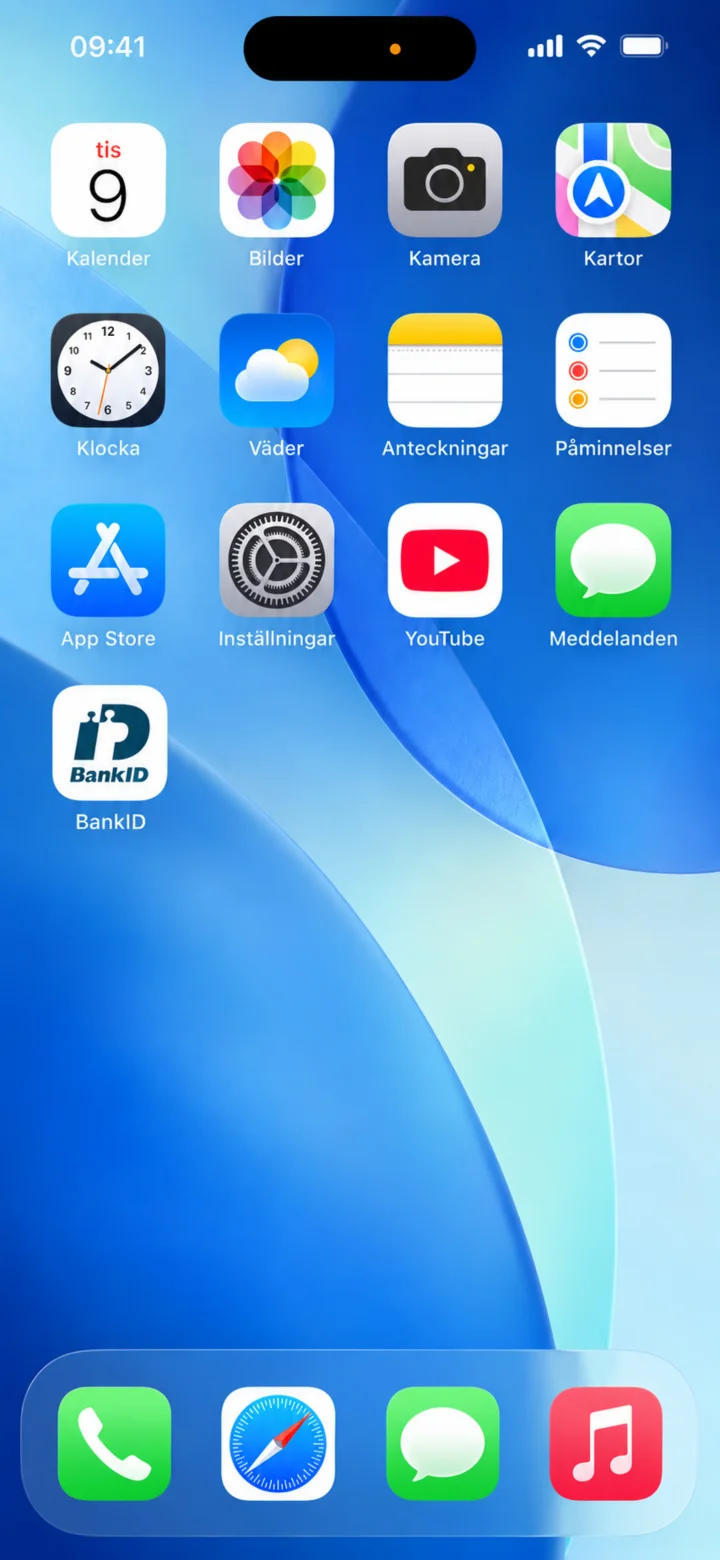 2Step 2 of 12 · iPhone
Open the App Store.
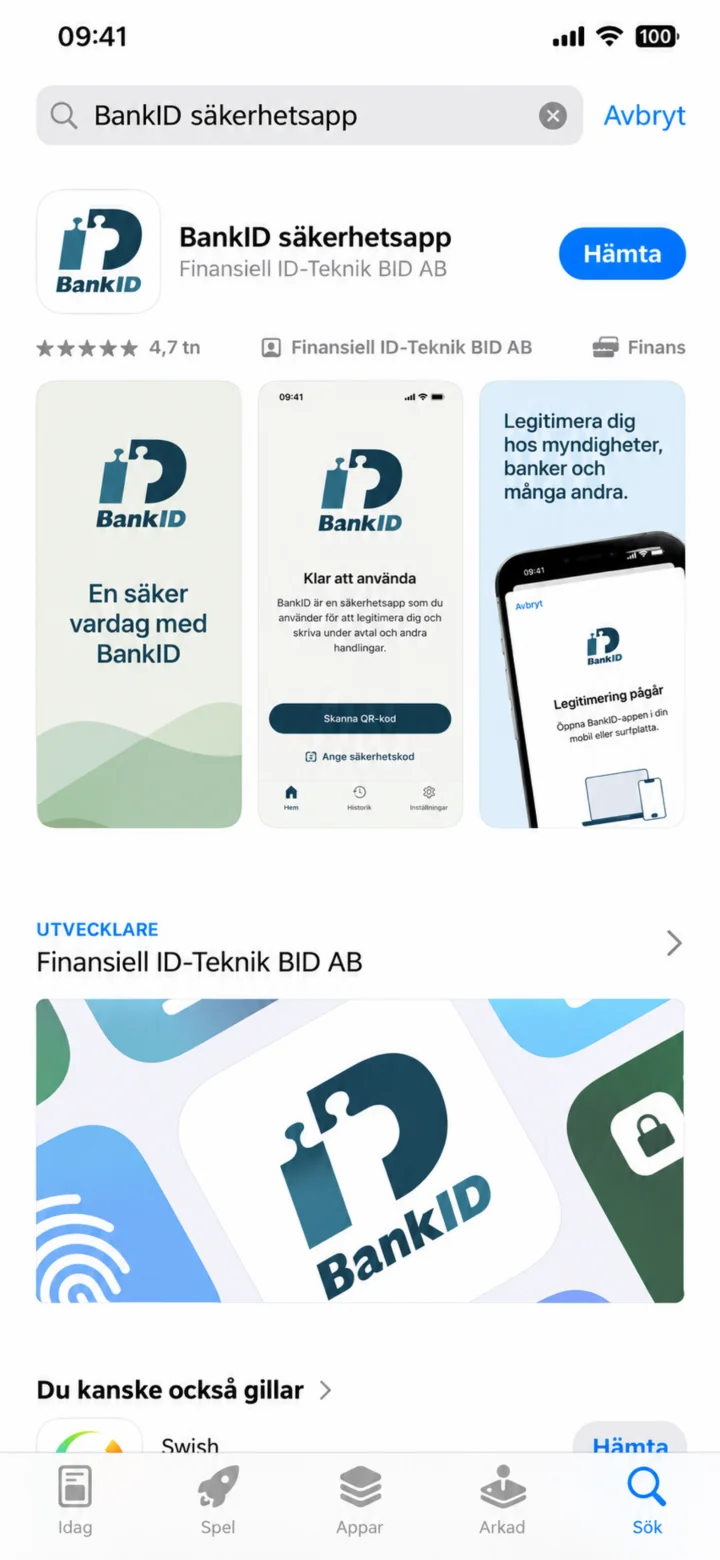 3Step 3 of 12 · iPhone
Type BankID in the search bar. Tap the blue button that says ”Hämta” (Get).
 4Step 4 of 12 · iPhone
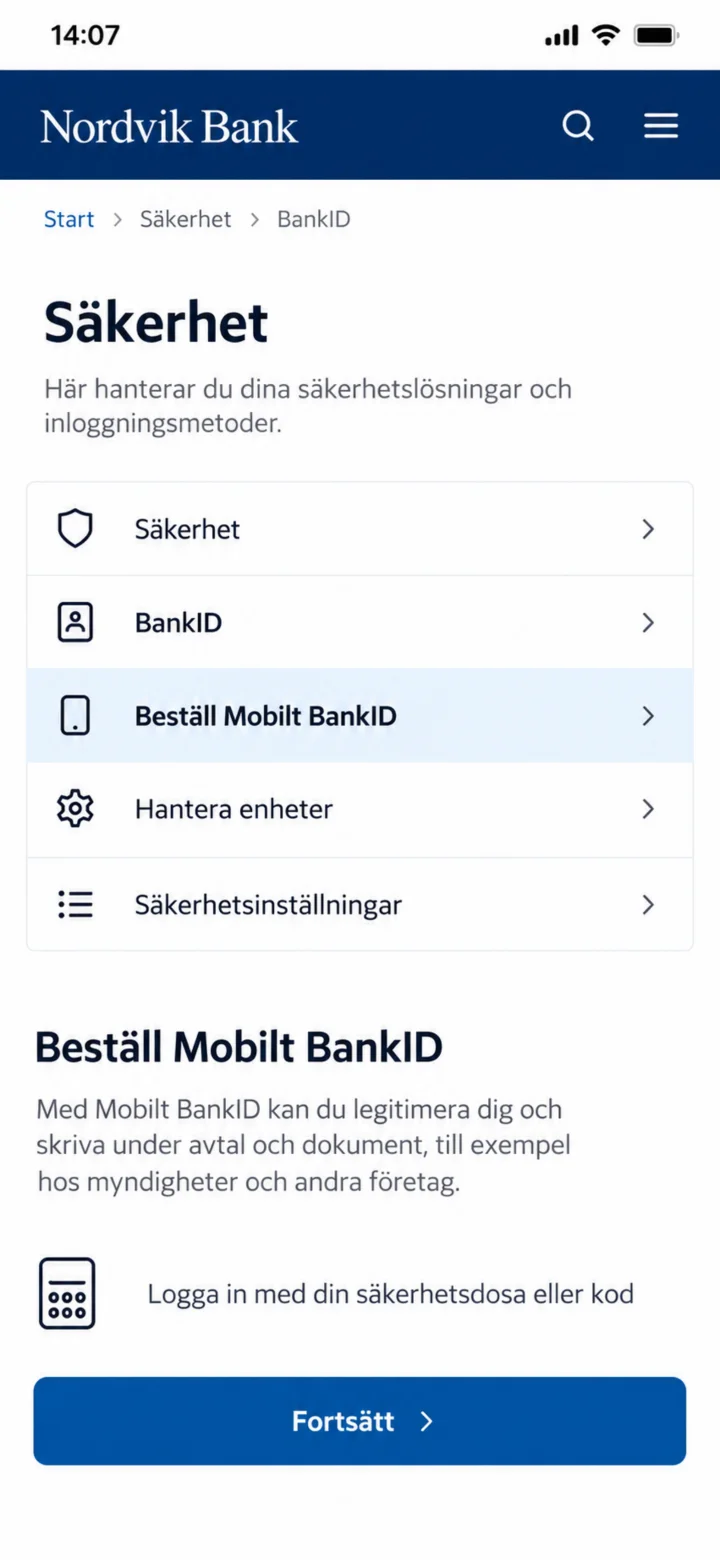
Now you are in your bank's app. Tap the blue button ”Fortsätt” (Continue) at the bottom to order Mobilt BankID.
 5Step 5 of 12 · iPhone
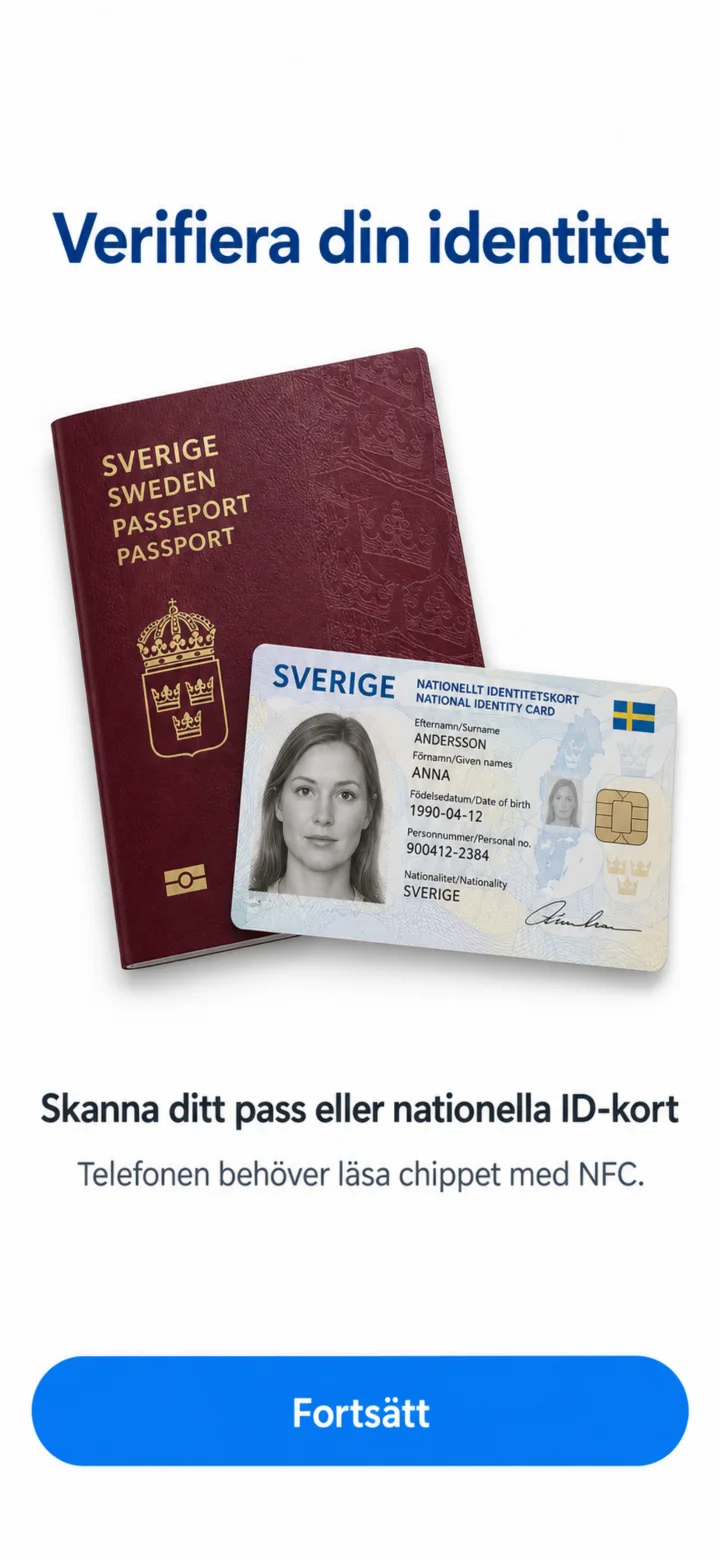
Here you see that you need to verify your identity with your passport or national ID card. Tap the blue button ”Fortsätt” (Continue) at the bottom.
 6Step 6 of 12 · iPhone
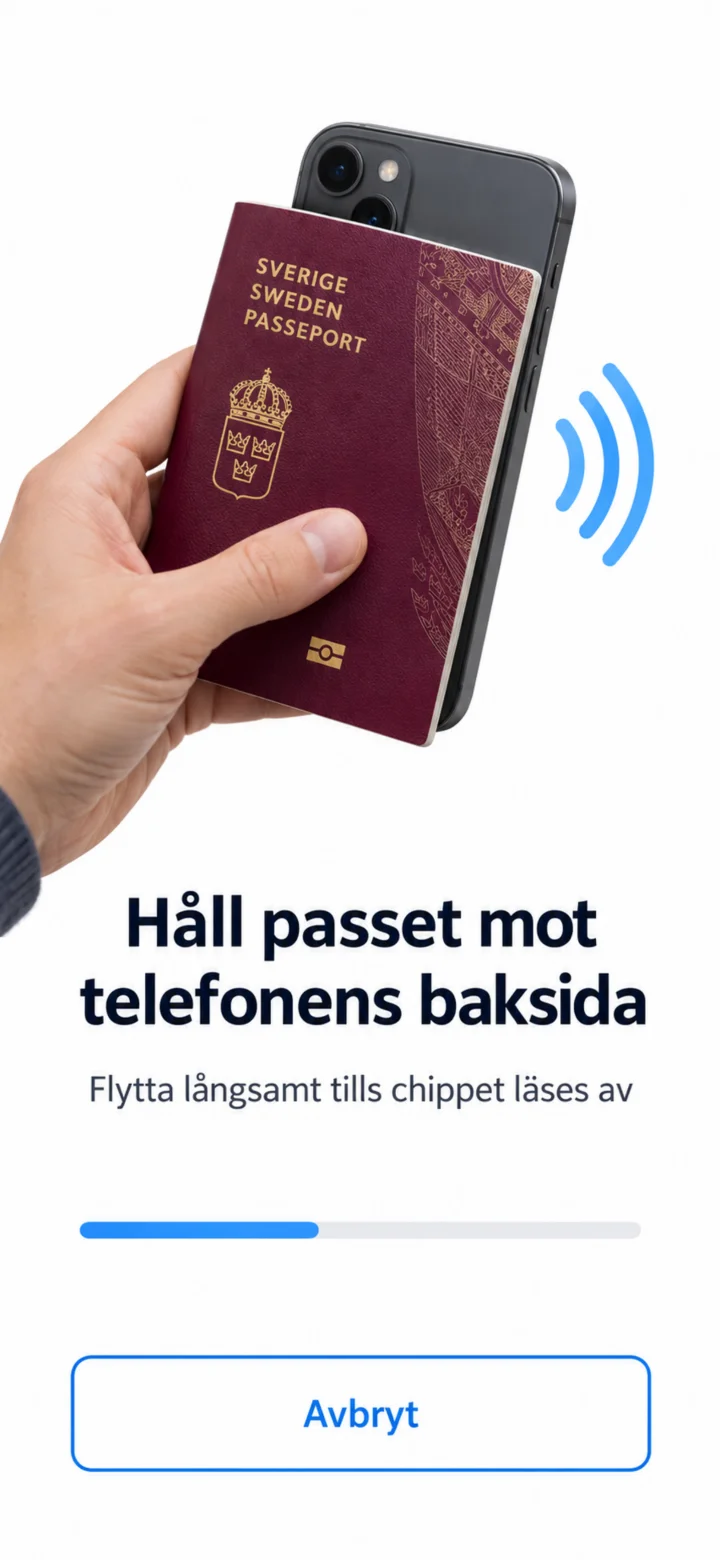
Now you should hold your passport or ID card against the back of your phone. Move it slowly until the phone reads the chip. You don't need to tap anything here.
 7Step 7 of 12 · iPhone
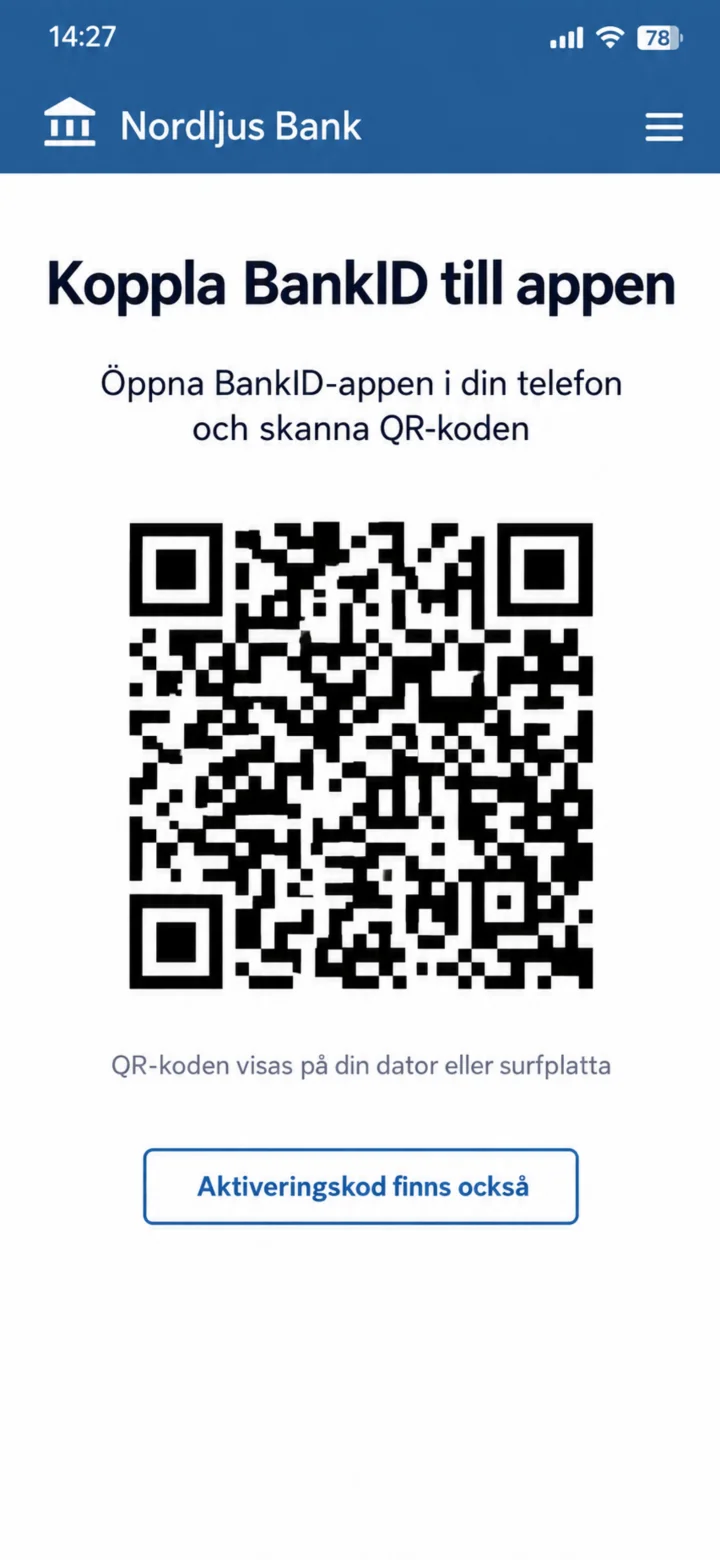
A QR code is now displayed on the screen. You should now open the BankID app that you downloaded earlier and scan this code. You don't need to tap anything on this screen. If you don't have another screen to display the QR code on, you can tap ”Använd aktiveringskod” (Use activation code) at the bottom.
 8Step 8 of 12 · iPhone
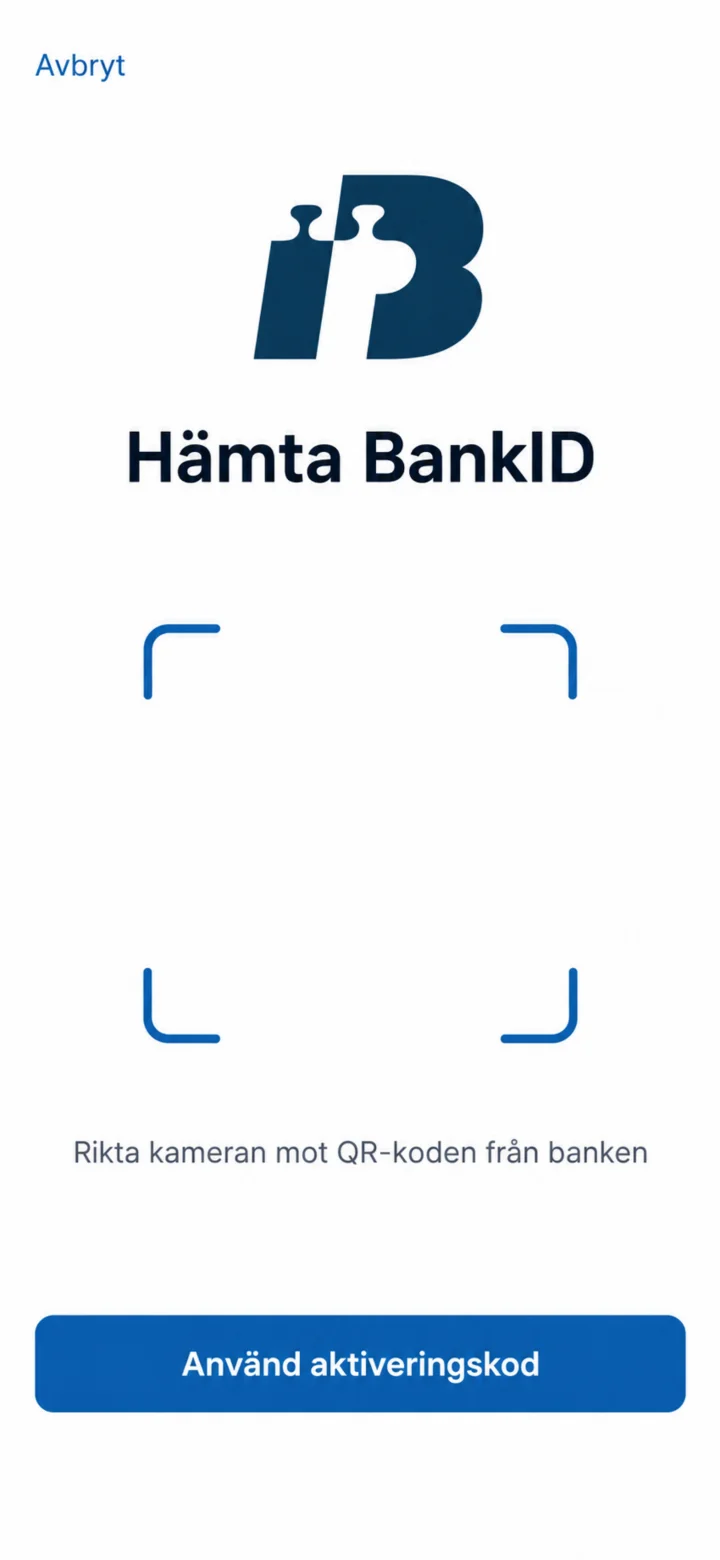
Now you are in the BankID app. Point your phone's camera at the QR code that was displayed in your bank's app. If you don't have another screen to display the QR code on, you can tap ”Använd aktiveringskod” (Use activation code) at the bottom.
 9Step 9 of 12 · iPhone
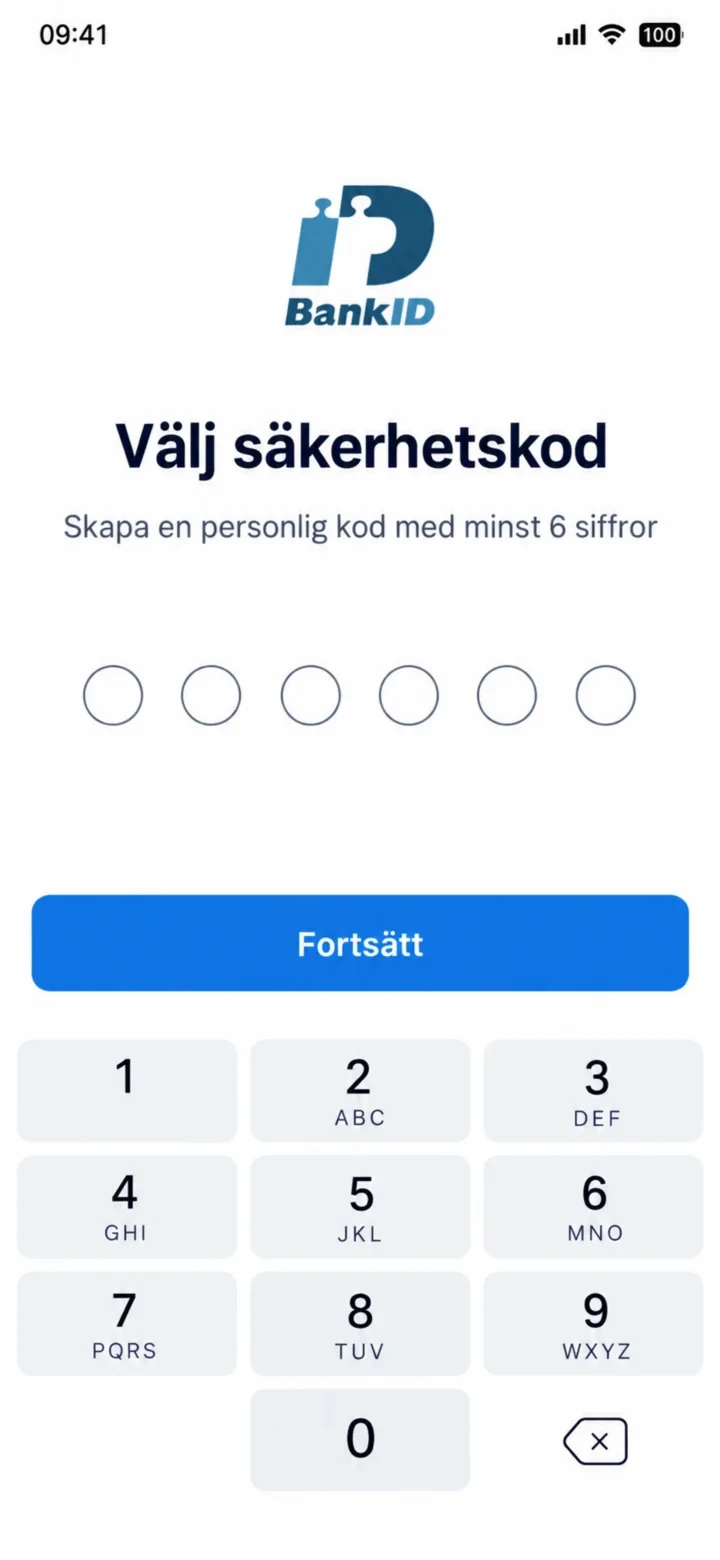
Now you should choose a personal security code with at least six digits. Enter your code and then tap the button ”Fortsätt” (Continue).
 10Step 10 of 12 · iPhone
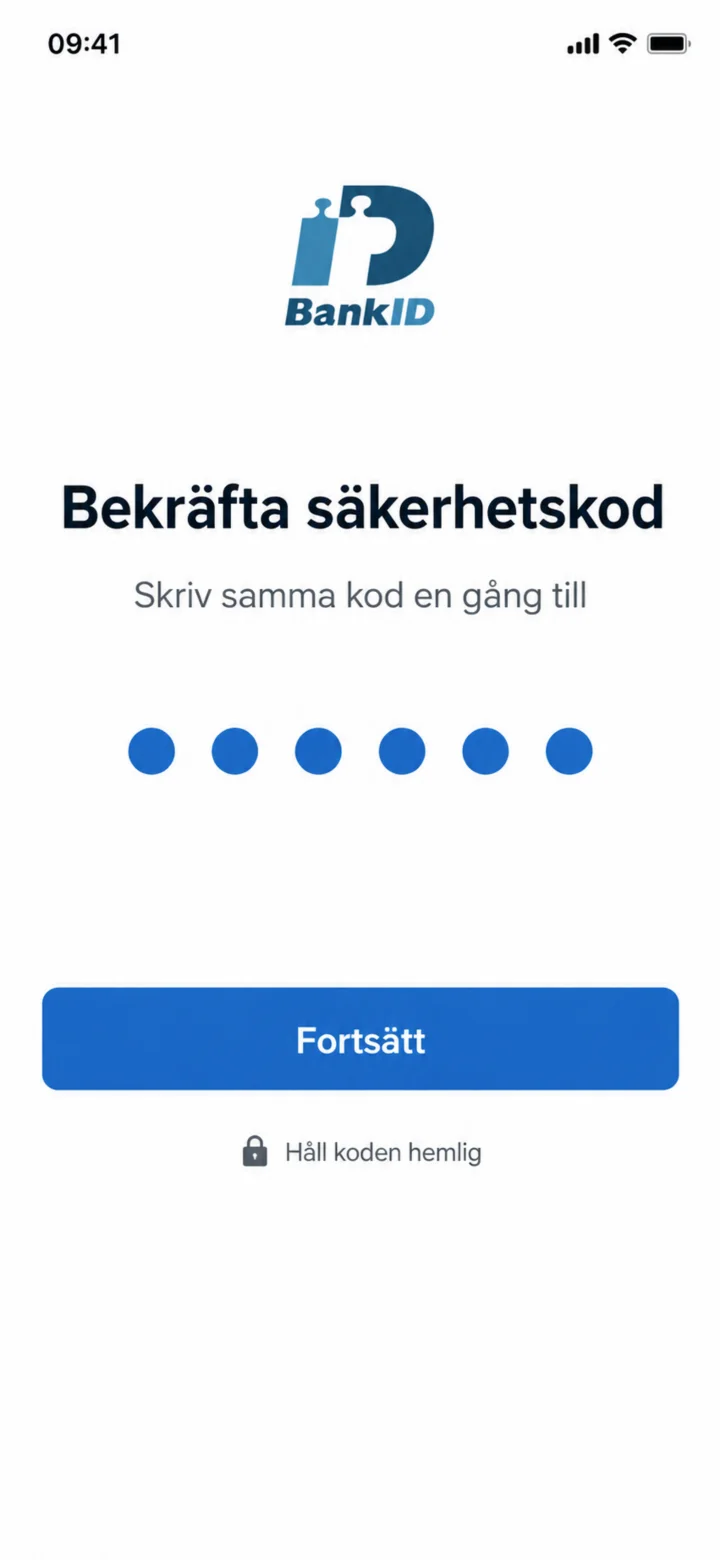
Enter the same code once more to confirm it. Then tap the blue button ”Fortsätt” (Continue).
 11Step 11 of 12 · iPhone
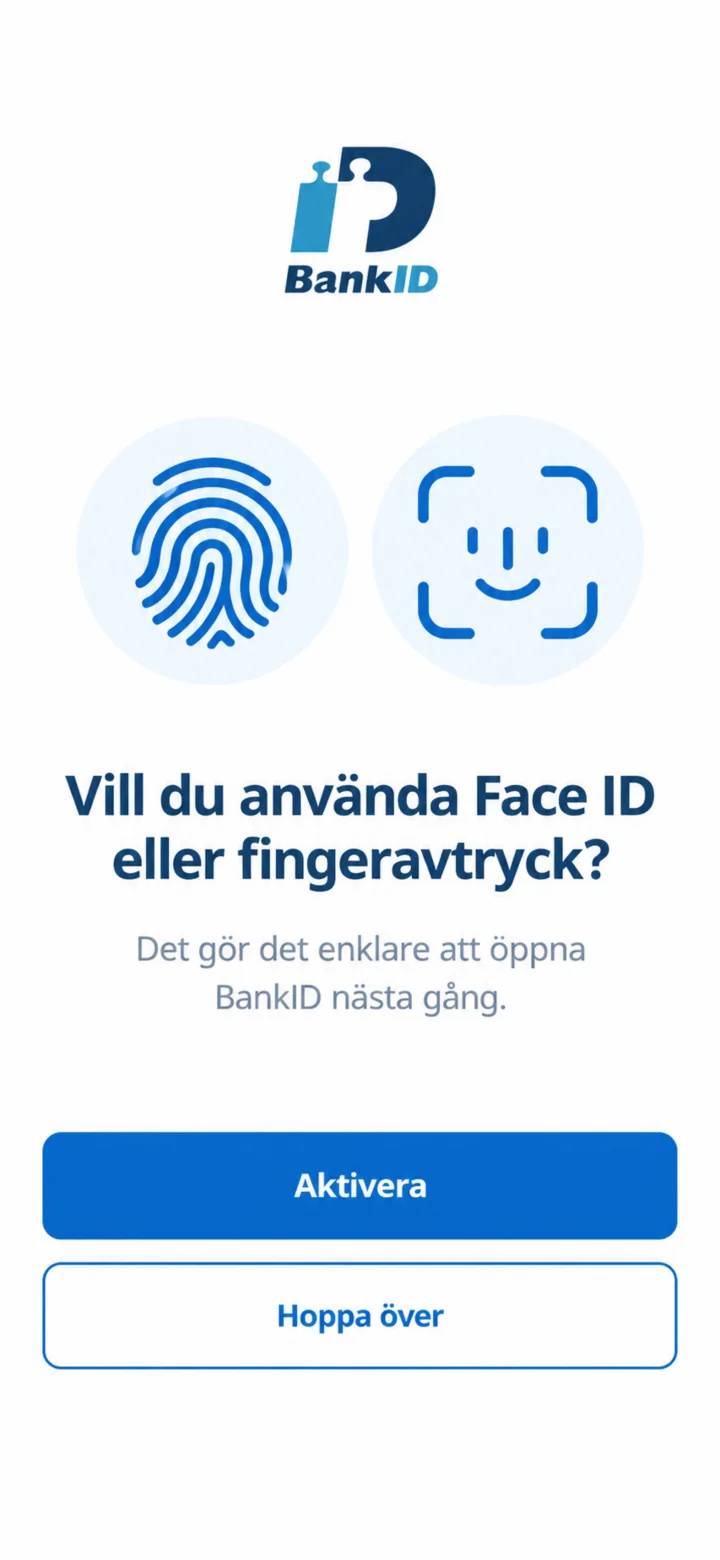
Here you can choose if you want to use Face ID or fingerprint to open BankID more easily next time. If you are unsure or don't want to, you can tap ”Hoppa över” (Skip) at the bottom.
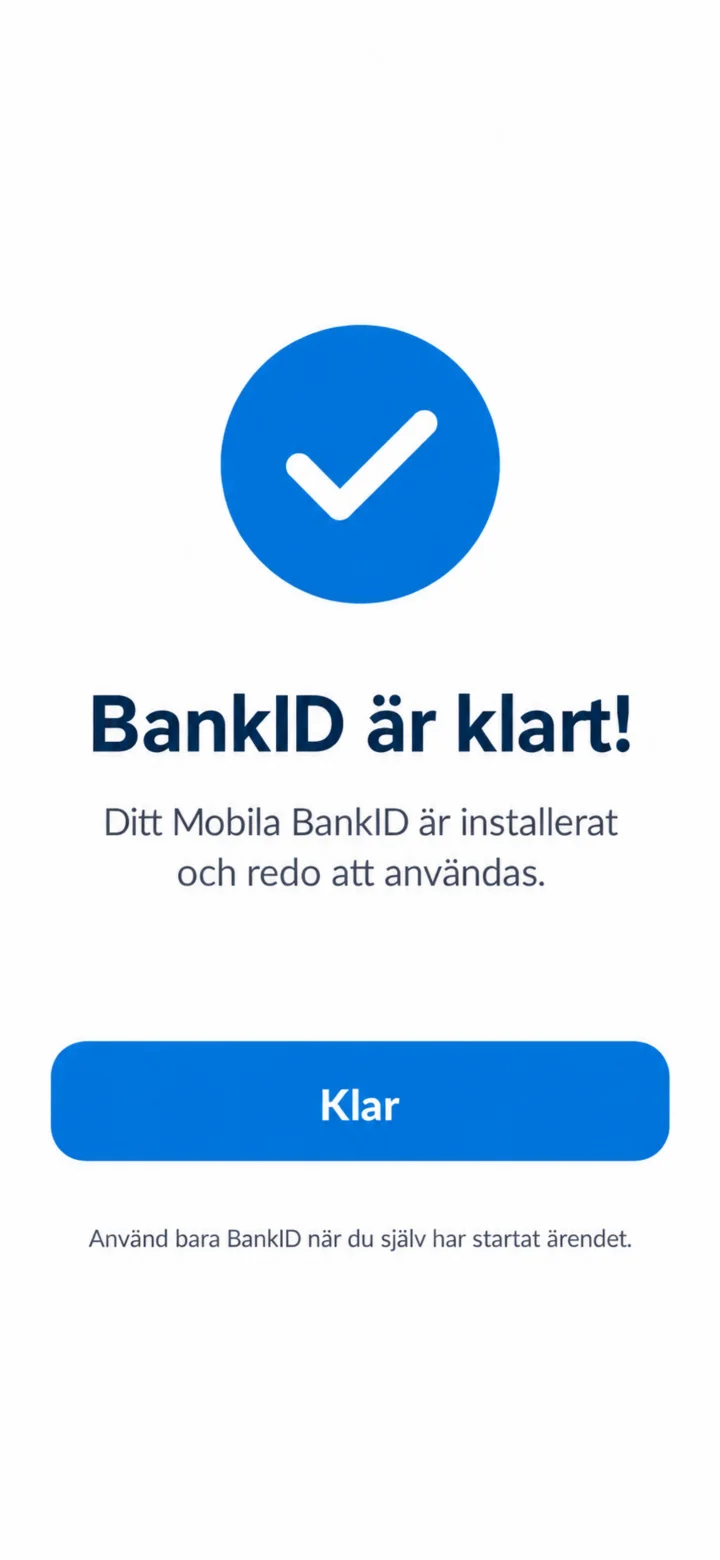 12Step 12 of 12 · iPhone
Congratulations! Your Mobilt BankID is now installed and ready to use. Tap the blue button ”Klar” (Done) to finish.
How to pay a bill with Kivra
iPhone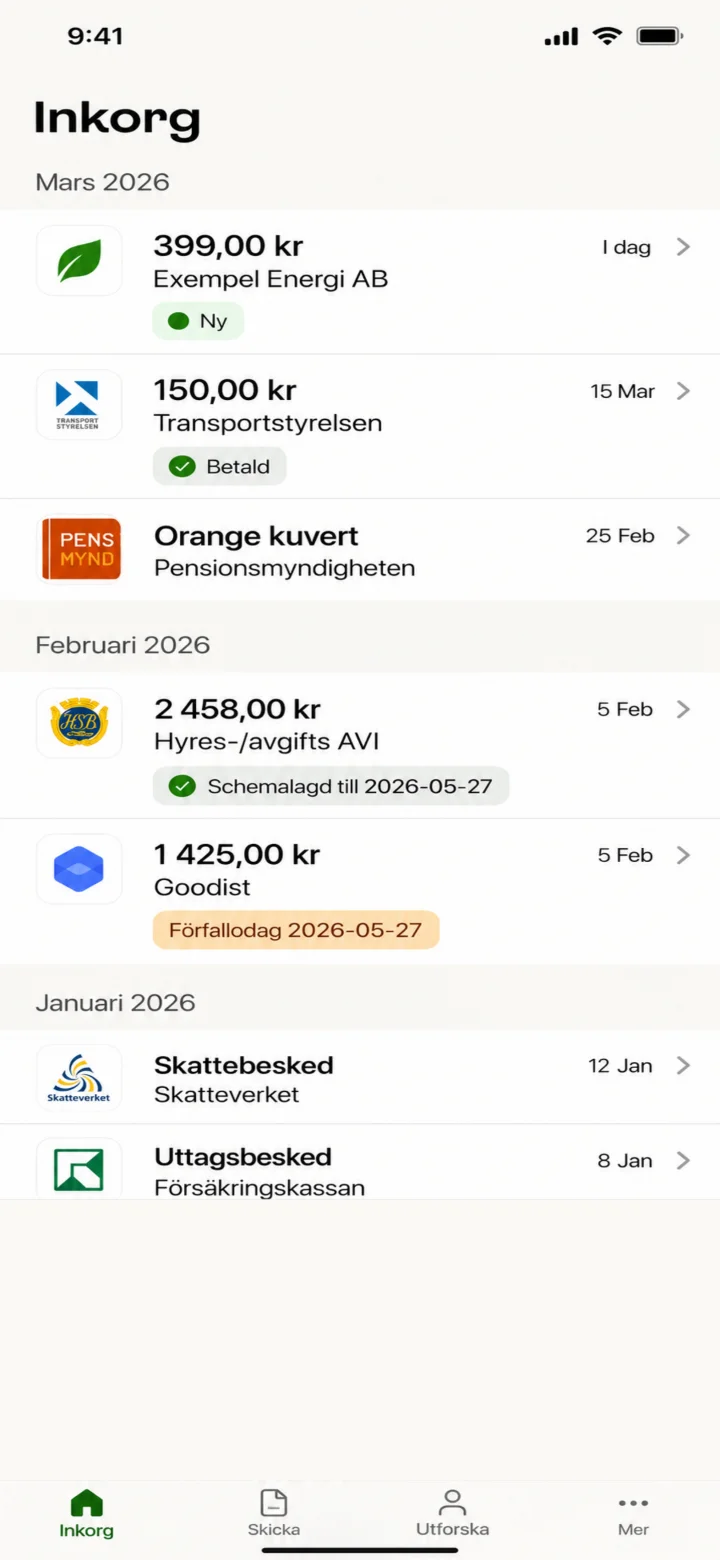 1Step 1 of 6 · iPhone
Hello! Here I'll show you how to pay a bill using Kivra. You can pause whenever you like and play it again. Let's go! First, tap on the new bill from Exempel Energi AB, the one marked with 'Ny' (New).
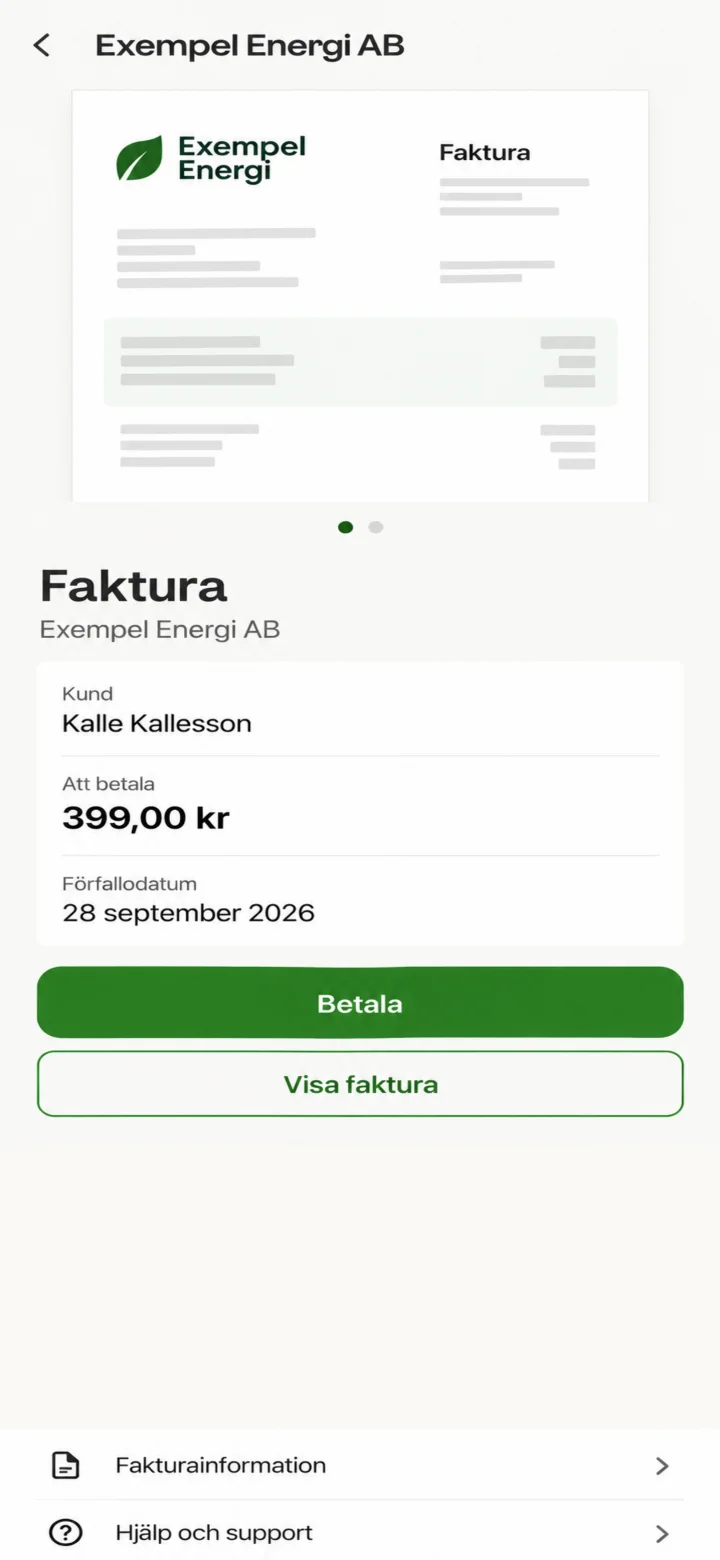 2Step 2 of 6 · iPhone
Now you see the details of the bill. To continue, tap the green button that says 'Betala' (Pay).
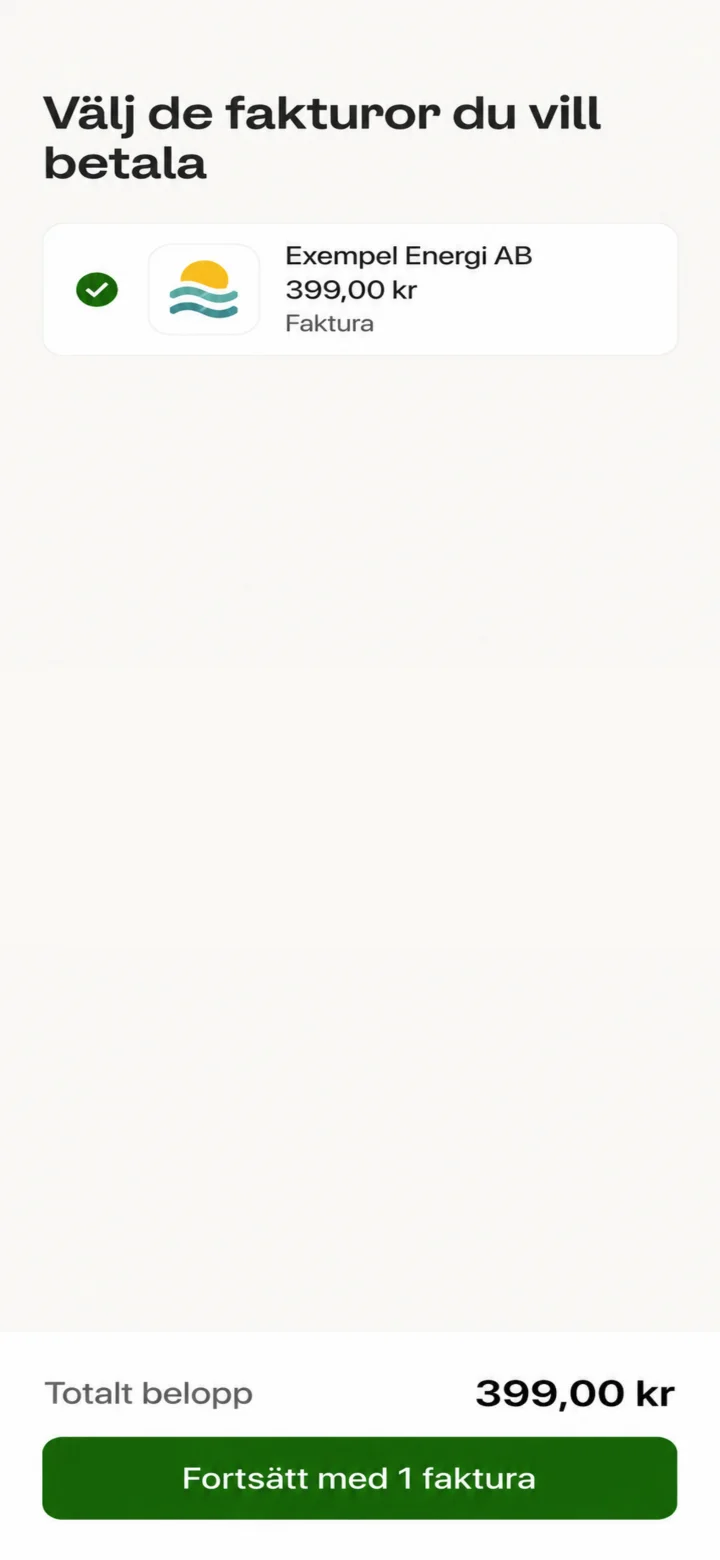 3Step 3 of 6 · iPhone
Here you see that the bill from Exempel Energi AB is marked. Tap the green button at the bottom that says 'Fortsätt med 1 faktura' (Continue with an invoice).
 4Step 4 of 6 · iPhone
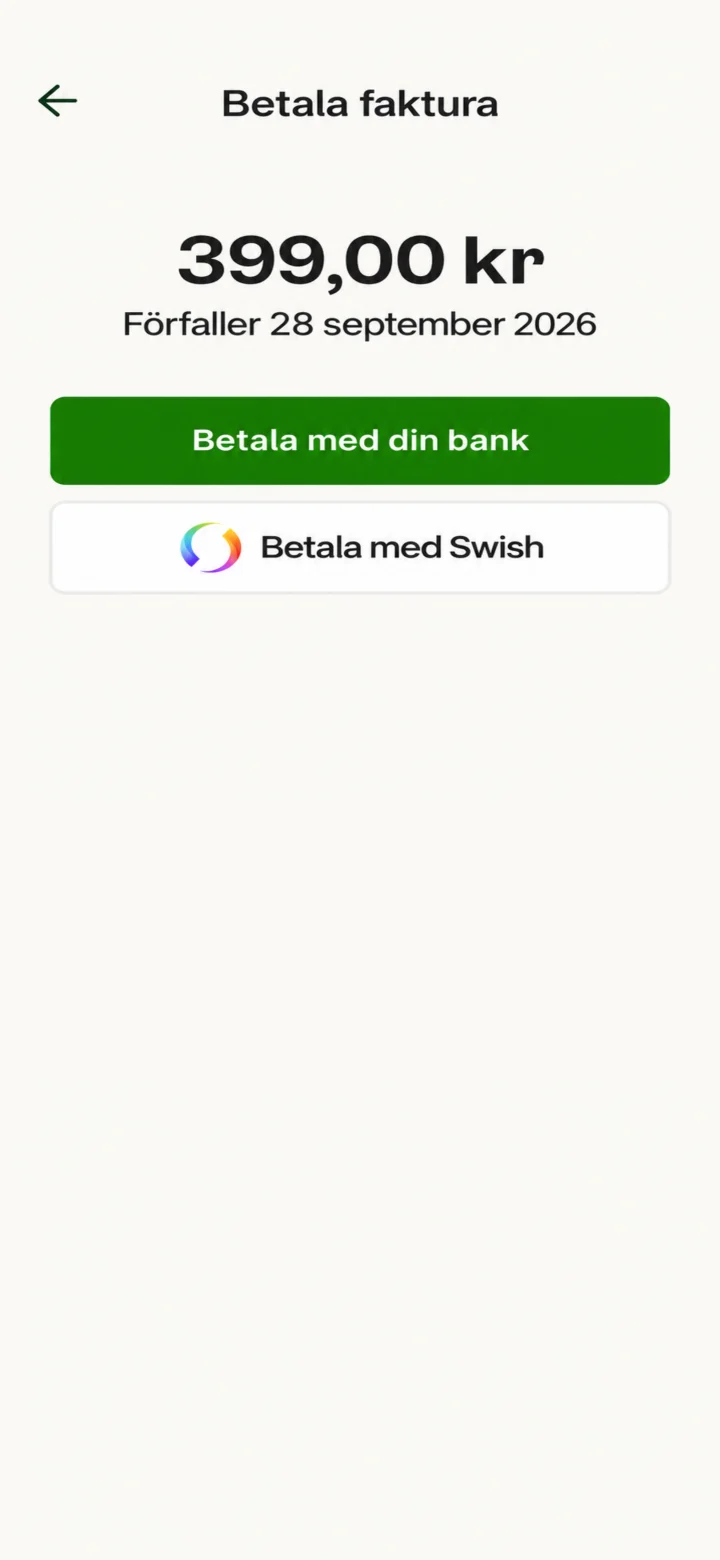
Now you get to choose how you want to pay. We'll choose to pay with Swish. Tap the button that says 'Betala med Swish' (Pay with Swish).
 5Step 5 of 6 · iPhone
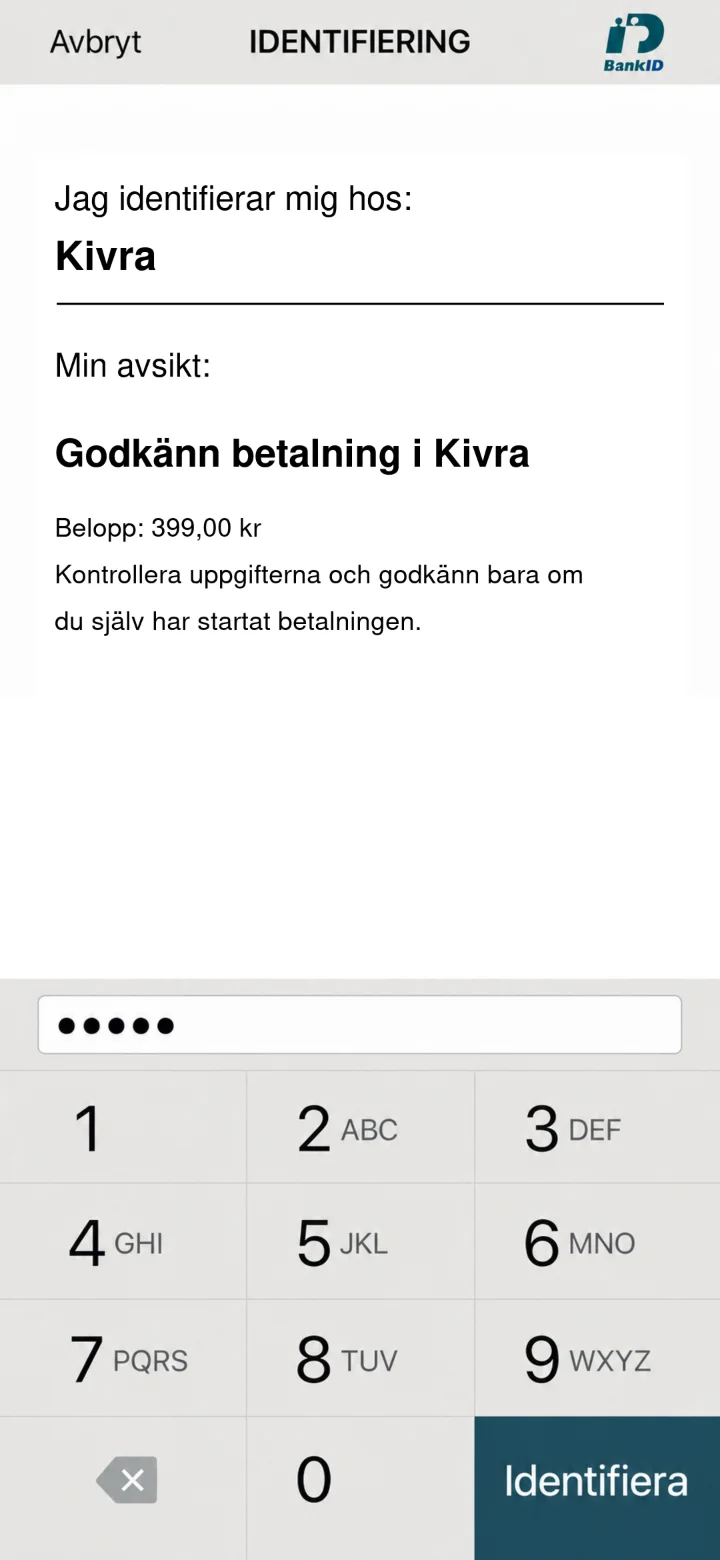
Now you need to identify yourself with your BankID code. Enter your personal code in the dotted field. Once you've entered the code, tap the green button 'Identifiera' (Identify).
 6Step 6 of 6 · iPhone
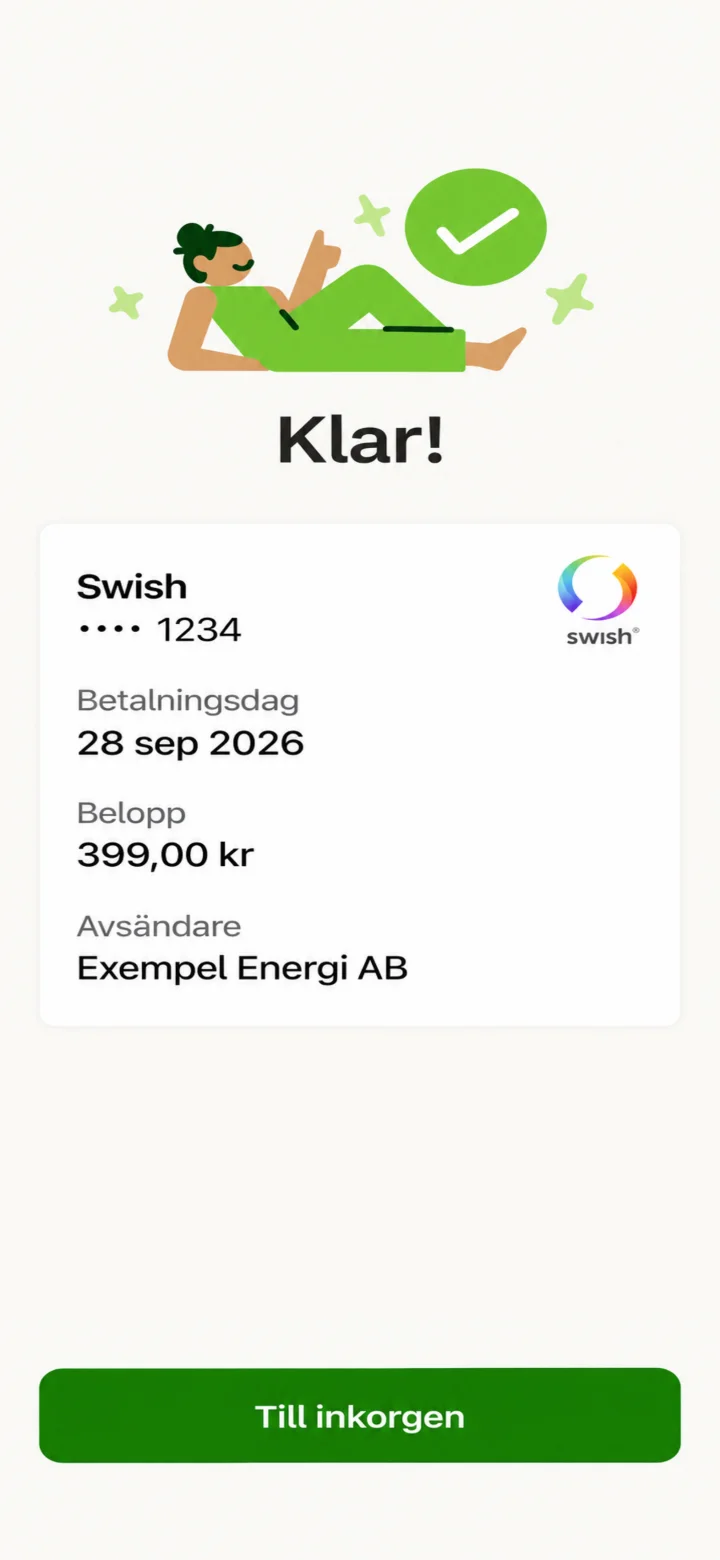
Done! The bill has now been paid with Swish. You'll see a confirmation on the screen. Great job!
How to pay with Swish
iPhone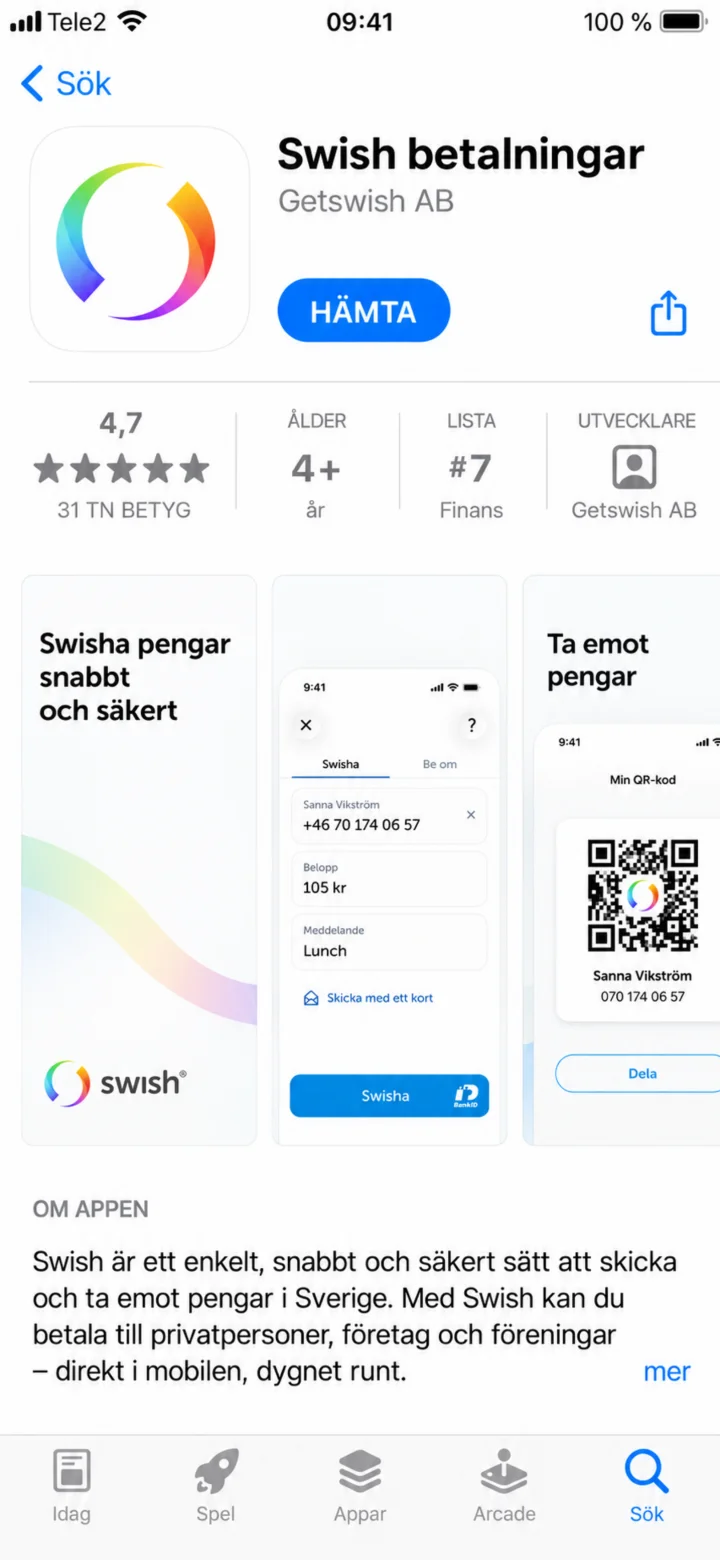 1Step 1 of 7 · iPhone
Hello! Here, I'll show you how to pay with Swish. You can pause whenever you like and play it again. Now, let's start by downloading the Swish app. Press the blue button that says ”HÄMTA” (GET).
 2Step 2 of 7 · iPhone
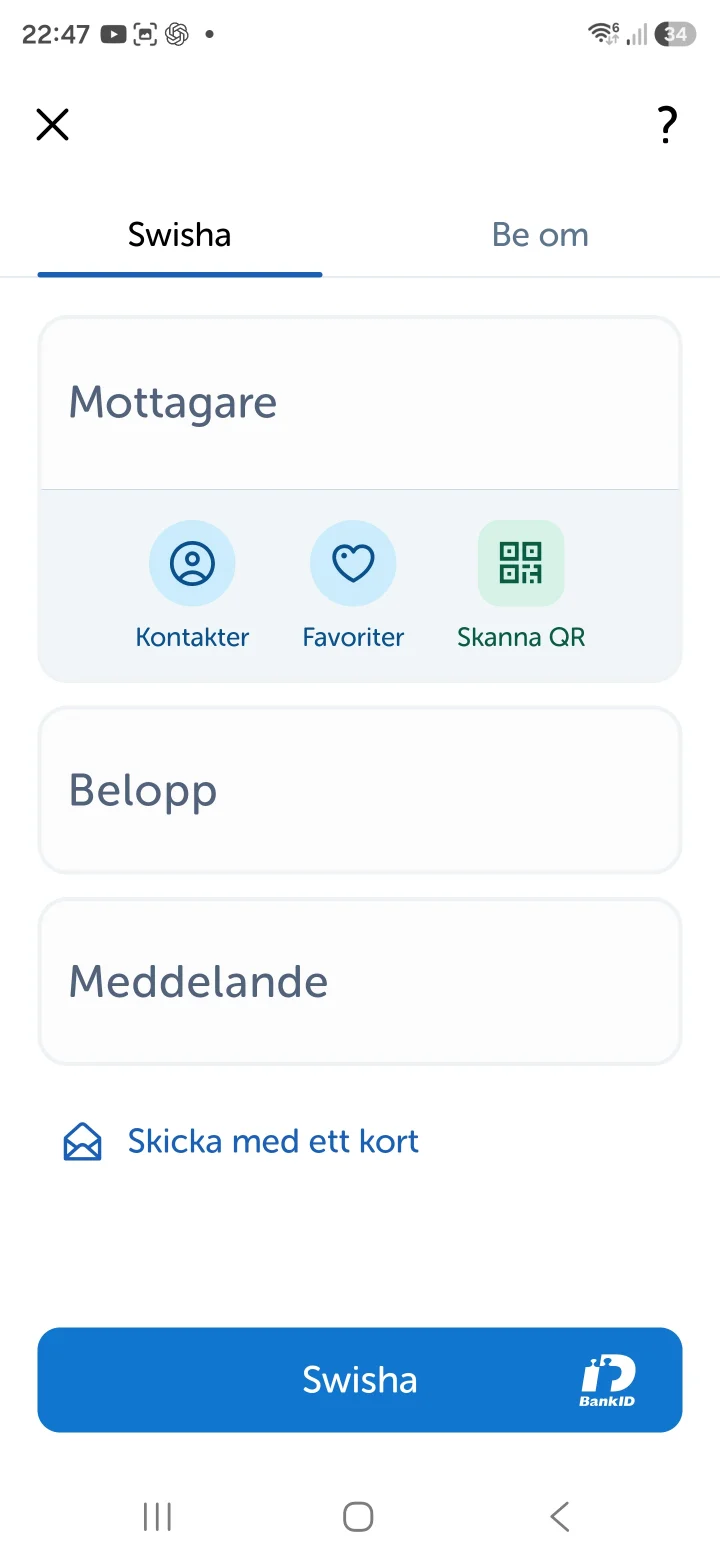
Now you're inside the Swish app. To send money, you need to fill in who you're sending it to. Press the field that says ”Namn eller telefonnummer” (Name or phone number).
 3Step 3 of 7 · iPhone
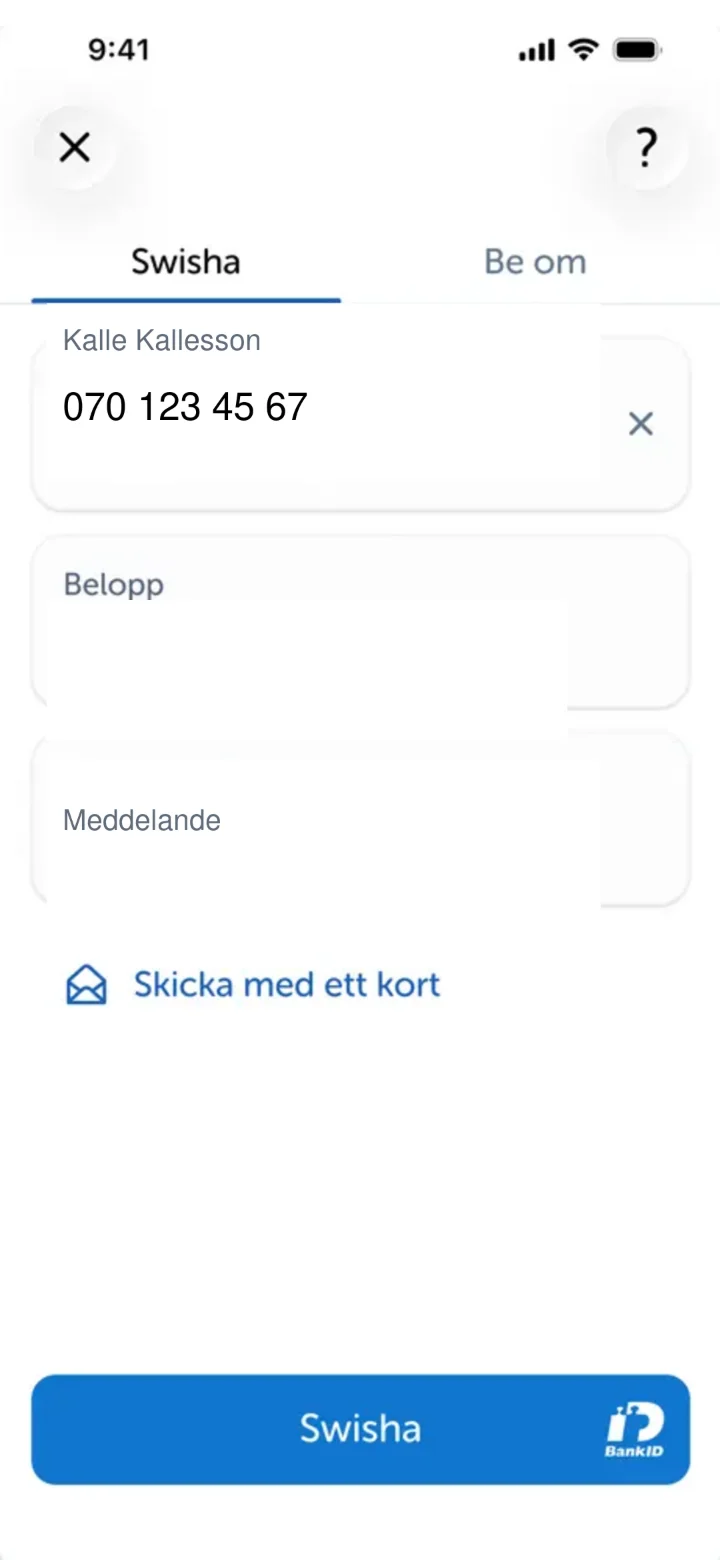
Now we've filled in the recipient's name and phone number. The next step is to fill in how much money you want to send. Press the field that says ”Belopp” (Amount).
 4Step 4 of 7 · iPhone
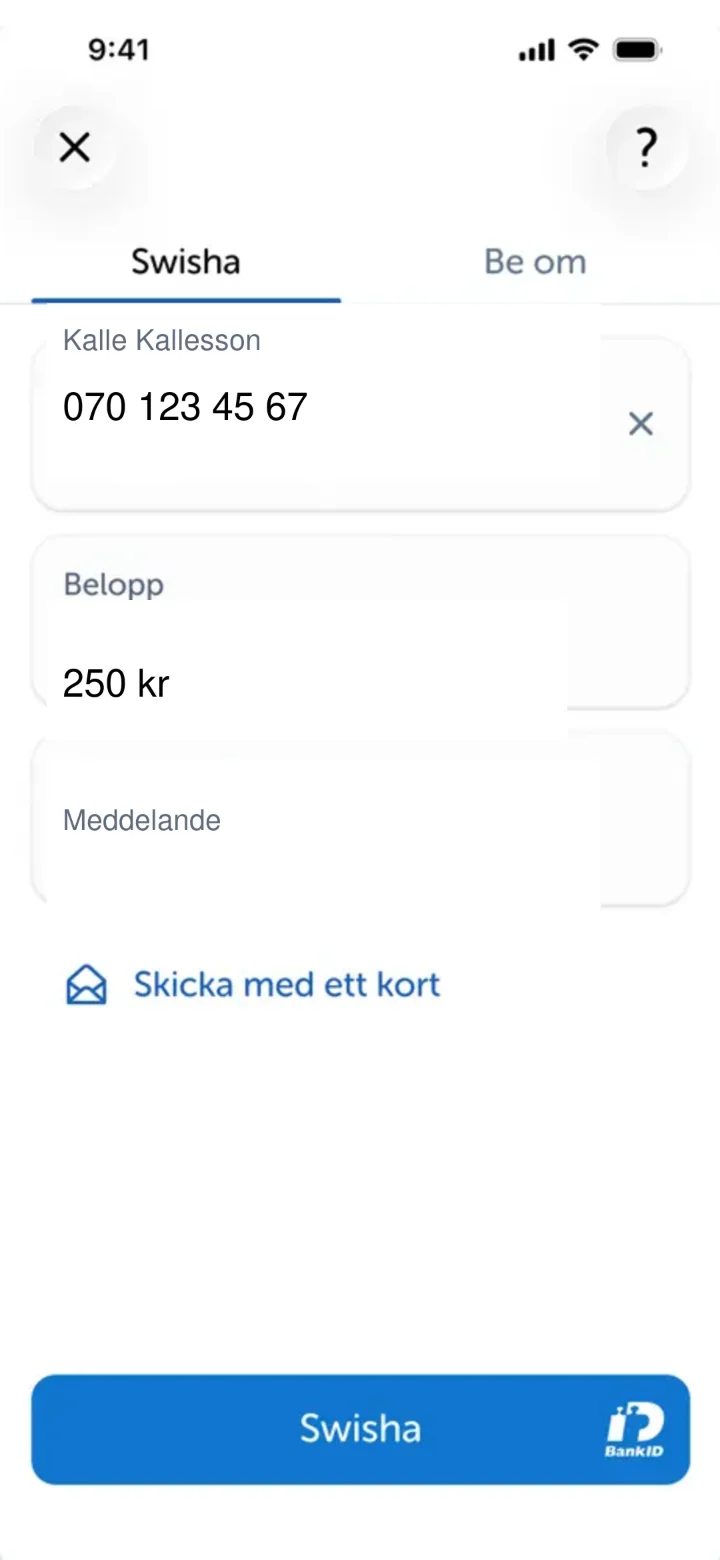
Now we've entered the amount, 250 kronor. If you like, you can add a message for the recipient. Press the field that says ”Meddelande” (Message).
 5Step 5 of 7 · iPhone
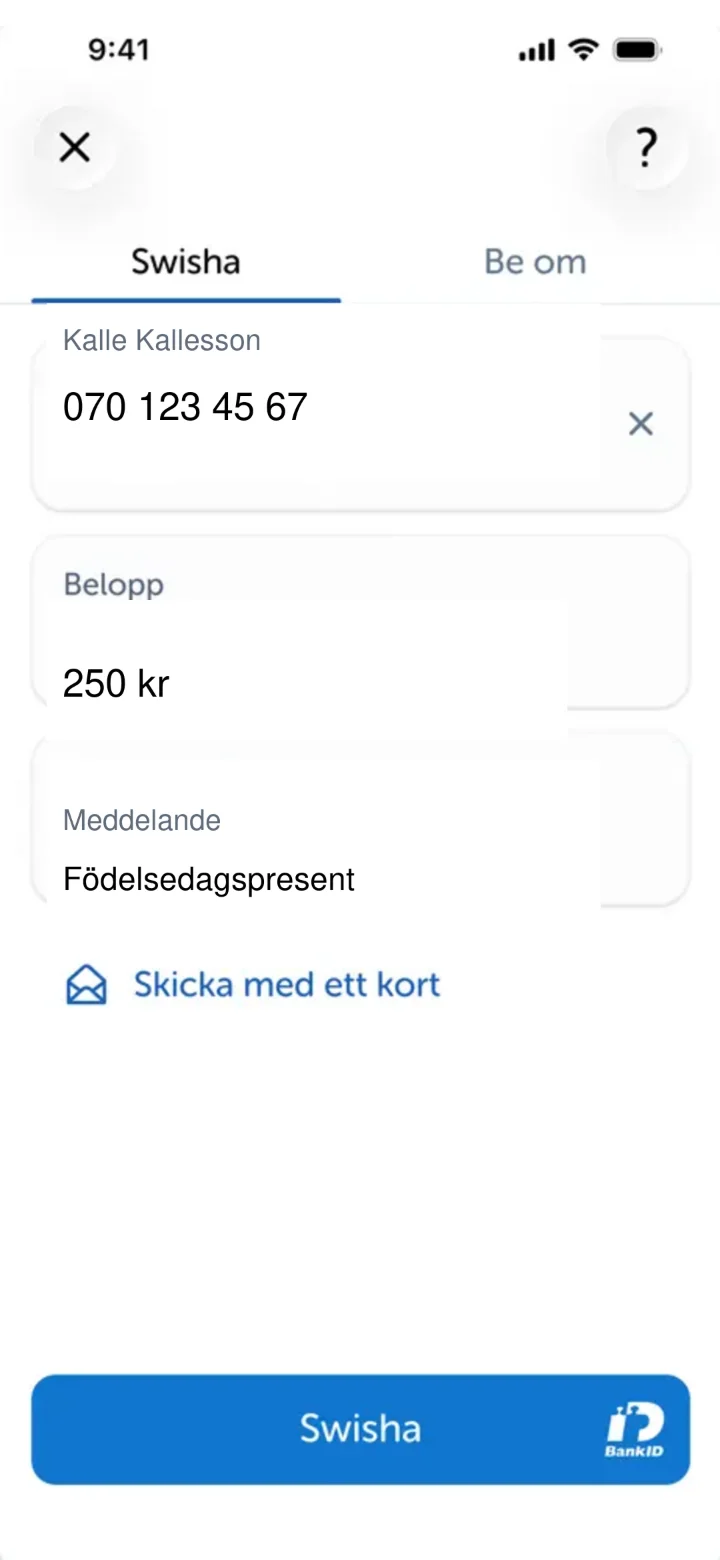
We have now filled in the message 'Födelsedagspresent' (Birthday gift). Now it's time to send the money. Press the blue button at the bottom that says ”Swisha” (Swish it).
 6Step 6 of 7 · iPhone
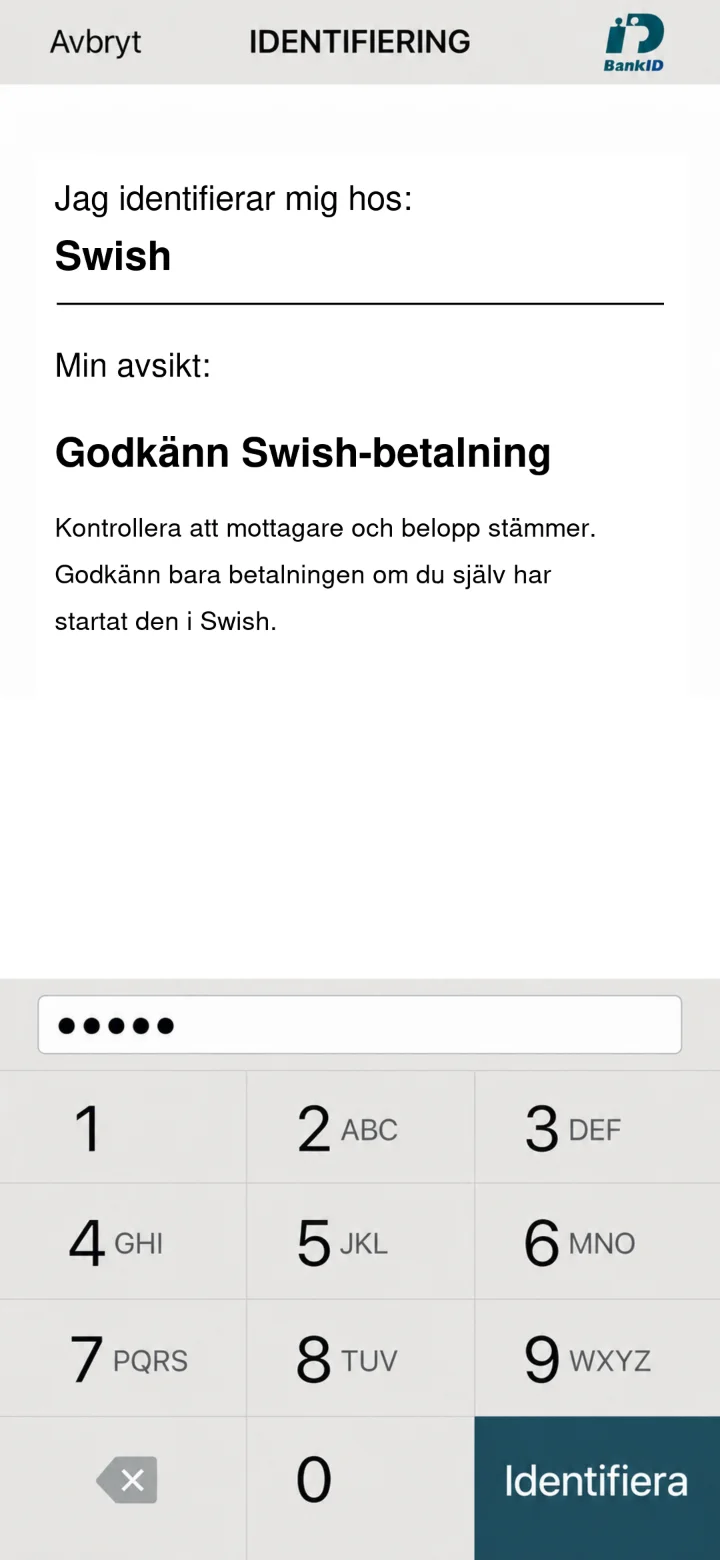
Now you need to approve the payment with your security code for BankID. Enter your code using the numbers on the screen and then press the green button ”Identifiera” (Identify).
 7Step 7 of 7 · iPhone
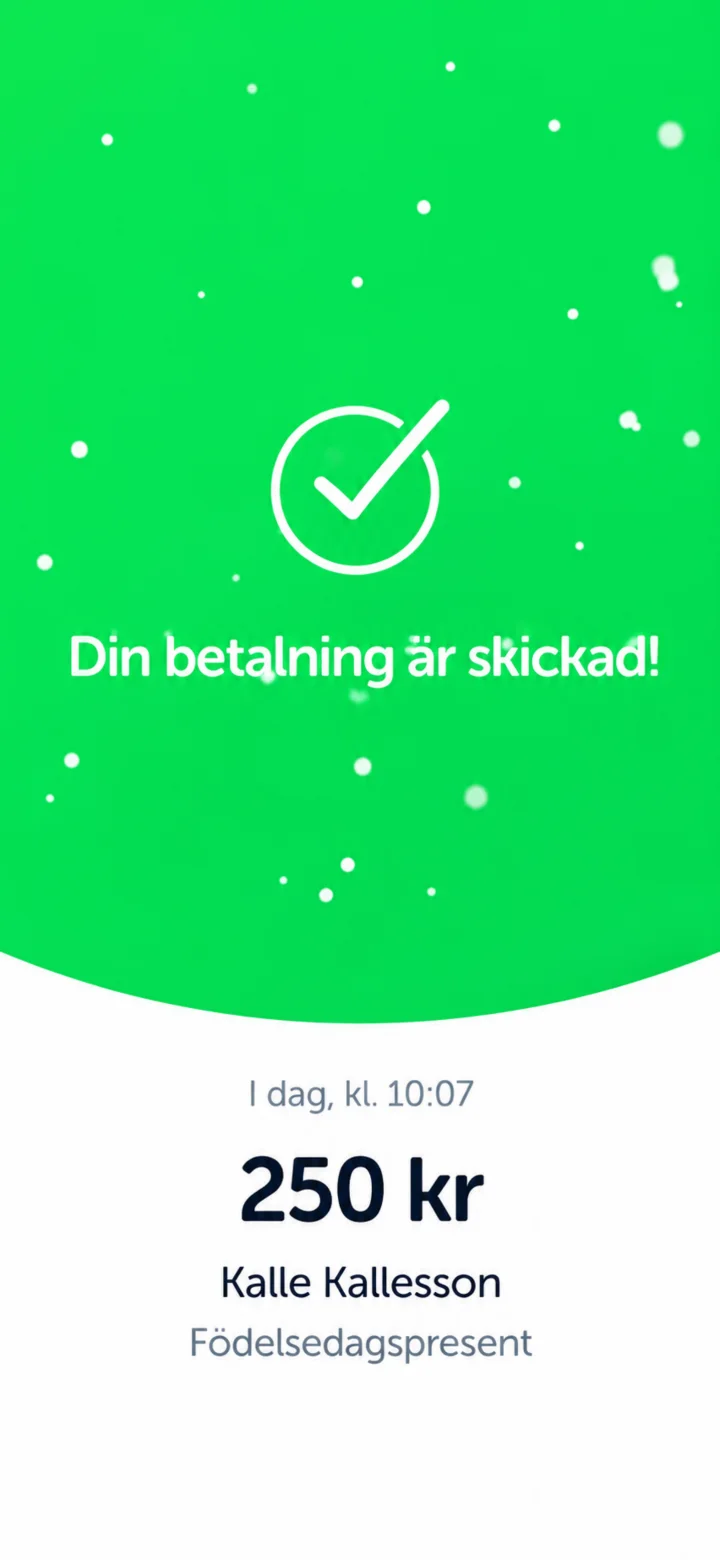
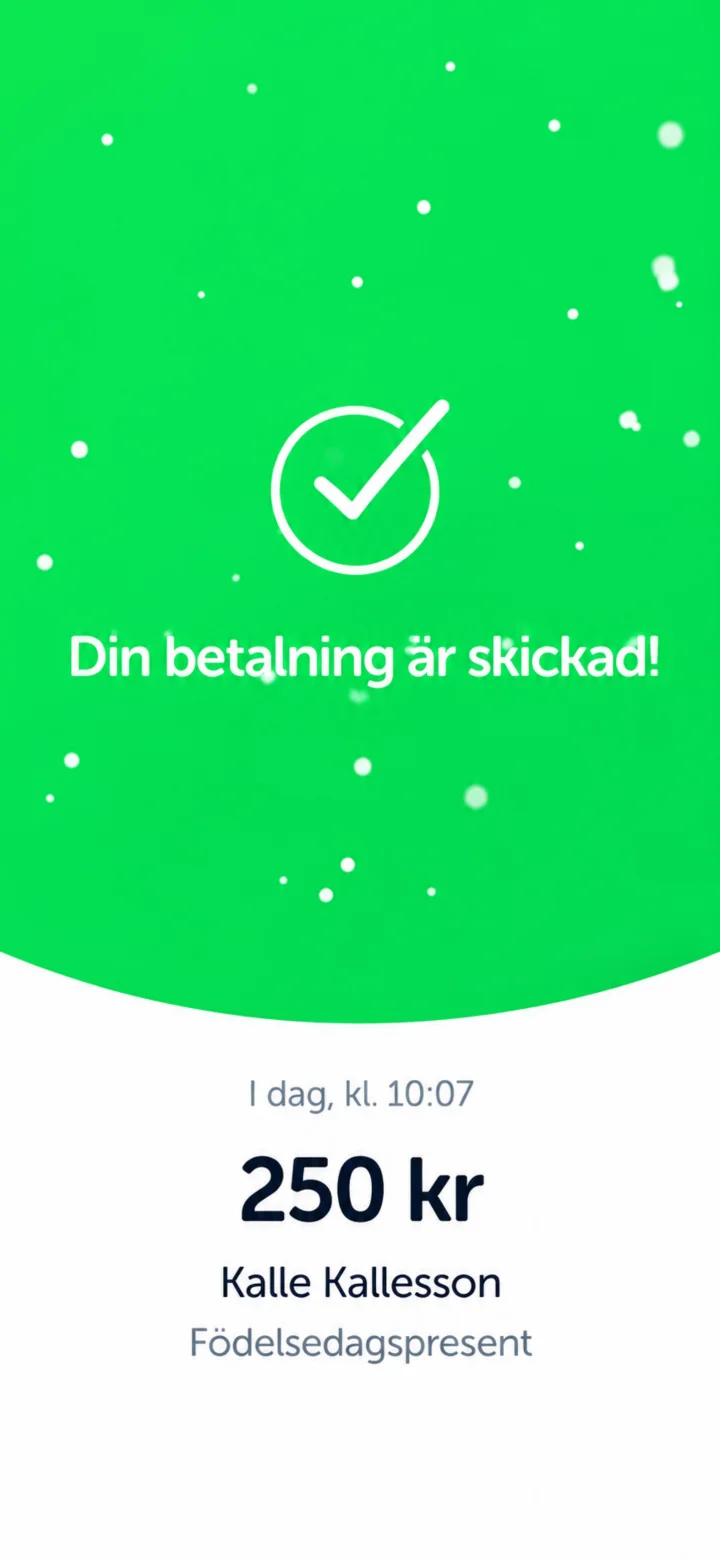
Congratulations! Your payment has been sent. You'll see a green screen with a checkmark confirming that everything is done. Done! Now you've sent money with Swish.
How to use Swish to send money
iPhone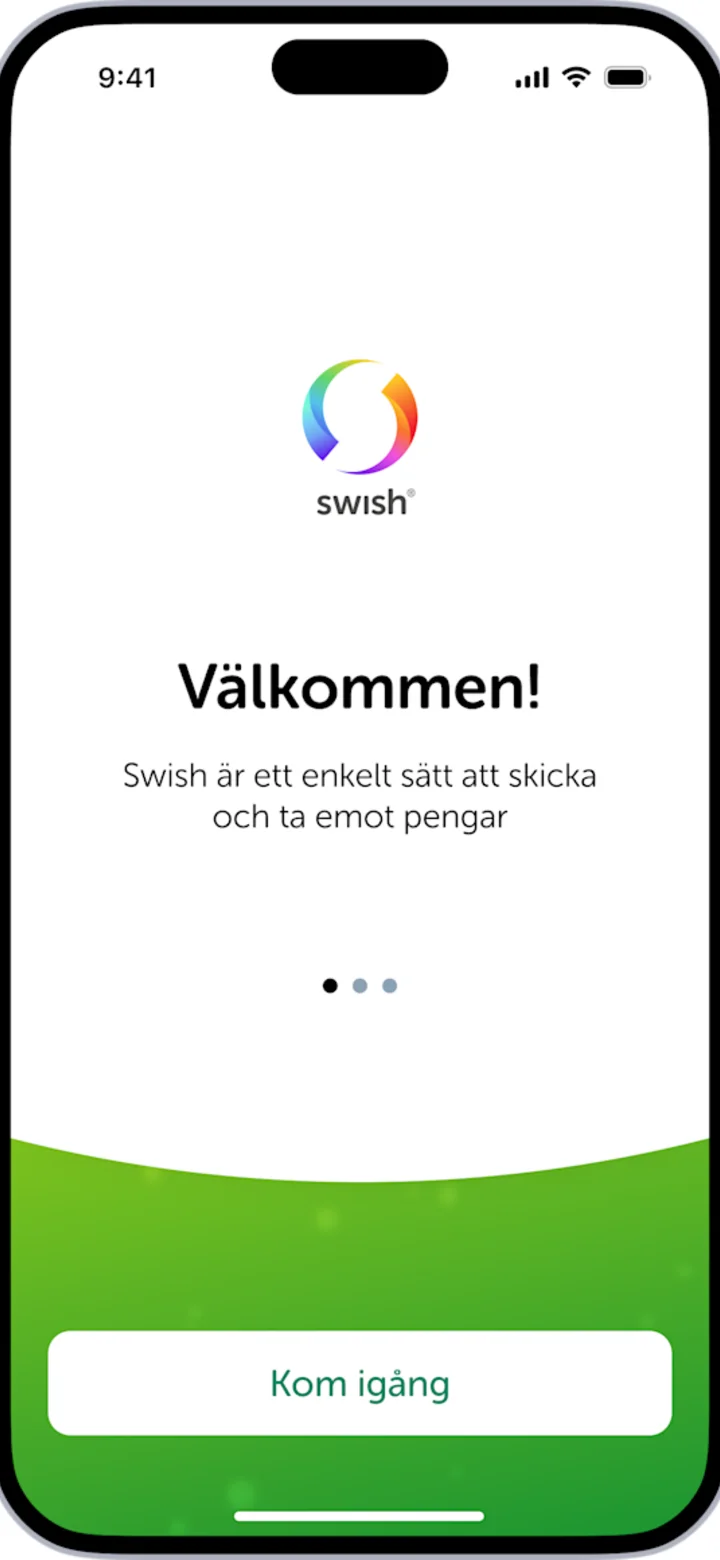 1Step 1 of 7 · iPhone
Hi! Here I'll show you how to send money with Swish. You can pause whenever you like and play again. Let's go! First, we need to get the app, press the blue button that says HÄMTA (GET).
 2Step 2 of 7 · iPhone
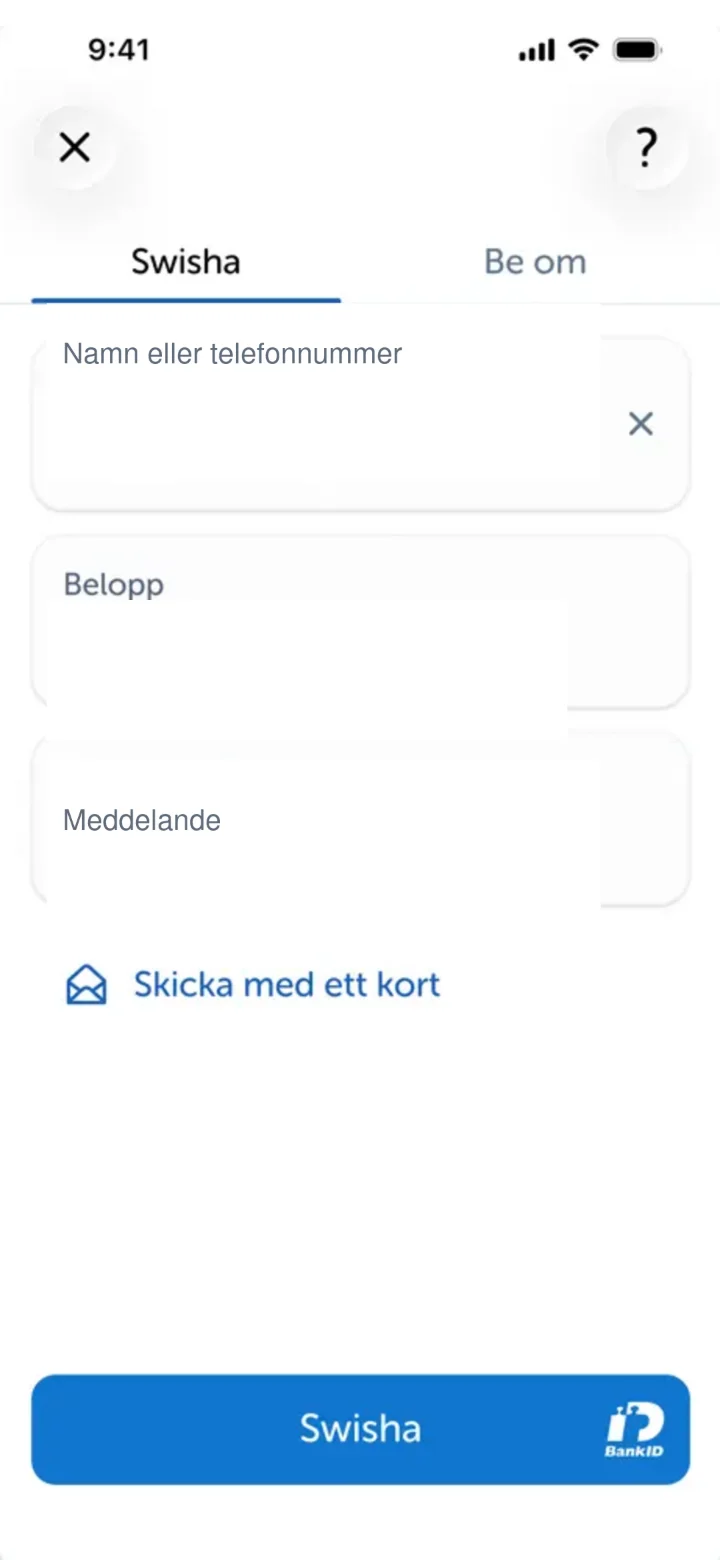
Now you're in the Swish app. Here you'll fill in who you want to send money to. Tap in the field that says "Namn eller telefonnummer" (Name or phone number).
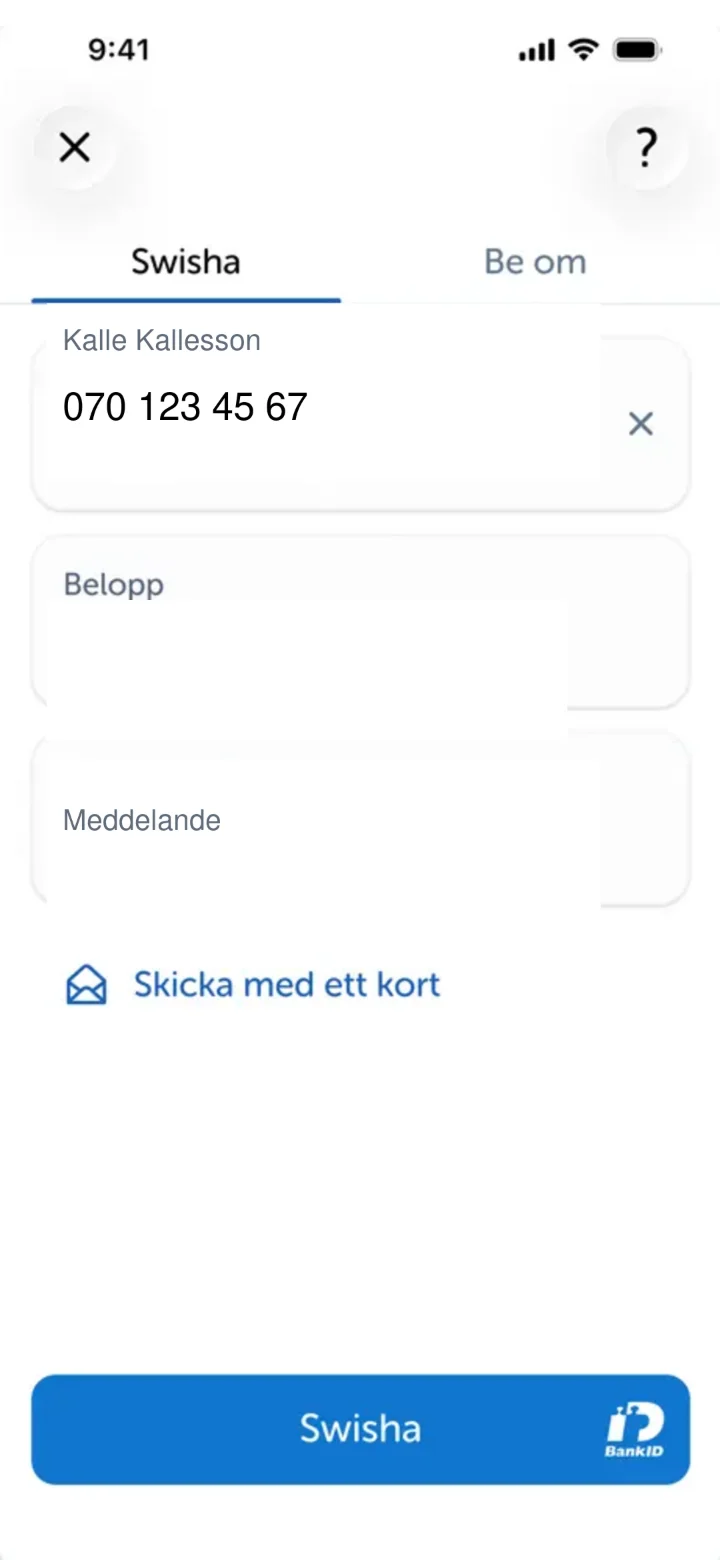 3Step 3 of 7 · iPhone
Now we've filled in the name and phone number of the person you want to send money to. Next, we'll fill in how much money you want to send. Tap in the field that says "Belopp" (Amount).
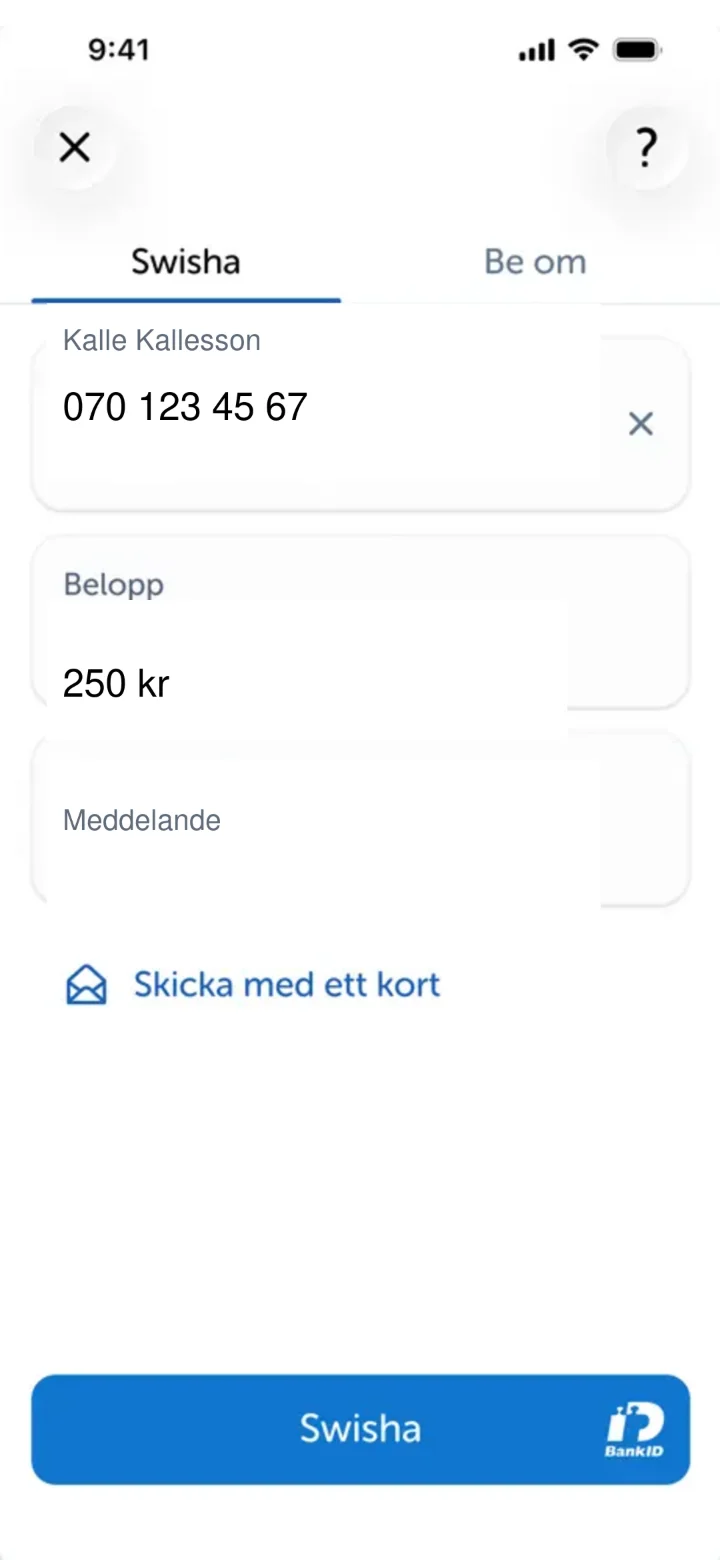 4Step 4 of 7 · iPhone
Now we've filled in the amount. You can now write a message if you like, for example, what the money is for. Tap in the field that says "Meddelande" (Message).
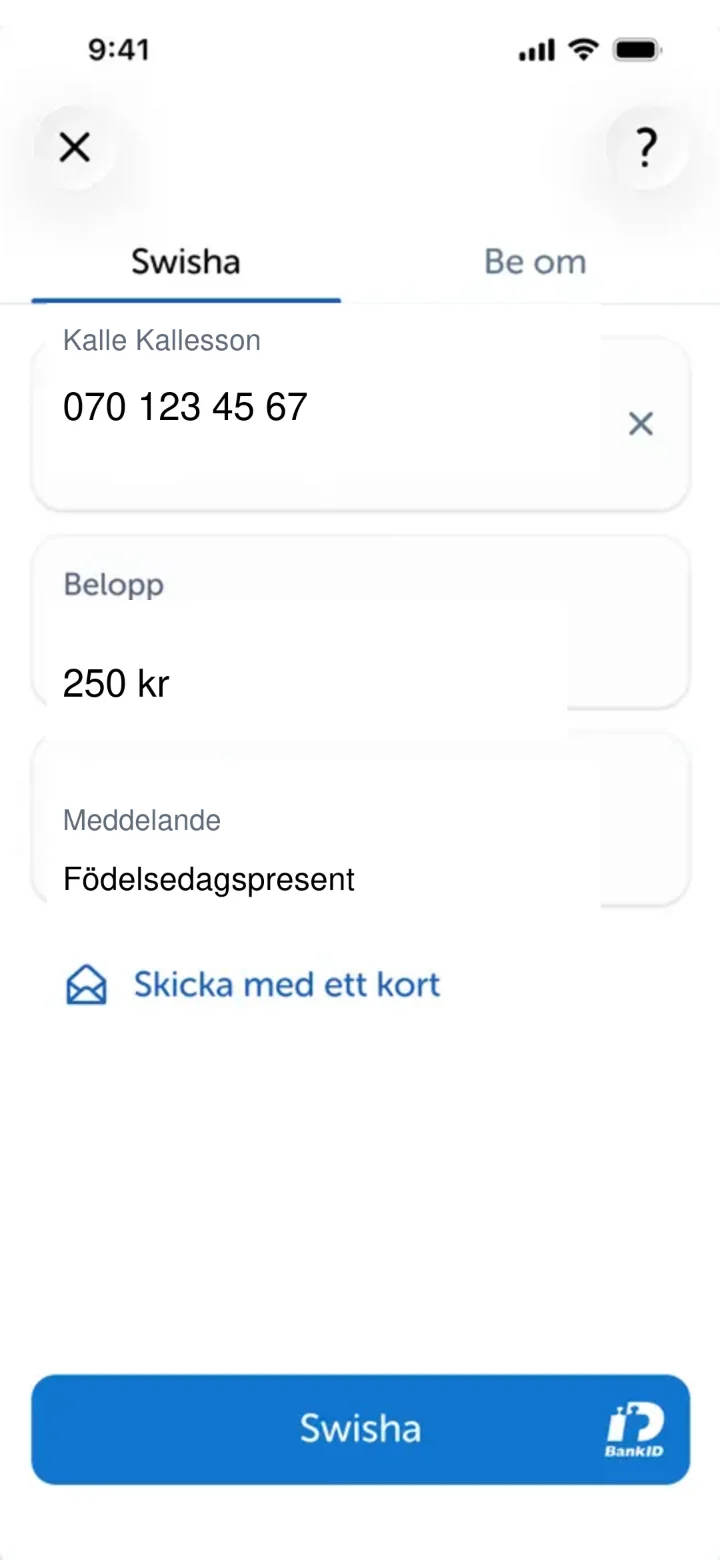 5Step 5 of 7 · iPhone
Now we've filled in all the details. Double-check that everything is correct. When you're happy, press the blue button at the bottom that says "Swisha" (Swish it).
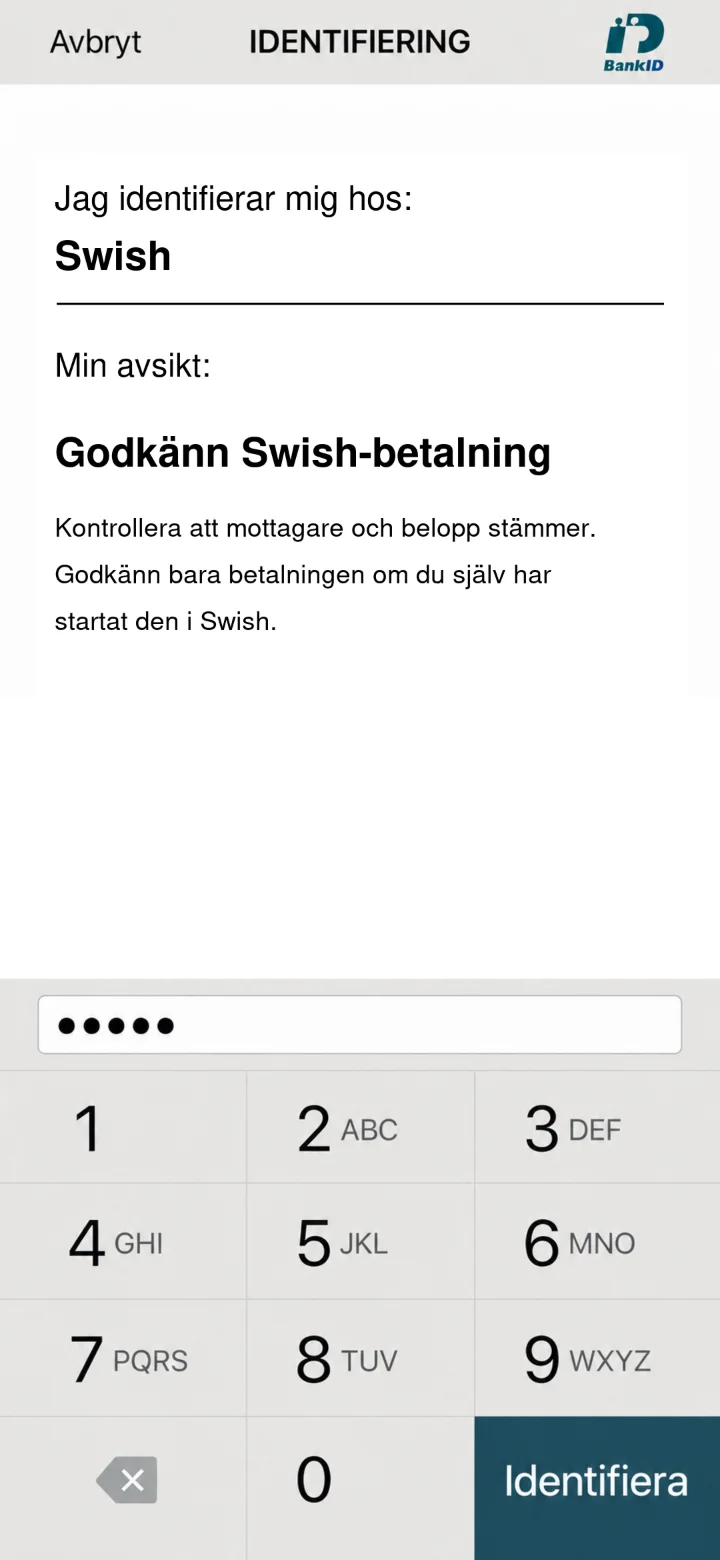 6Step 6 of 7 · iPhone
Now BankID will appear for you to approve the payment. Enter your six-digit code in the dotted field. Then press the green button "Identifiera" (Identify).
 7Step 7 of 7 · iPhone
Klart! Nu är din betalning skickad. Du ser en bekräftelse på skärmen att pengarna har gått iväg.