Every guide in the topic, each starting on a new page. 38 steps in total.
Tip: untick “Headers and footers” in the print dialog to leave out the web address.
Keep in touch
Step-by-step guides · 4 guides
 Android
Contents
- 1.Facebook – Get Started8 steps
- 2.How to send pictures in WhatsApp11 steps
- 3.Instagram – Get Started8 steps
- 4.Install WhatsApp and make a video call11 steps
Facebook – Get Started
Android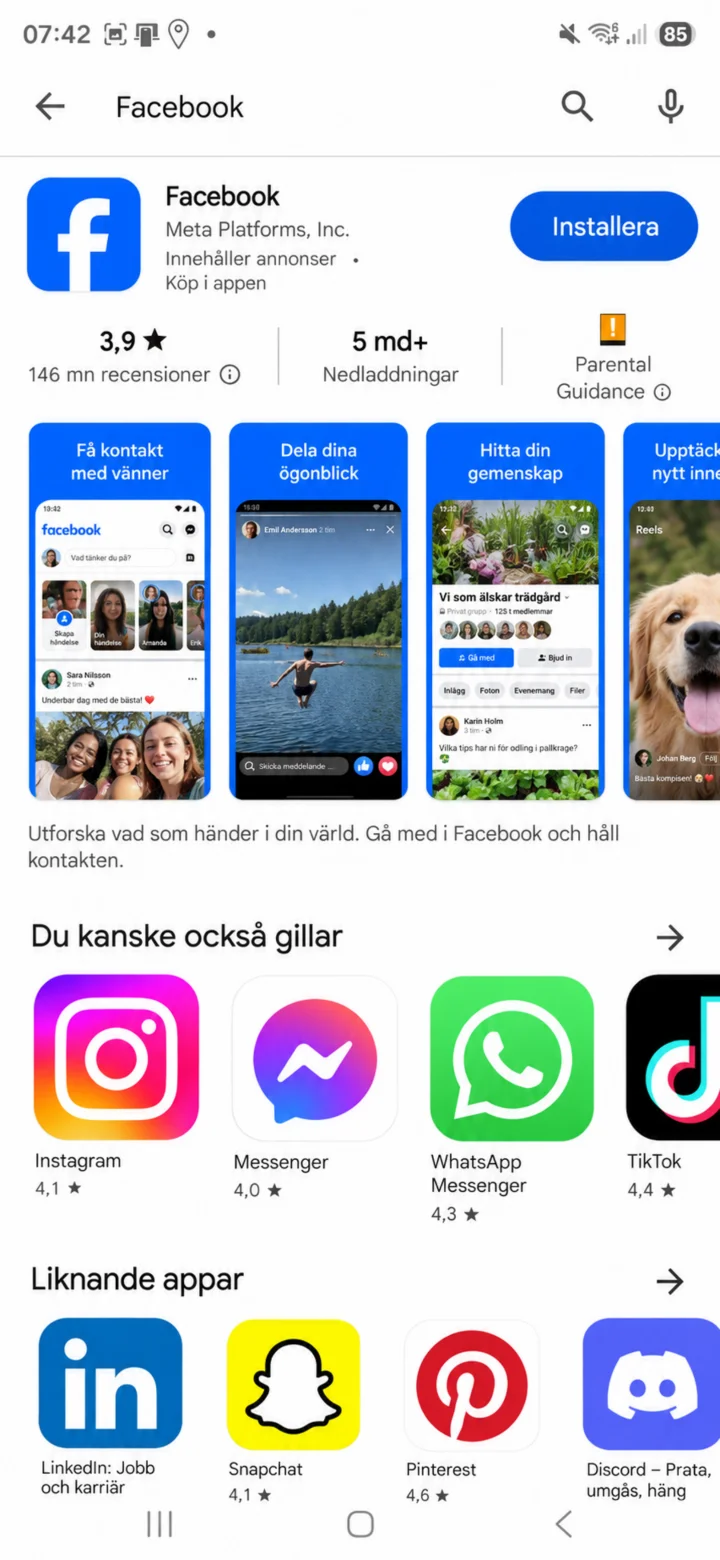 1Step 1 of 8 · Android
Open Google Play and search for Facebook. Make sure the app is from Meta Platforms and tap ”Installera” (Install) or ”Öppna” (Open).
 2Step 2 of 8 · Android
When Facebook opens, choose ”Logga in” (Log in) if you already have an account. Choose ”Skapa nytt konto” (Create new account) if you don't have one.
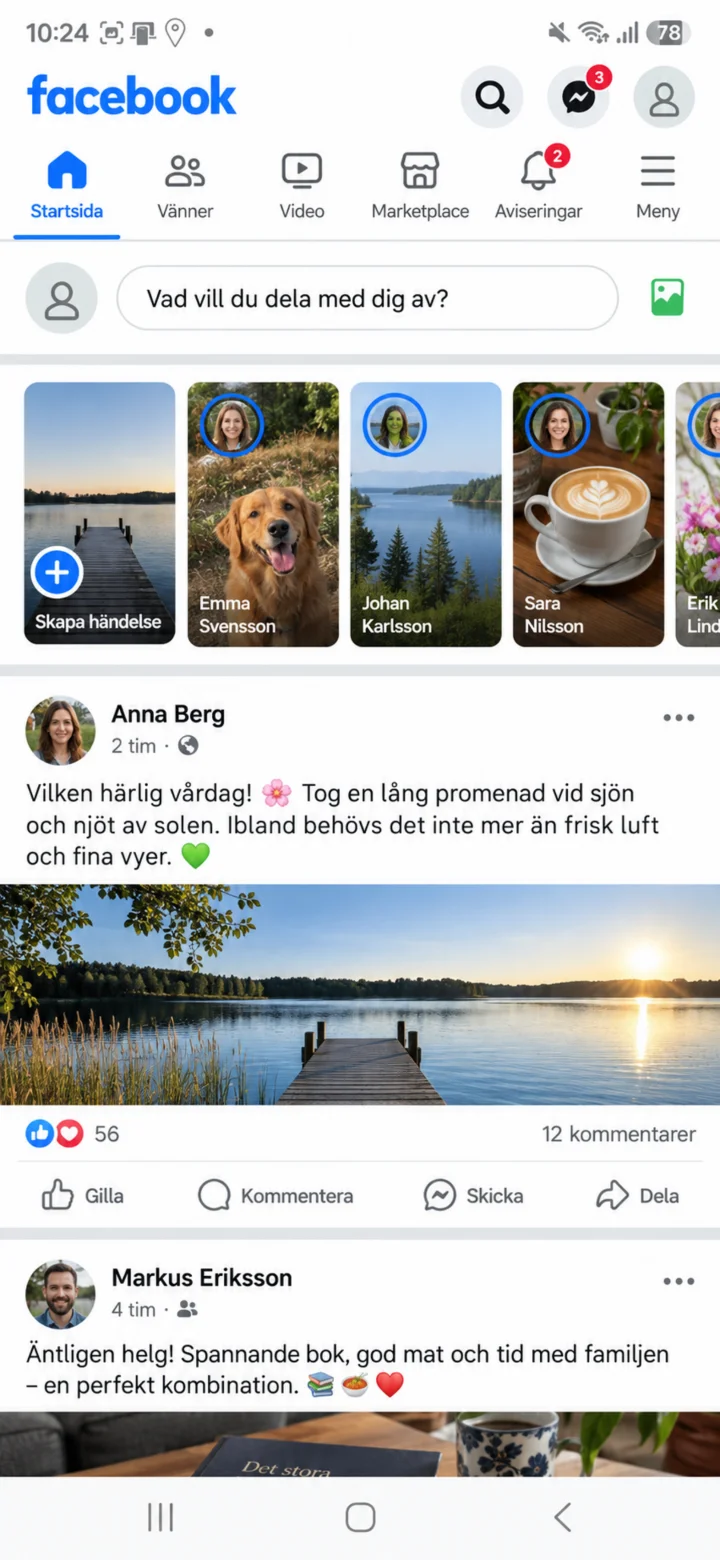 3Step 3 of 8 · Android
Now you're on Facebook. On the home page, you'll see posts from different people and companies that you can tap and read. To set up your profile, tap the menu button with three lines to go to your profile.
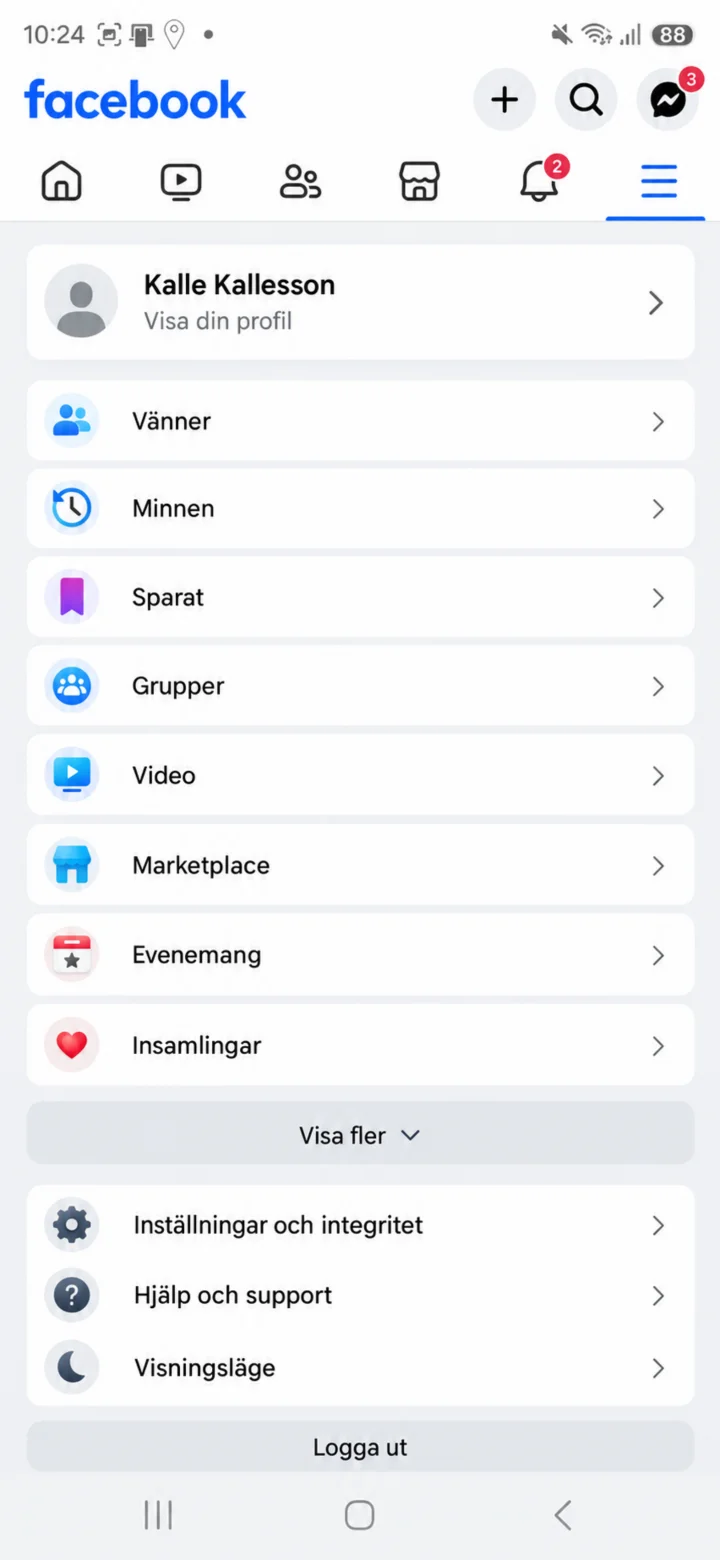 4Step 4 of 8 · Android
Tryck på ditt namn eller Visa din profil högst upp i menyn. Då öppnas din Facebook-profil.
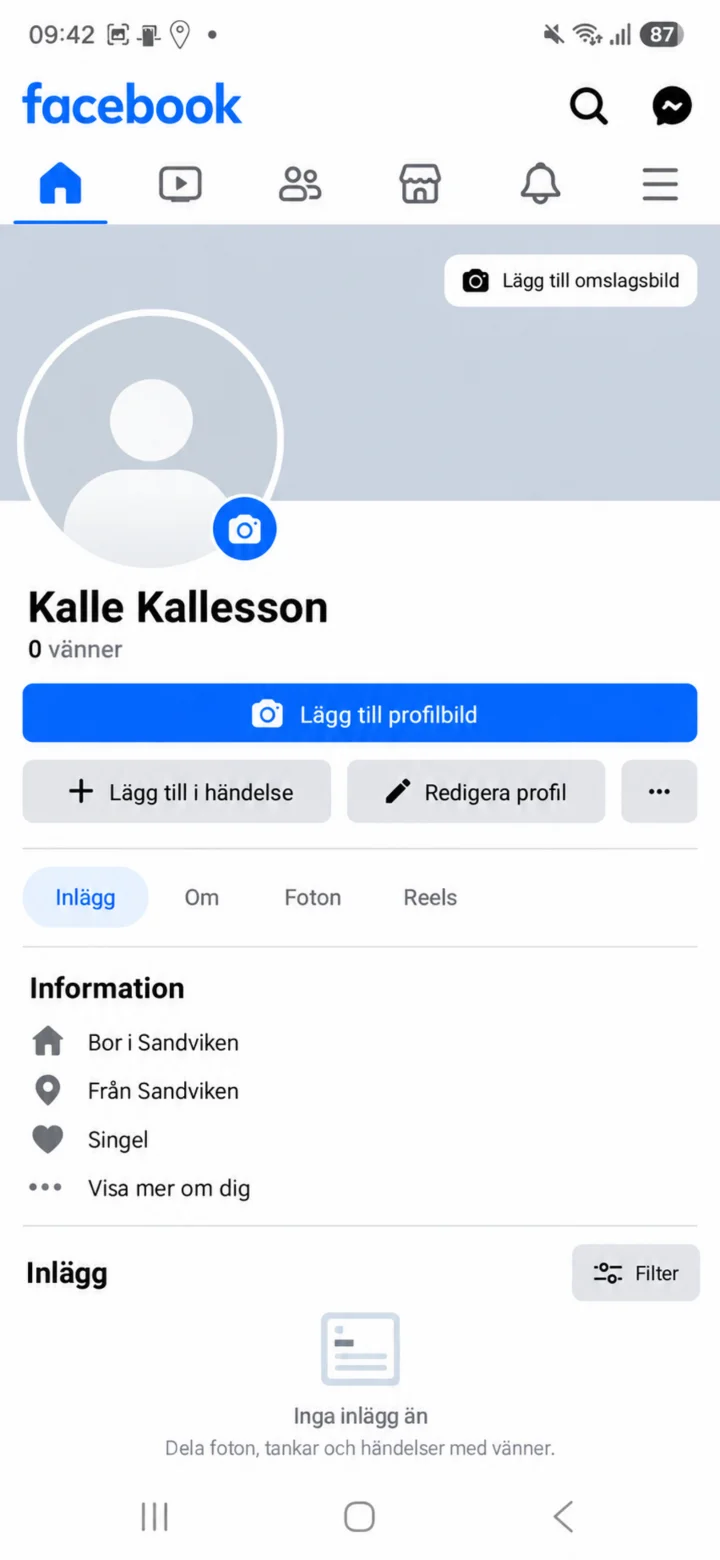 5Step 5 of 8 · Android
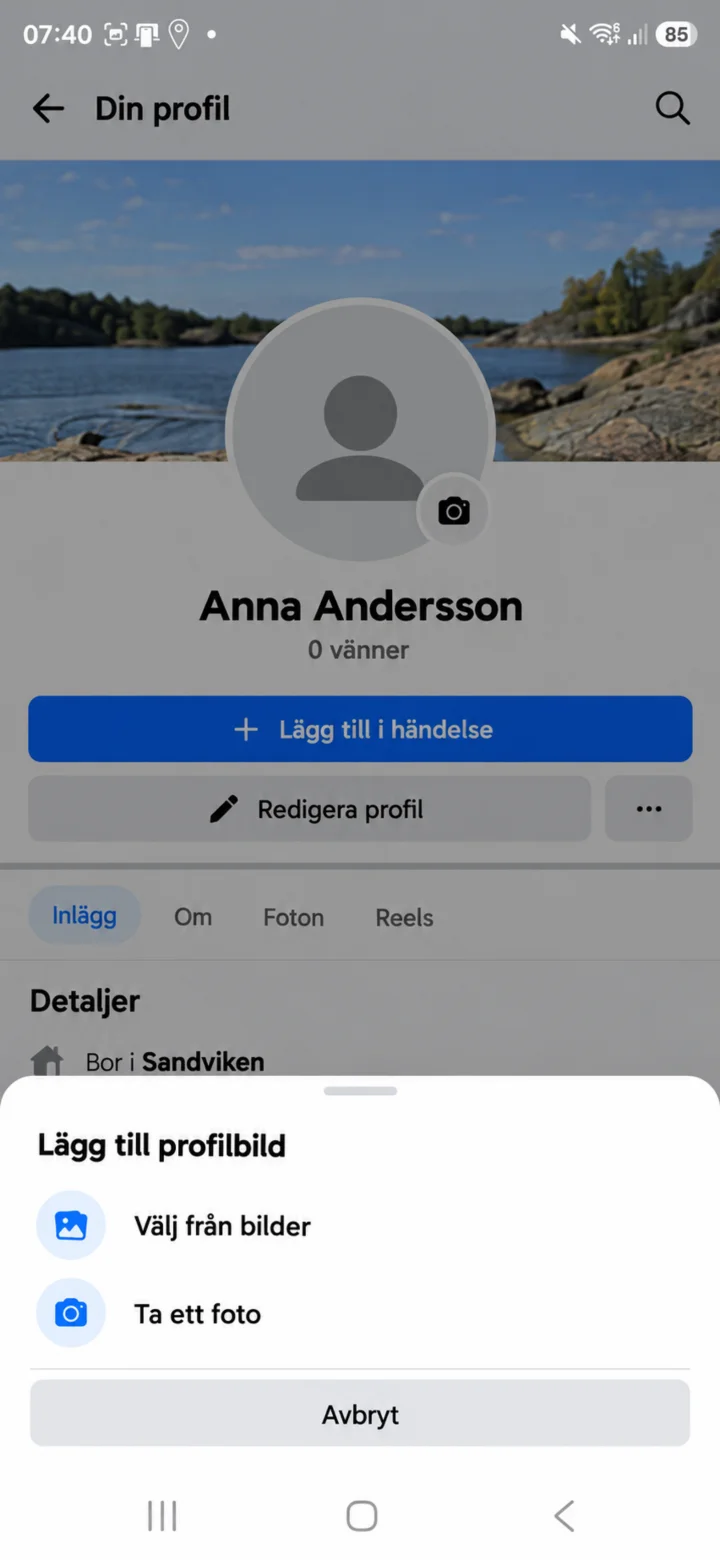
On your profile page, tap ”Lägg till profilbild” (Add profile picture) next to the empty profile picture.
 6Step 6 of 8 · Android
Choose ”Välj från bilder” (Select from photos) if the picture is already on your phone. Choose ”Ta ett foto” (Take a photo) if you want to take a new picture.
 7Step 7 of 8 · Android
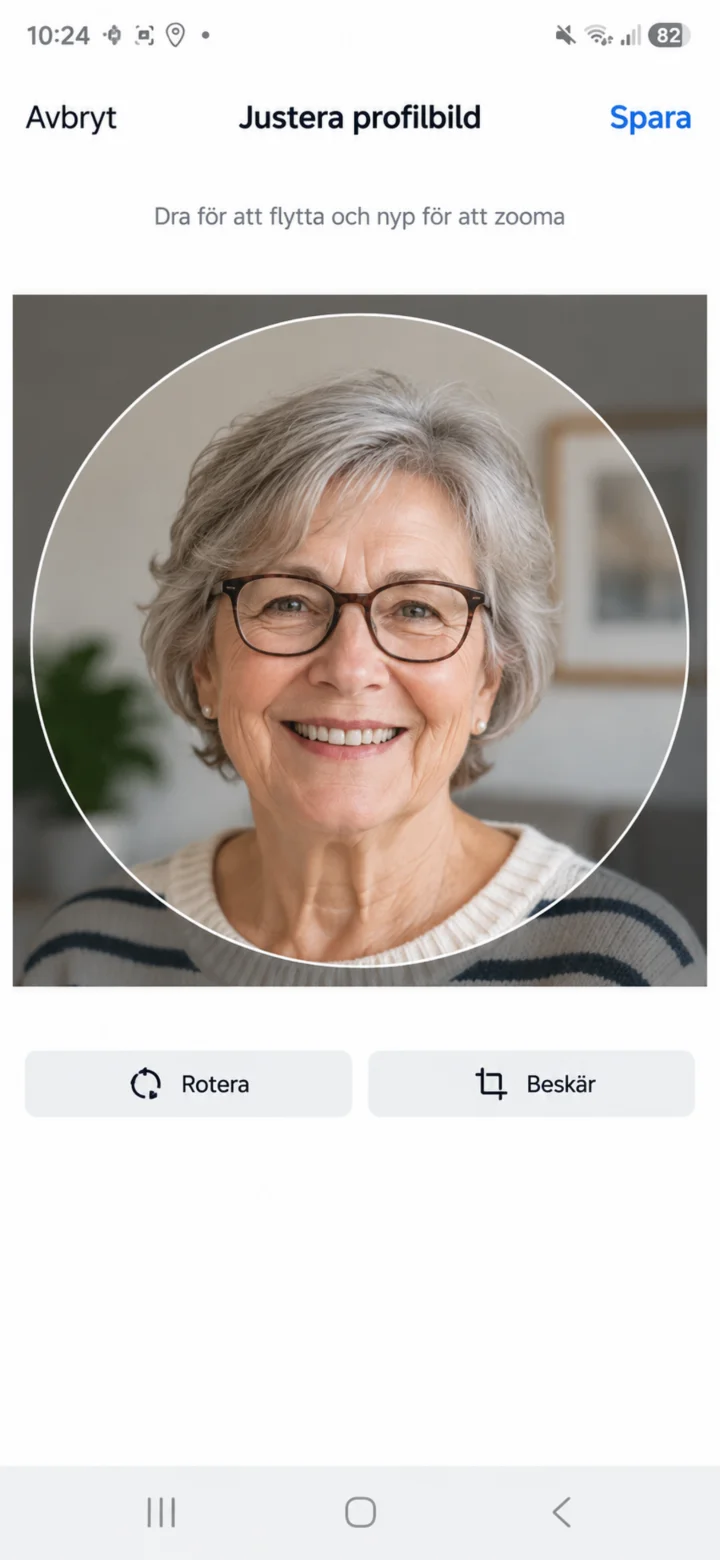
Now the picture is uploaded. Move the picture so your face is clearly visible. Then tap ”Spara” (Save).
 8Step 8 of 8 · Android
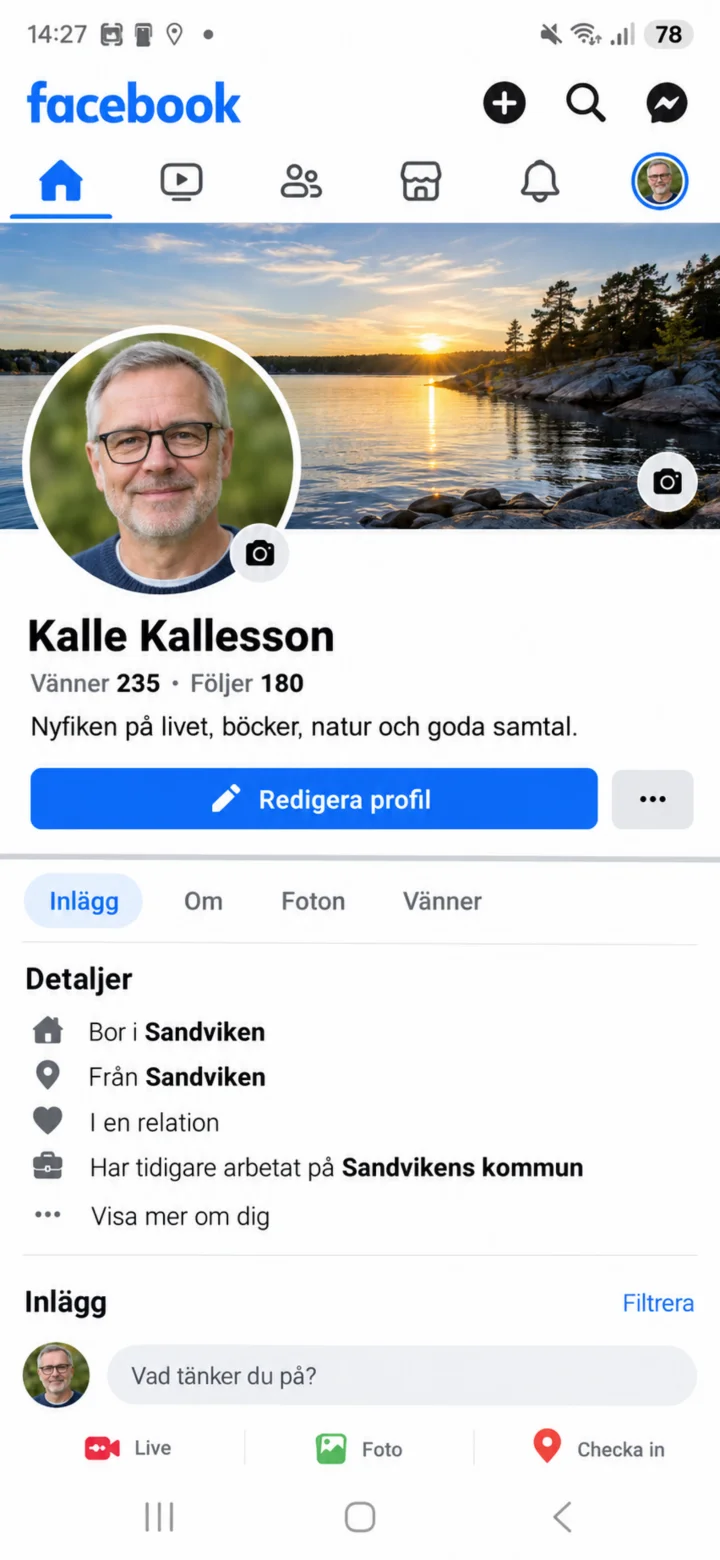
Now your new profile picture is displayed on your Facebook profile. You can later tap ”Redigera profil” (Edit profile) if you want to change something.
How to send pictures in WhatsApp
Android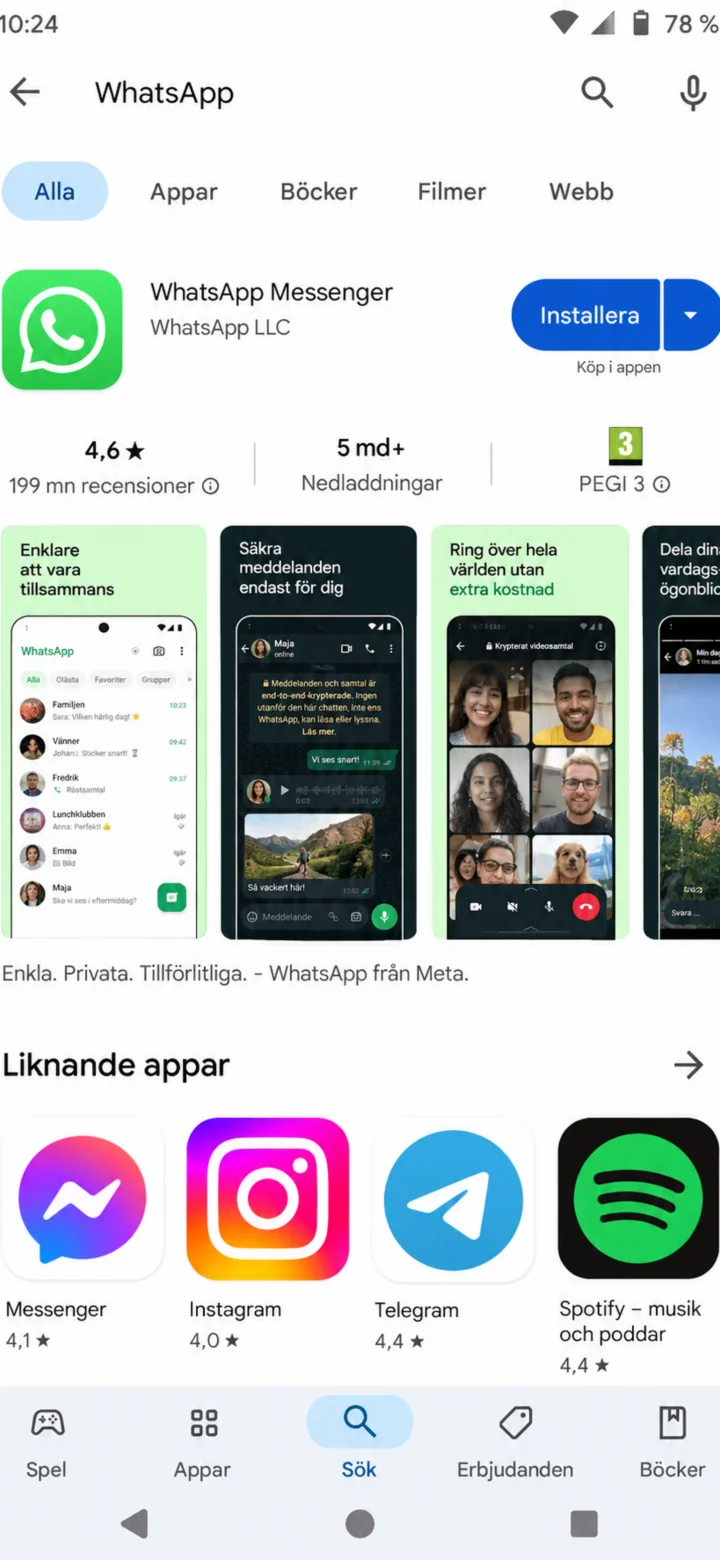 1Step 1 of 11 · Android
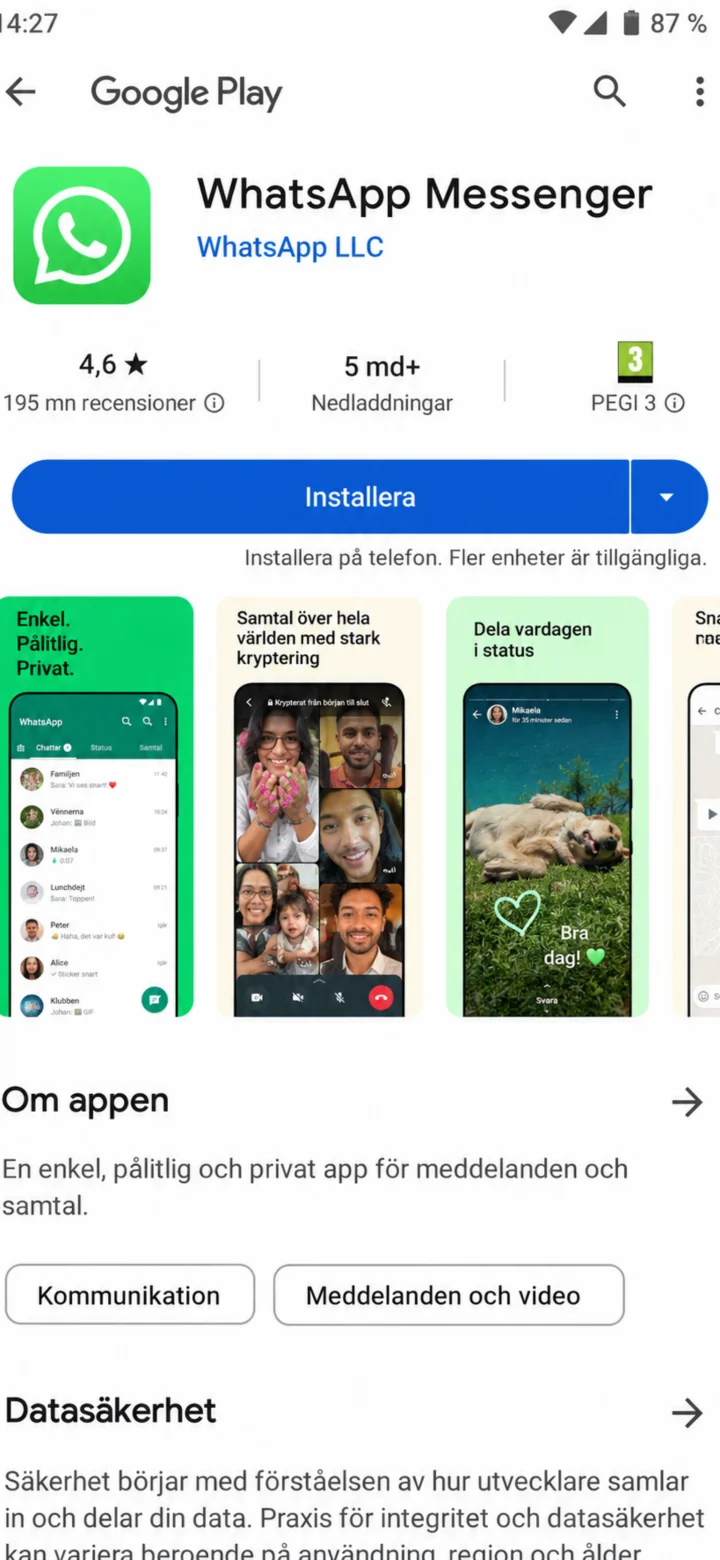
Open Google Play and search for WhatsApp.
 2Step 2 of 11 · Android
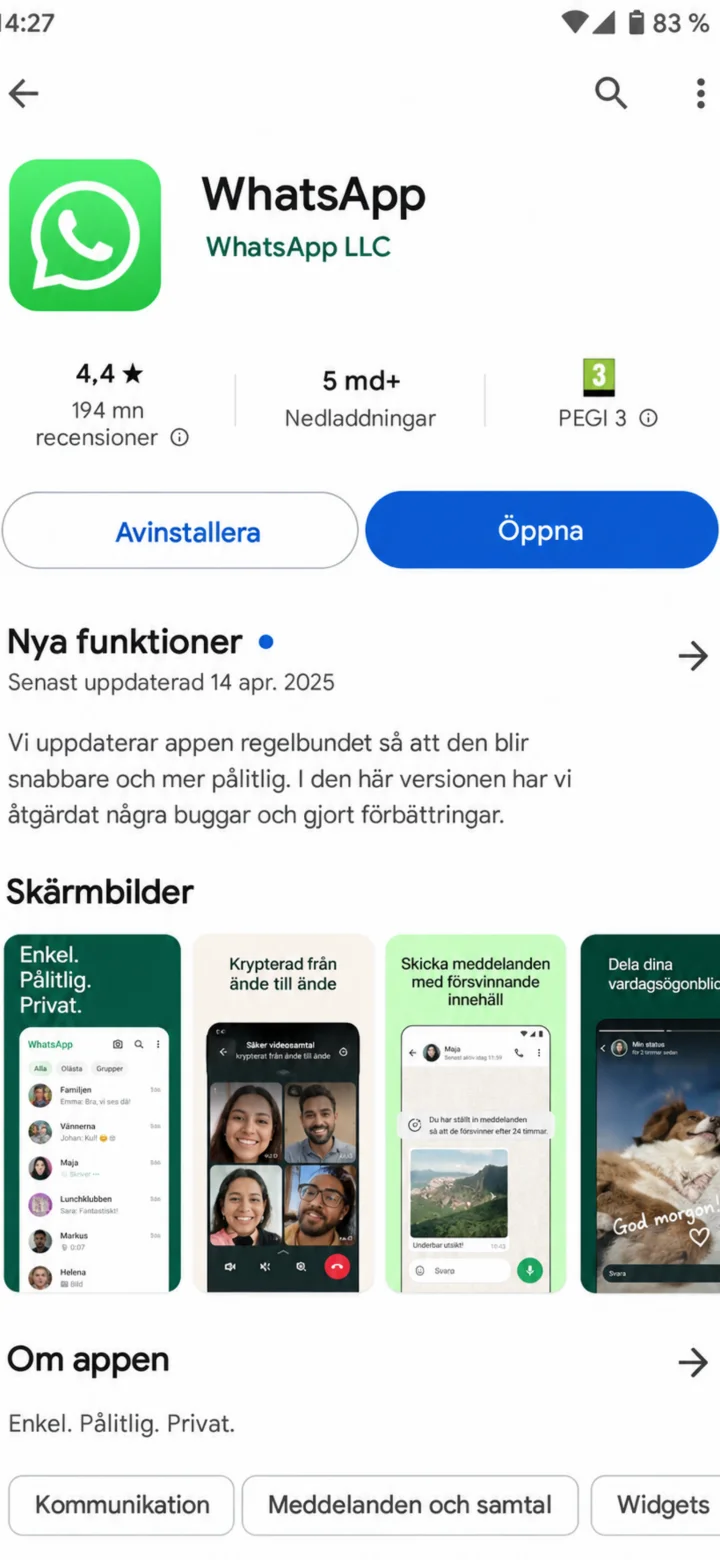
Check the app's name, then tap ”Installera” (Install).
 3Step 3 of 11 · Android
Once the installation is finished, tap ”Öppna” (Open).
 4Step 4 of 11 · Android
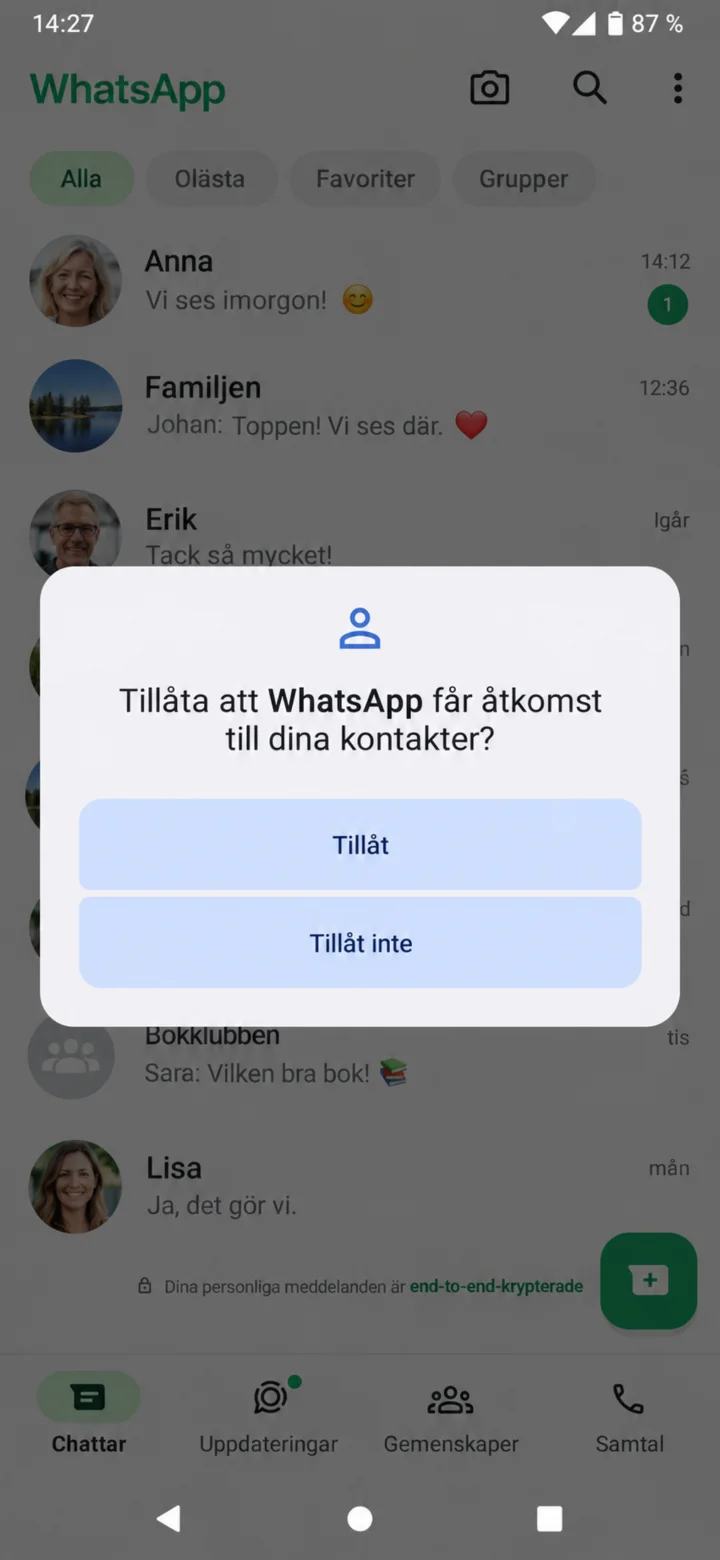
Allow access to your contacts if you'd like to find people from your phone book easily.
 5Step 5 of 11 · Android
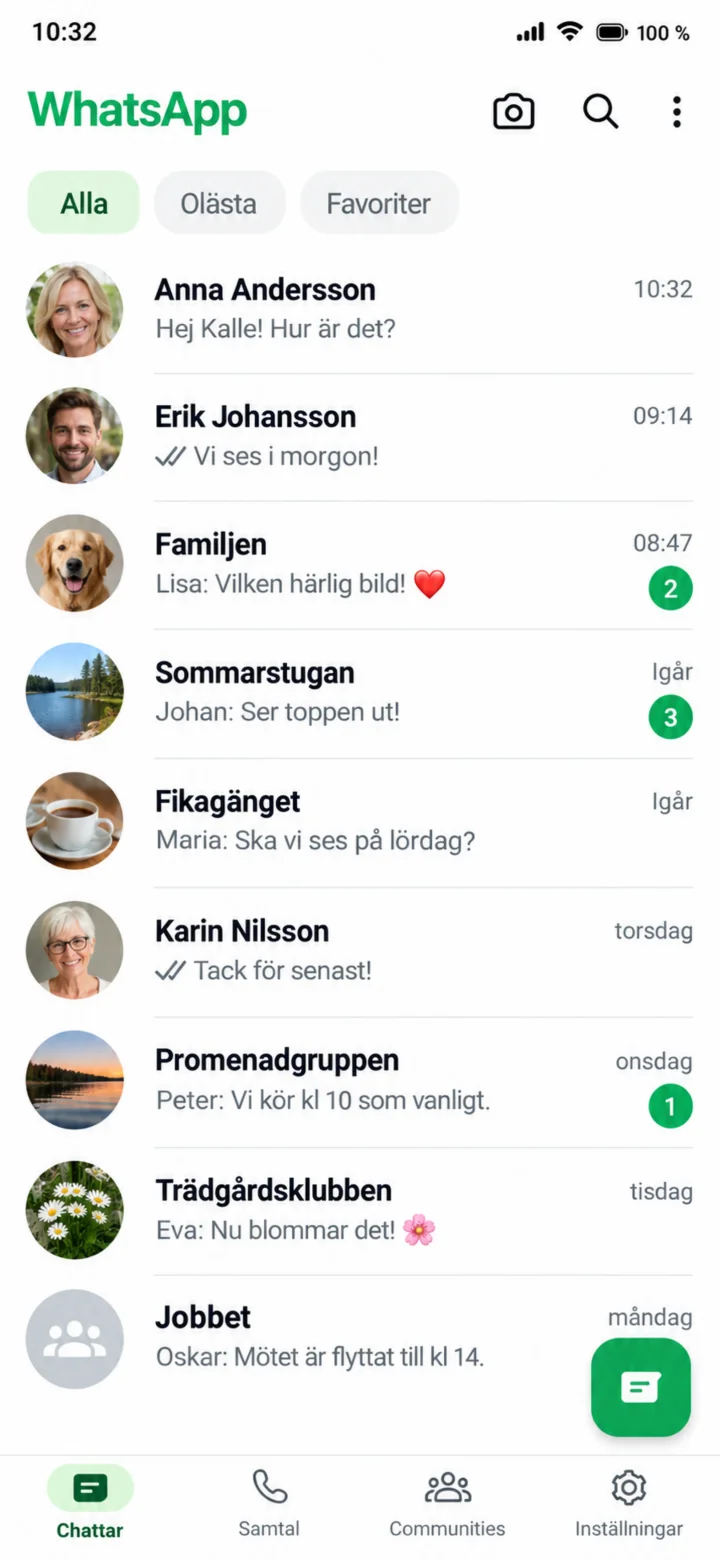
Open WhatsApp and tap on the person you want to send a message to.
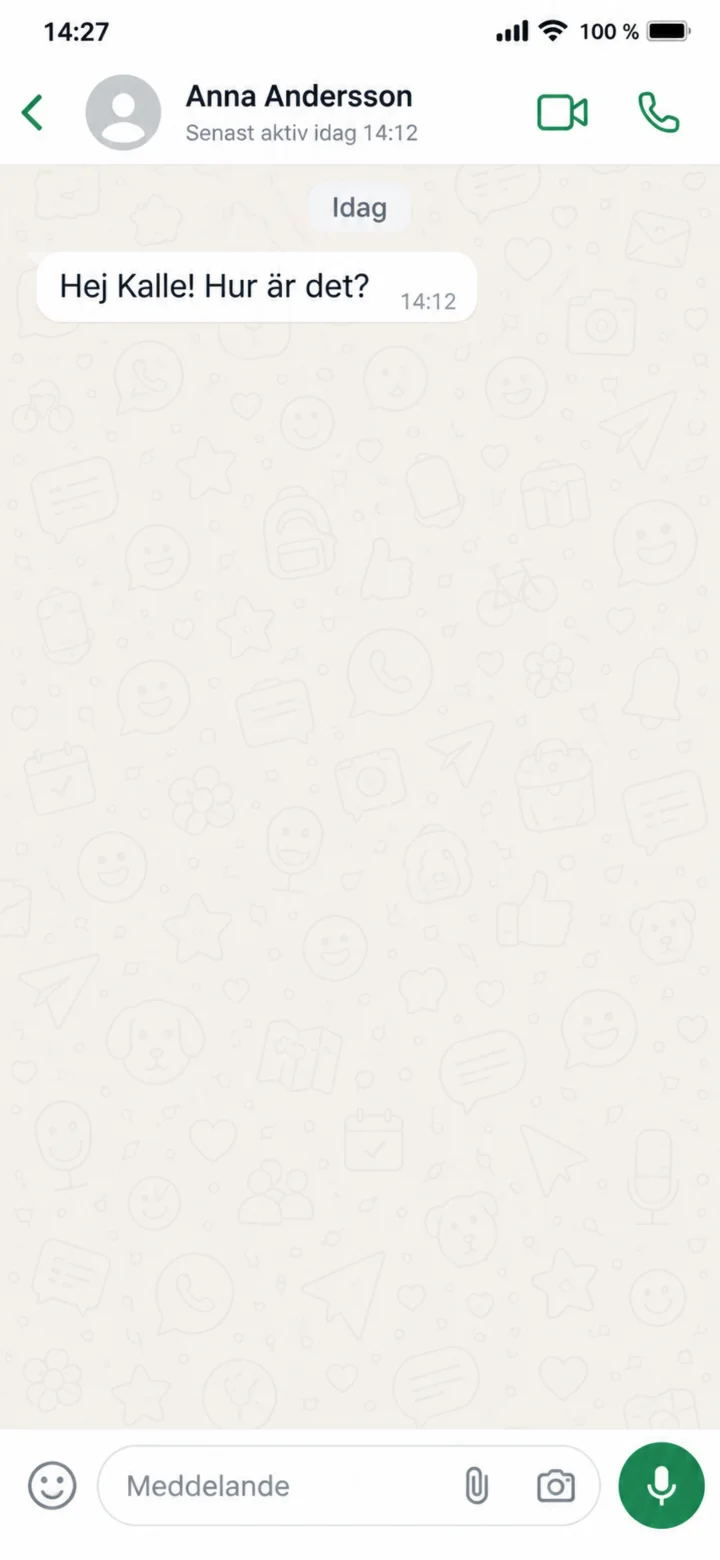 6Step 6 of 11 · Android
Now that the chat is open, tap in the ”Meddelande” (Message) field at the very bottom.
 7Step 7 of 11 · Android
Write your message, then tap the green send button.
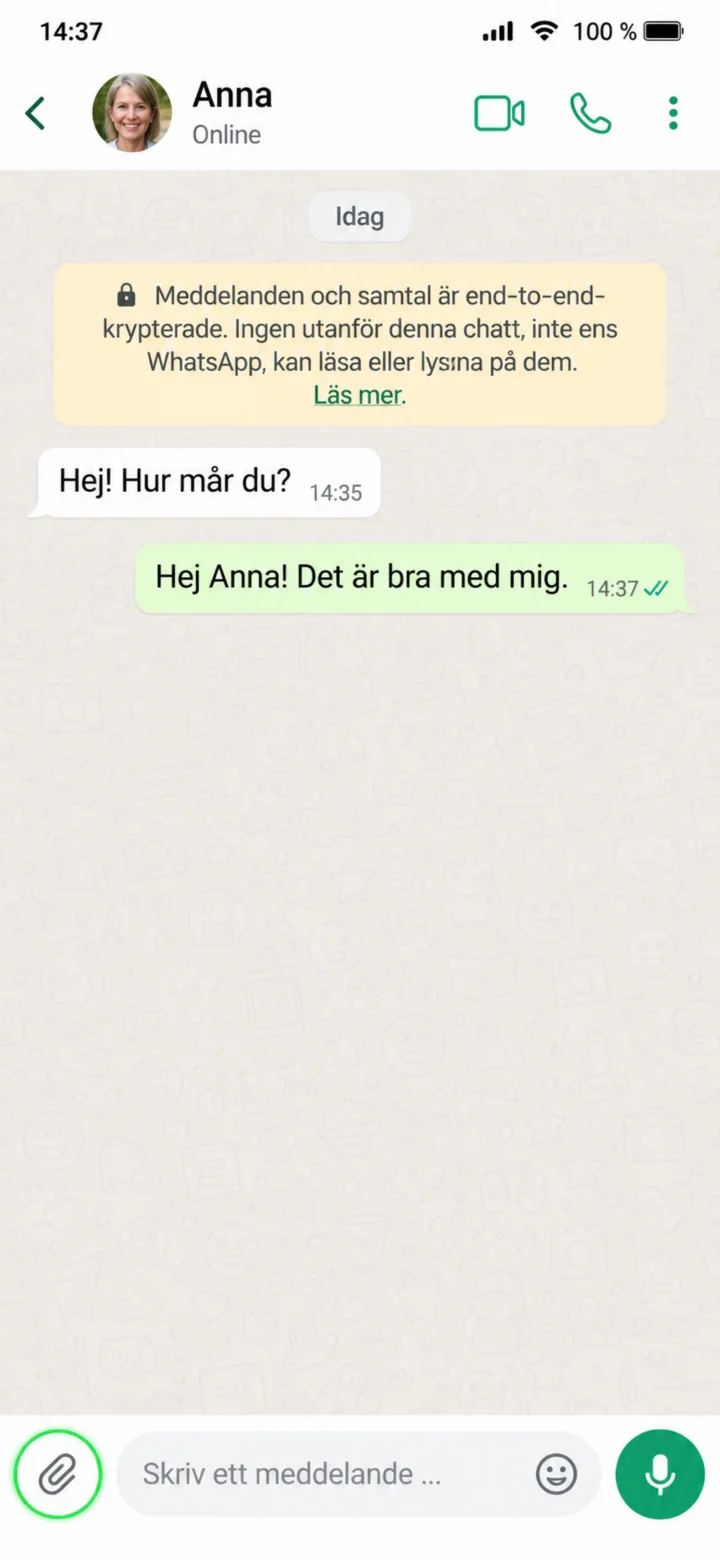 8Step 8 of 11 · Android
To send a picture, tap the paperclip or the plus sign.
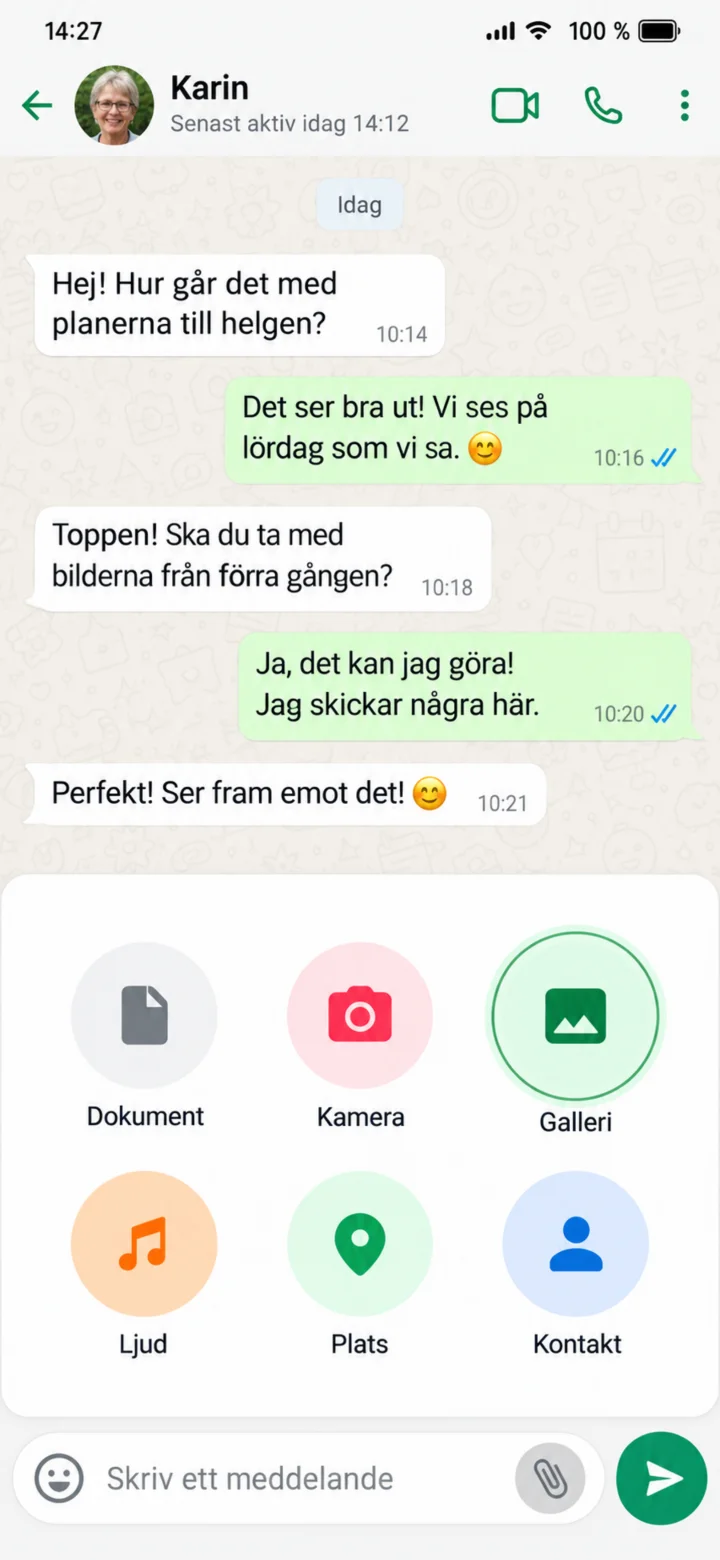 9Step 9 of 11 · Android
Tap ”Galleri” (Gallery) to choose a picture from your phone.
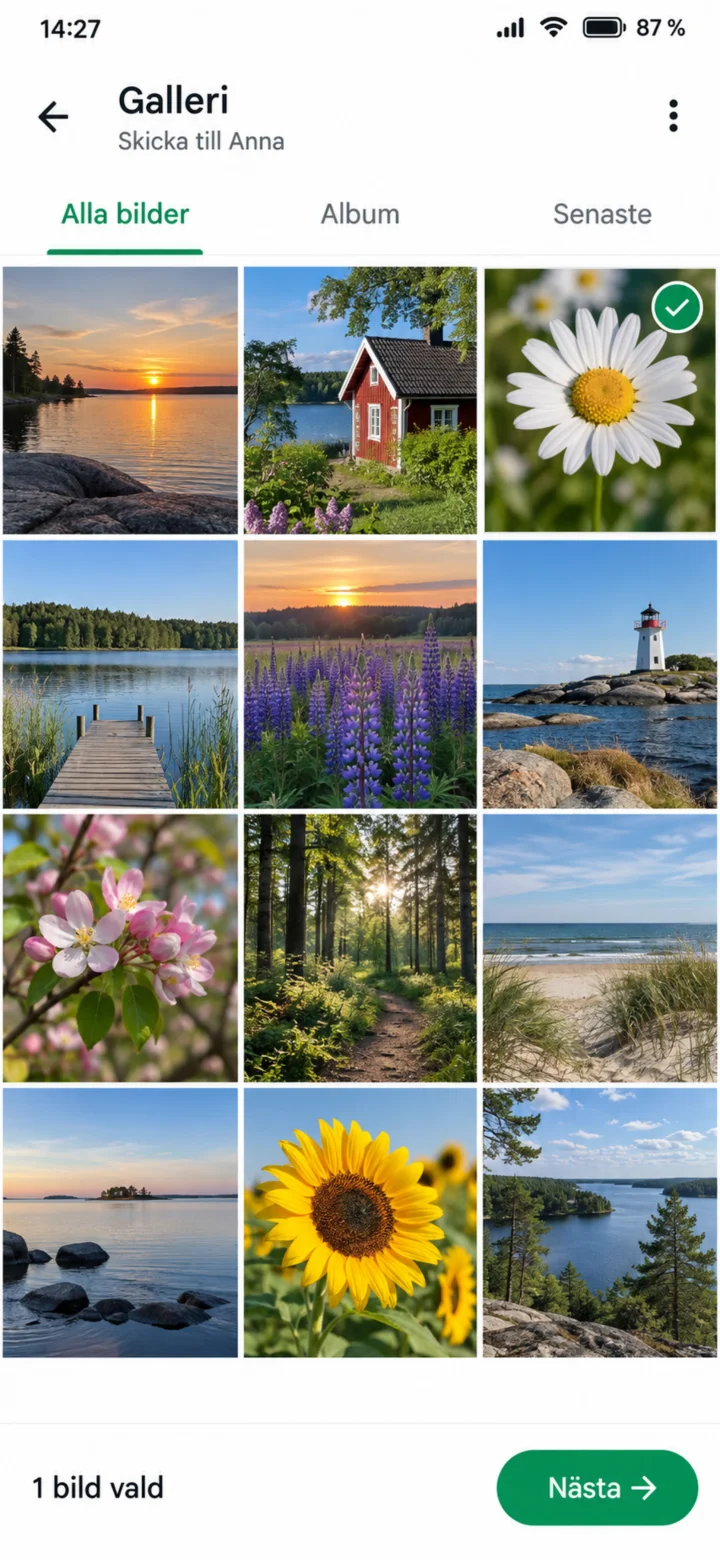 10Step 10 of 11 · Android
Tap the picture you want to send, then choose ”Nästa” (Next).
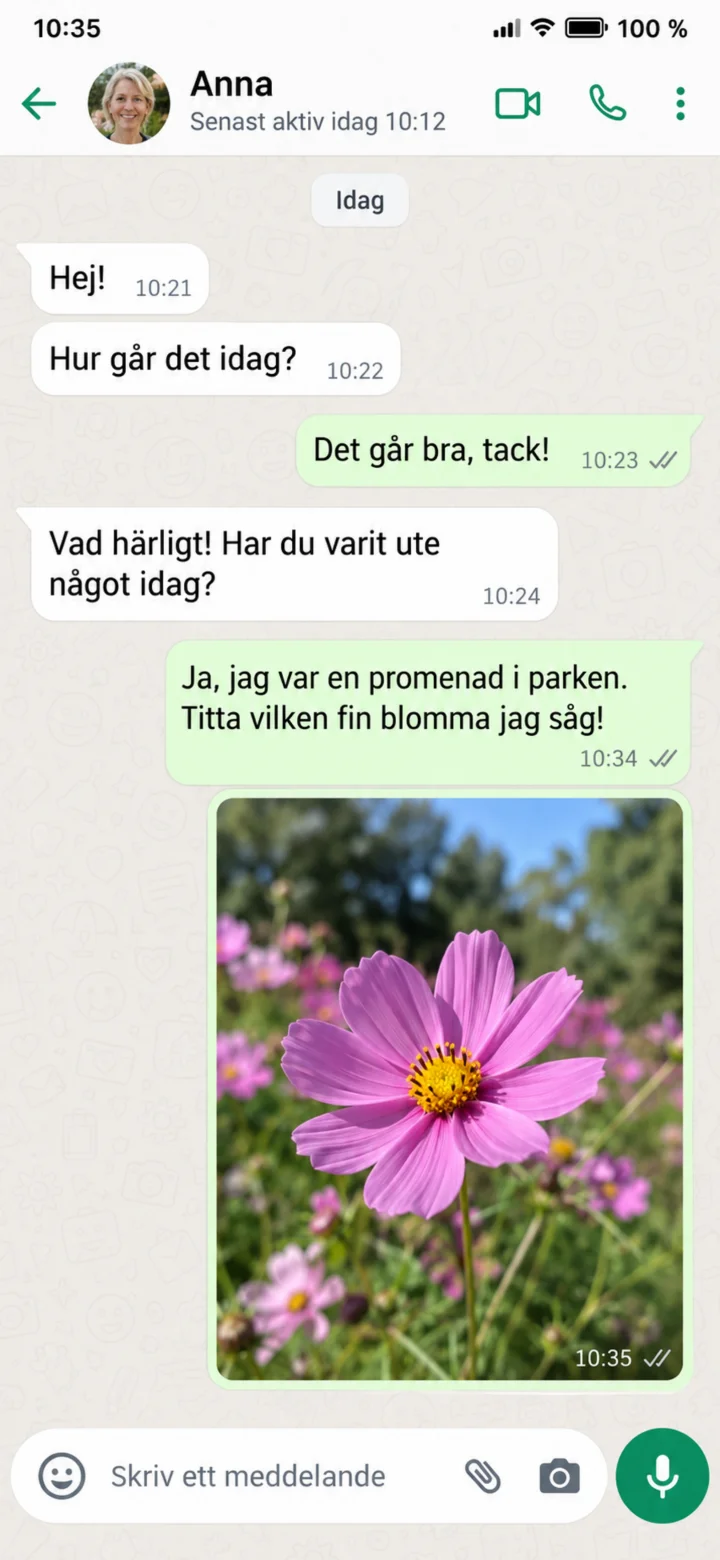 11Step 11 of 11 · Android
The picture will now appear in the chat. The checkmarks will show you that it has been sent.
Instagram – Get Started
Android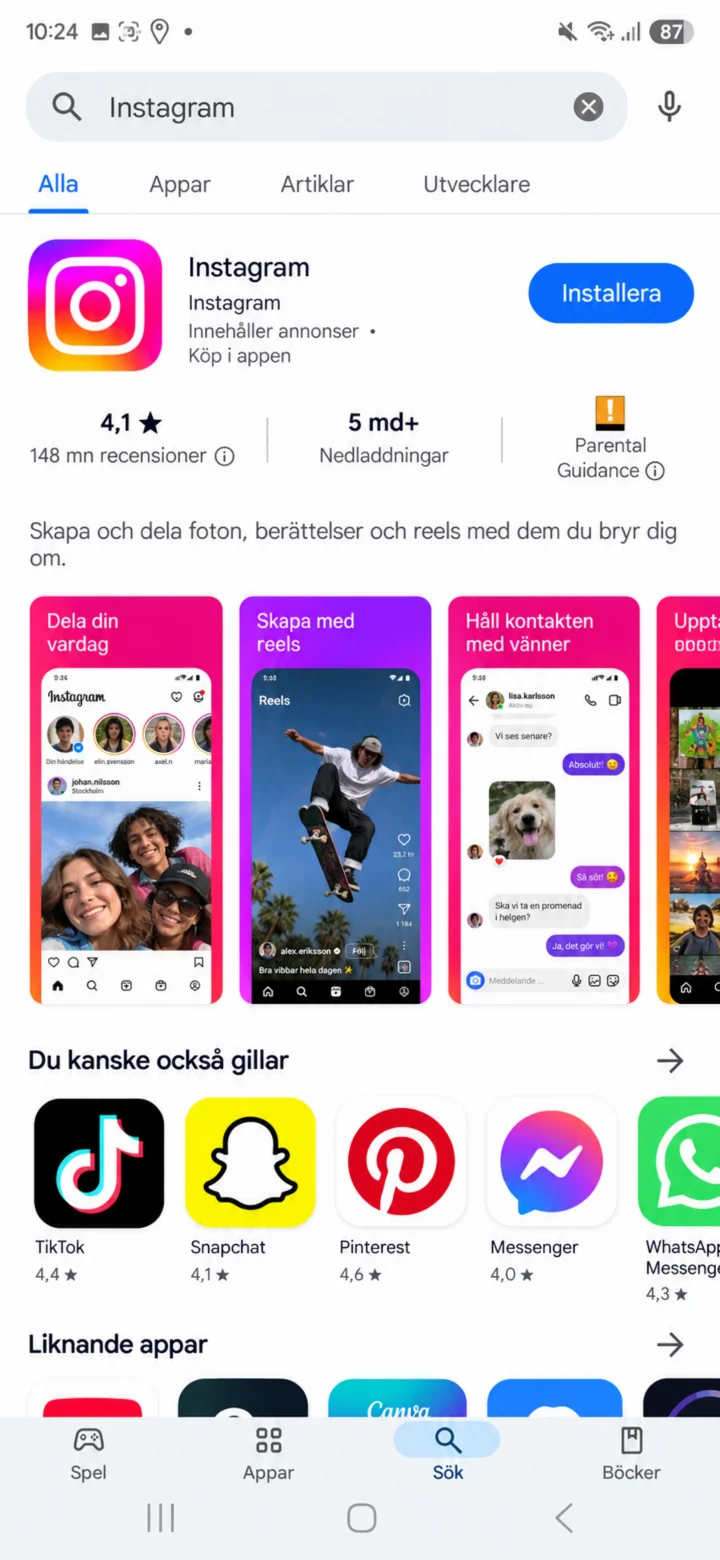 1Step 1 of 8 · Android
Open Google Play and search for Instagram. Make sure it's the official app and then tap ”Installera” (Install) or ”Öppna” (Open).
 2Step 2 of 8 · Android
When Instagram opens, choose ”Logga in” (Log in) if you already have an account. Choose ”Skapa nytt konto” (Create new account) if you don't have one.
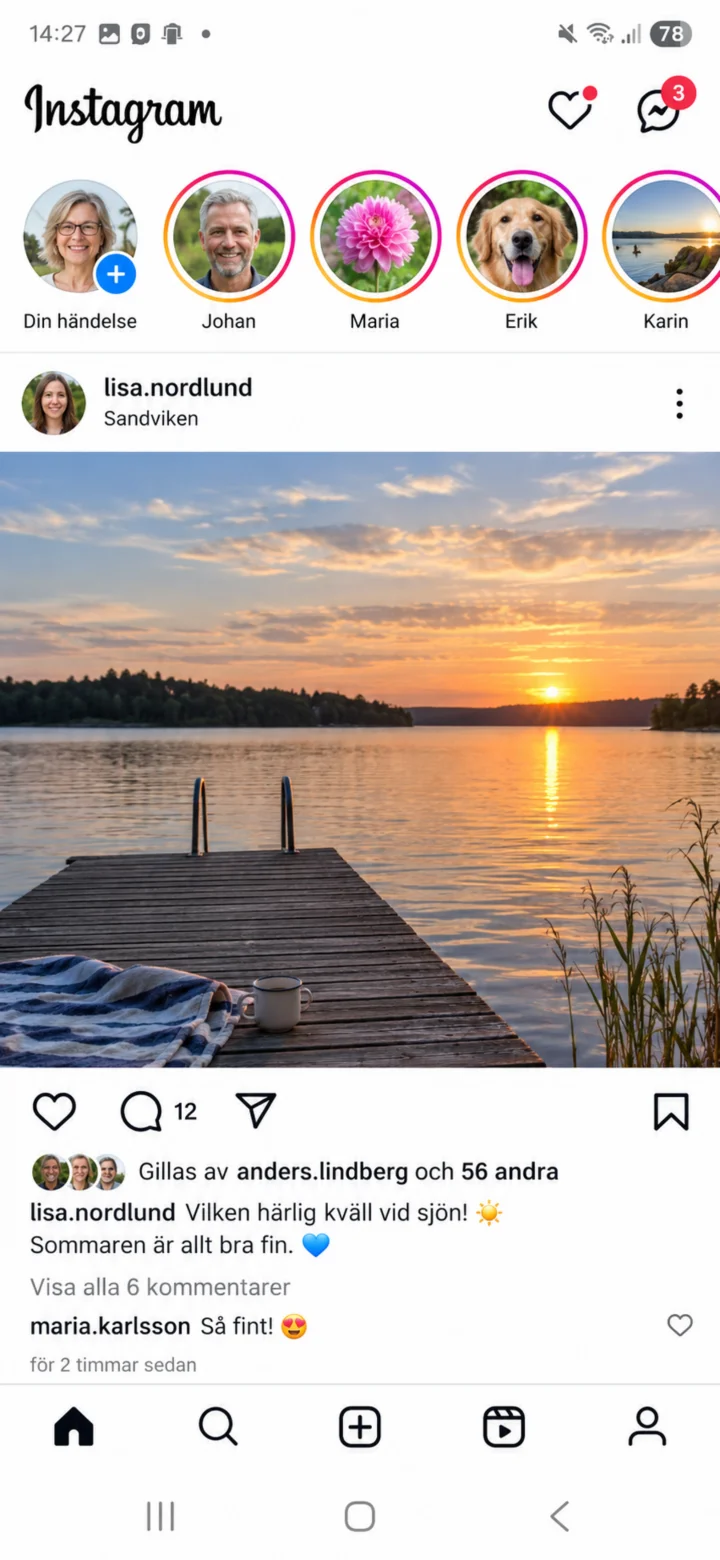 3Step 3 of 8 · Android
Now you're in Instagram! On the home page, you'll see posts and stories that have been published. If you want to set up your profile, tap the profile icon in the bottom right corner to open your profile.
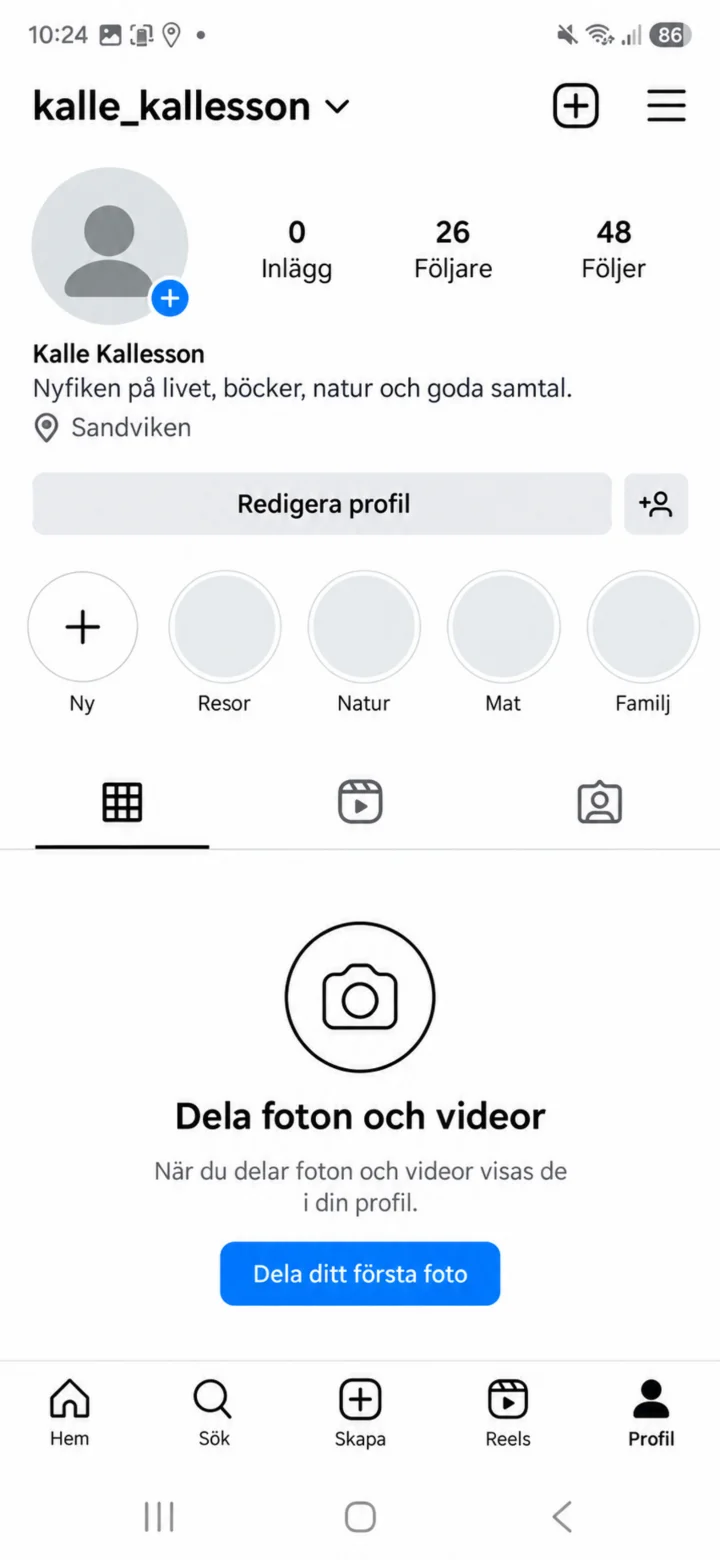 4Step 4 of 8 · Android
On your profile, you'll see your posts and the ”Redigera profil” (Edit profile) button. Tap ”Redigera profil” (Edit profile) to change your information.
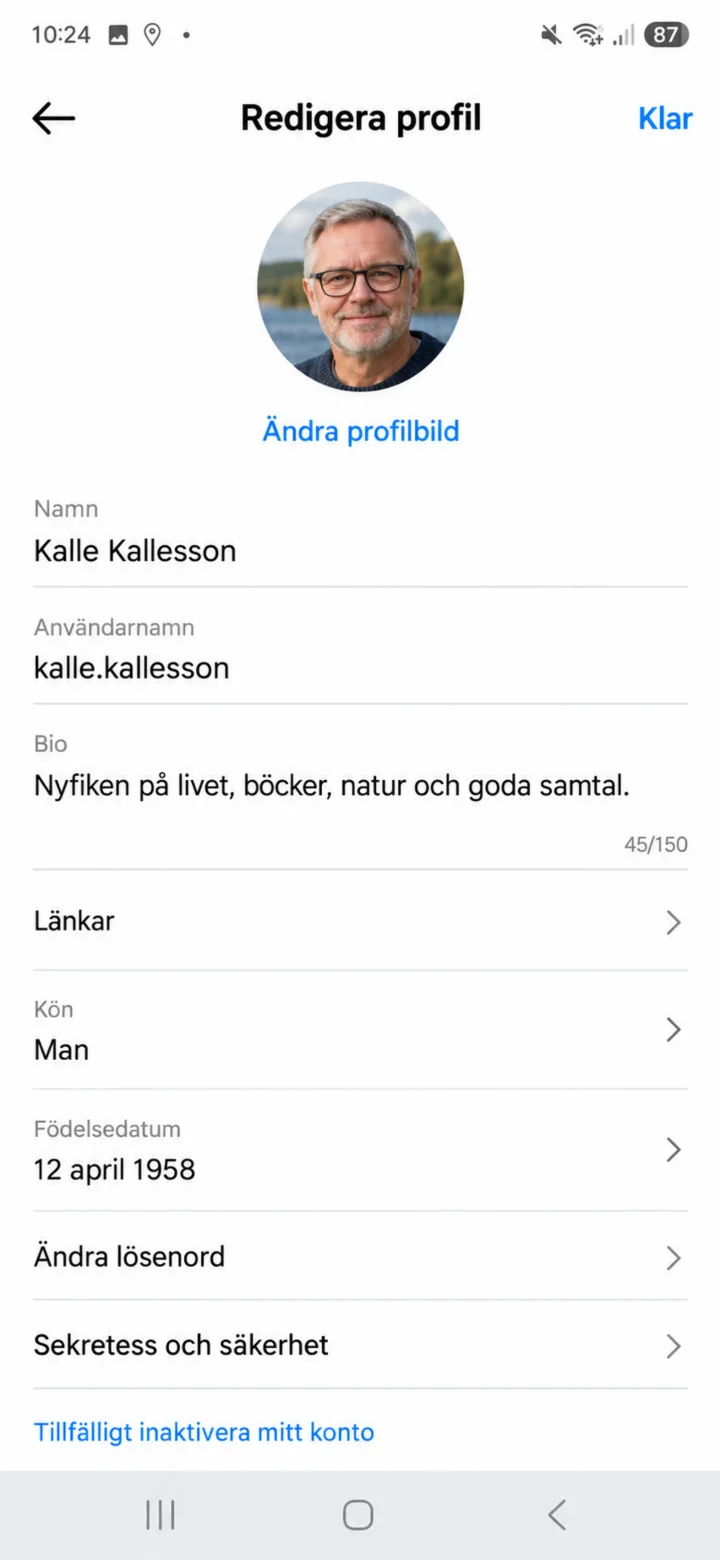 5Step 5 of 8 · Android
On the ”Redigera profil” (Edit profile) page, tap ”Ändra profilbild” (Change profile picture).
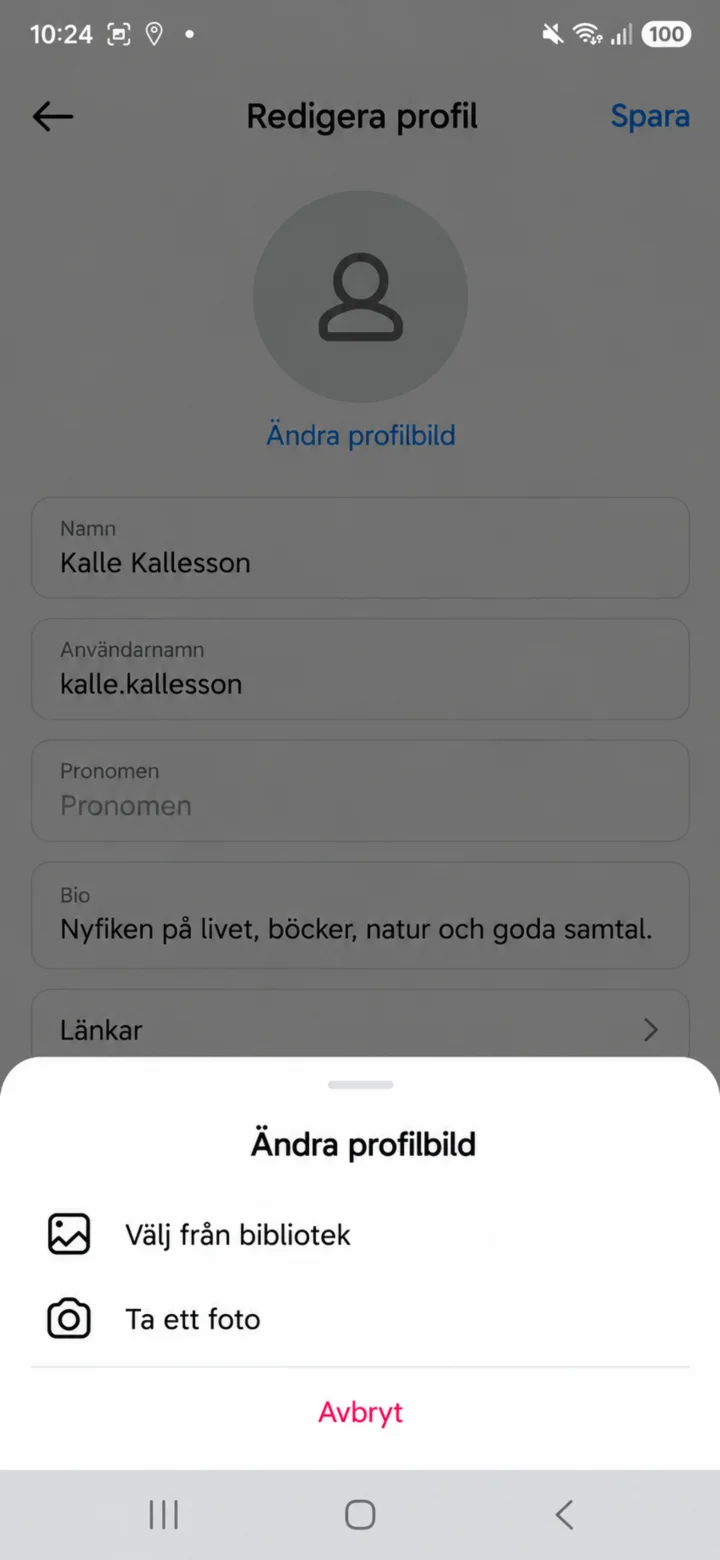 6Step 6 of 8 · Android
Choose ”Välj från bibliotek” (Select from library) if the picture is already on your phone. Choose ”Ta ett foto” (Take a photo) if you want to take a new picture.
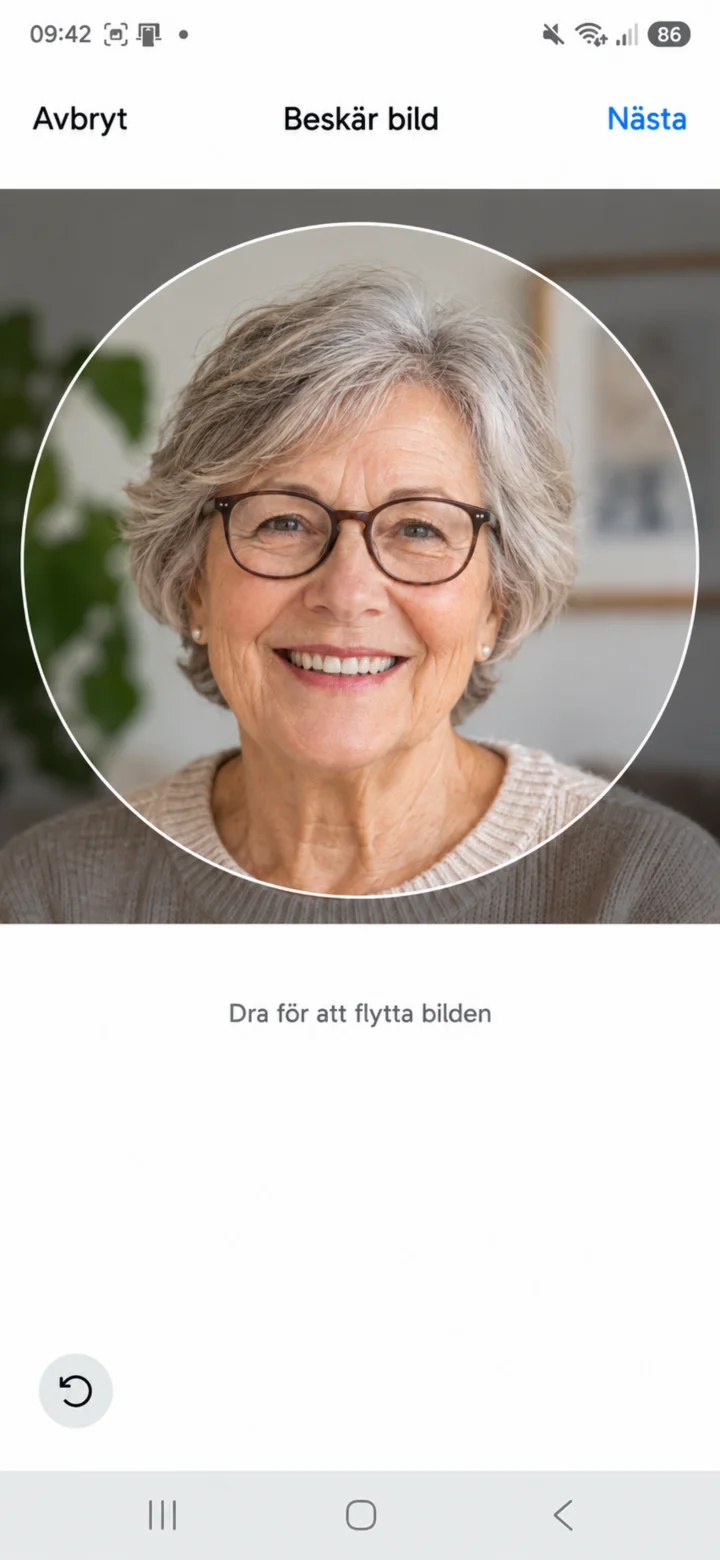 7Step 7 of 8 · Android
Drag the picture so your face is clearly visible in the circle. Then tap ”Nästa” (Next).
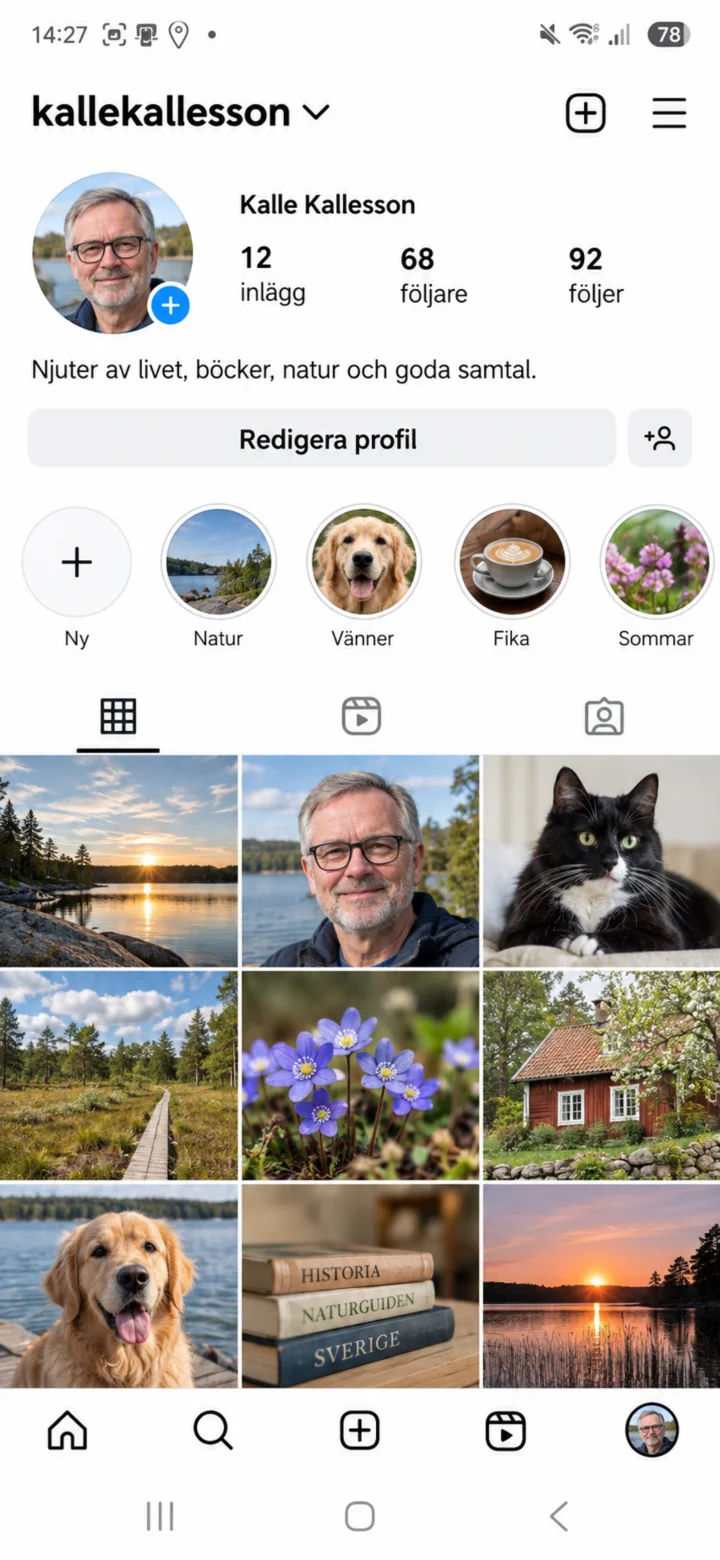 8Step 8 of 8 · Android
Now your new profile picture will appear on your Instagram profile. You can change it again anytime via ”Redigera profil” (Edit profile).
Install WhatsApp and make a video call
Android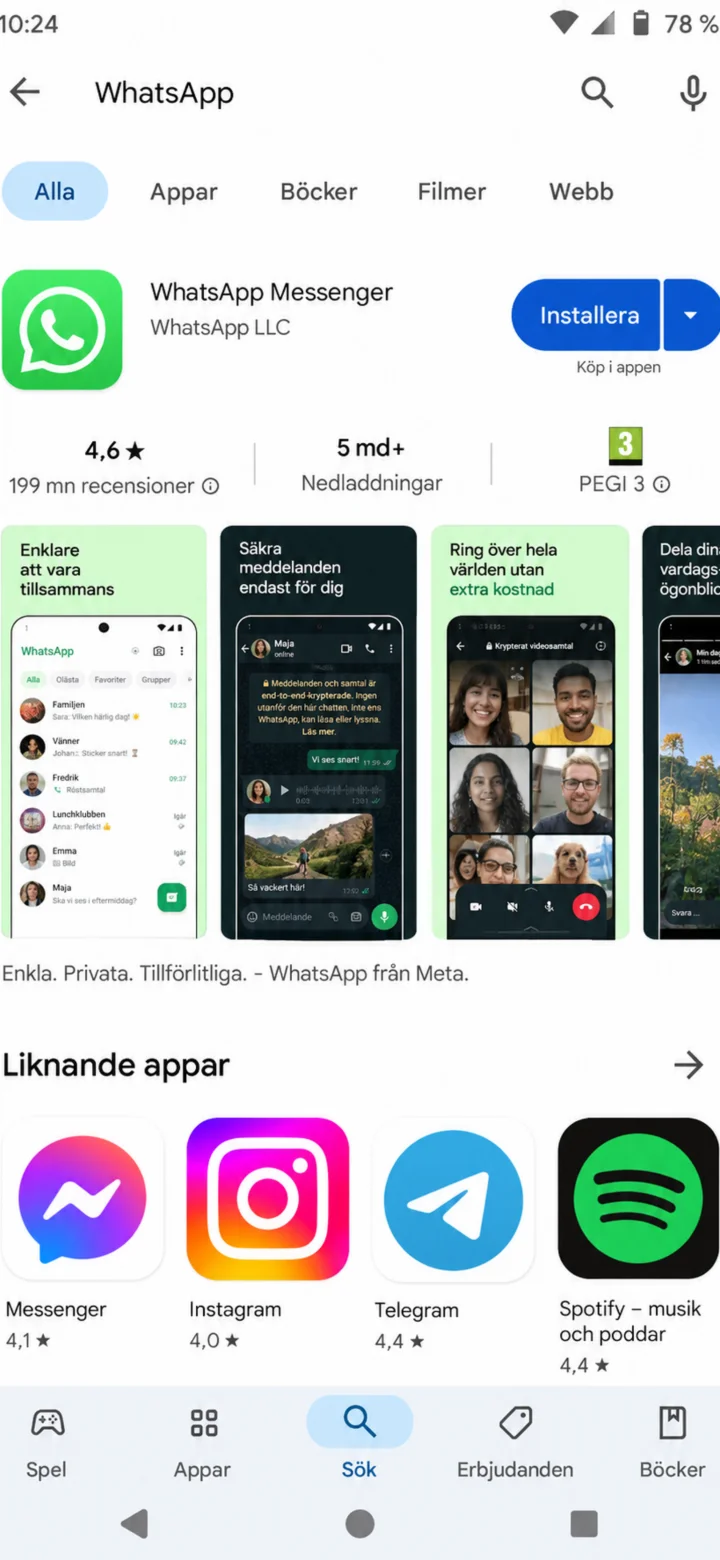 1Step 1 of 11 · Android
Open Google Play and search for WhatsApp. Make sure the app is called WhatsApp Messenger.
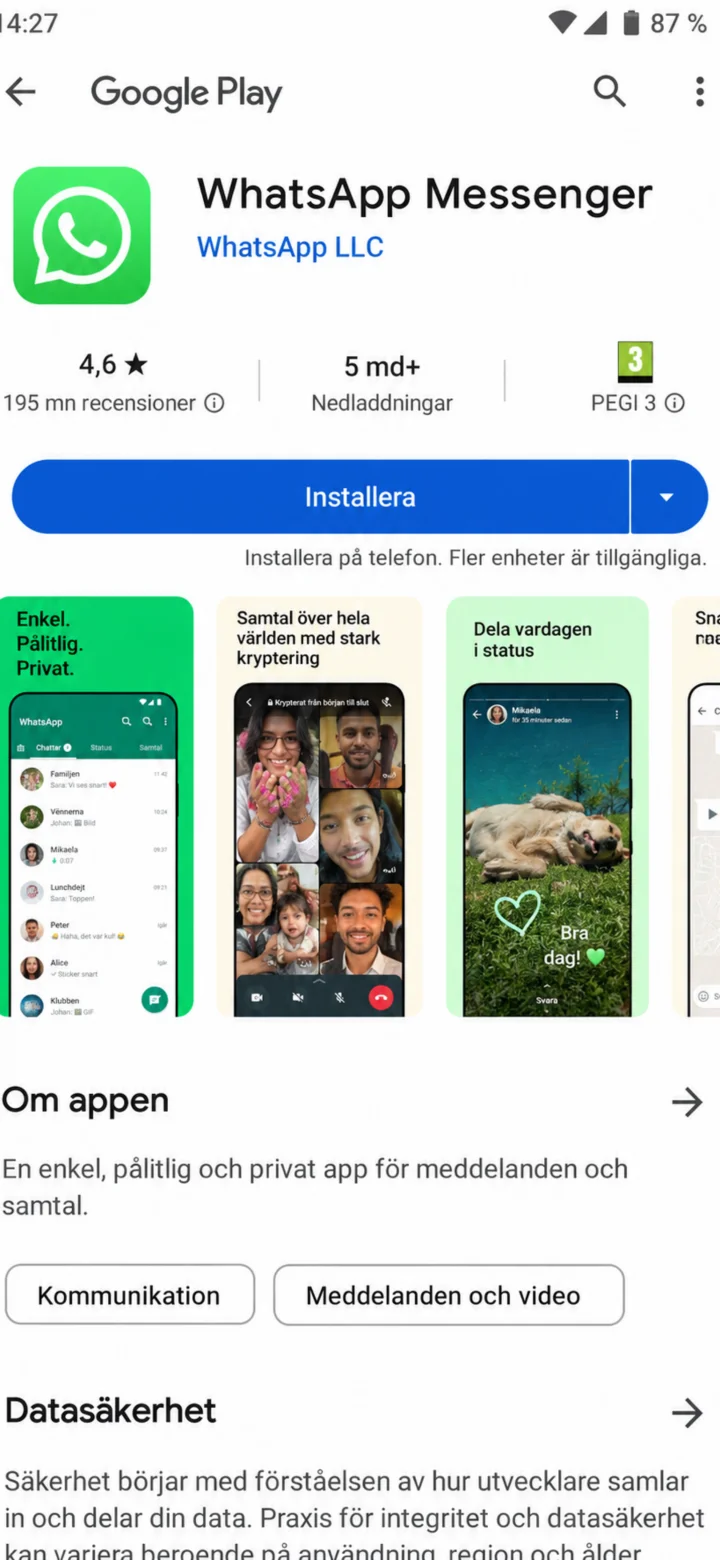 2Step 2 of 11 · Android
Tryck på Installera för att installera WhatsApp.
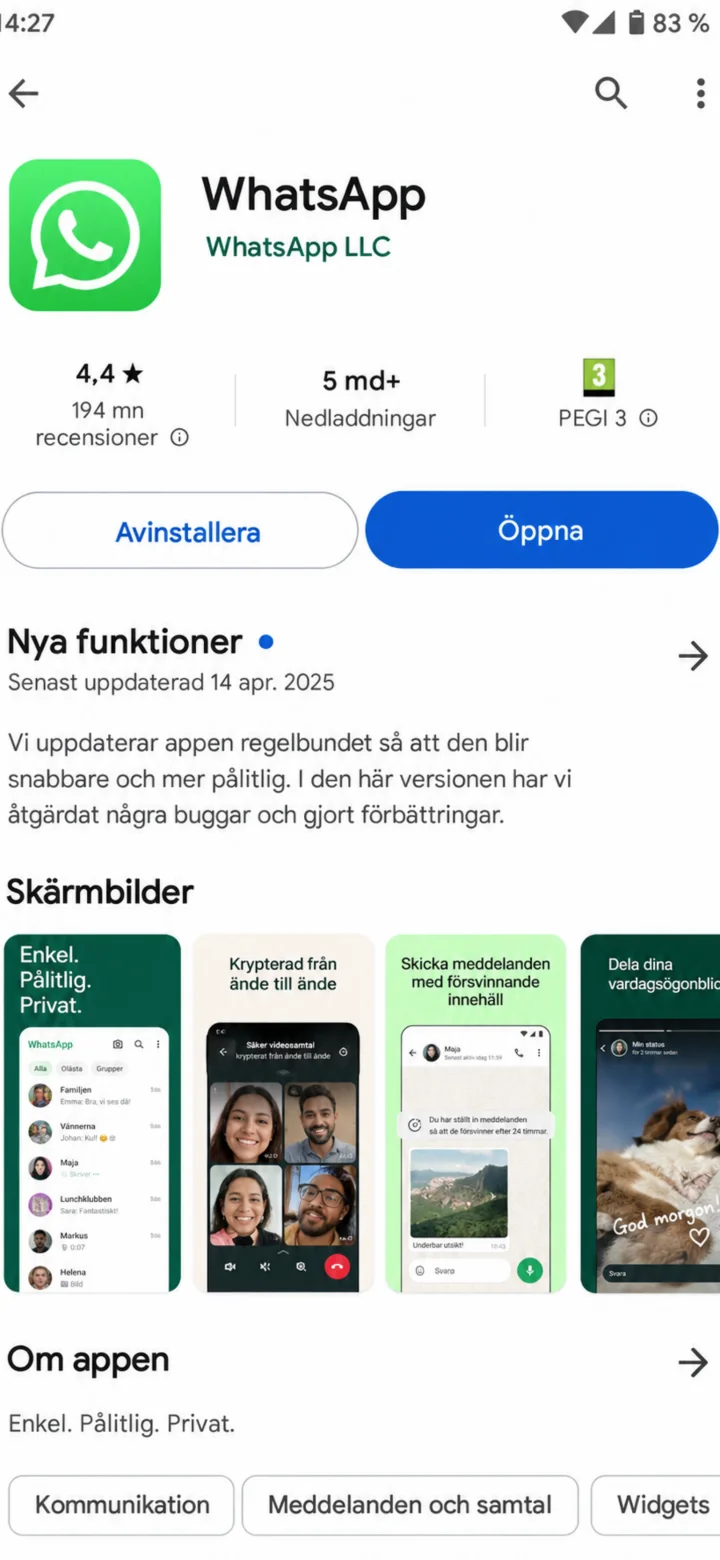 3Step 3 of 11 · Android
Once the installation is complete, tap ”Öppna” (Open).
 4Step 4 of 11 · Android
Read the information and then tap ”Godkänn och fortsätt” (Agree and continue).
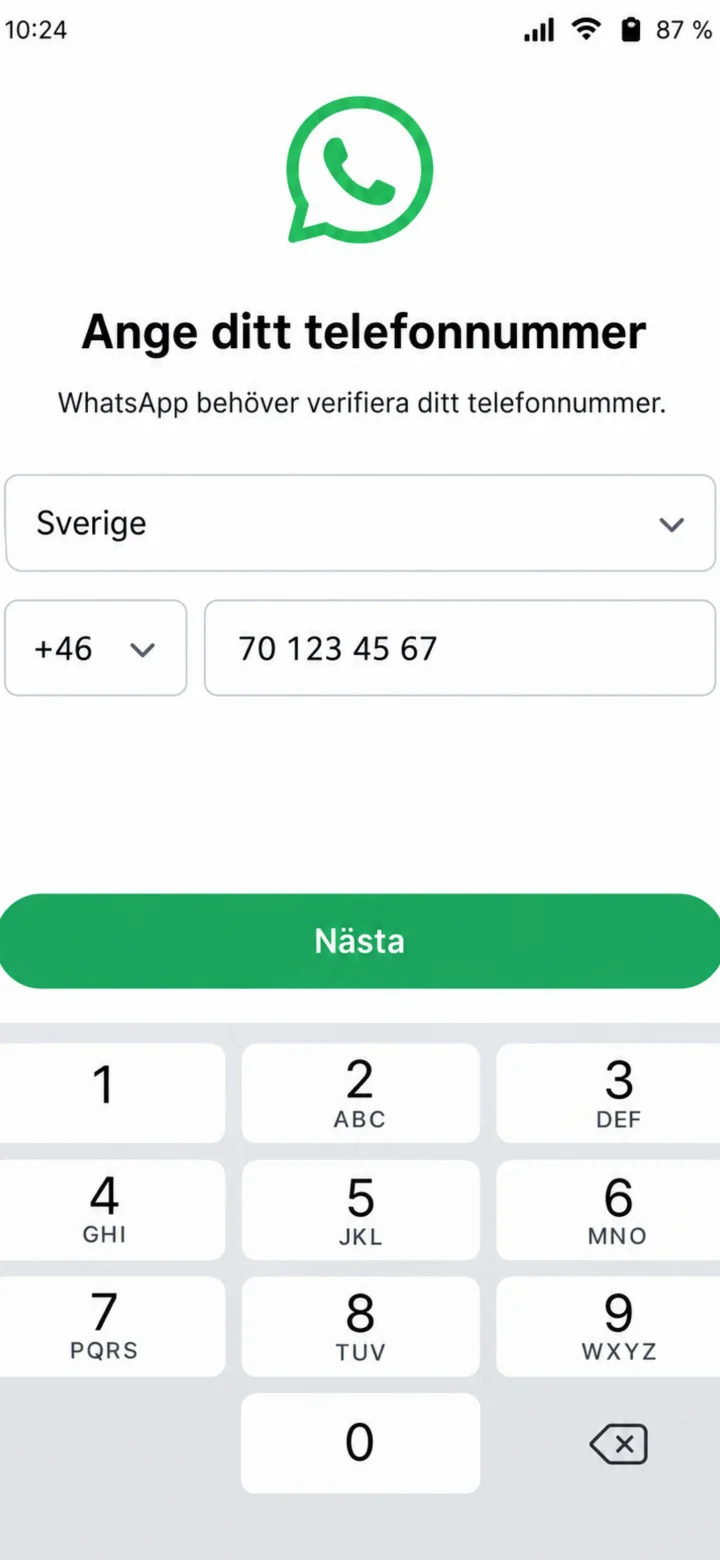 5Step 5 of 11 · Android
Choose Sverige (Sweden) and enter your mobile number. Then tap ”Nästa” (Next).
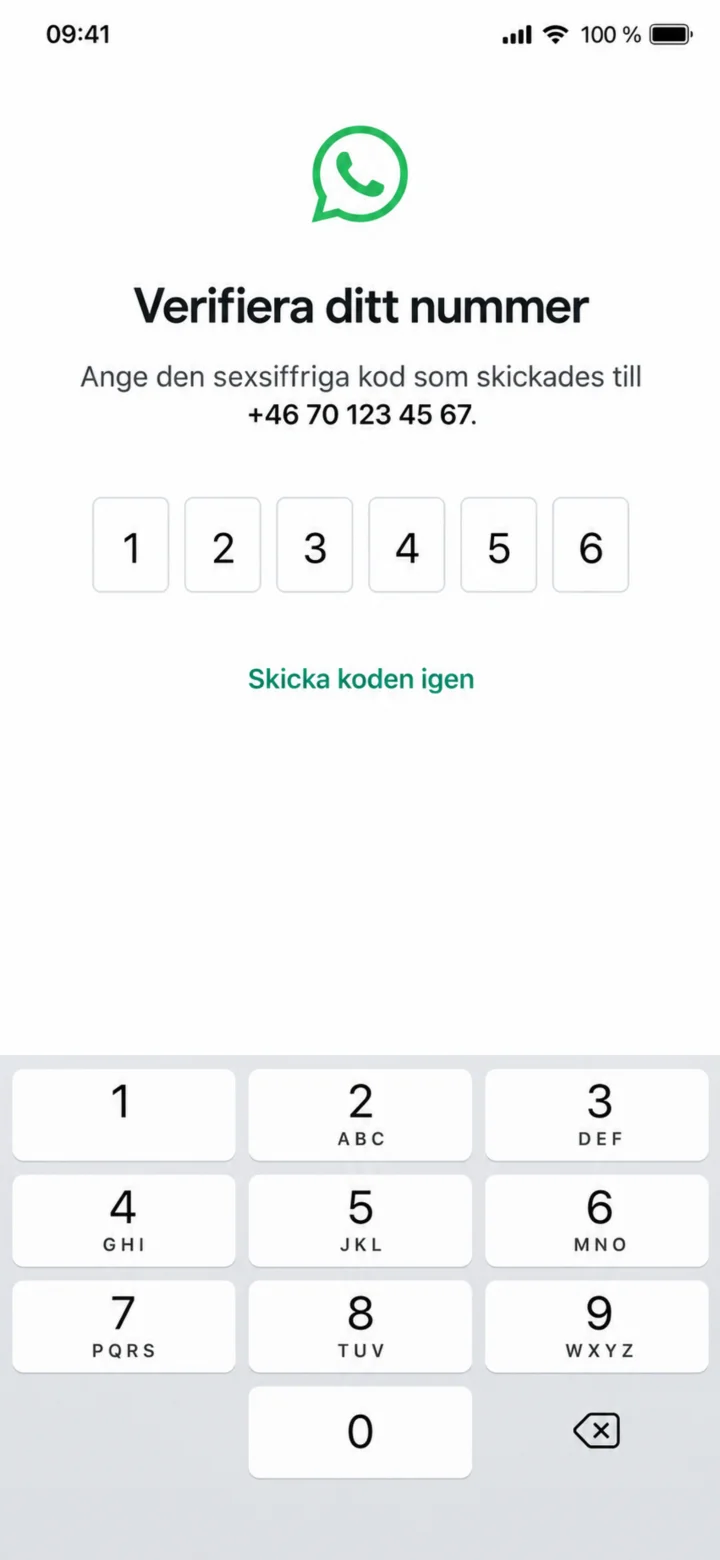 6Step 6 of 11 · Android
Enter the six-digit code you receive in an SMS. Never share the code with anyone else.
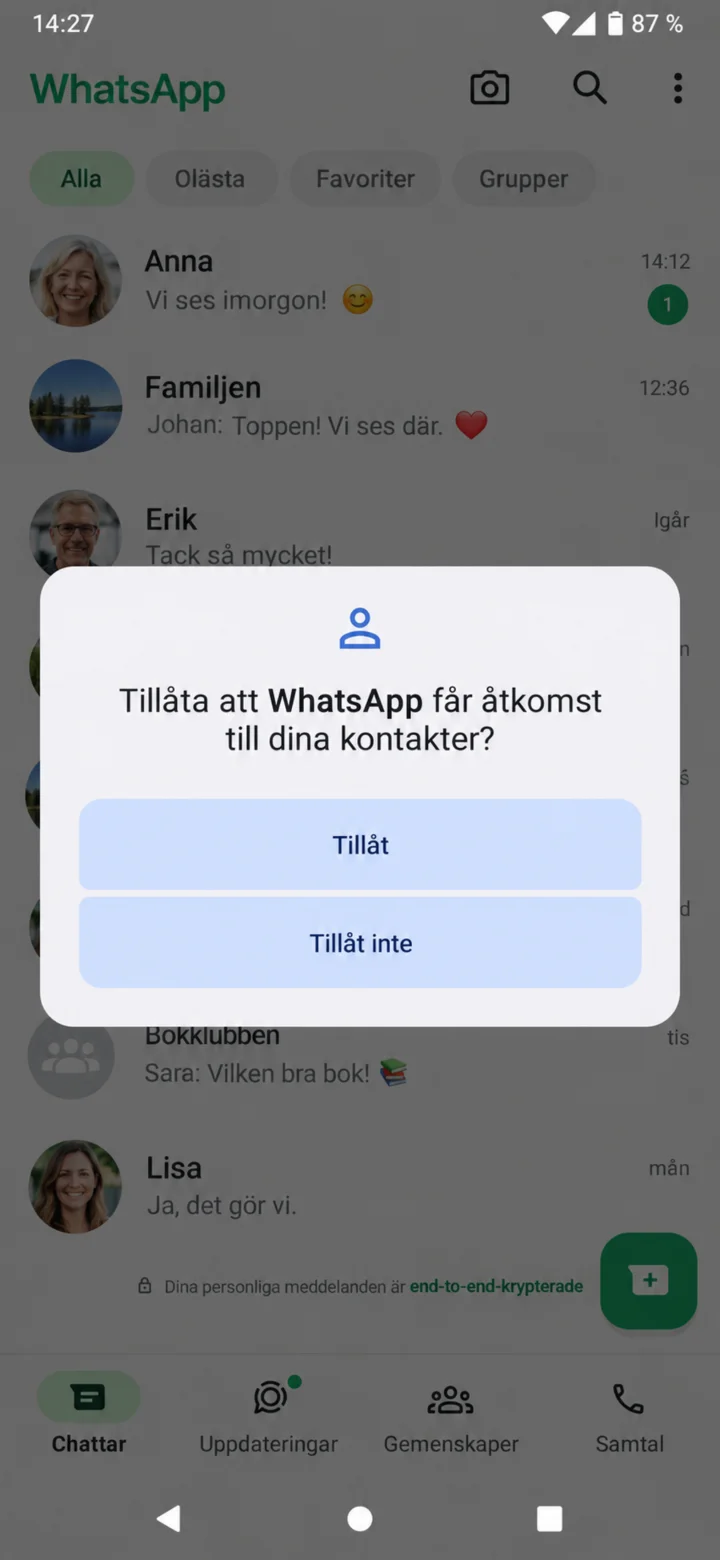 7Step 7 of 11 · Android
On Android, tap ”Tillåt” (Allow) so WhatsApp can find your contacts.
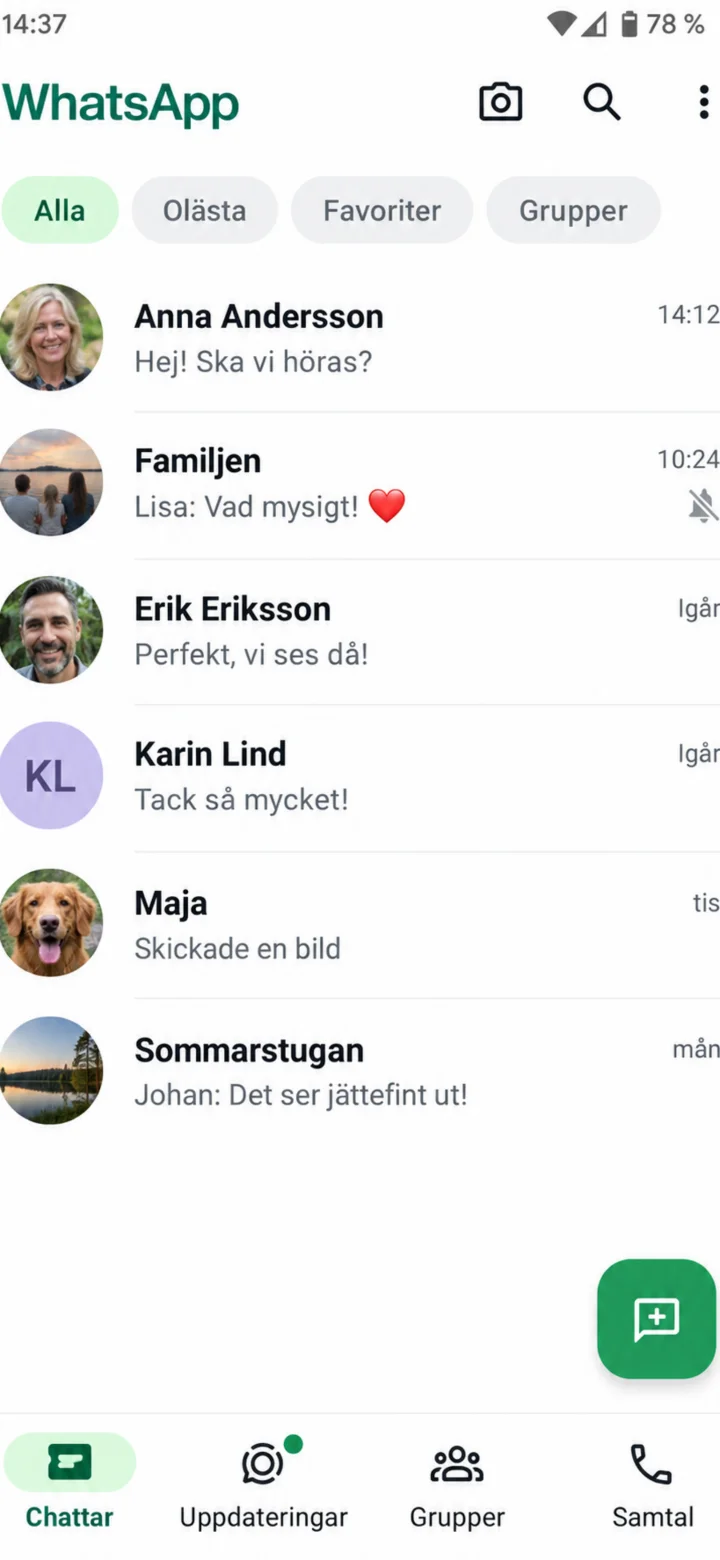 8Step 8 of 11 · Android
In the chat list, tap the person you want to call. In the example, we choose Anna Andersson.
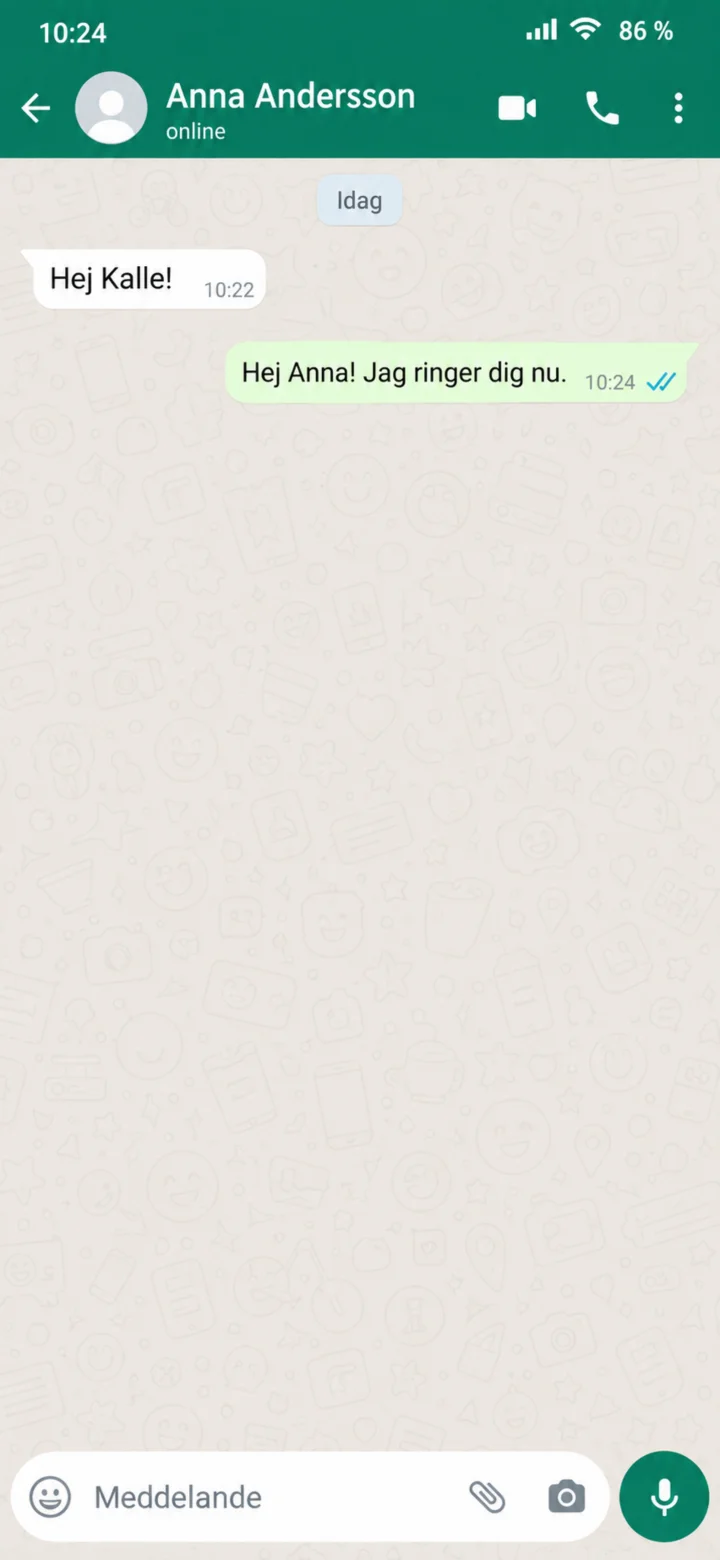 9Step 9 of 11 · Android
Tap the small video symbol in the top right corner.
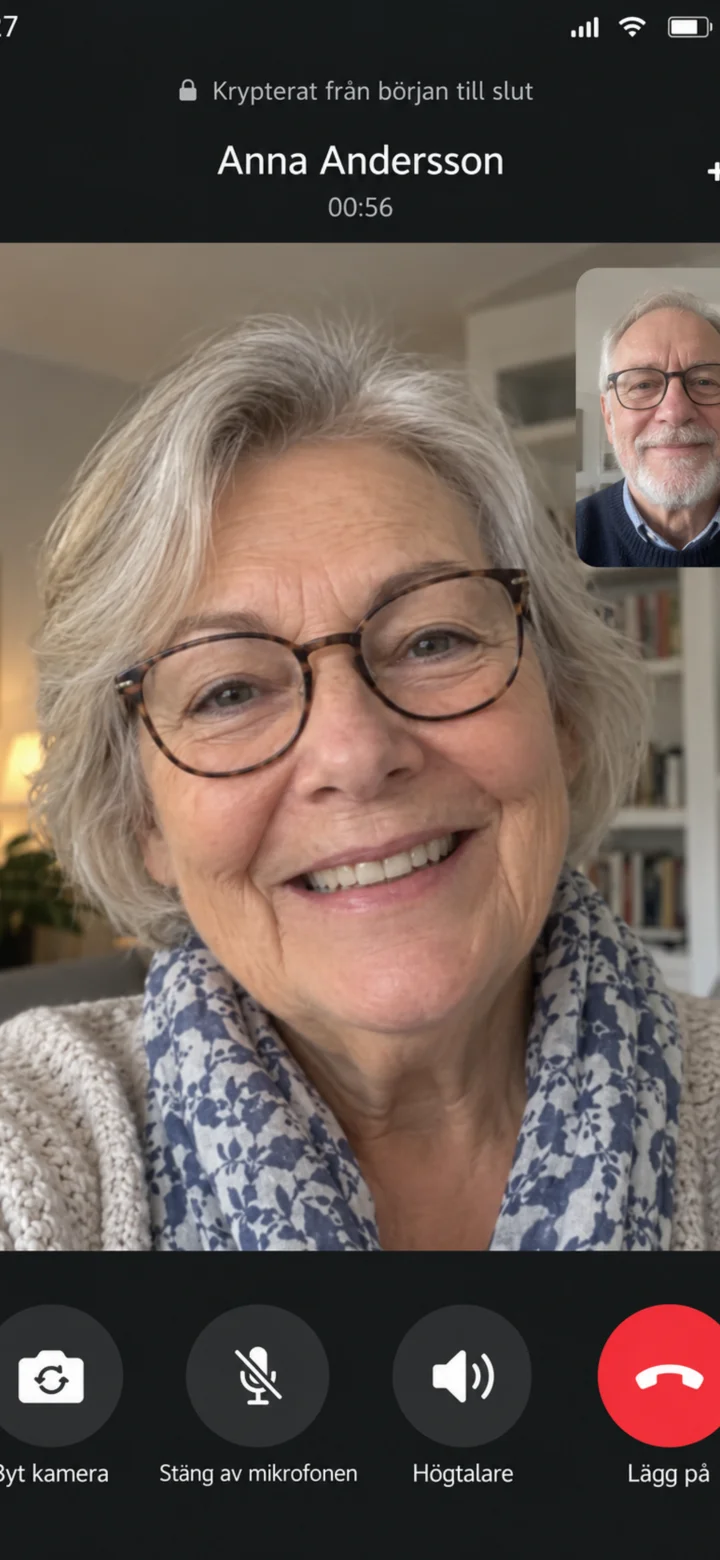 10Step 10 of 11 · Android
The video call has started. Tap the red button when you want to end the call.
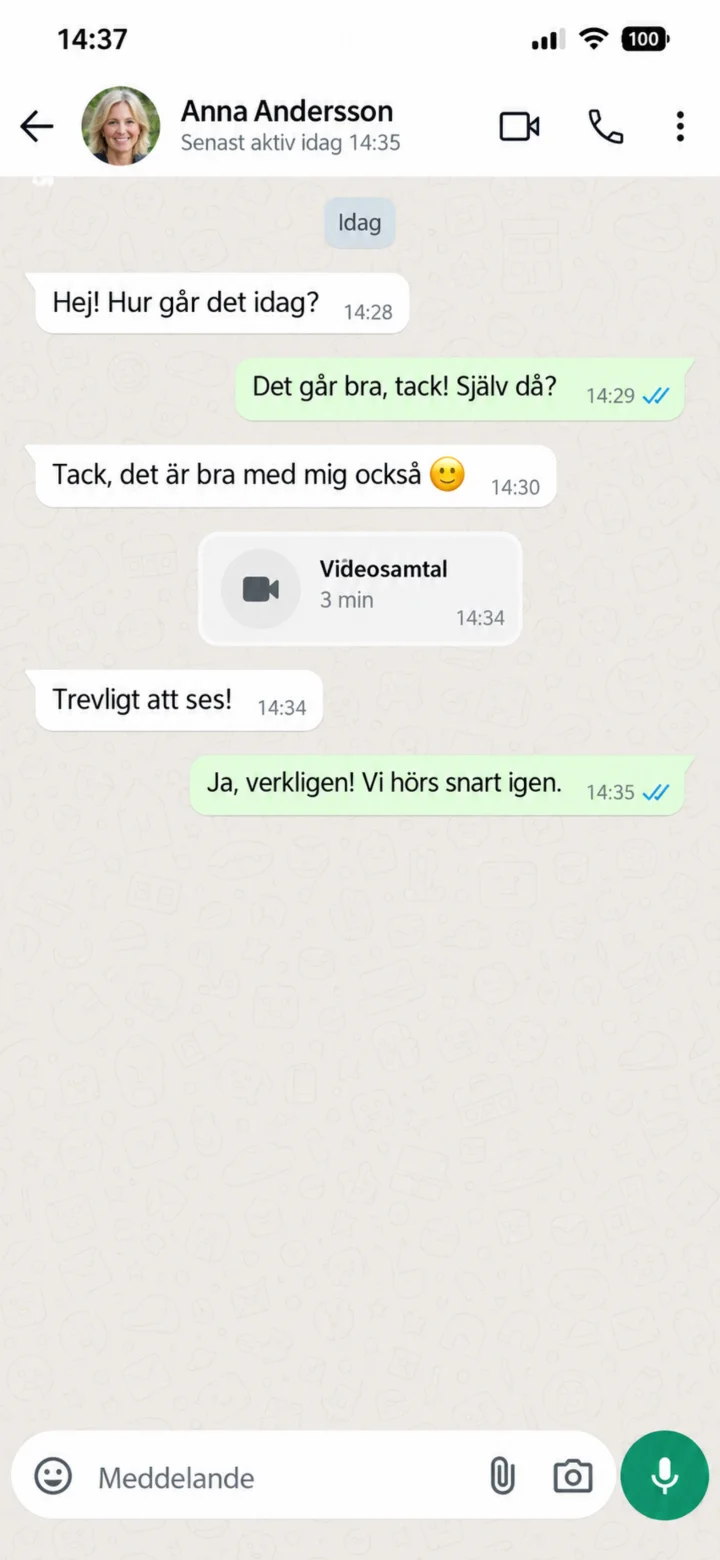 11Step 11 of 11 · Android
The call has ended. You are now back in the chat.