Every guide in the topic, each starting on a new page. 94 steps in total.
Tip: untick “Headers and footers” in the print dialog to leave out the web address.
Mobile phone and tablet
Step-by-step guides · 15 guides
 Android
Contents
- 1.Add an emergency contact8 steps
- 2.Add and call a favorite contact7 steps
- 3.Adjust the ringtone volume7 steps
- 4.Connect a Bluetooth speaker or headphones8 steps
- 5.Connect to Wi‑Fi8 steps
- 6.Create a photo album5 steps
- 7.Have text on the screen read aloud8 steps
- 8.How to find pictures on your mobile4 steps
- 9.Make the text larger on your phone6 steps
- 10.Record a video5 steps
- 11.Scan a QR code4 steps
- 12.Share a picture via SMS5 steps
- 13.Share internet from your mobile8 steps
- 14.Take a picture with your mobile phone4 steps
- 15.Watch a movie on YouTube7 steps
Add an emergency contact
Android 1Step 1 of 8 · Android
Now, let's add an emergency contact to your phone.
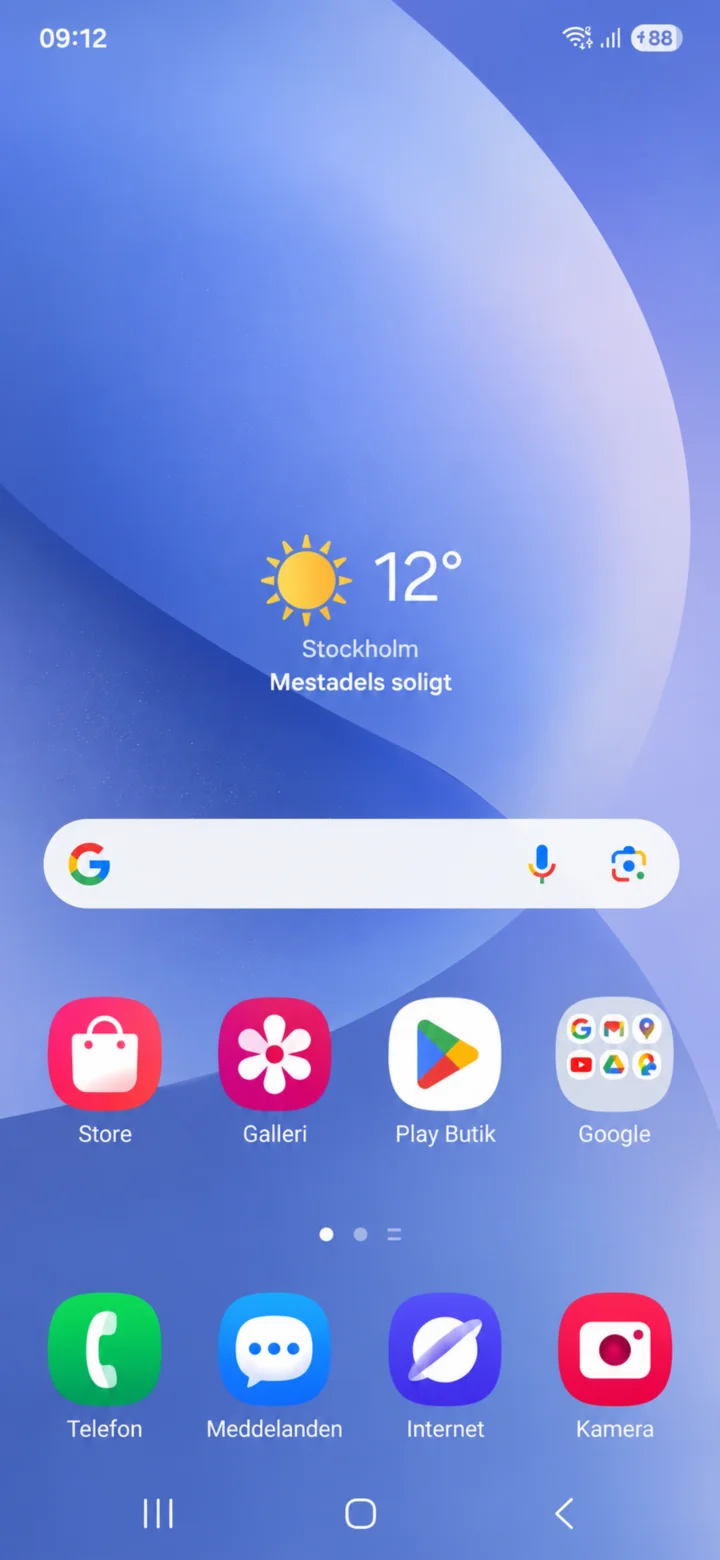 2Step 2 of 8 · Android
Swipe your finger from the top of the screen downwards to open your settings.
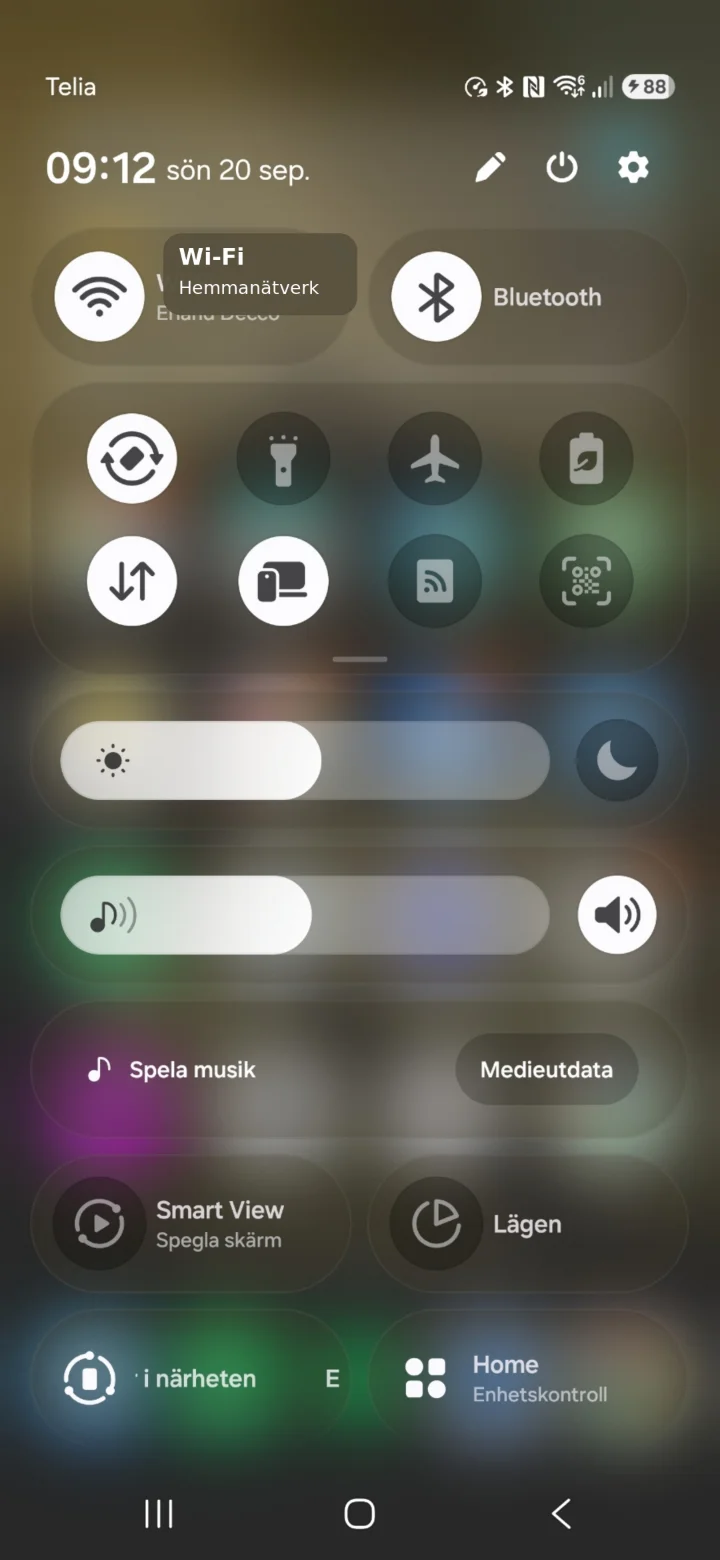 3Step 3 of 8 · Android
Tap on the cogwheel (gear icon) in the top right corner.
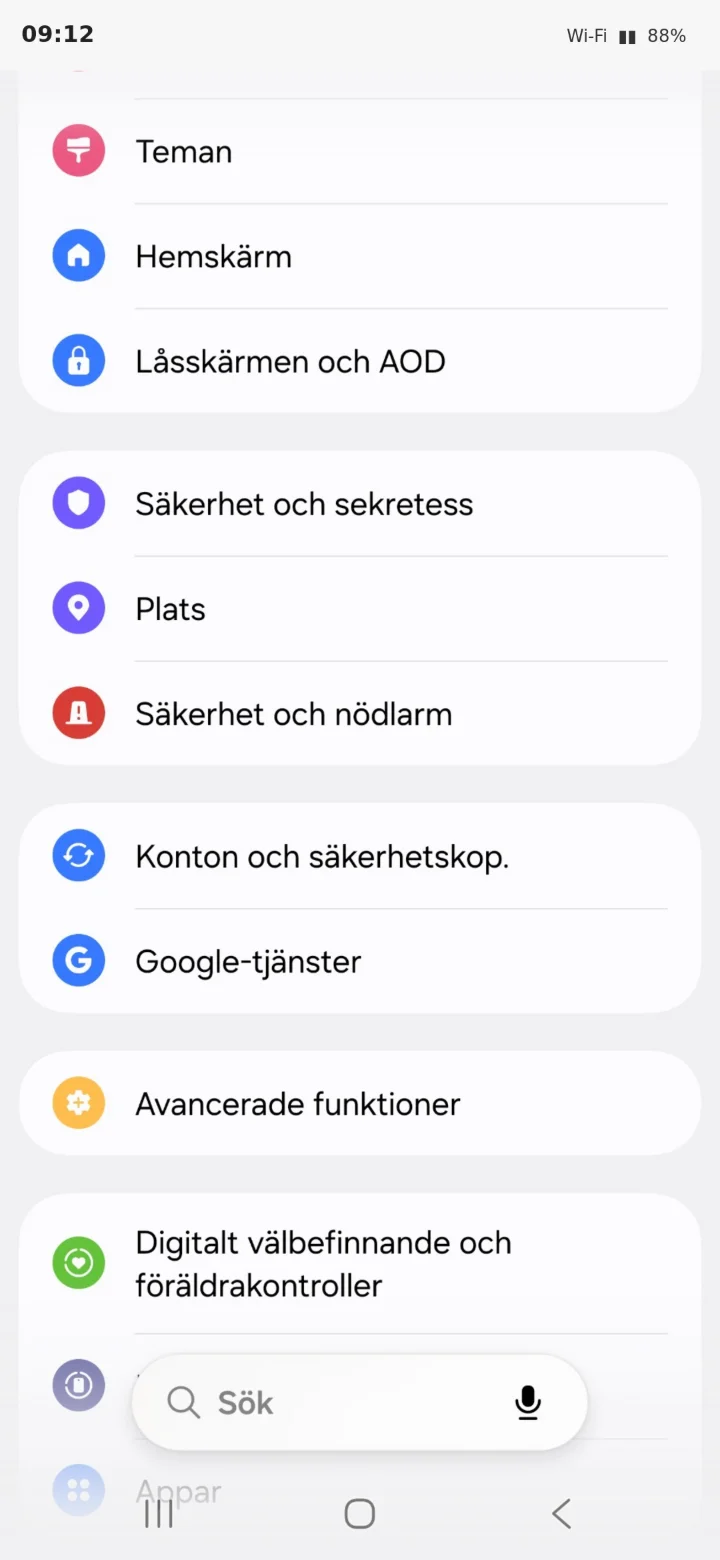 4Step 4 of 8 · Android
Scroll down and tap on Säkerhet och nödlarm (Security and emergency alarm).
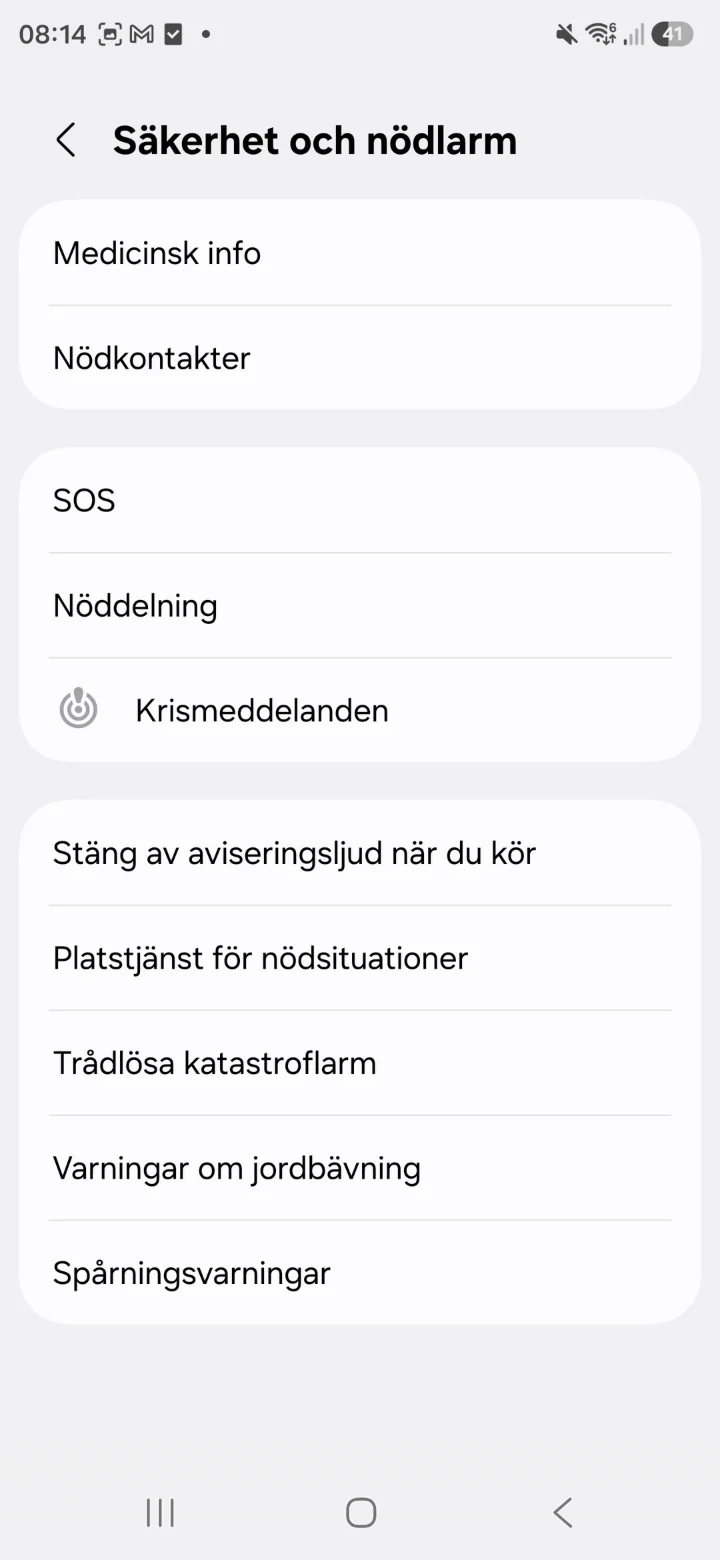 5Step 5 of 8 · Android
Tap on Nödkontakter (Emergency contacts).
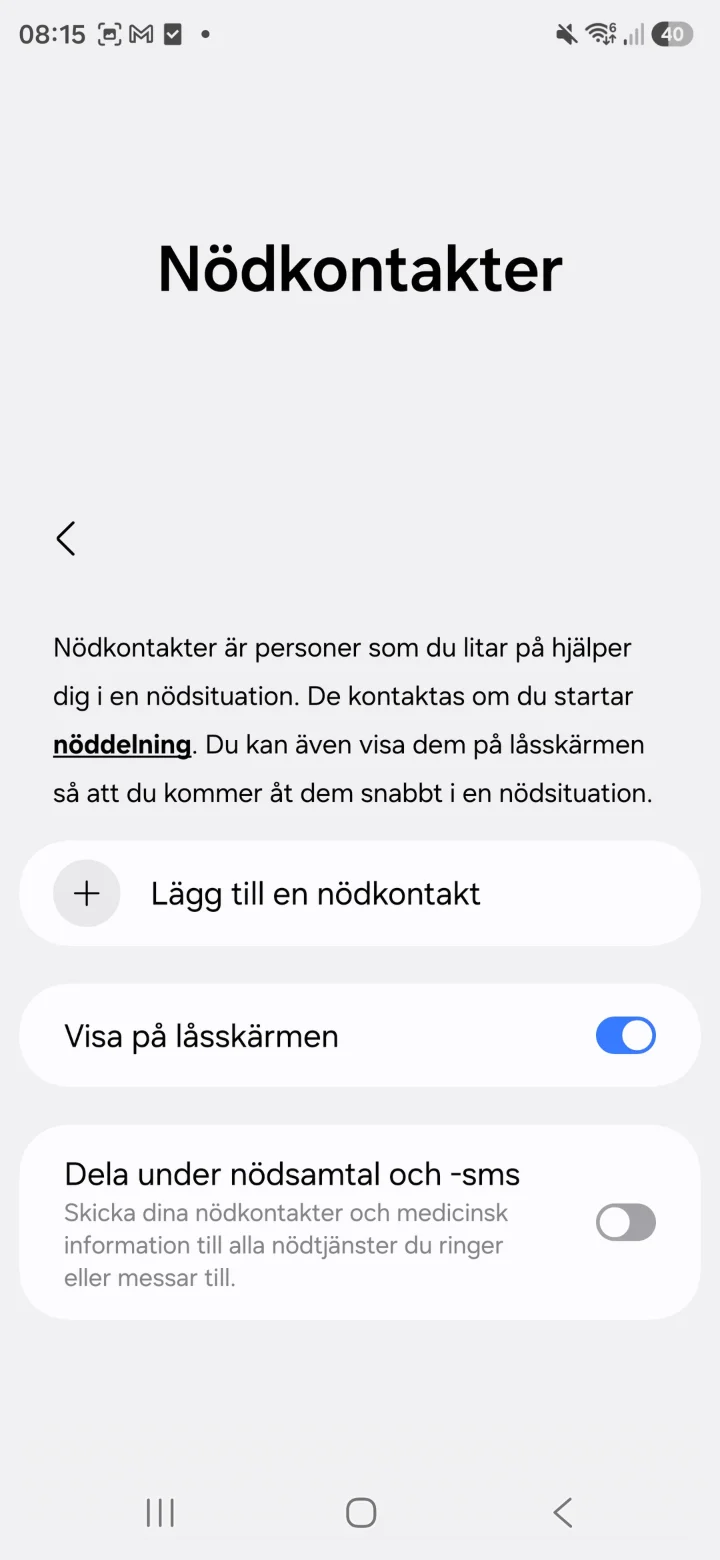 6Step 6 of 8 · Android
Tap on Lägg till en nödkontakt (Add an emergency contact).
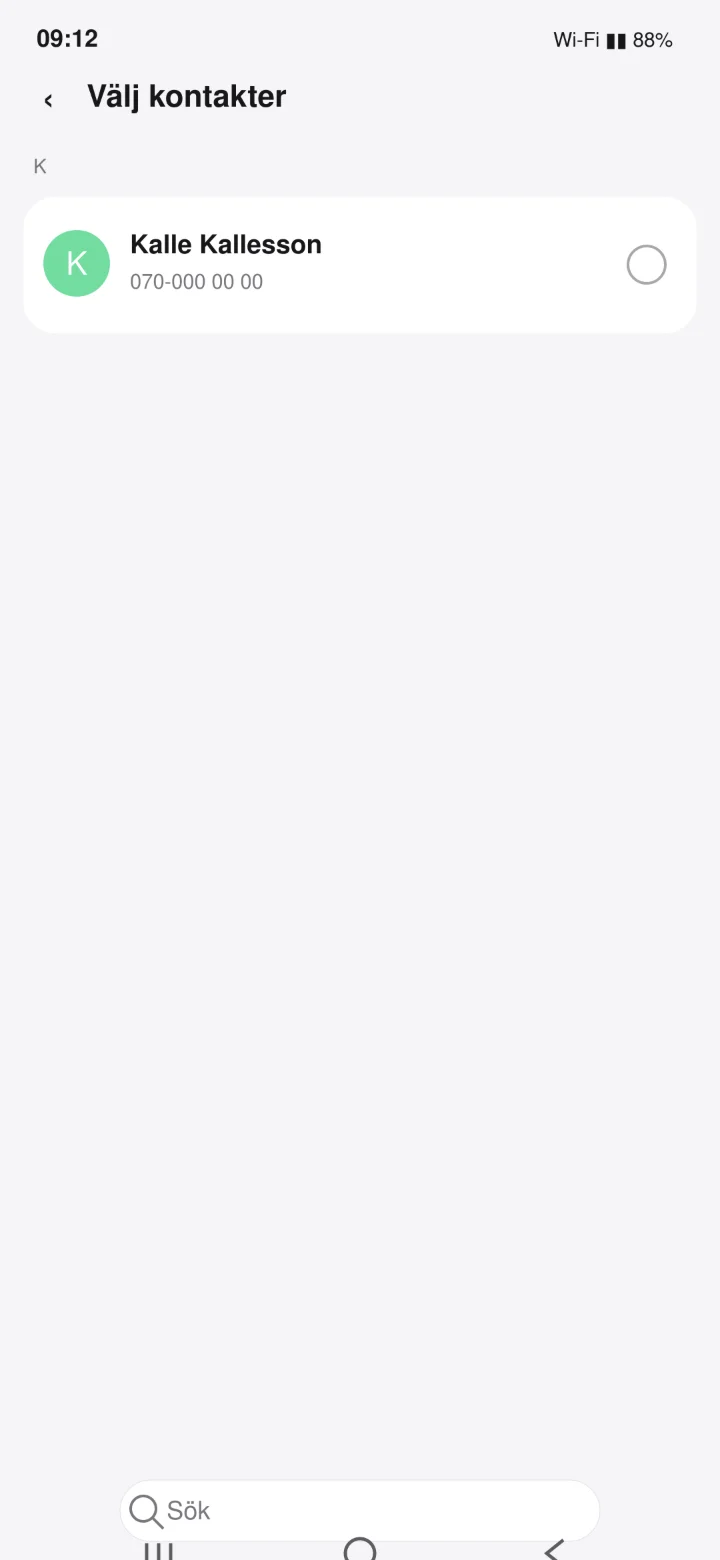 7Step 7 of 8 · Android
Search for the name you want to add. In this example, I'm using Kalle Kallesson.
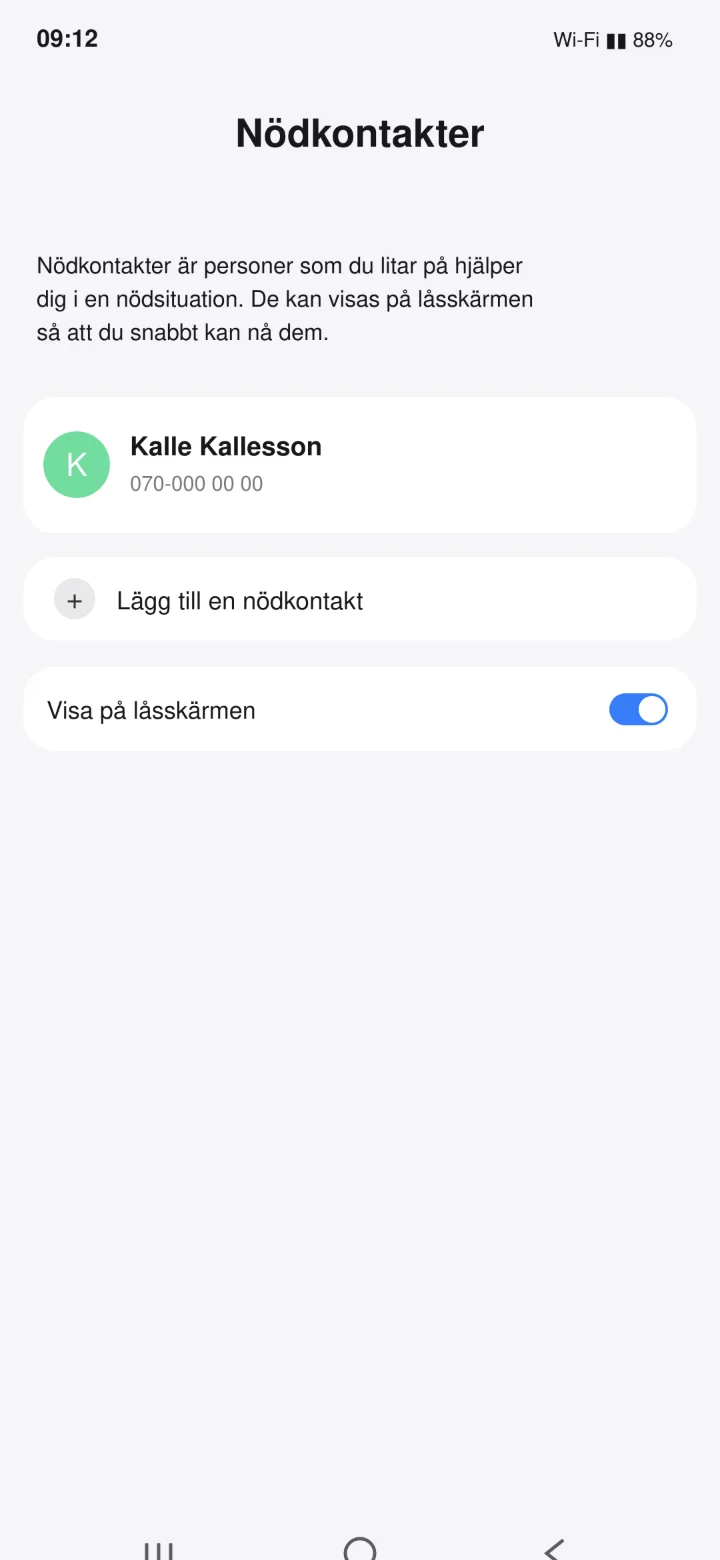 8Step 8 of 8 · Android
Kalle Kallesson is now added as an emergency contact.
Add and call a favorite contact
Android 1Step 1 of 7 · Android
Now we're going to add a contact as your favorite. We'll use Kalle as an example.
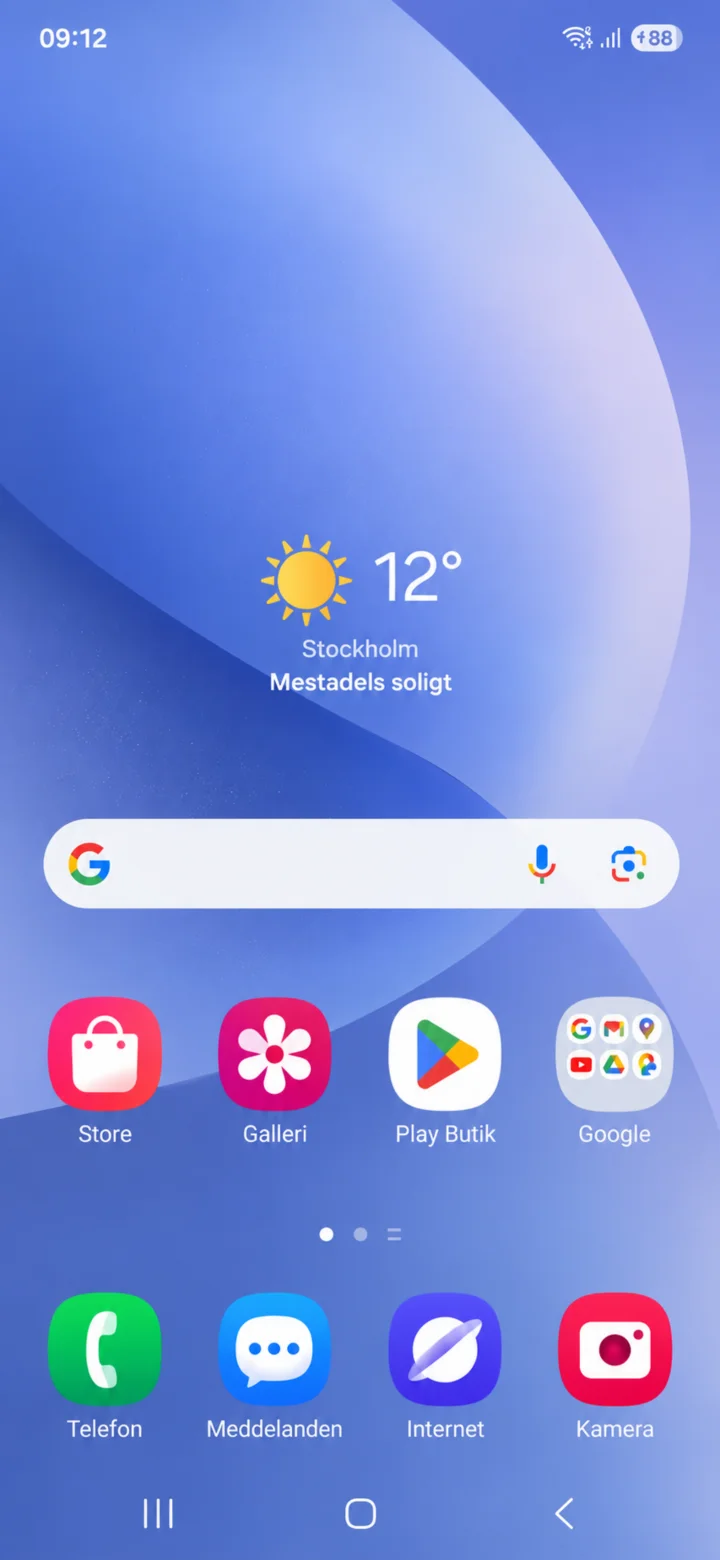 2Step 2 of 7 · Android
Start on the home screen and tap Telefon (Phone).
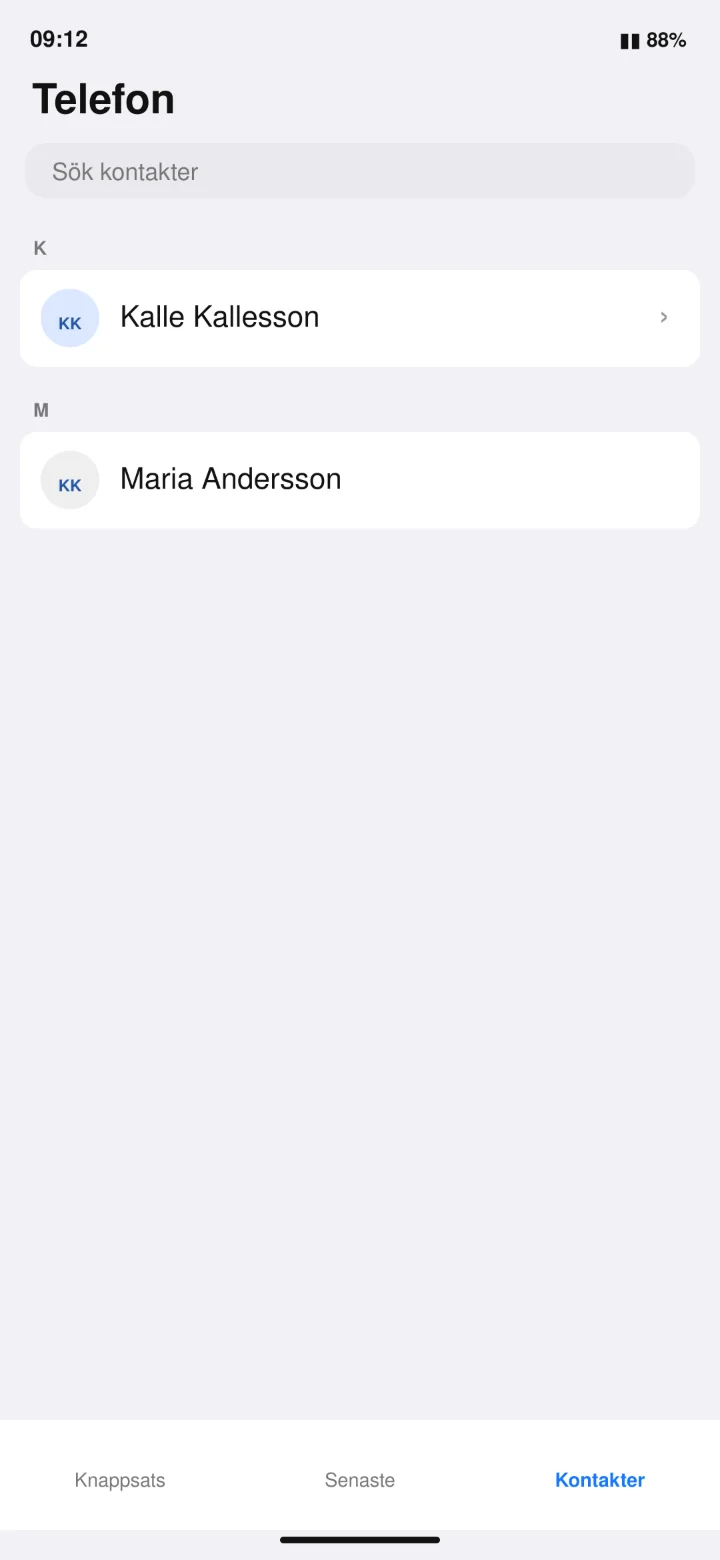 3Step 3 of 7 · Android
Tap Kontakter (Contacts) and choose Kalle Kallesson.
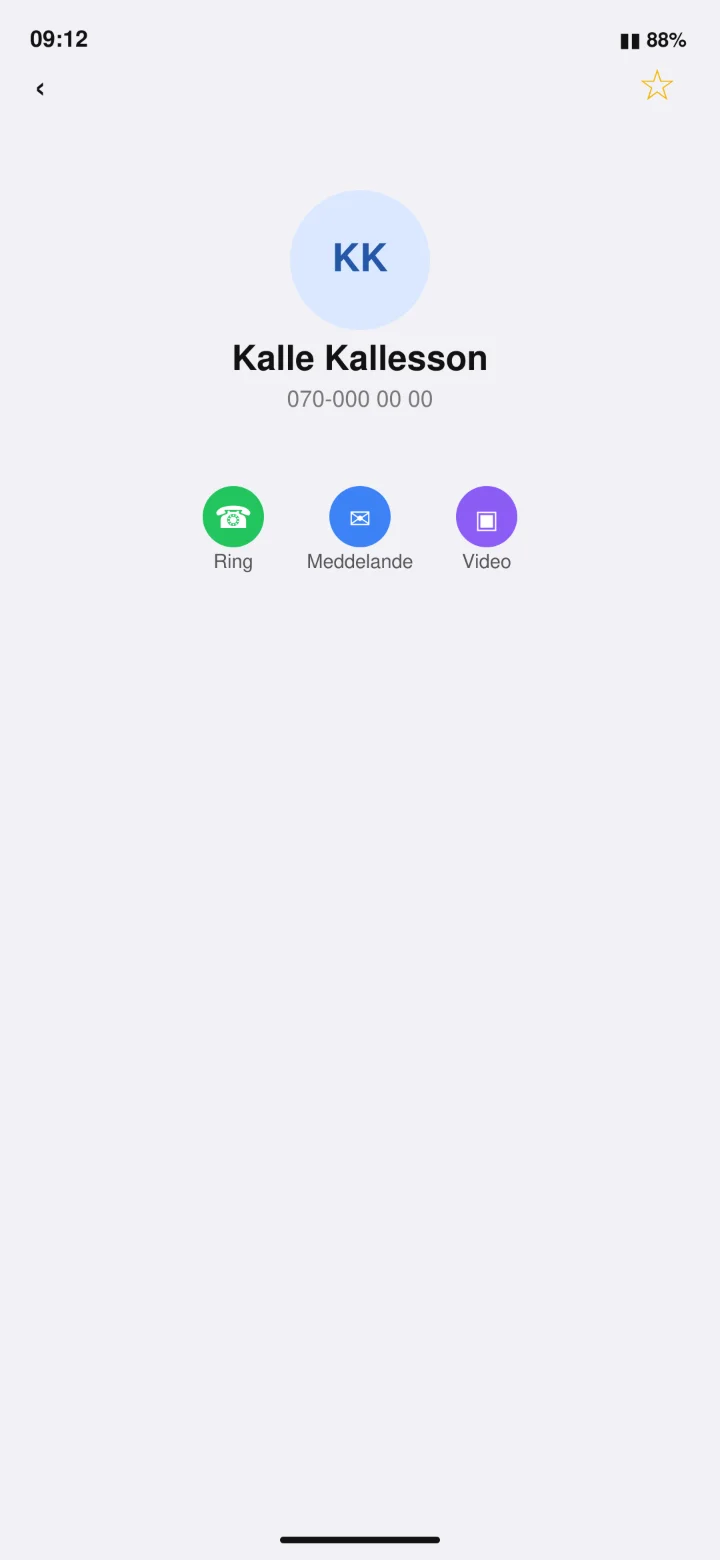 4Step 4 of 7 · Android
Tap the empty star in the top right corner.
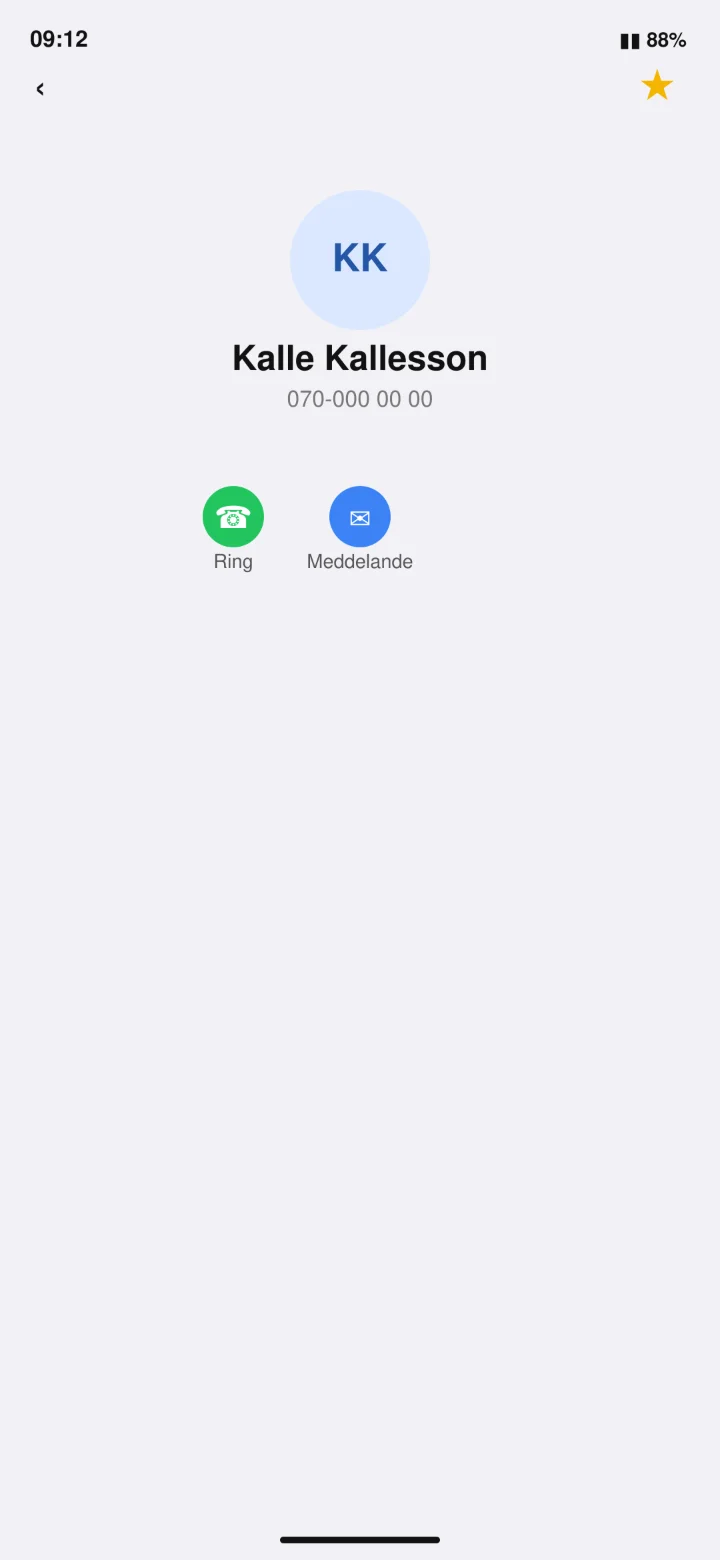 5Step 5 of 7 · Android
When the star is yellow, Kalle is saved as a favorite.
 6Step 6 of 7 · Android
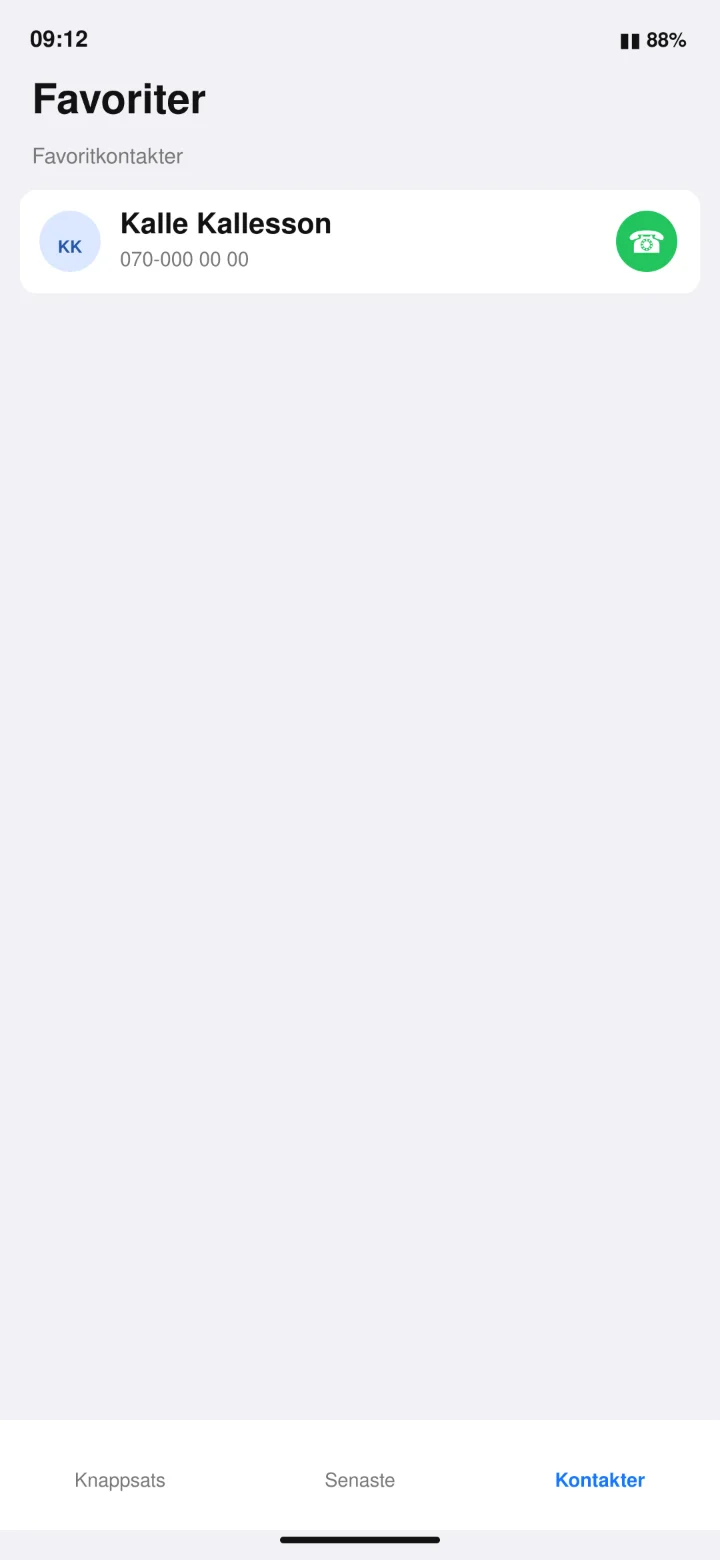
Open Favoriter (Favorites) and tap the green handset next to Kalle.
 7Step 7 of 7 · Android
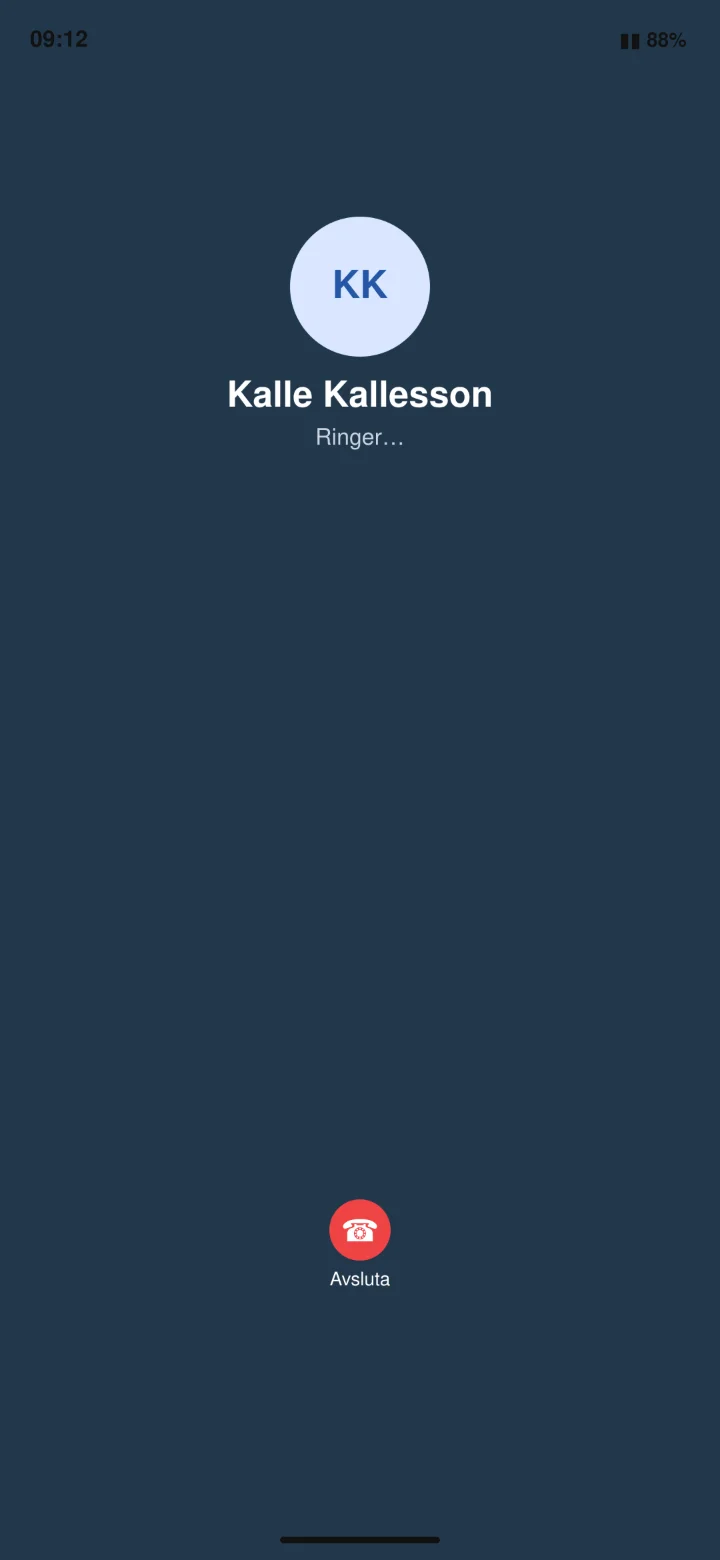
Your phone is now calling Kalle Kallesson.
Adjust the ringtone volume
Android 1Step 1 of 7 · Android
Now we're going to turn your phone's ringtone volume up or down.
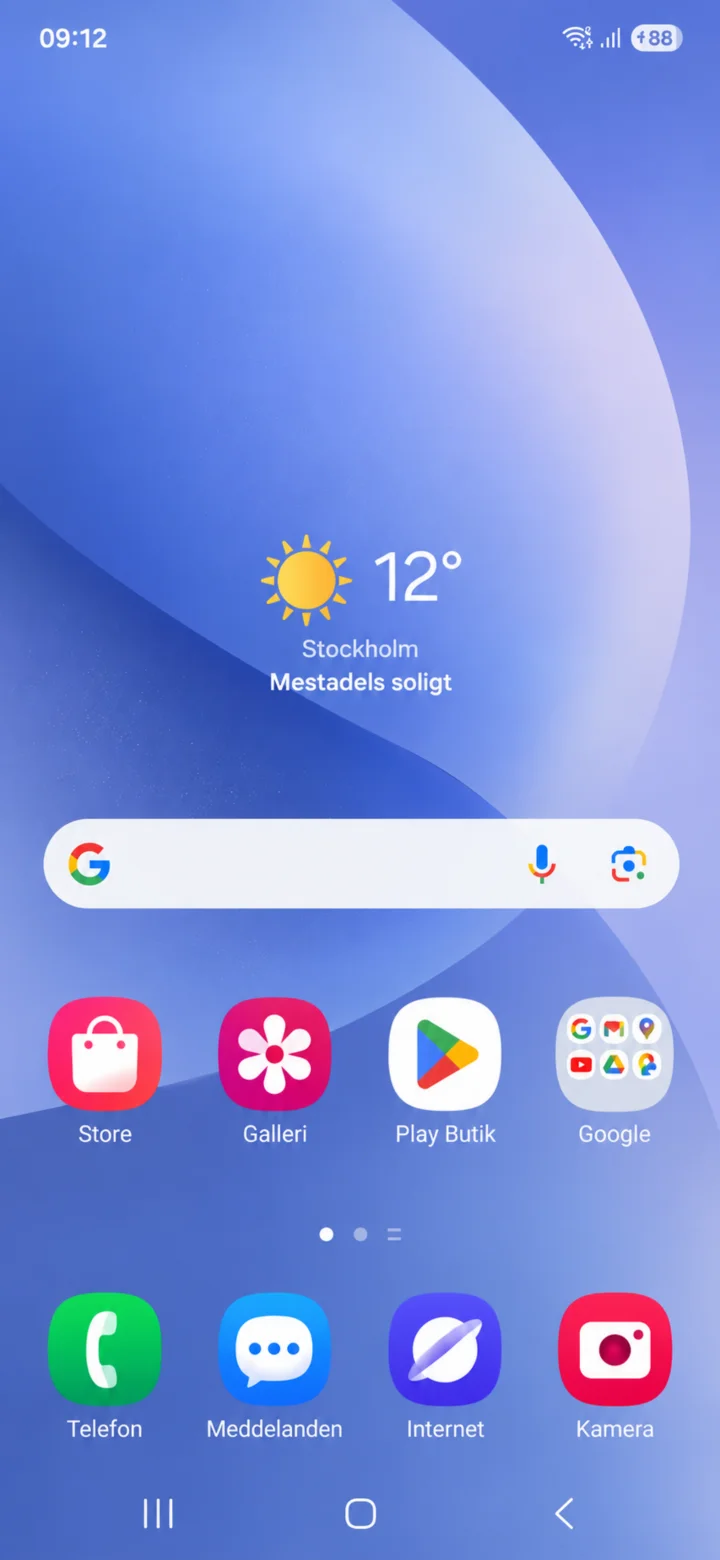 2Step 2 of 7 · Android
Swipe your finger from the top to the bottom of the screen to open the settings.
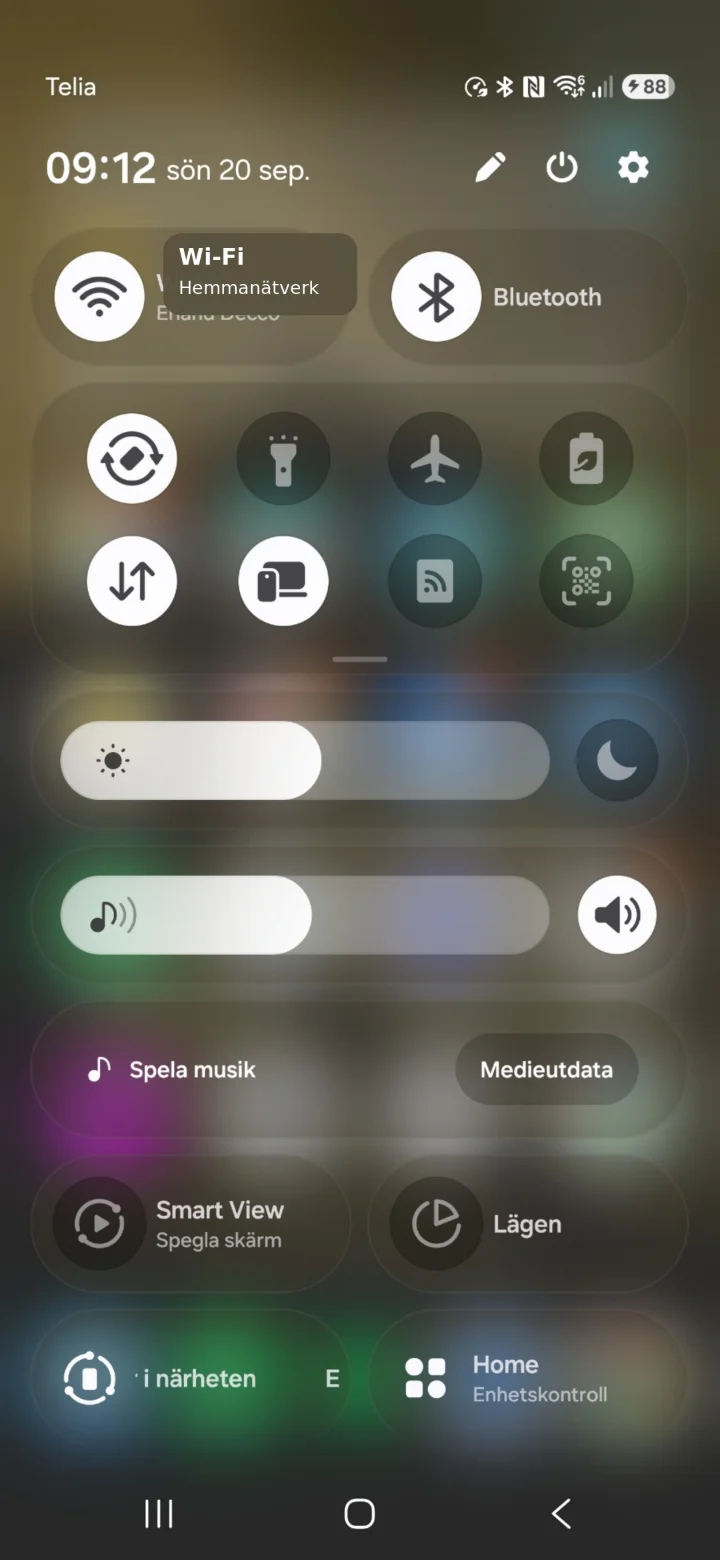 3Step 3 of 7 · Android
Tap the gear icon in the top right corner.
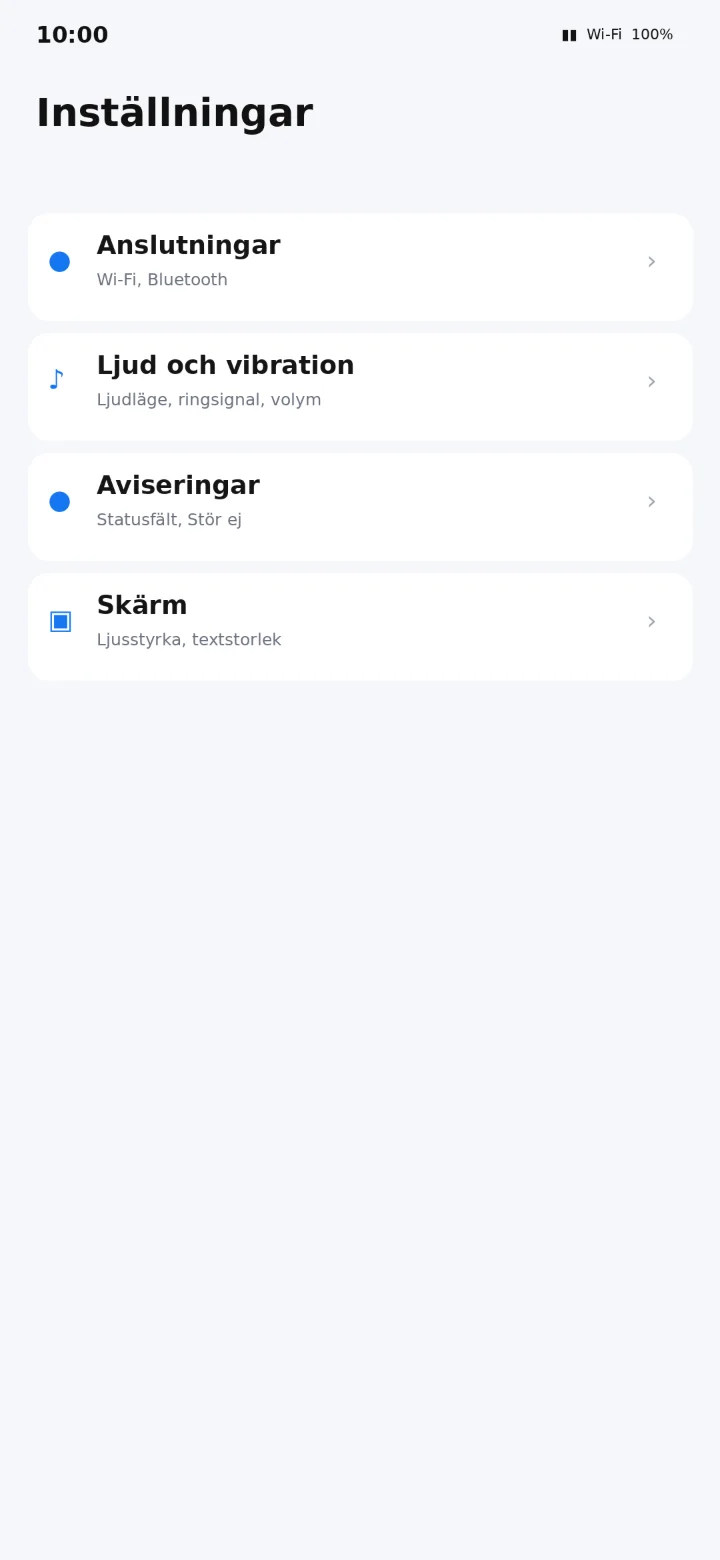 4Step 4 of 7 · Android
Tryck på Ljud och vibration.
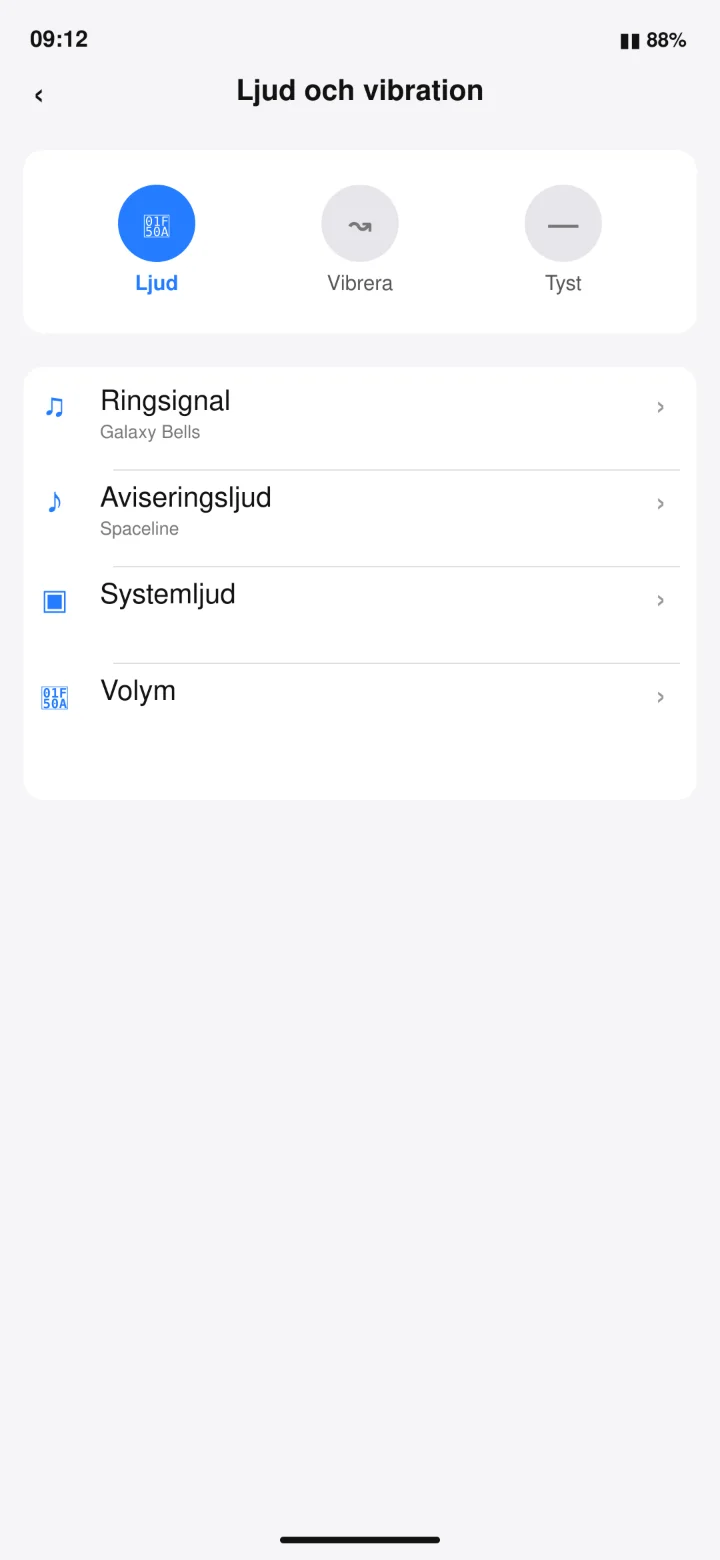 5Step 5 of 7 · Android
Tap on Volym (Volume).
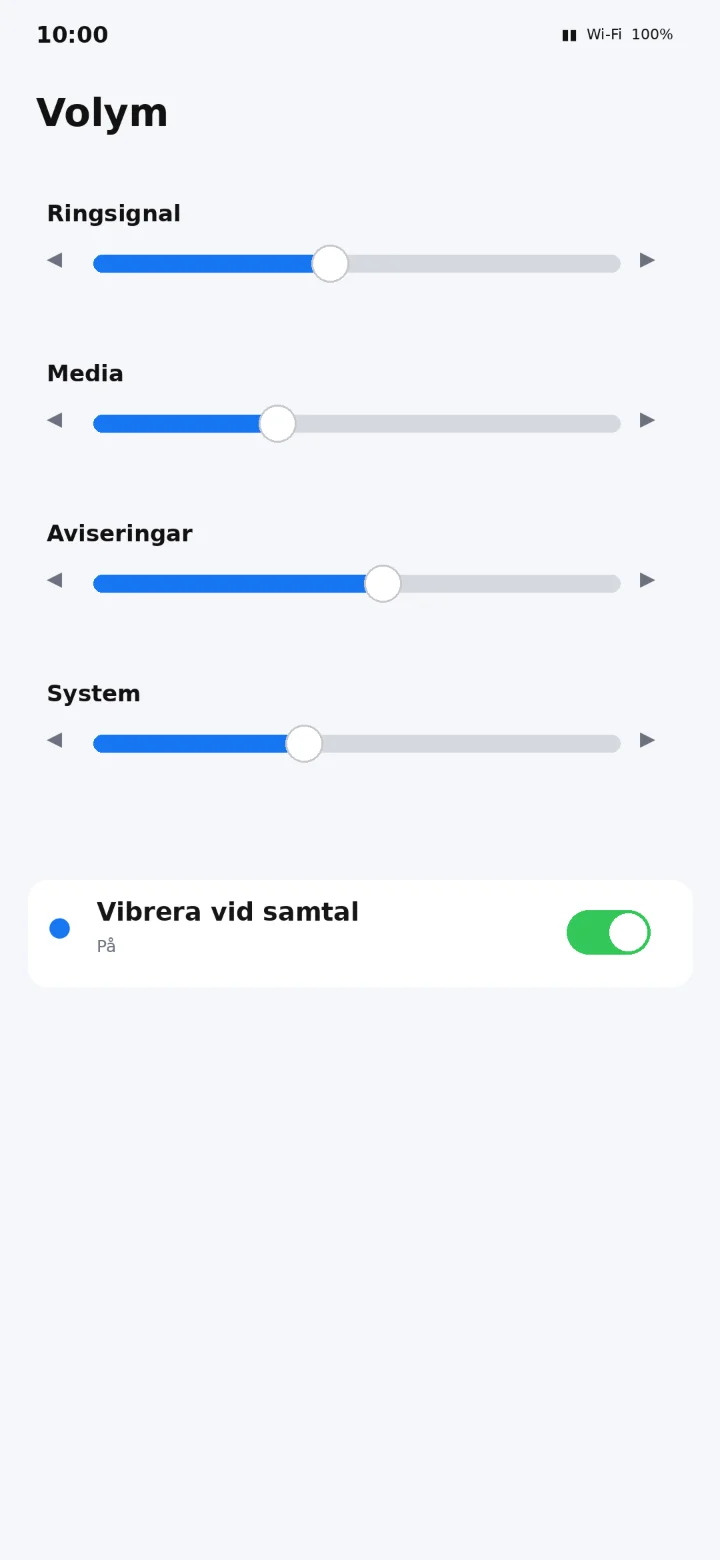 6Step 6 of 7 · Android
Drag the slider for Ringsignal (Ringtone) to the right for louder sound or to the left for quieter sound.
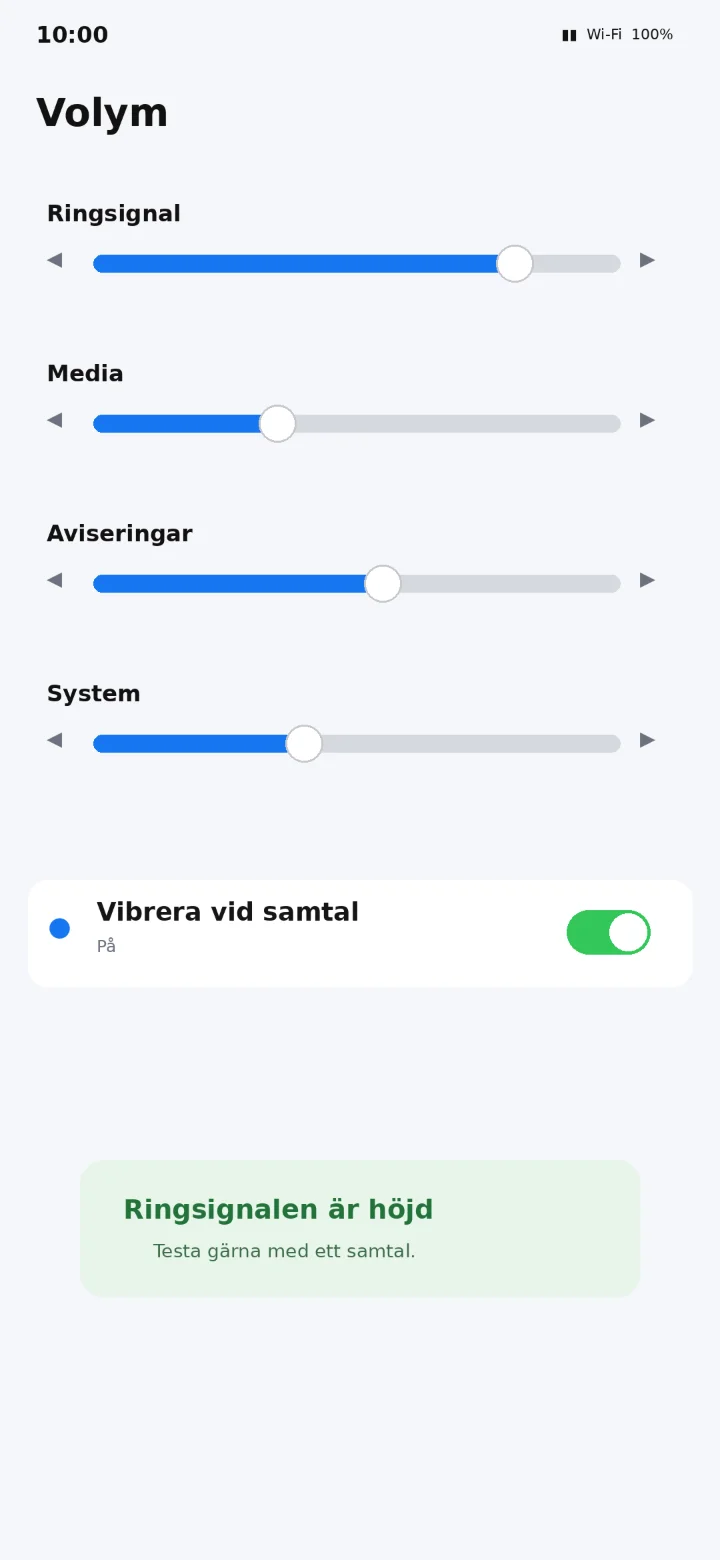 7Step 7 of 7 · Android
Your ringtone is now louder. You can ask someone to call you to test the sound level.
Connect a Bluetooth speaker or headphones
Android 1Step 1 of 8 · Android
Now, we're going to learn how to connect a speaker or headphones so you can listen to music from your phone. Start the accessory and hold down the Bluetooth or power button until the light starts blinking.
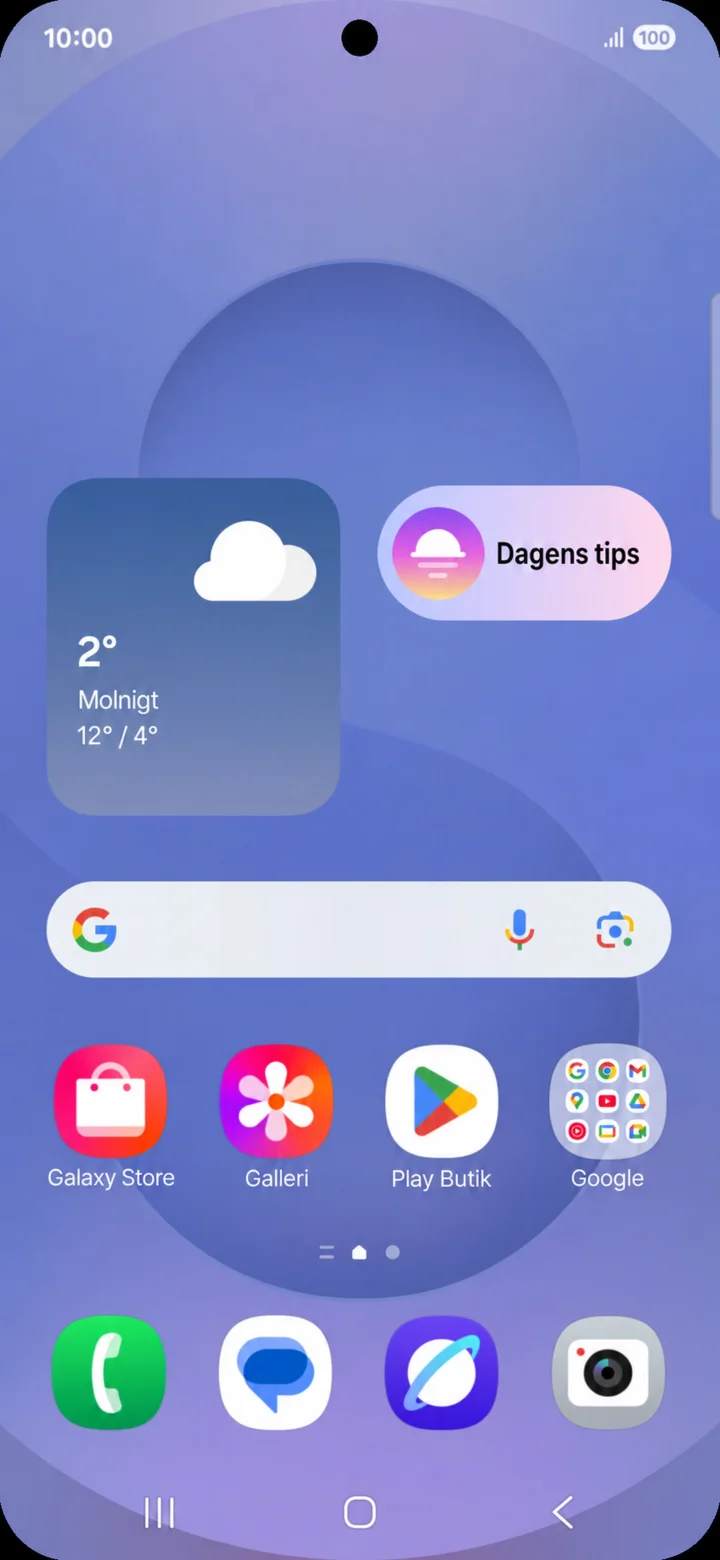 2Step 2 of 8 · Android
Start on the home screen. Drag down from the top right edge of the screen.
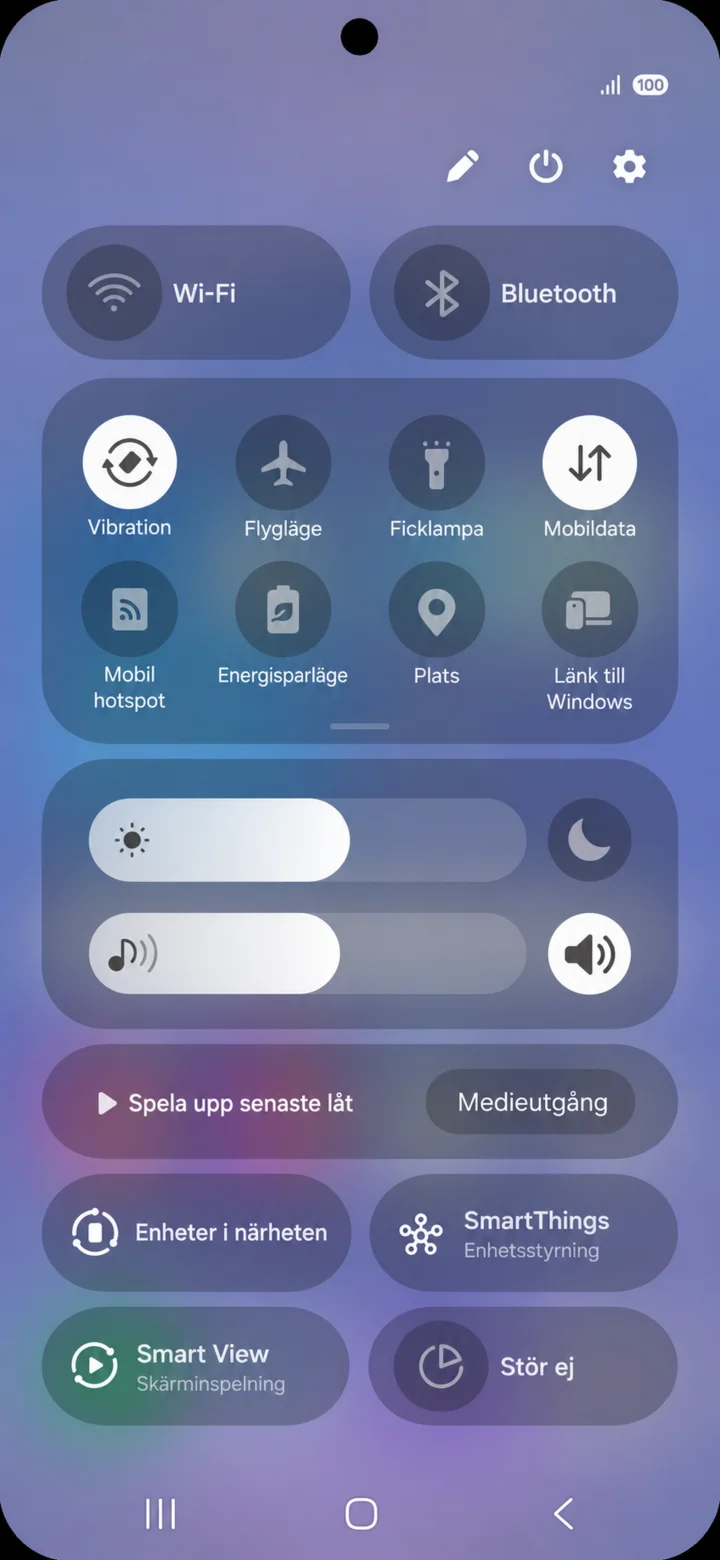 3Step 3 of 8 · Android
The Quick Panel opens. Tap on the cogwheel in the top right.
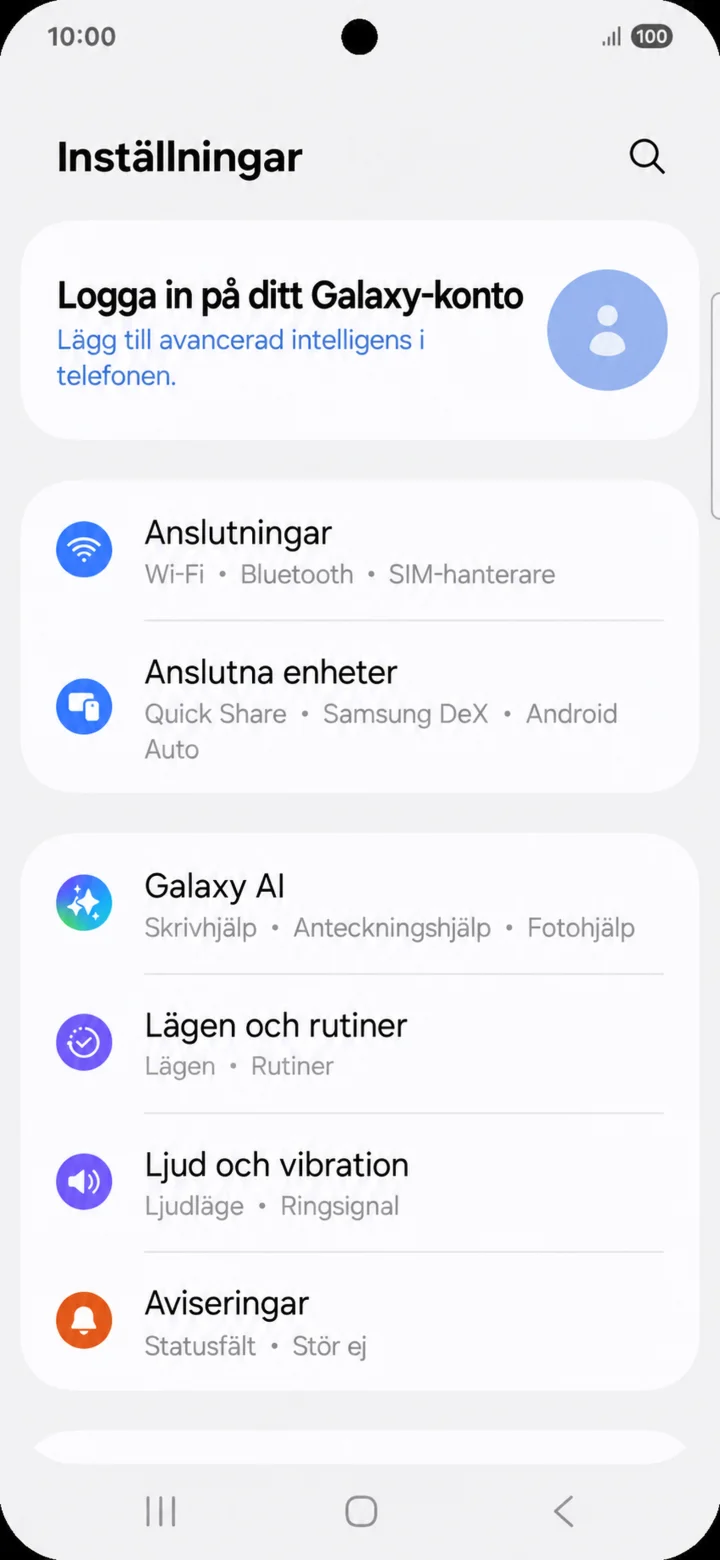 4Step 4 of 8 · Android
In Inställningar (Settings), tap on Anslutningar (Connections).
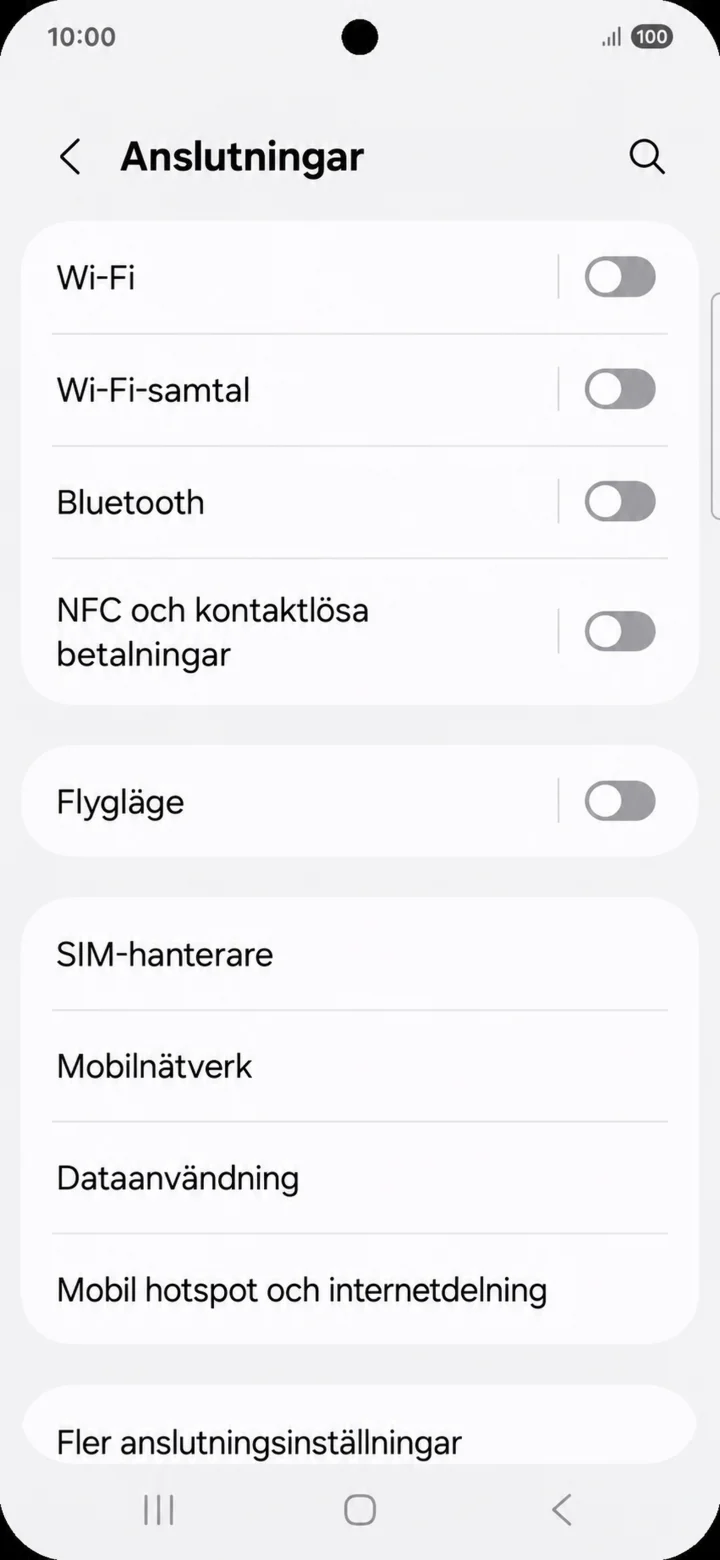 5Step 5 of 8 · Android
Tryck på Bluetooth.
 6Step 6 of 8 · Android
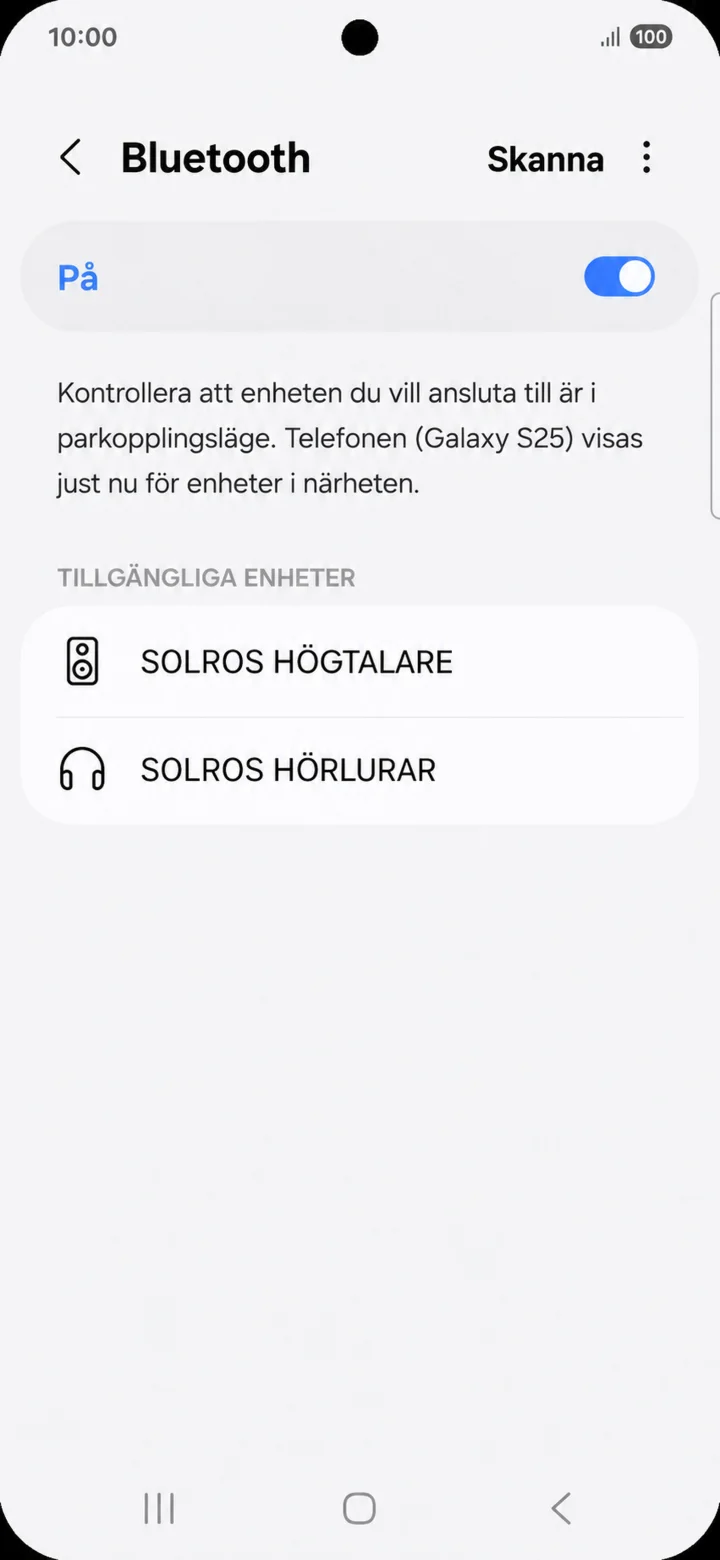
Check that Bluetooth is on. Tap on the name of your speaker or headphones.
 7Step 7 of 8 · Android
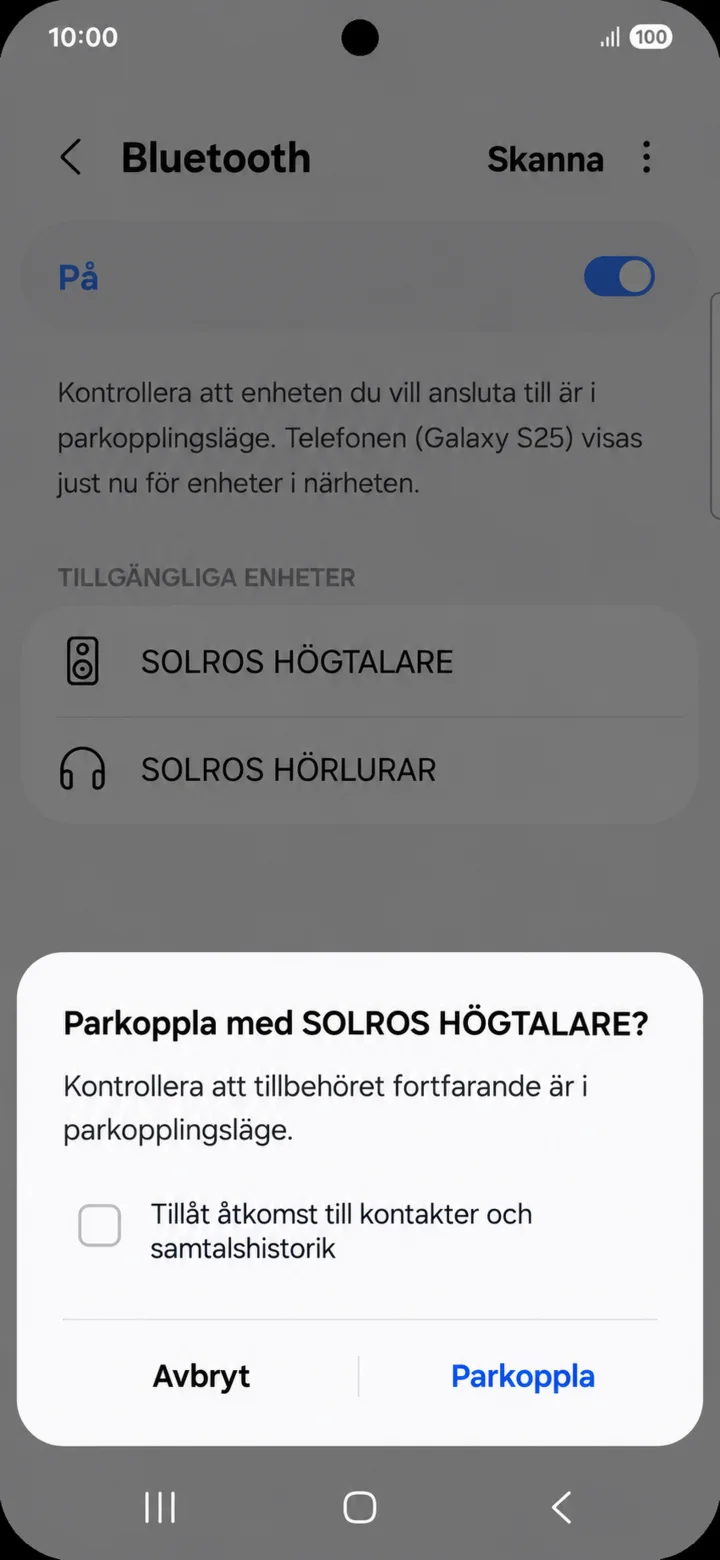
Check the name and tap on Parkoppla (Pair). Do not allow access to contacts if the accessory is only meant to play music.
 8Step 8 of 8 · Android
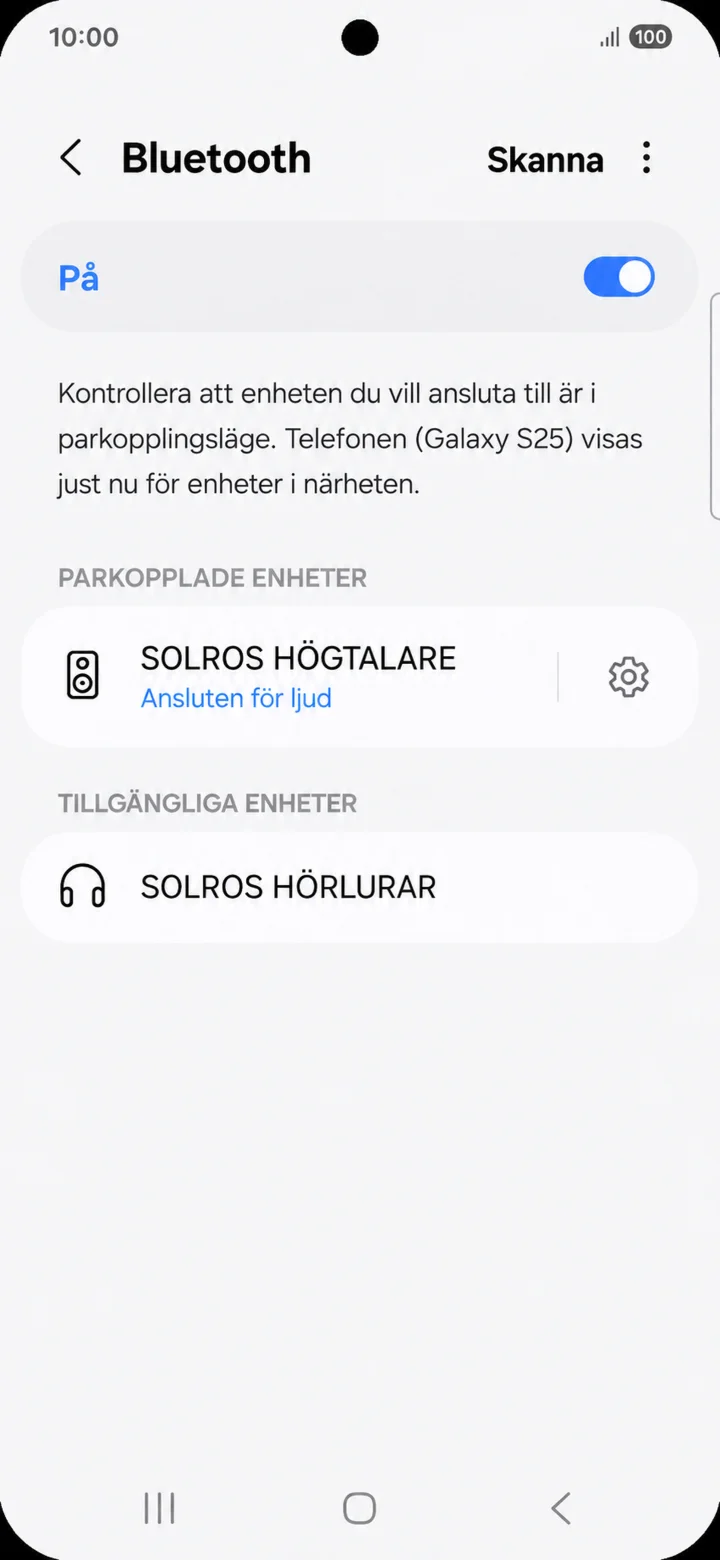
The text Ansluten för ljud (Connected for audio) shows that the accessory is ready to use.
Connect to Wi‑Fi
Android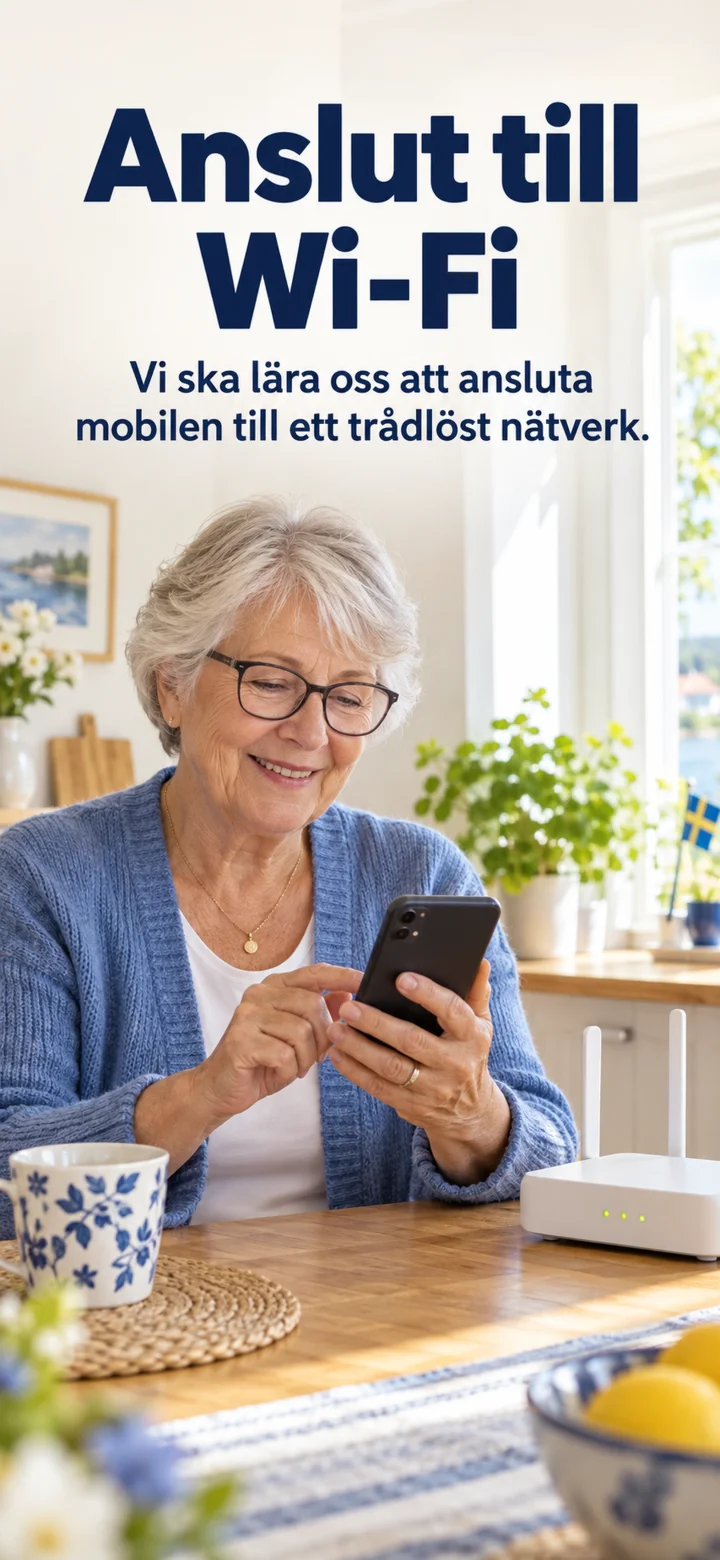 1Step 1 of 8 · Android
We're going to learn how to connect your mobile phone to a wireless network, also called Wi-Fi.
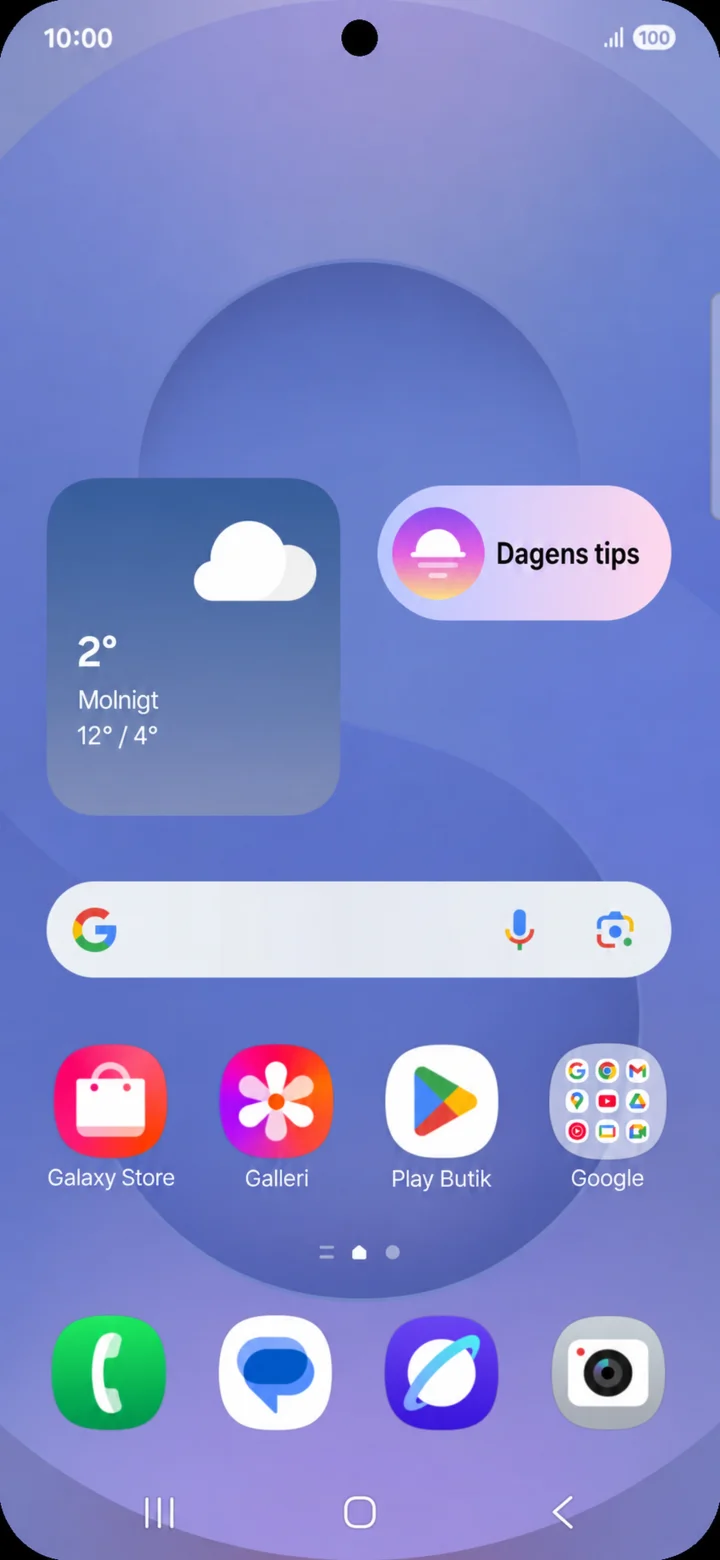 2Step 2 of 8 · Android
Start on the home screen. Drag down from the top right edge of the screen.
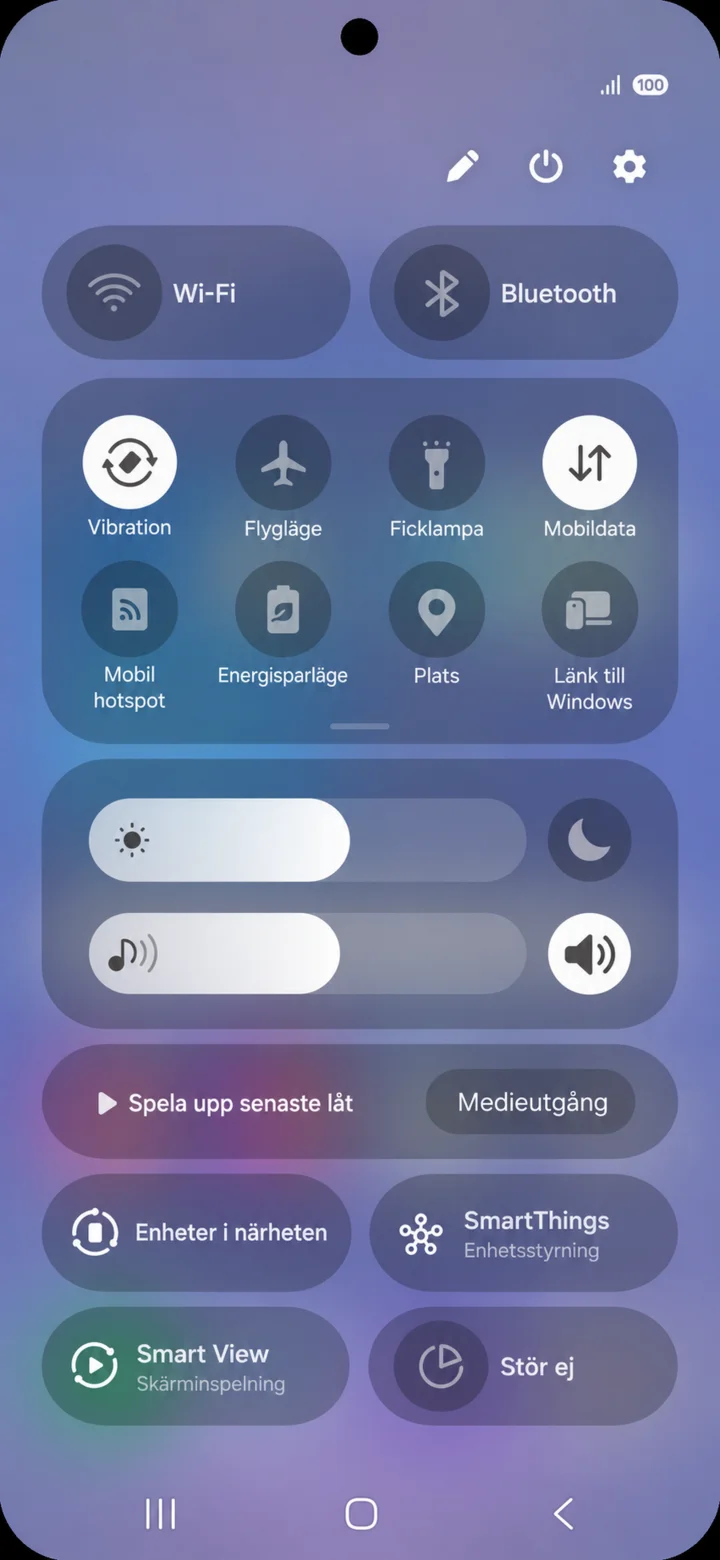 3Step 3 of 8 · Android
The Quick Panel opens. Tap on the gear icon in the top right.
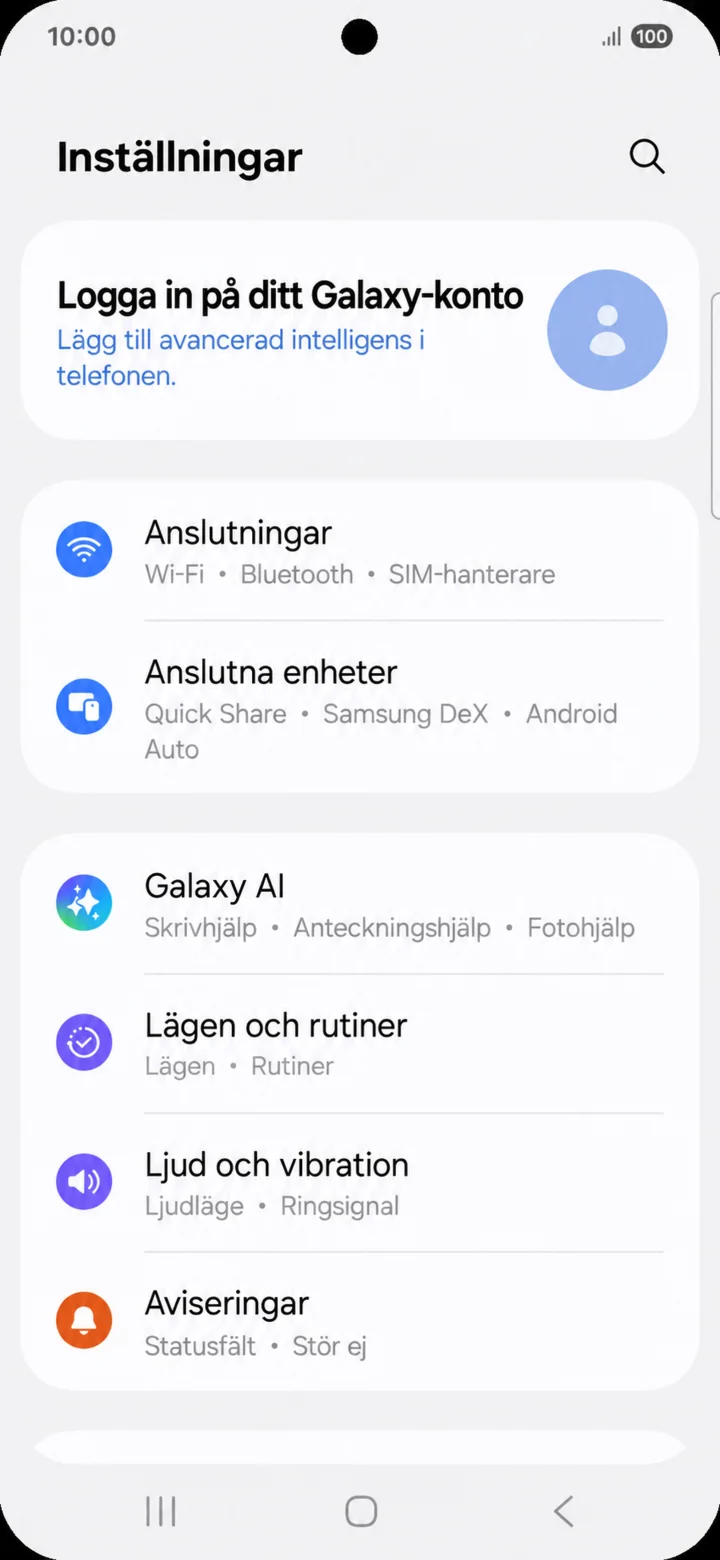 4Step 4 of 8 · Android
In Inställningar (Settings), tap on Anslutningar (Connections).
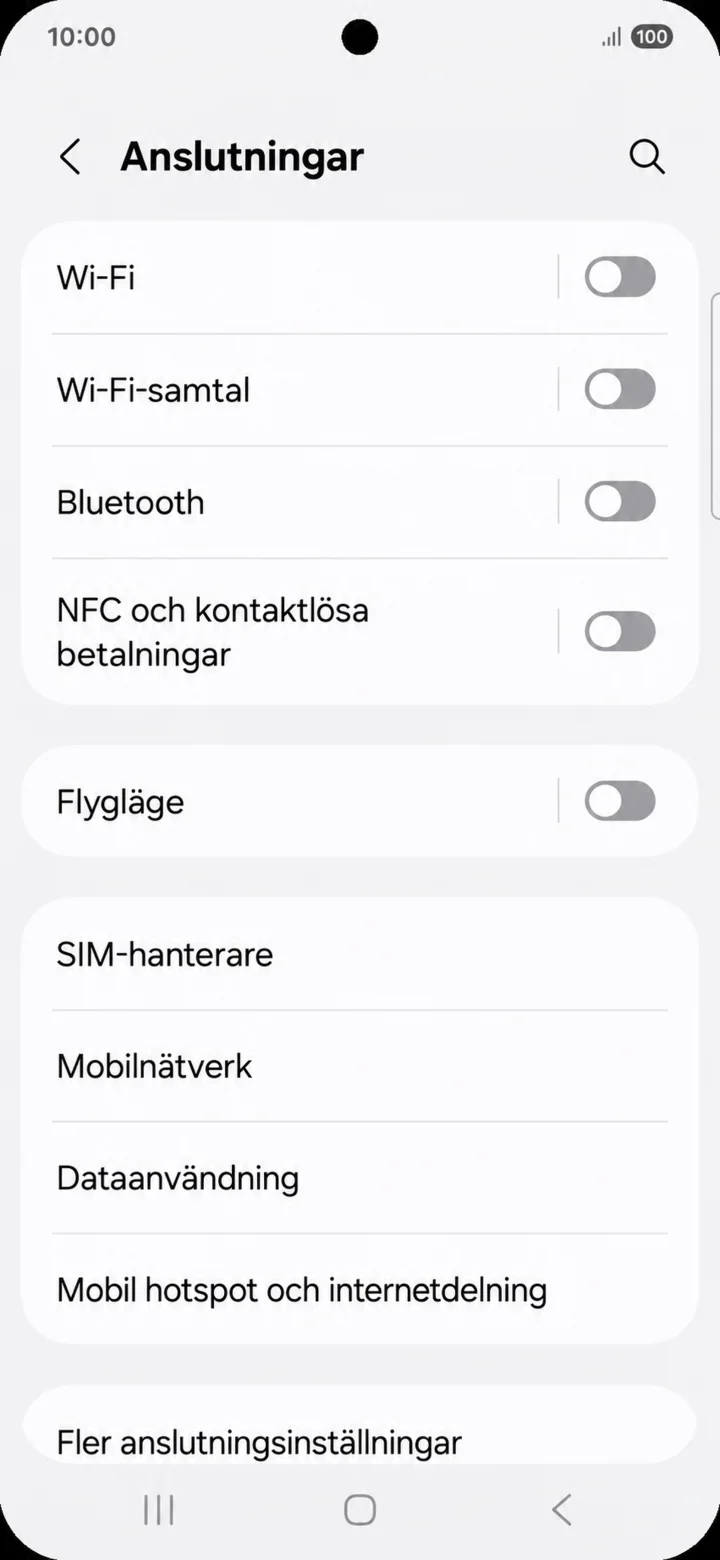 5Step 5 of 8 · Android
Tap on Wifi.
 6Step 6 of 8 · Android
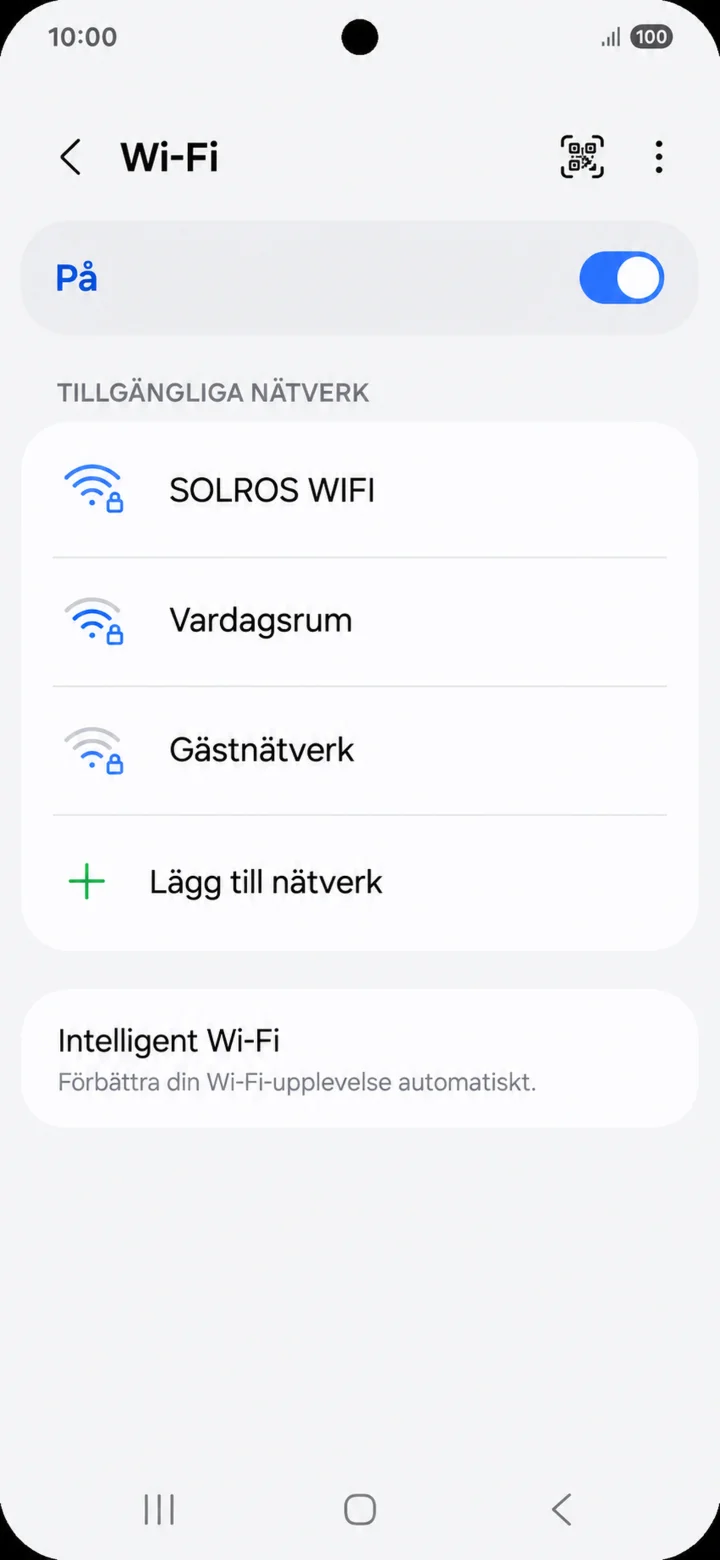
Check that Wi‑Fi is on. Tap on the network you want to use. In the example, it's called SOLROS WIFI.
 7Step 7 of 8 · Android
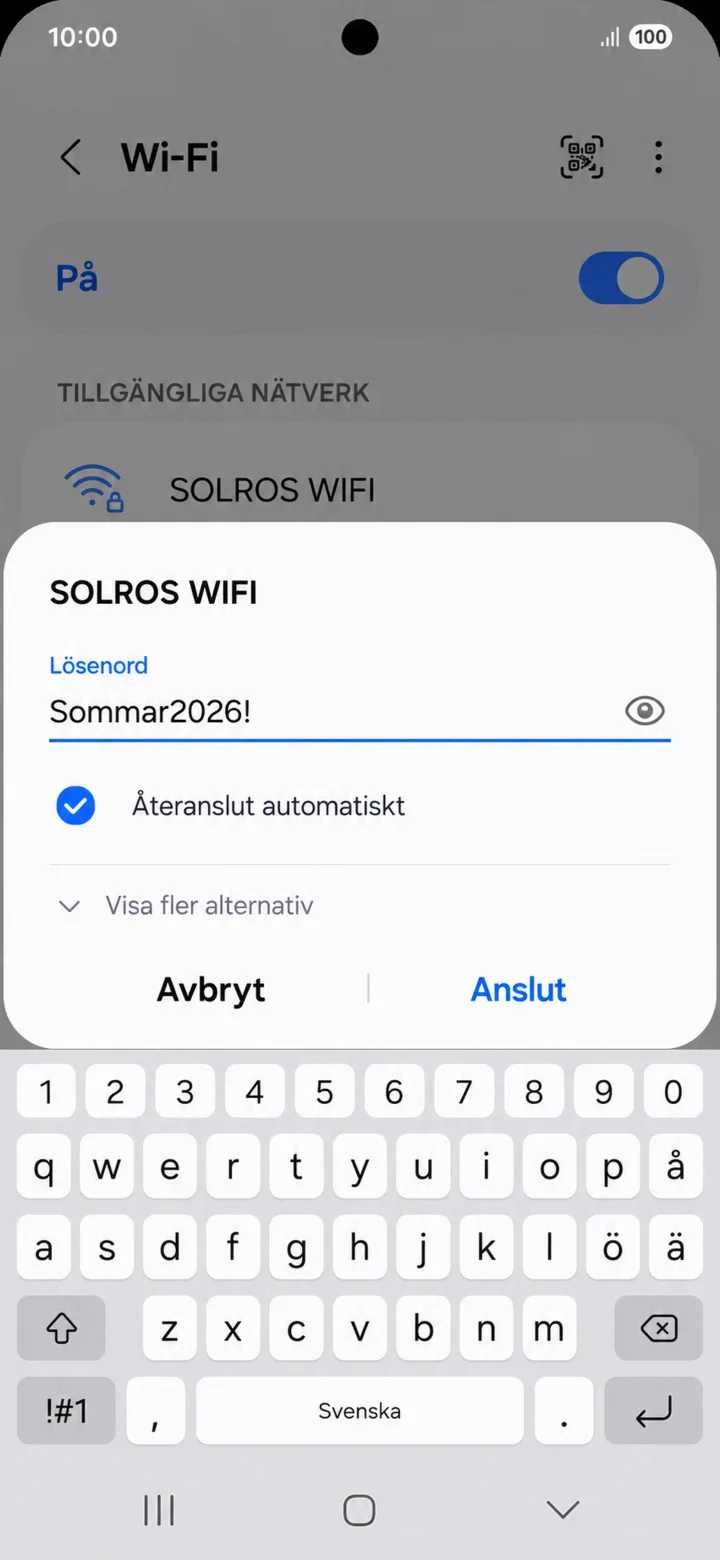
Carefully type the network's password and tap on Anslut (Connect).
 8Step 8 of 8 · Android
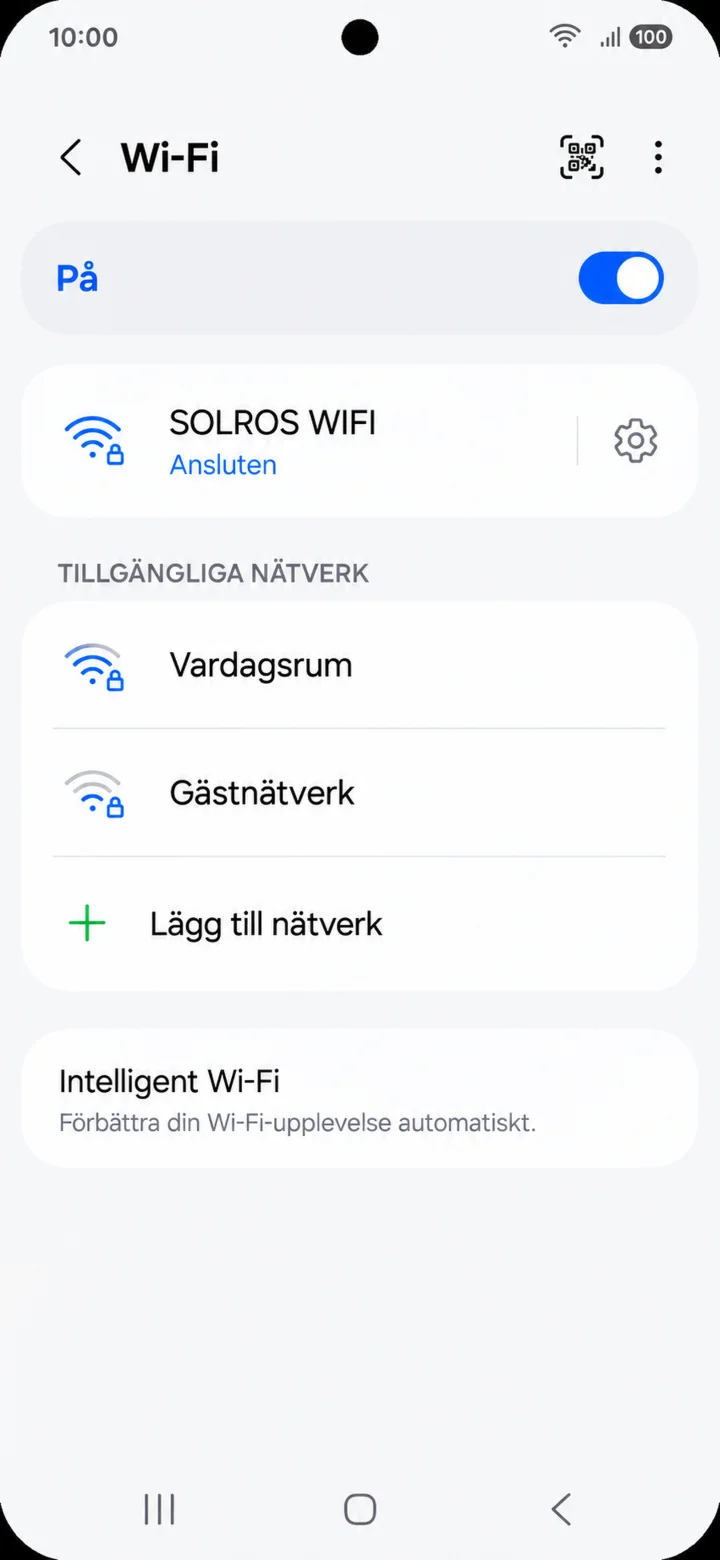
The text Ansluten (Connected) under SOLROS WIFI shows that your phone is connected.
Create a photo album
Android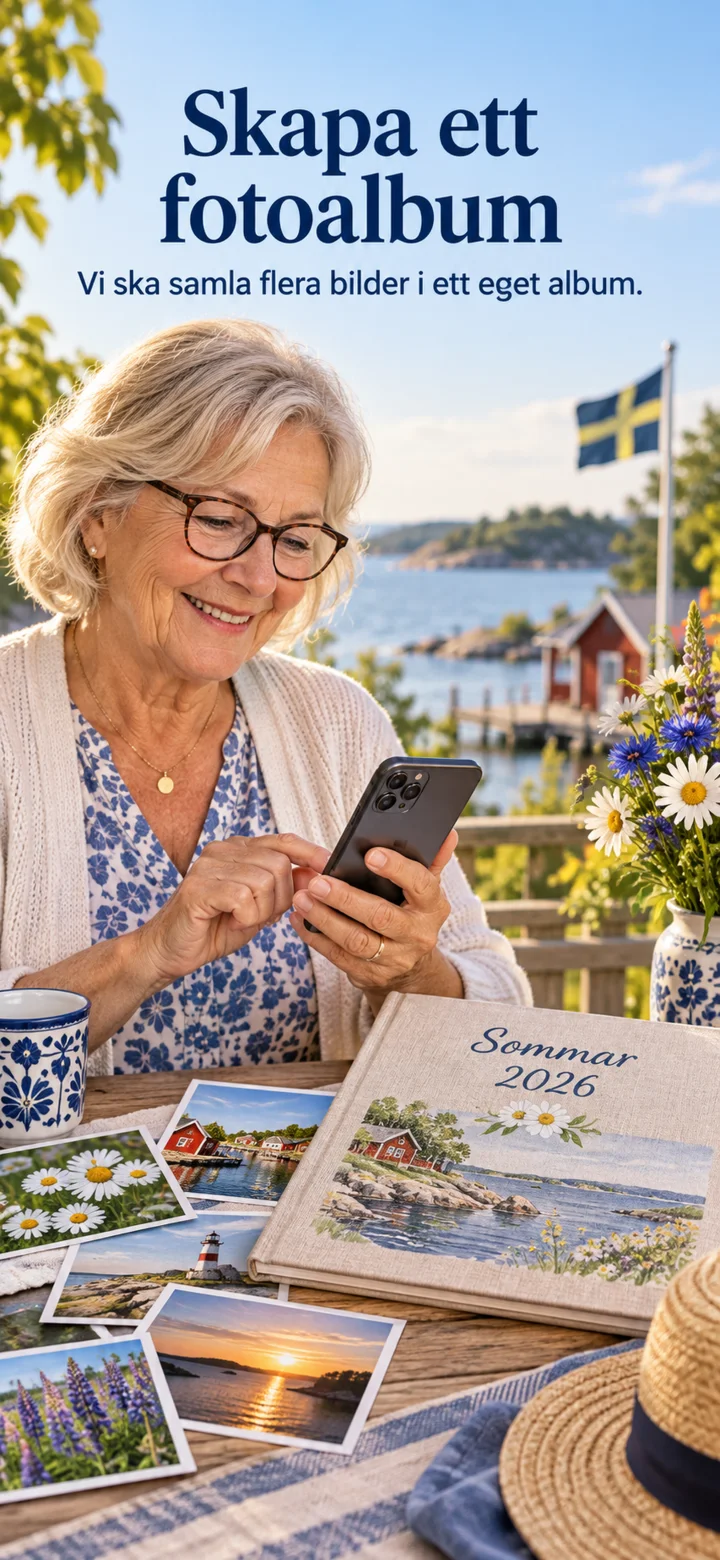 1Step 1 of 5 · Android
Now you're going to learn how to put several pictures together and create a photo album.
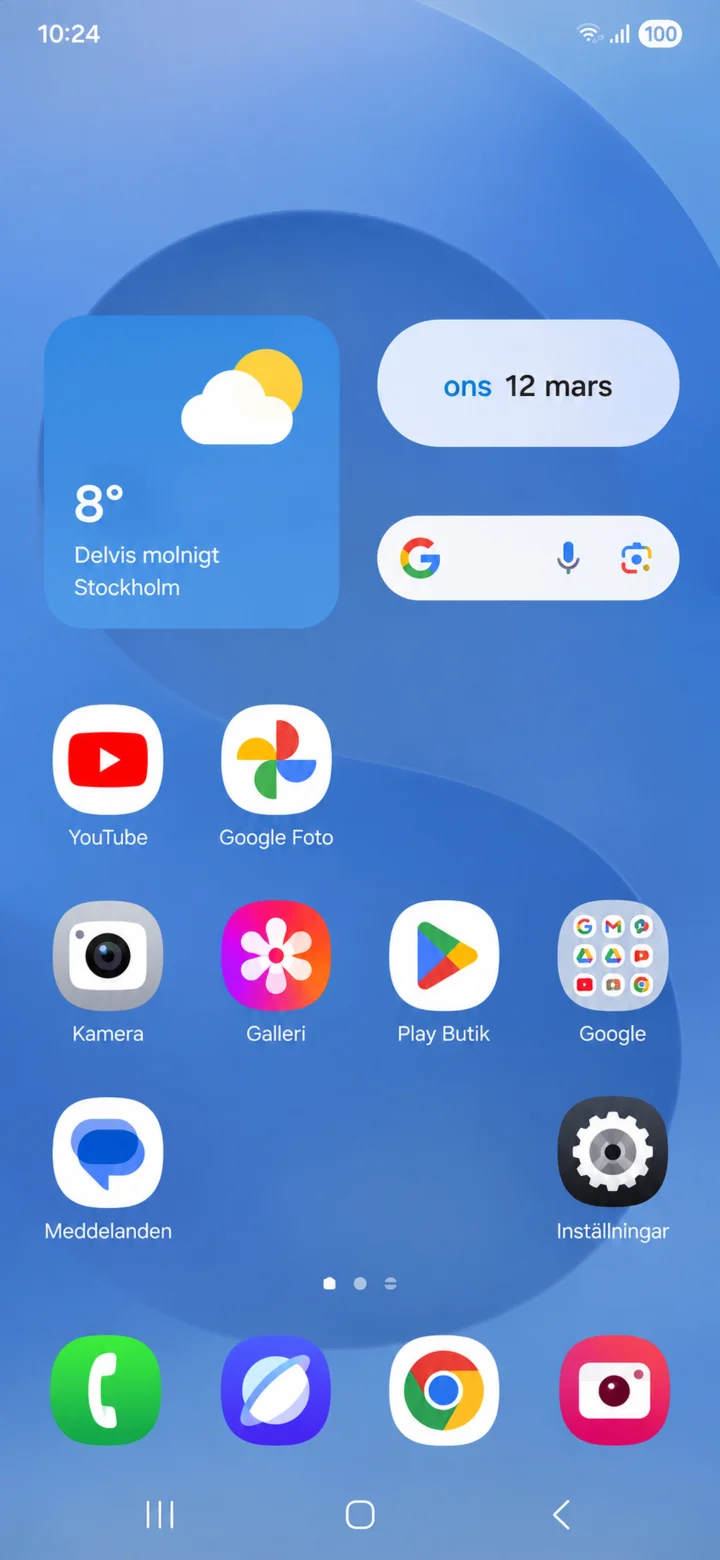 2Step 2 of 5 · Android
Start from the home screen and tap on Google Foto (Google Photos).
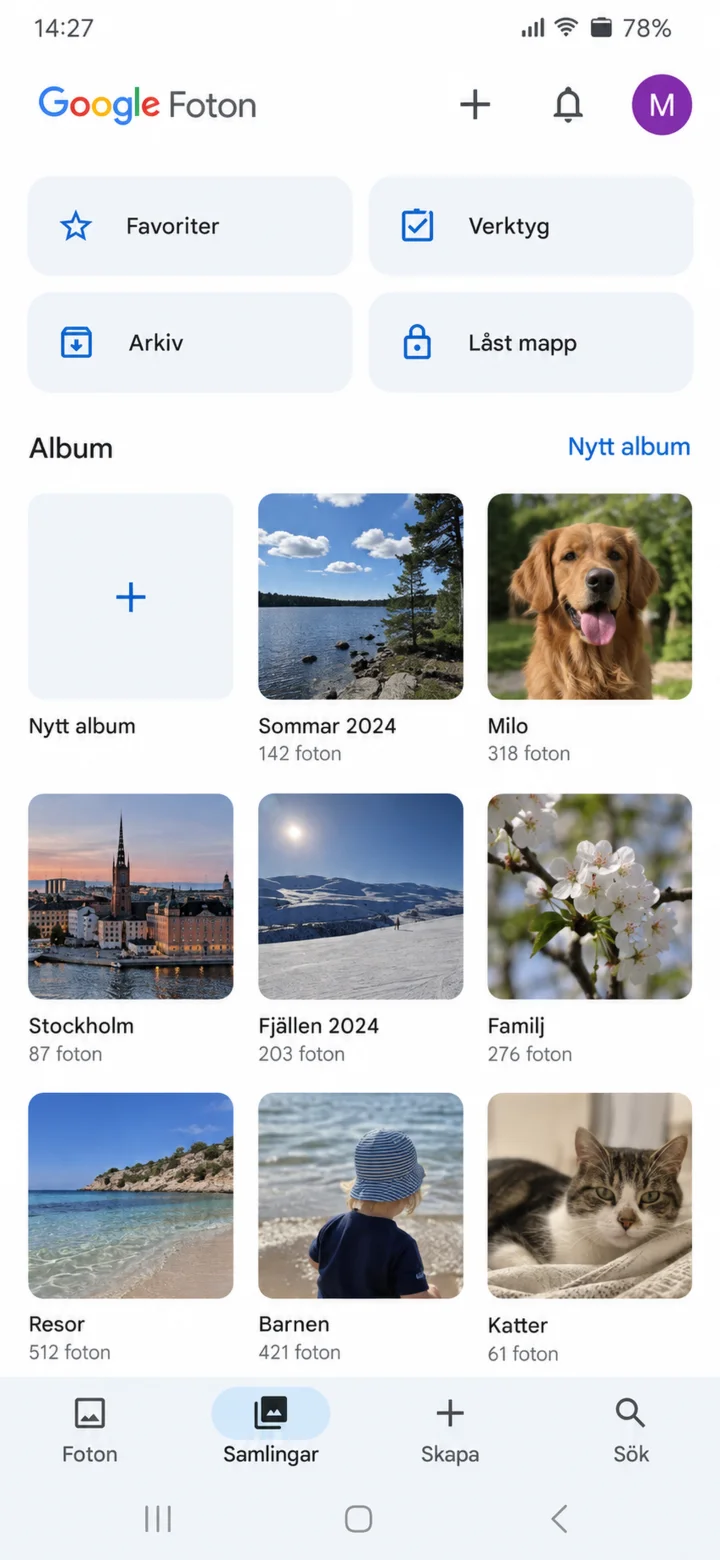 3Step 3 of 5 · Android
Tap on Samlingar (Collections) and then on Nytt album (New album).
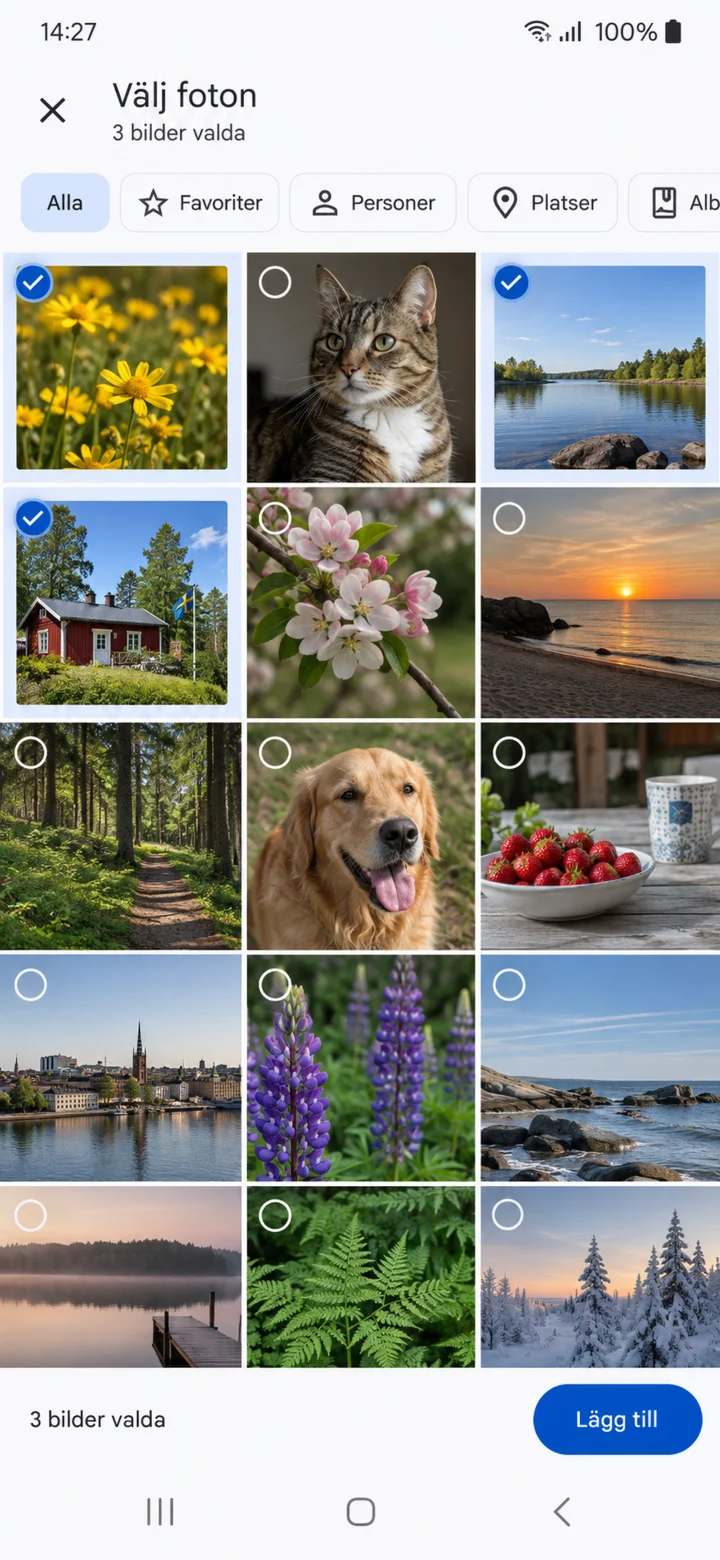 4Step 4 of 5 · Android
Select the pictures you want to gather by tapping on them, and then tap on ”Lägg till”. Name the album Sommar 2026.
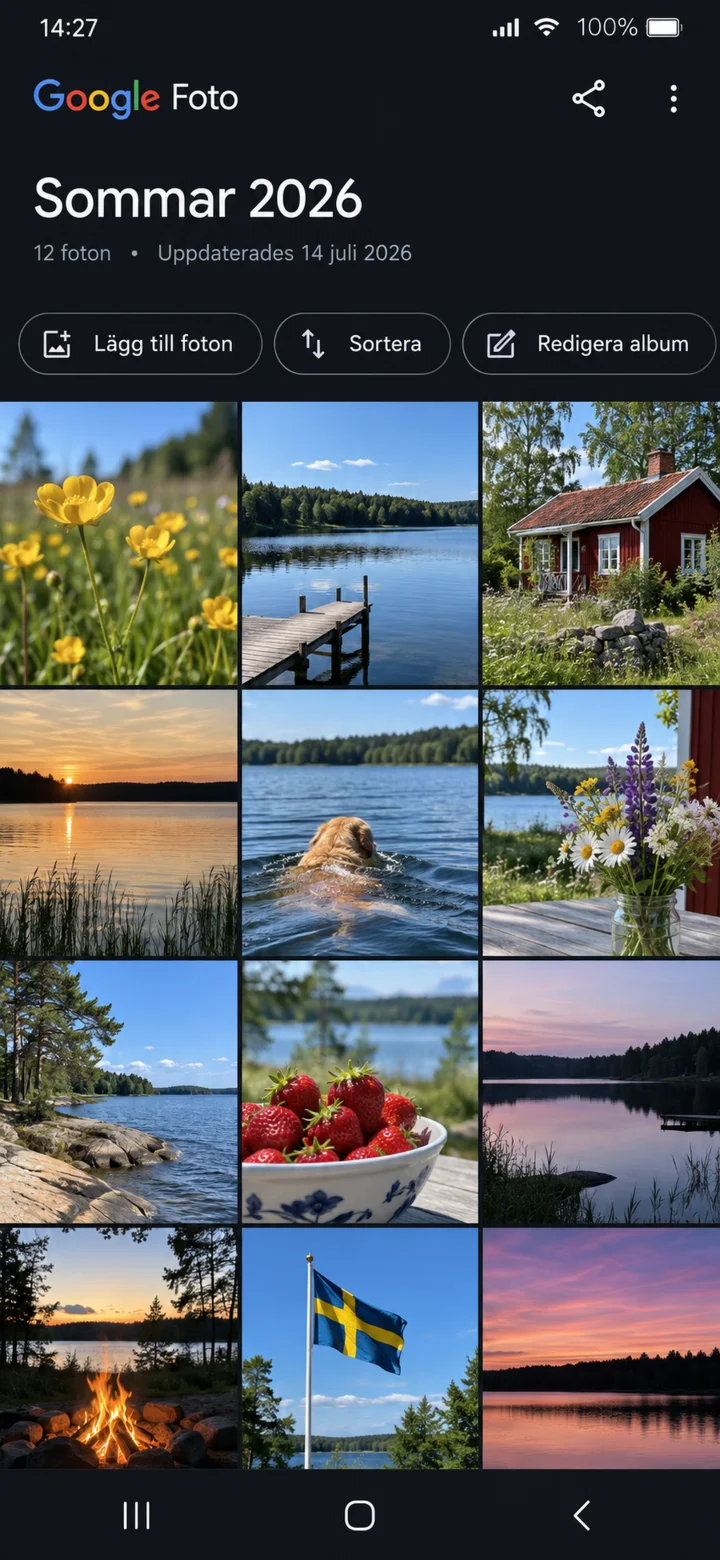 5Step 5 of 5 · Android
Well done! You have now created the album Sommar 2026, and your selected pictures are now gathered in an album here.
Have text on the screen read aloud
Android 1Step 1 of 8 · Android
We're going to learn how to let your phone read the text on the screen aloud.
 2Step 2 of 8 · Android
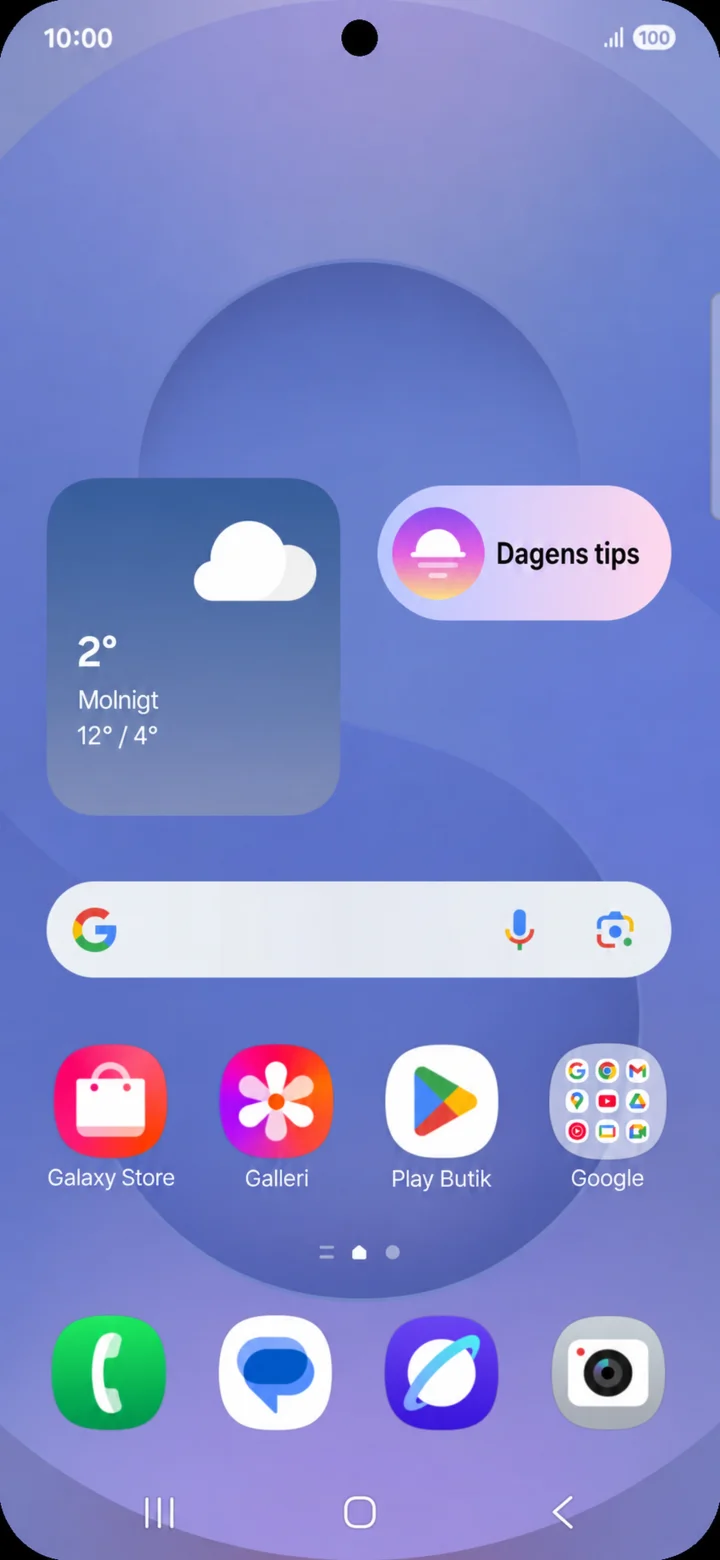
Utgå från hemskärmen. Dra nedåt från skärmens överkant för att öppna snabbpanelen.
 3Step 3 of 8 · Android
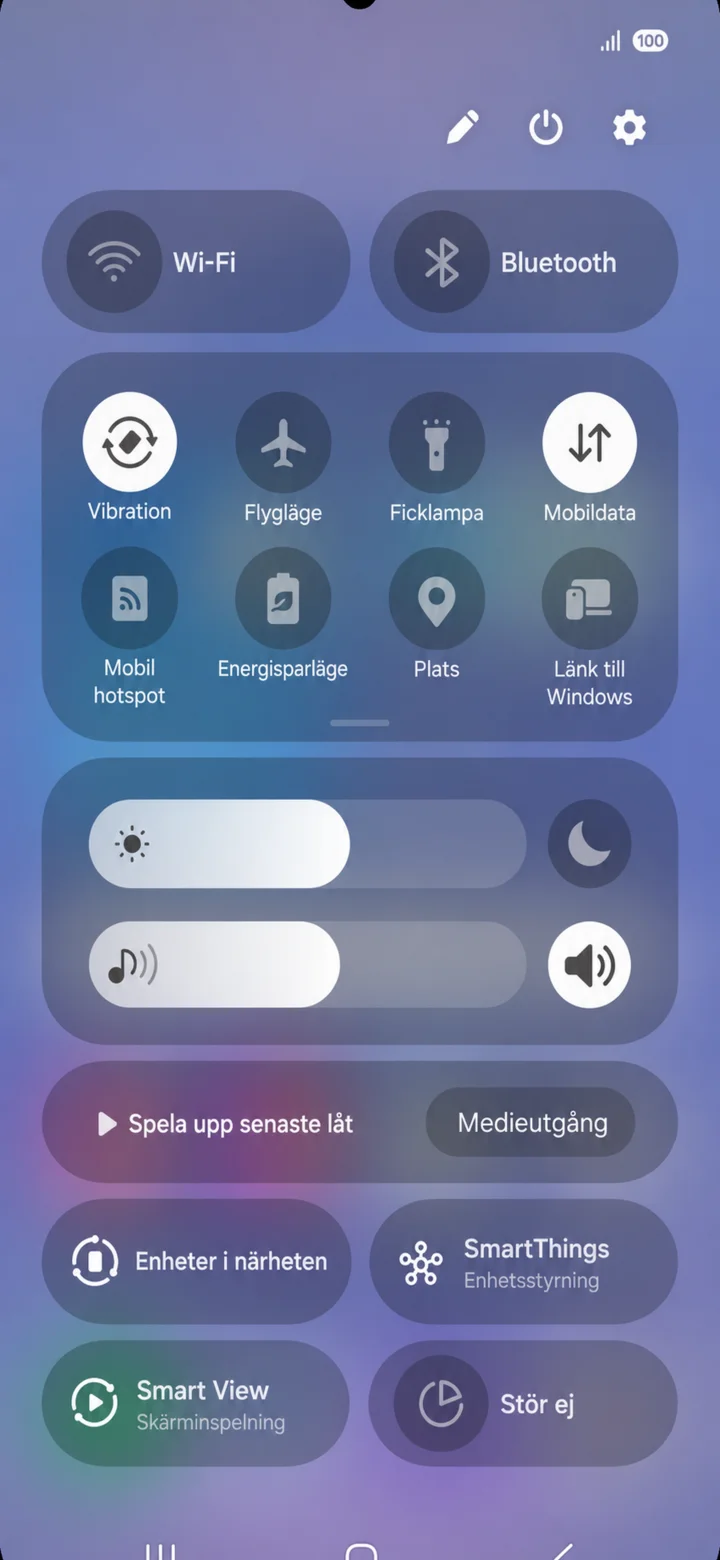
Snabbpanelen öppnas. Tryck på kugghjulet uppe till höger.
 4Step 4 of 8 · Android
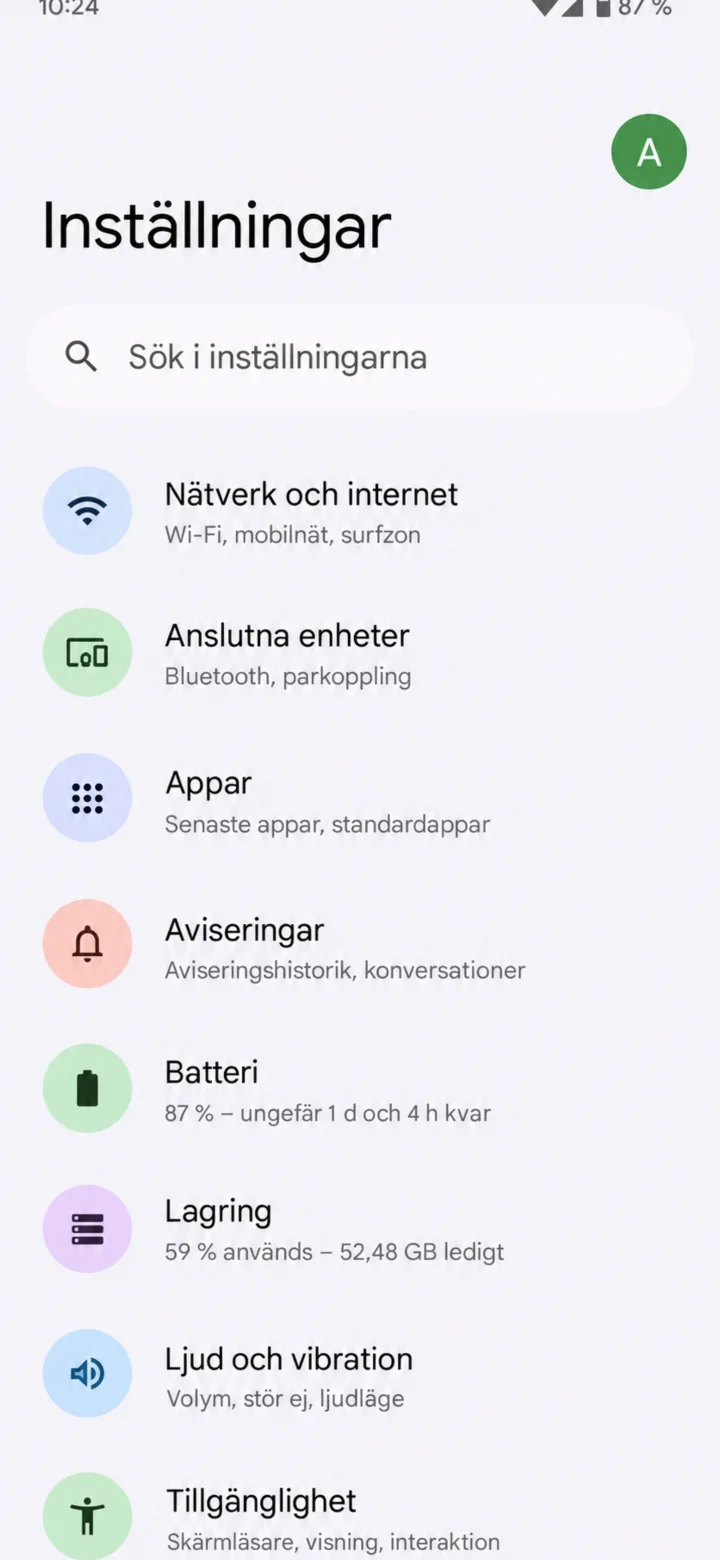
Inställningar (Settings) opens. Tap on Tillgänglighet (Accessibility) at the bottom of the list.
 5Step 5 of 8 · Android
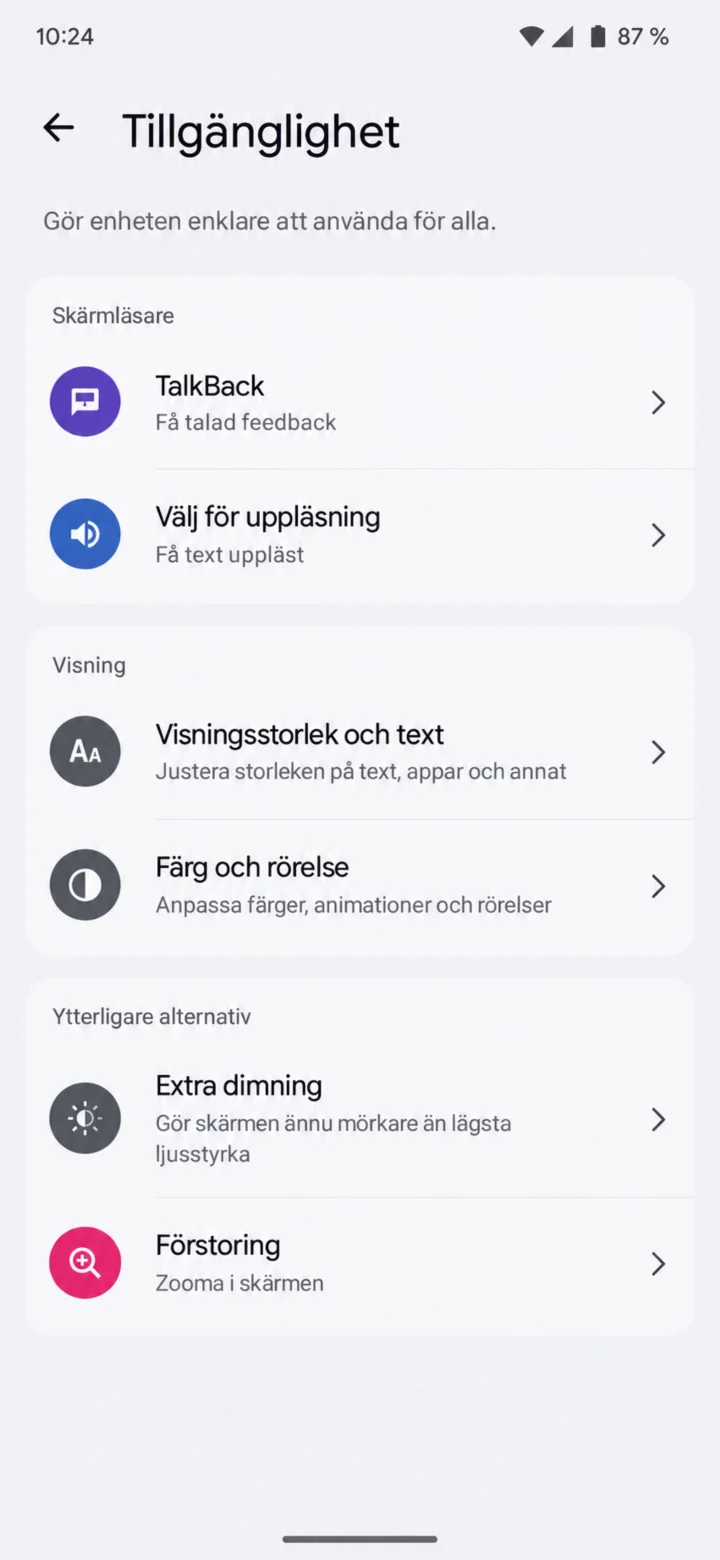
Choose Välj för uppläsning (Select to Speak). The menu name might differ between different Android phones.
 6Step 6 of 8 · Android
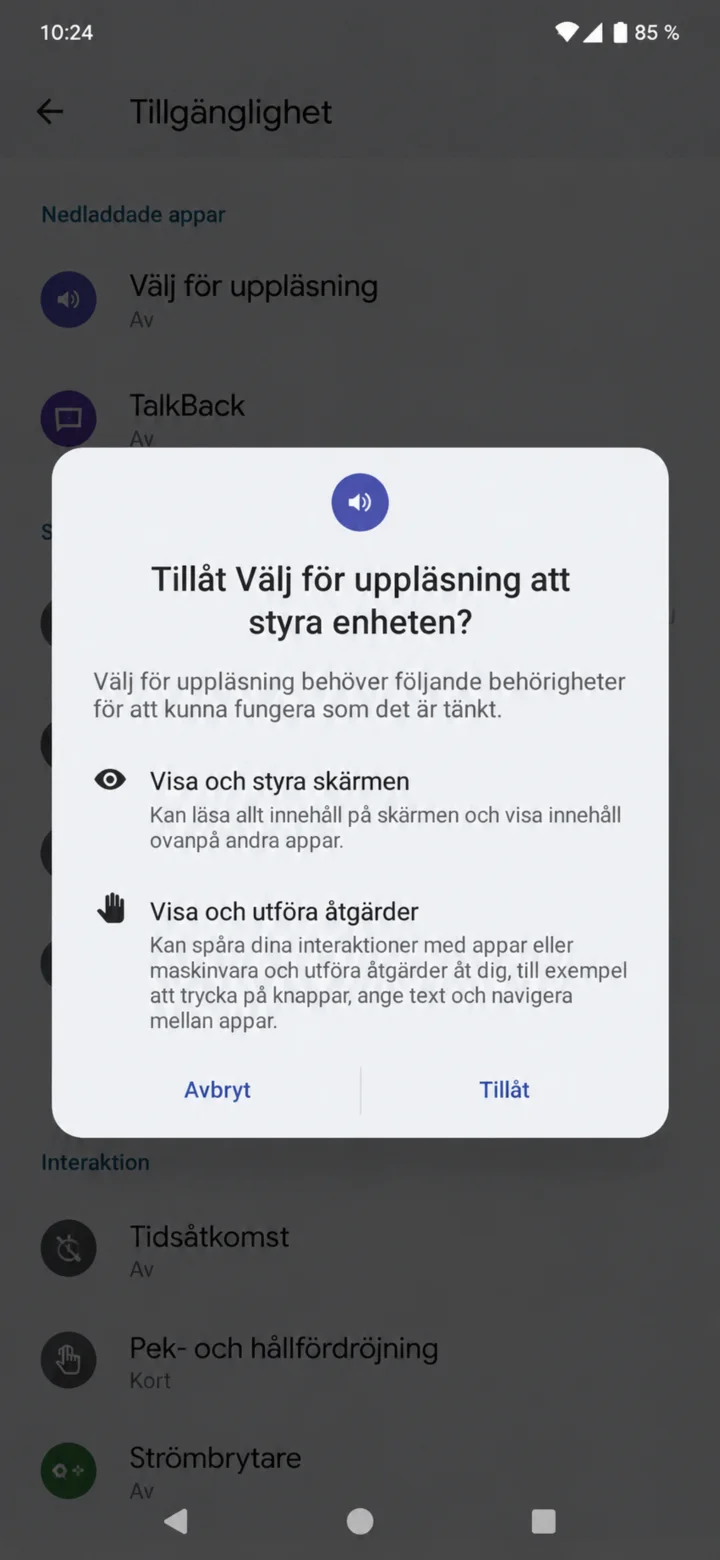
Read the permissions and choose Tillåt (Allow) if you want to use the feature.
 7Step 7 of 8 · Android
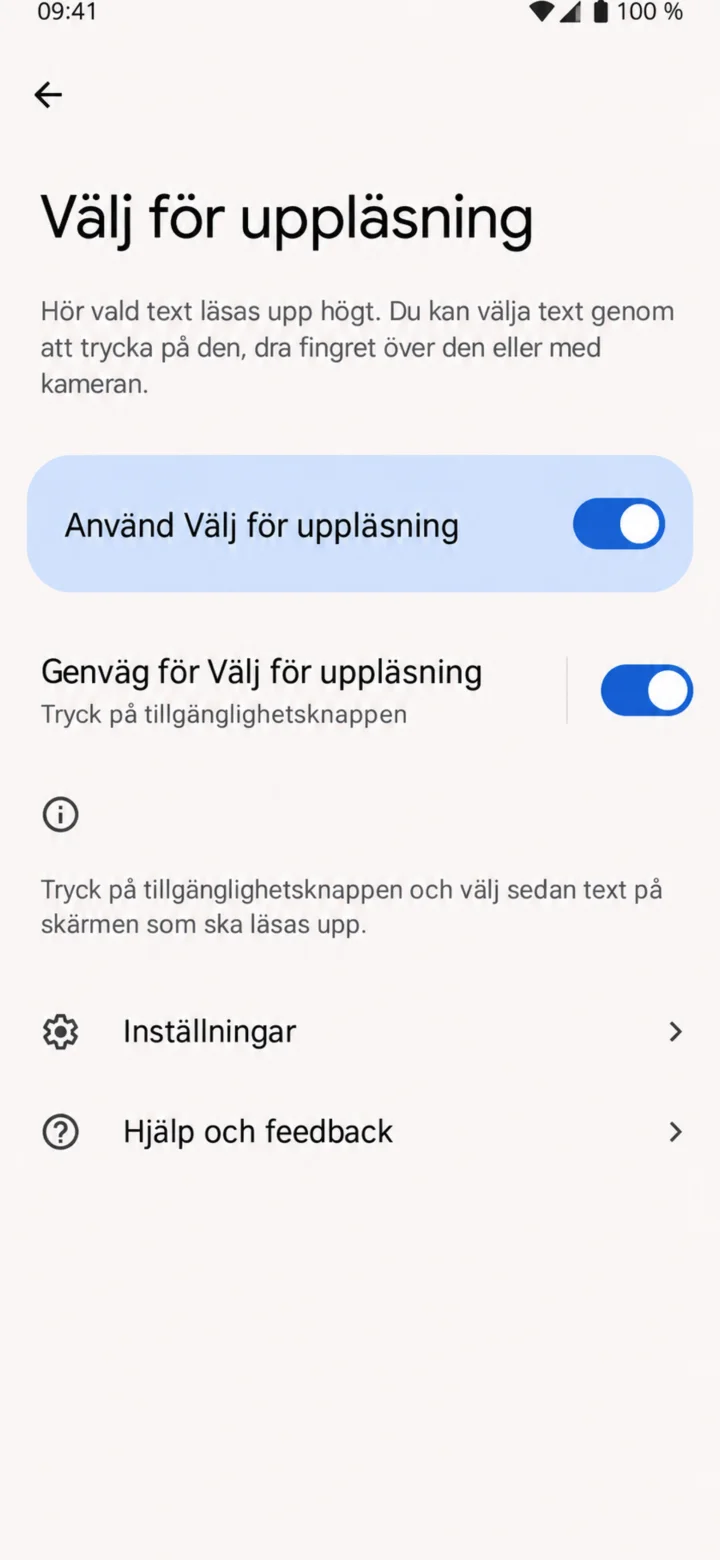
Turn on Välj för uppläsning (Select to Speak) and the shortcut to the accessibility button.
 8Step 8 of 8 · Android
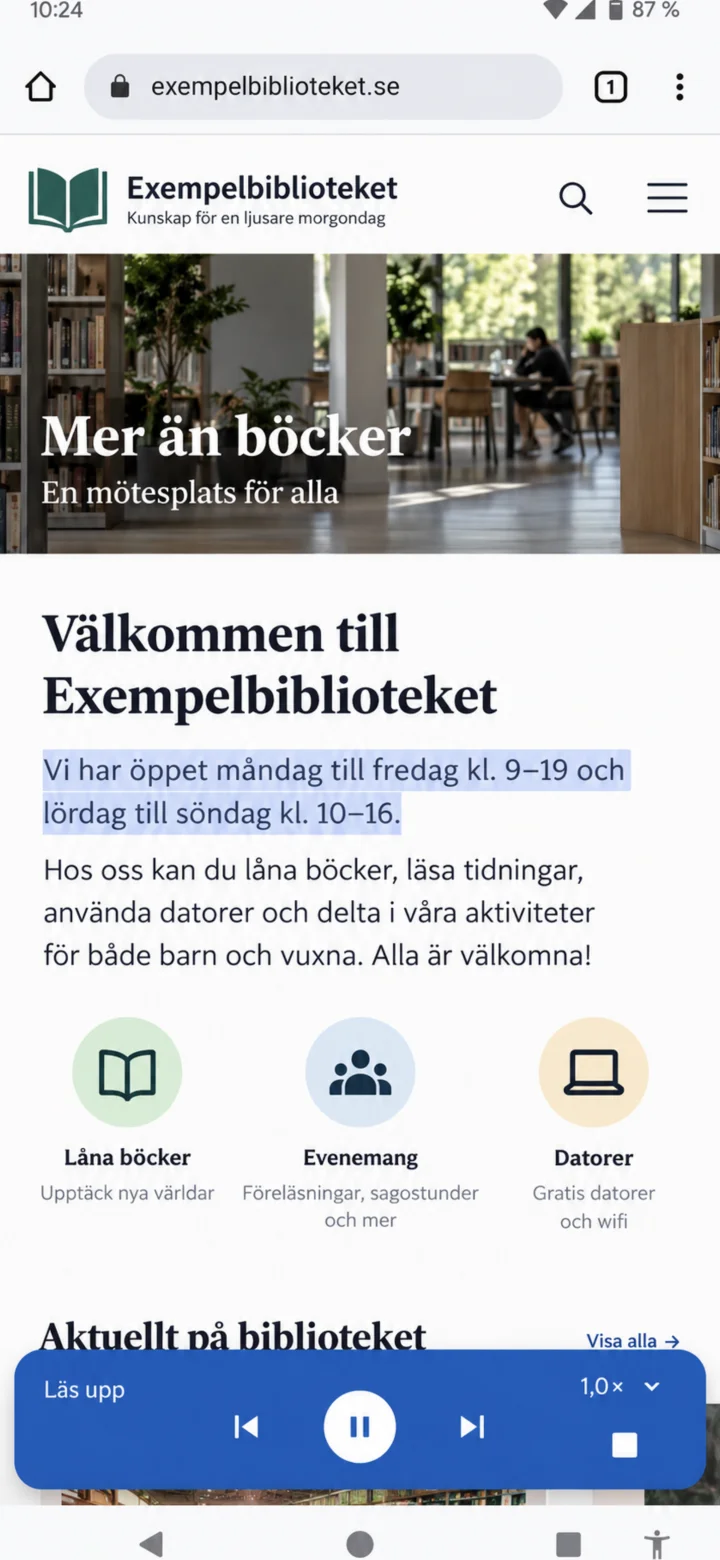
Tap the accessibility button and highlight the text. Use the controller to pause or stop the reading.
How to find pictures on your mobile
Android 1Step 1 of 4 · Android
Now, let's learn how to scroll through and search for pictures on your phone.
 2Step 2 of 4 · Android
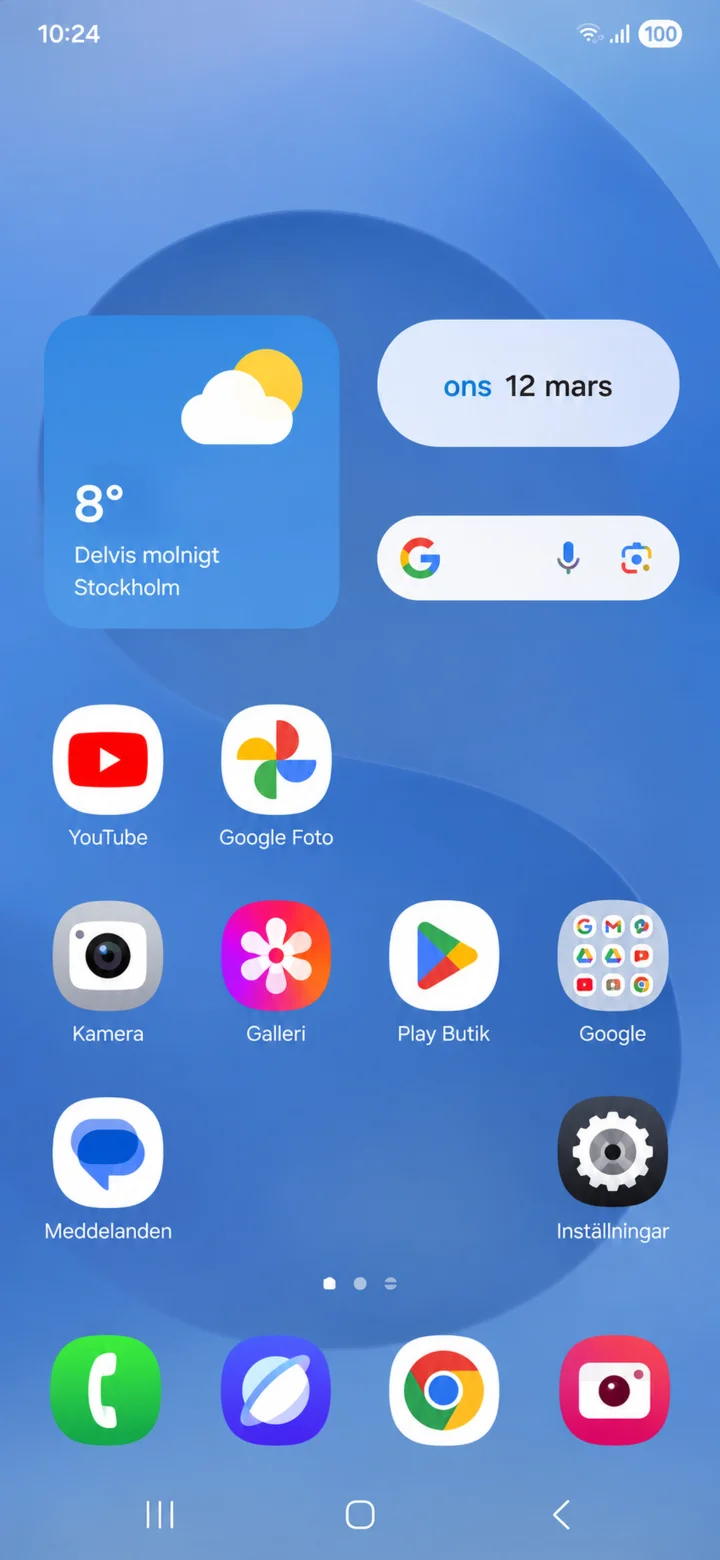
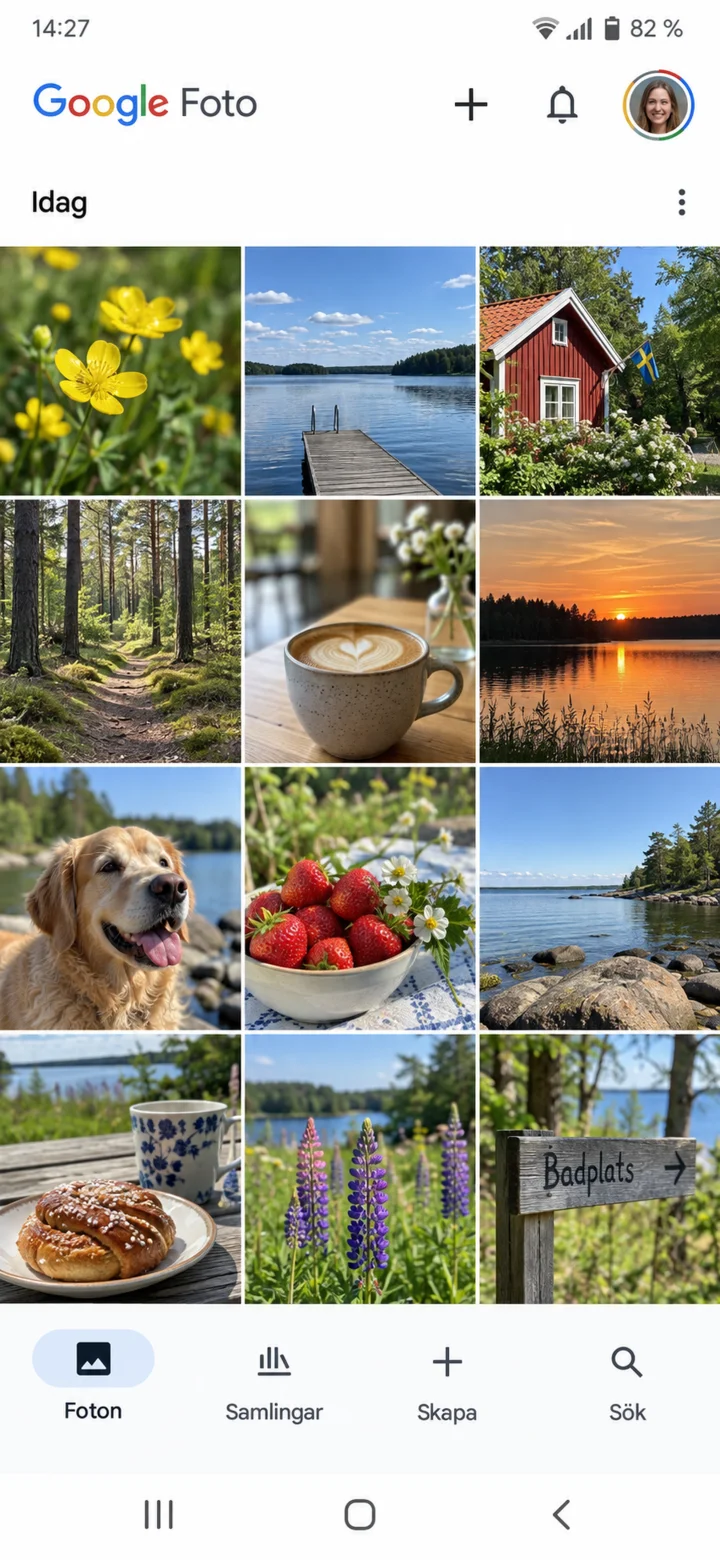
Start from your home screen and tap on Google Foto. You can also tap on the Galleri icon.
 3Step 3 of 4 · Android
Under Foton, your pictures are organized by date. Swipe to scroll through them.
 4Step 4 of 4 · Android
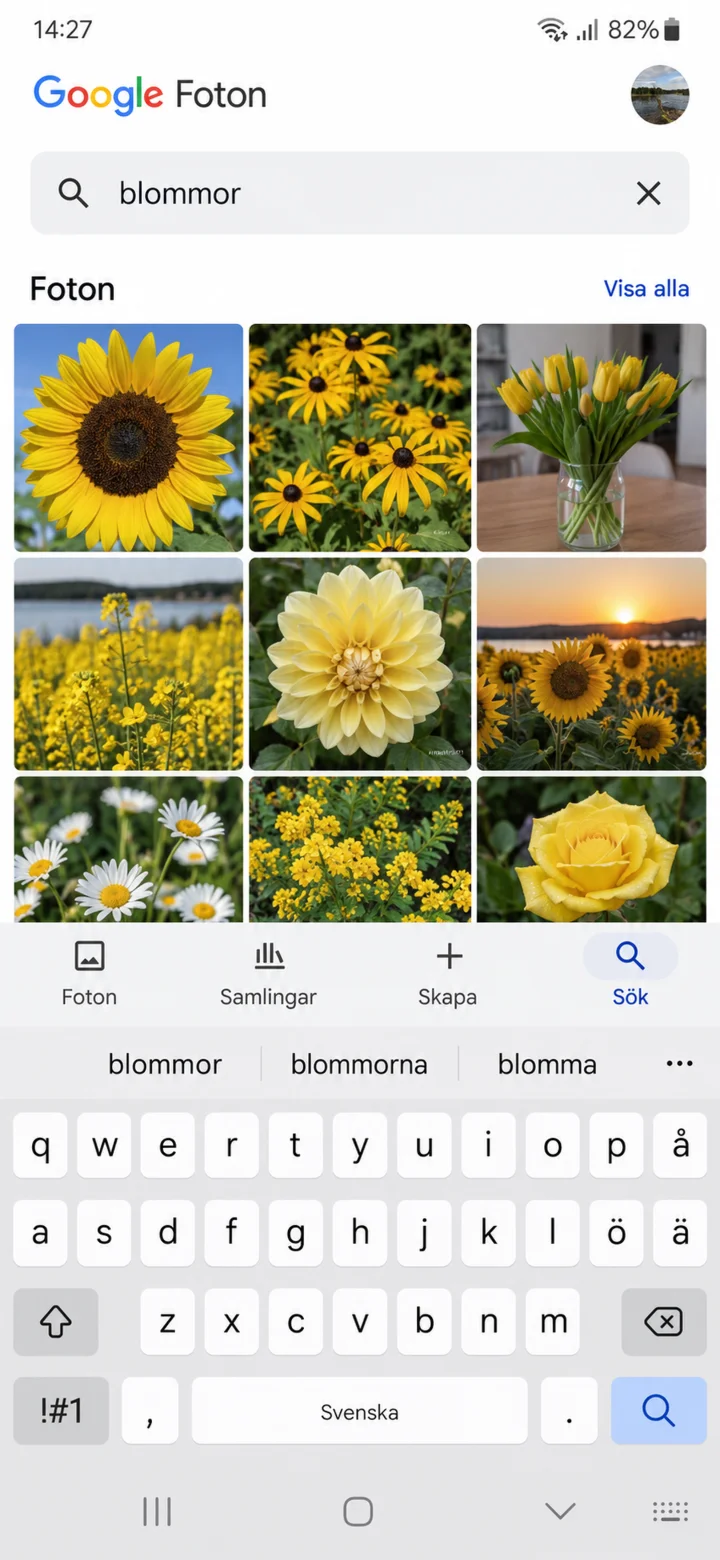
Tap on Sök (Search) and type, for example, 'blommor' (flowers). Now you know how to find and search for your pictures!
Make the text larger on your phone
Android 1Step 1 of 6 · Android
Vi ska nu lära oss att göra text och andra saker på skärmen lättare att se.
 2Step 2 of 6 · Android
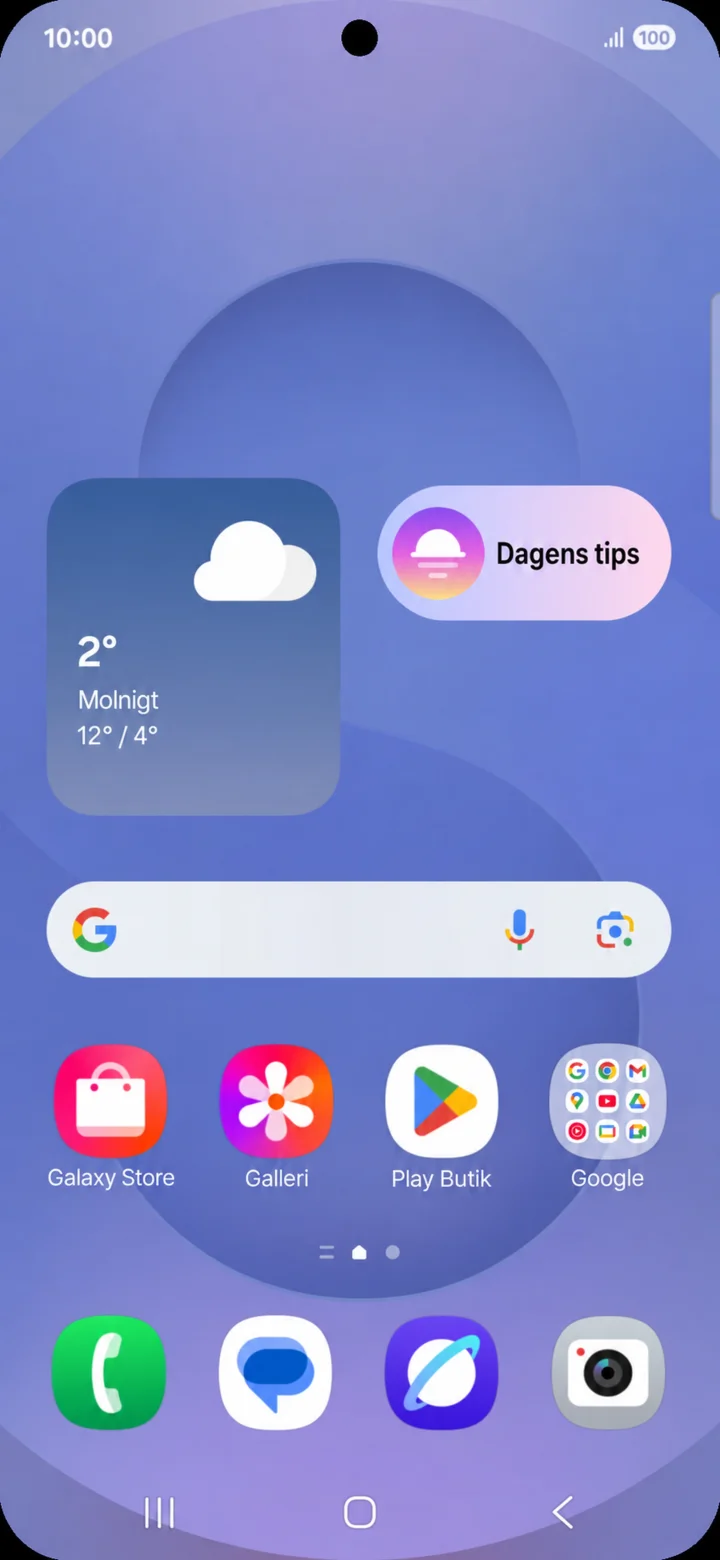
Start from the home screen. Swipe down from the top edge of the screen.
 3Step 3 of 6 · Android
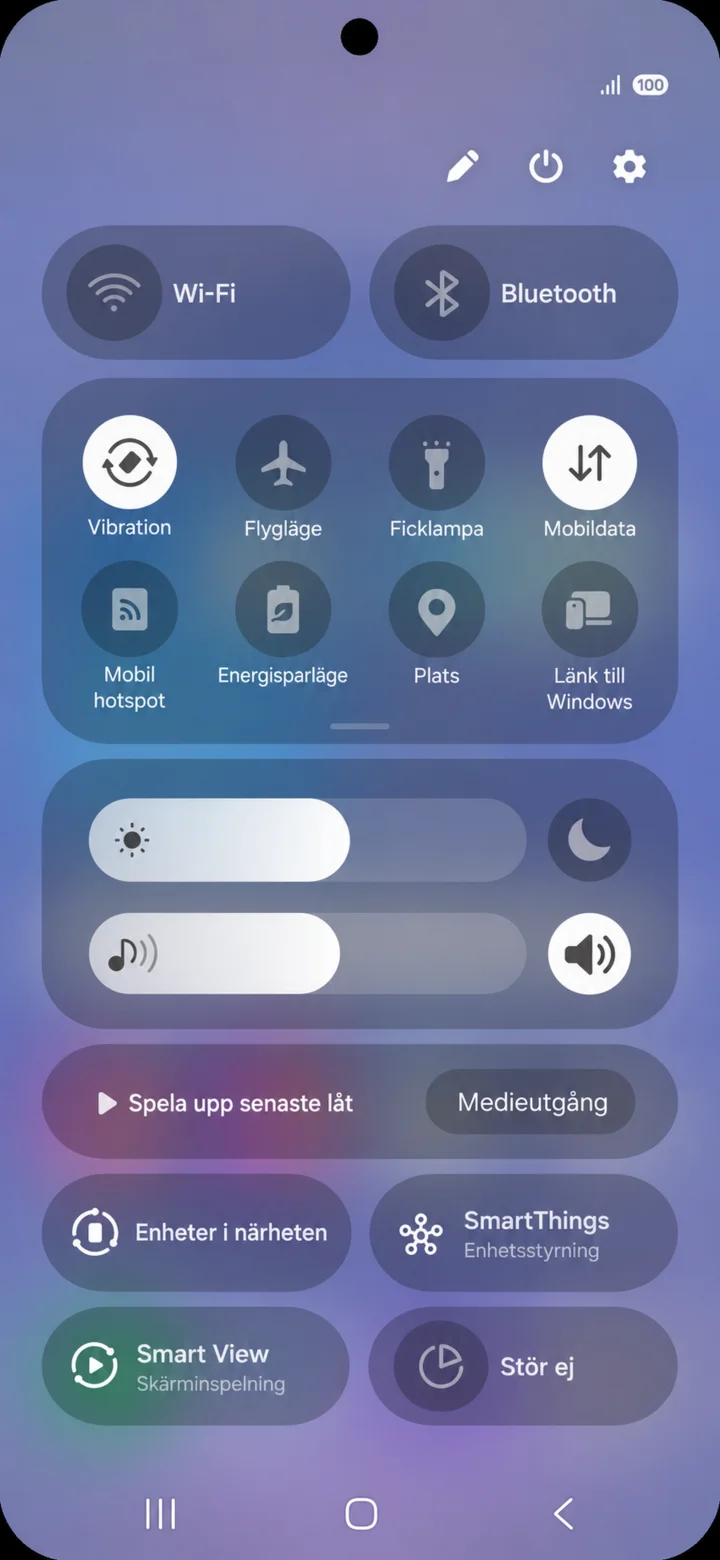
Tap the cogwheel icon in the top right to open ”Inställningar” (Settings).
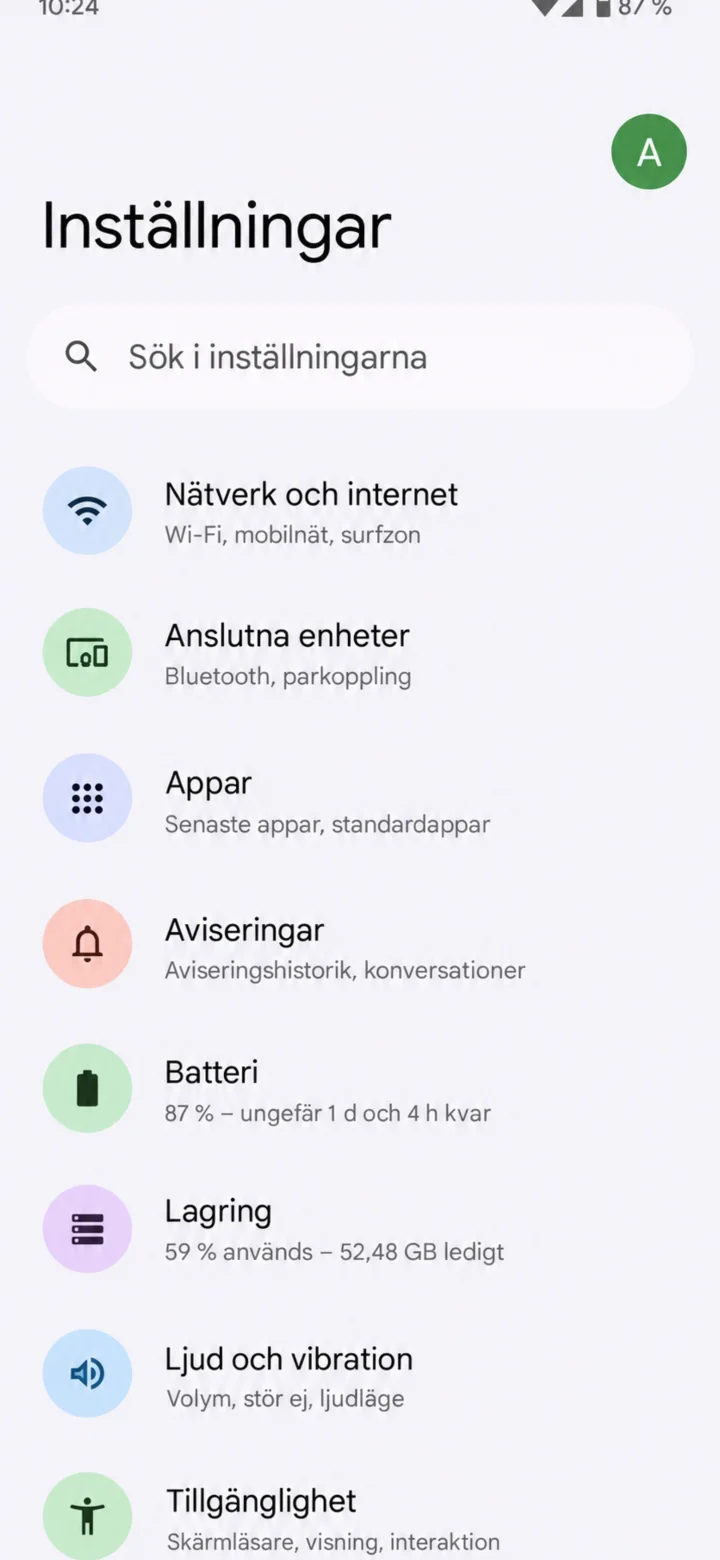 4Step 4 of 6 · Android
In ”Inställningar” (Settings), choose ”Tillgänglighet” (Accessibility).
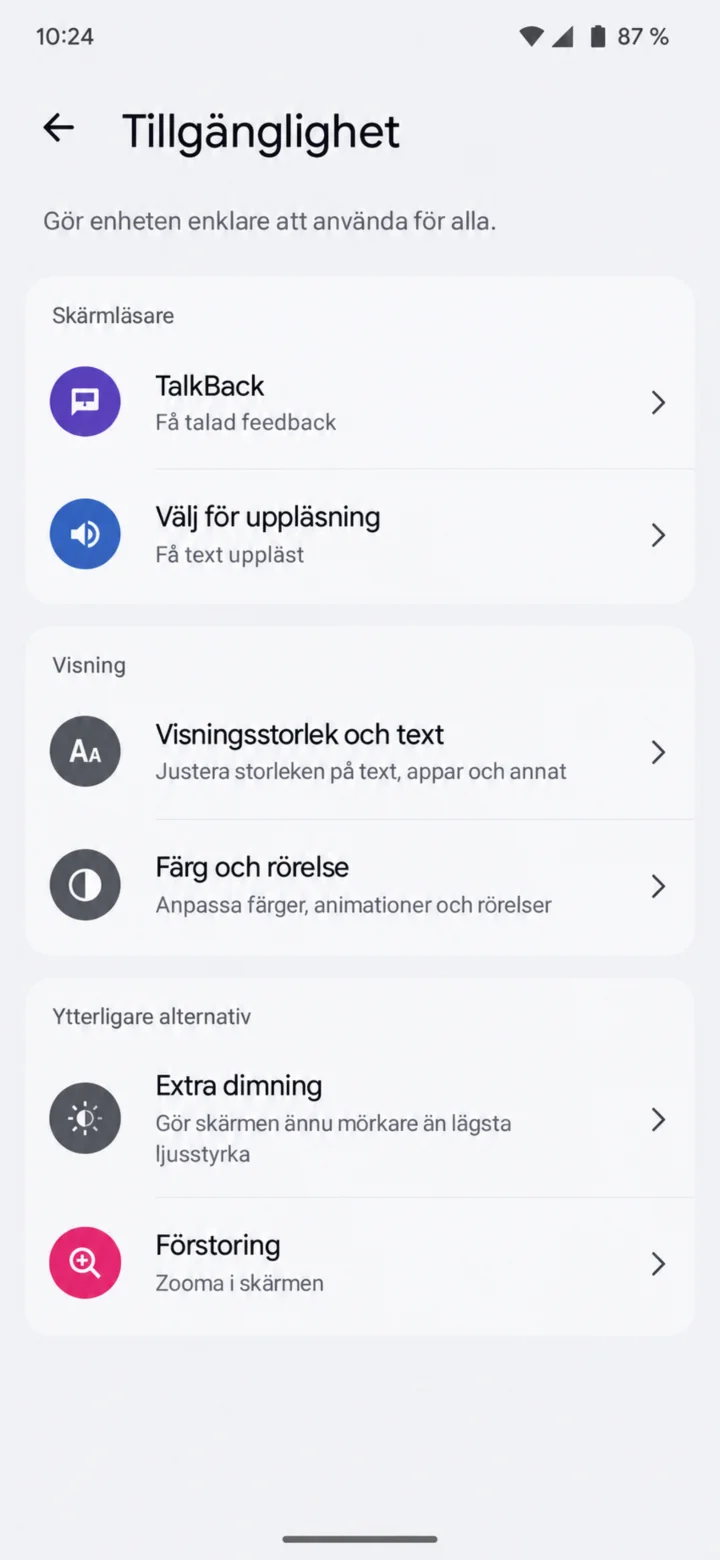 5Step 5 of 6 · Android
Choose ”Visningsstorlek och text” (Display size and text). The menu name might vary slightly between different Android phones.
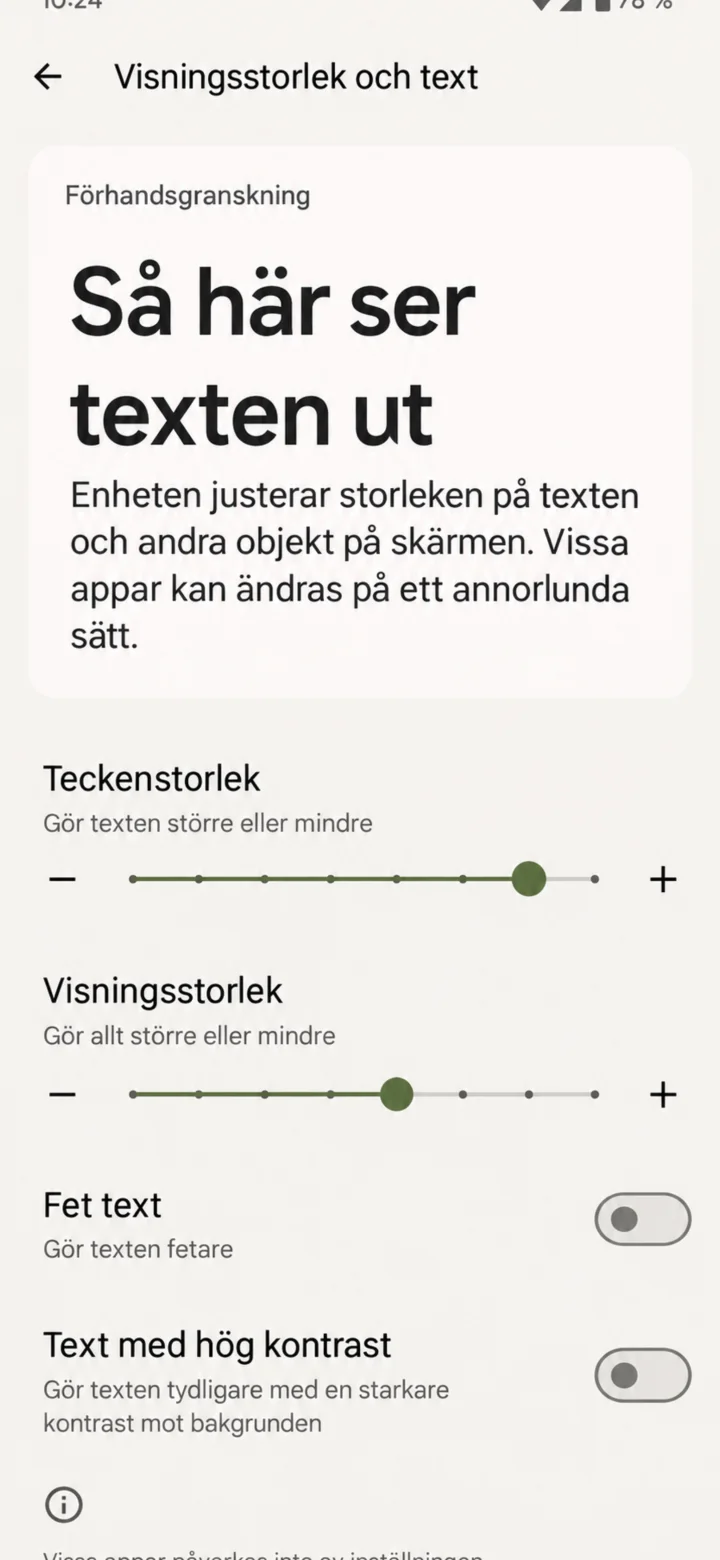 6Step 6 of 6 · Android
Drag the slider for ”teckenstorlek” (font size) to the right. You can also make other objects on the screen larger.
Record a video
Android 1Step 1 of 5 · Android
We're going to learn how to record a video. It's a good idea to hold your phone horizontally when the video will be shown on a TV.
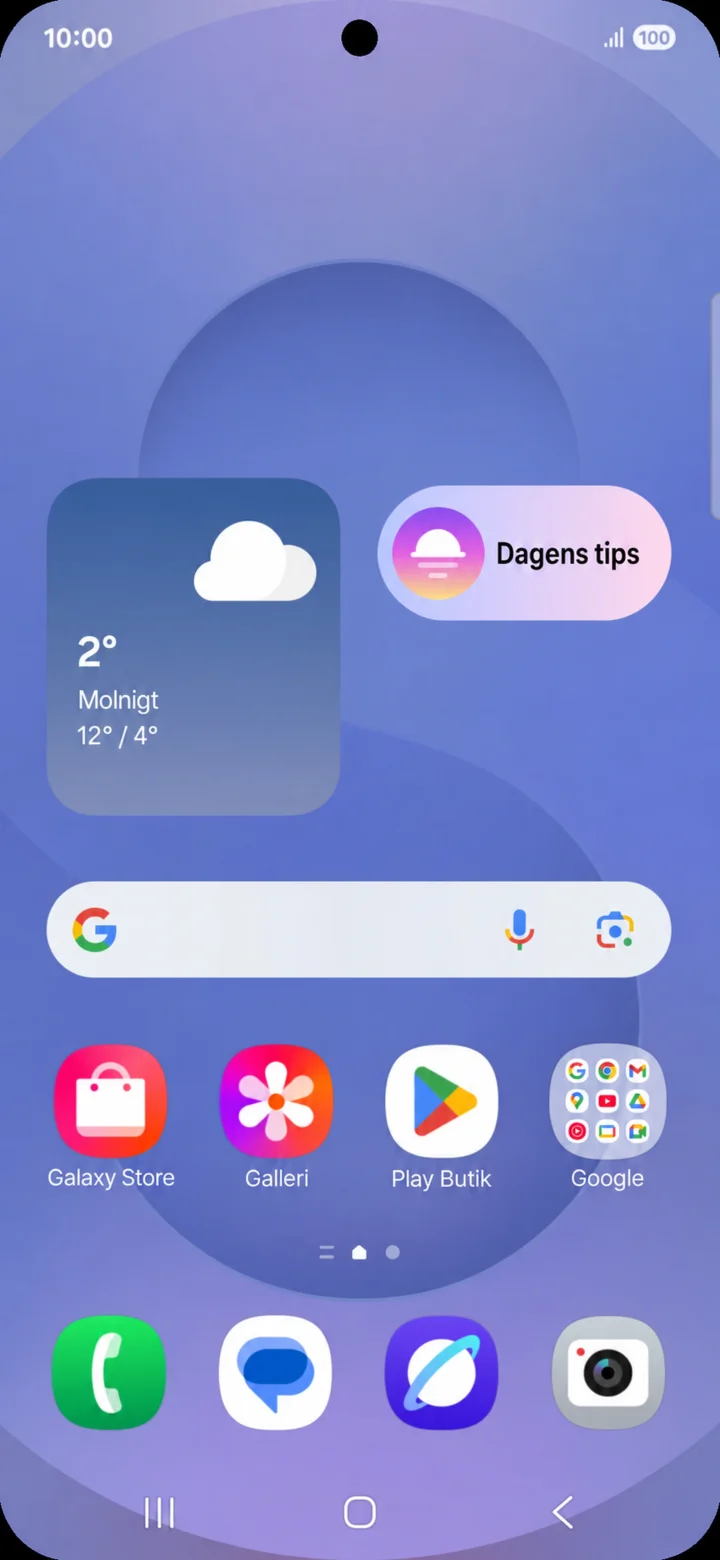 2Step 2 of 5 · Android
Start from the home screen and tap on Kamera (Camera).
 3Step 3 of 5 · Android
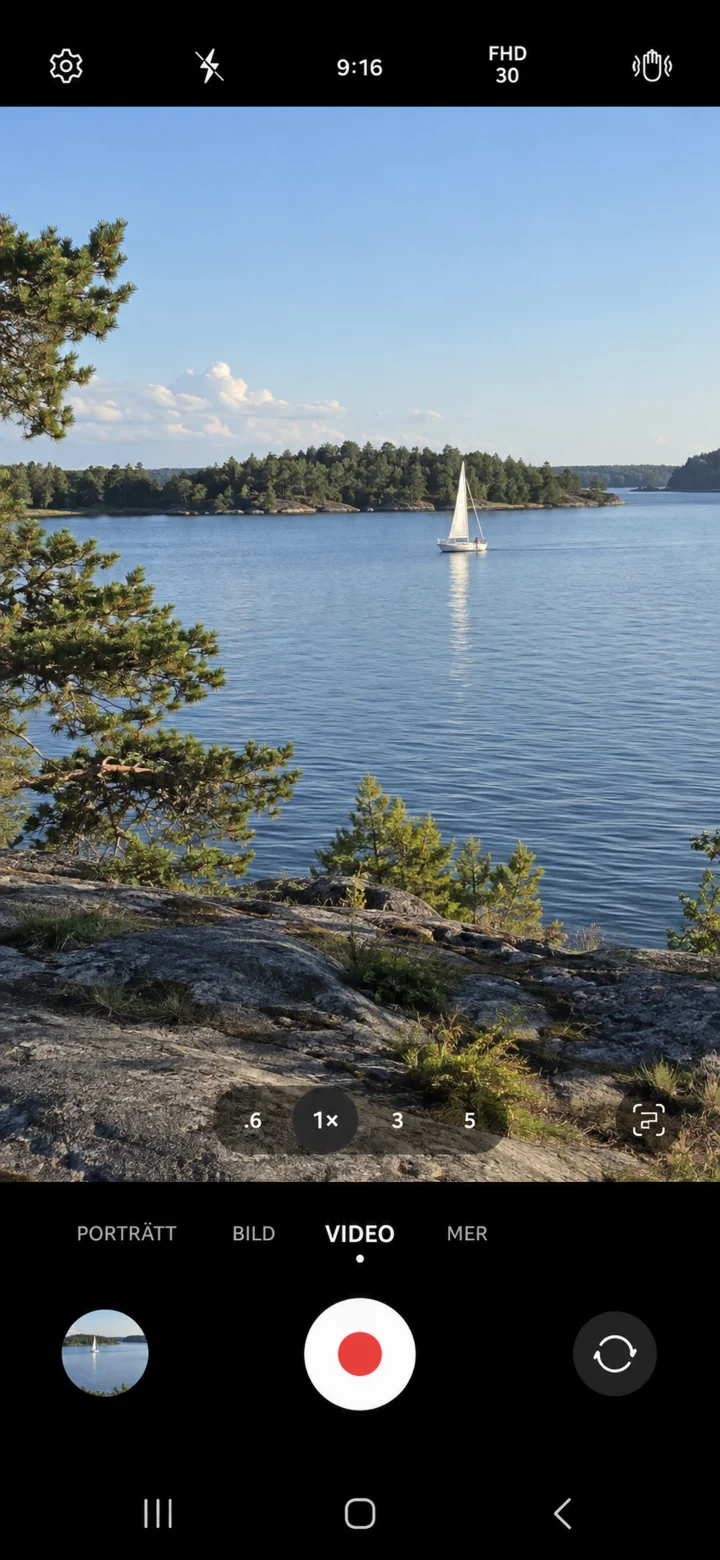
Swipe between the camera modes until Video is selected. Tap the red button to start recording.
 4Step 4 of 5 · Android
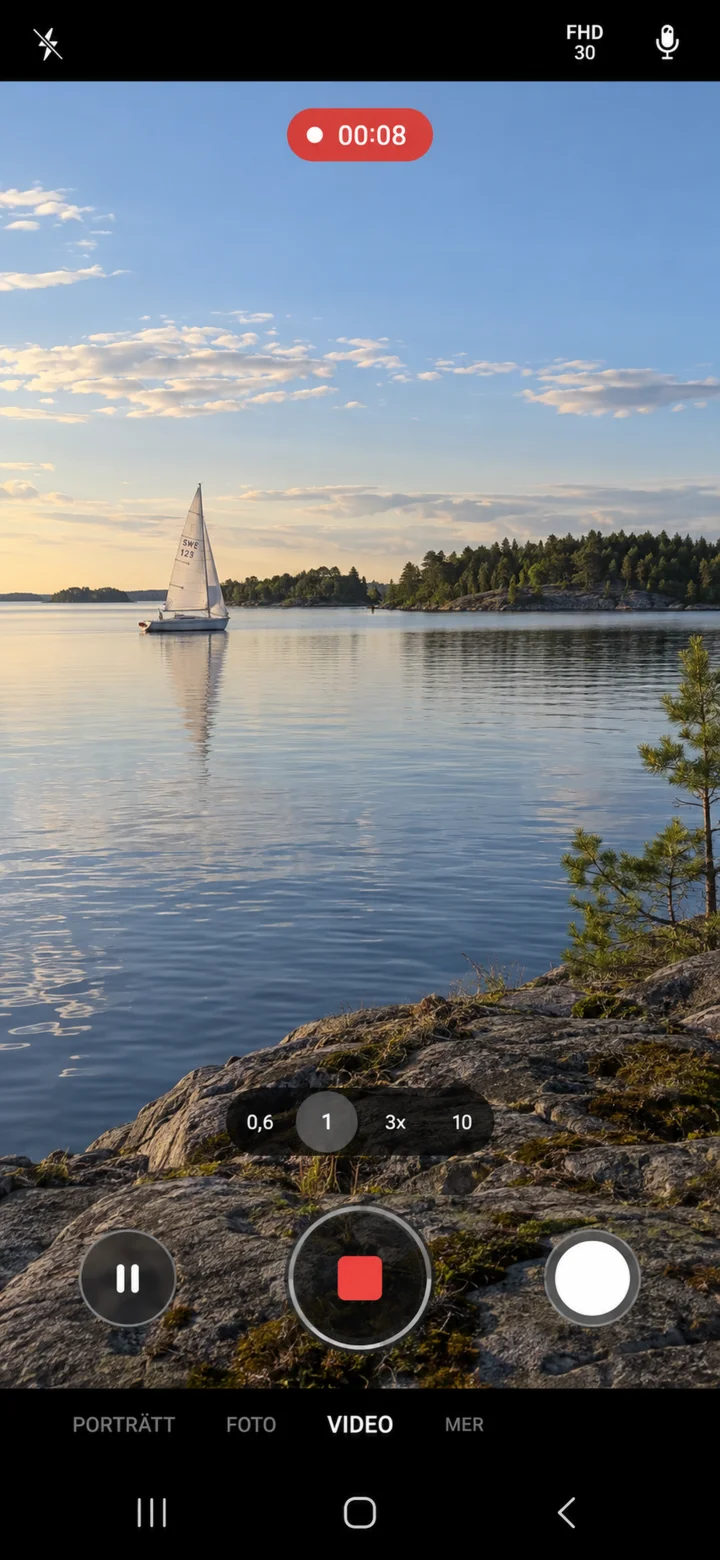
When the timer is counting, the video is being recorded. Tap the red square to stop.
 5Step 5 of 5 · Android
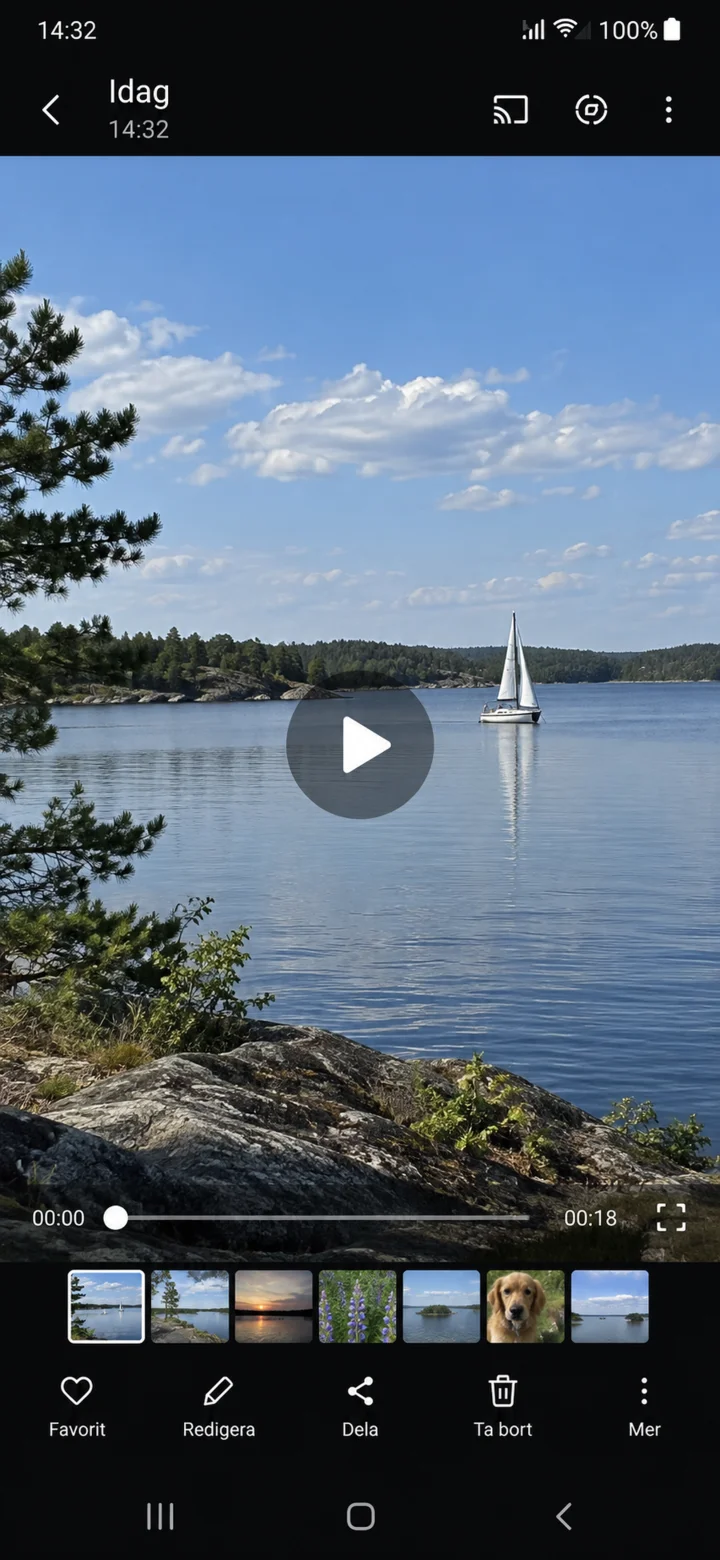
Tap on the small picture and then on play to check the video.
Scan a QR code
Android 1Step 1 of 4 · Android
We will now learn how to scan a QR code using your phone's camera.
 2Step 2 of 4 · Android
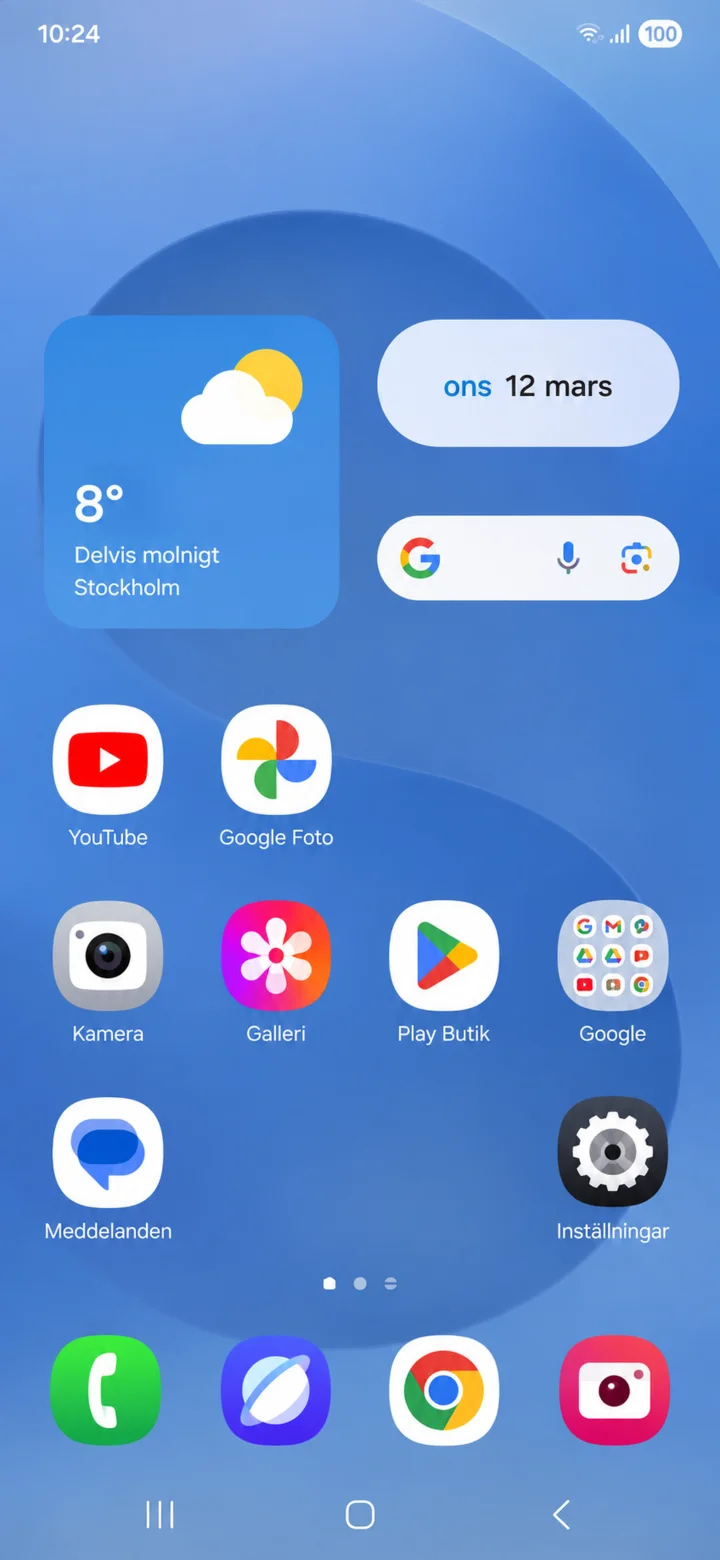
Start from the home screen. Tap Kamera.
 3Step 3 of 4 · Android
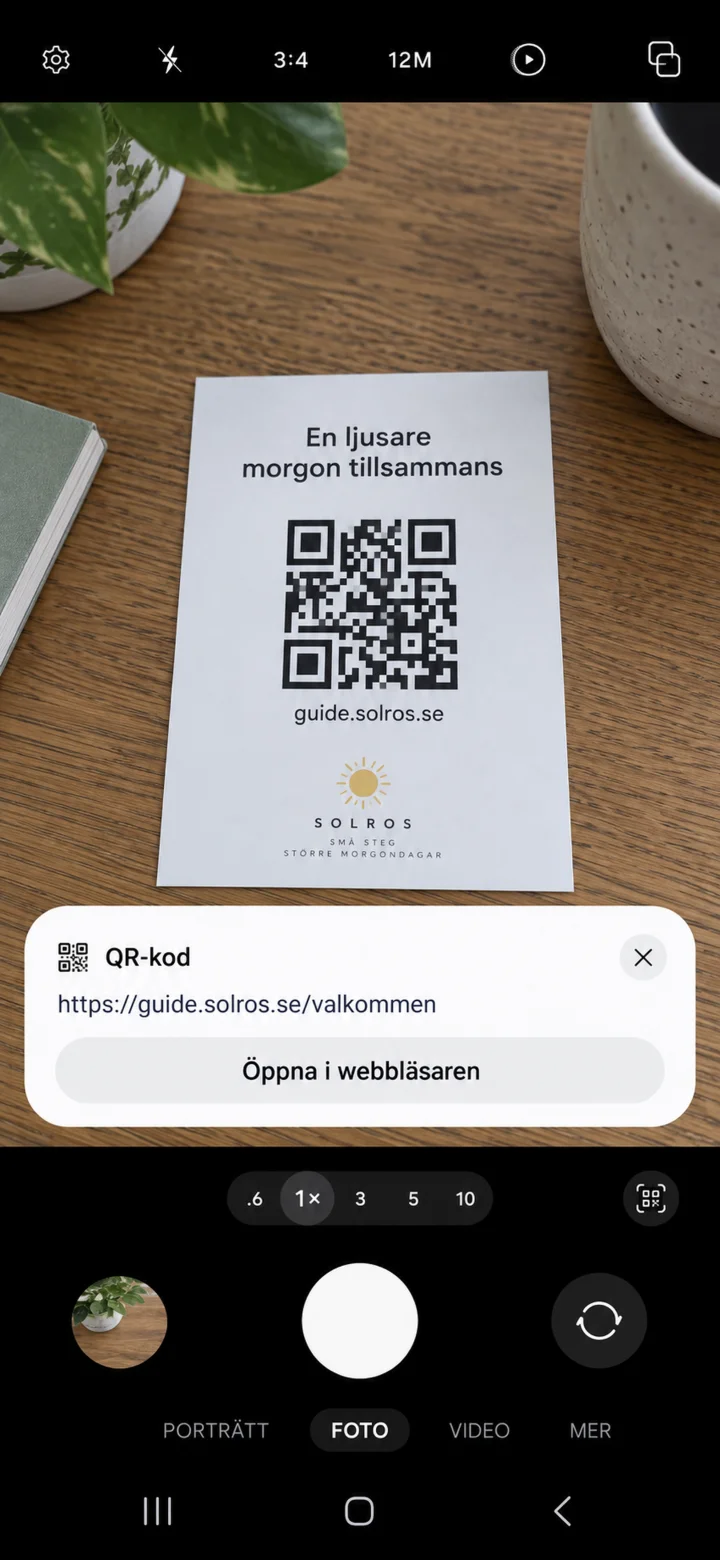
Point the camera at the QR code. Tap ”Öppna i webbläsaren”.
 4Step 4 of 4 · Android
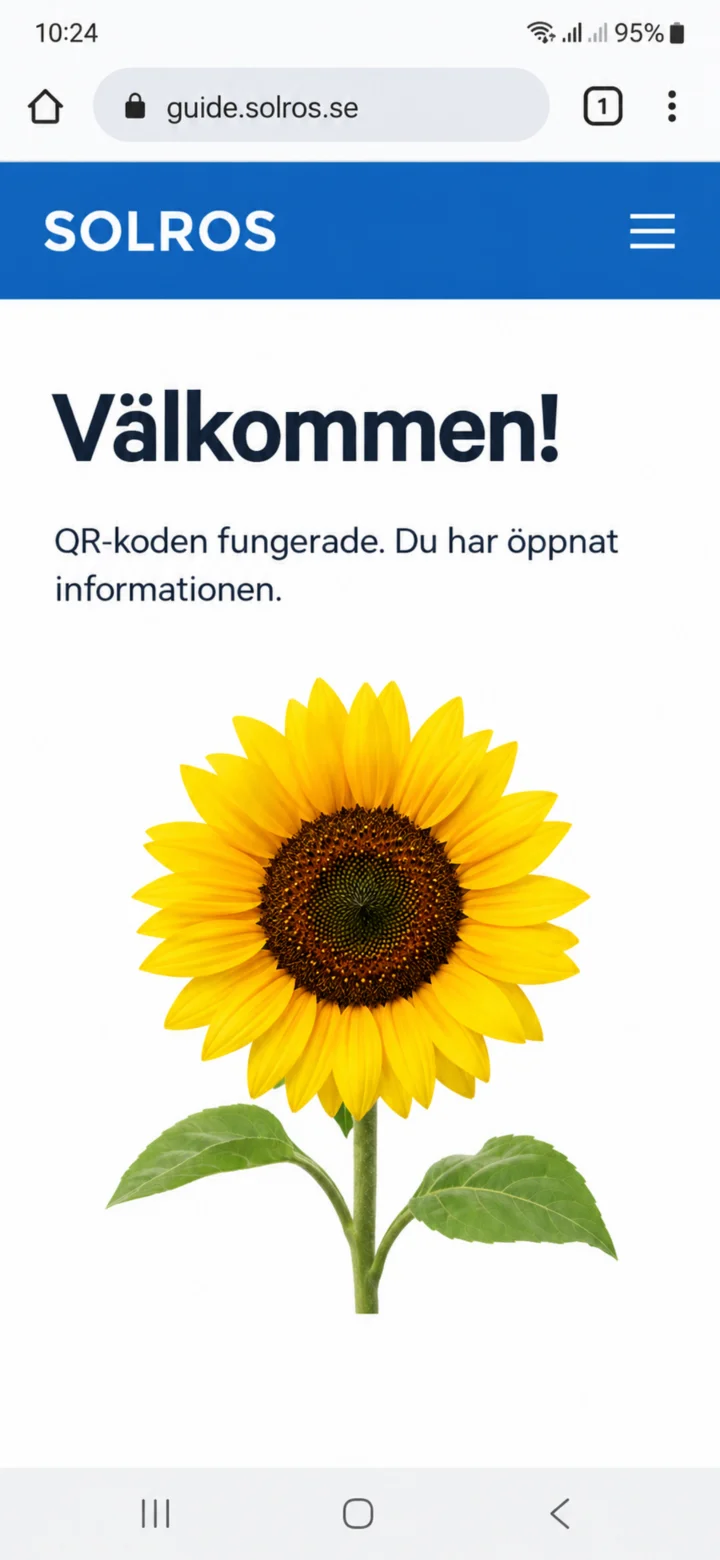
The webpage will open in Chrome. Check that the address seems correct.
Share a picture via SMS
Android 1Step 1 of 5 · Android
We're going to learn how to send a picture in an SMS.
 2Step 2 of 5 · Android
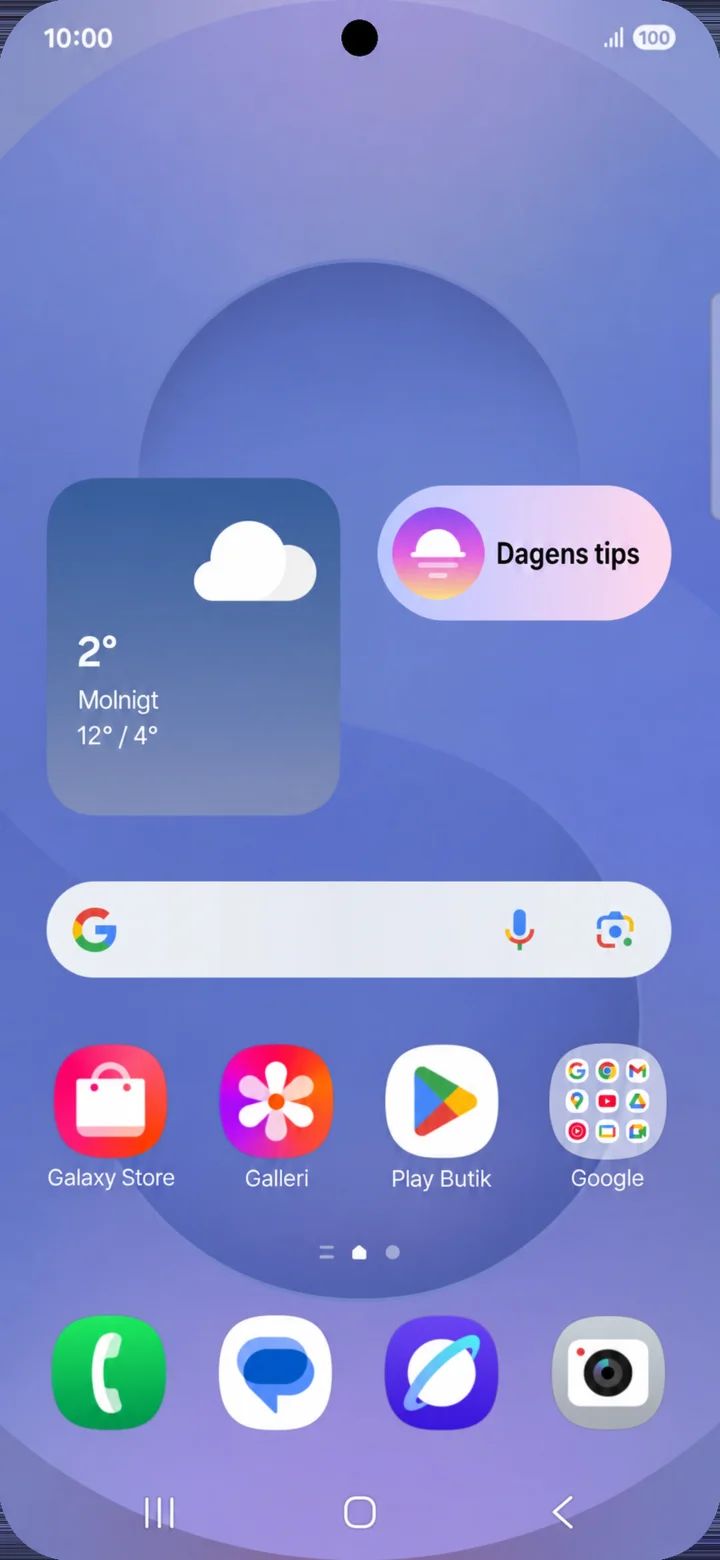
Start from your home screen. Tap on Meddelanden (Messages).
 3Step 3 of 5 · Android
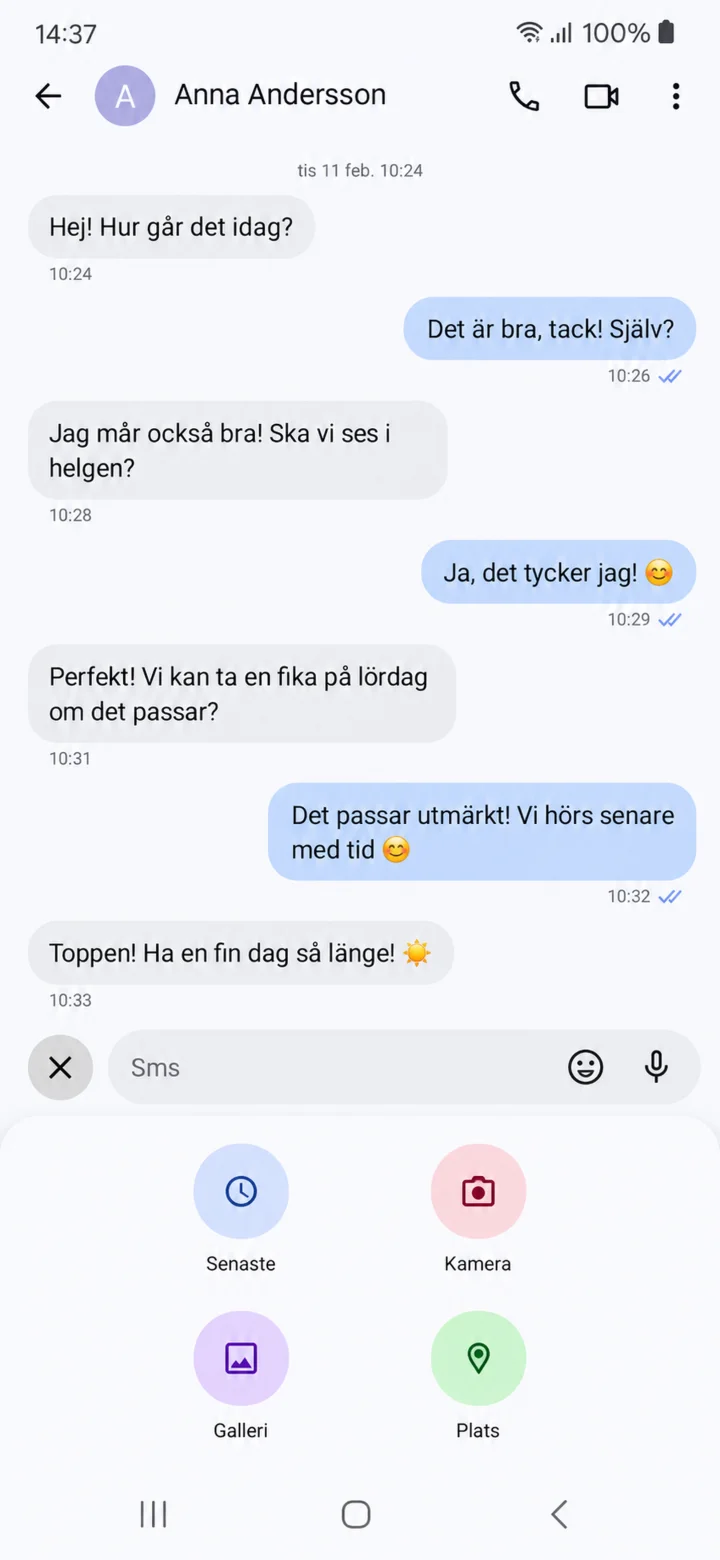
Open the person you want to write to. Tap on the plus sign and then Galleri (Gallery).
 4Step 4 of 5 · Android
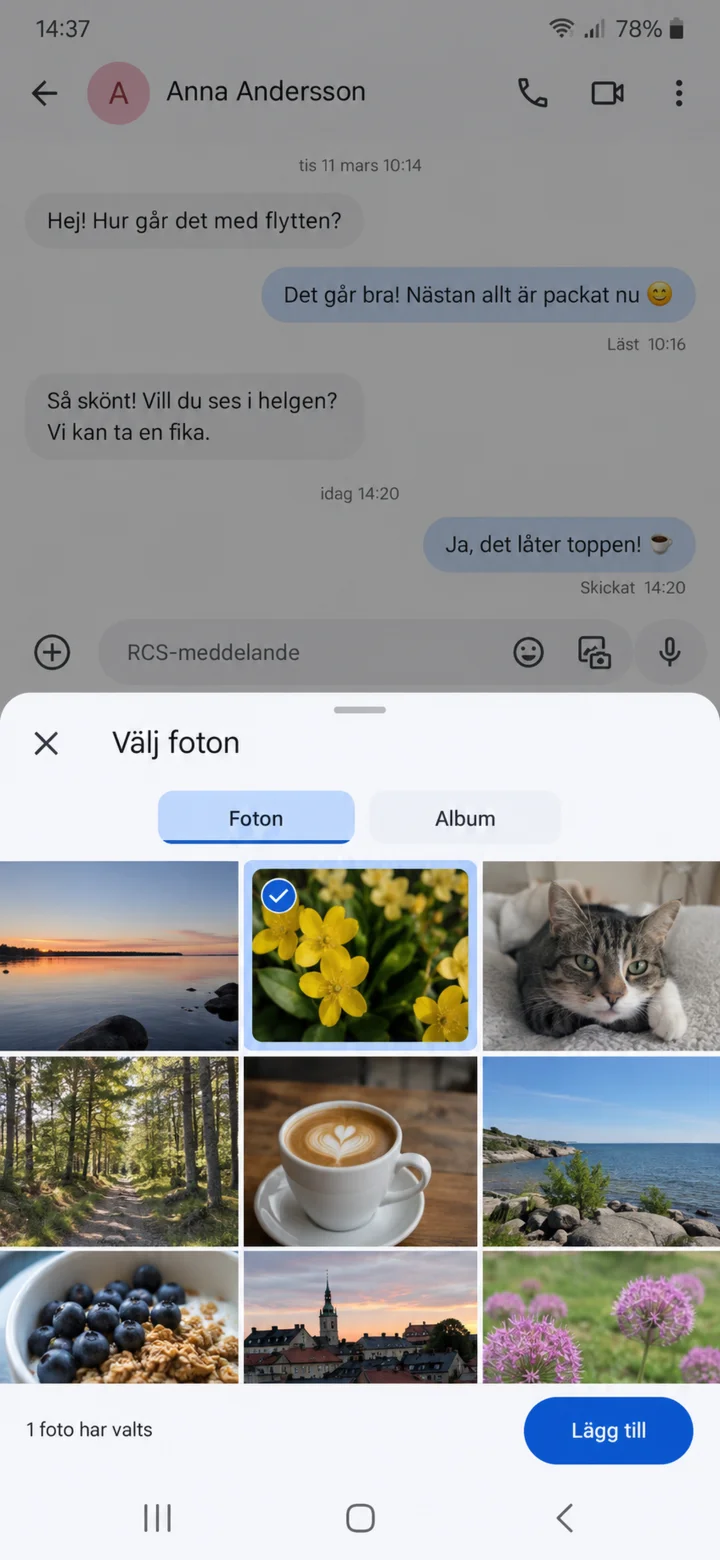
Tap on the picture you want to send and then Lägg till (Add).
 5Step 5 of 5 · Android
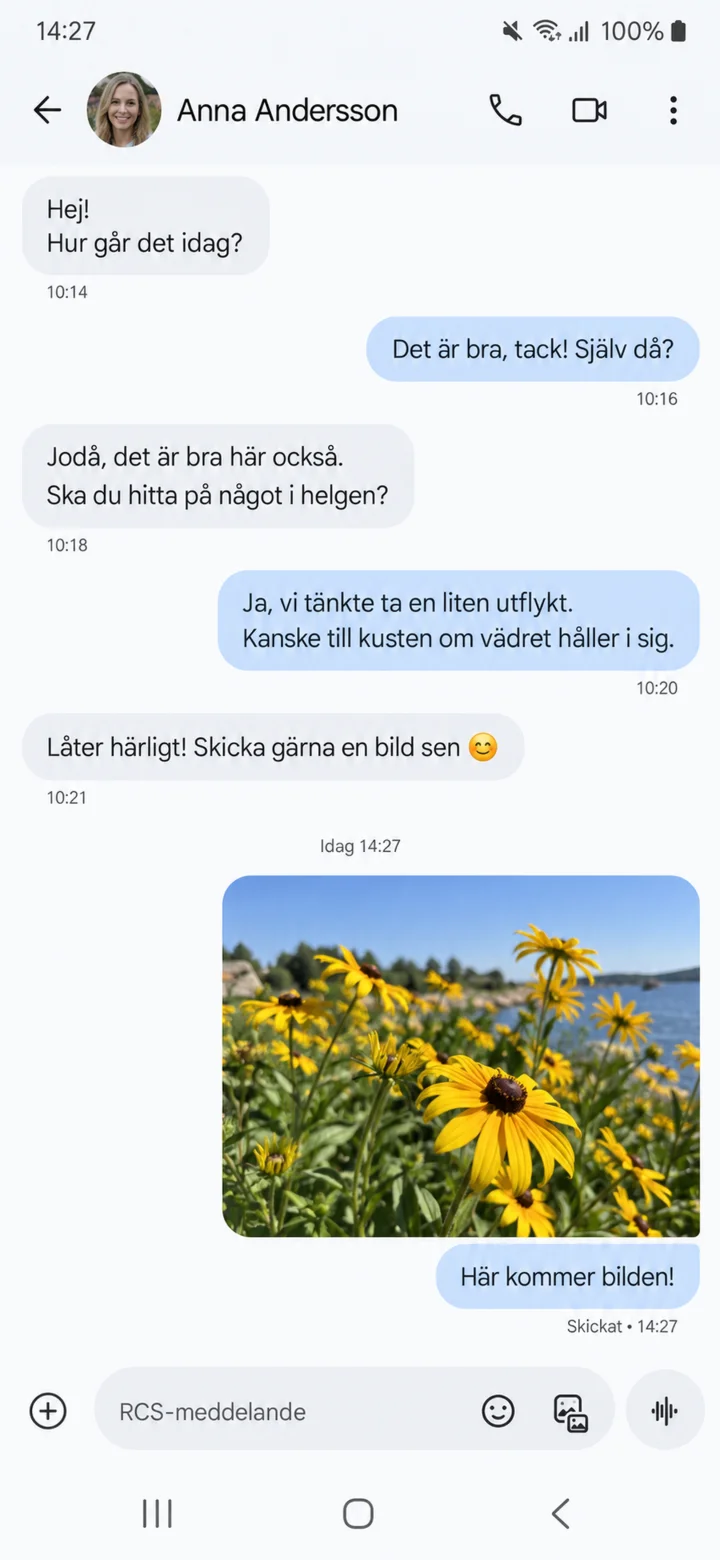
Check the picture and send it. Here you can see the picture as sent. Good job! You have now sent your first picture.
Share internet from your mobile
Android 1Step 1 of 8 · Android
We will now learn how to share your mobile's internet with a computer or tablet.
 2Step 2 of 8 · Android
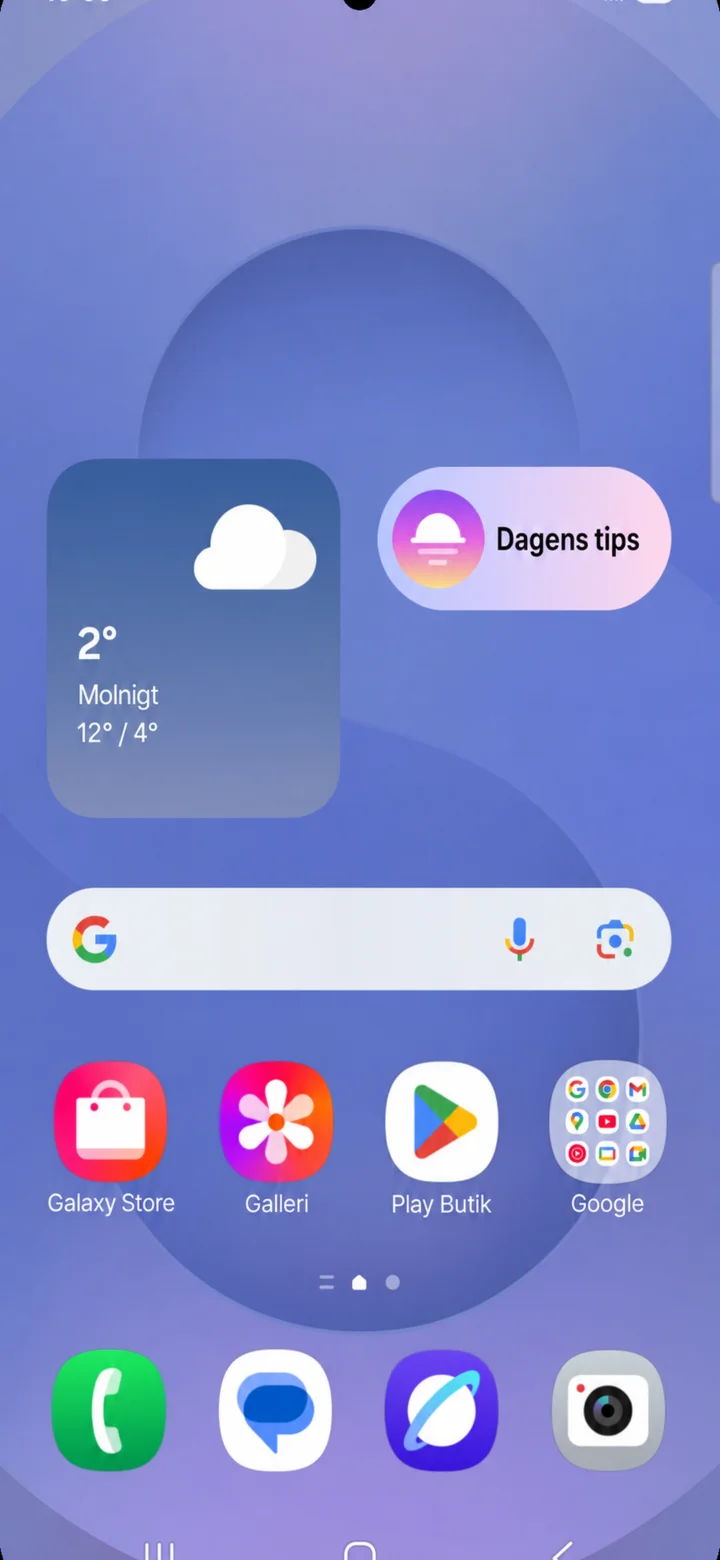
Start on the home screen. Drag downwards from the top of the screen to open the quick panel.
 3Step 3 of 8 · Android
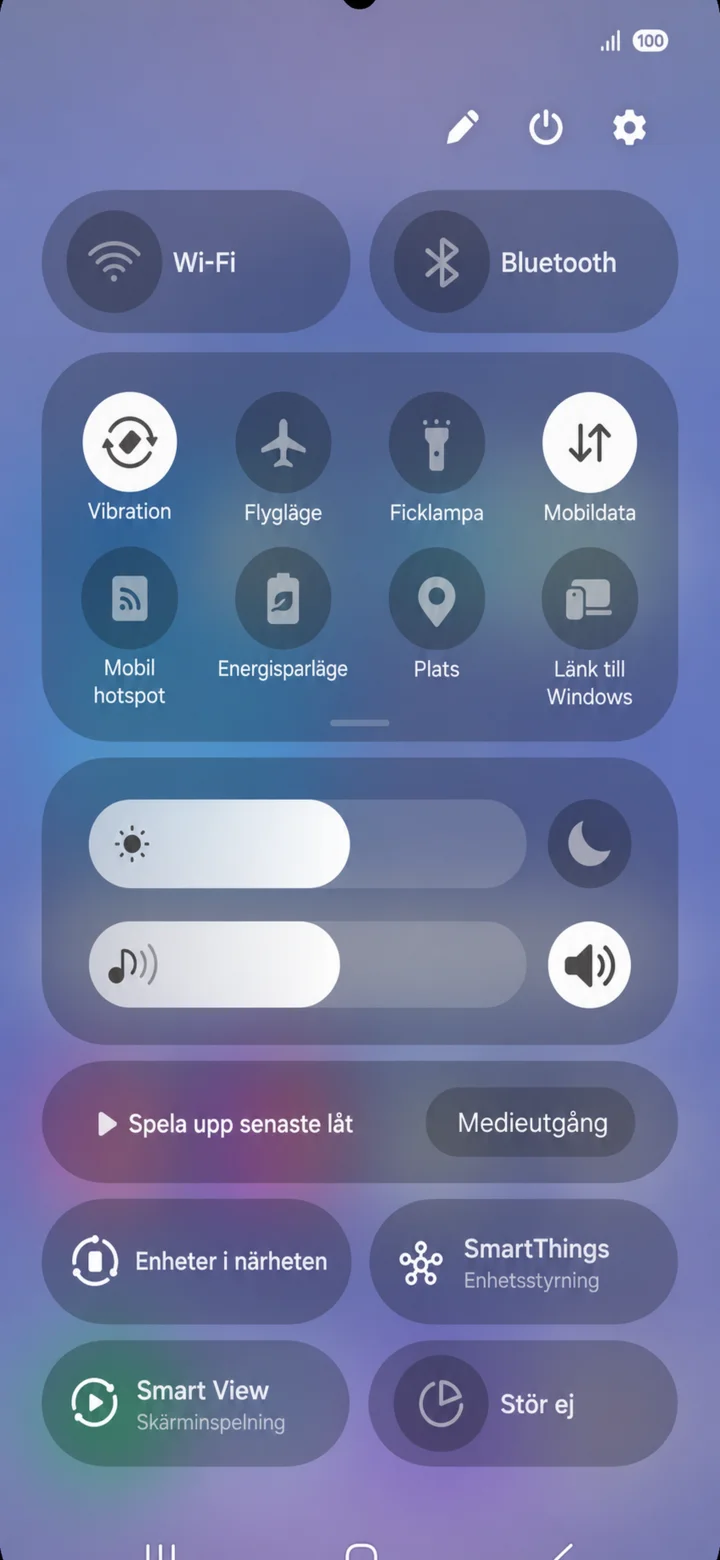
The quick panel opens. Tap on the cogwheel in the top right.
 4Step 4 of 8 · Android
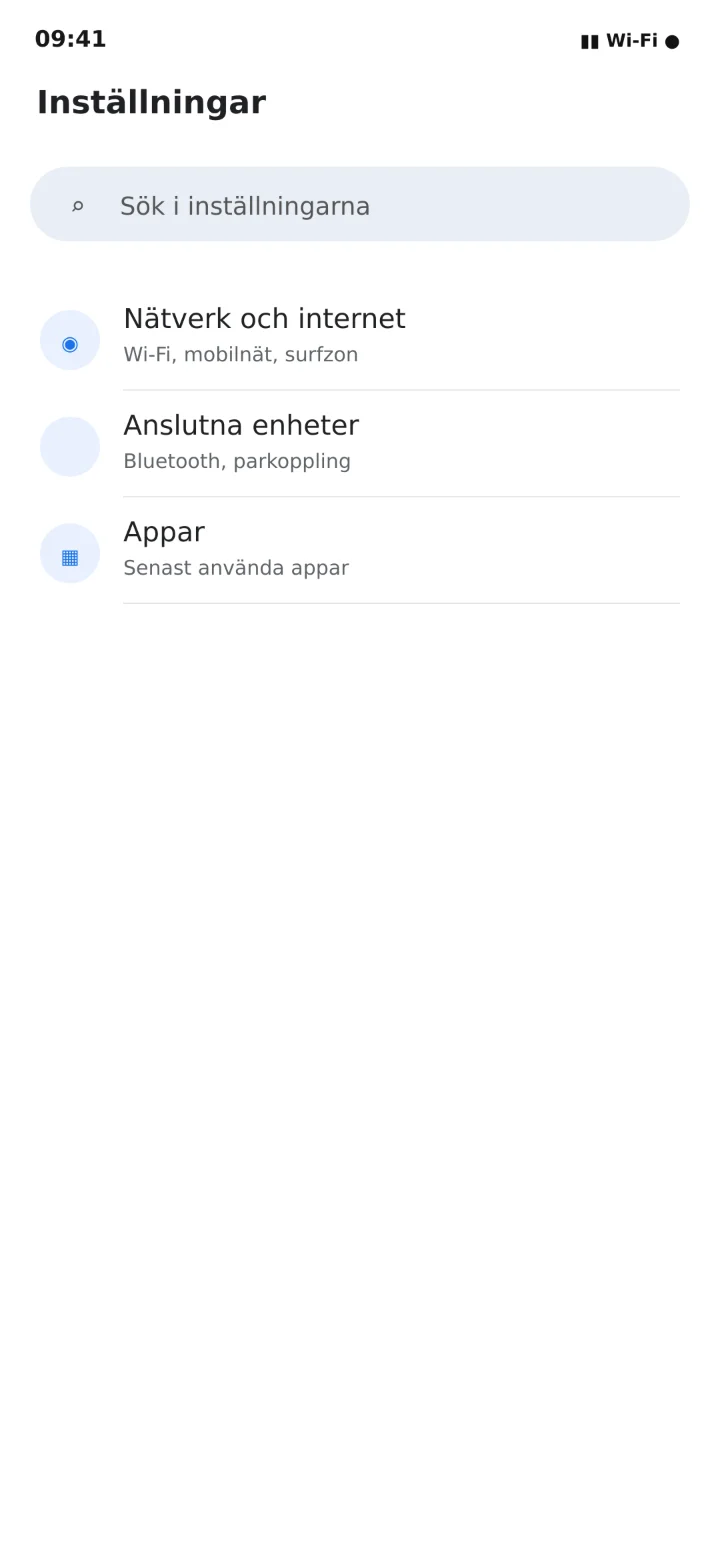
In Inställningar (Settings), tap on Nätverk och internet (Network and internet).
 5Step 5 of 8 · Android
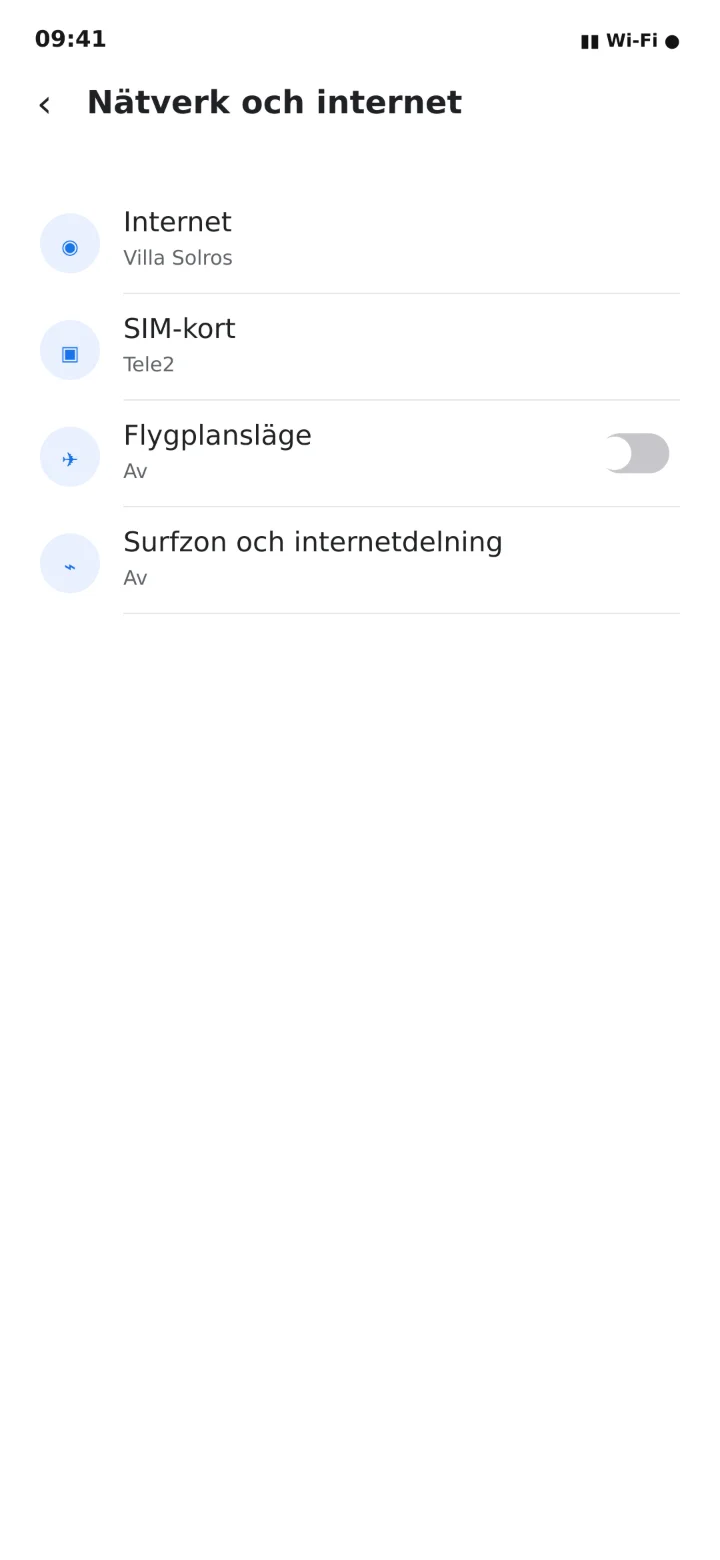
Tap on Surfzon och internetdelning (Hotspot and internet sharing).
 6Step 6 of 8 · Android
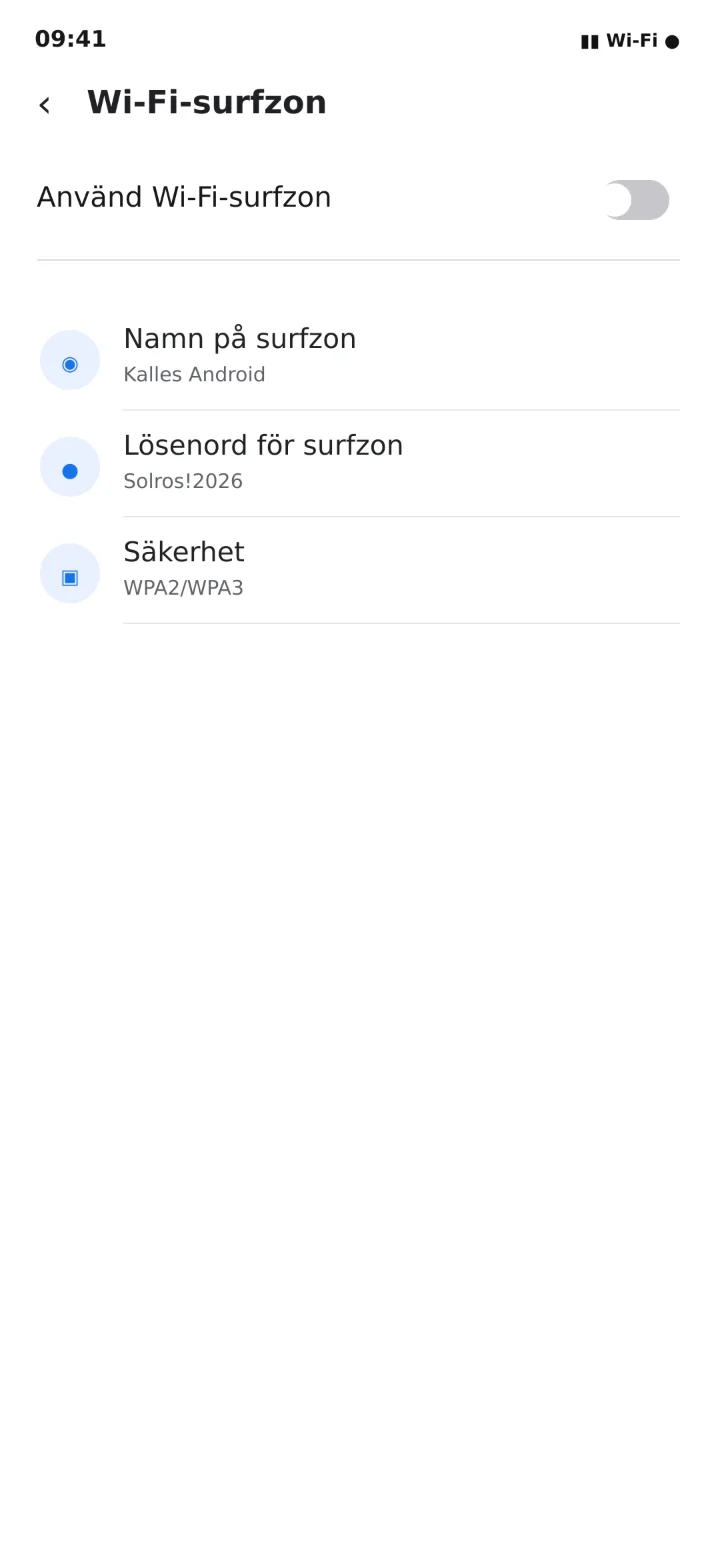
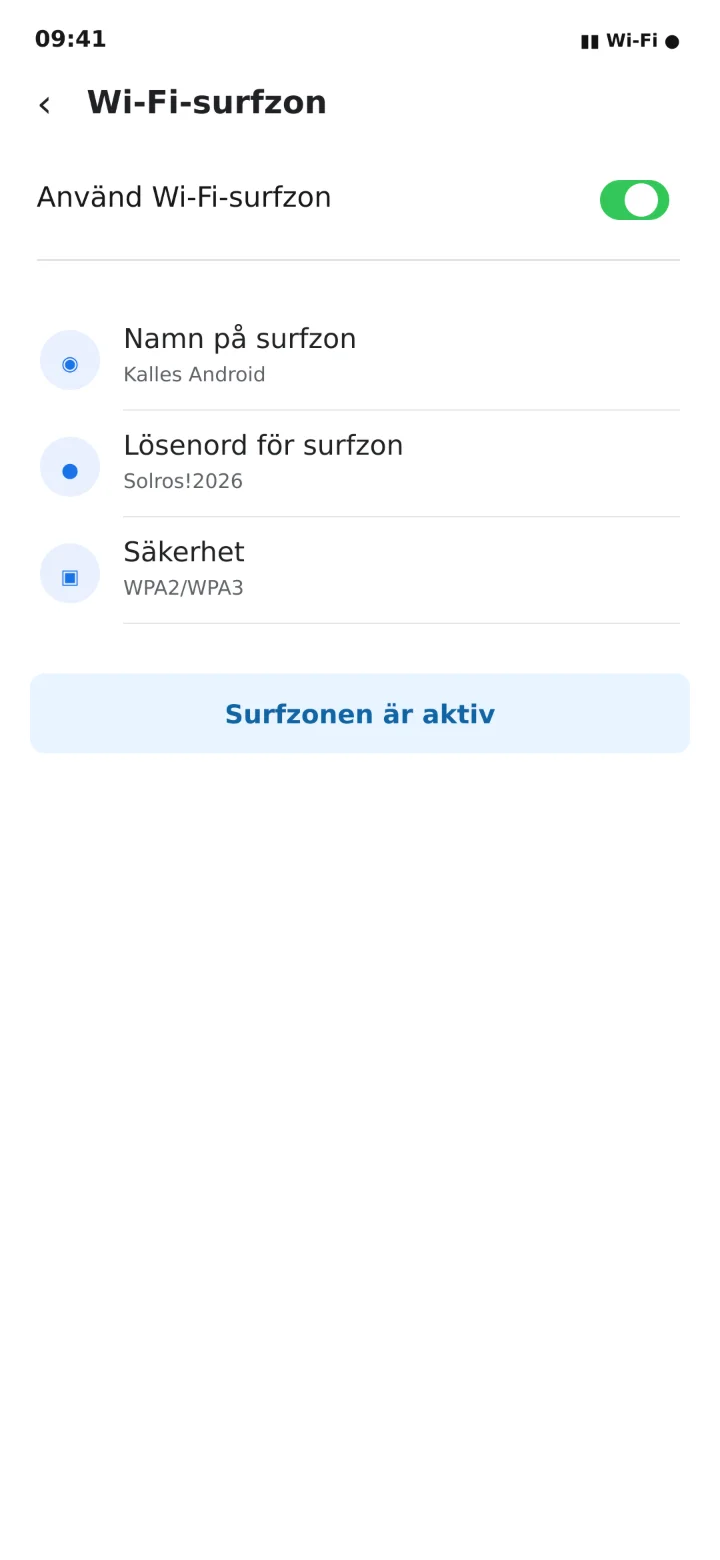
Open Wi-Fi-surfzon (Wi-Fi hotspot) and turn on Använd Wi-Fi-surfzon (Use Wi-Fi hotspot).
 7Step 7 of 8 · Android
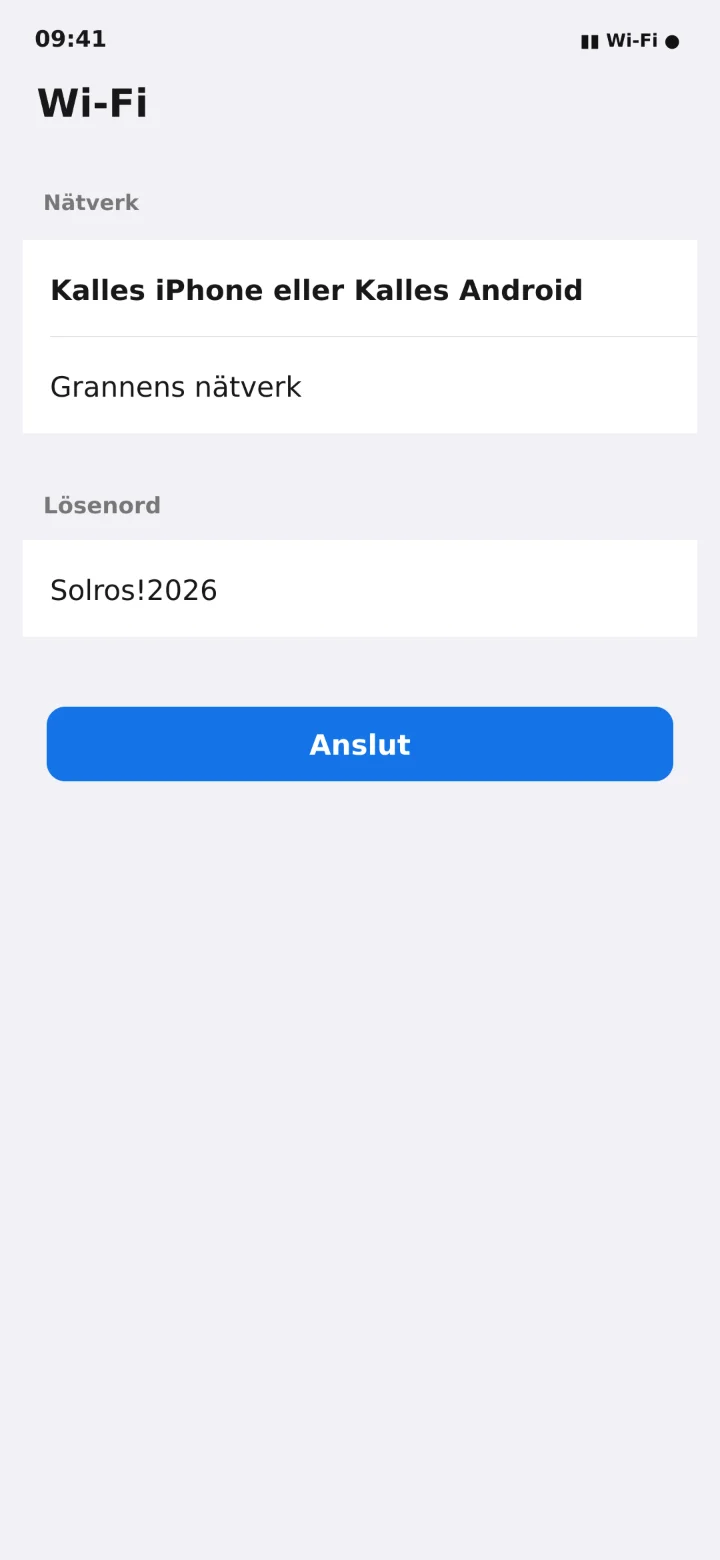
Note down the hotspot's name and password. In the example, the name is Kalles Android.
 8Step 8 of 8 · Android
Öppna Wi-Fi på datorn eller surfplattan, välj mobilens namn och skriv lösenordet.
Take a picture with your mobile phone
Android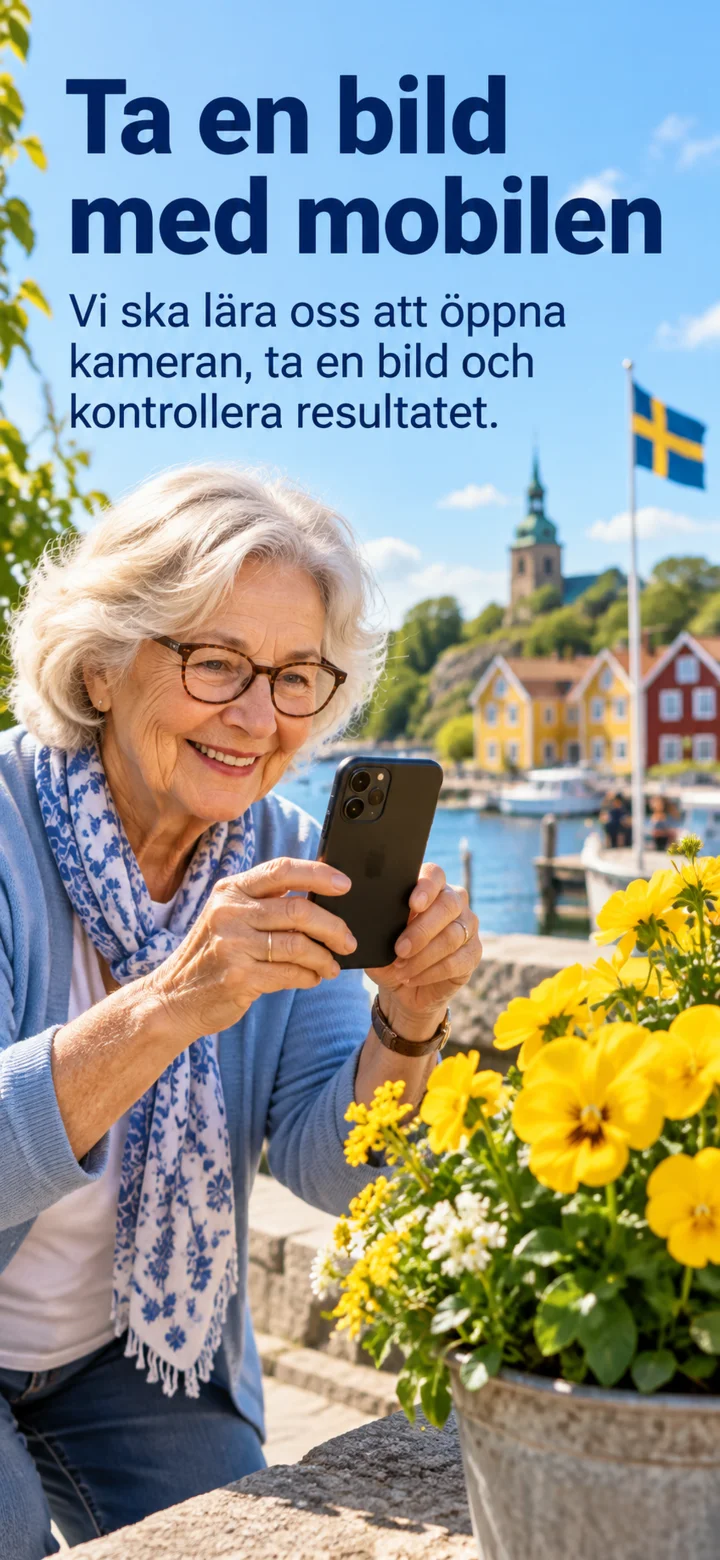 1Step 1 of 4 · Android
We're going to learn how to open the camera, take a picture, and check the result.
 2Step 2 of 4 · Android
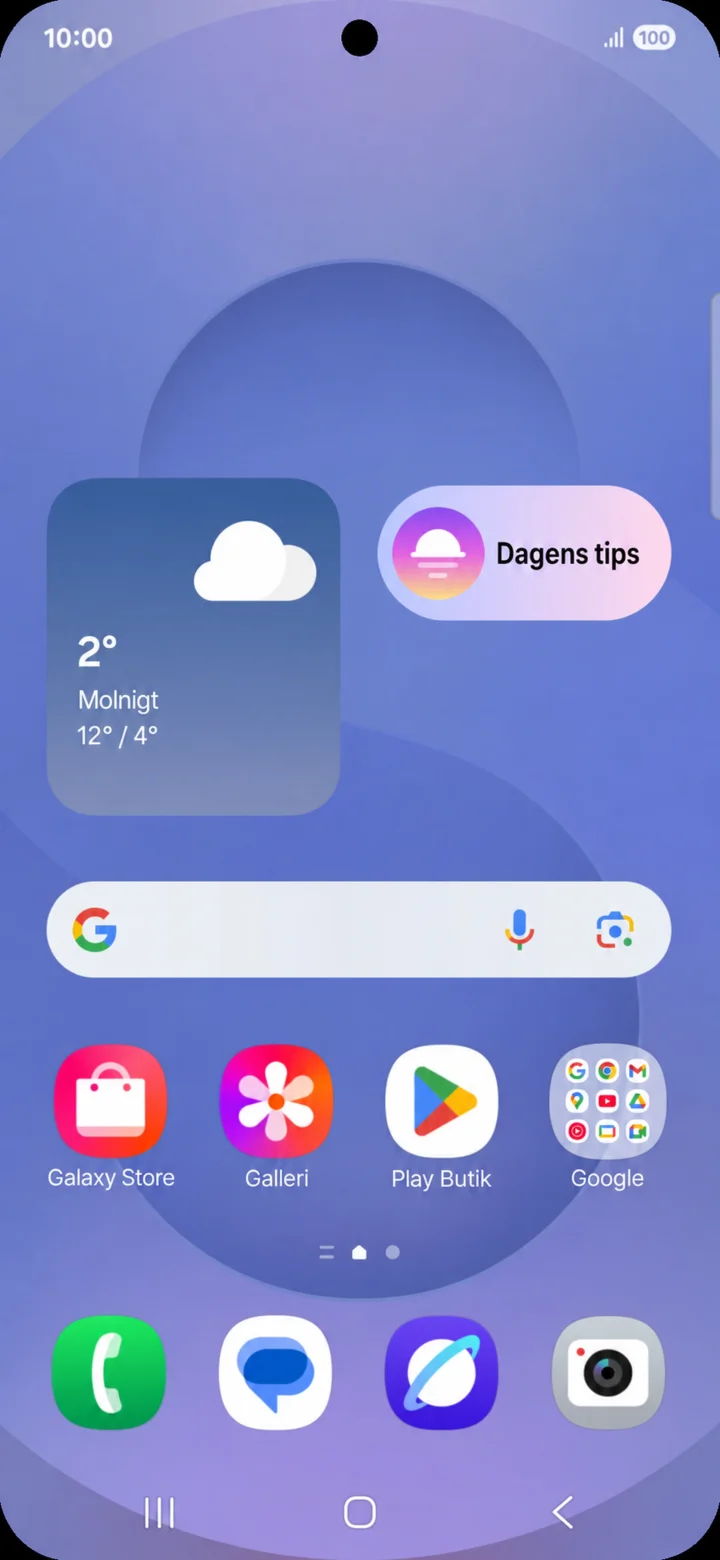
Start from the home screen and tap Kamera.
 3Step 3 of 4 · Android
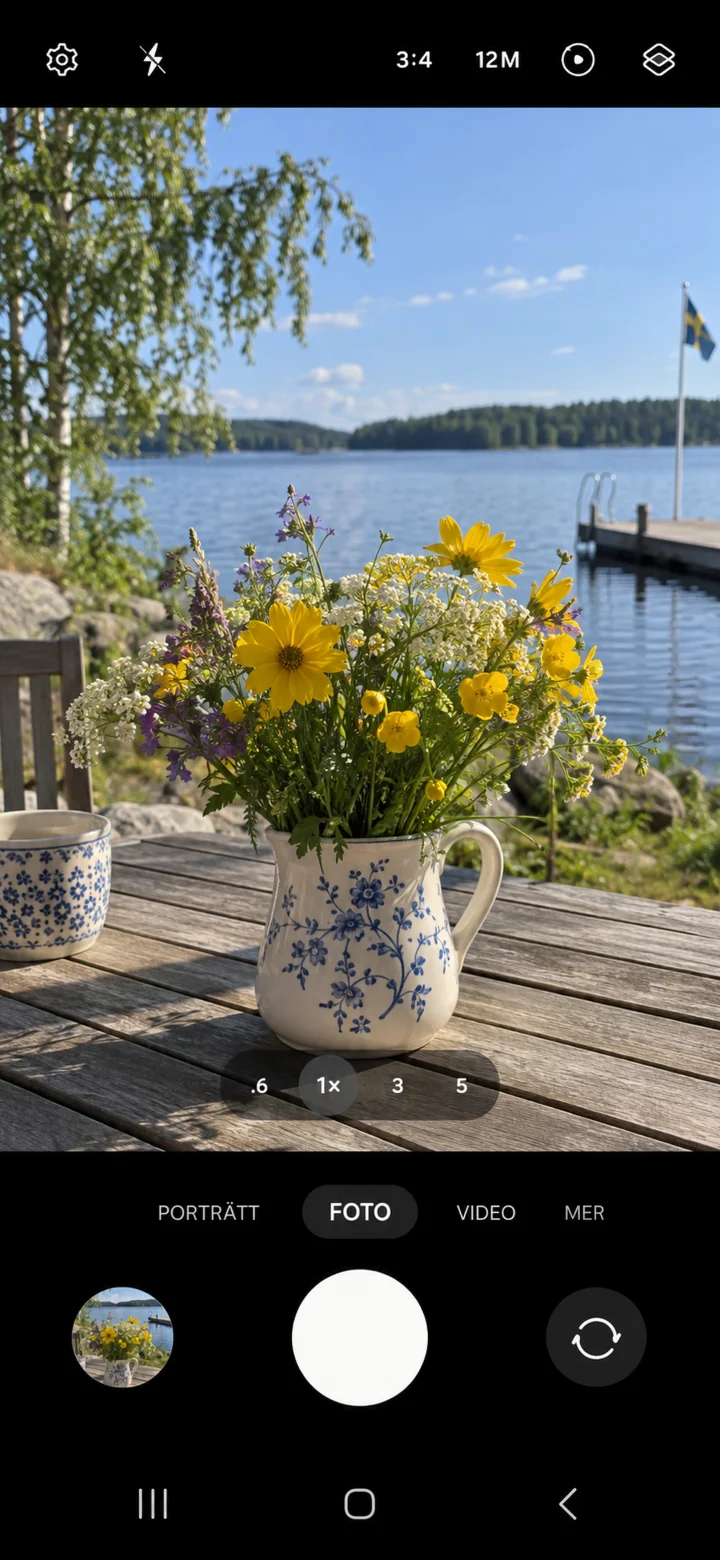
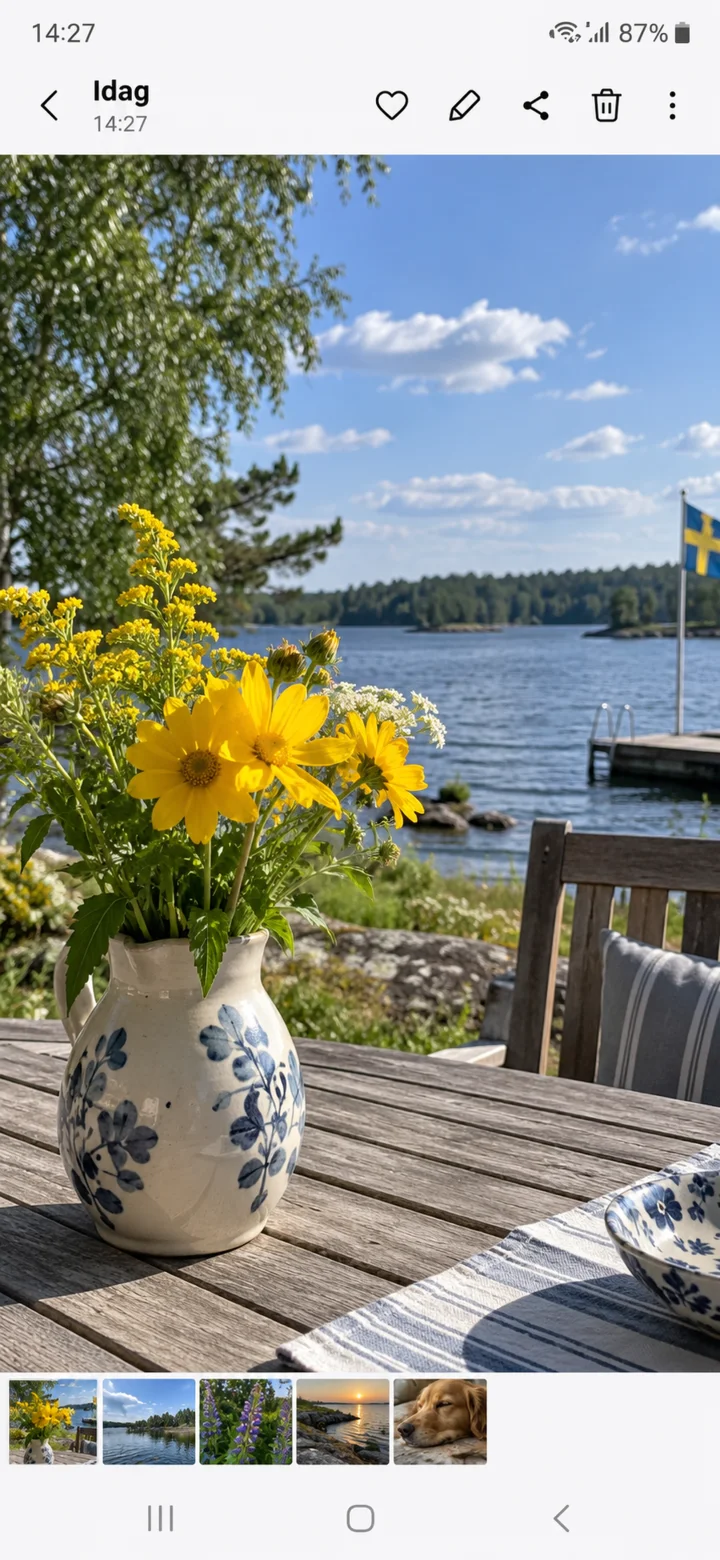
Check that the Foto mode is selected. Hold your phone steady and tap the white shutter button.
 4Step 4 of 4 · Android
Tap the small picture in the bottom left to check the photo.
Watch a movie on YouTube
Android 1Step 1 of 7 · Android
We're going to learn how to search for and watch a movie on YouTube.
 2Step 2 of 7 · Android
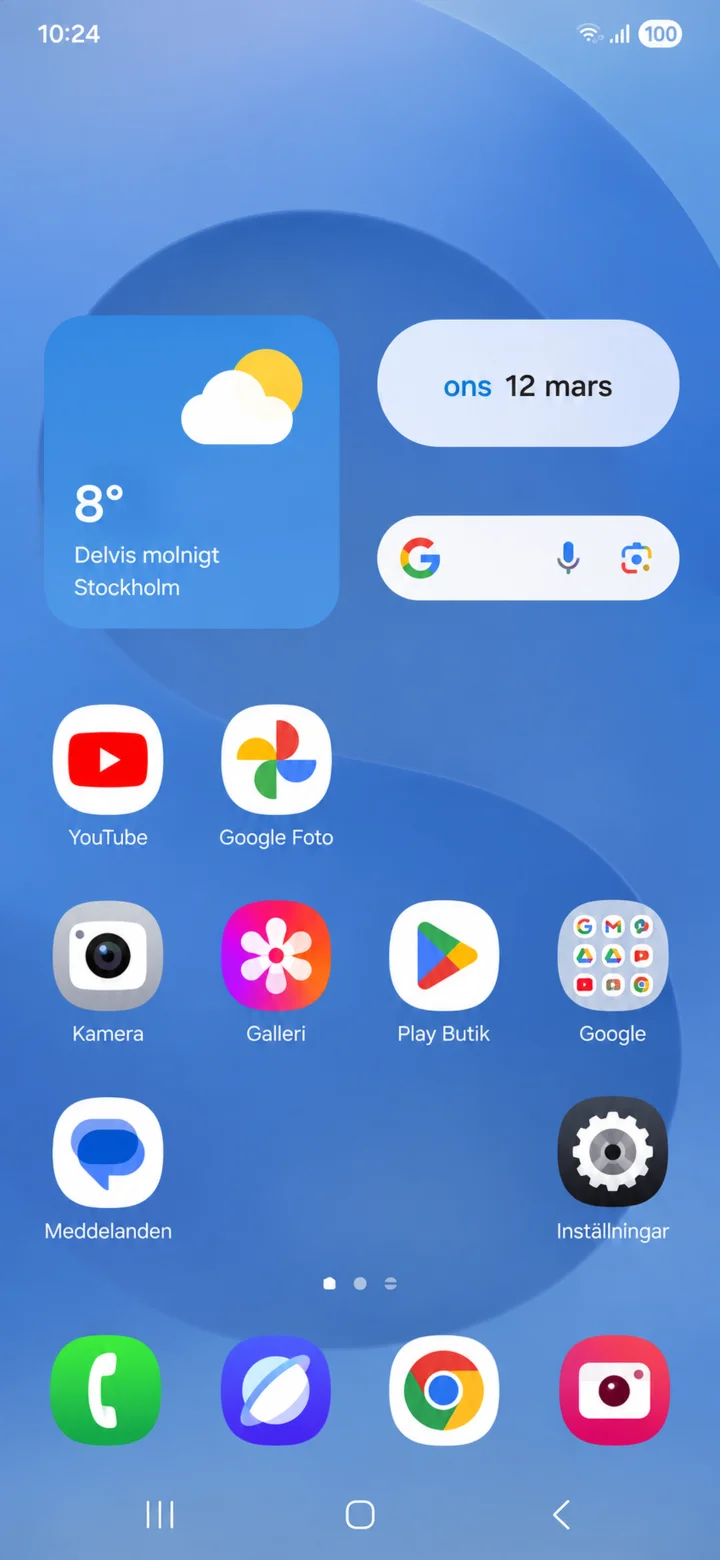
From your home screen, tap on YouTube.
 3Step 3 of 7 · Android
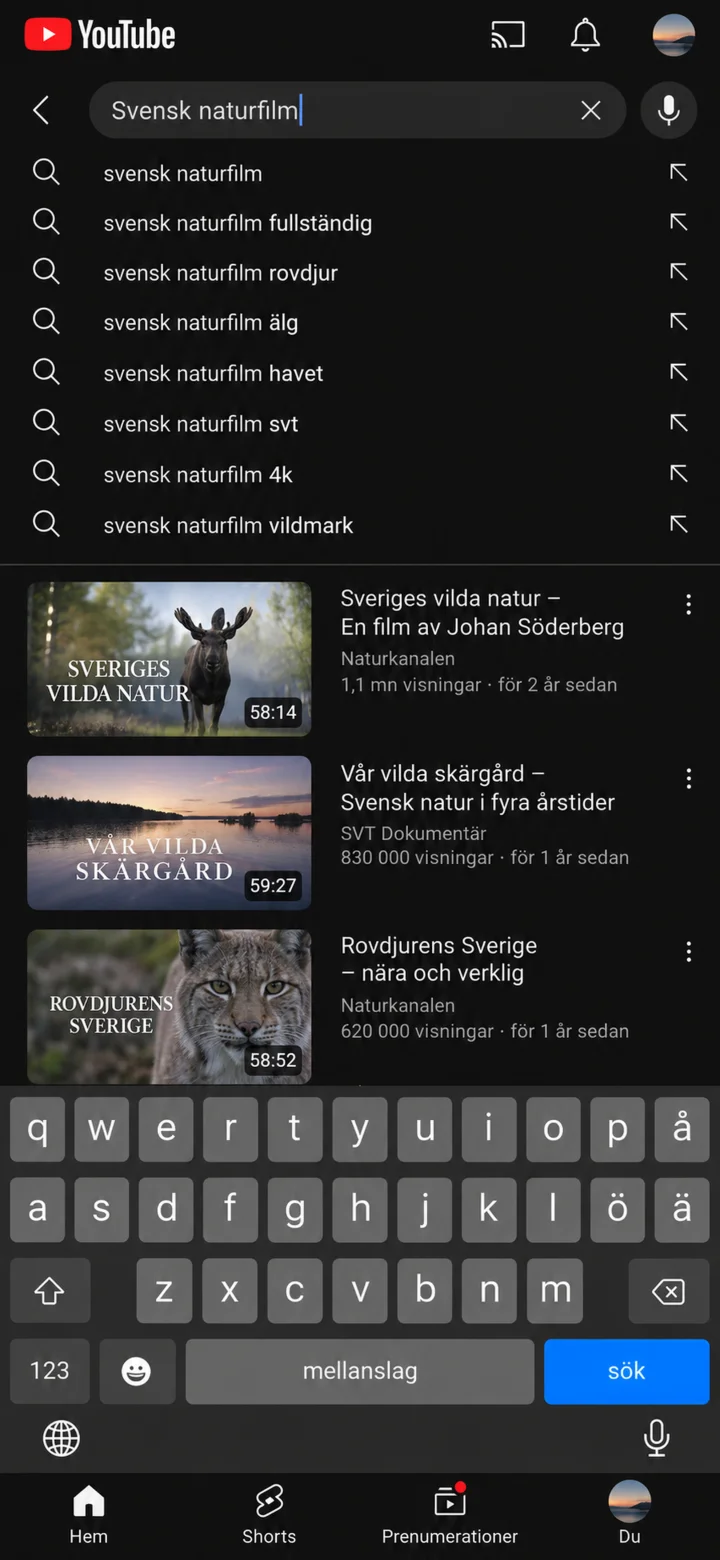
Tap the magnifying glass icon. Type what you'd like to watch, and then tap ”Sök” (Search).
 4Step 4 of 7 · Android
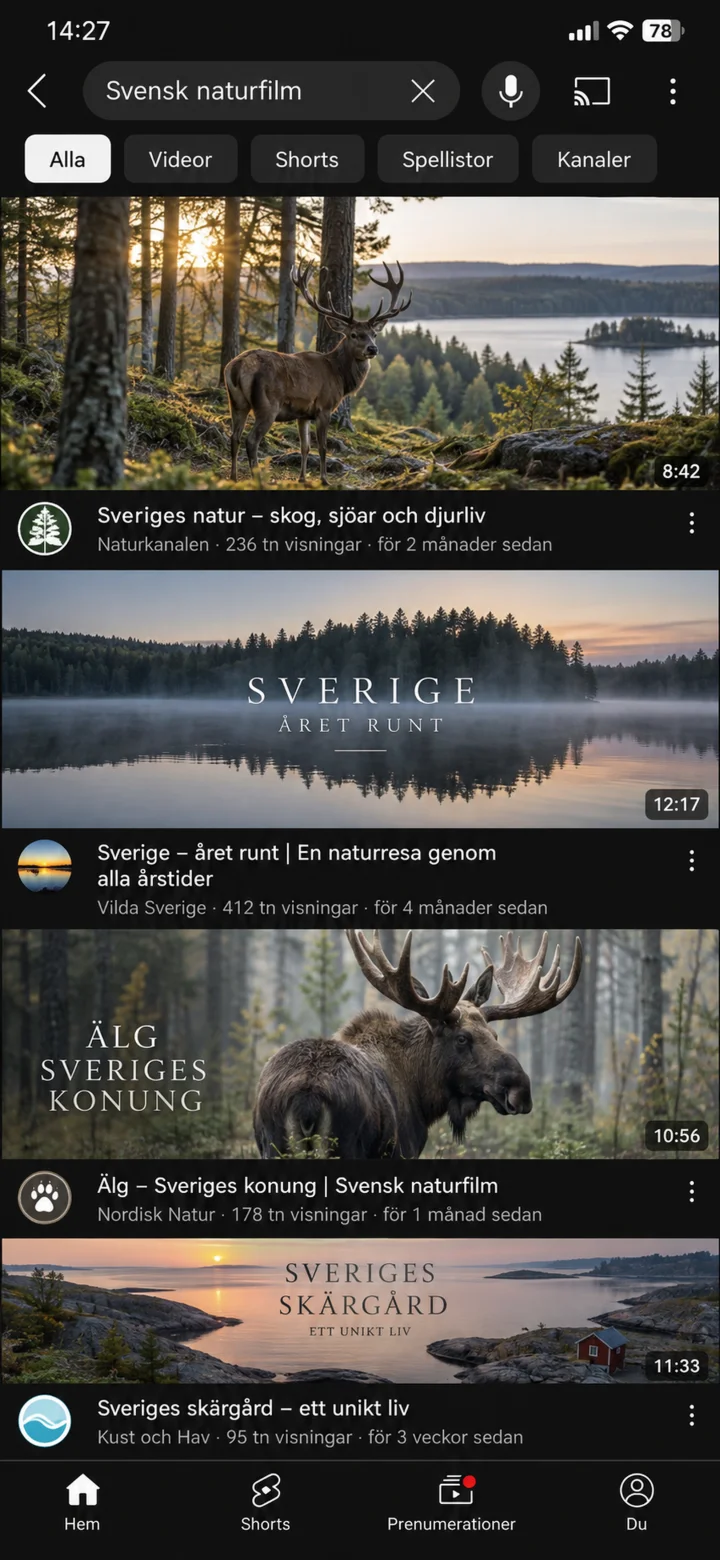
Tap on the movie you want to watch.
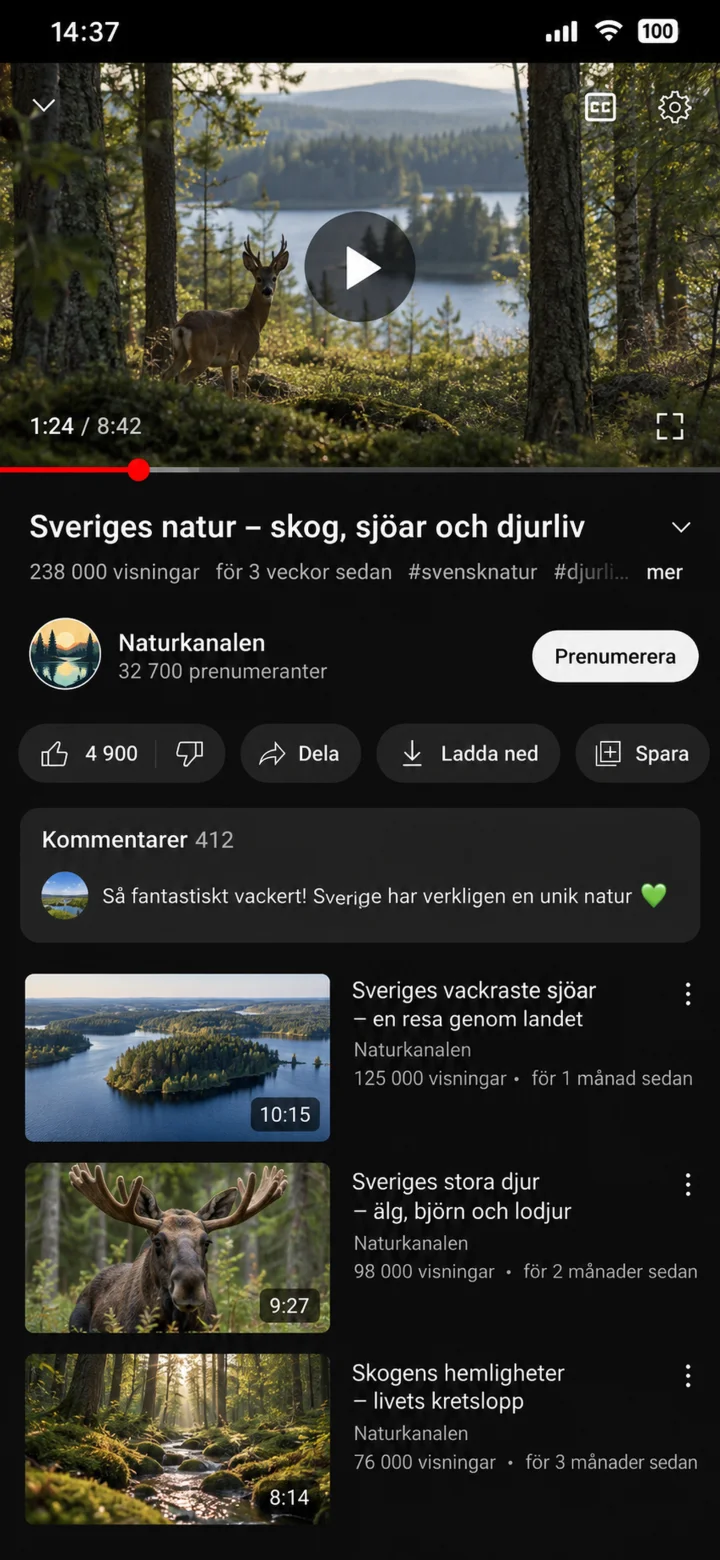 5Step 5 of 7 · Android
Tap the middle of the movie to show the controls. Then, tap ”play” to start or pause the video.
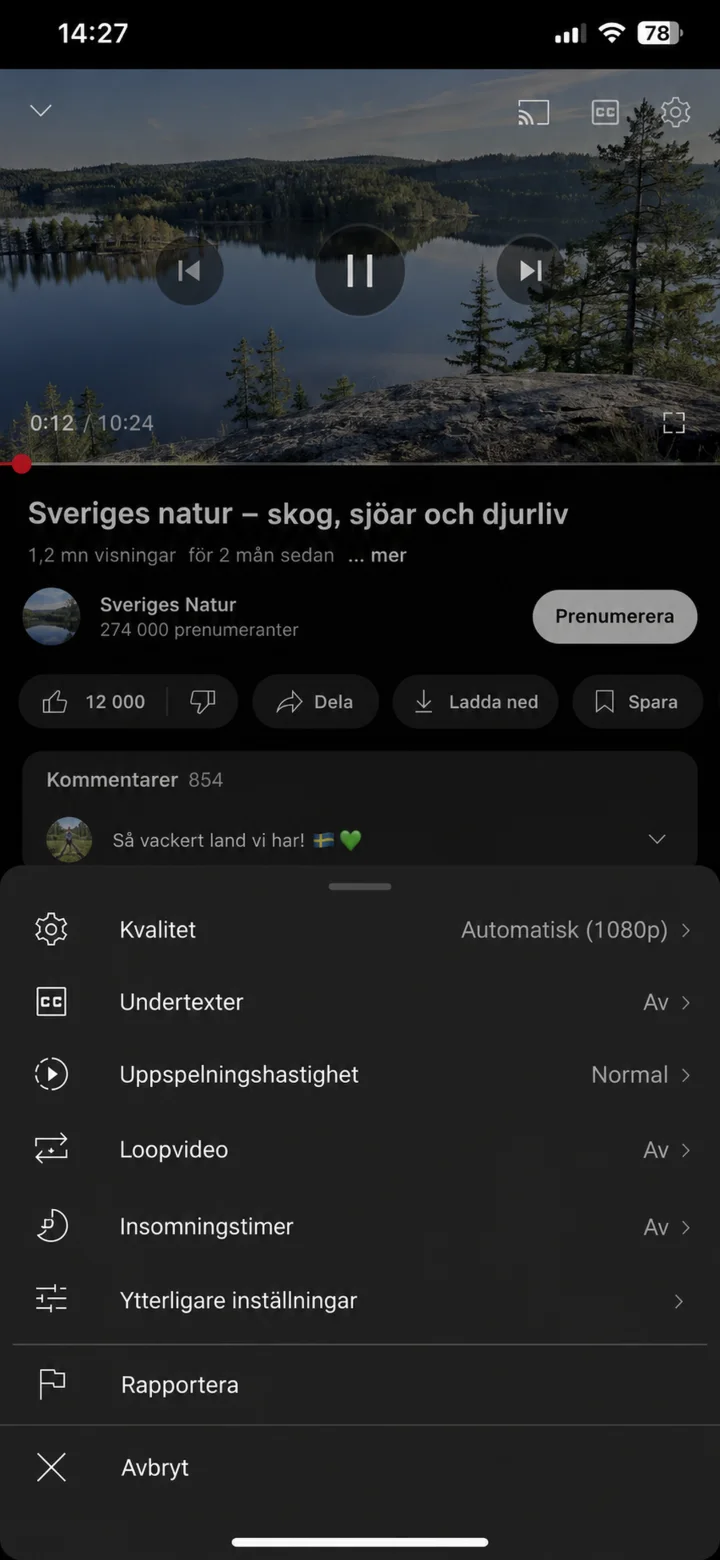 6Step 6 of 7 · Android
Tap the cogwheel icon and choose ”Undertexter” (Subtitles) if you'd like to read what's being said.
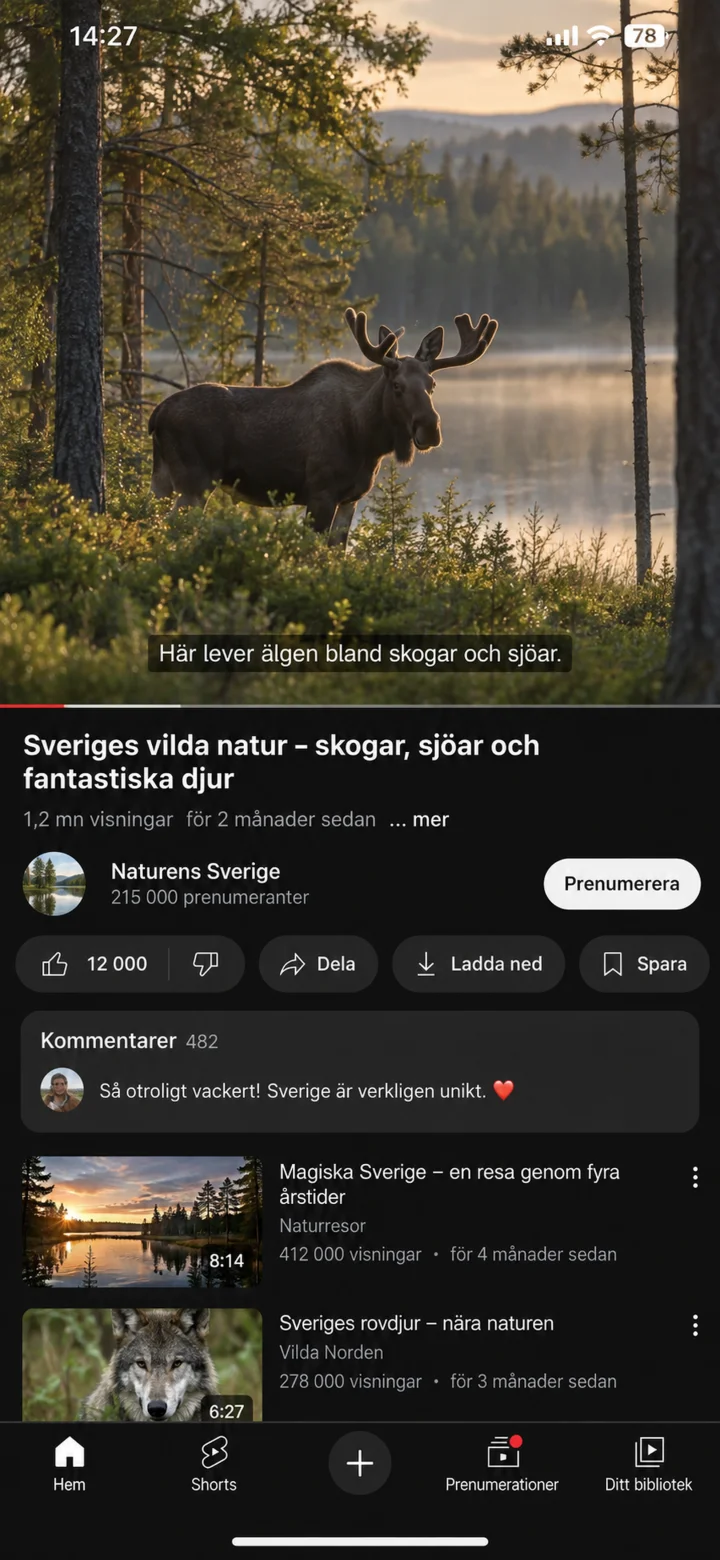 7Step 7 of 7 · Android
Now the movie is playing with Swedish subtitles.