Every guide in the topic, each starting on a new page. 57 steps in total.
Tip: untick “Headers and footers” in the print dialog to leave out the web address.
Useful apps
Step-by-step guides · 7 guides
 Android
Contents
- 1.Biblio – guide for the library app9 steps
- 2.Download and Use Sveriges Radio8 steps
- 3.Download, install, and get started with SVT Play10 steps
- 4.Download, install, and use ChatGPT3 steps
- 5.How to pick up packages in the PostNord app9 steps
- 6.How to save and change delivery in the PostNord app10 steps
- 7.ICA Shop Online8 steps
Biblio – guide for the library app
Android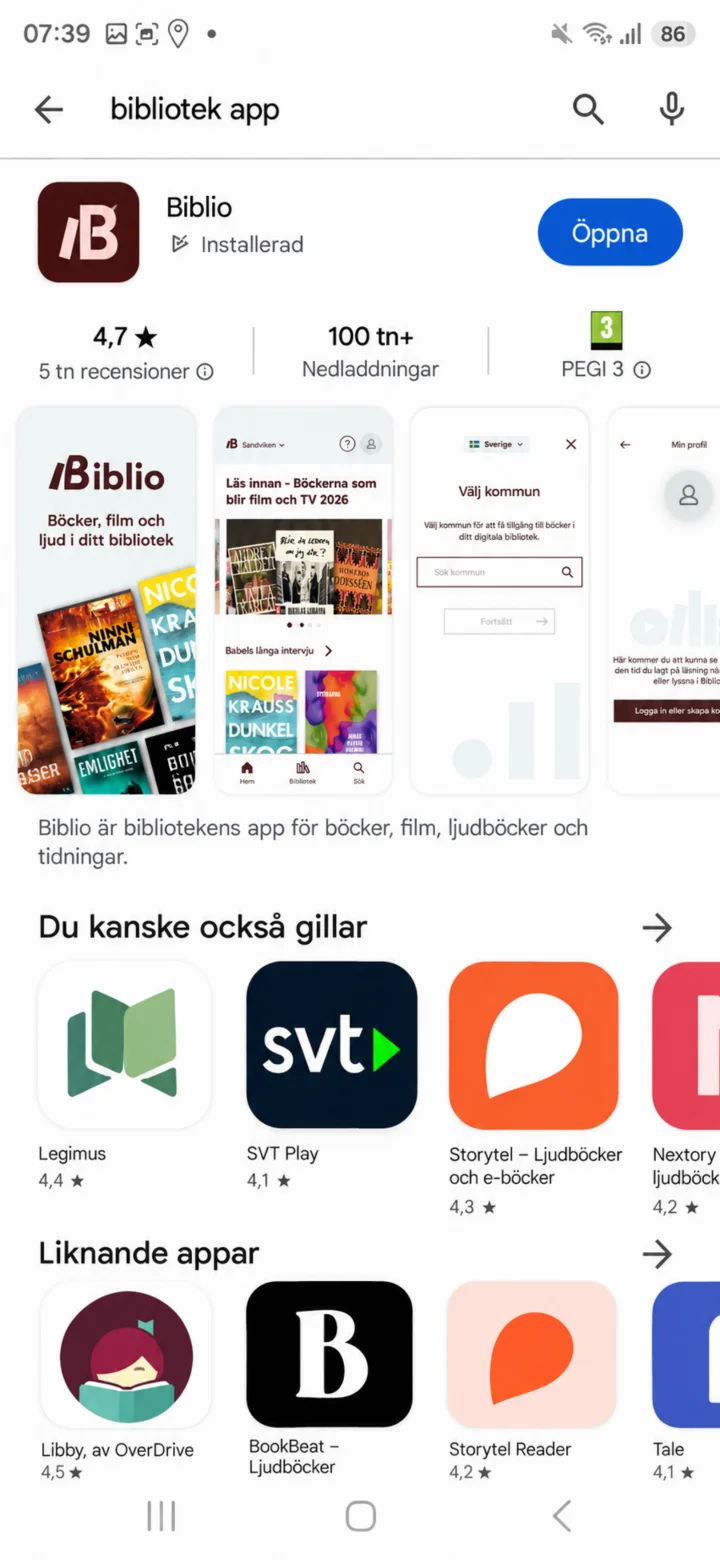 1Step 1 of 9 · Android
På Android öppnar du Google Play och söker efter bibliotek app. Välj Biblio och tryck på Öppna.
 2Step 2 of 9 · Android
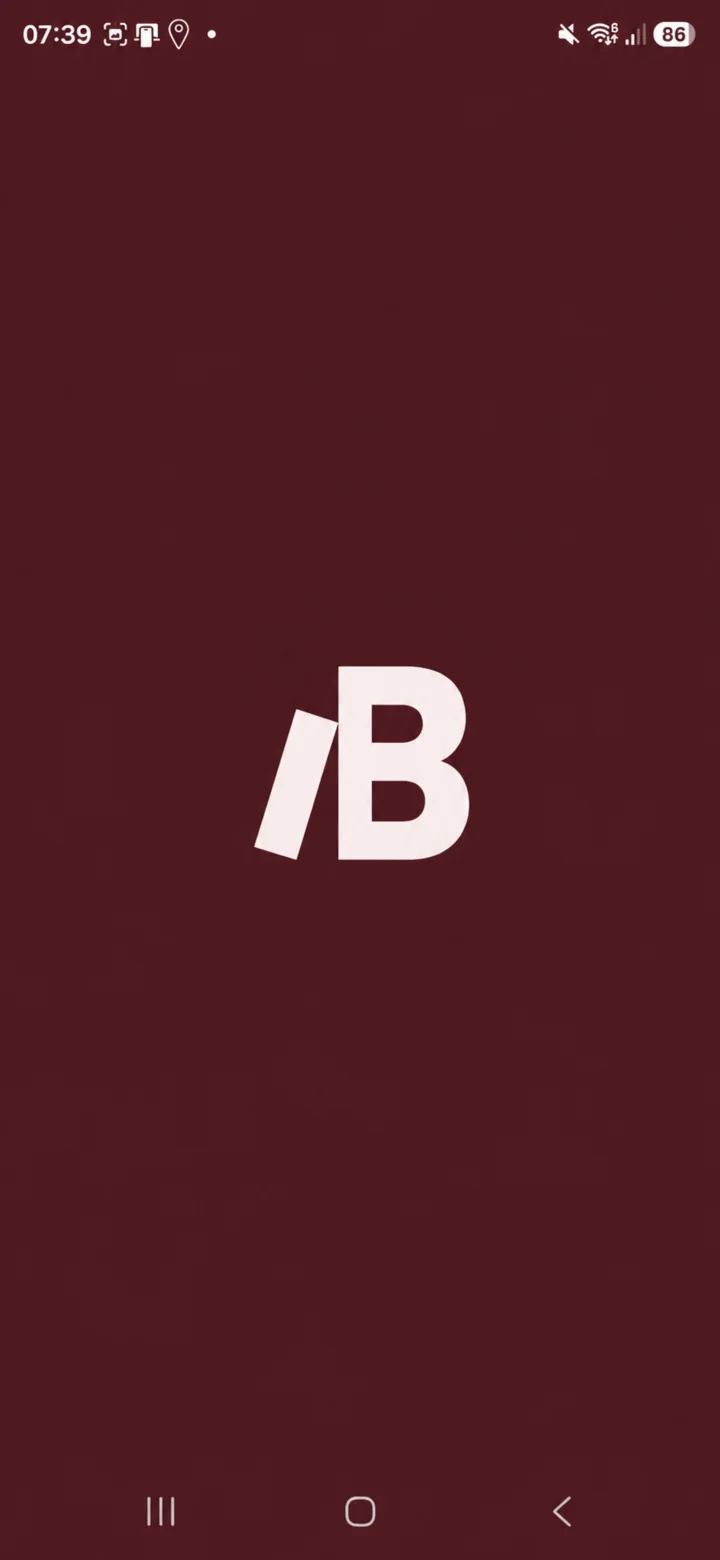
When Biblio starts, you'll see the app's symbol on a dark burgundy background.
 3Step 3 of 9 · Android
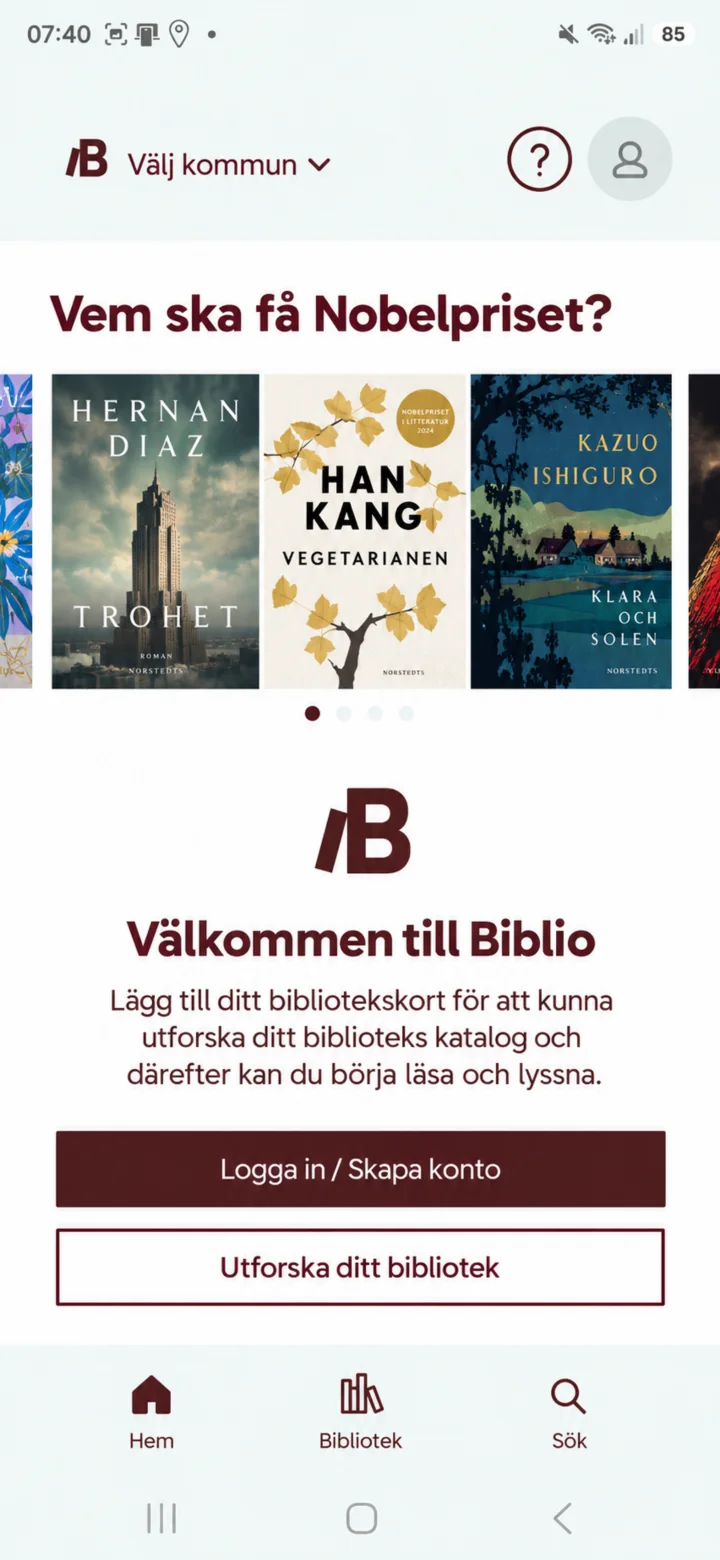
On the welcome screen, you can log in or create an account, or explore your library.
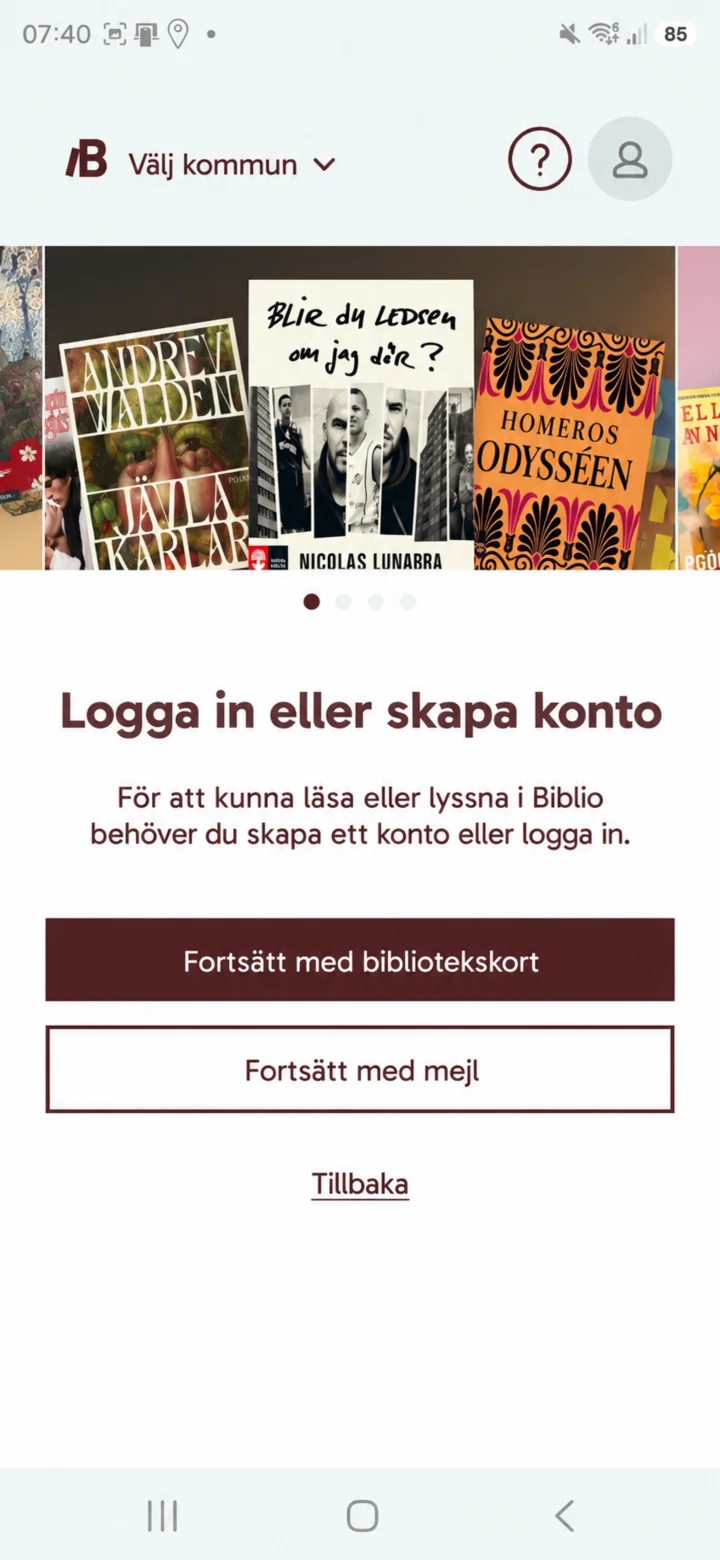 4Step 4 of 9 · Android
Choose ”Fortsätt med bibliotekskort” (Continue with library card) or ”Fortsätt med mejl” (Continue with email). You can also tap ”Tillbaka” (Back).
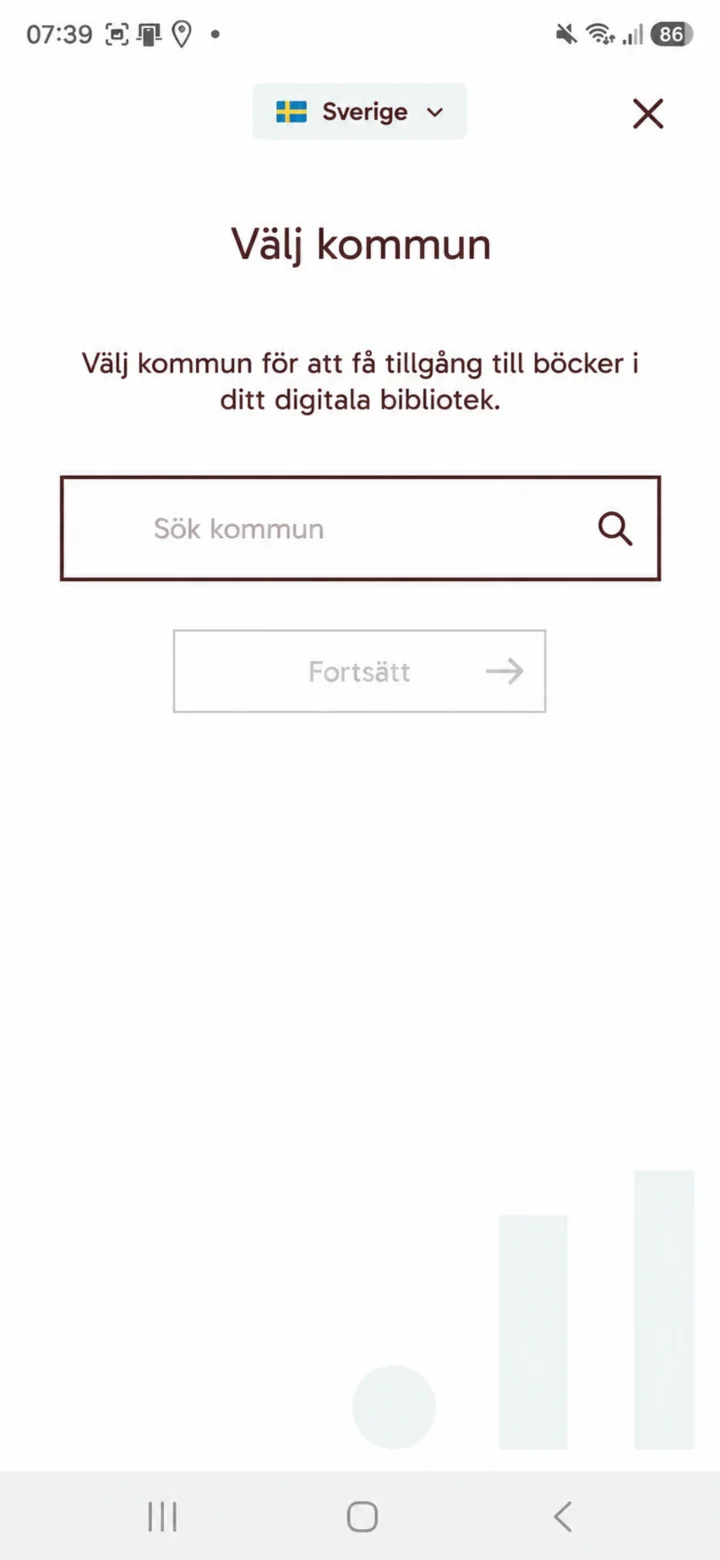 5Step 5 of 9 · Android
Choose Sverige (Sweden) and search for your municipality. In this example, we're searching for Sandviken and tapping ”Fortsätt” (Continue).
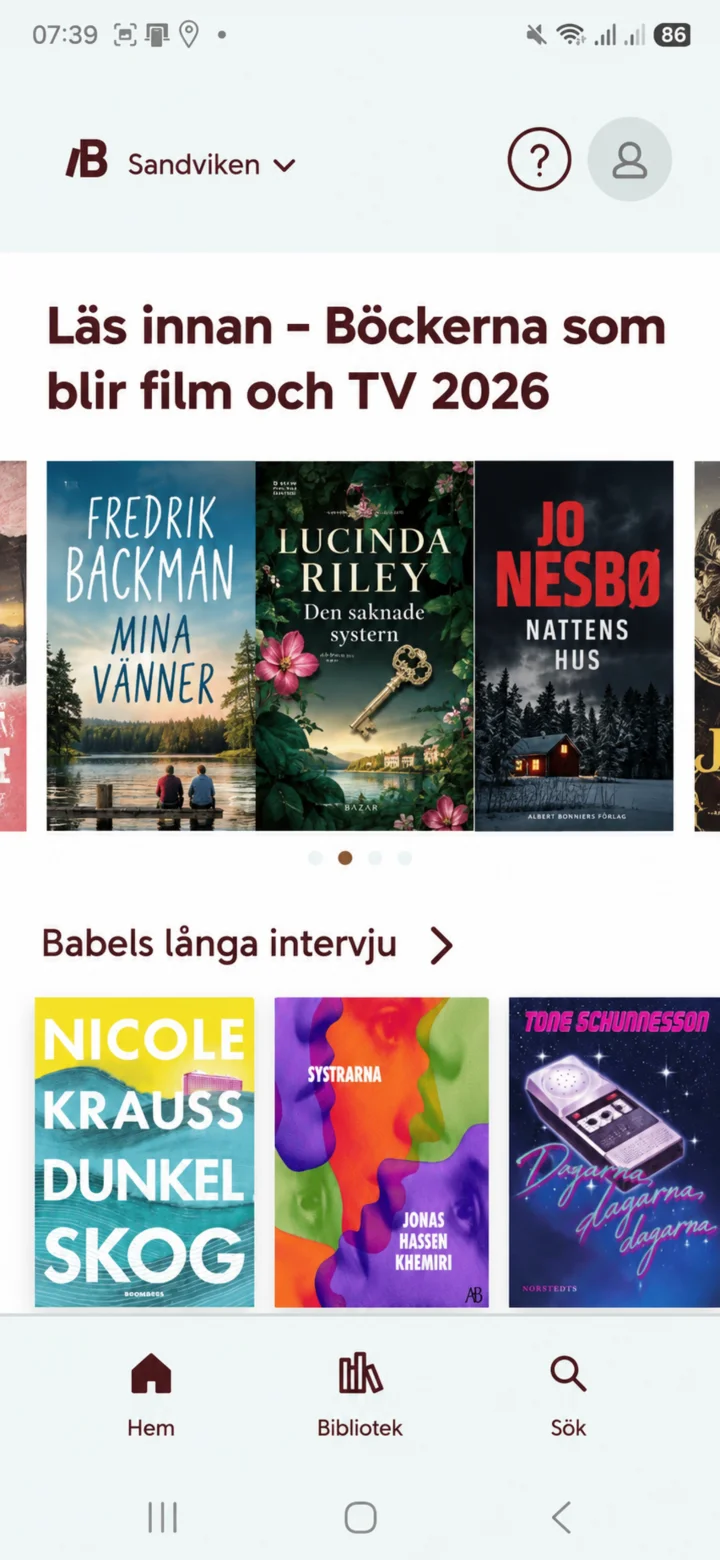 6Step 6 of 9 · Android
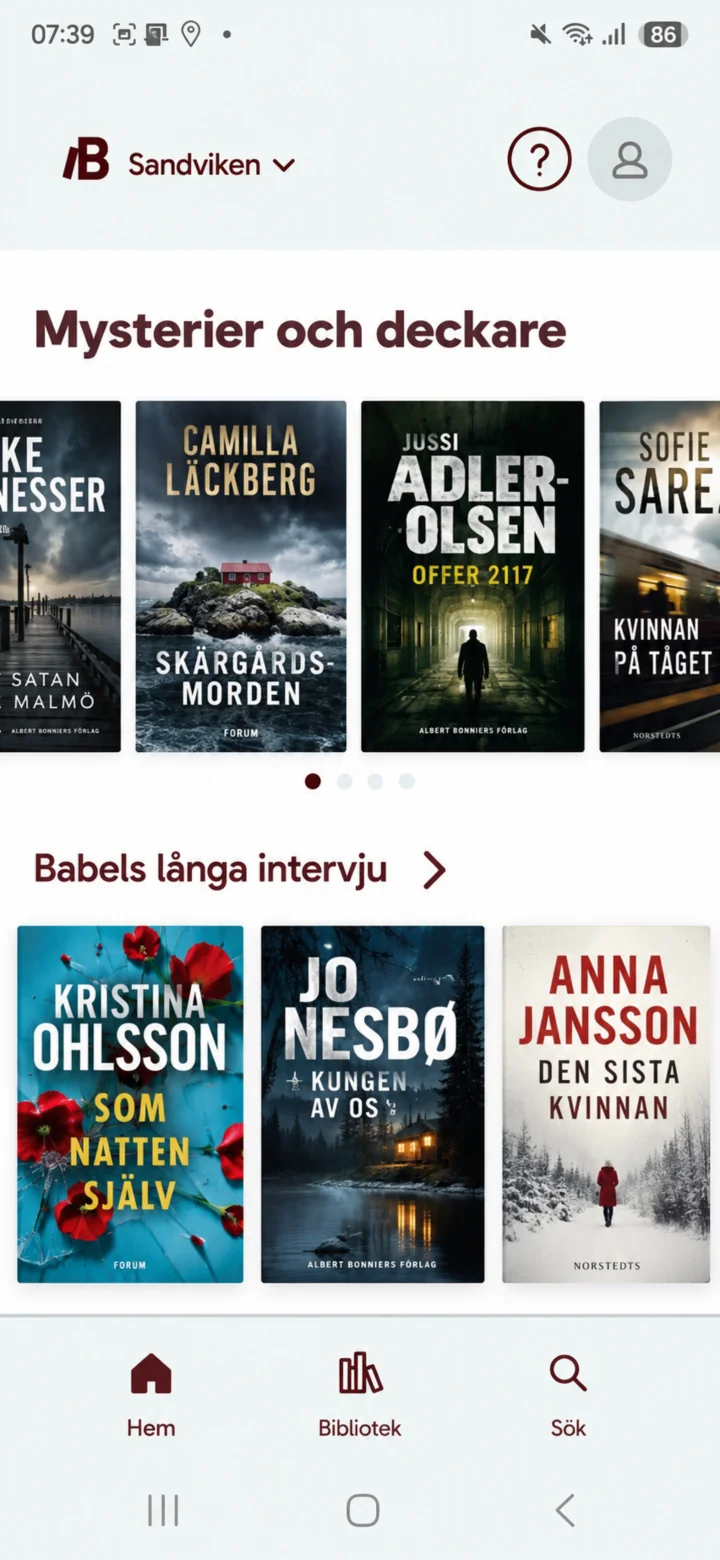
On the home page, you'll see book recommendations, current themes, and shortcuts to ”Hem” (Home), ”Bibliotek” (Library), and ”Sök” (Search).
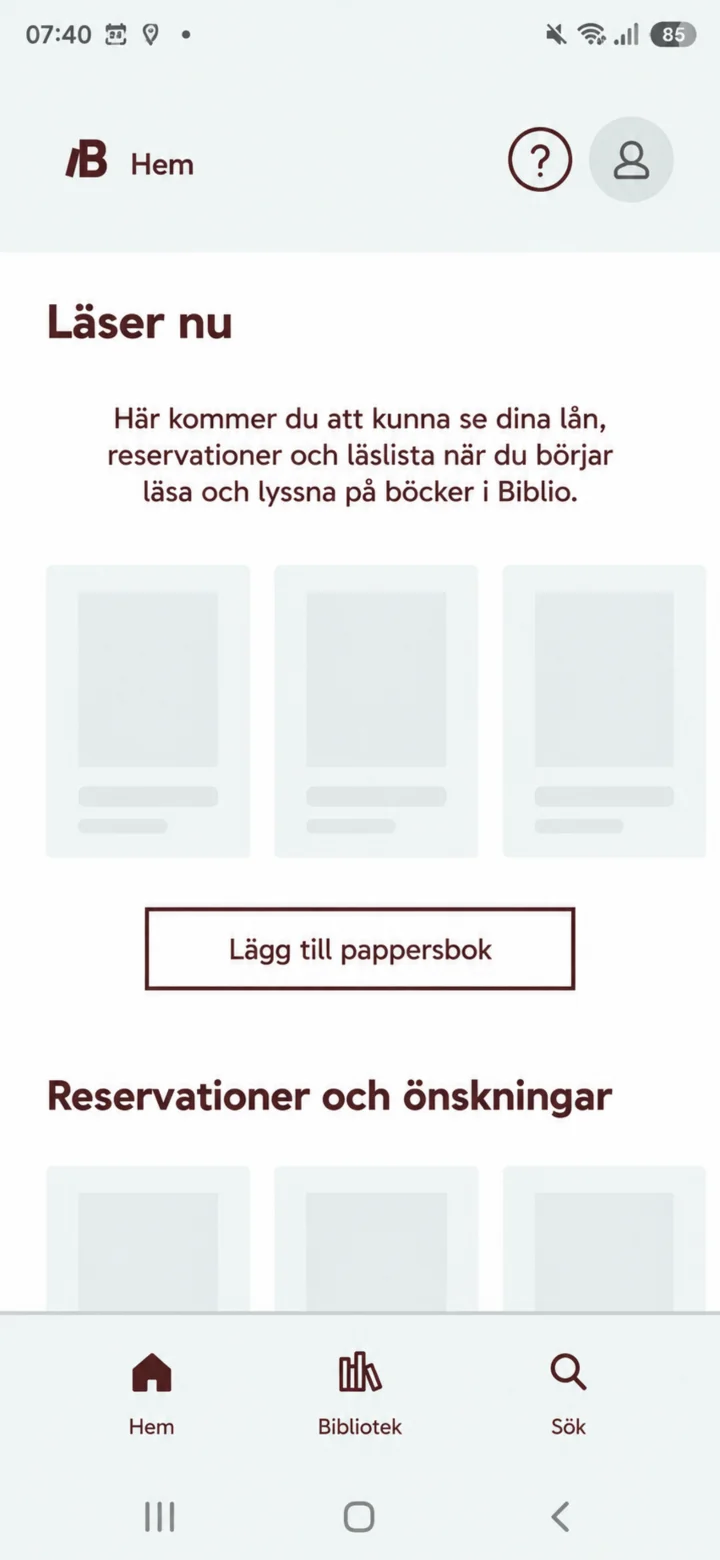 7Step 7 of 9 · Android
Under ”Läser nu” (Reading now), you can see your loans, reservations, and reading list once you've started reading or listening.
 8Step 8 of 9 · Android
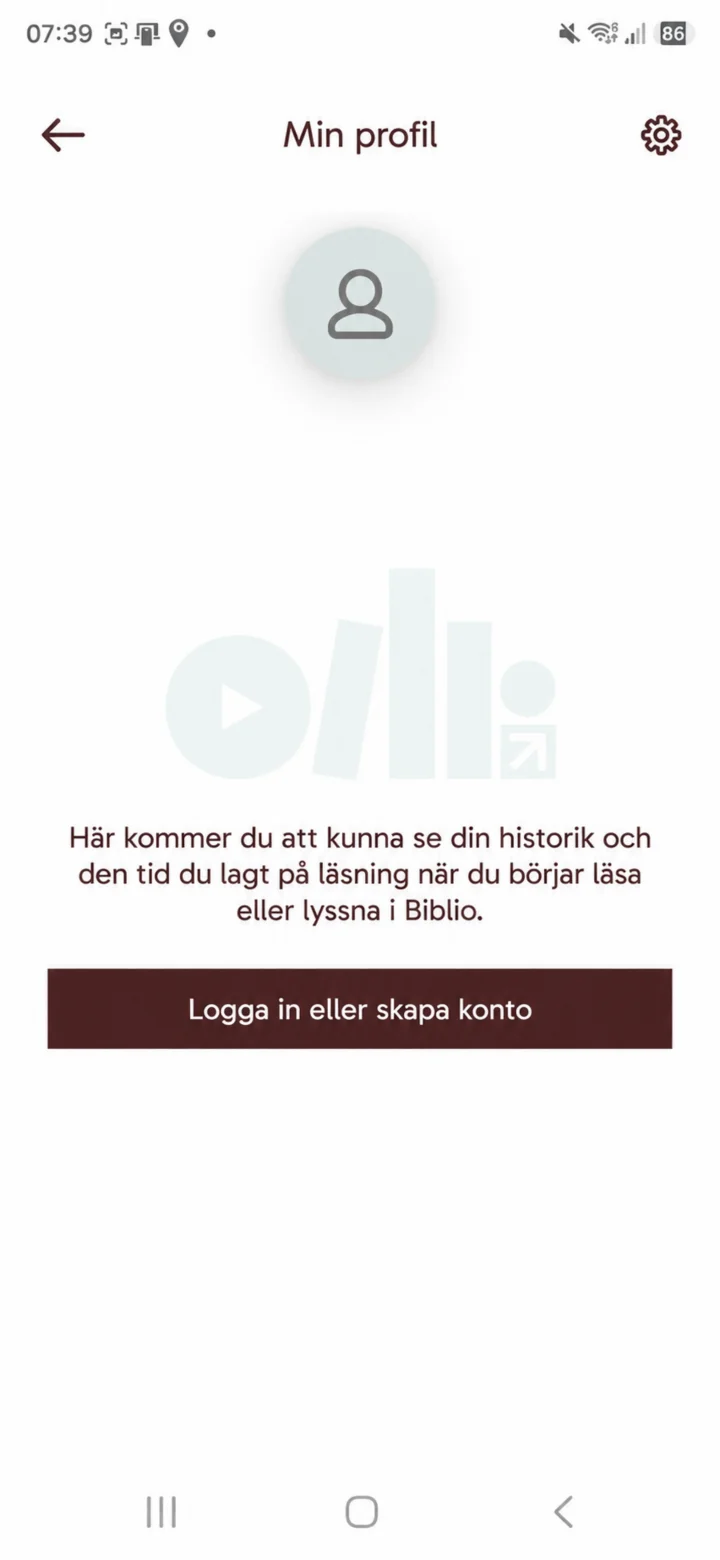
In ”Min profil” (My profile), you can later see your history and the time you've spent reading. Tap ”Logga in eller skapa konto” (Log in or create account) to get started.
 9Step 9 of 9 · Android
Bläddra i kategorier som Mysterier och deckare och öppna boktips från biblioteket.
Download and Use Sveriges Radio
Android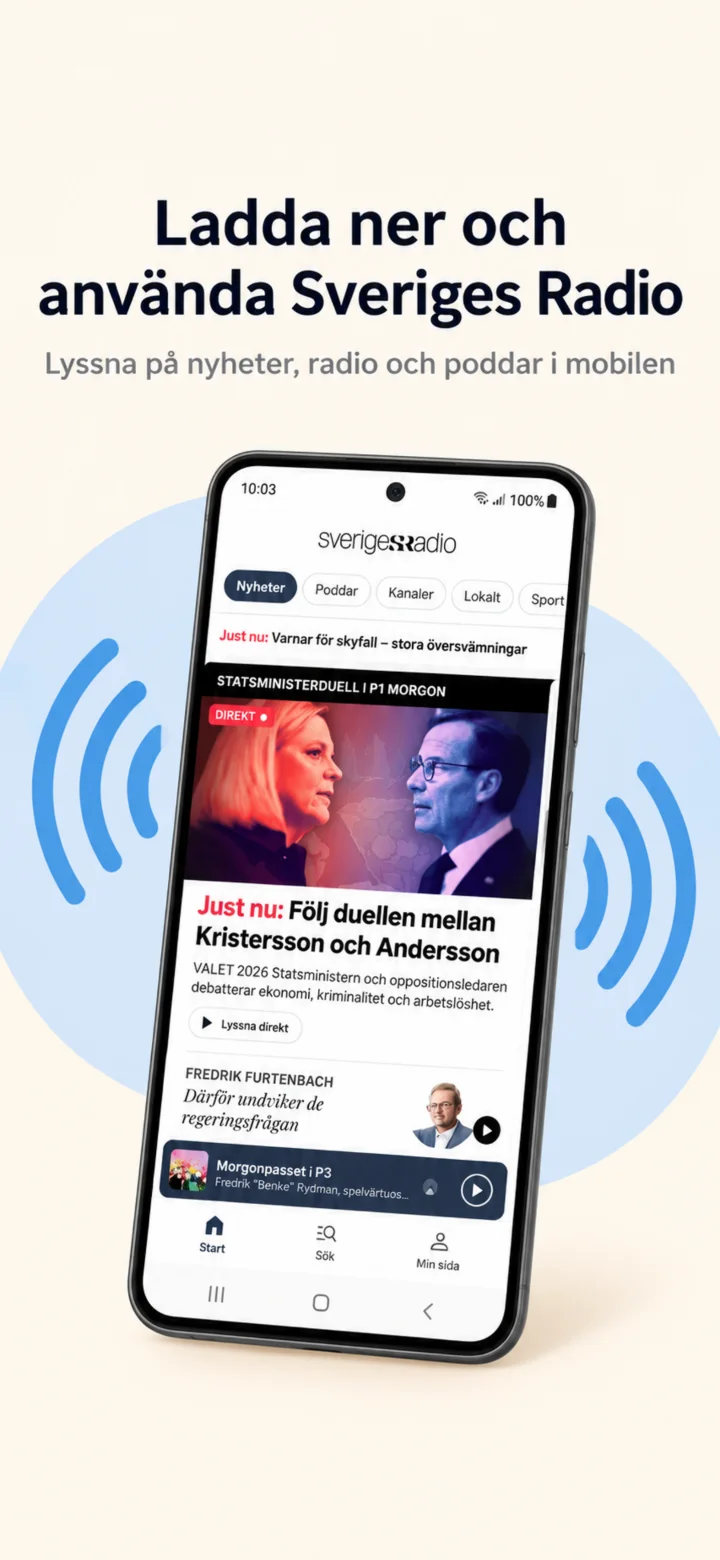 1Step 1 of 8 · Android
We will now learn how to download and use Sveriges Radio on your phone.
 2Step 2 of 8 · Android
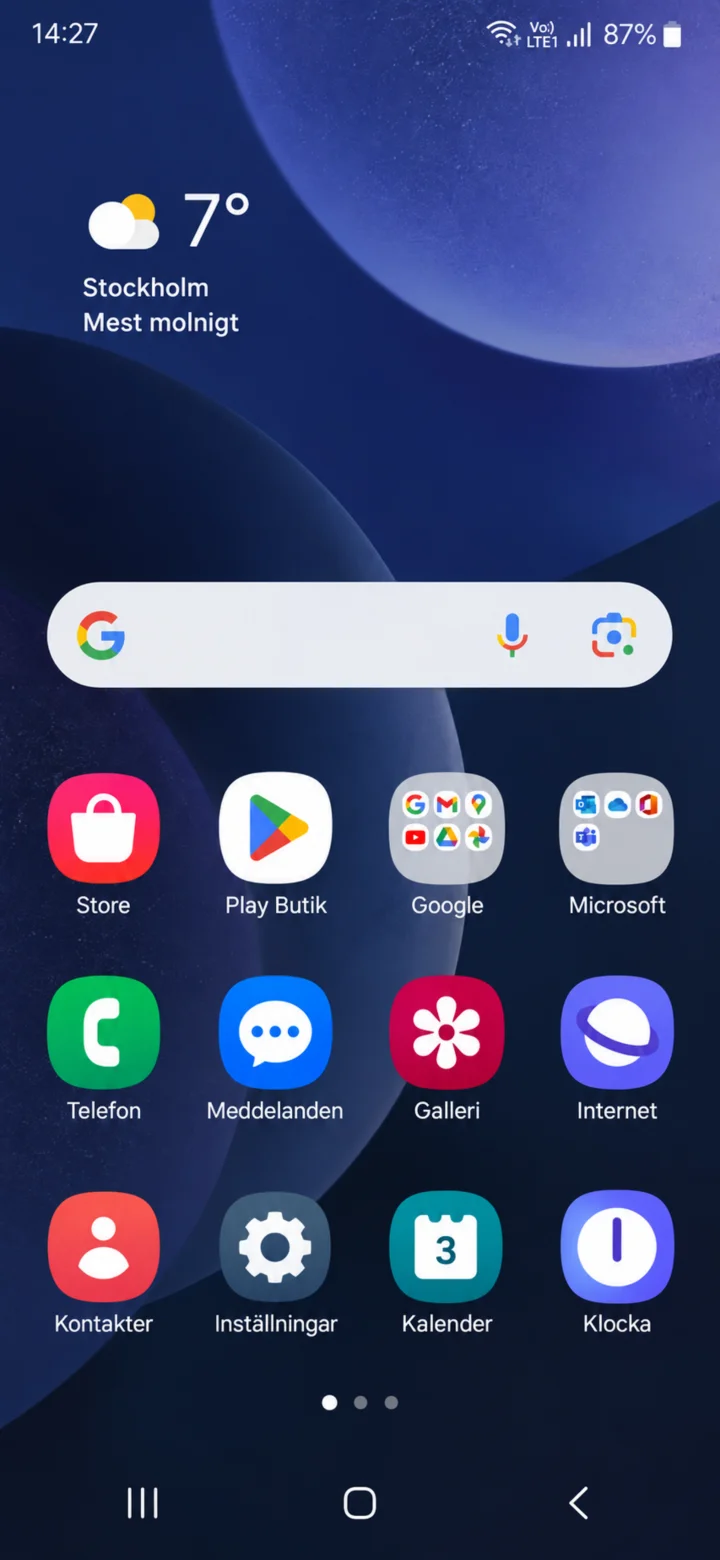
Börja på hemskärmen. Tryck på Play Butik.
 3Step 3 of 8 · Android
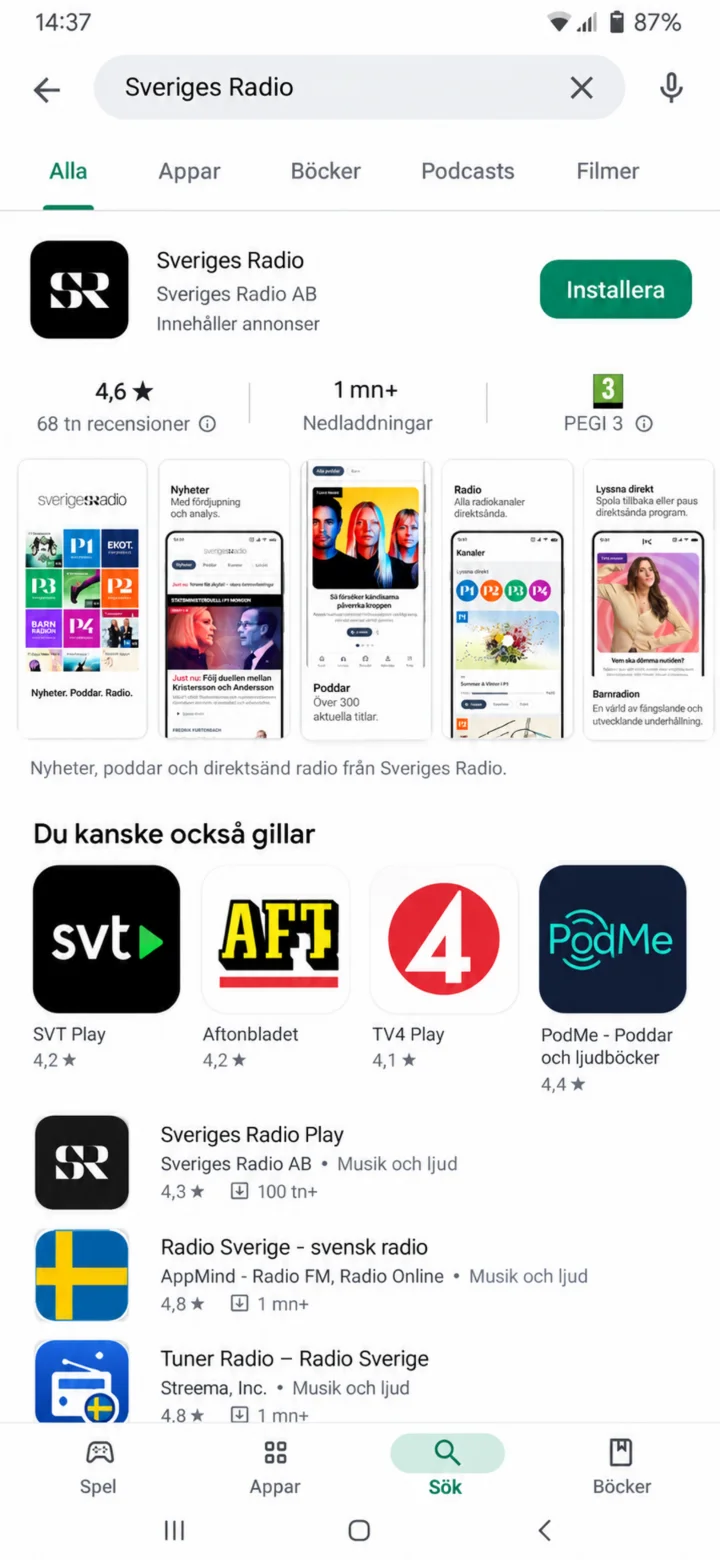
Search for Sveriges Radio.
 4Step 4 of 8 · Android
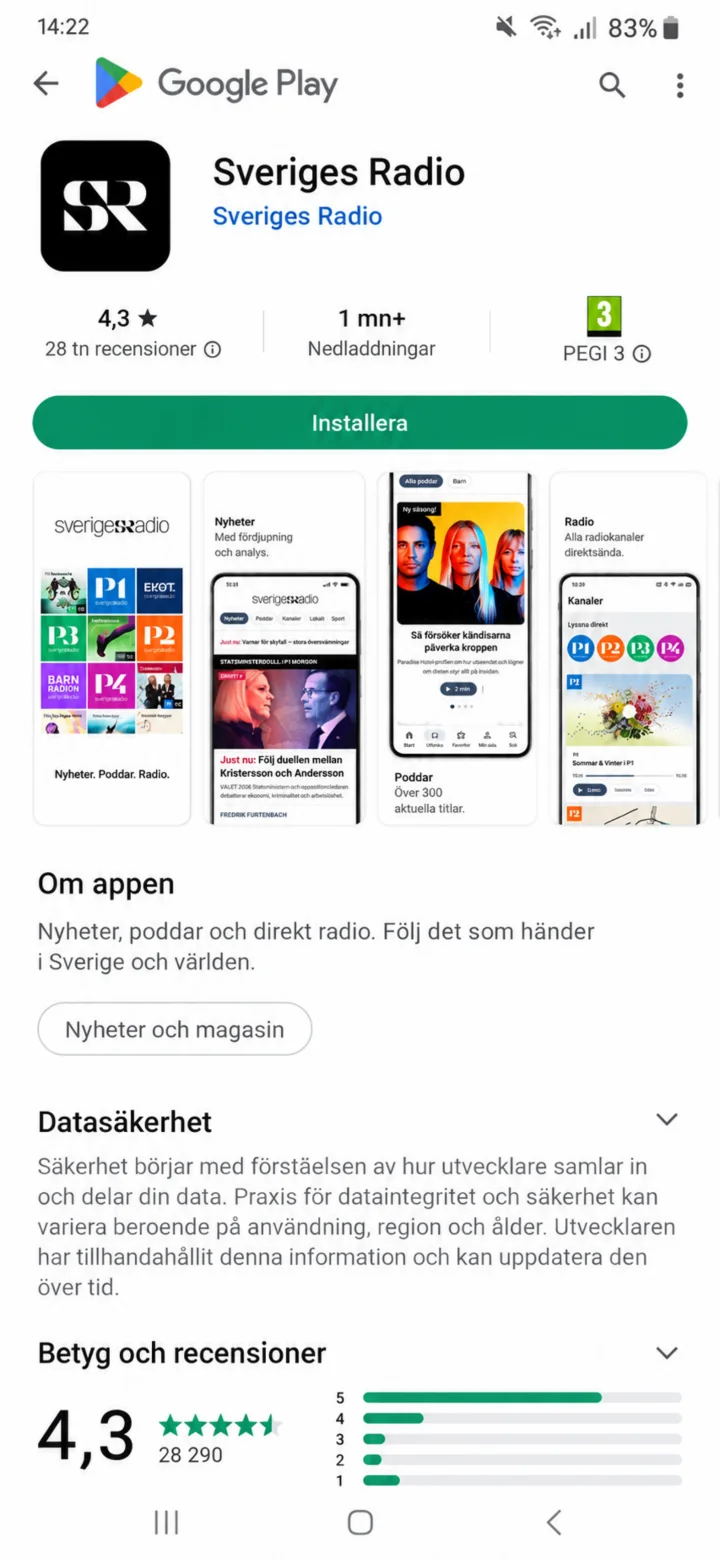
Check that the app is called Sveriges Radio and tap on ”Installera” (Install).
 5Step 5 of 8 · Android
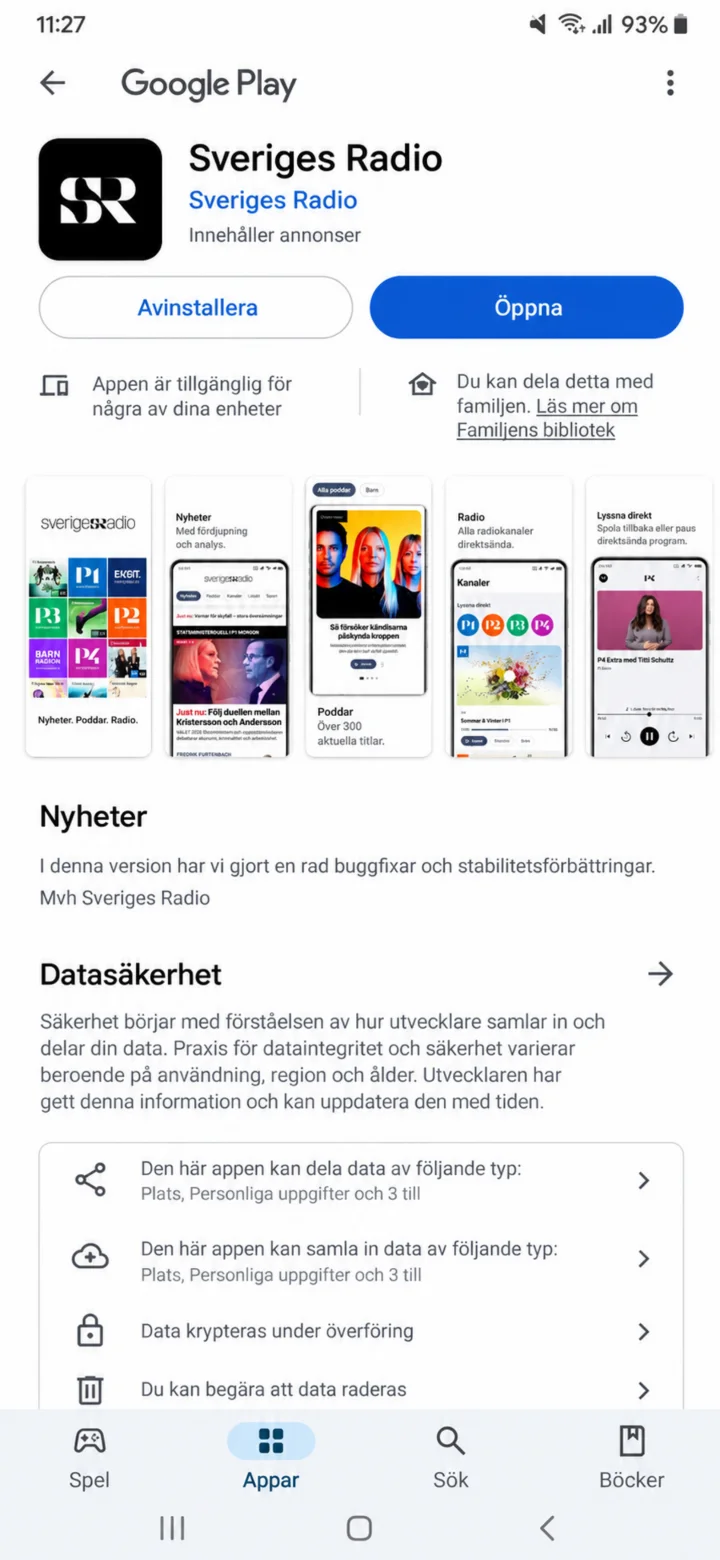
Once the app is installed, tap on ”Öppna” (Open).
 6Step 6 of 8 · Android
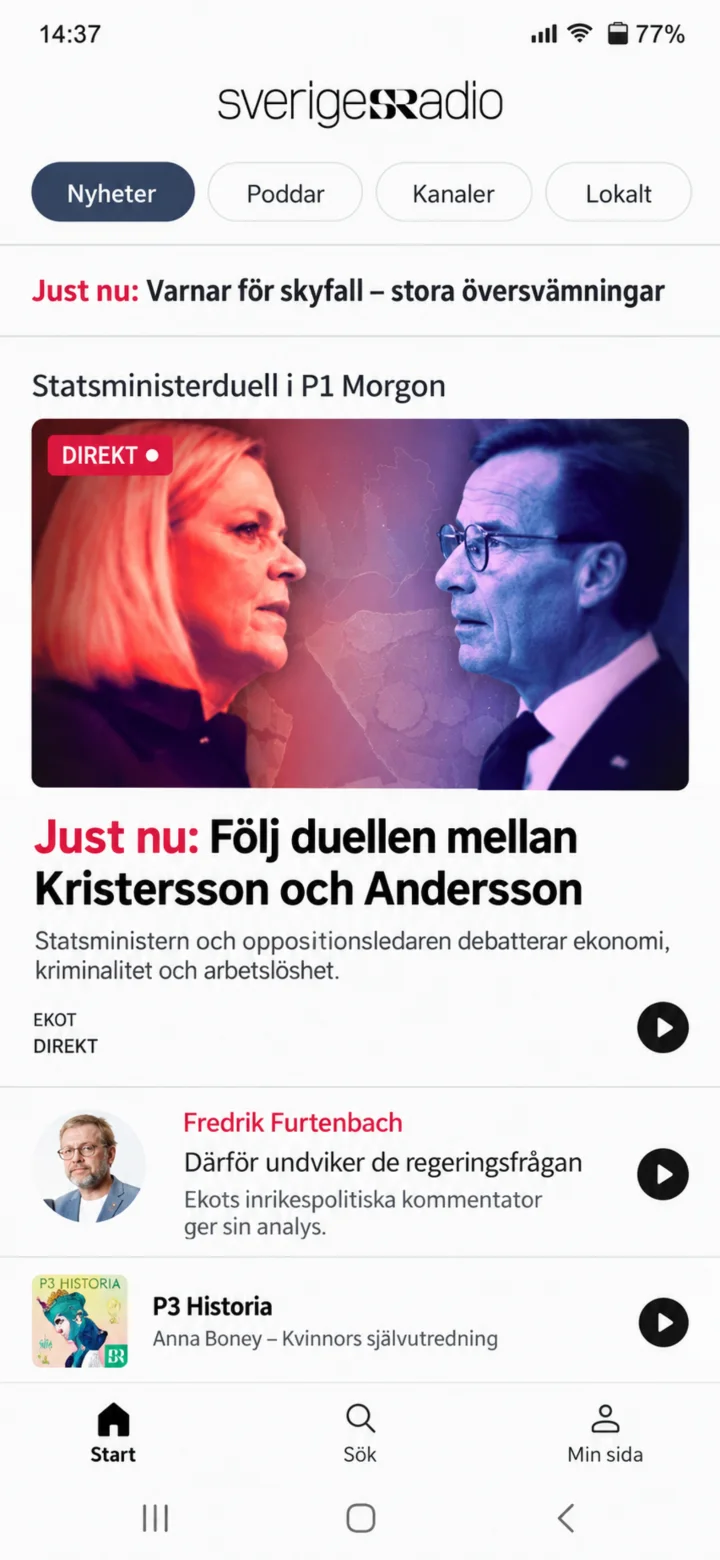
This is Sveriges Radio's home page. Here you'll find news and programs.
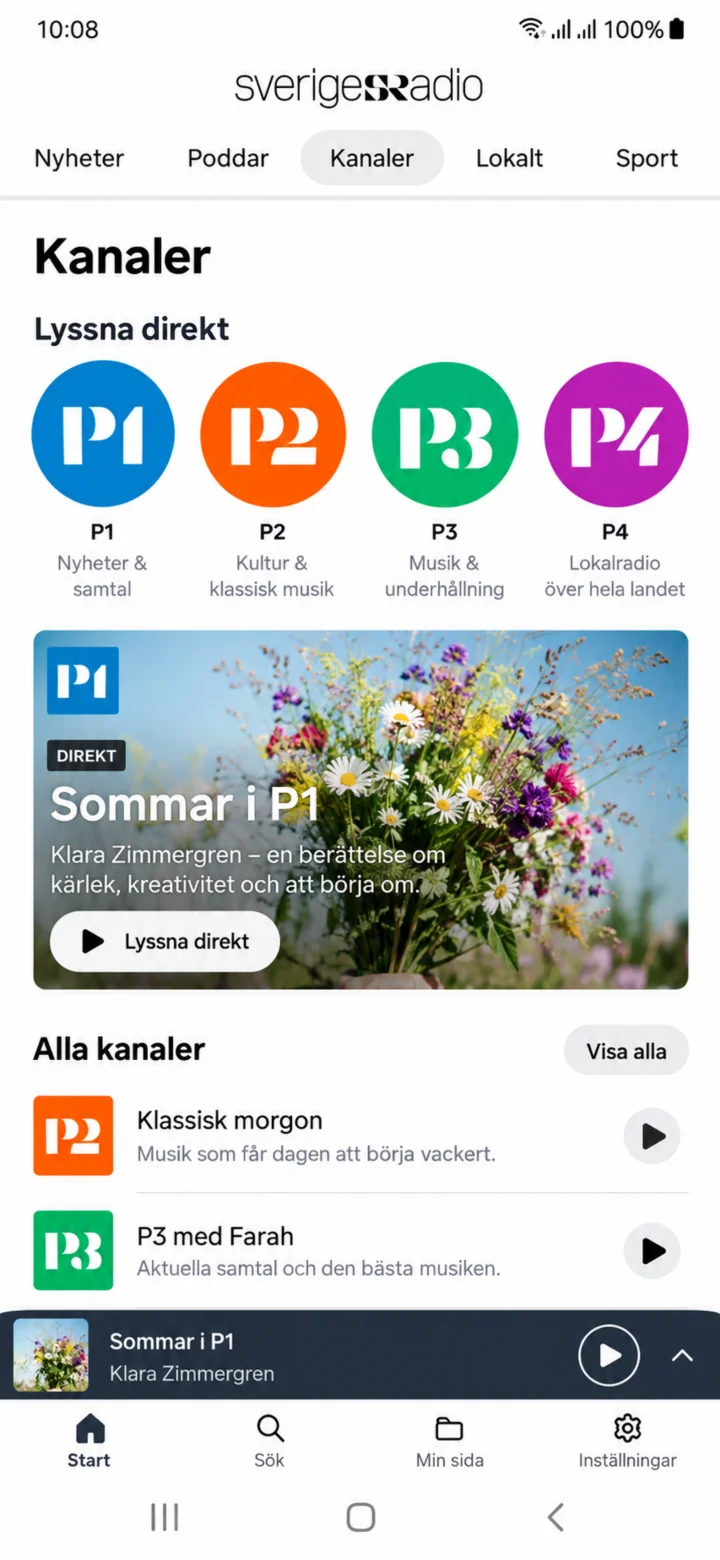 7Step 7 of 8 · Android
Tap on ”Kanaler” (Channels) to see Sveriges Radio's radio channels.
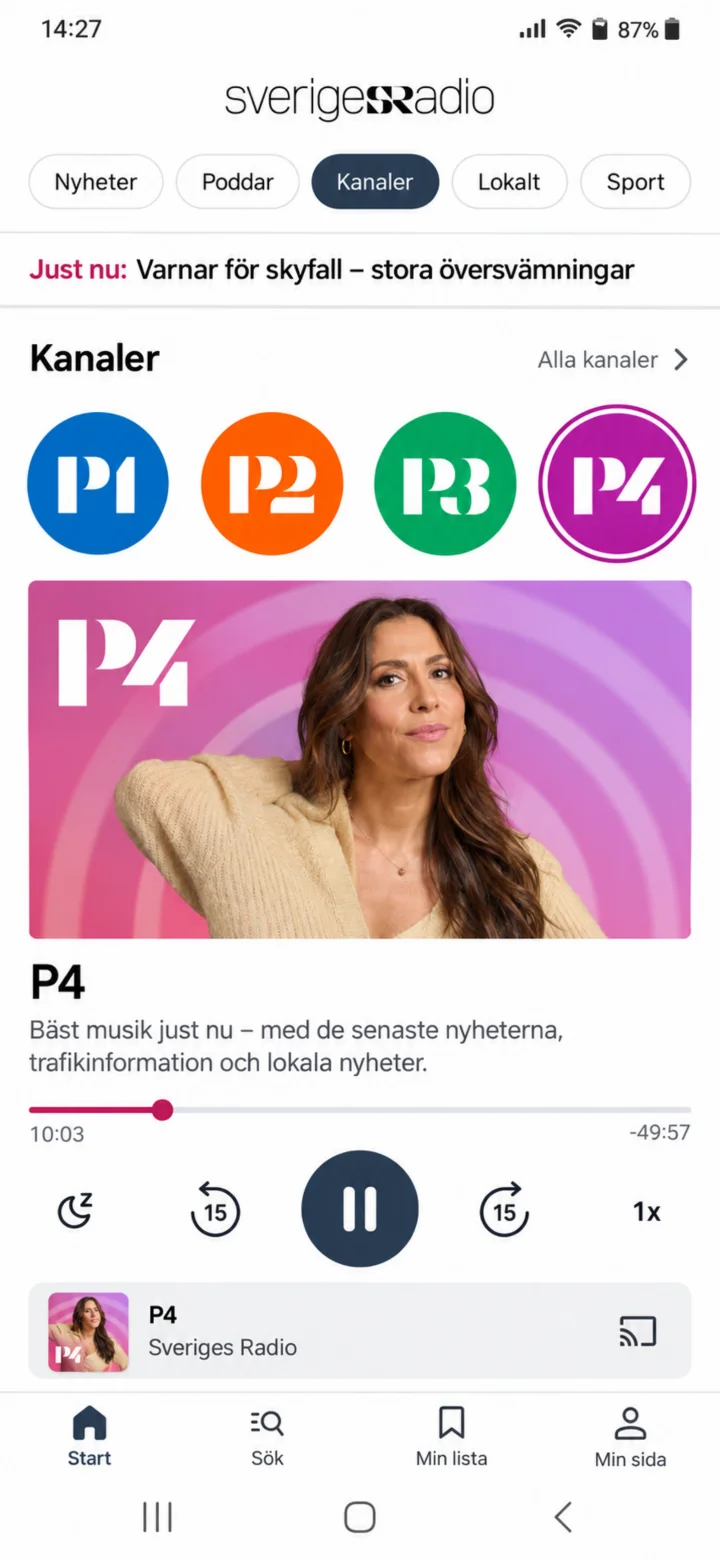 8Step 8 of 8 · Android
Choose P4 and tap the play button to start listening.
Download, install, and get started with SVT Play
Android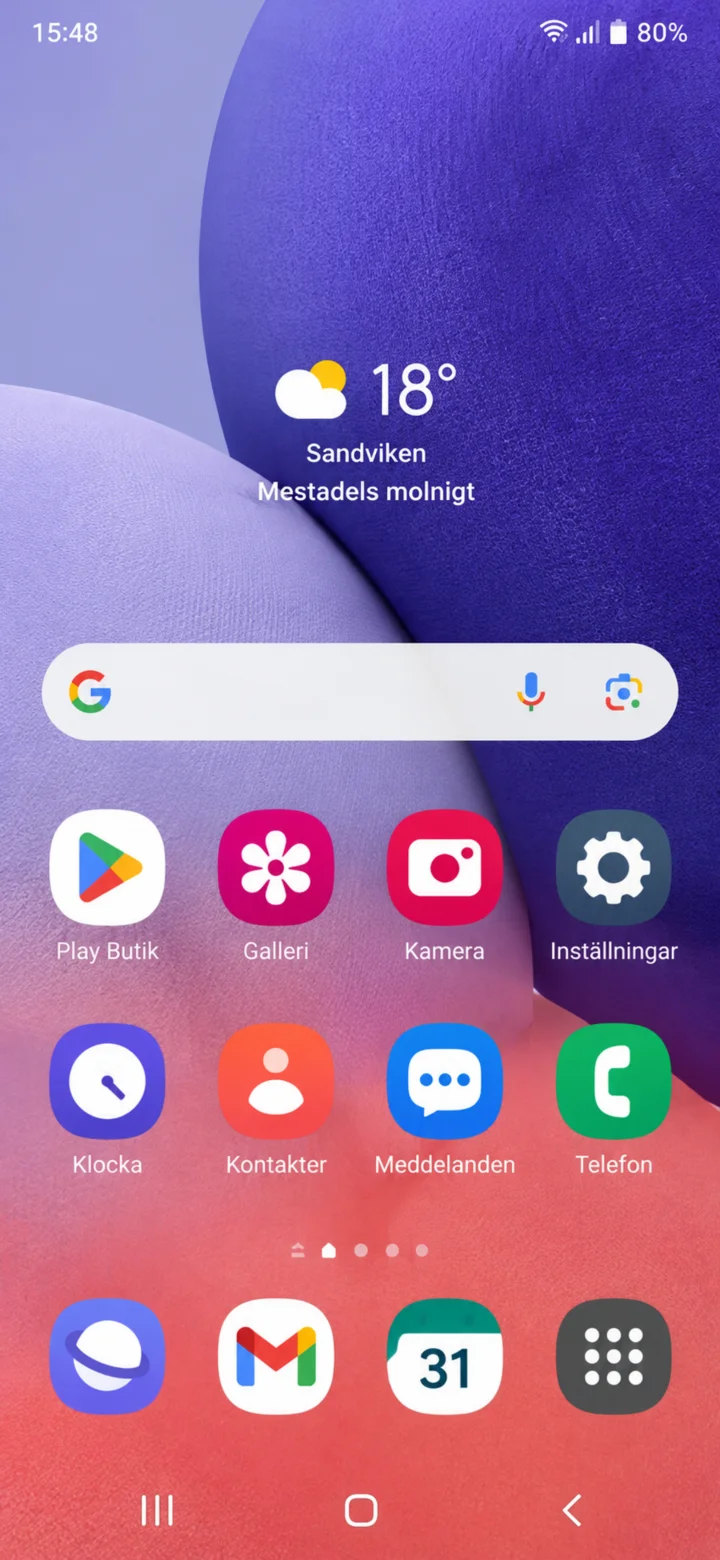 1Step 1 of 10 · Android
Start on the home screen. Tap Play Butik.
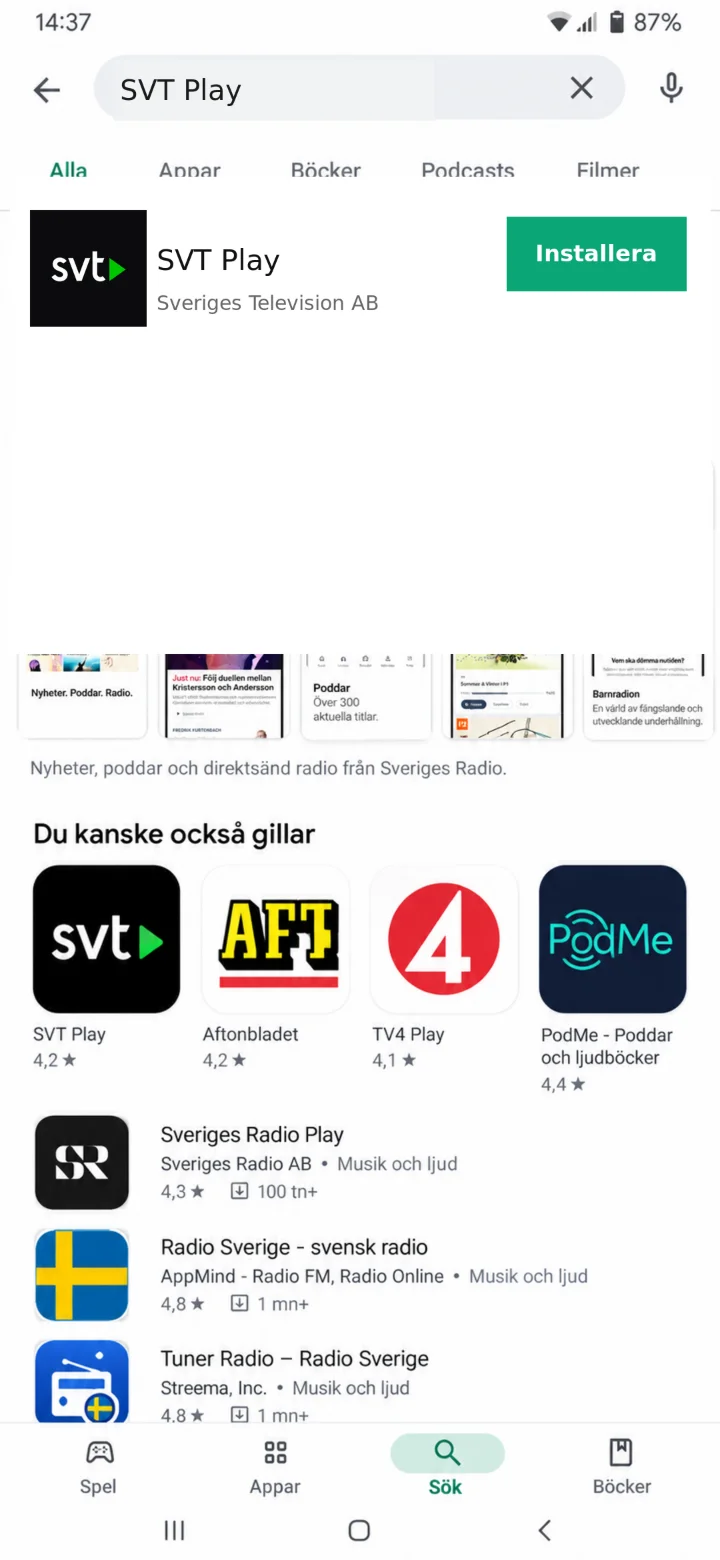 2Step 2 of 10 · Android
Type SVT Play in the search bar. Check that the app is called SVT Play and that the developer is Sveriges Television AB. Tap ”Installera” (Install).
 3Step 3 of 10 · Android
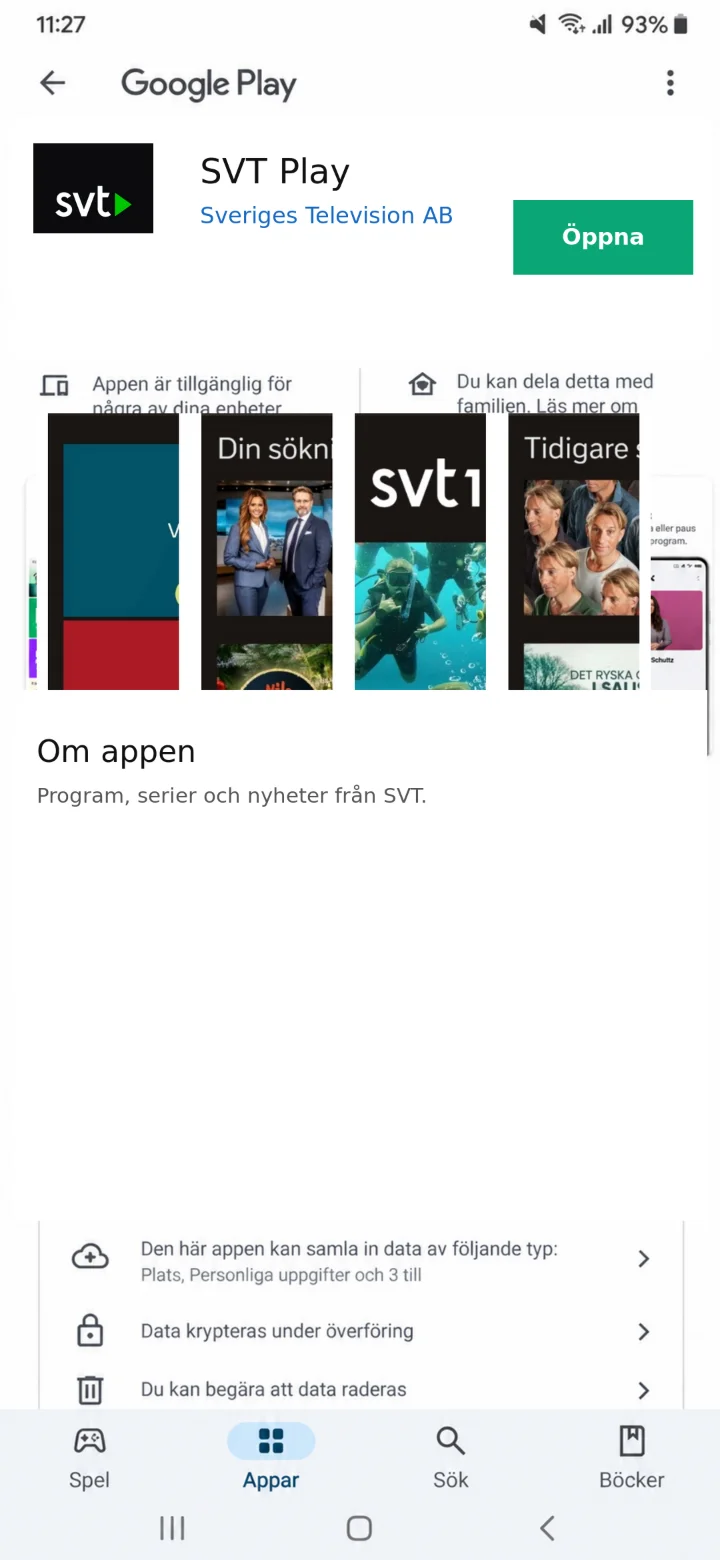
When the installation is complete, the button changes to ”Öppna” (Open). Tap ”Öppna” (Open).
 4Step 4 of 10 · Android
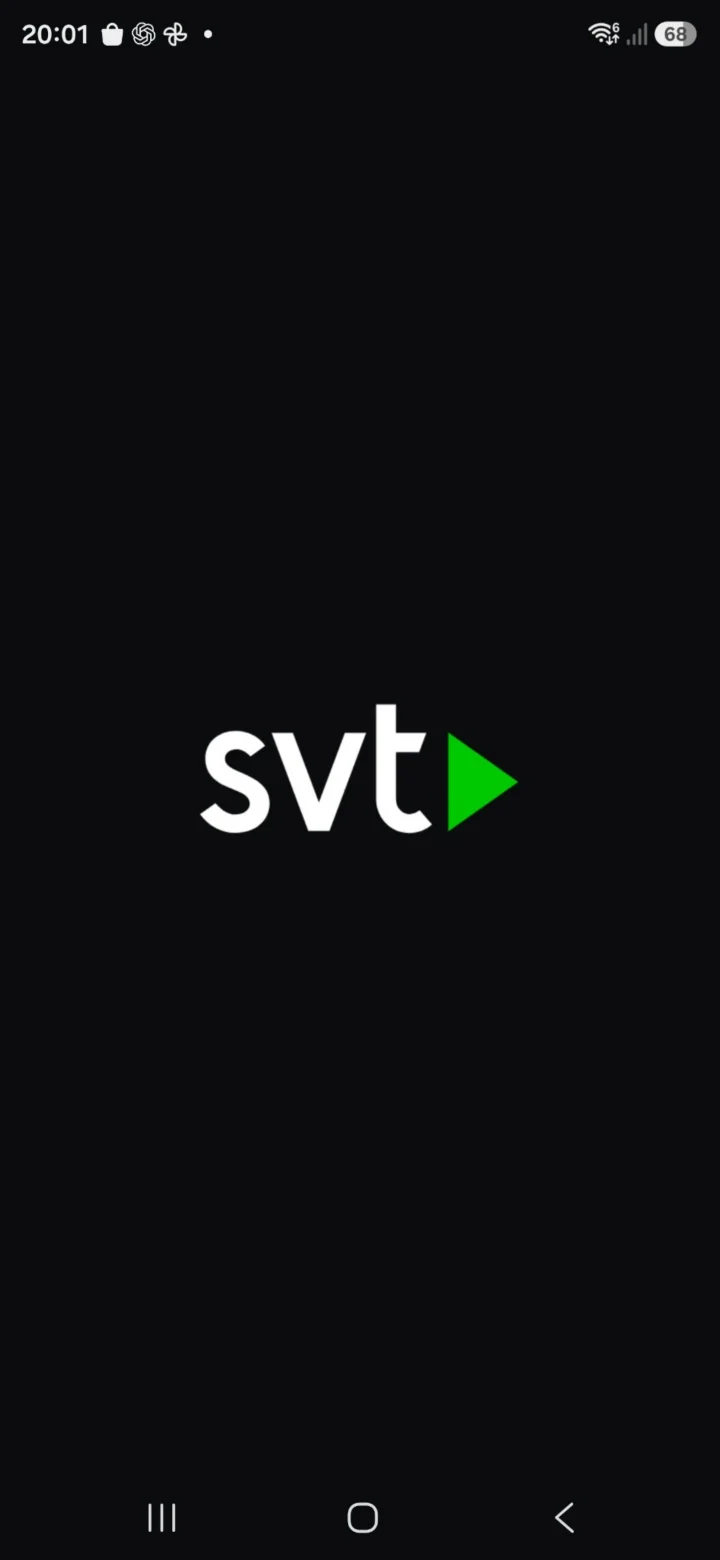
SVT Play starts. Wait a moment.
 5Step 5 of 10 · Android
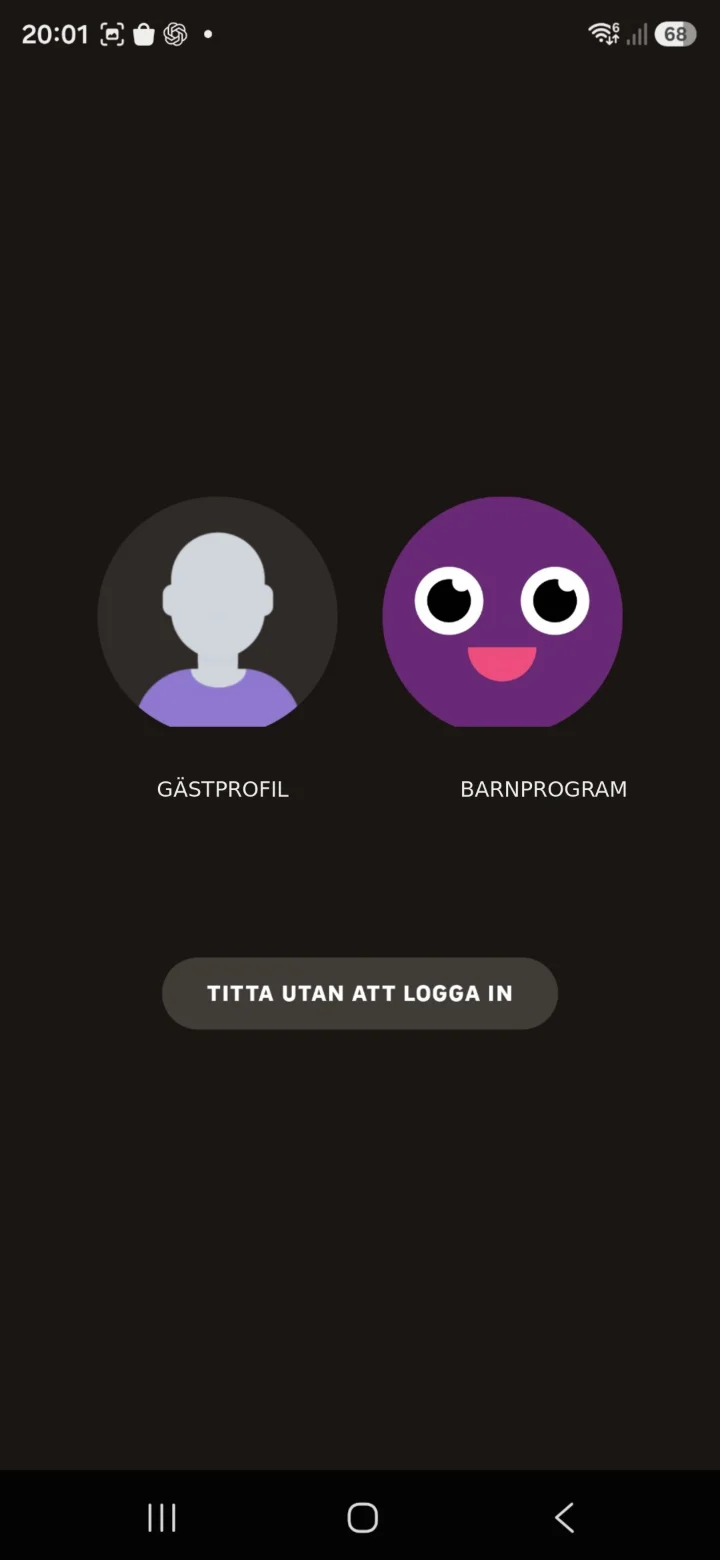
Choose a profile, or tap ”Titta utan att logga in” (Watch without logging in).
 6Step 6 of 10 · Android
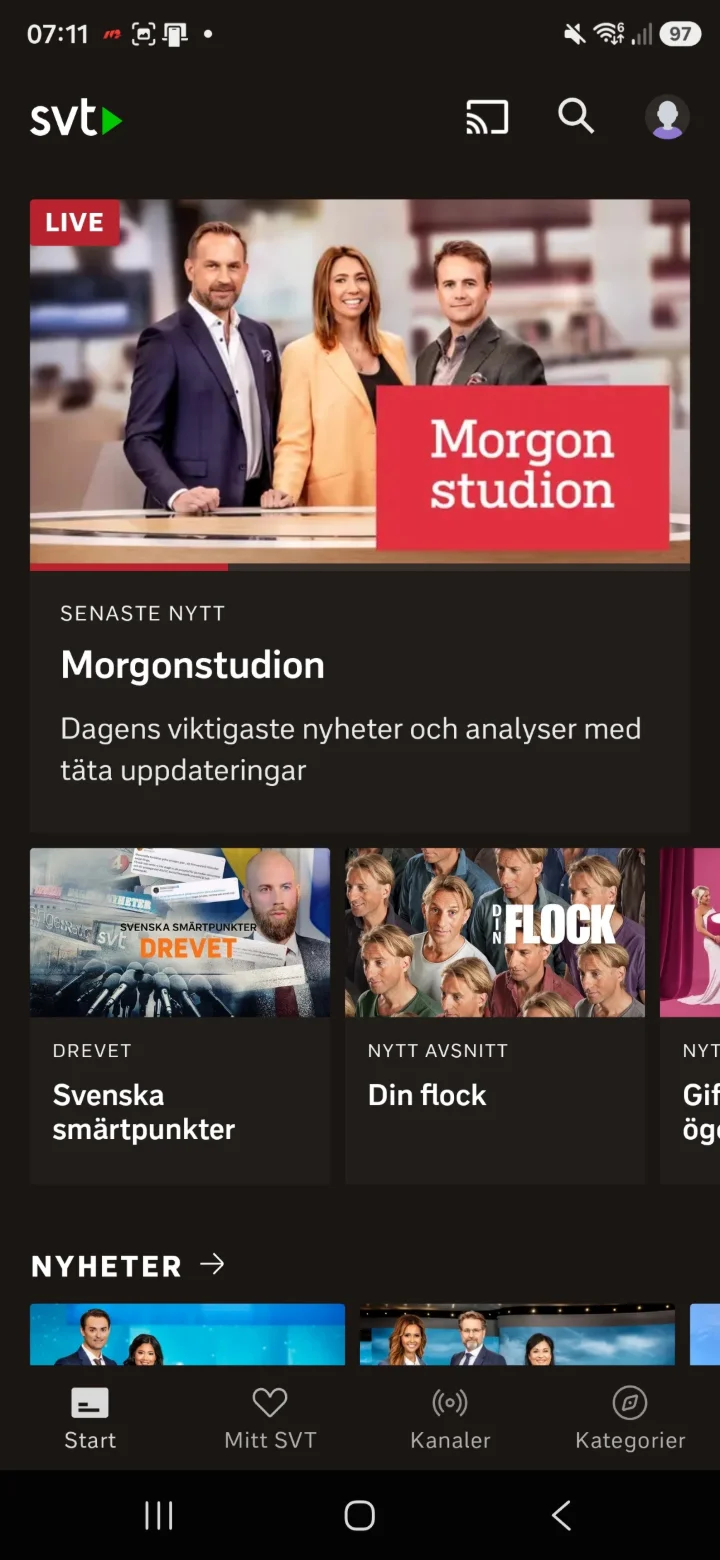
Now you are on the home page. Here you can scroll and tap on the clips you want to watch.
 7Step 7 of 10 · Android
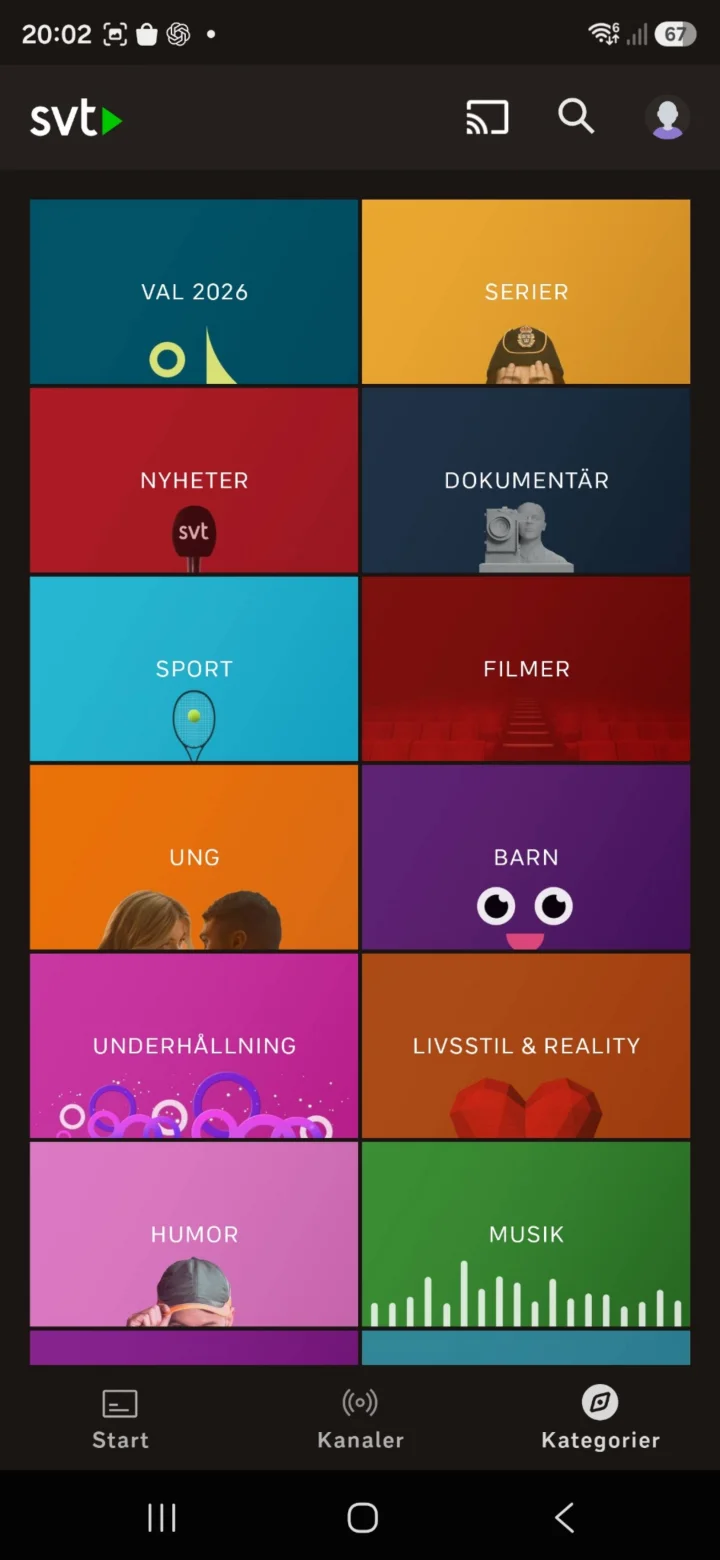
When you tap ”Kategorier” (Categories), you will end up here and can look for the categories you want to watch.
 8Step 8 of 10 · Android
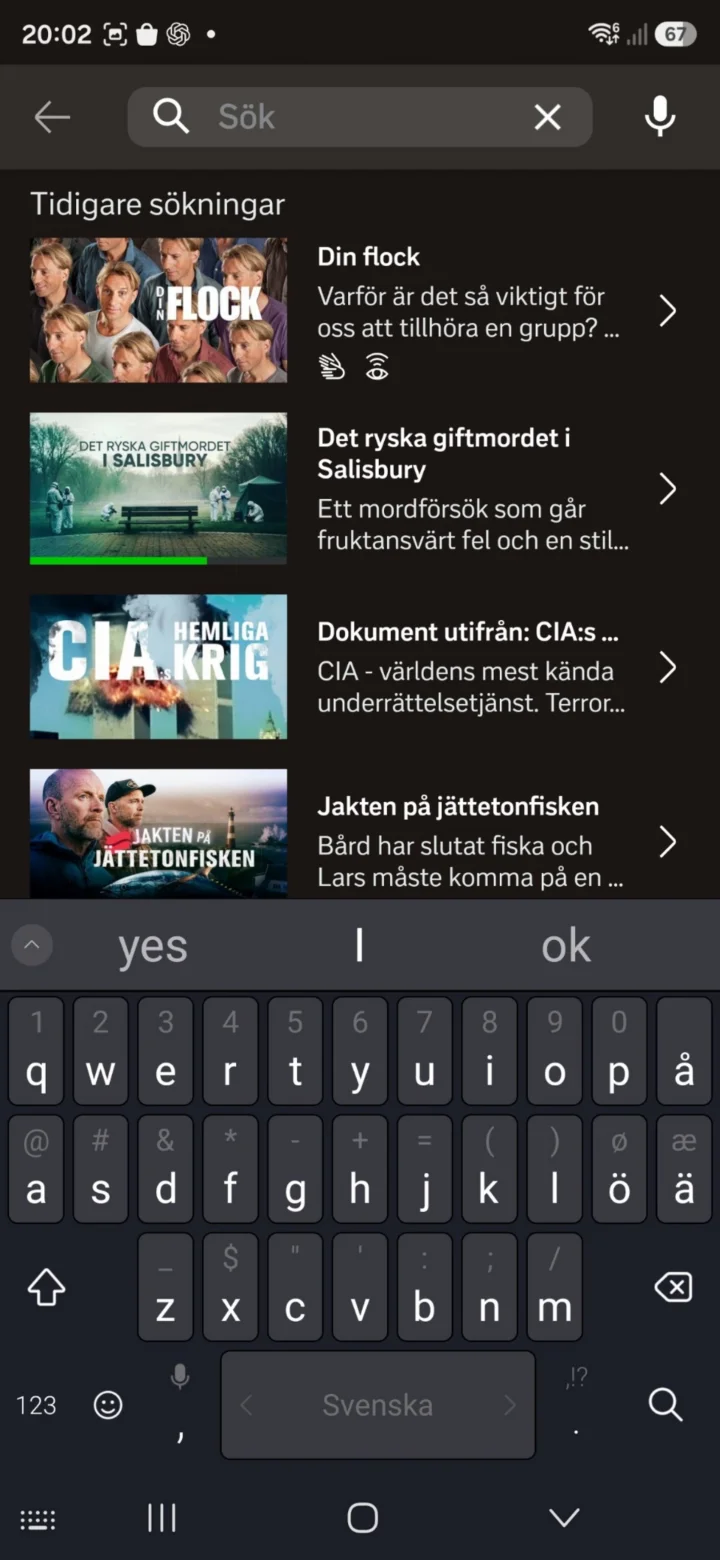
Tap the magnifying glass to search for a program.
 9Step 9 of 10 · Android
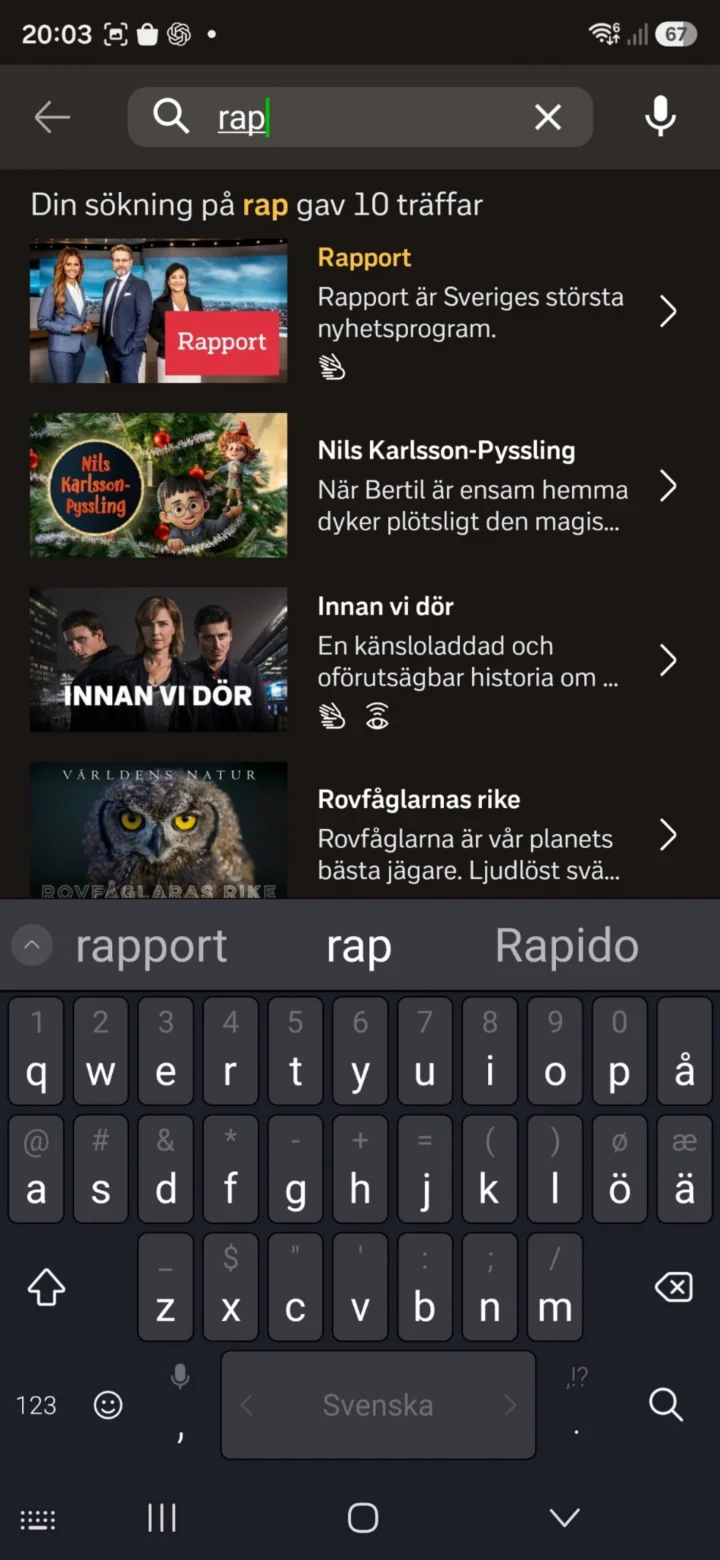
Type the program's name and choose a program from the search results, for example Rapport.
 10Step 10 of 10 · Android
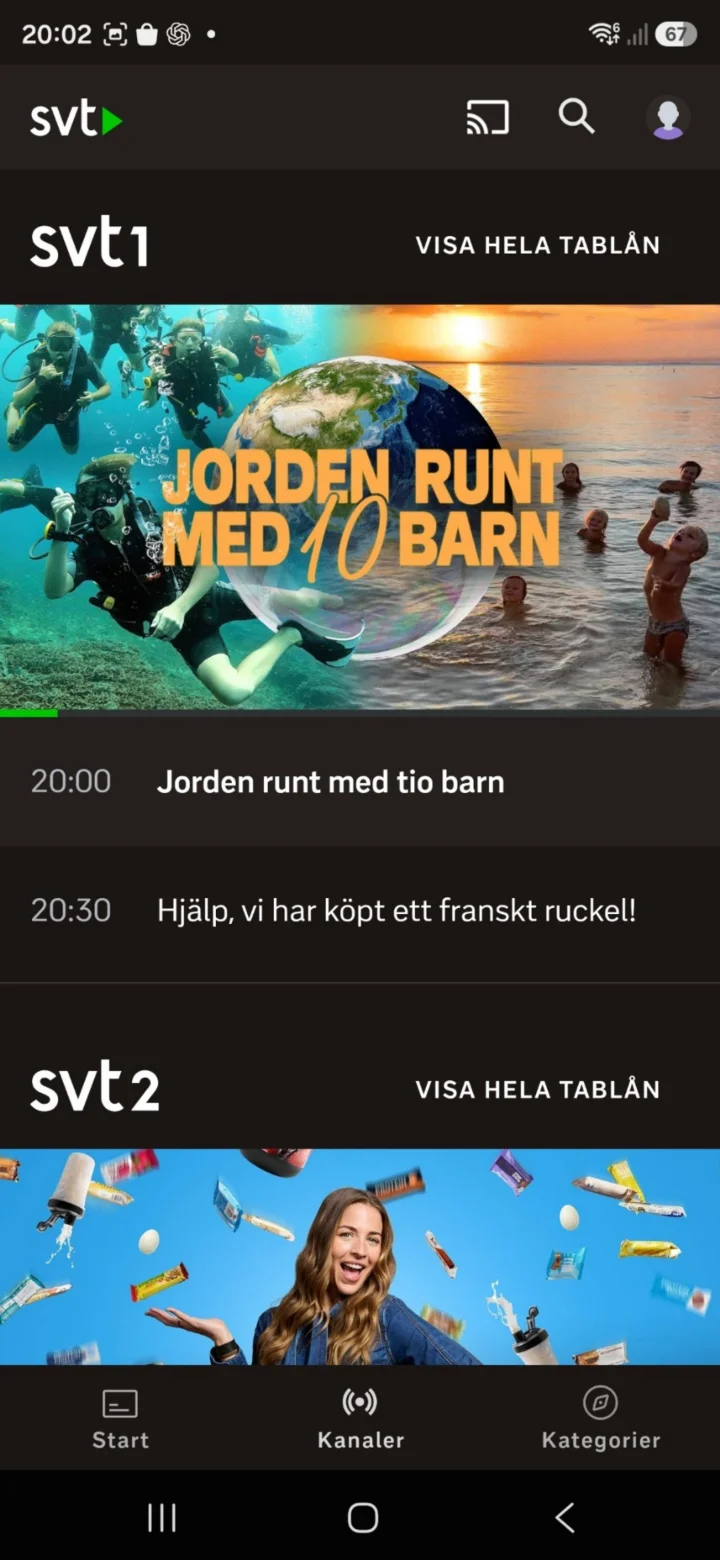
Tap ”Kanaler” (Channels) if you want to see what is being broadcast on SVT1 and SVT2.
Download, install, and use ChatGPT
Android 1Step 1 of 3 · Android
We're going to learn how to download, install, and use ChatGPT.
 2Step 2 of 3 · Android
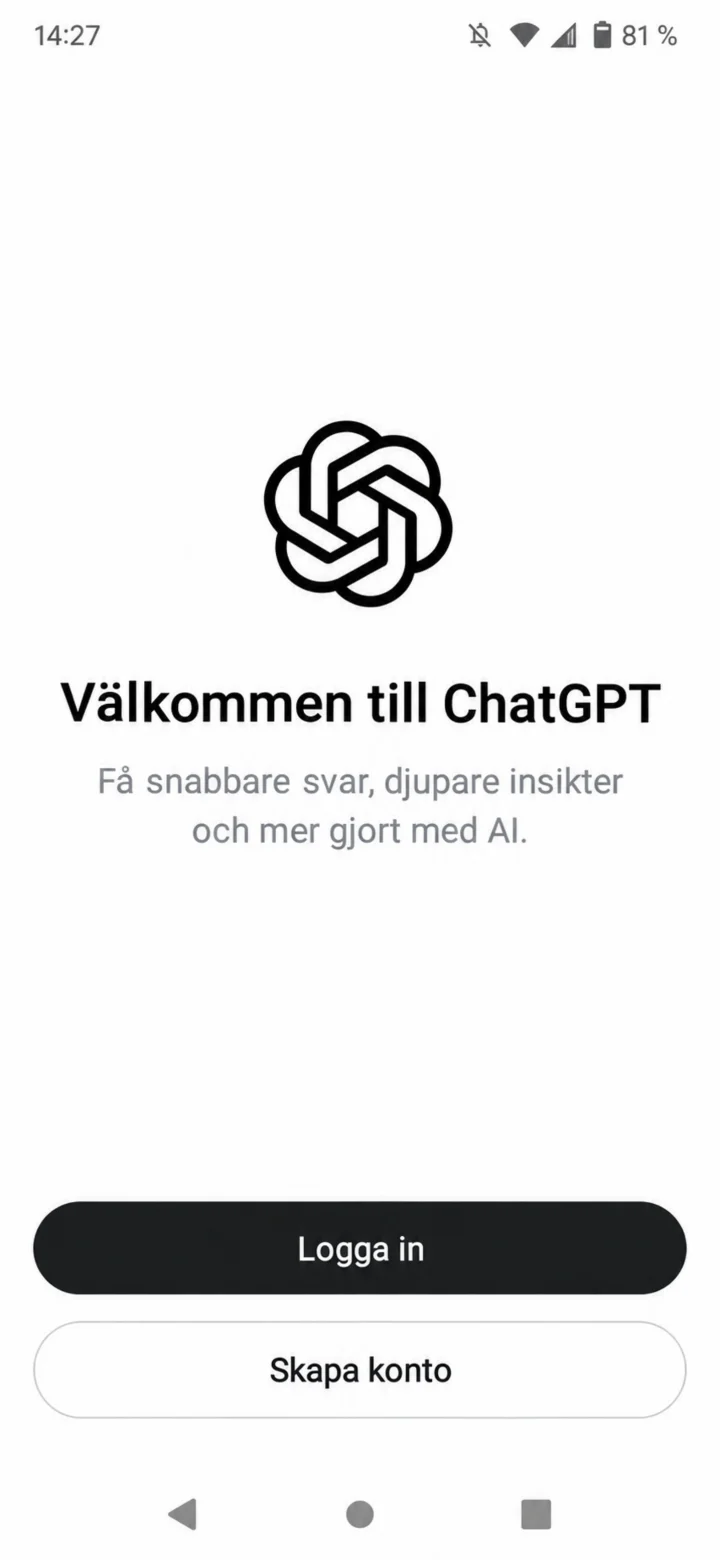
Once the app has opened, you'll see the welcome screen. Tap on ”Logga in” (Log in) if you already have an account, or ”Skapa konto” (Create account) if you're new.
 3Step 3 of 3 · Android
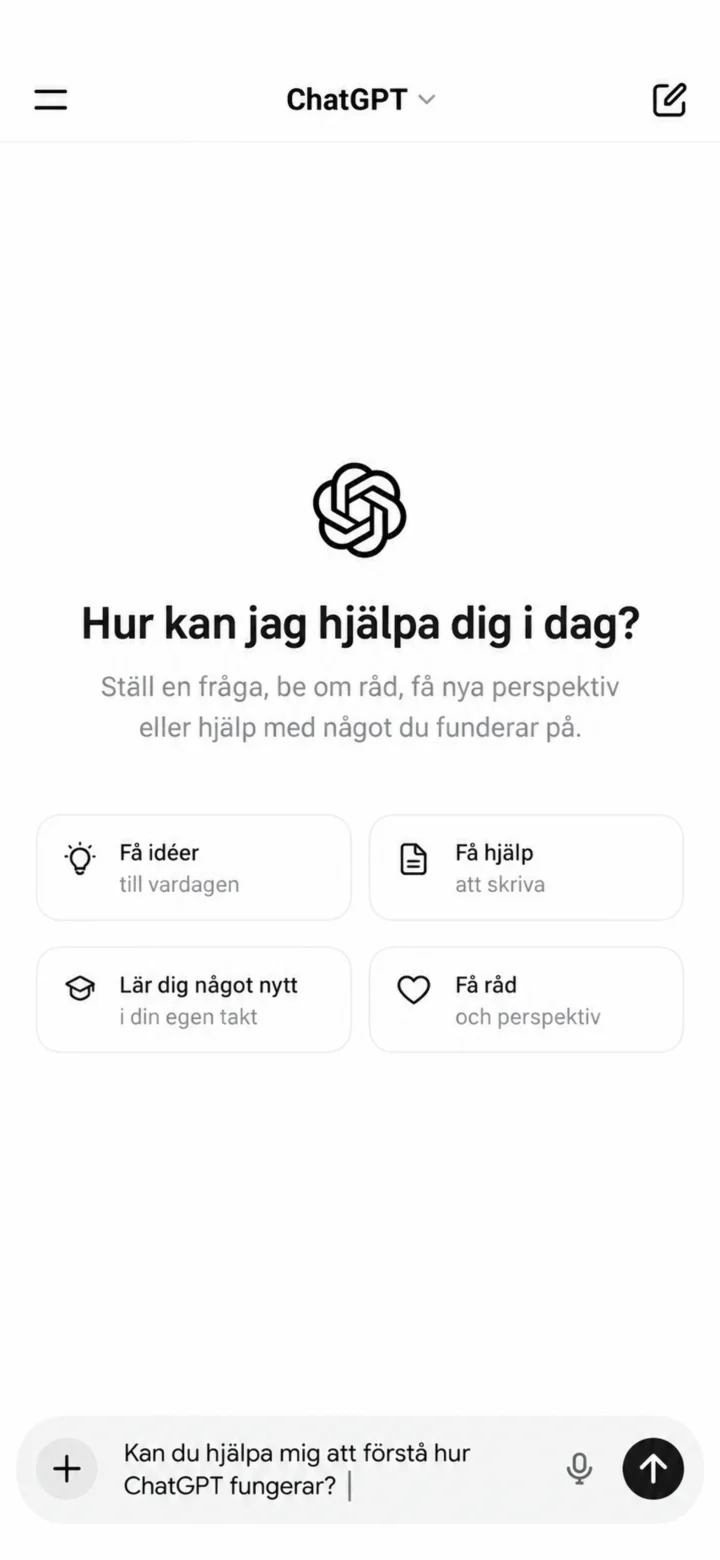
Now you're inside ChatGPT. Type a question in the box at the bottom and tap the arrow to send it. Great job!
How to pick up packages in the PostNord app
Android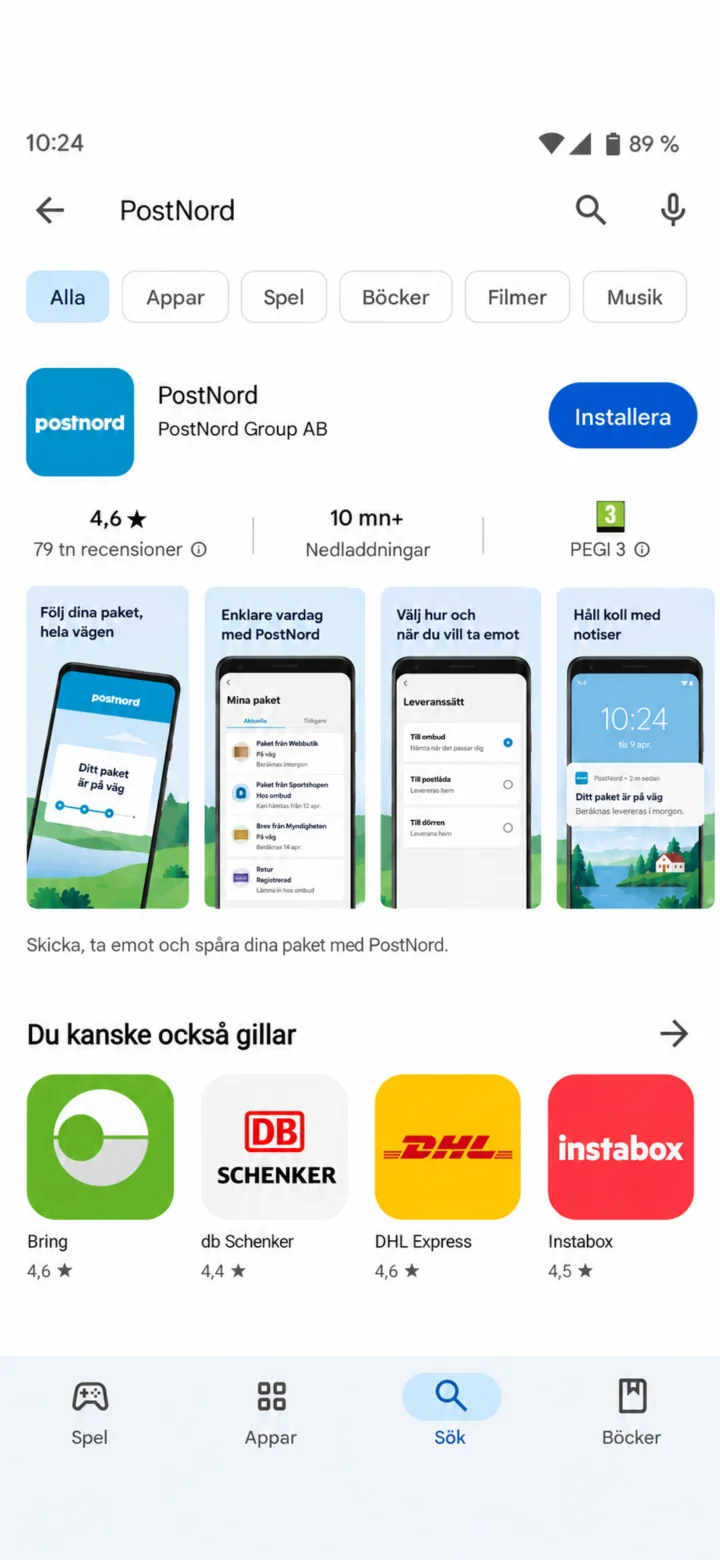 1Step 1 of 9 · Android
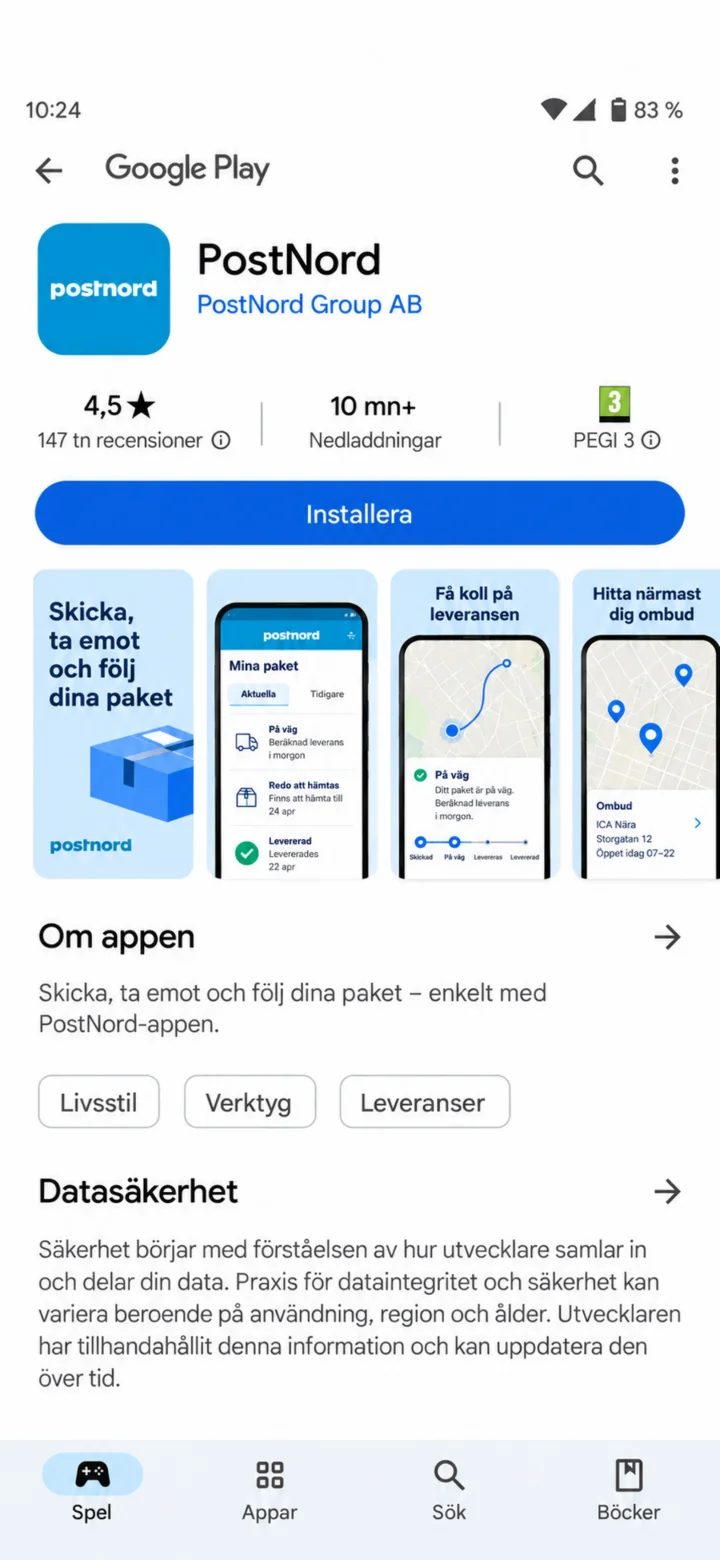
Open Google Play and search for PostNord.
 2Step 2 of 9 · Android
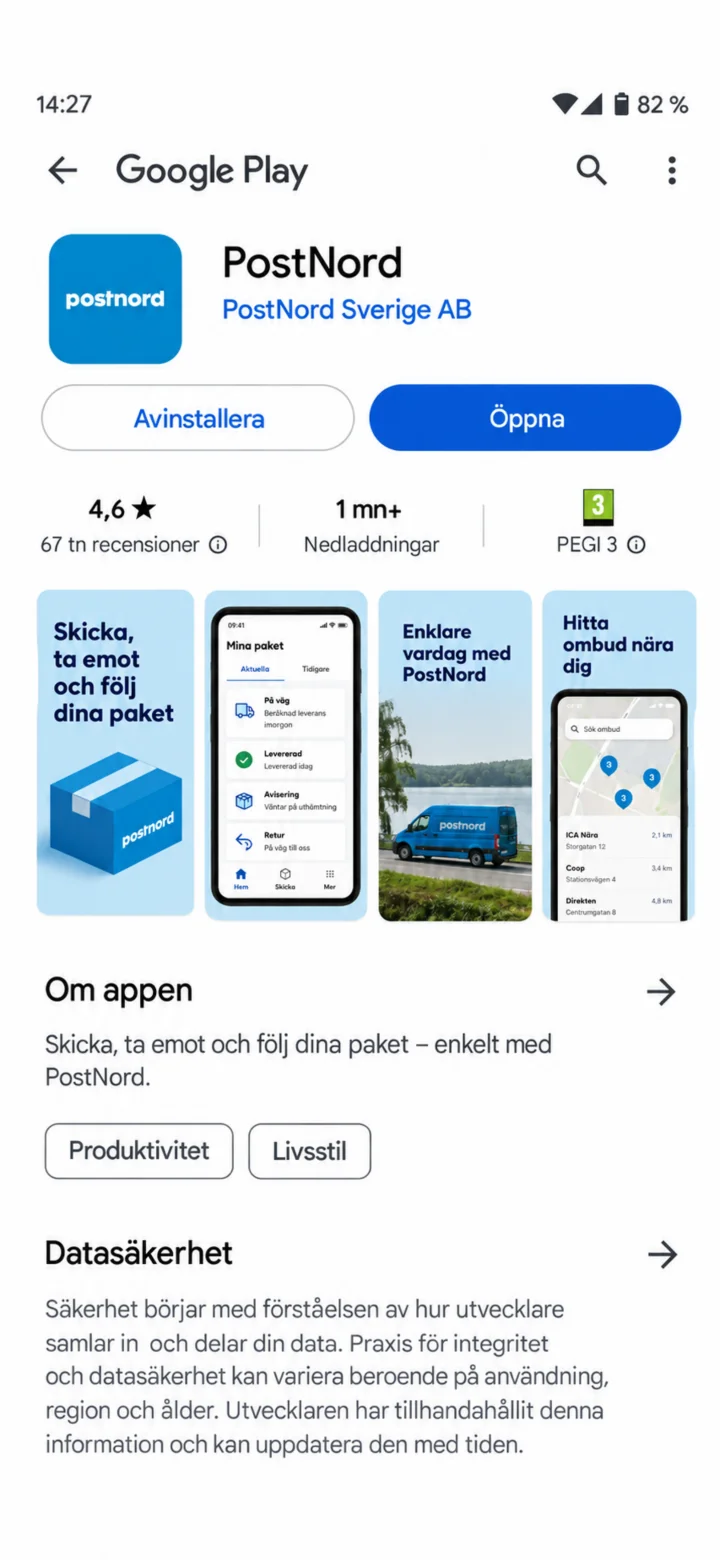
Check that the app is called PostNord and tap ”Installera” (Install).
 3Step 3 of 9 · Android
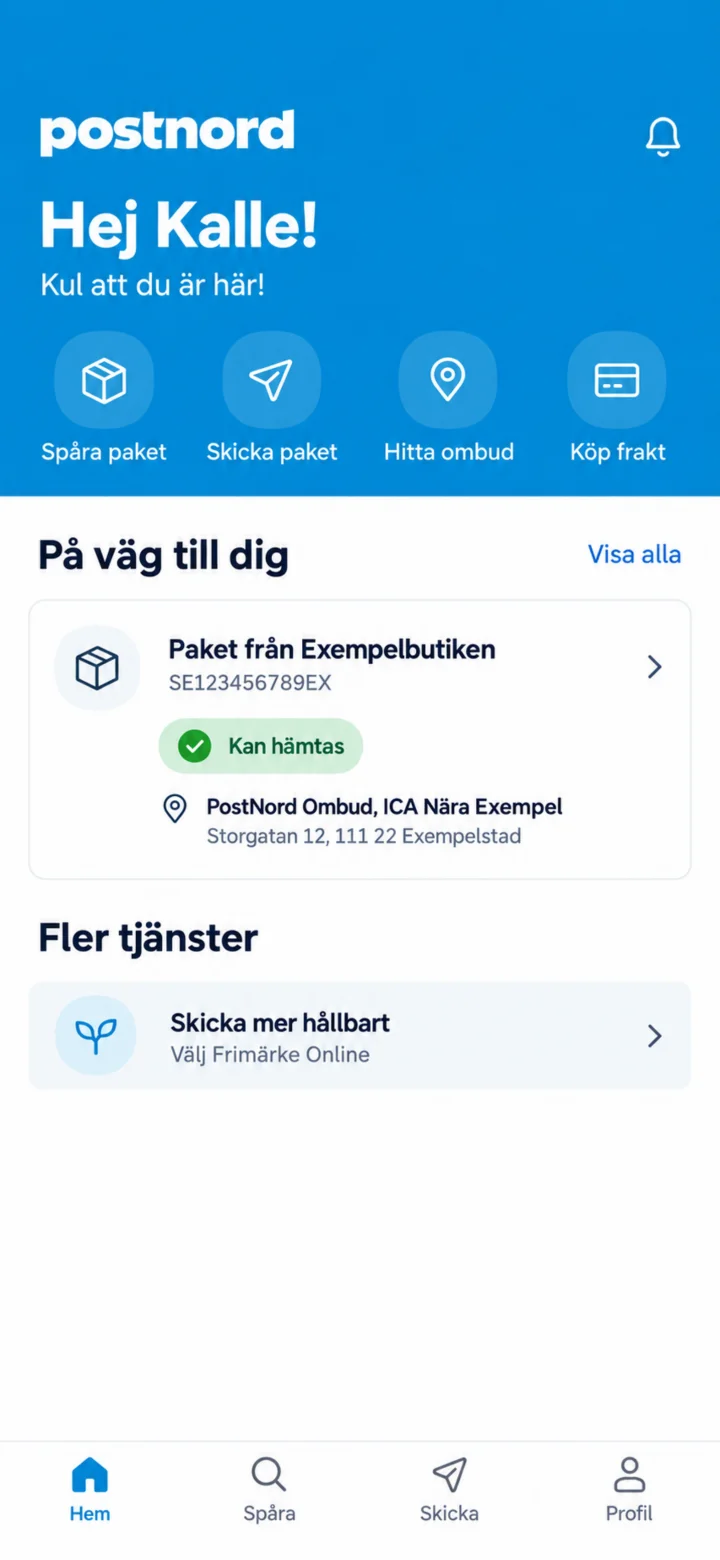
When the installation is complete, tap ”Öppna” (Open).
 4Step 4 of 9 · Android
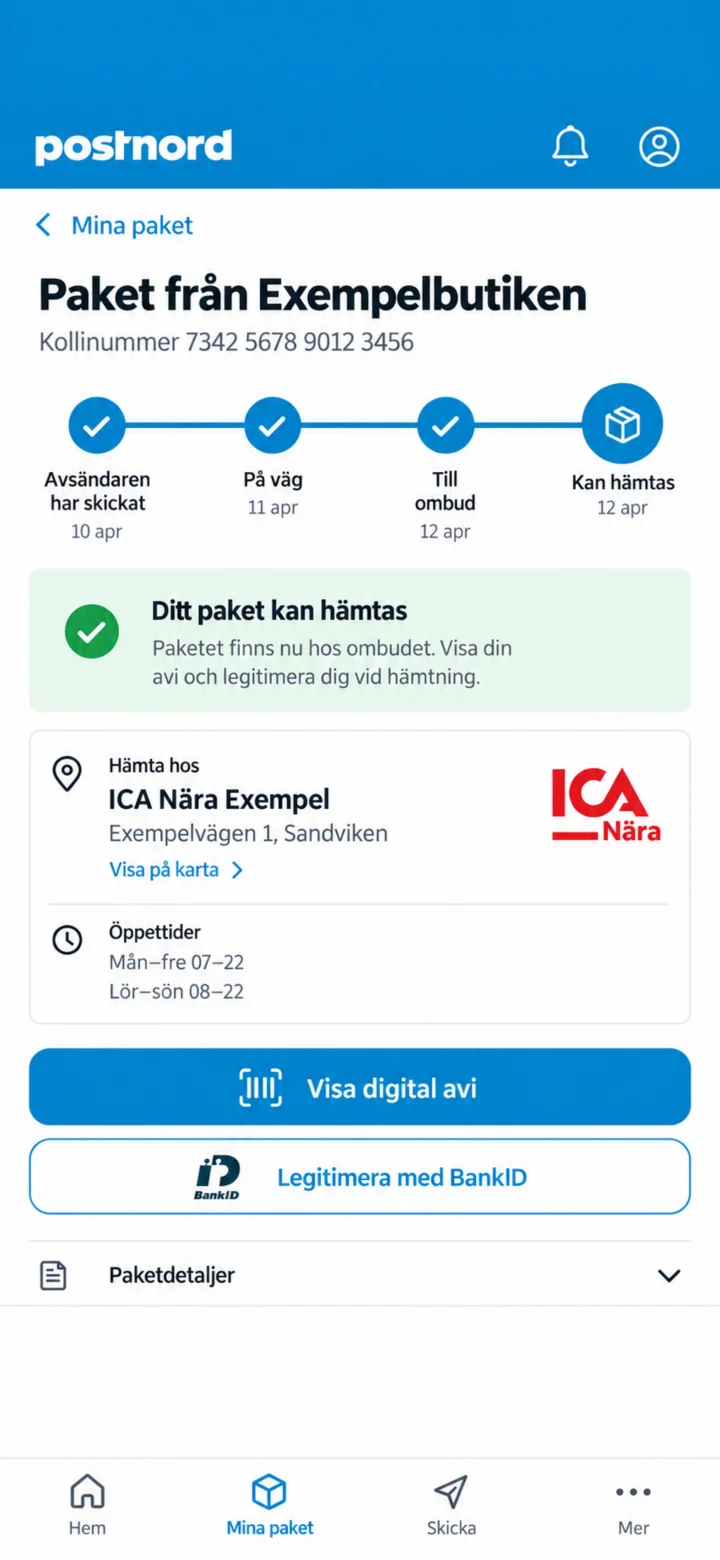
On the home screen, tap the package that can be picked up.
 5Step 5 of 9 · Android
Tap ”Visa digital avi” (Show digital notification) or identify yourself with BankID.
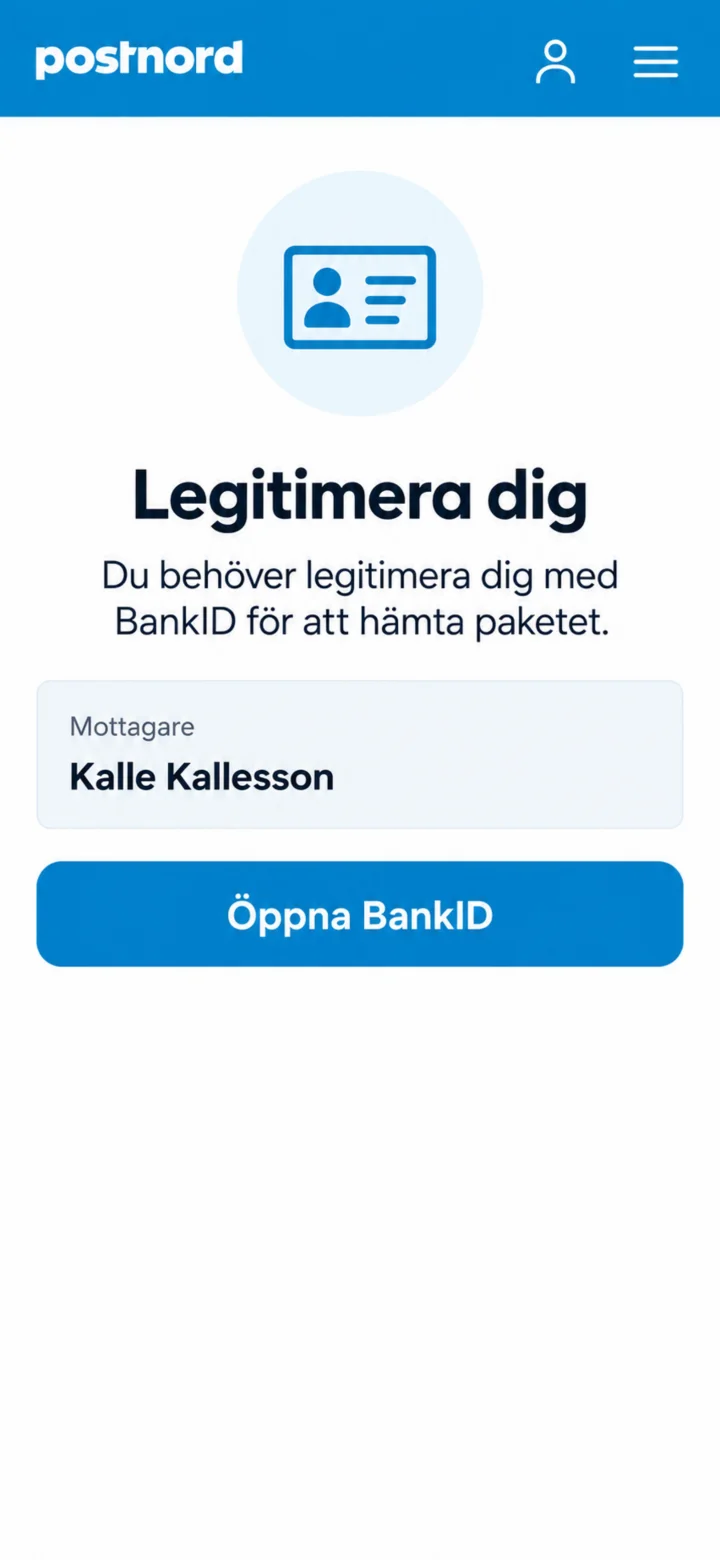 6Step 6 of 9 · Android
Tap ”Öppna BankID” (Open BankID).
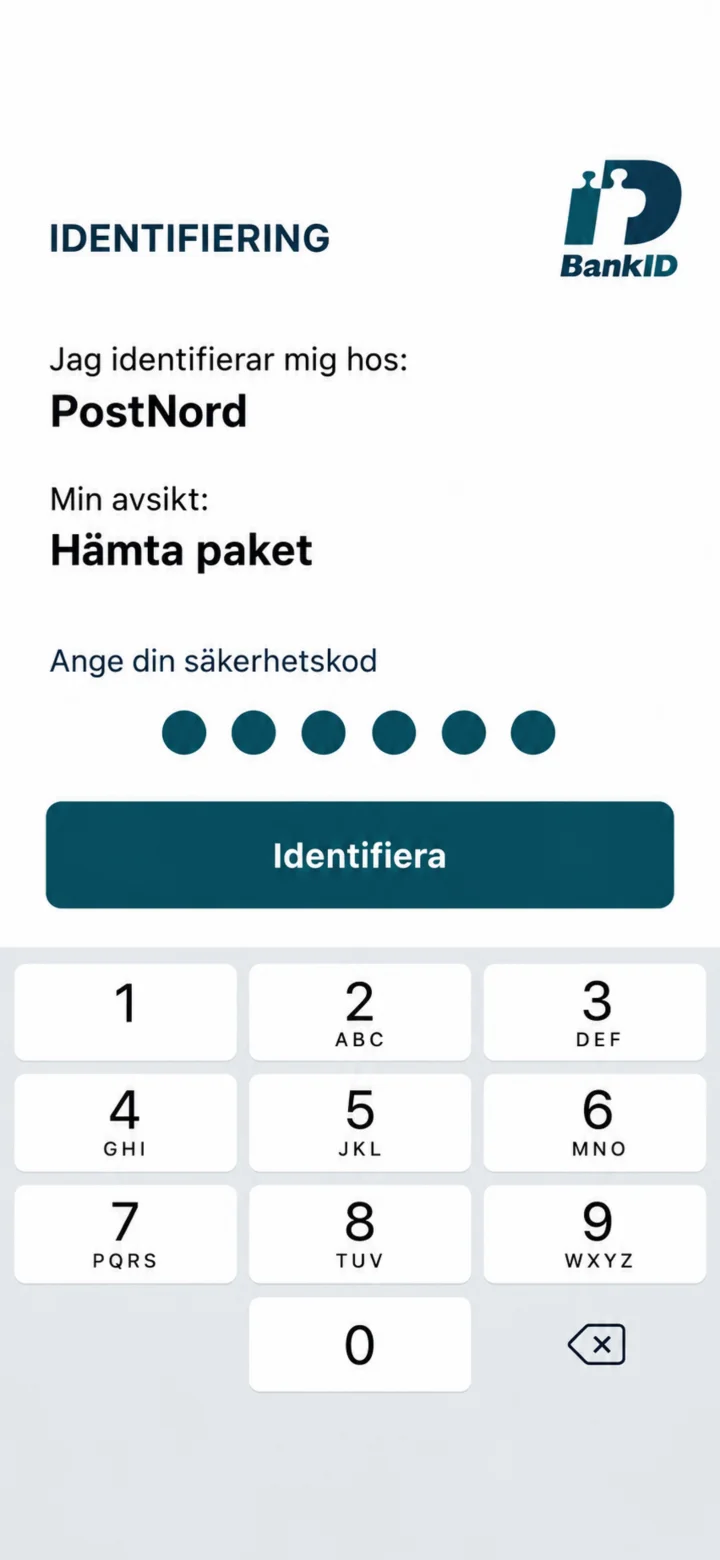 7Step 7 of 9 · Android
Check that it says PostNord, fill in your security code, and tap ”Identifiera” (Identify).
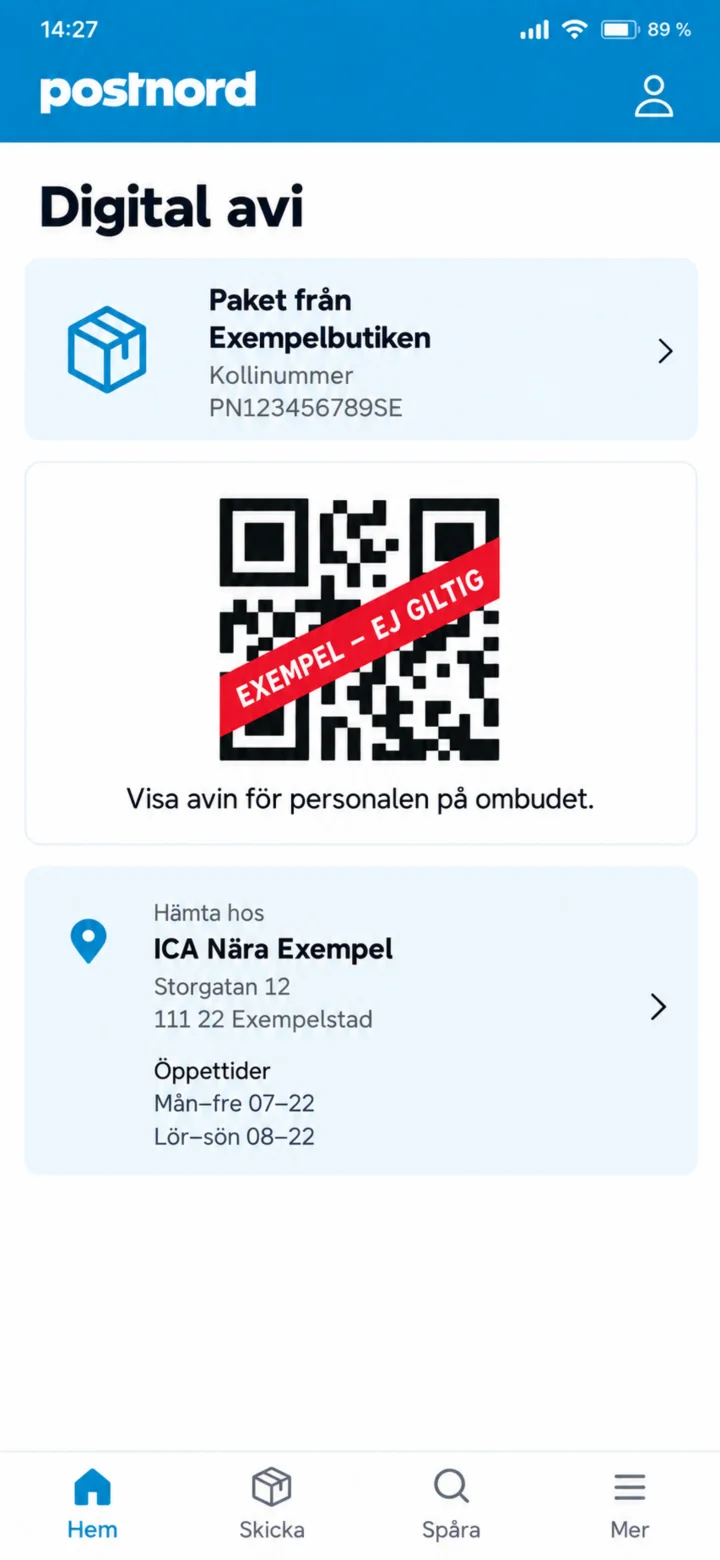 8Step 8 of 9 · Android
Show the digital notification to the staff. The QR code in the guide is just an invalid example.
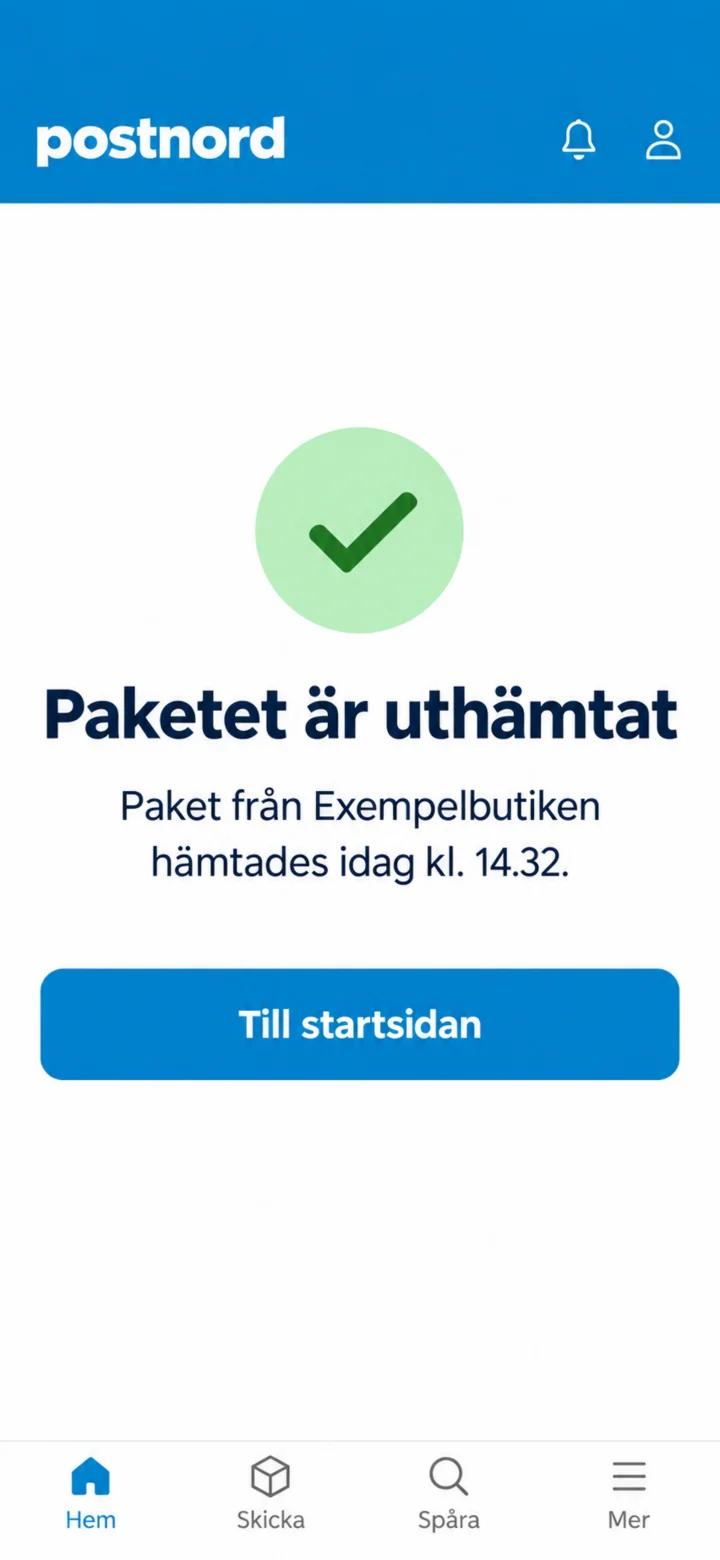 9Step 9 of 9 · Android
Once the package has been handed out, it will show that it has been picked up.
How to save and change delivery in the PostNord app
Android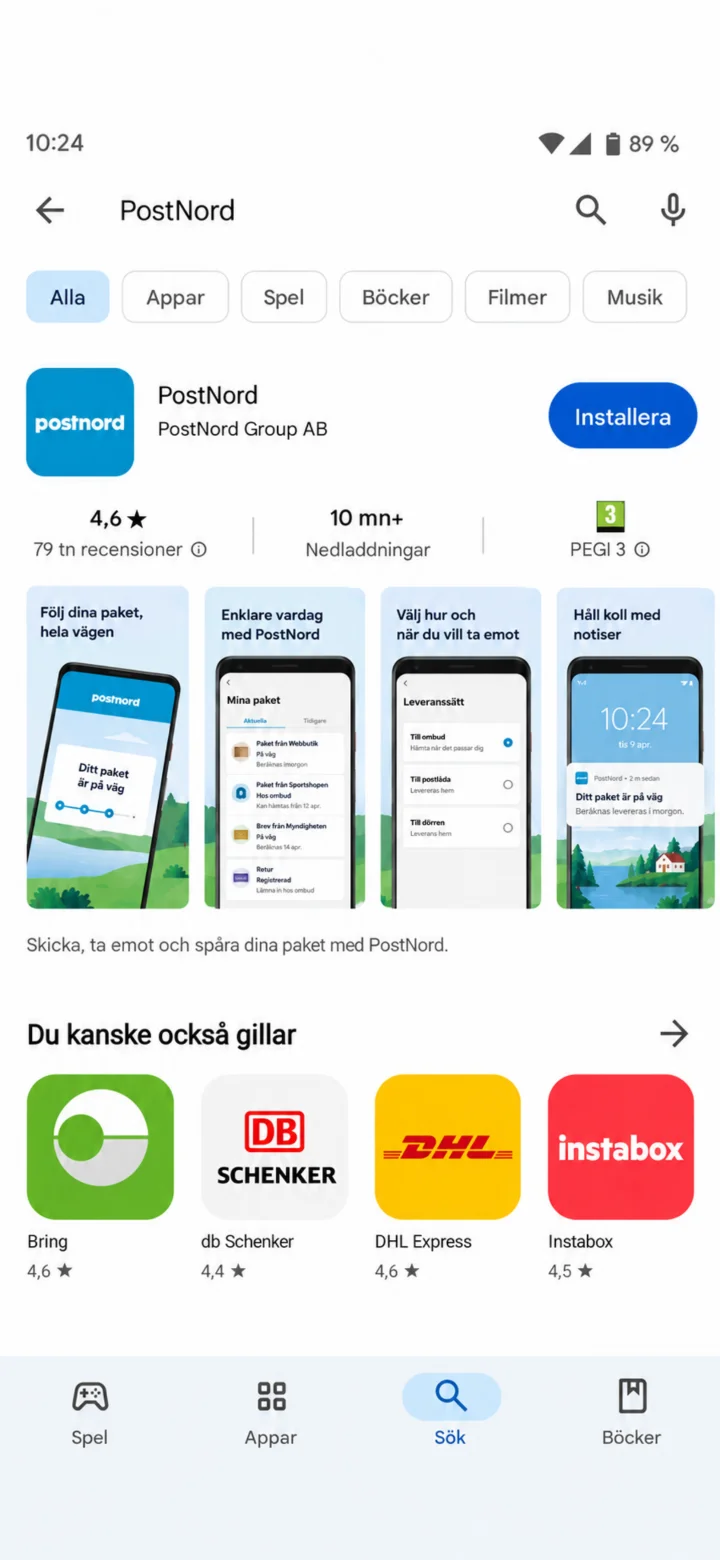 1Step 1 of 10 · Android
Open Google Play and search for PostNord.
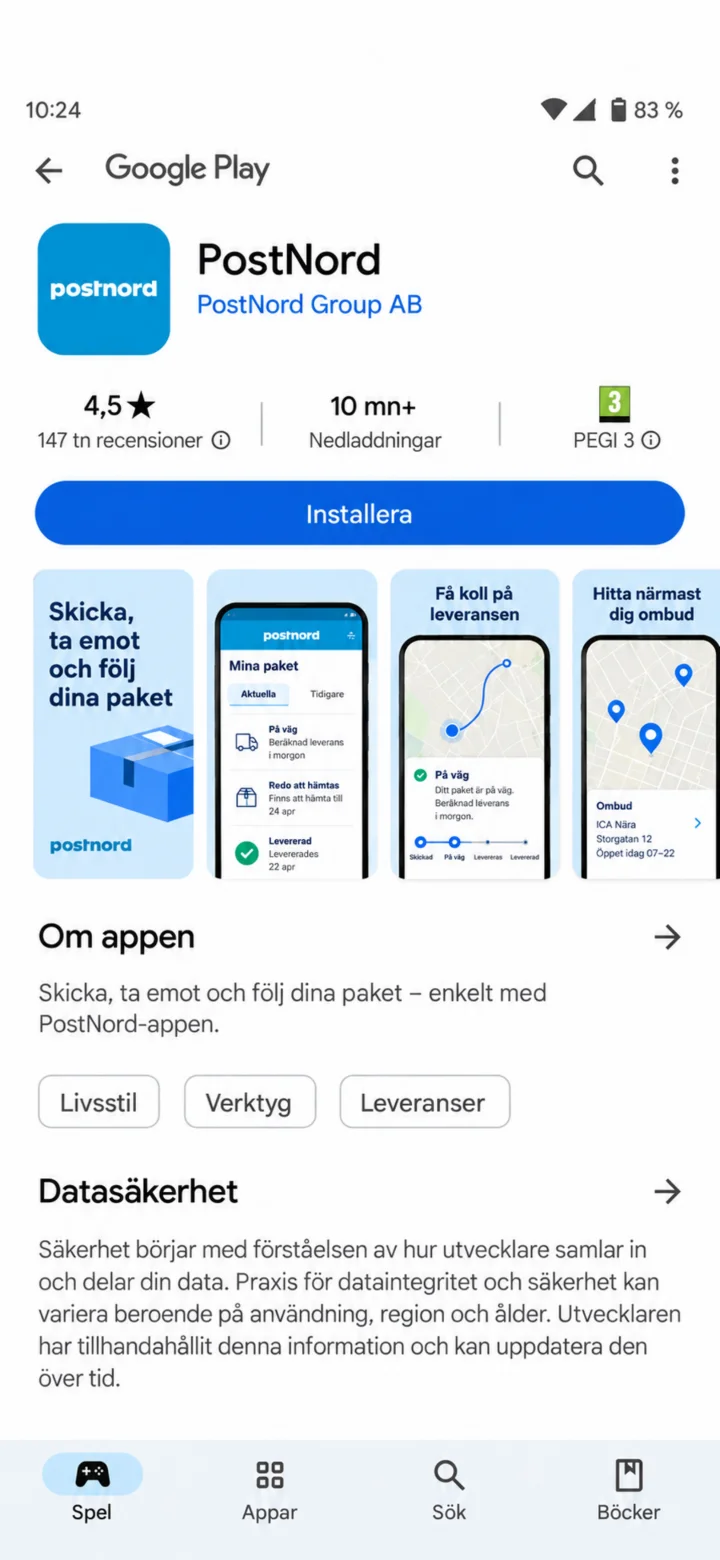 2Step 2 of 10 · Android
Tap ”Installera” (Install).
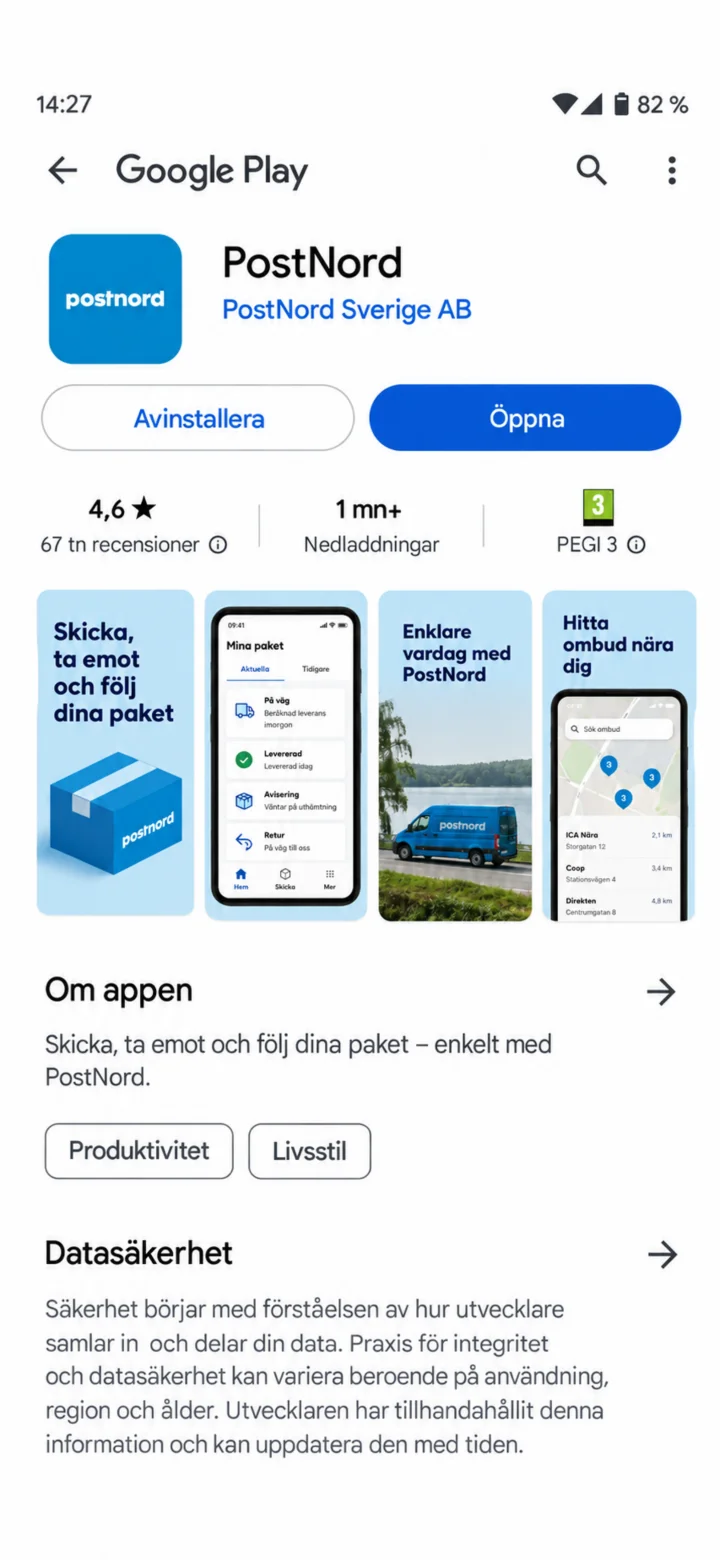 3Step 3 of 10 · Android
Once the installation is complete, tap ”Öppna” (Open).
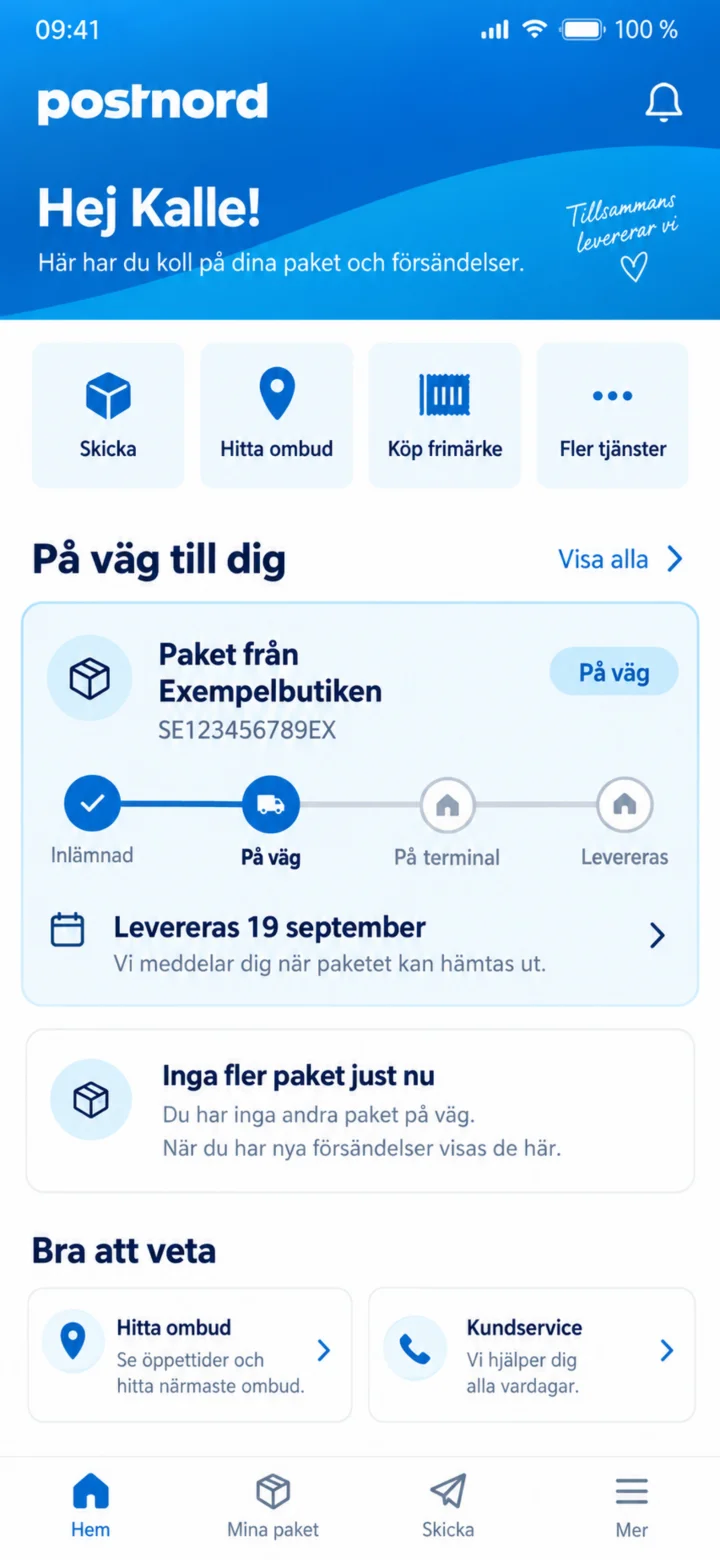 4Step 4 of 10 · Android
On the home screen, tap the package from Exempelbutiken (Example Store).
 5Step 5 of 10 · Android
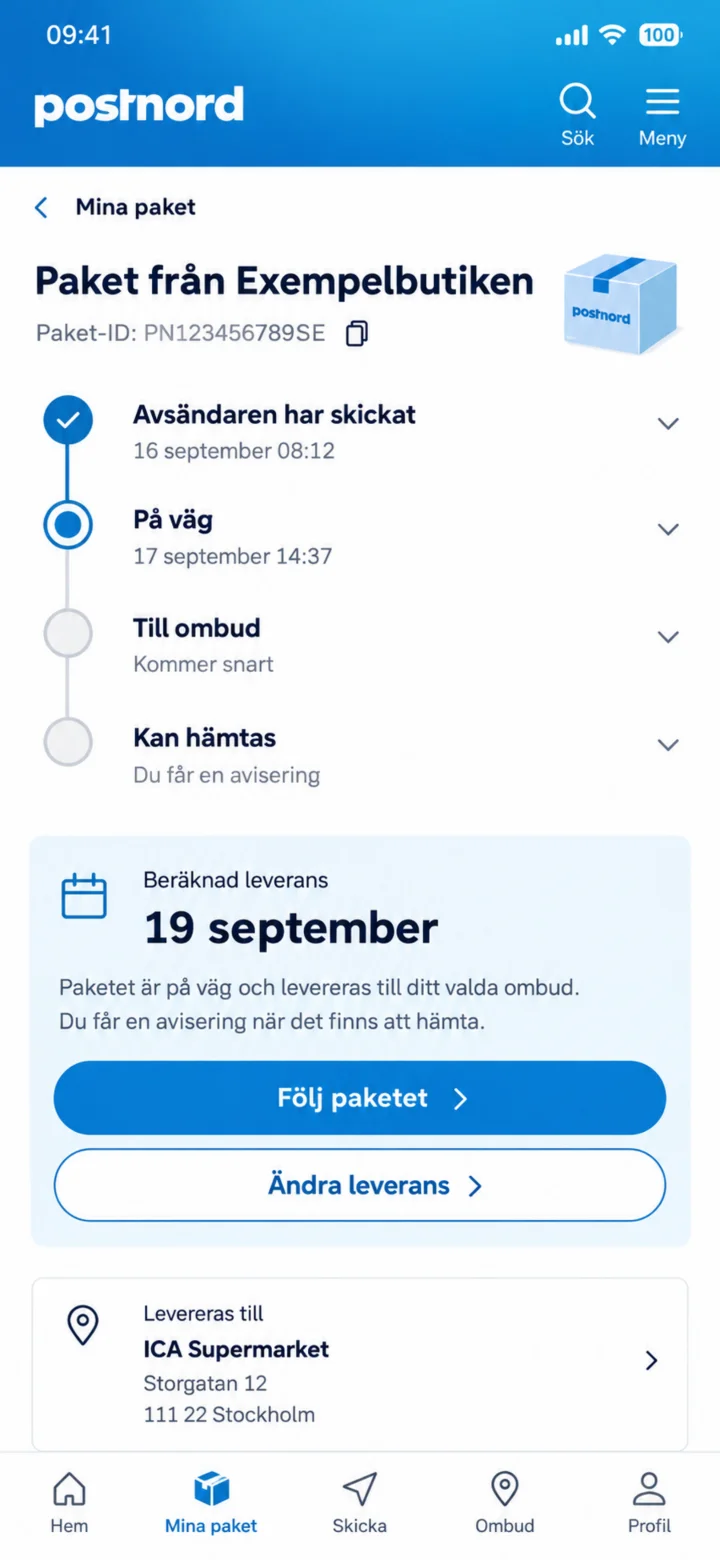
Här ser du paketets läge och beräknad leverans. Tryck på Följ paketet.
 6Step 6 of 10 · Android
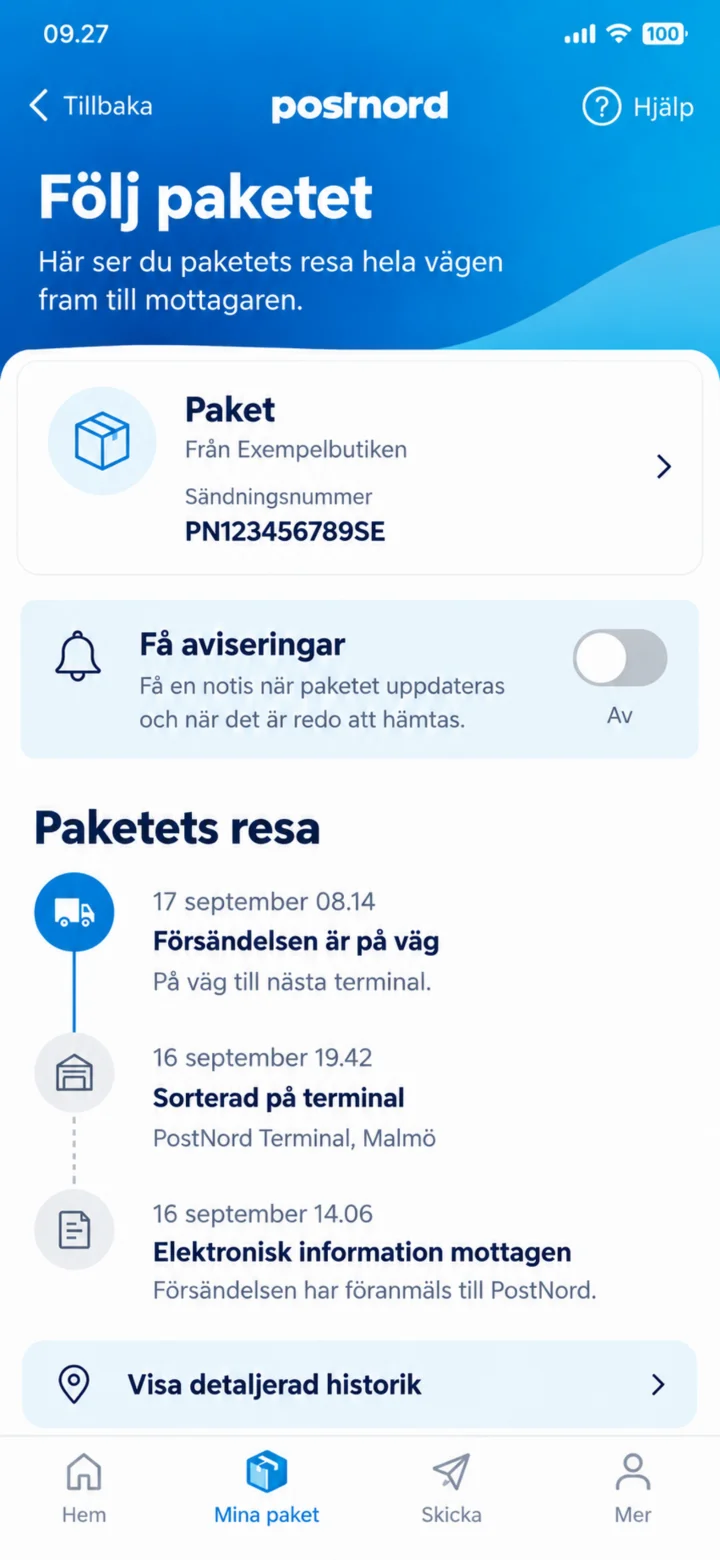
To get information when the package moves, turn on ”Få aviseringar” (Get notifications).
 7Step 7 of 10 · Android
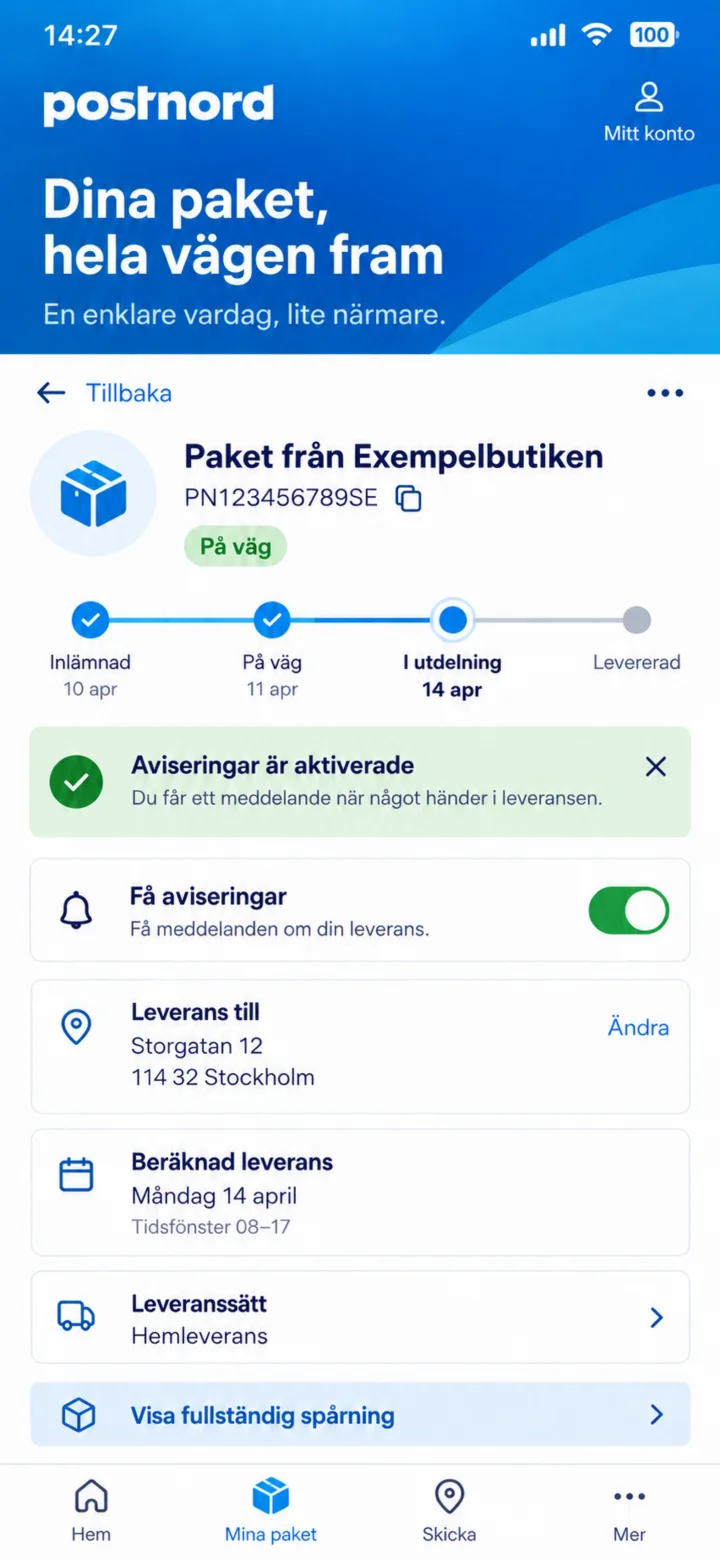
The green button shows that notifications are activated.
 8Step 8 of 10 · Android
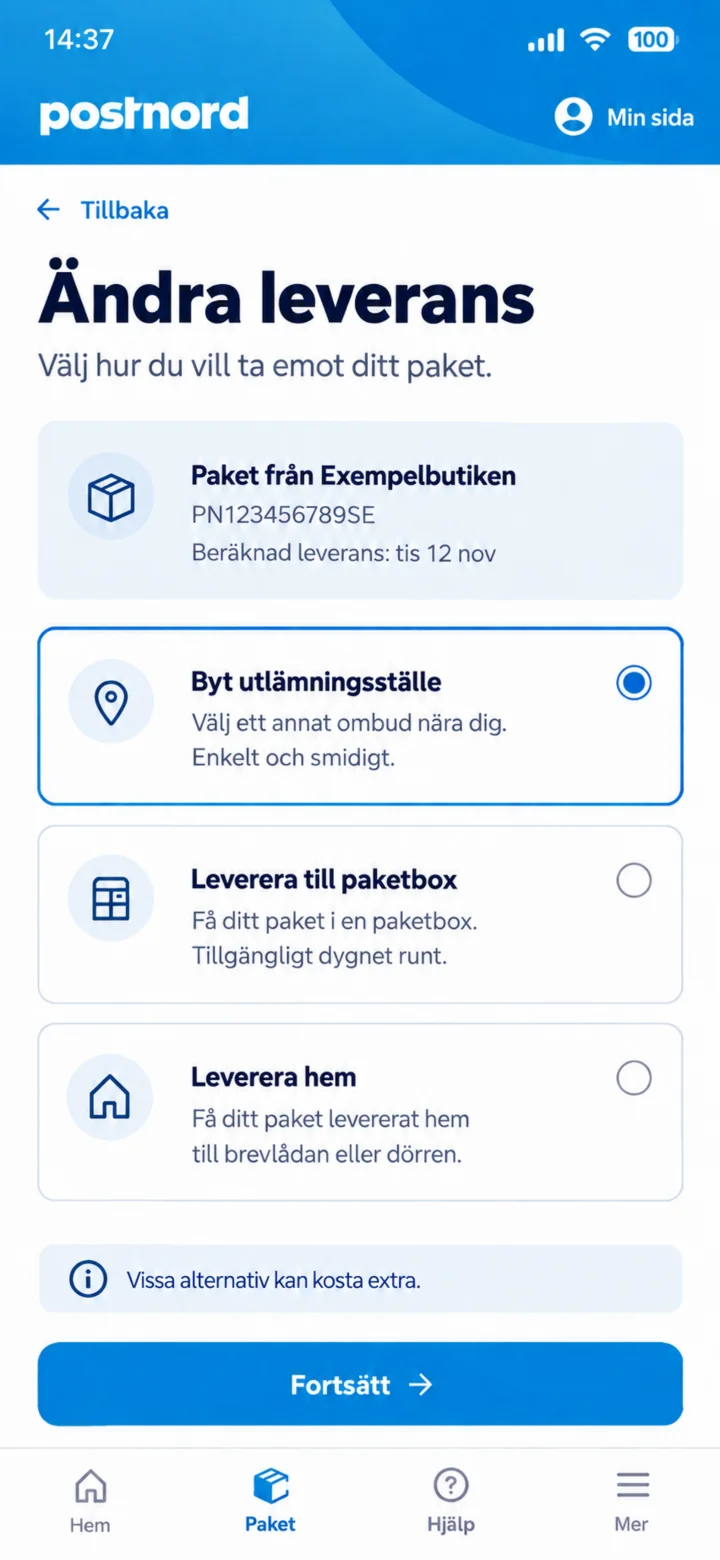
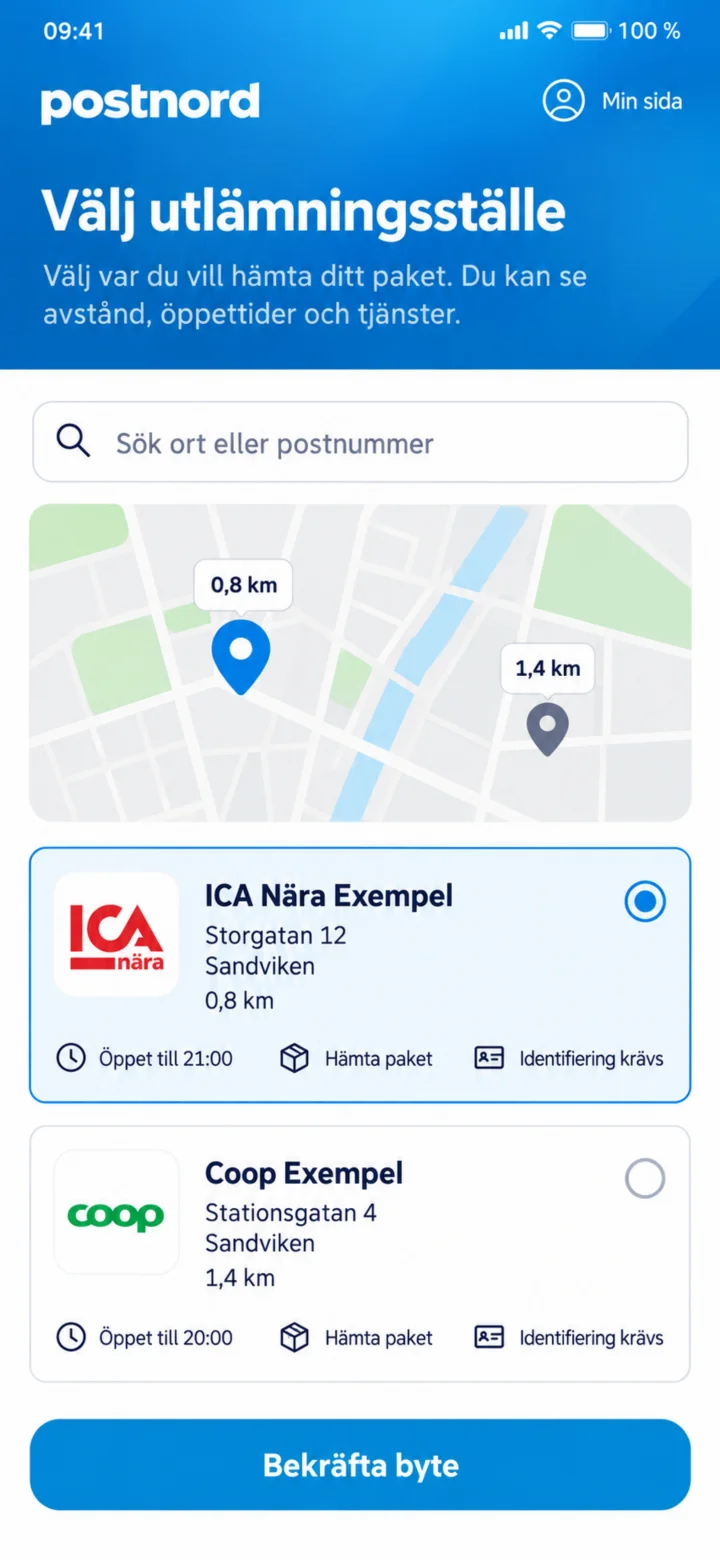
Tap ”Ändra leverans” (Change delivery) and choose ”Byt utlämningsställe” (Change pick-up point).
 9Step 9 of 10 · Android
Välj ett nytt utlämningsställe och tryck på Bekräfta byte.
 10Step 10 of 10 · Android
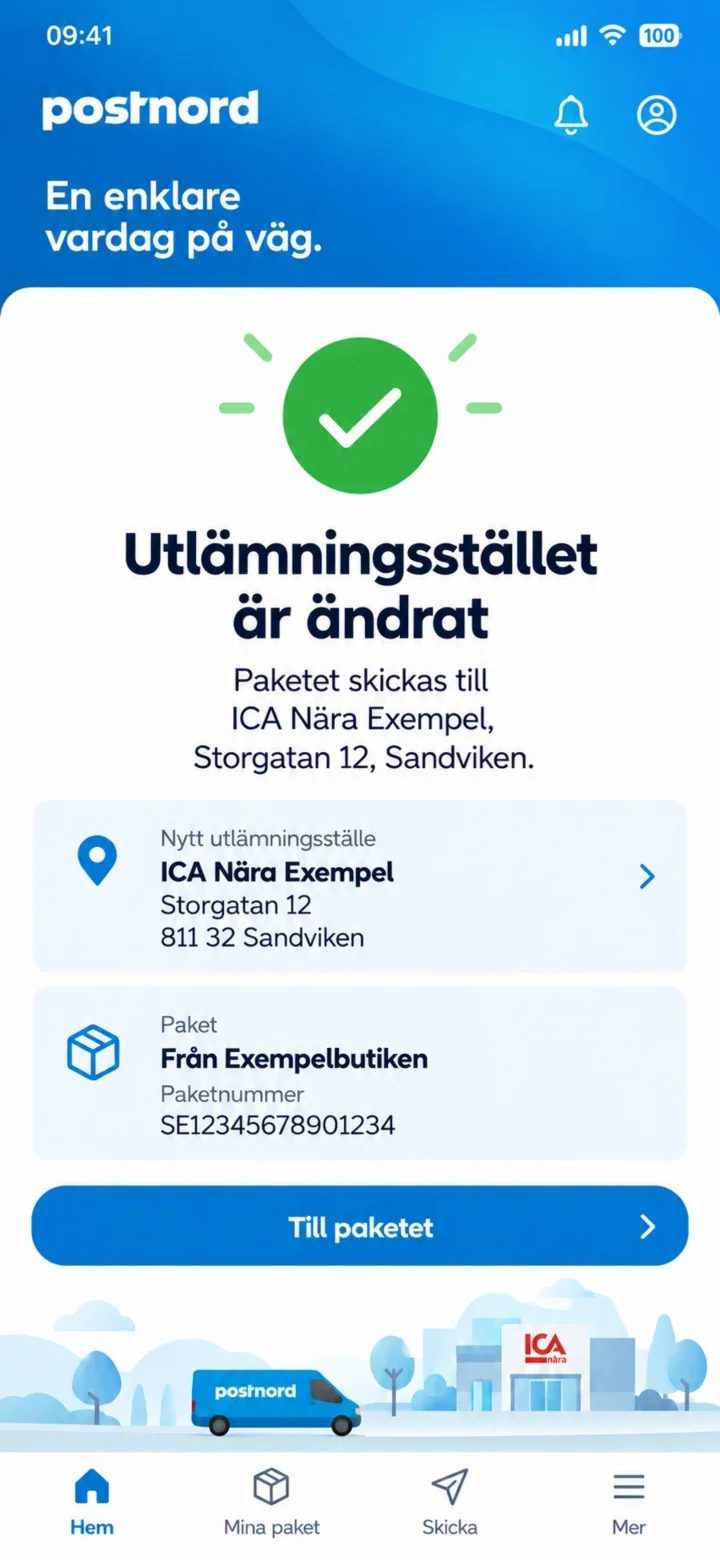
The pick-up point has been changed. Please check the new address.
ICA Shop Online
Android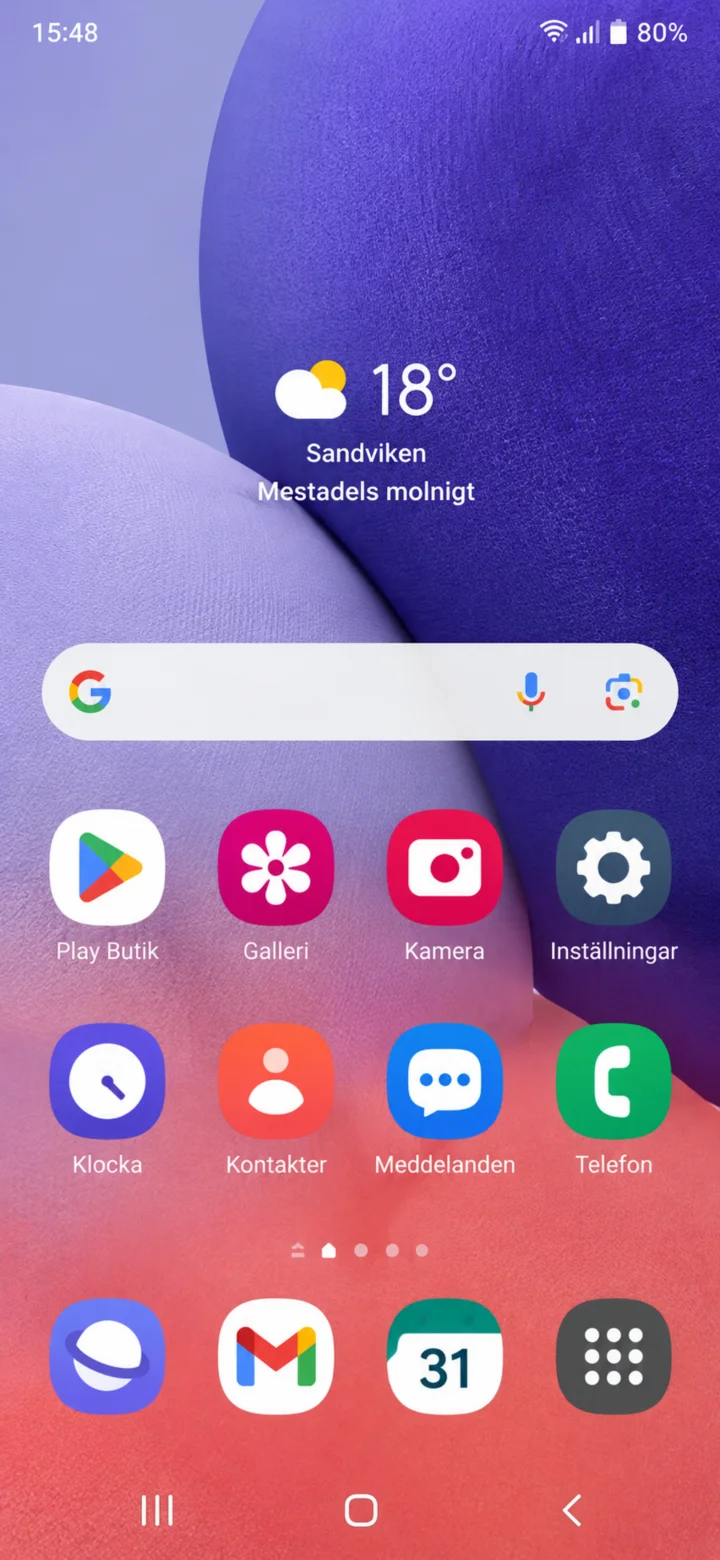 1Step 1 of 8 · Android
Hello! Here I'll show you how to shop for groceries online using the ICA app. You can take your time and stop whenever you want. First, let's find the app. Tap the icon called Play Butik (Play Store), it has a colorful triangle.
 2Step 2 of 8 · Android
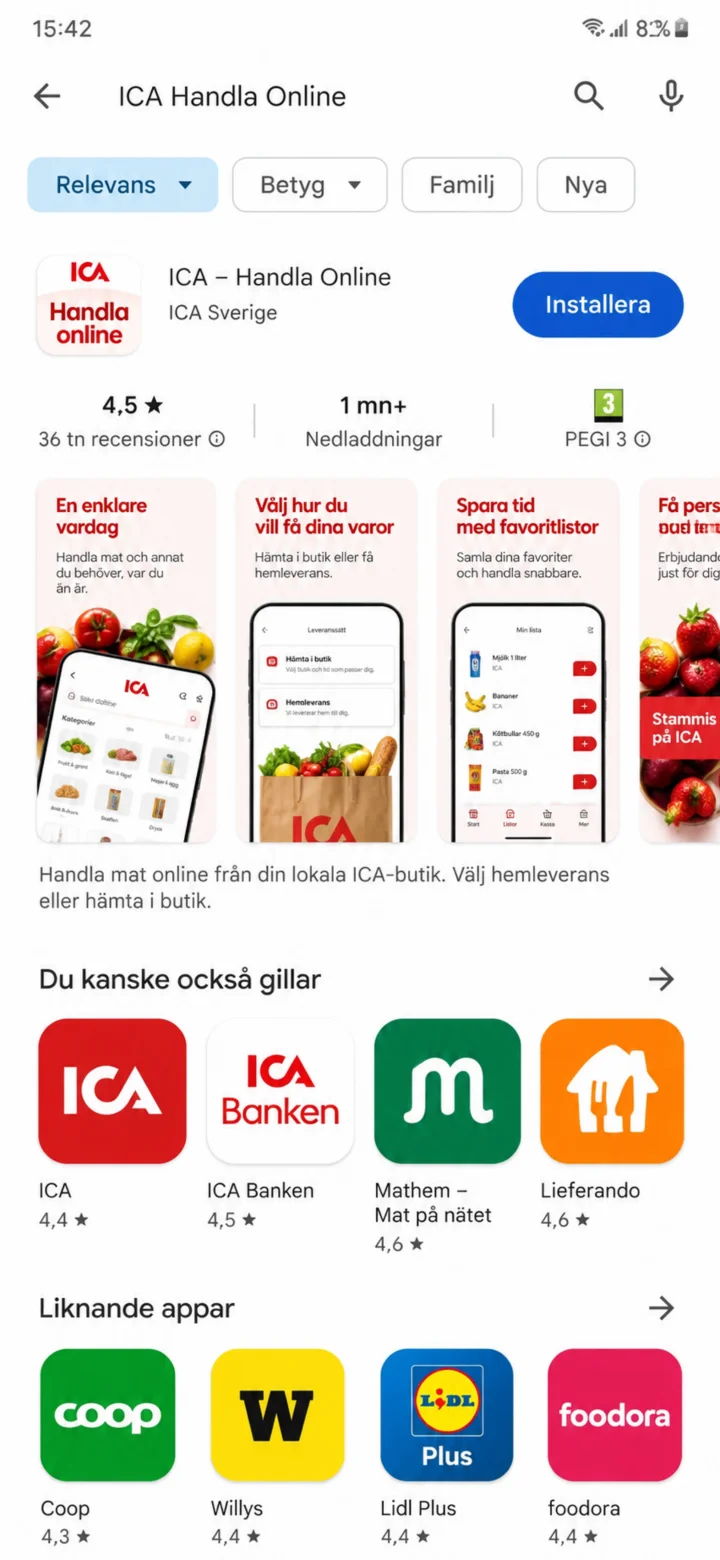
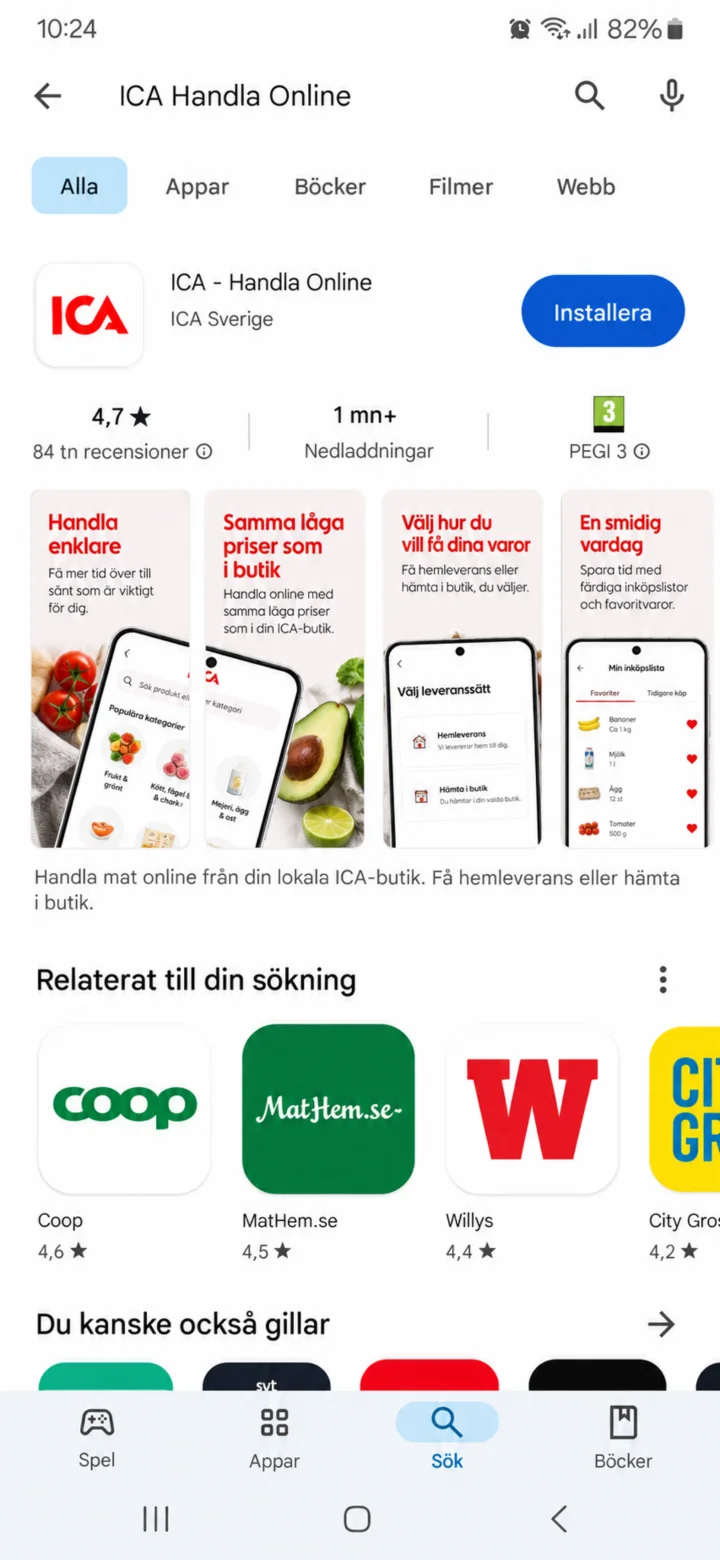
Search for Ica in the search bar. Now you'll see the ICA Handla Online (ICA Shop Online) app. Tap the blue button that says ”Installera” (Install).
 3Step 3 of 8 · Android
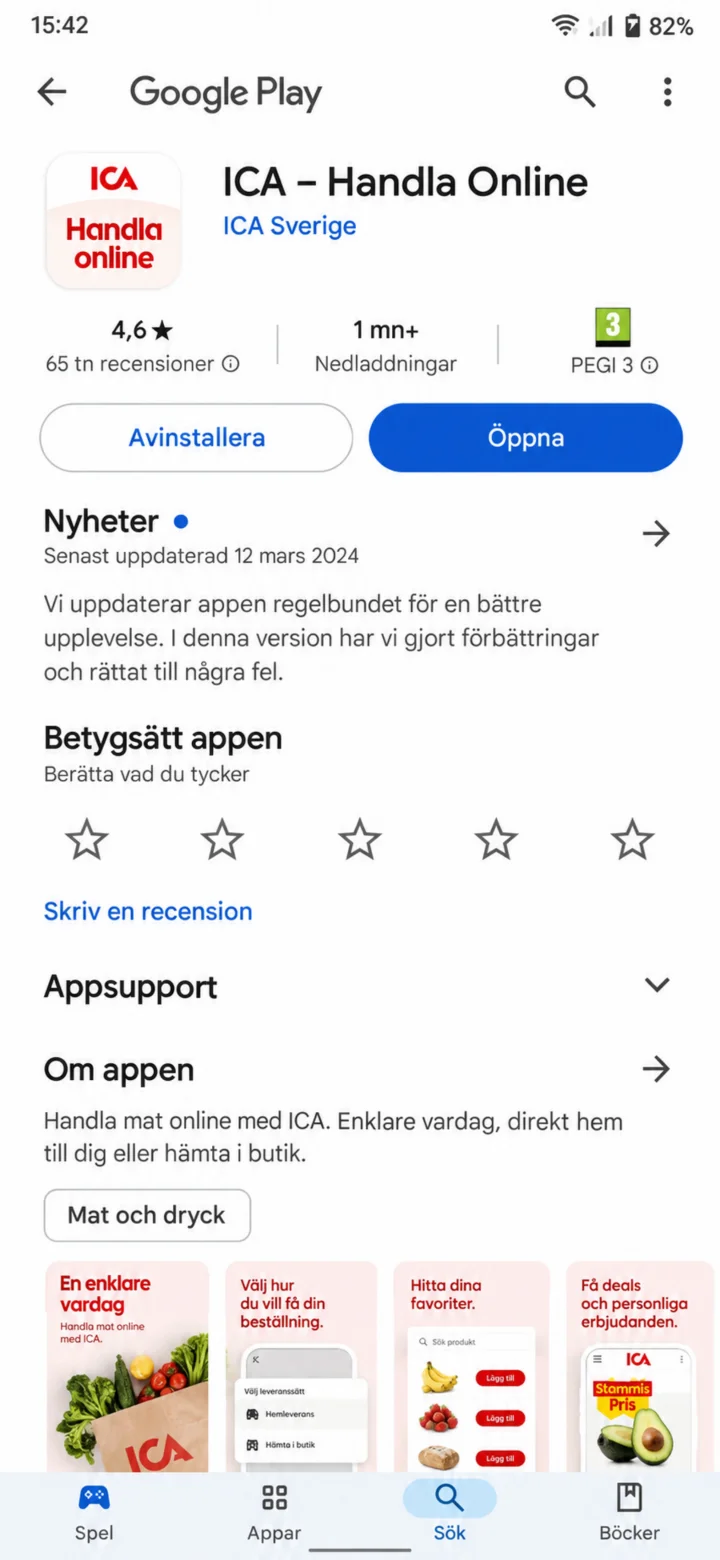
The app is being installed. This might take a little while. You can stay on this screen until the button changes to ”Öppna” (Open).
 4Step 4 of 8 · Android
Tap the blue button ”Öppna” (Open) to start the app.
 5Step 5 of 8 · Android
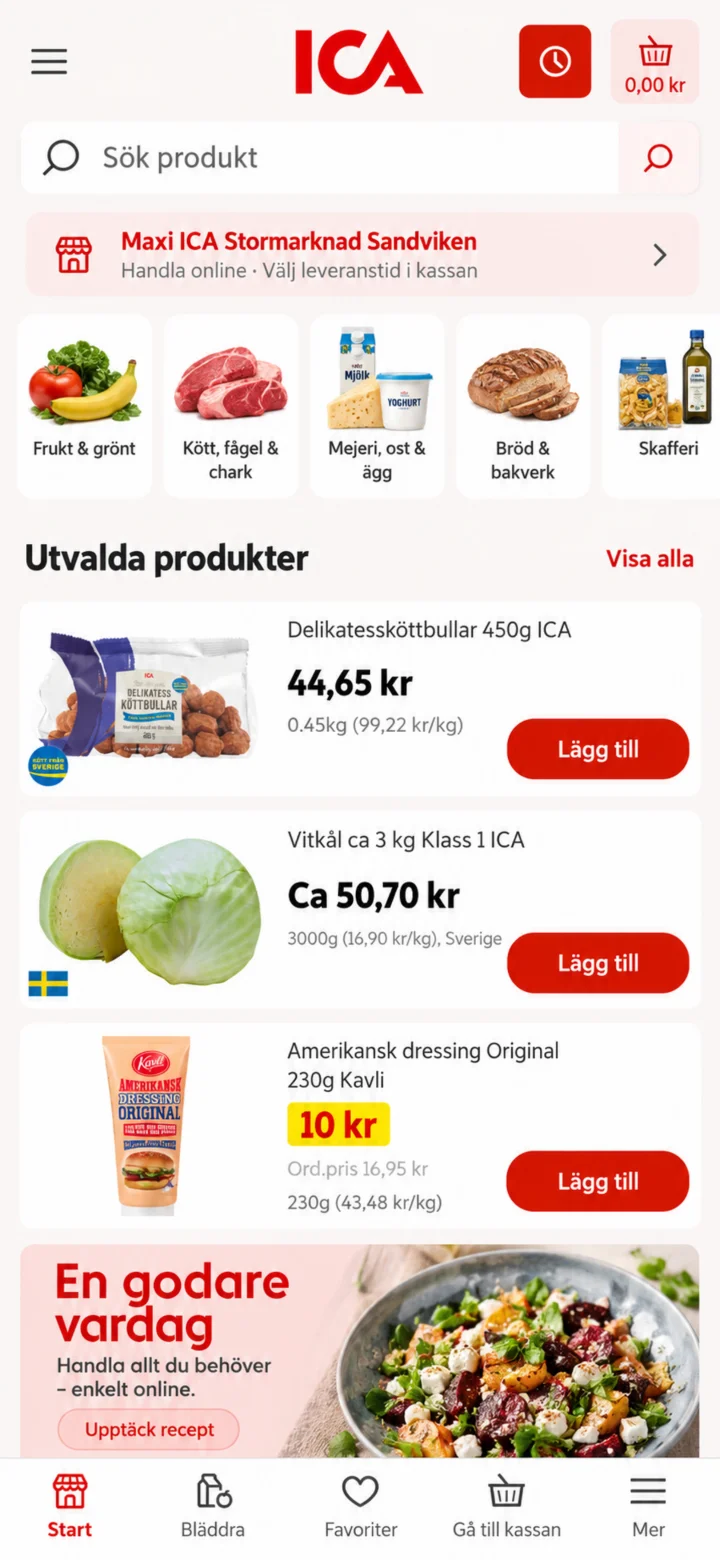
Welcome to the ICA app! To find what you want to buy, tap the search bar at the top where it says ”Sök produkt” (Search product).
 6Step 6 of 8 · Android
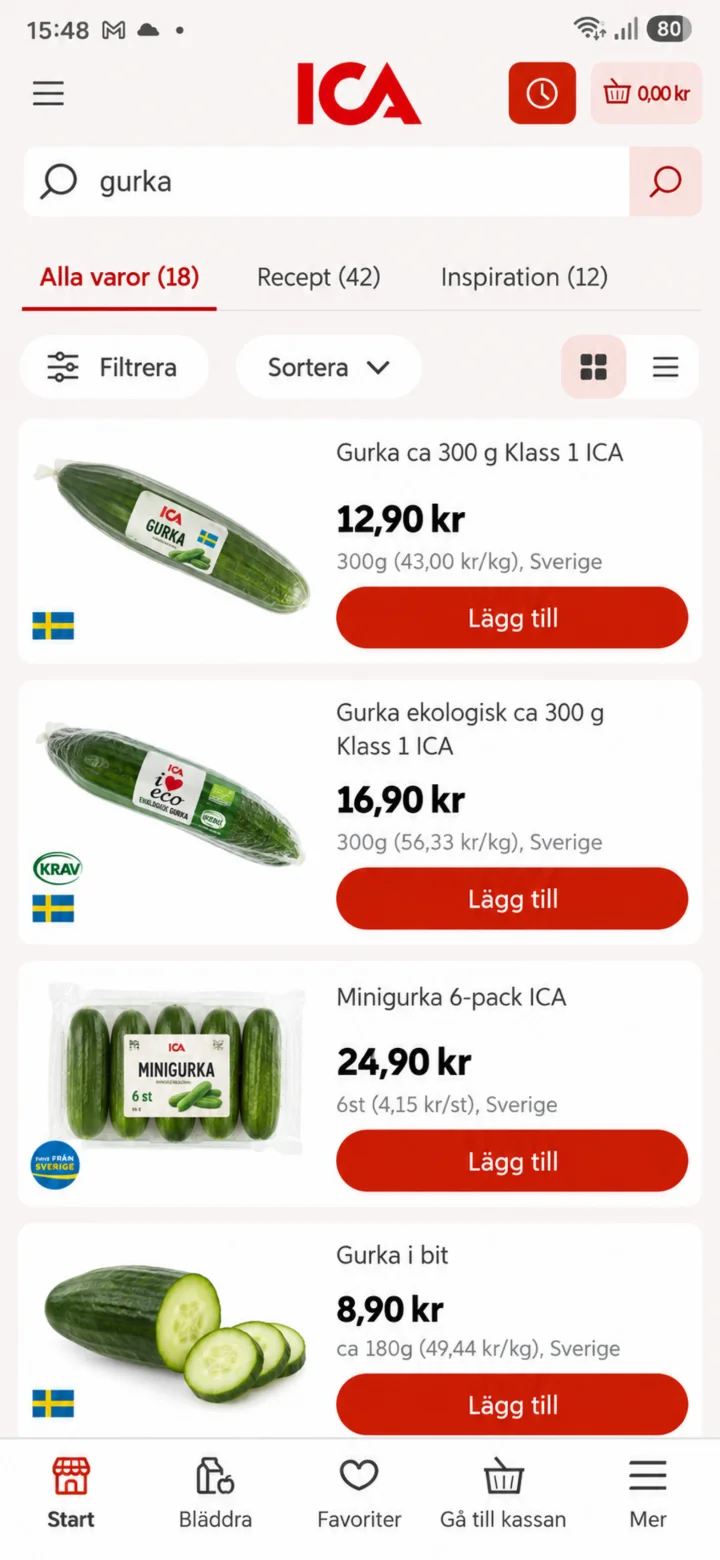
Now you'll see different kinds of cucumber. Tap the red button ”Lägg till” (Add) next to the cucumber you want to buy.
 7Step 7 of 8 · Android
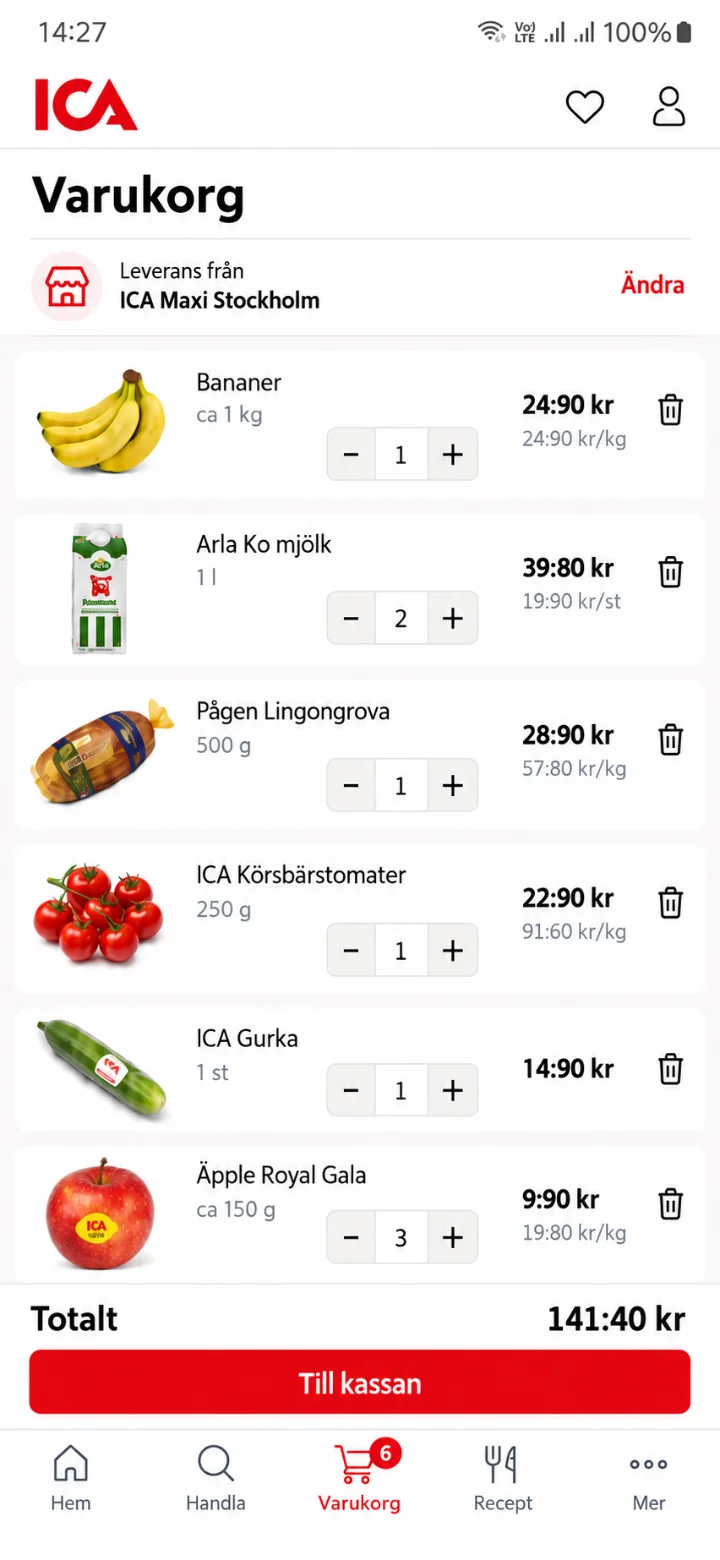
Here you'll see your shopping cart with the items you've added. When you're happy with your order, tap the red button ”Till kassan” (To checkout) at the bottom.
 8Step 8 of 8 · Android
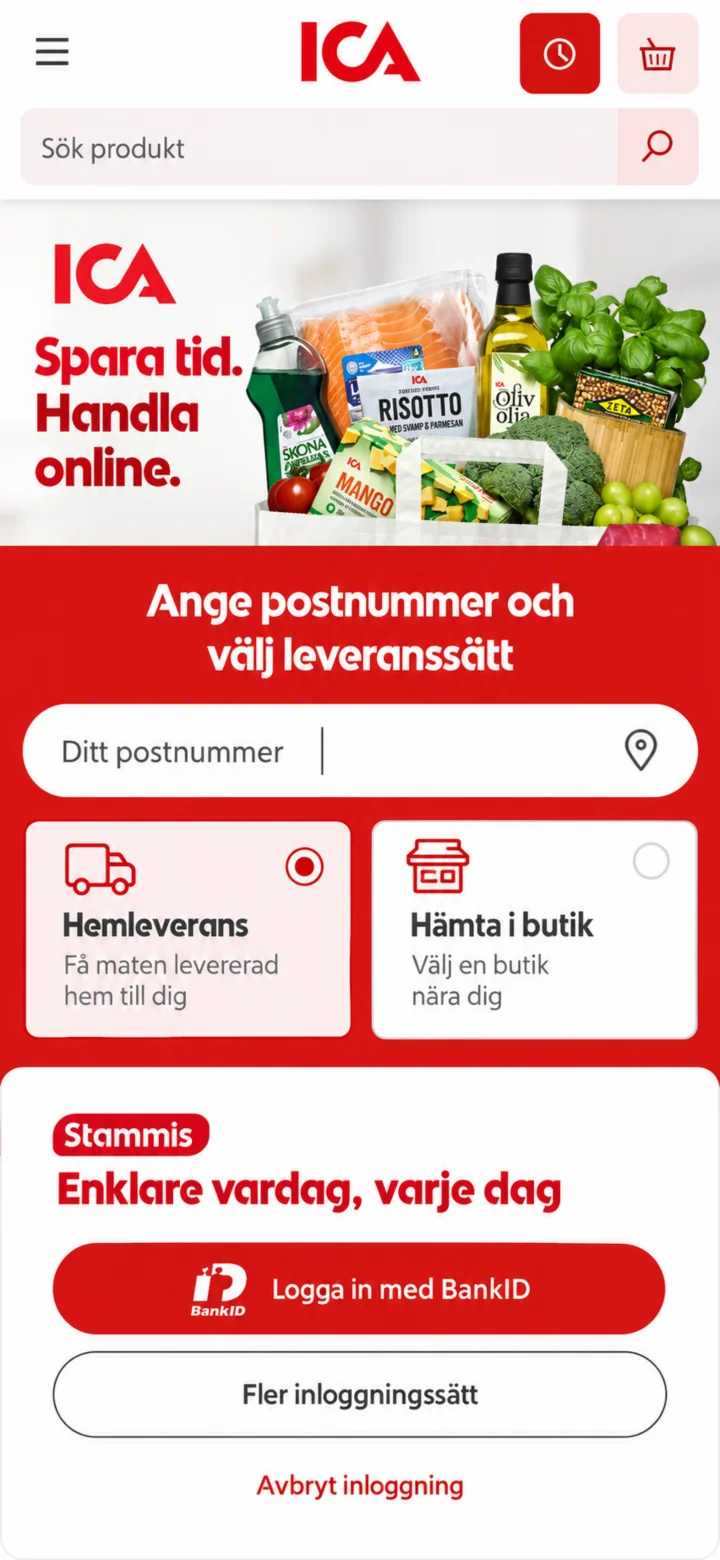
Now you're at the checkout! Here you'll enter your postal code and choose if you want your groceries delivered to your home or if you want to pick them up in the store. Then you can log in with BankID to complete the purchase. Done! Now you know how to shop for groceries with the ICA app.