Every guide in the topic, each starting on a new page. 32 steps in total.
Tip: untick “Headers and footers” in the print dialog to leave out the web address.
Pension and authorities
Step-by-step guides · 5 guides
 iPhone
Contents
- 1.Använd BankID tryggt – legitimera dig och skriva under7 steps
- 2.Check if you can get a housing supplement6 steps
- 3.Get Min myndighetspost and read government mail7 steps
- 4.Order a Pensioner's Certificate6 steps
- 5.See your pension and next payment6 steps
Använd BankID tryggt – legitimera dig och skriva under
iPhone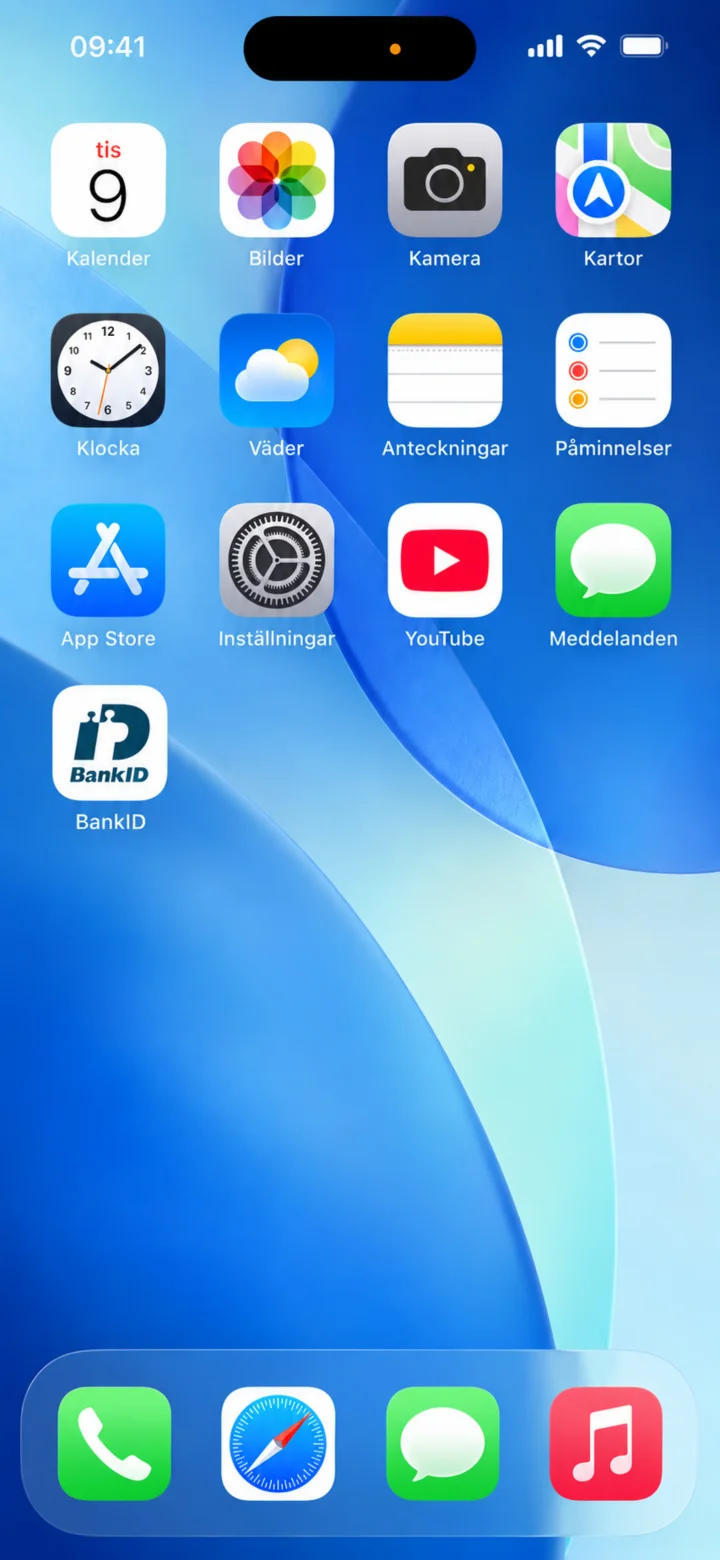 1Step 1 of 7 · iPhone
På en iPhone trycker du på appen BankID.
 2Step 2 of 7 · iPhone
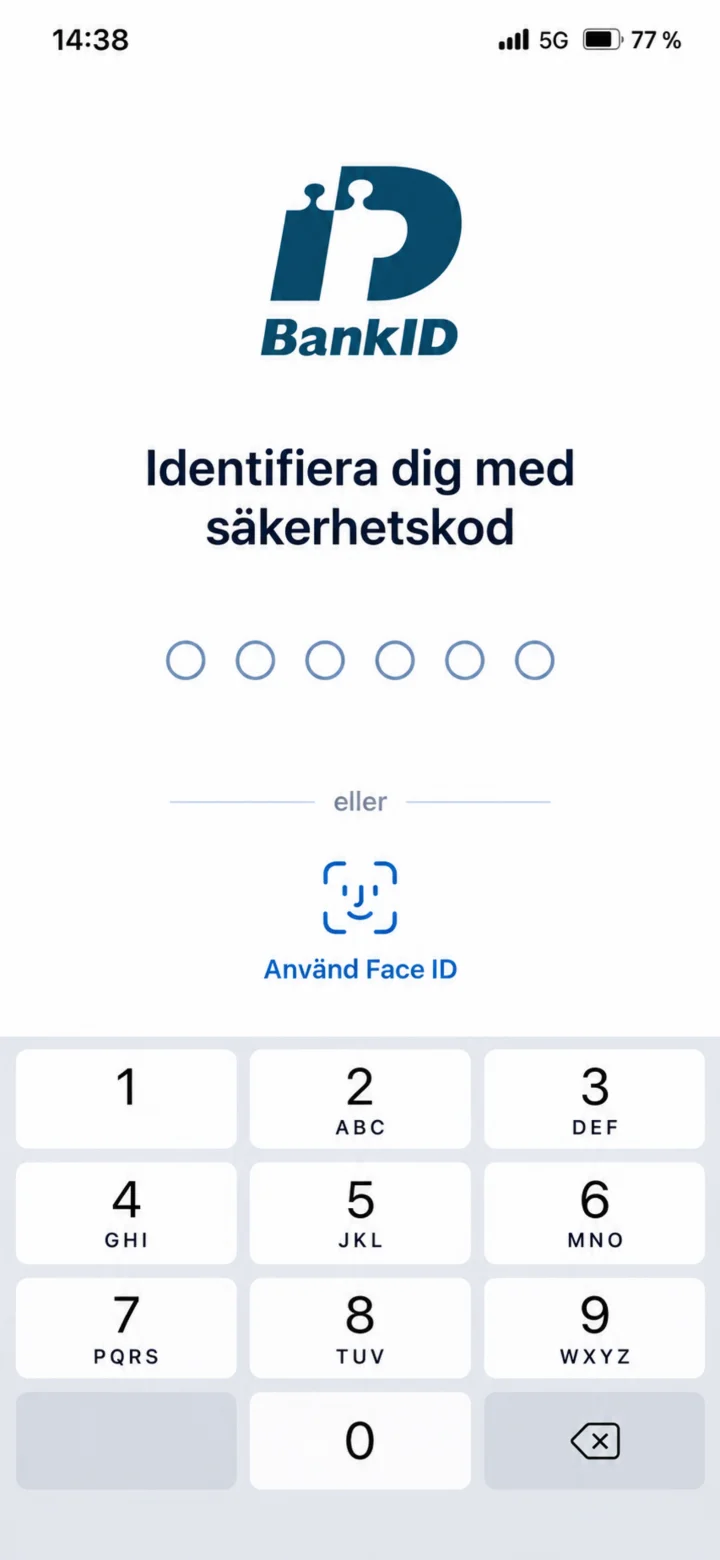
Nu är BankID öppet. Här kan du skriva in din säkerhetskod eller använda Face ID. Lämna aldrig ut koden till någon annan.
 3Step 3 of 7 · iPhone
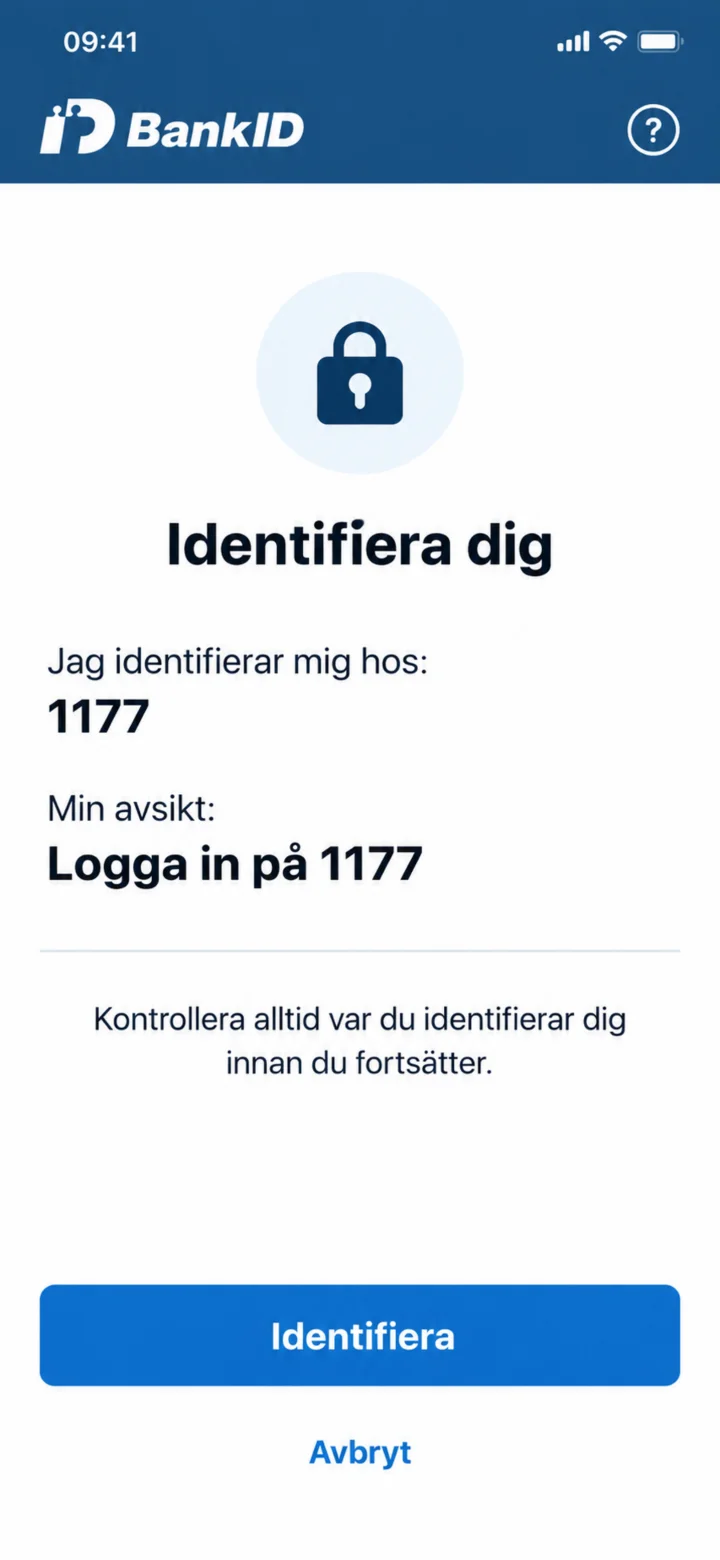
Läs alltid vem du identifierar dig hos och vad identifieringen gäller. I exemplet står det 1177 och Logga in på 1177.
 4Step 4 of 7 · iPhone
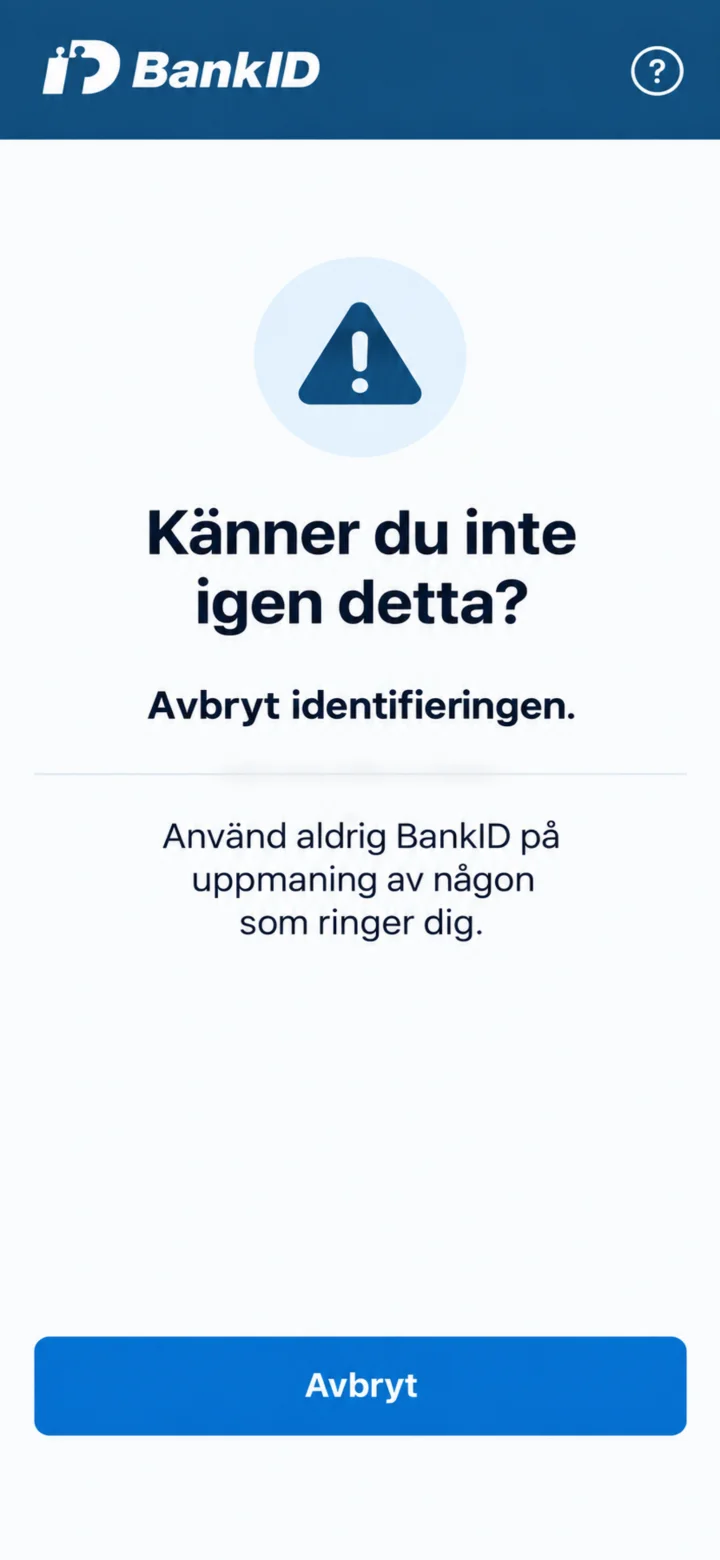
Känner du inte igen begäran, eller har någon ringt och bett dig använda BankID? Avbryt identifieringen.
 5Step 5 of 7 · iPhone
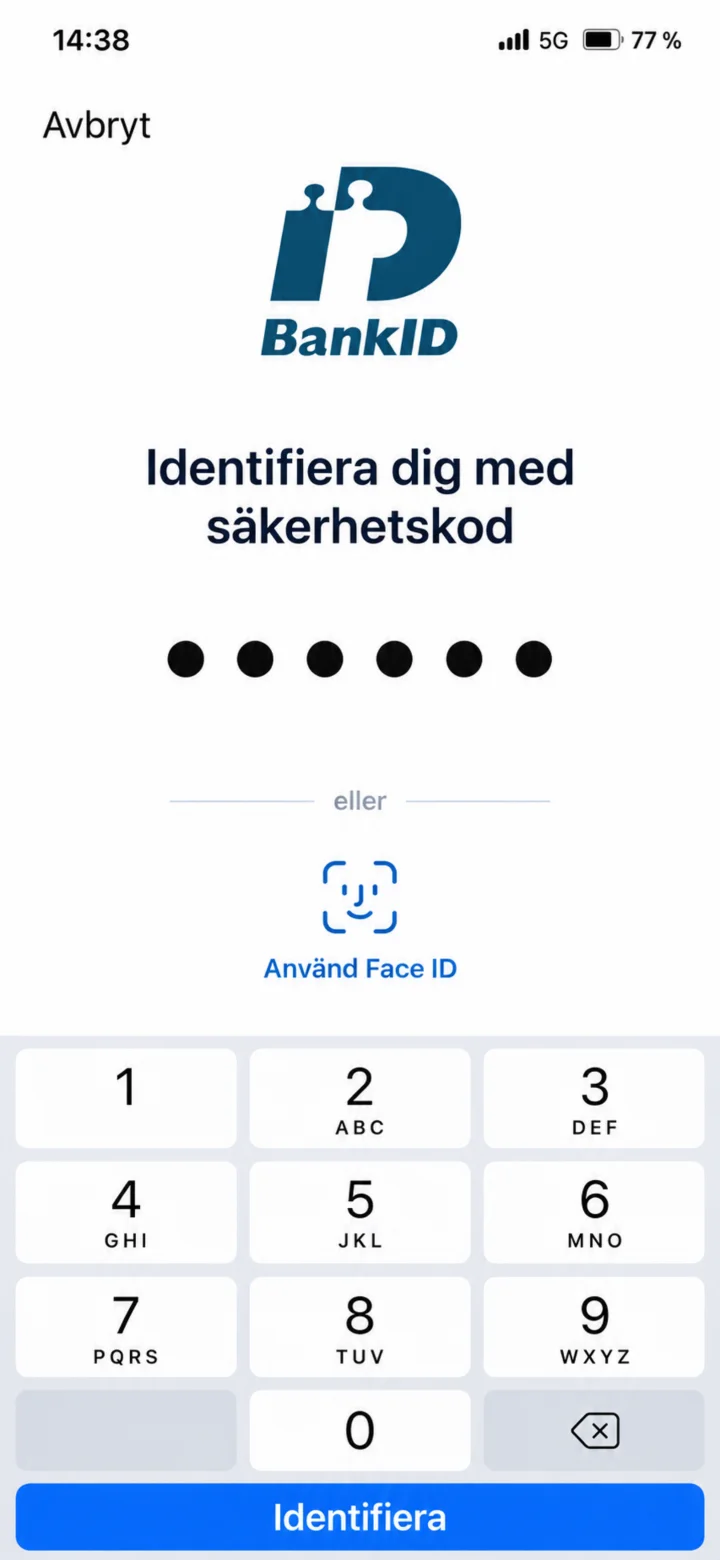
När allt stämmer skriver du in din egen säkerhetskod och väljer Identifiera. Visa aldrig koden för någon annan.
 6Step 6 of 7 · iPhone
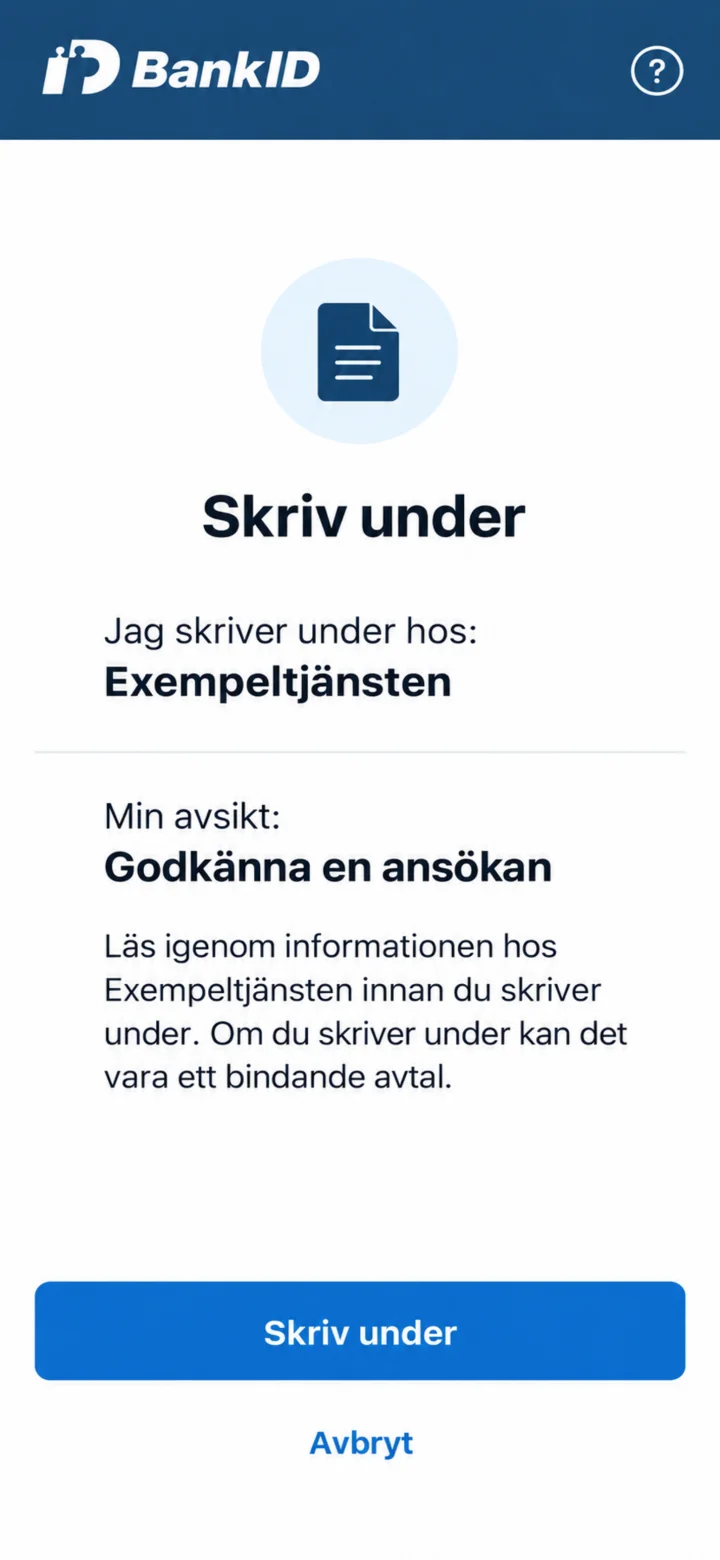
När du ska skriva under kontrollerar du vem som ber dig skriva under och vad underskriften gäller. Välj Skriv under först när allt stämmer.
 7Step 7 of 7 · iPhone
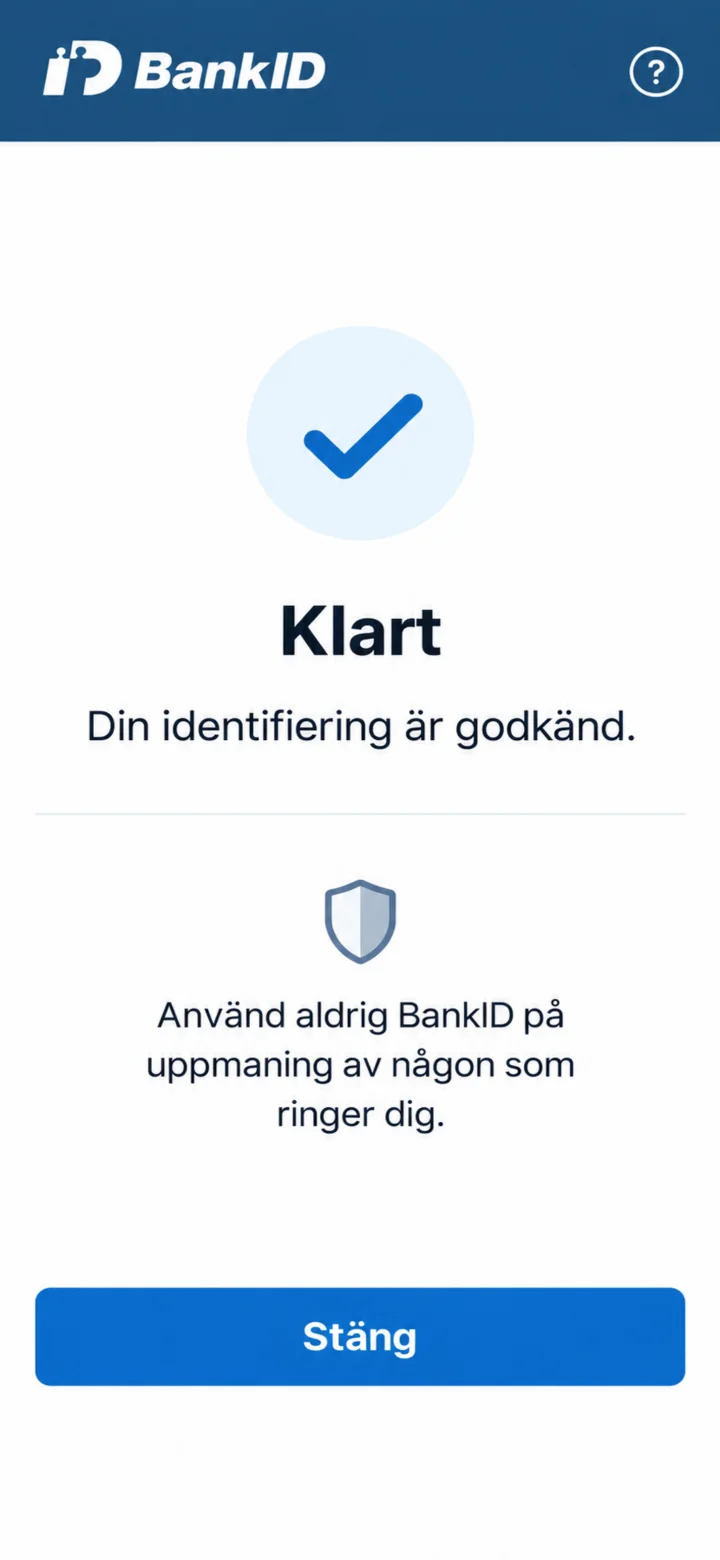
När identifieringen är godkänd är du klar. Använd aldrig BankID på uppmaning av någon som ringer dig.
Check if you can get a housing supplement
iPhone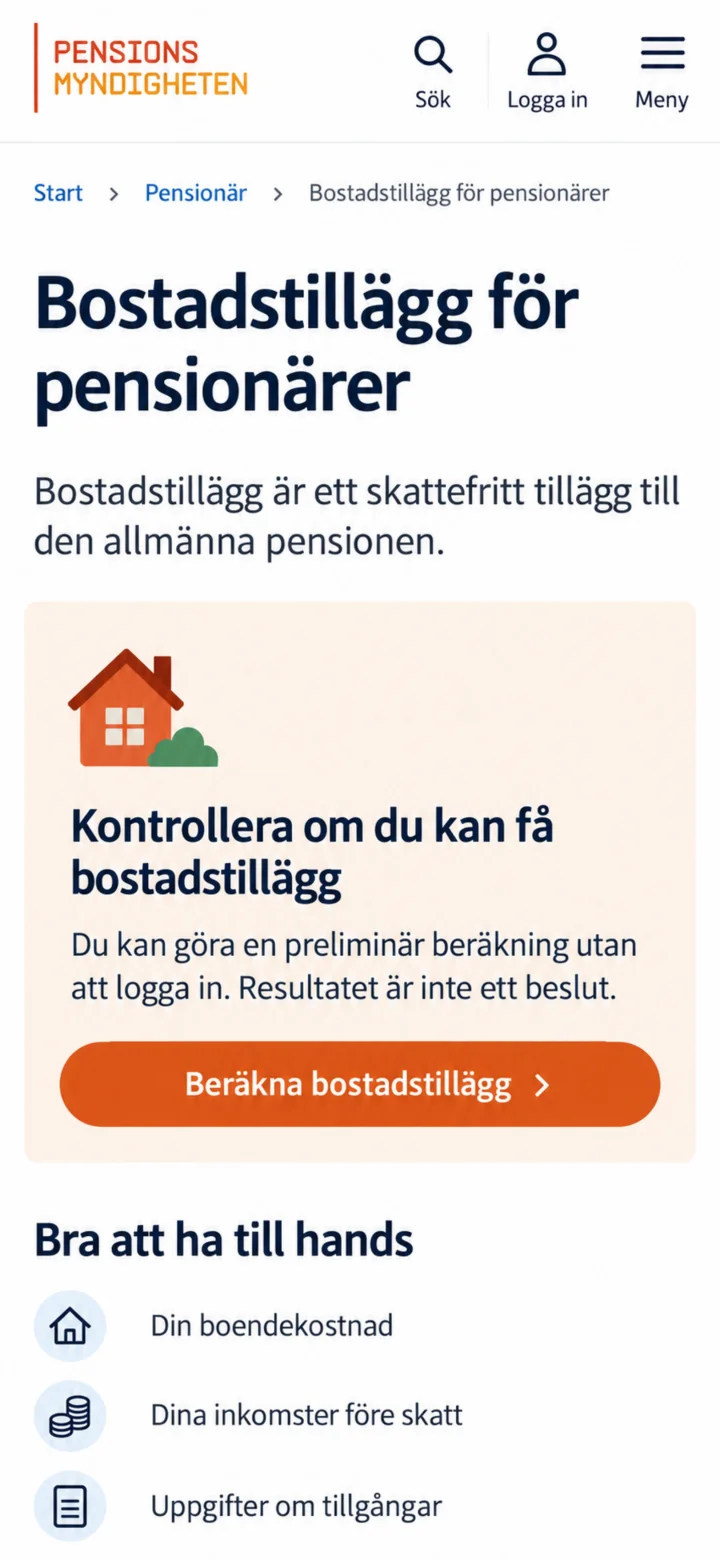 1Step 1 of 6 · iPhone
Open the page Bostadstillägg för pensionärer (Housing supplement for pensioners) and tap on ”Beräkna bostadstillägg” (Calculate housing supplement). You don't need to log in to do the calculation.
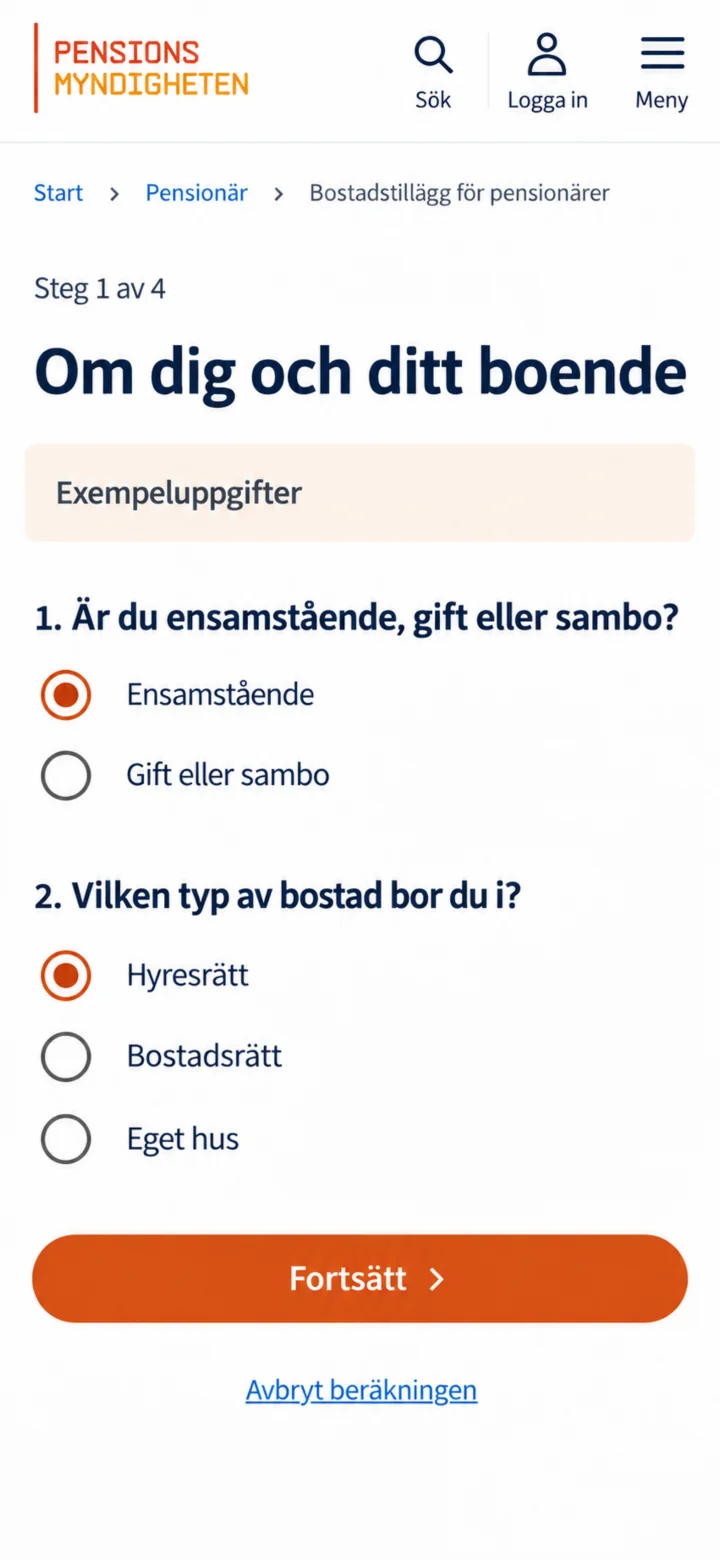 2Step 2 of 6 · iPhone
Indicate if you are single, married, or cohabiting, and choose the type of home you live in. Then tap on ”Fortsätt” (Continue).
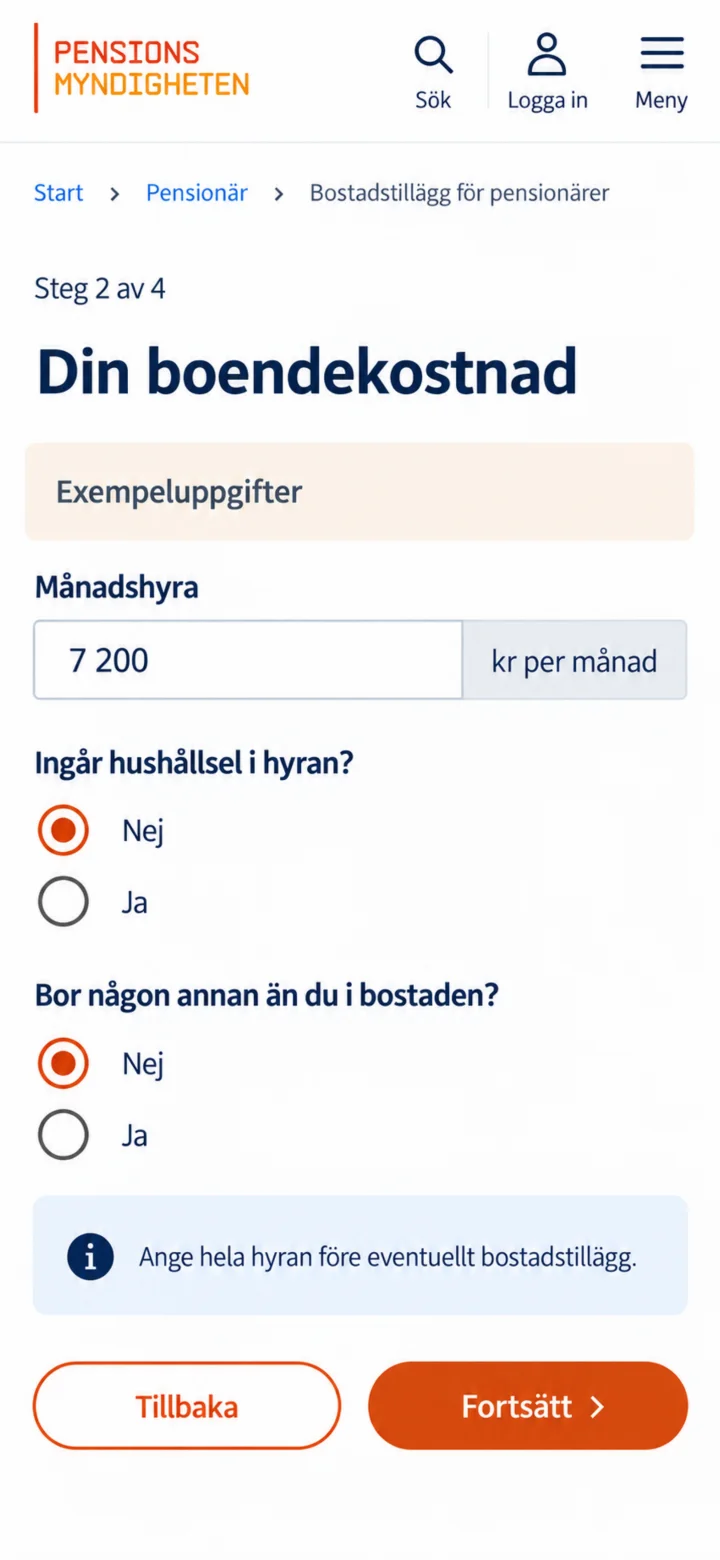 3Step 3 of 6 · iPhone
Fyll i din månadshyra eller boendekostnad och svara på frågorna om bostaden. Beloppen i guiden är bara exempel.
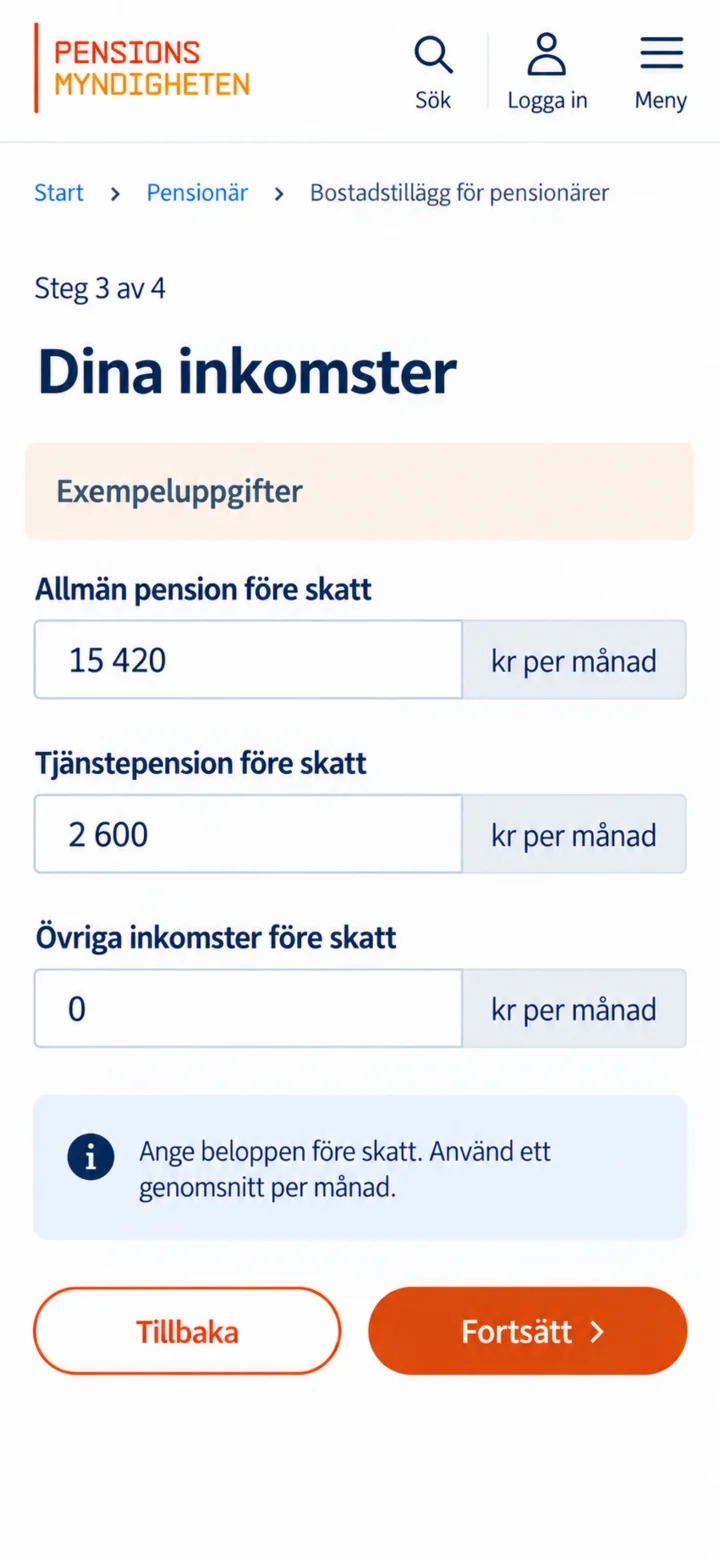 4Step 4 of 6 · iPhone
Fill in your public pension, occupational pension, and any other income before tax. Use a monthly average.
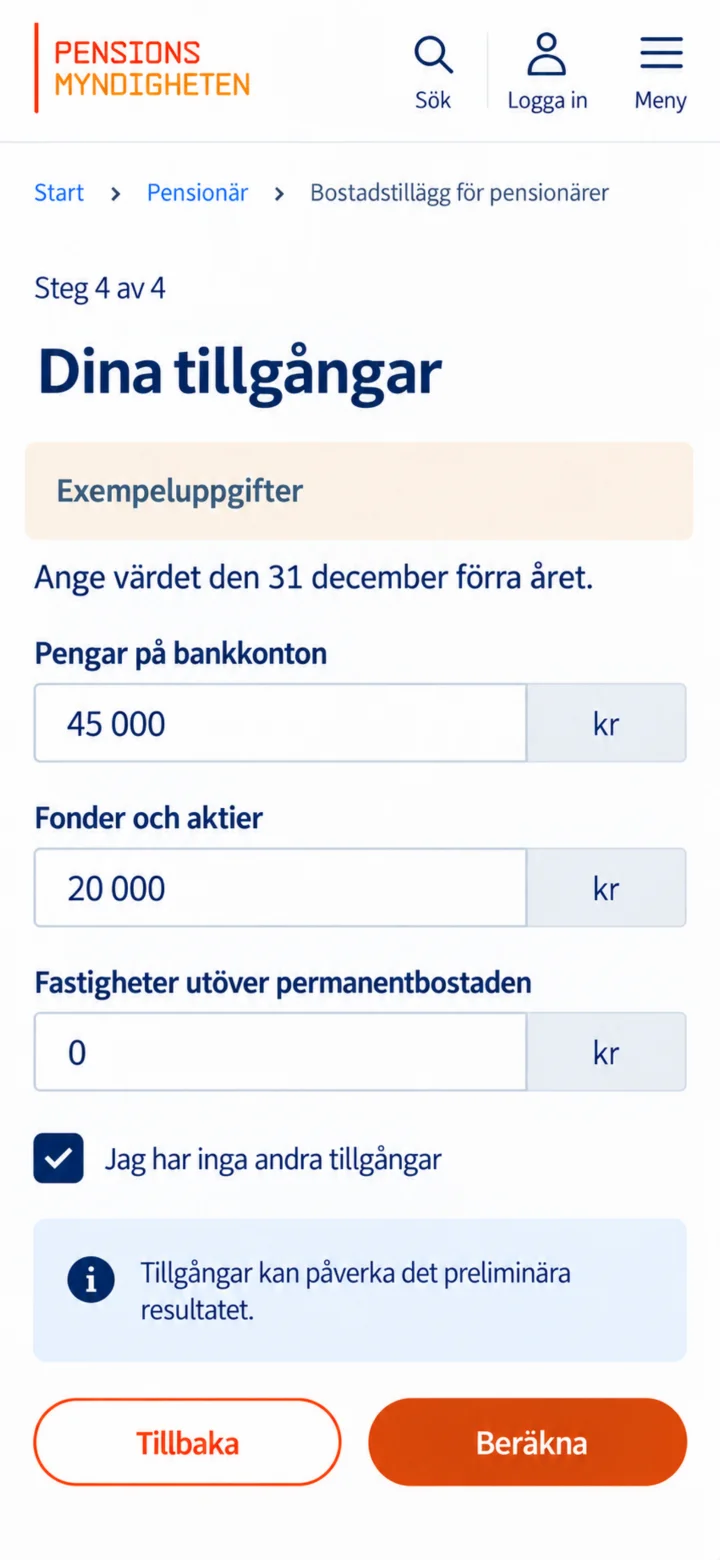 5Step 5 of 6 · iPhone
Fill in money in bank accounts, funds, stocks, and other assets. Then tap on ”Beräkna” (Calculate).
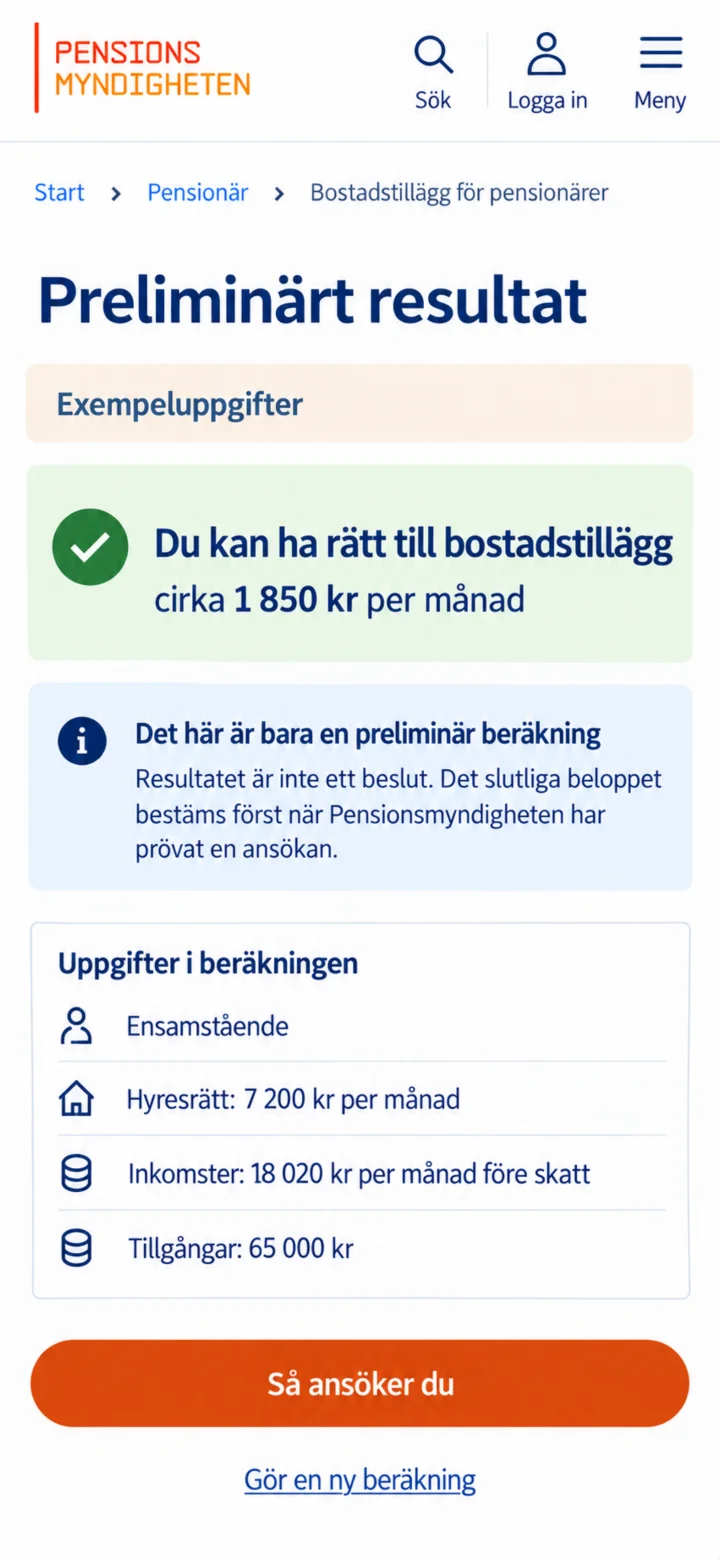 6Step 6 of 6 · iPhone
Now a preliminary result is shown. This is not a decision. The final amount is only determined once Pensionsmyndigheten (the Swedish Pensions Agency) has reviewed a proper application.
Get Min myndighetspost and read government mail
iPhone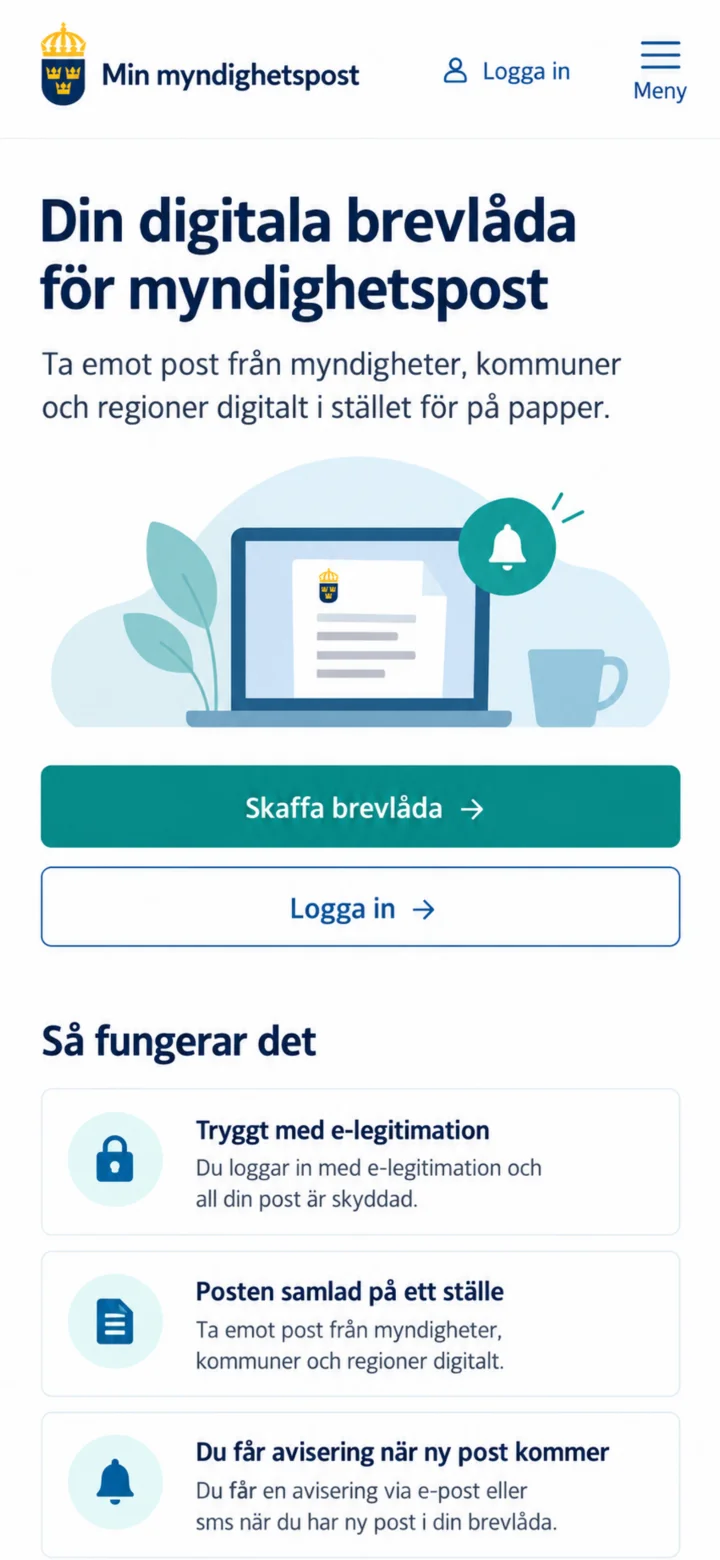 1Step 1 of 7 · iPhone
Open minmyndighetspost.se and tap on ”Skaffa brevlåda” (Get mailbox).
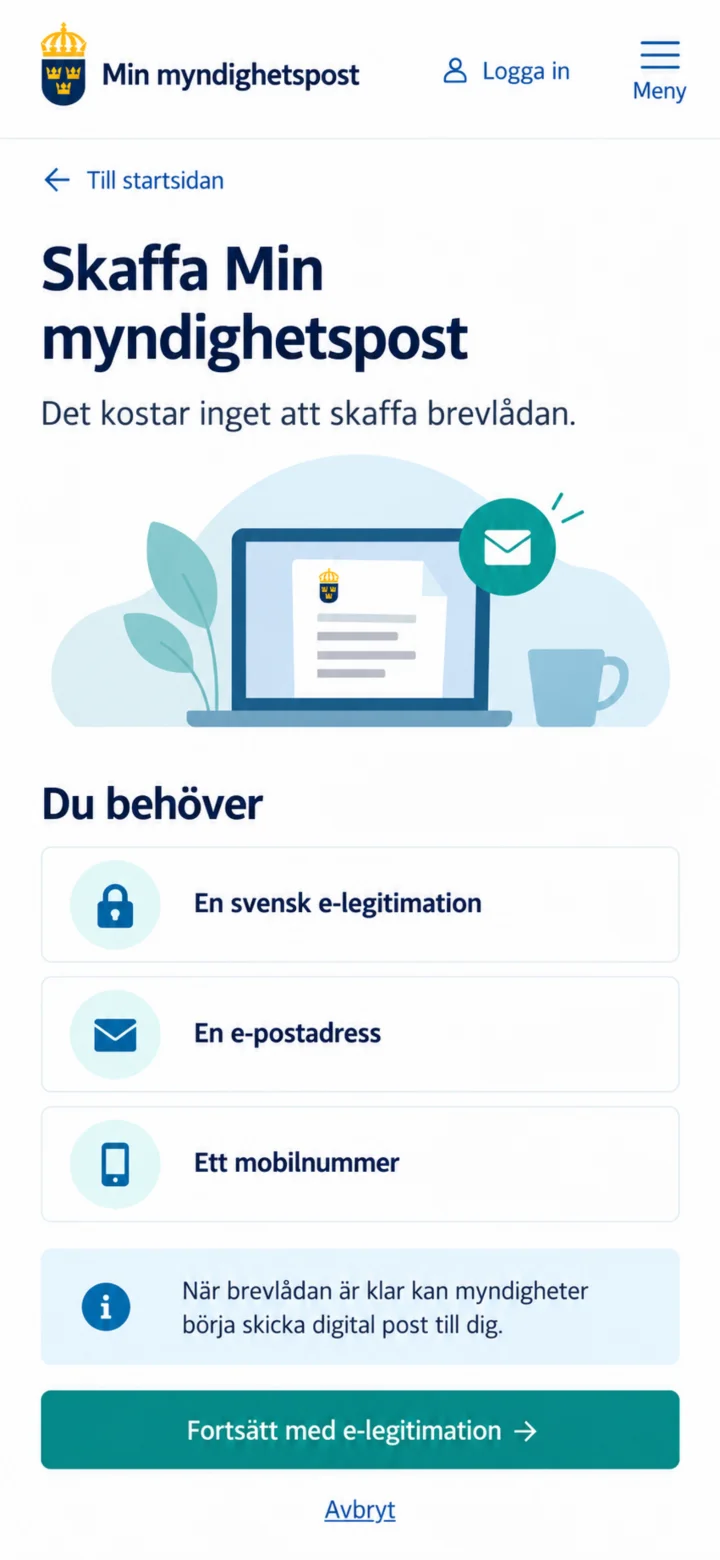 2Step 2 of 7 · iPhone
You will need a Swedish e-identification, an email address, and a mobile number. Tap on ”Fortsätt med e-legitimation” (Continue with e-identification).
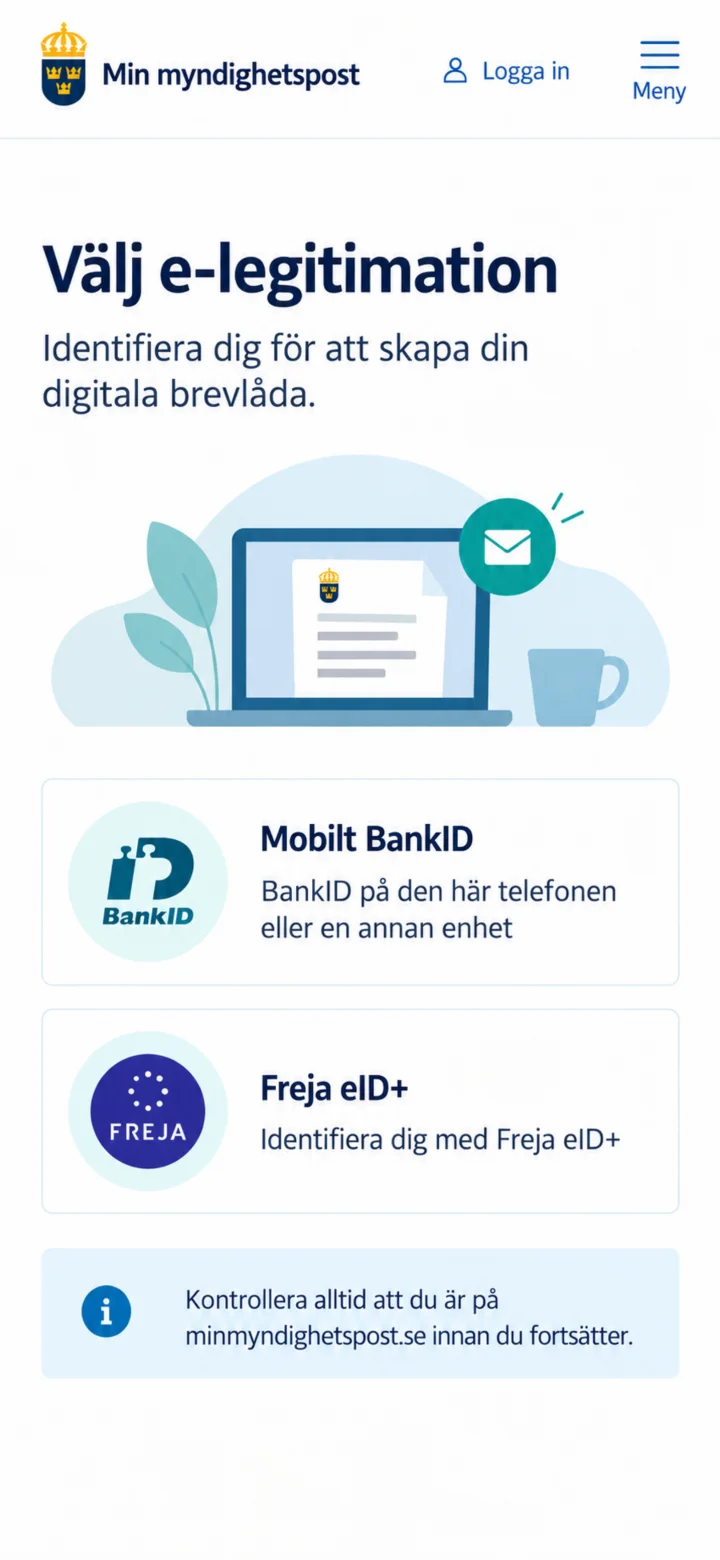 3Step 3 of 7 · iPhone
Choose Mobilt BankID. First, make sure you are on minmyndighetspost.se.
 4Step 4 of 7 · iPhone
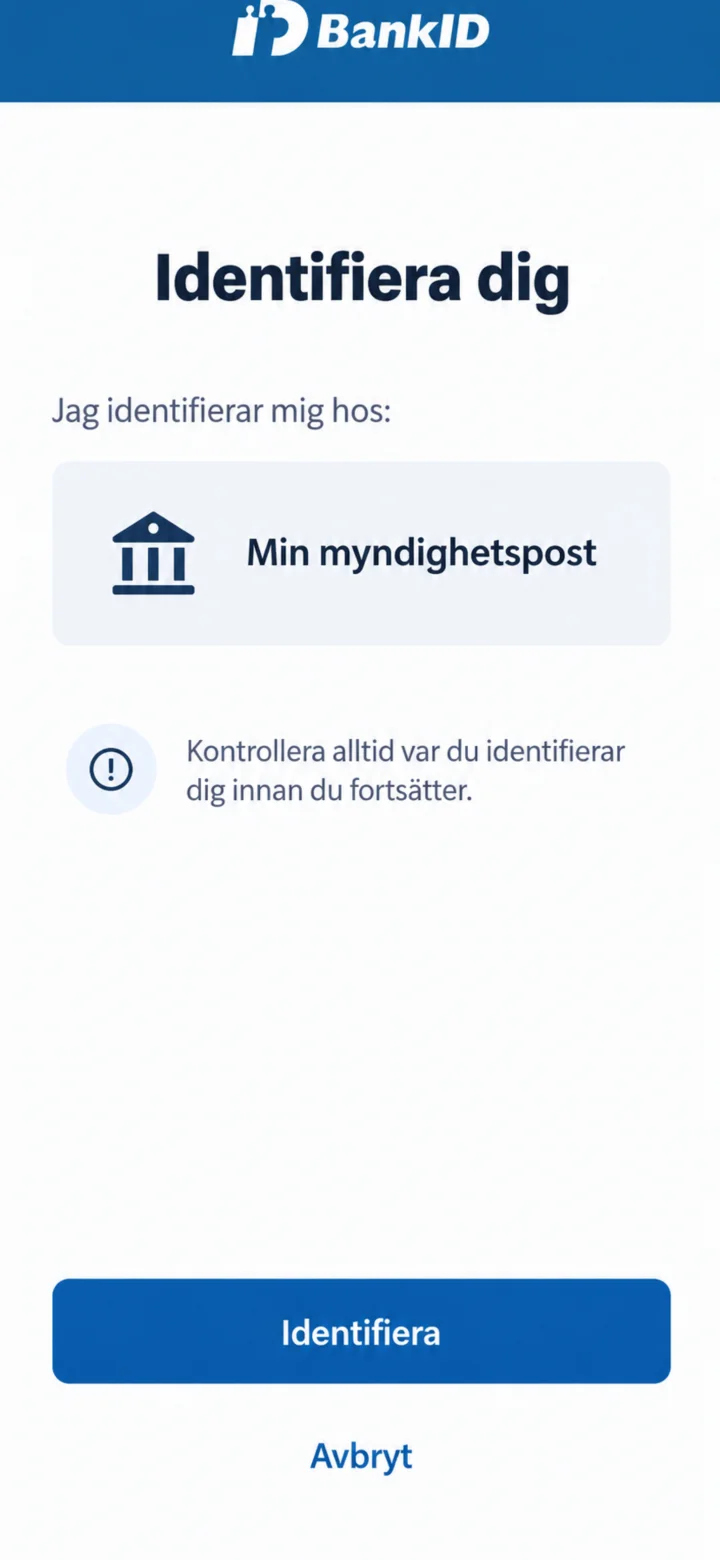
Check that it says Min myndighetspost in BankID. Then tap on ”Identifiera” (Identify).
 5Step 5 of 7 · iPhone
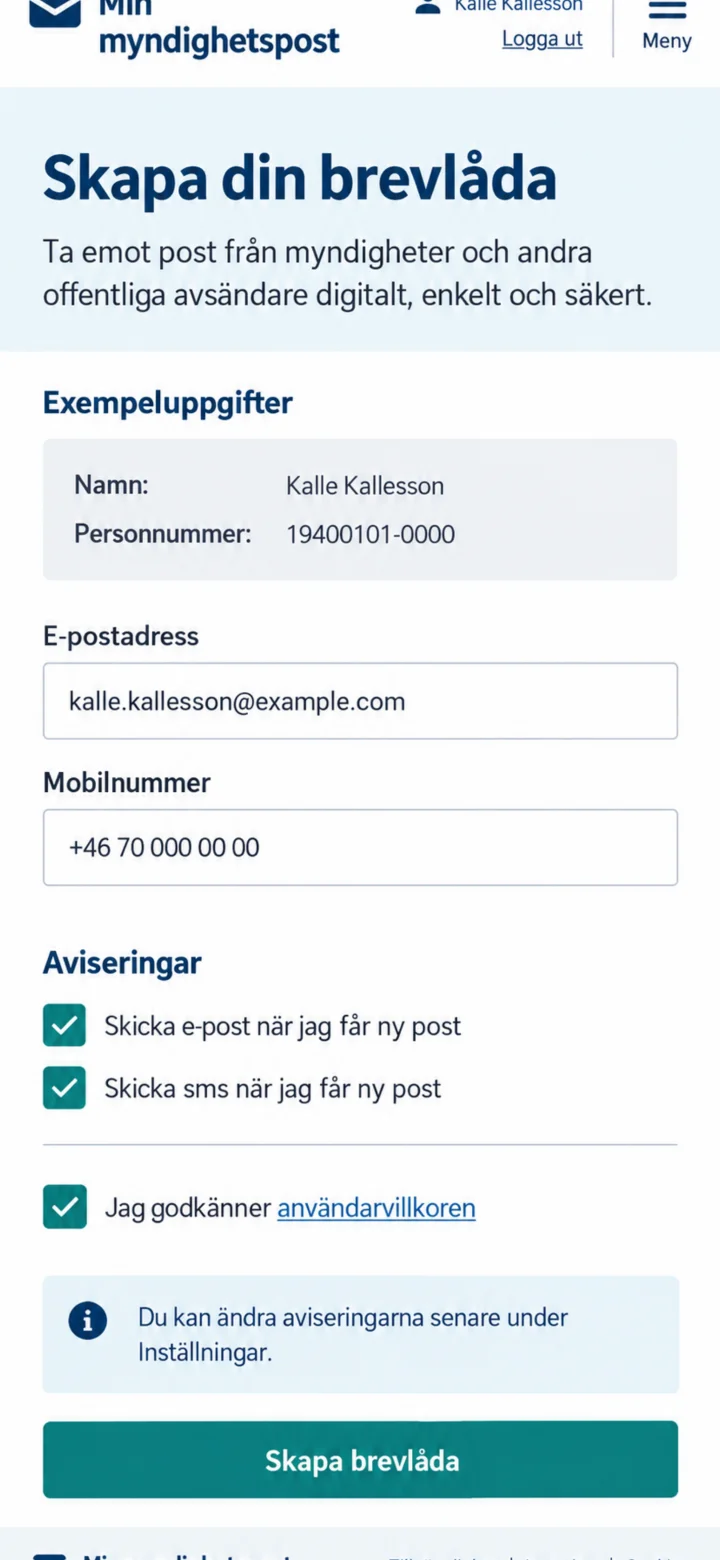
Fill in your email address and mobile number. Choose if you want to receive notifications via email and SMS, accept the terms and conditions, and tap on ”Skapa brevlåda” (Create mailbox).
 6Step 6 of 7 · iPhone
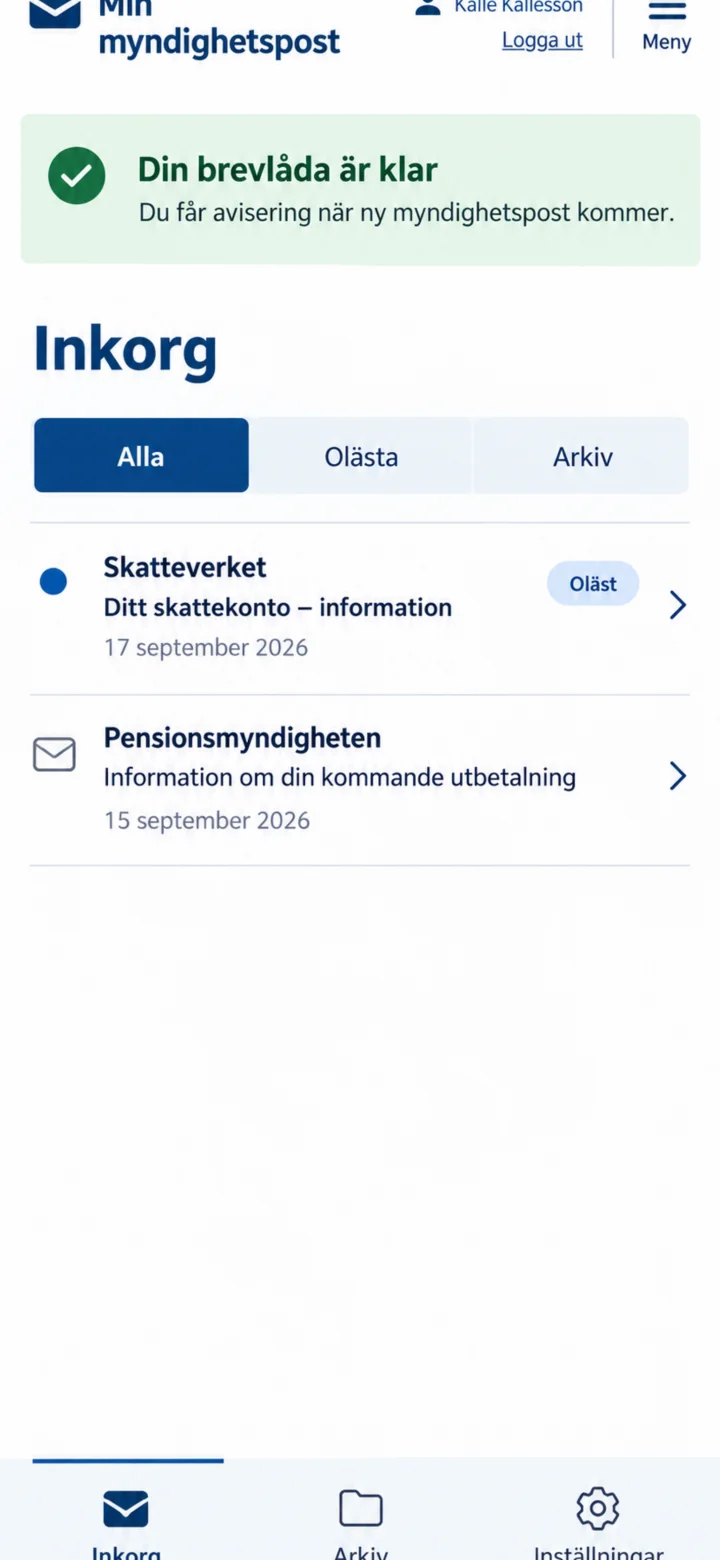
Once your mailbox is ready, your inbox will be displayed. New letters are marked as unread. Tap on the letter you want to read.
 7Step 7 of 7 · iPhone
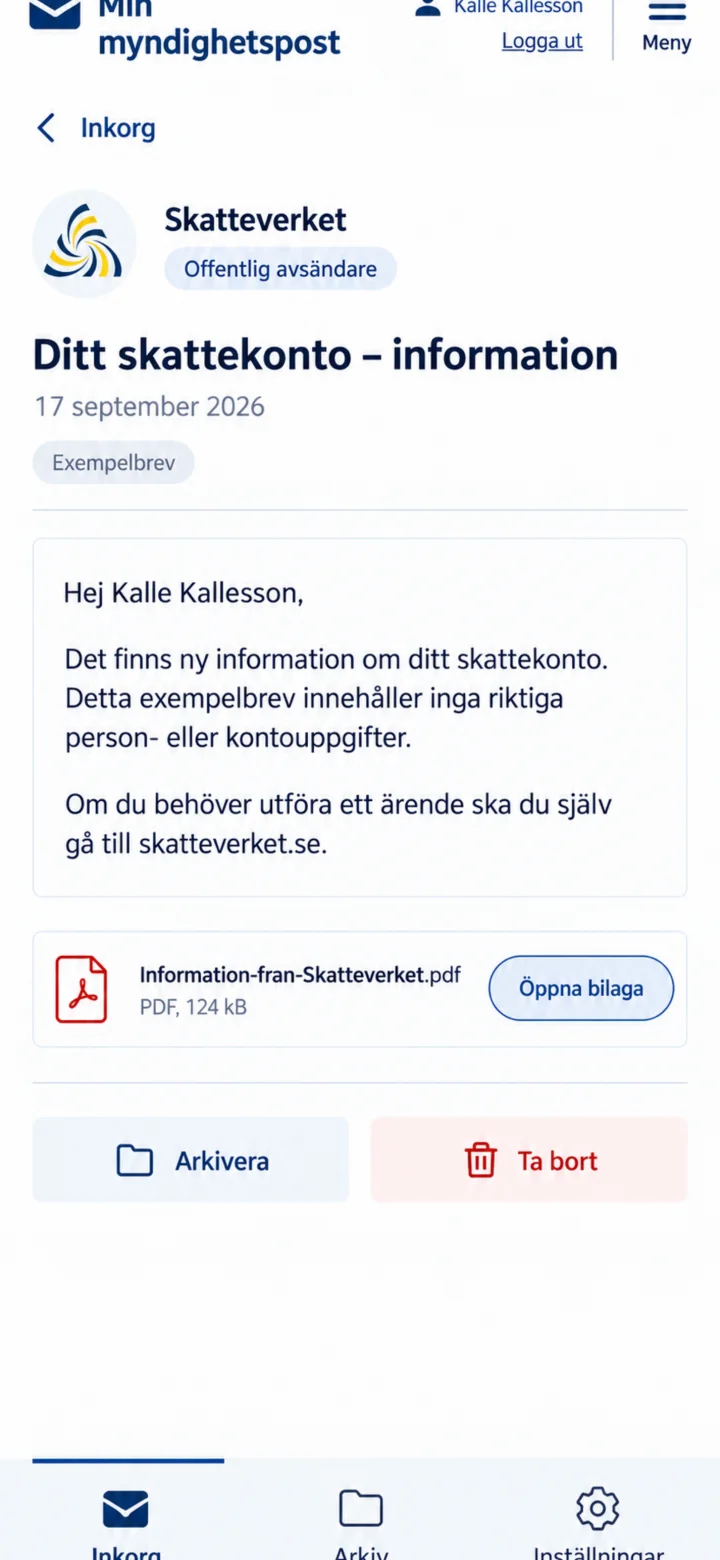
Check the sender and read the letter. If there is an attachment, you can tap on ”Öppna bilaga” (Open attachment). For government matters, you must go to the authority's website yourself.
Order a Pensioner's Certificate
iPhone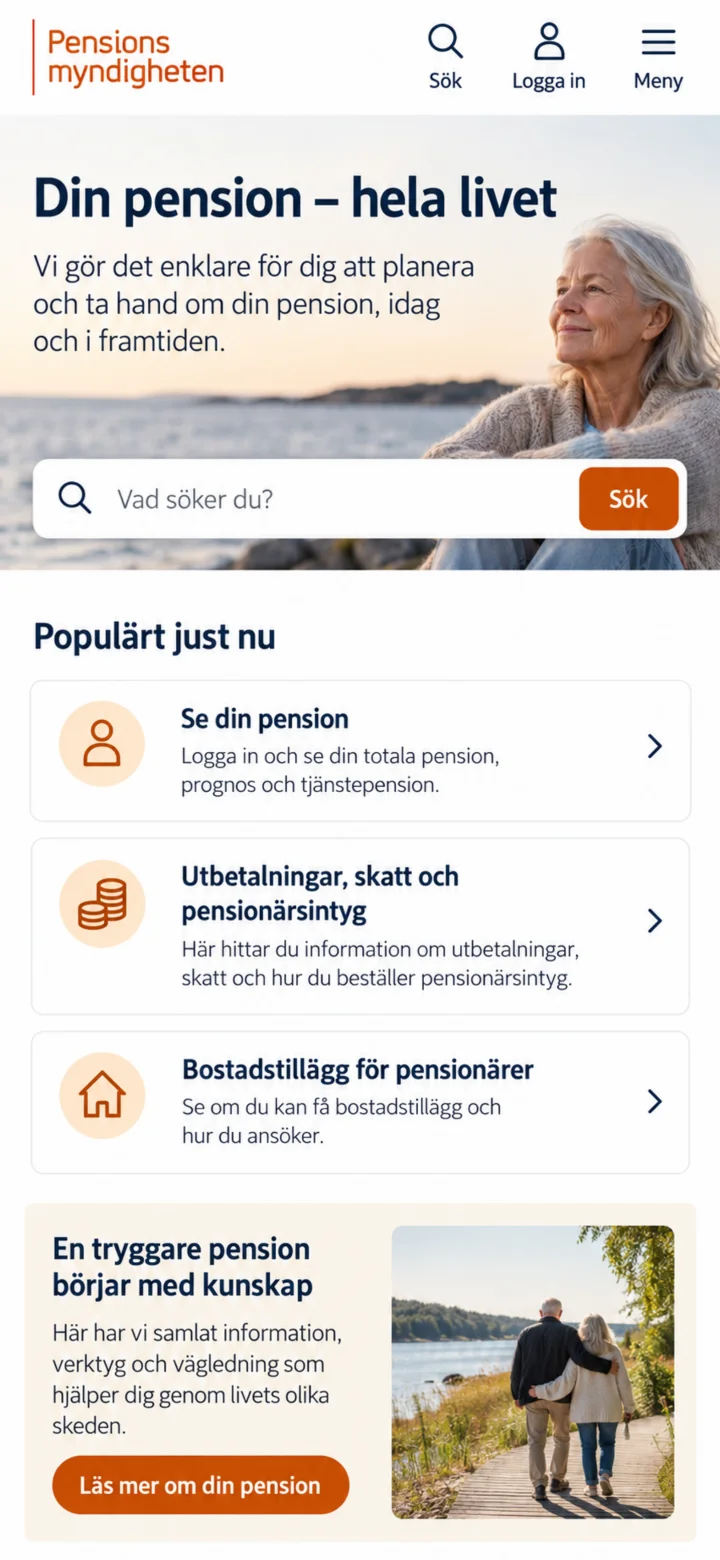 1Step 1 of 6 · iPhone
Open Pensionsmyndigheten's website and tap ”Logga in” (Log in).
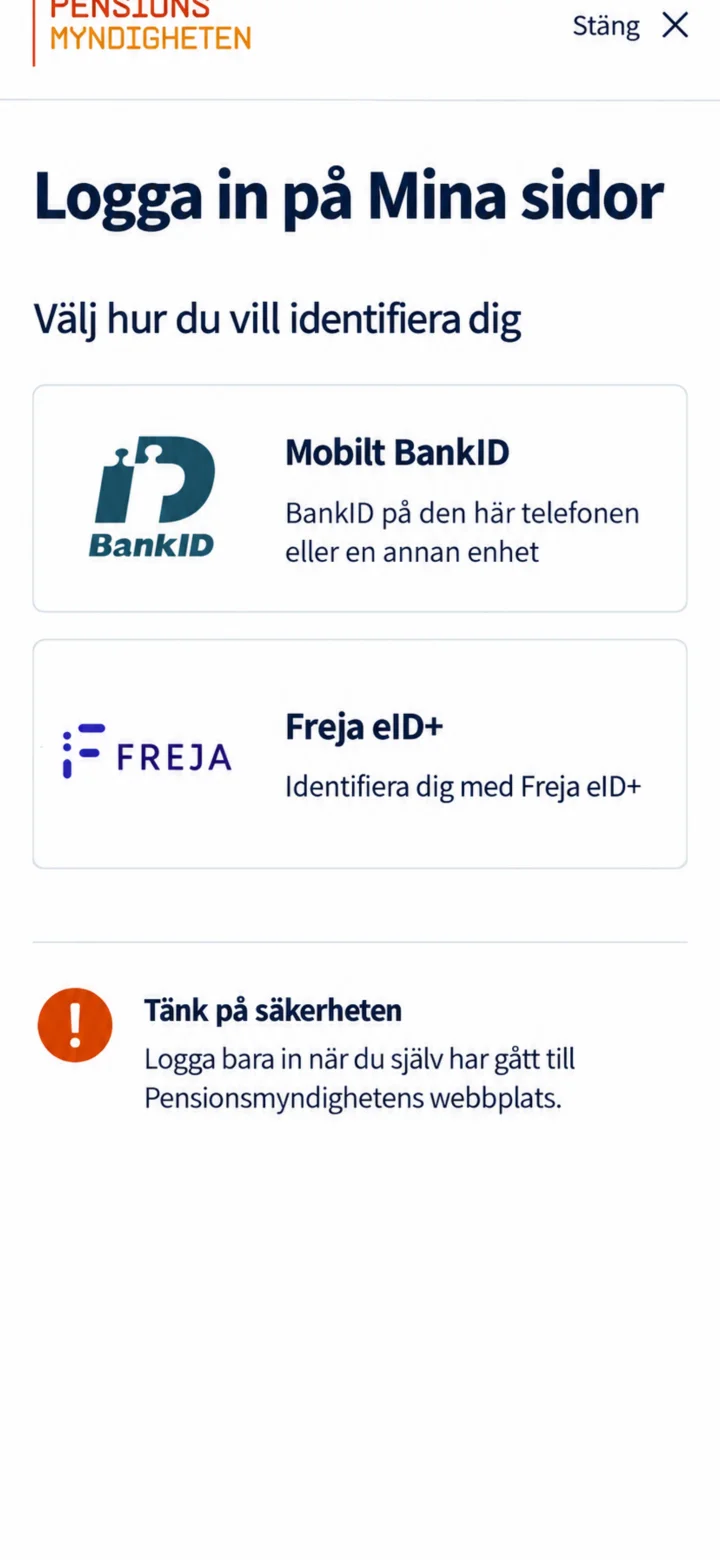 2Step 2 of 6 · iPhone
Choose Mobilt BankID. Only log in when you have personally navigated to Pensionsmyndigheten's website.
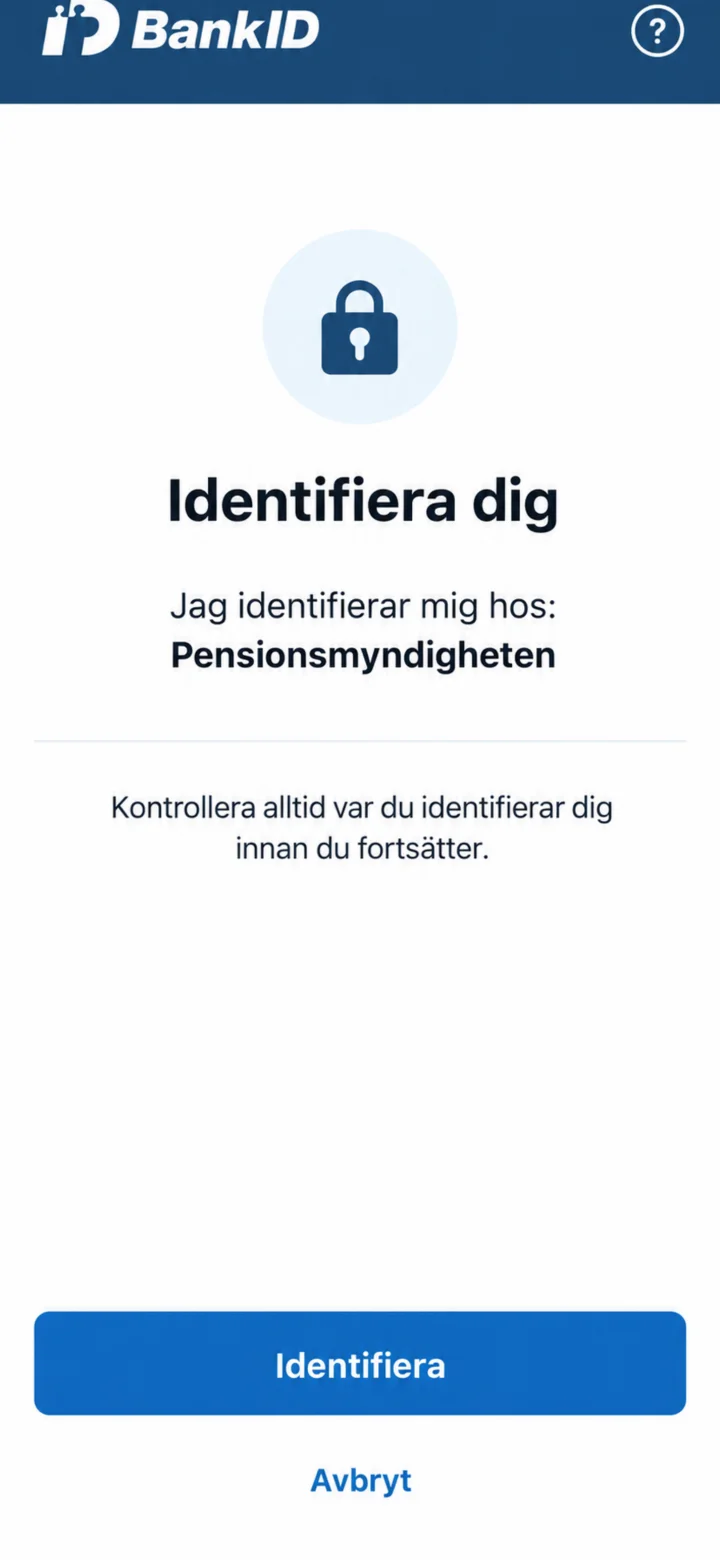 3Step 3 of 6 · iPhone
Check that it says Pensionsmyndigheten in BankID. Then tap ”Identifiera” (Identify).
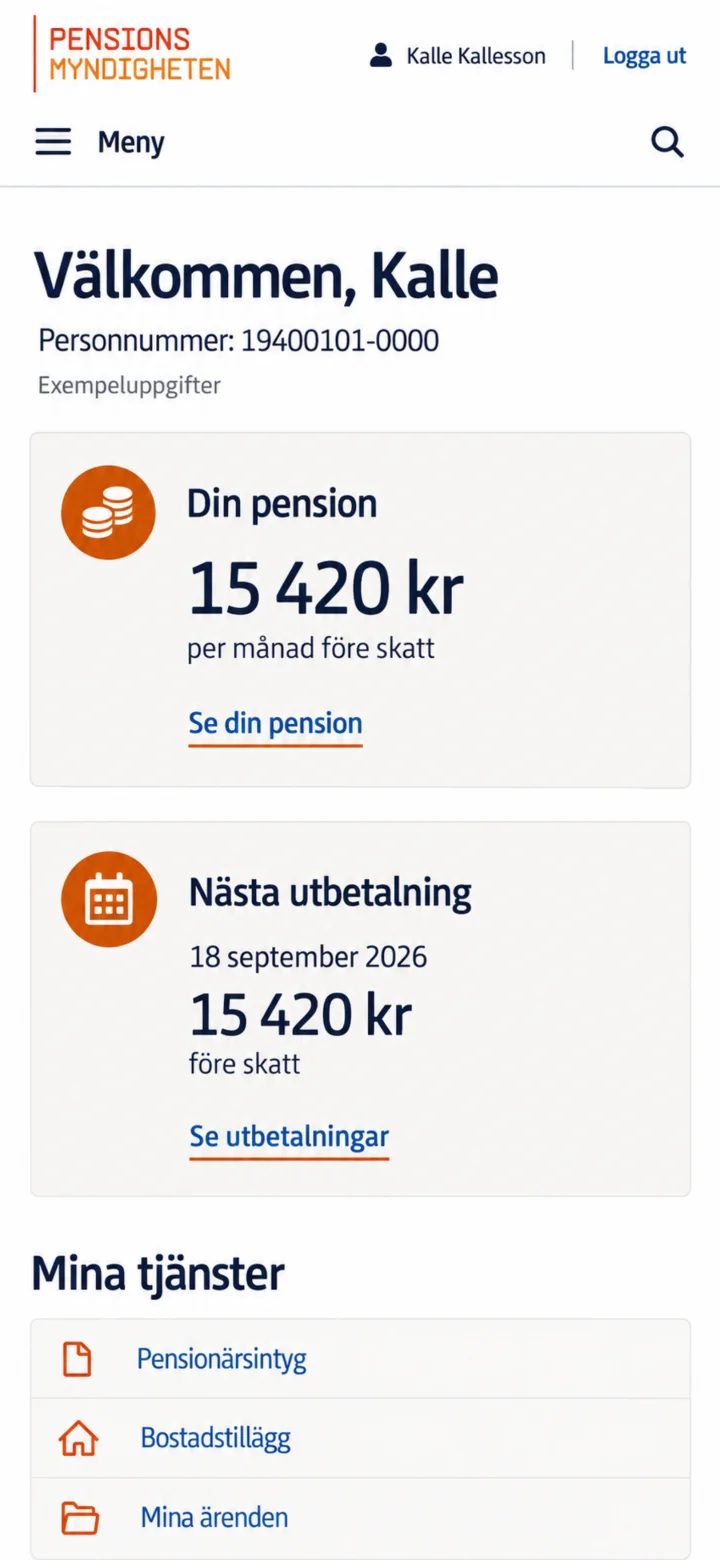 4Step 4 of 6 · iPhone
On ”Mina sidor” (My pages), go to ”Mina tjänster” (My services) and tap ”Pensionärsintyg” (Pensioner's Certificate).
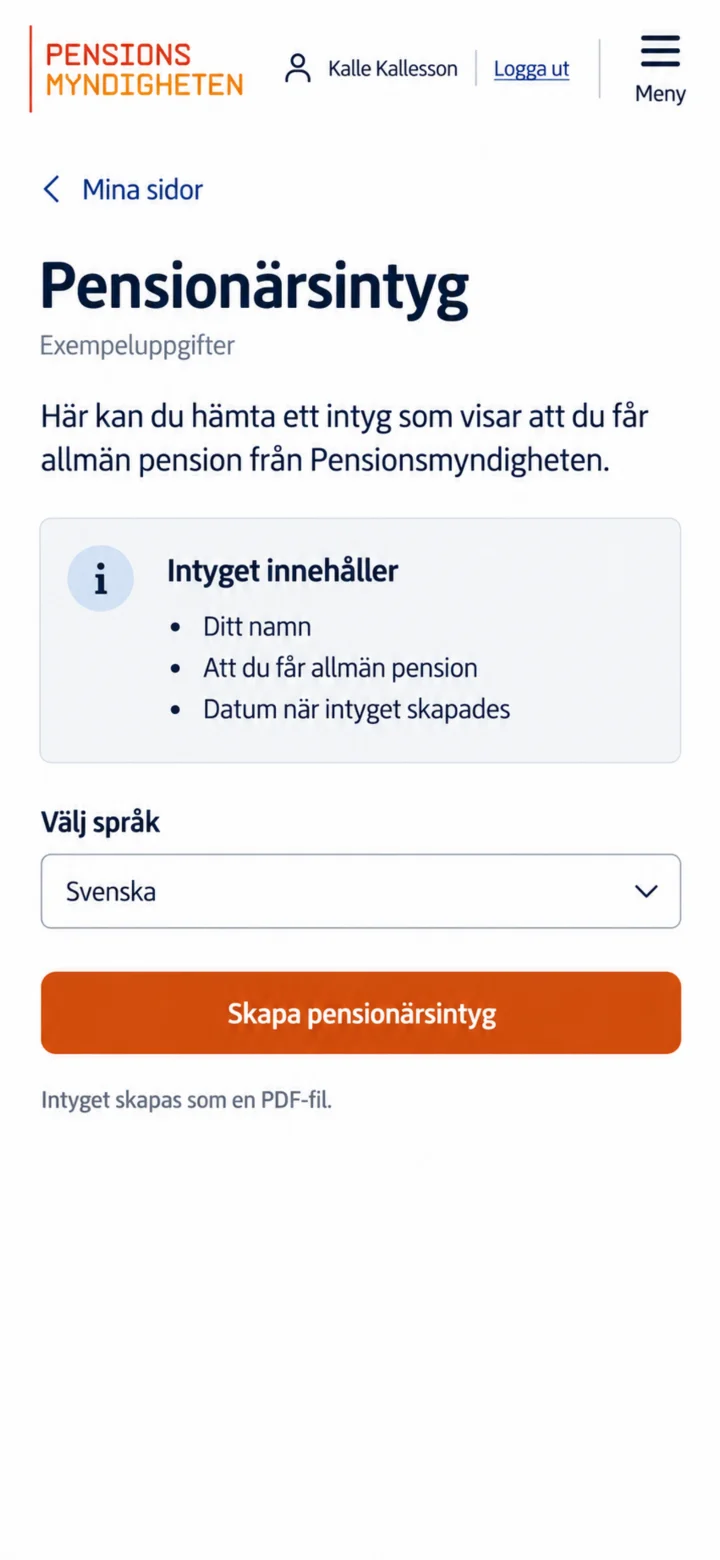 5Step 5 of 6 · iPhone
Välj Svenska och tryck på Skapa pensionärsintyg. Intyget skapas som en PDF-fil.
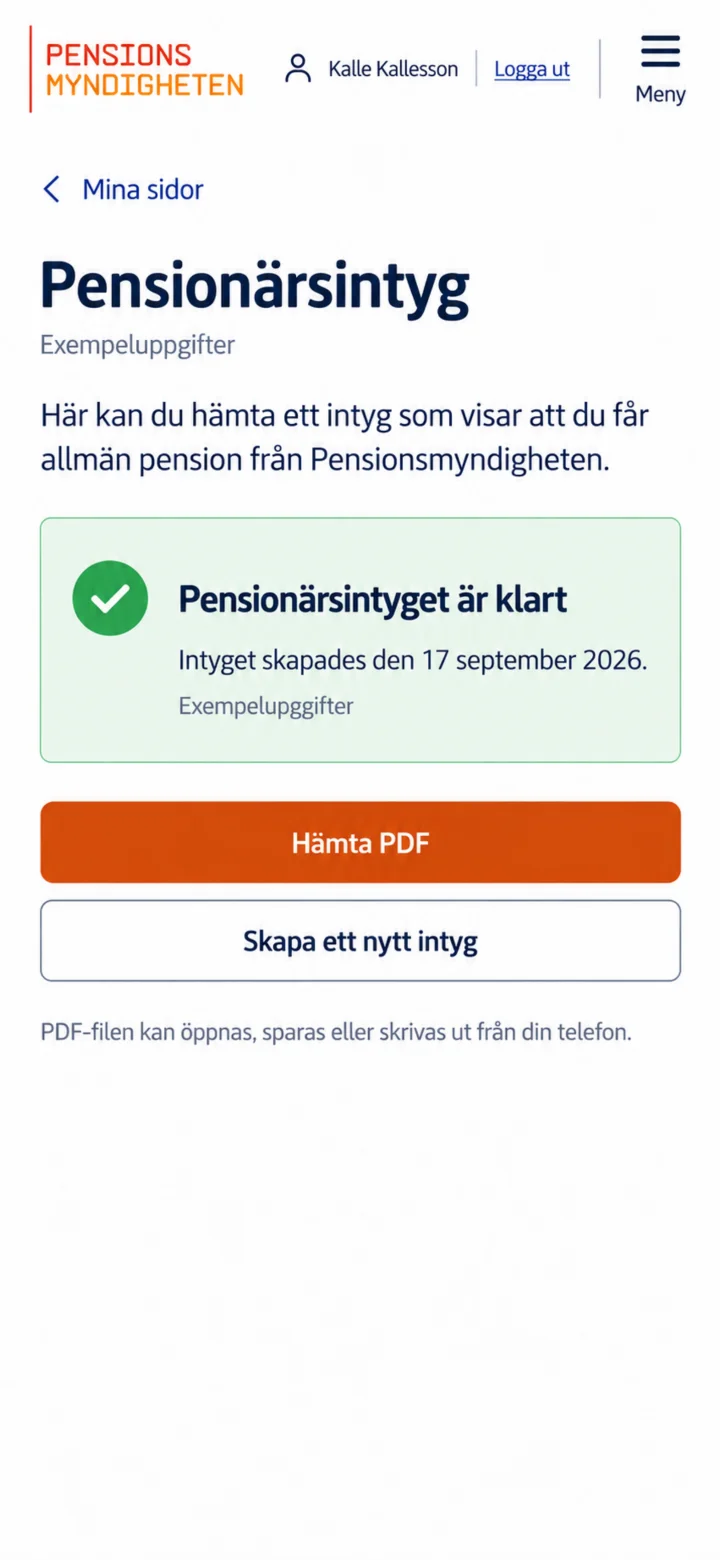 6Step 6 of 6 · iPhone
Once the certificate is ready, tap ”Hämta PDF” (Download PDF). After that, you can open, save, or print the file from your phone.
See your pension and next payment
iPhone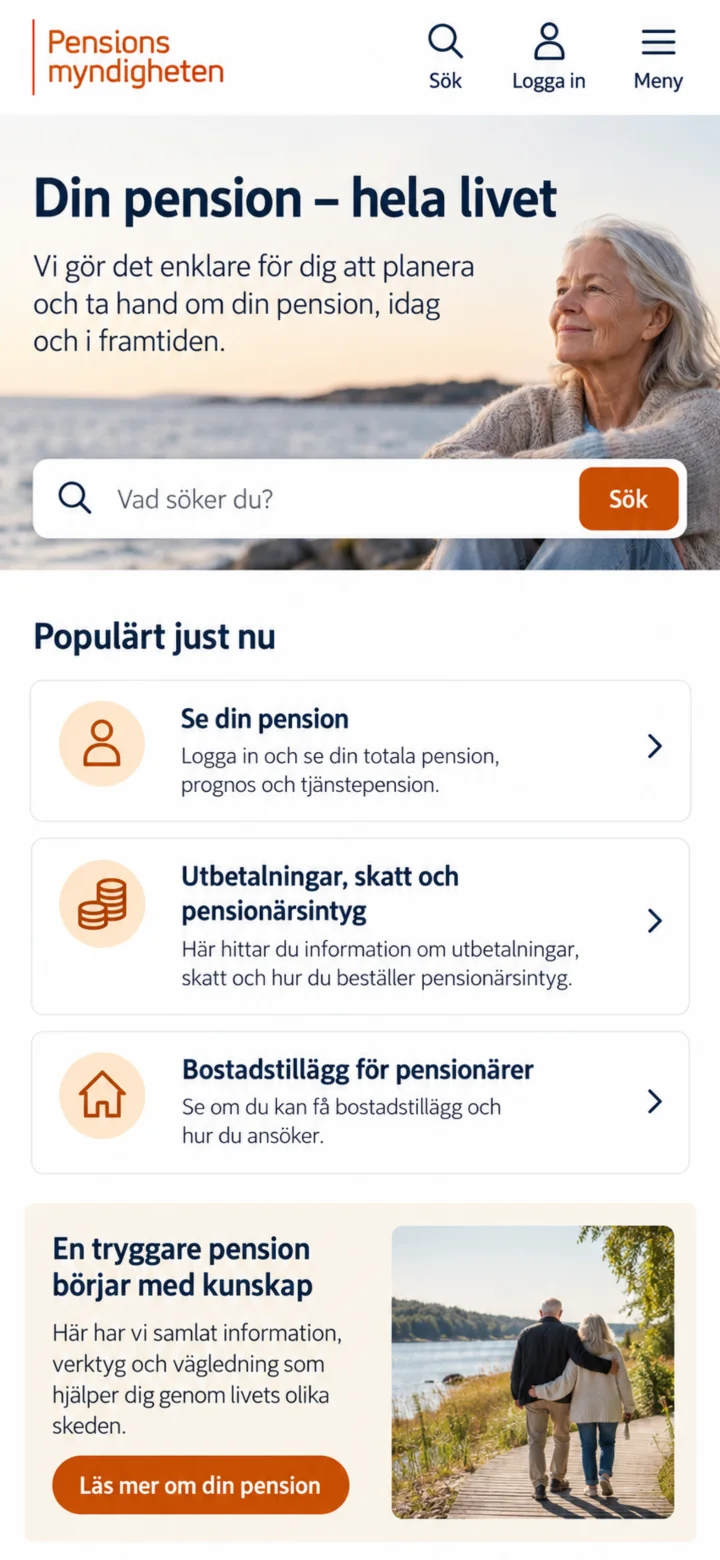 1Step 1 of 6 · iPhone
Open the Pensionsmyndigheten (Swedish Pensions Agency) website. Then, tap on ”Logga in” (Log in) at the top of the page.
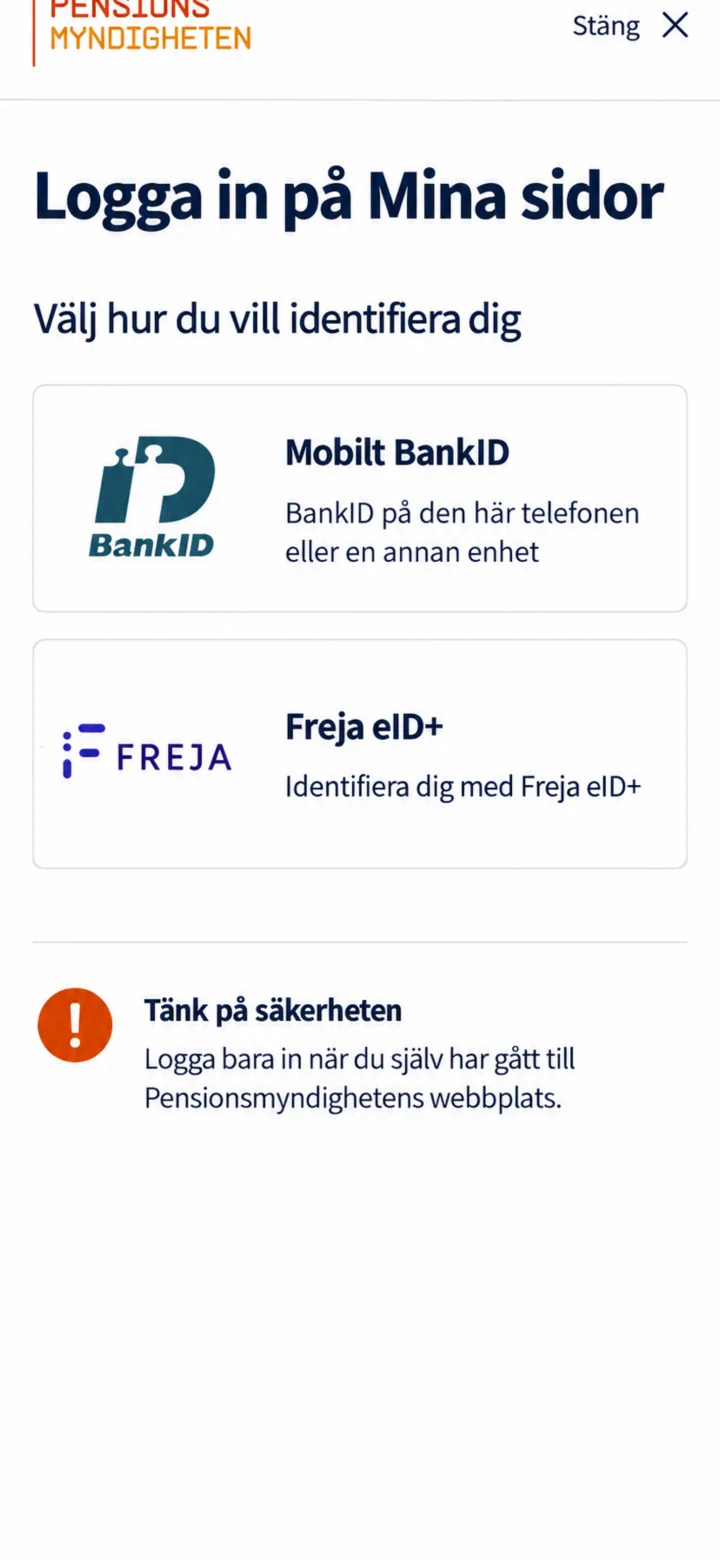 2Step 2 of 6 · iPhone
Choose Mobilt BankID. Only log in when you have navigated to the Pensionsmyndigheten website yourself.
 3Step 3 of 6 · iPhone
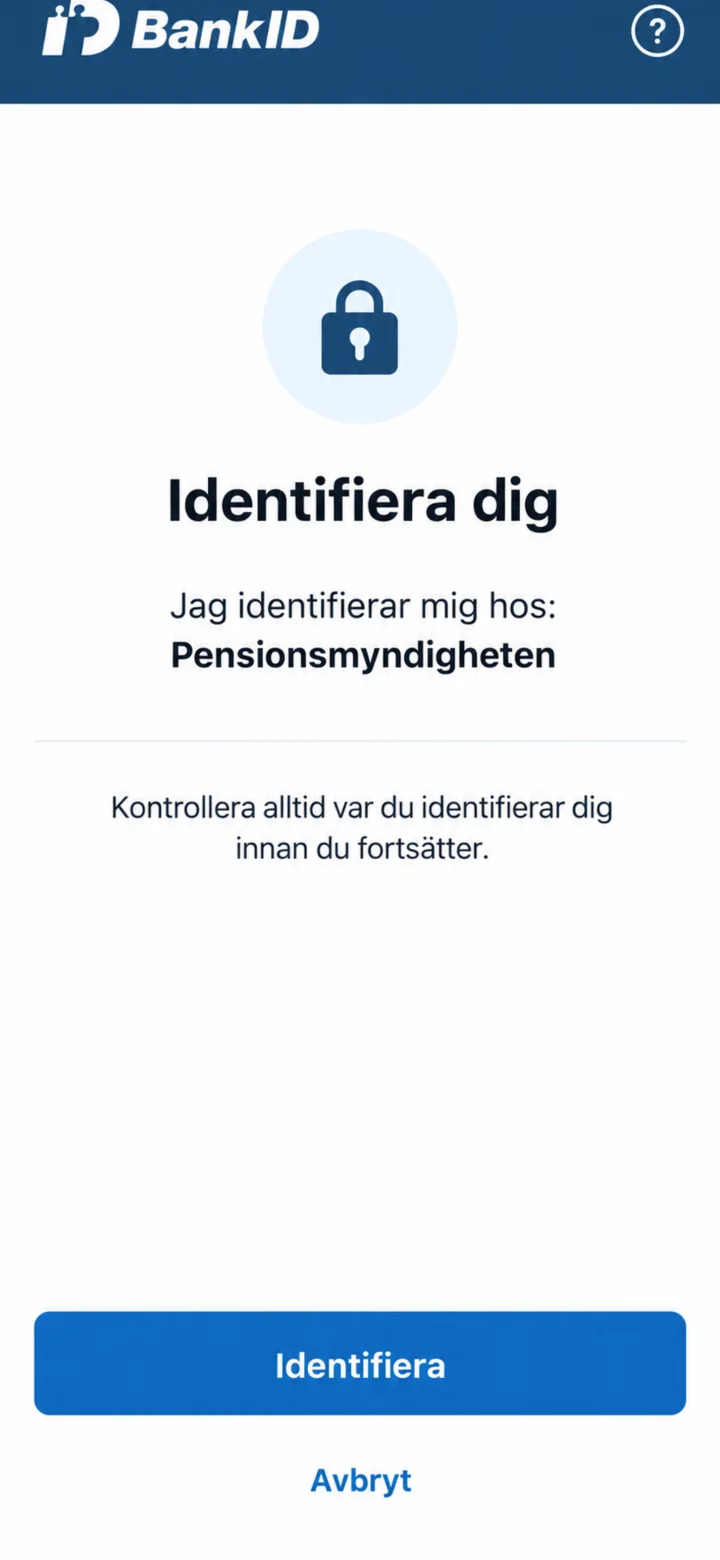
Check that it says Pensionsmyndigheten in BankID. Then, tap on ”Identifiera och legitimera dig” (Identify and authenticate yourself) in the usual way.
 4Step 4 of 6 · iPhone
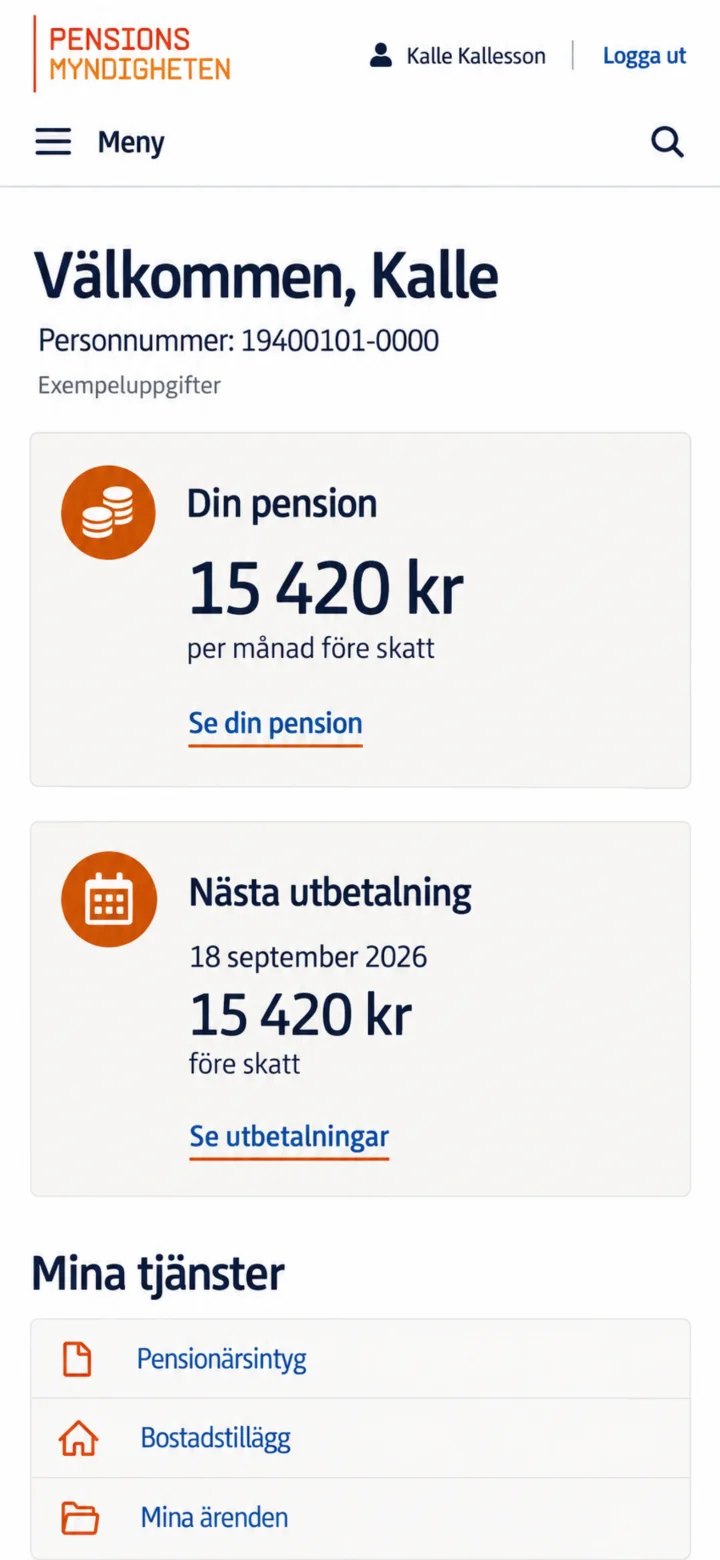
When ”Mina sidor” (My pages) opens, you will see an overview. Tap on ”Se din pension” (See your pension) to view your pension amount and its different parts.
 5Step 5 of 6 · iPhone
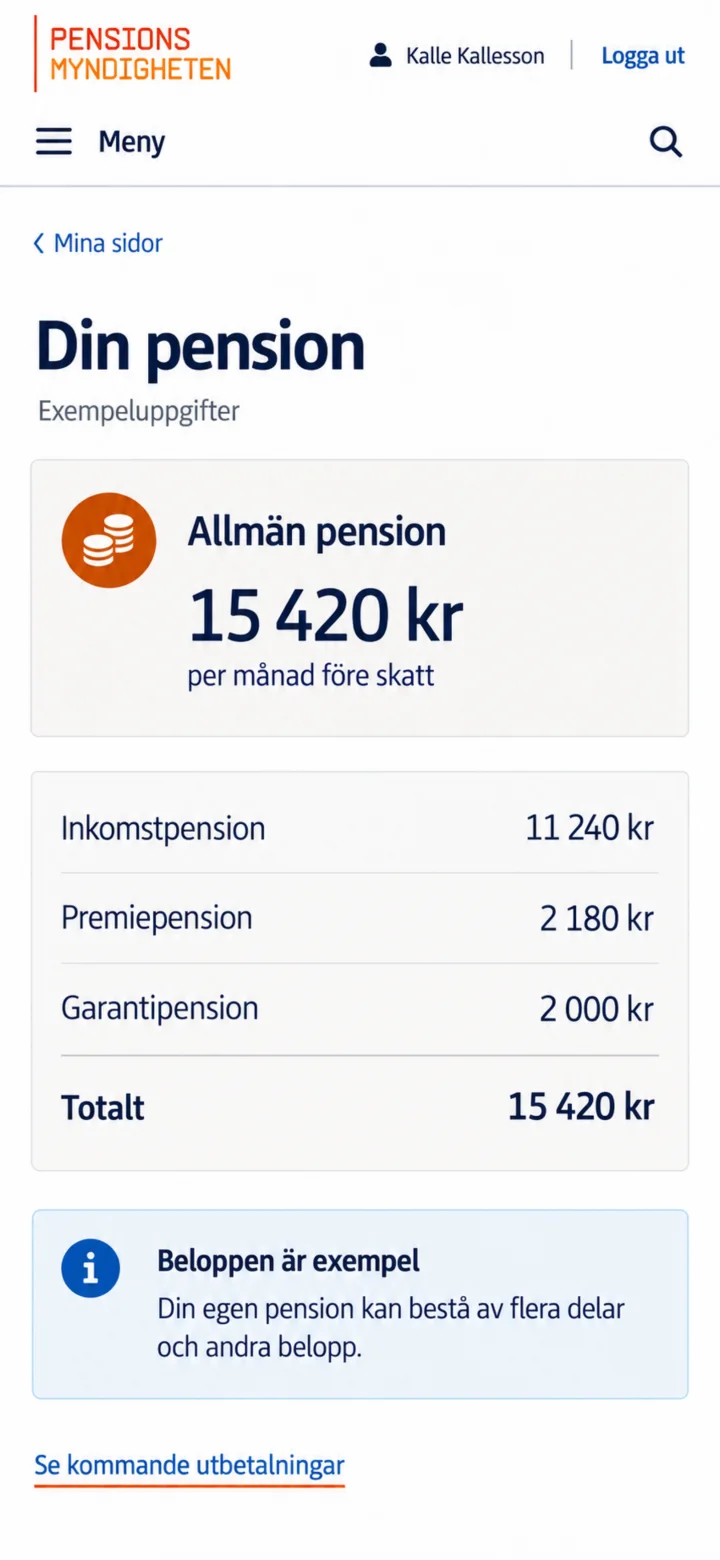
Here you will see your general pension and how the amount is divided. The amounts in this guide are just examples. Tap on ”Se kommande utbetalningar” (See upcoming payments) if you wish to continue.
 6Step 6 of 6 · iPhone
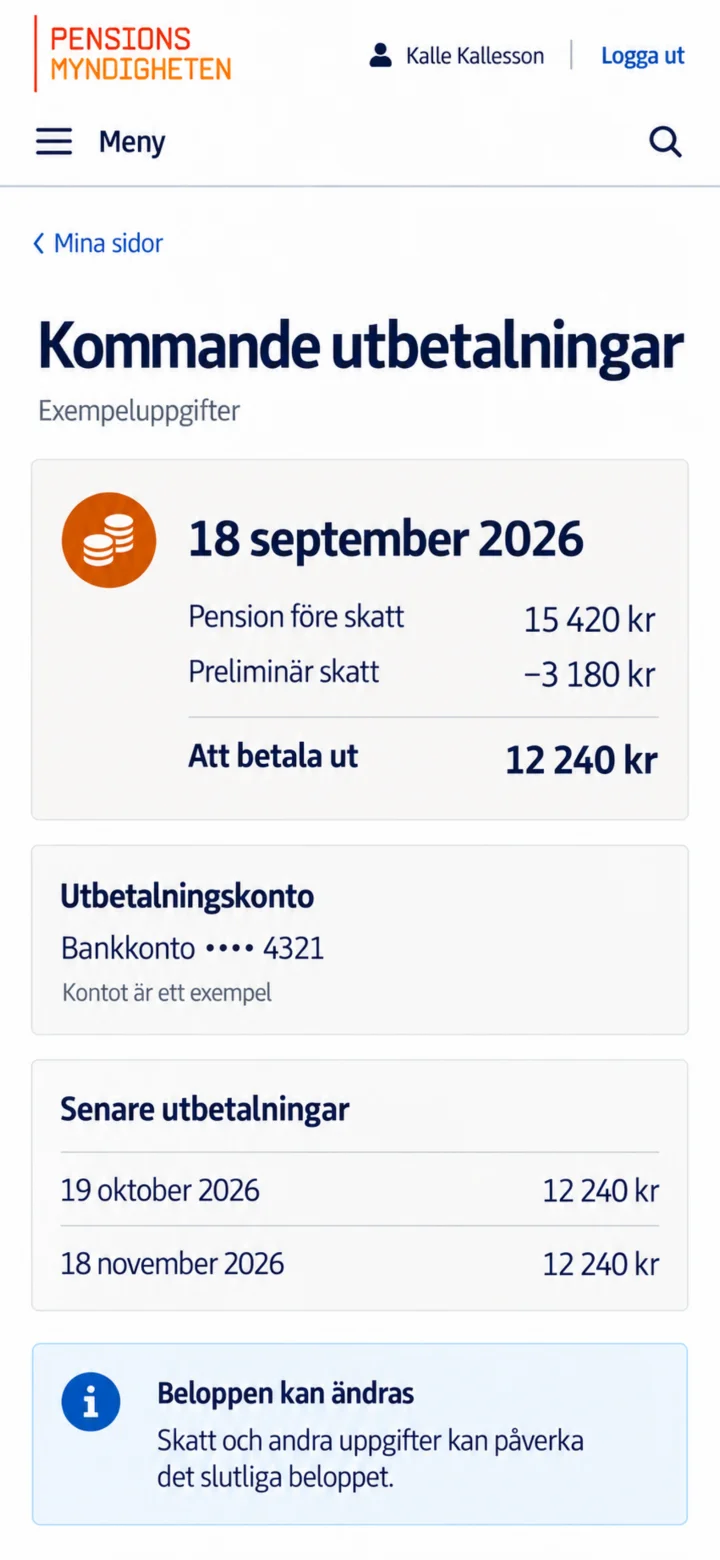
Here you will see the next payment date, pension before tax, preliminary tax, and the amount to be paid out. You can also check which bank account is registered.