Every guide in the topic, each starting on a new page. 69 steps in total.
Tip: untick “Headers and footers” in the print dialog to leave out the web address.
Healthcare and 1177
Step-by-step guides · 10 guides
 iPhone
Contents
- 1.Find the nearest pharmacy and check opening hours4 steps
- 2.Here's how you can reply to a message in the 1177 app10 steps
- 3.How to log in and send a message on 117710 steps
- 4.How to log in to 11778 steps
- 5.How to renew your prescription on 117710 steps
- 6.Install Apoteket's app and log in with BankID4 steps
- 7.Order a prescription medicine7 steps
- 8.Order over-the-counter products with home delivery7 steps
- 9.Renewing a Prescription Through Your Healthcare Provider5 steps
- 10.See your prescriptions and your high-cost protection4 steps
Find the nearest pharmacy and check opening hours
iPhone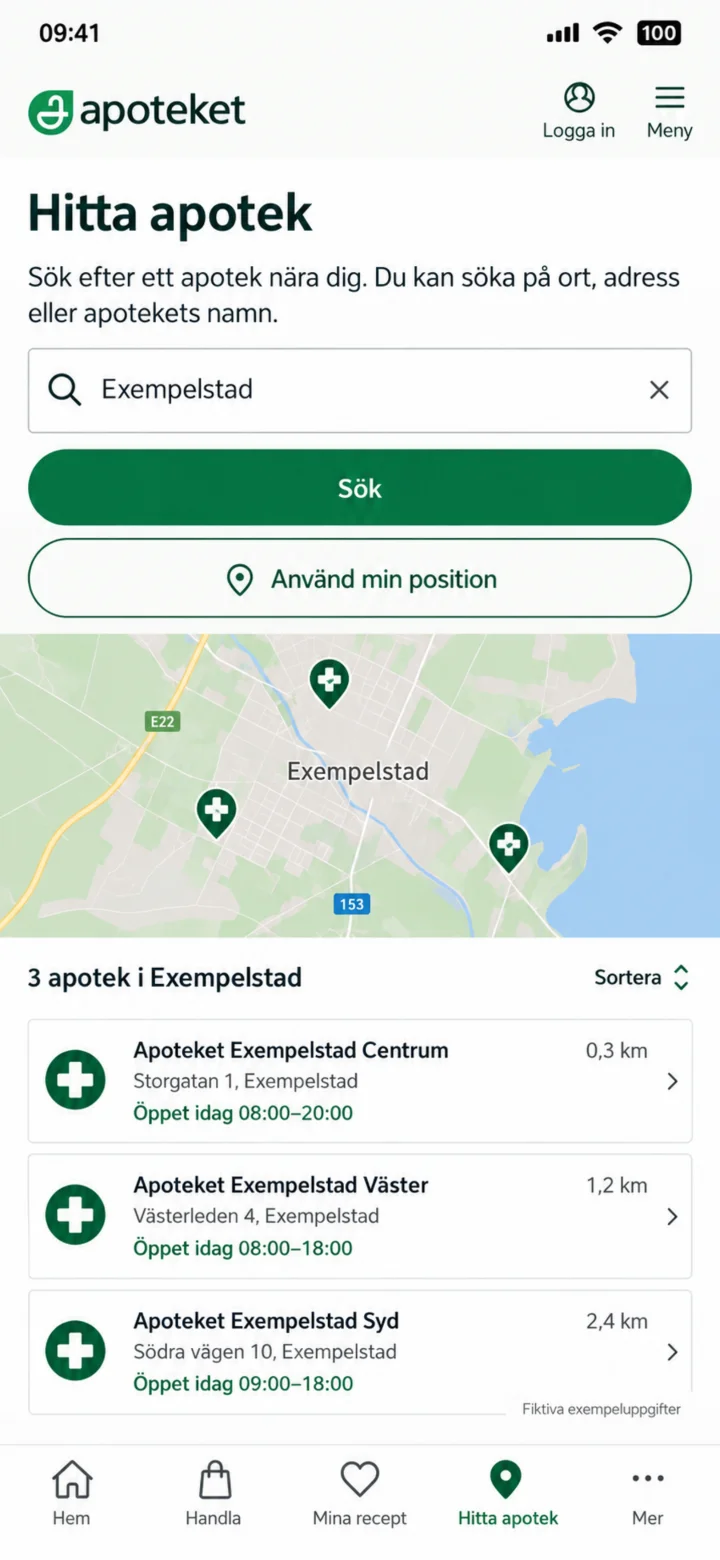 1Step 1 of 4 · iPhone
Open Hitta apotek (Find pharmacy). Type a town or address and choose ”Sök” (Search).
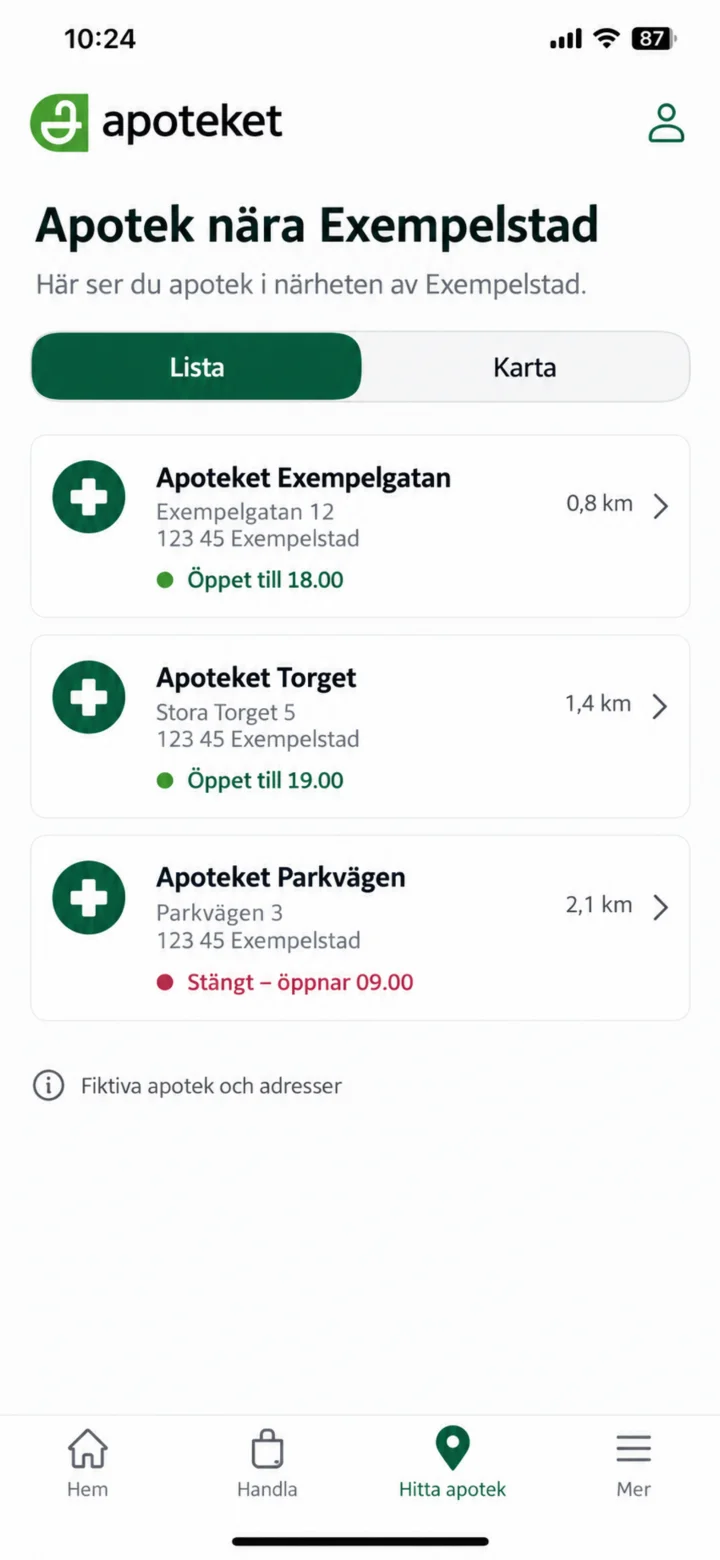 2Step 2 of 4 · iPhone
Compare distances and today's opening hours. Choose the pharmacy you want to check.
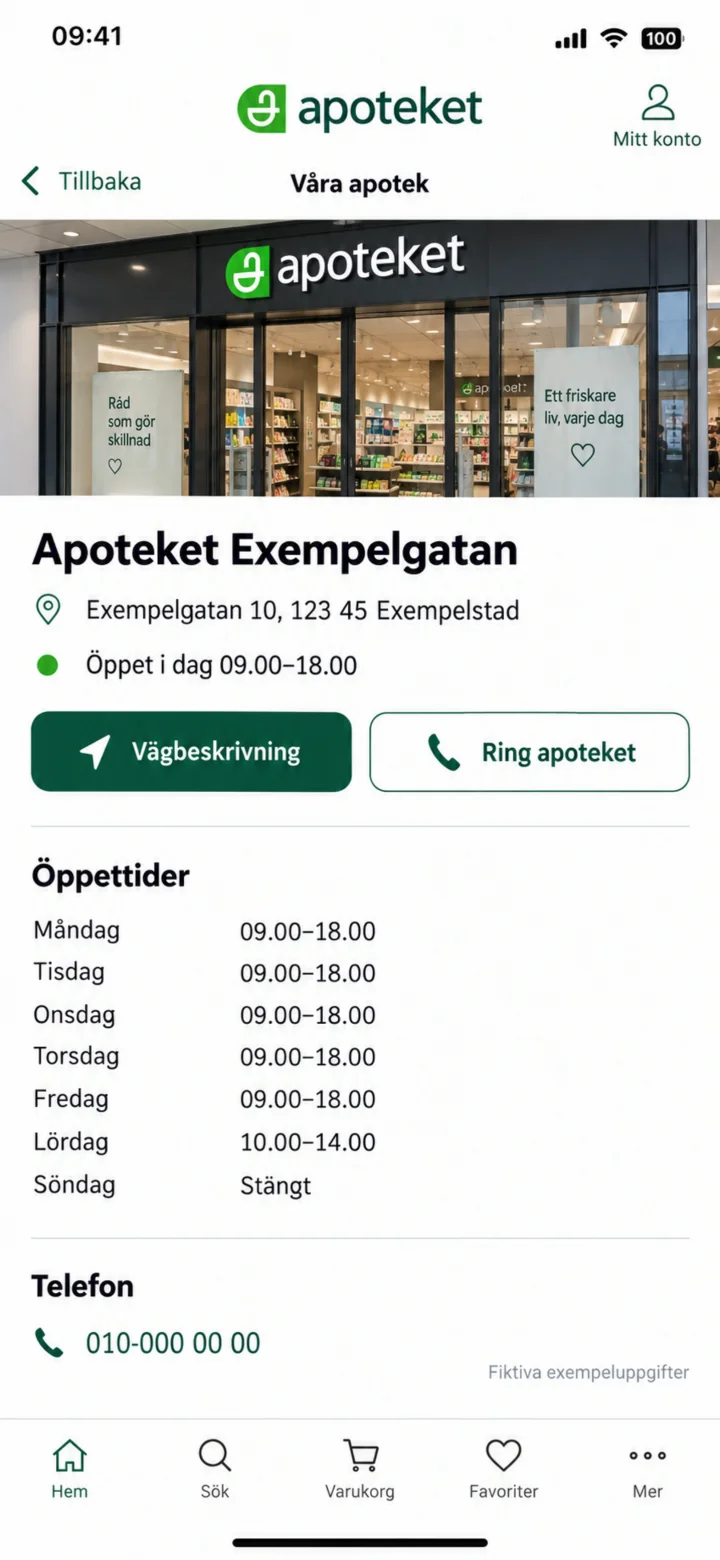 3Step 3 of 4 · iPhone
On the pharmacy's page, you will see the address, regular opening hours, and contact information.
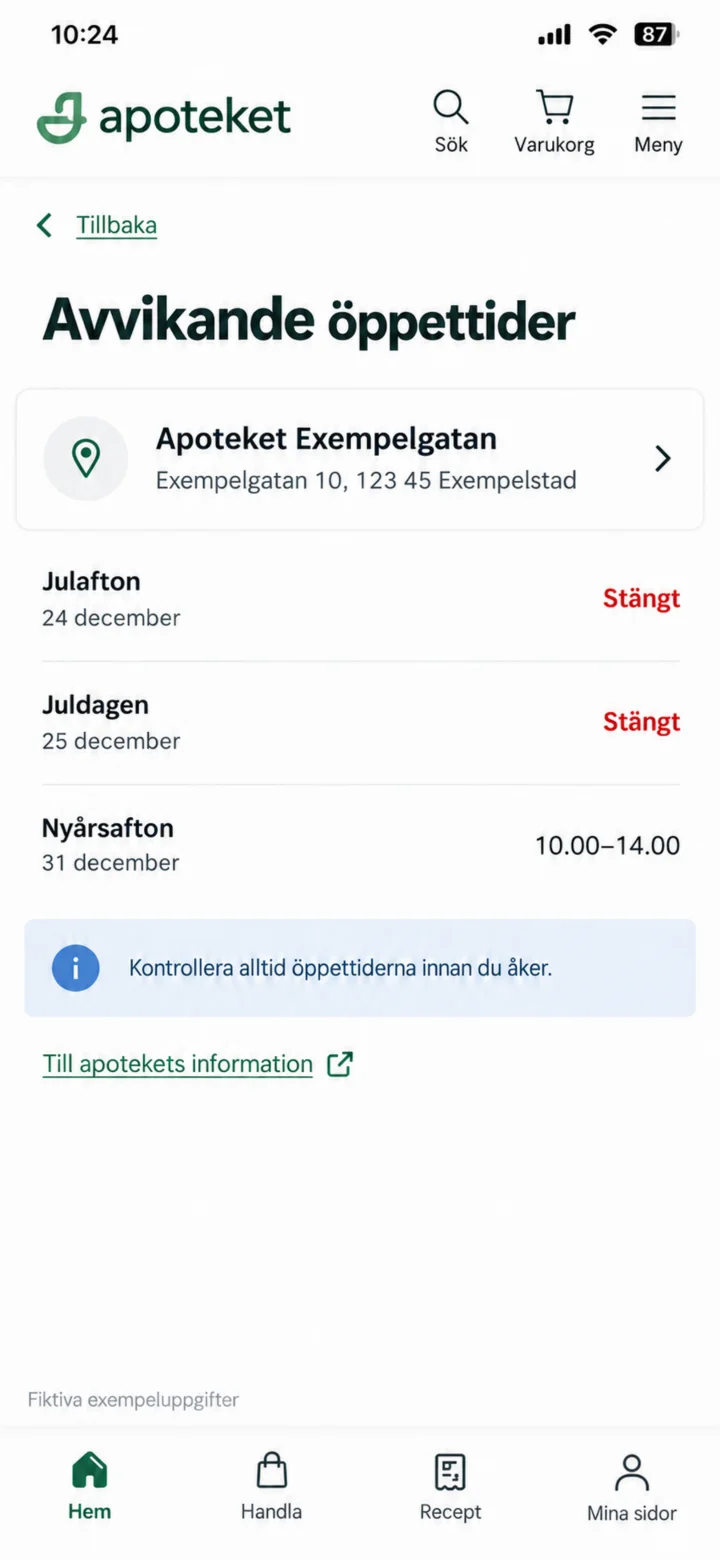 4Step 4 of 4 · iPhone
Also, check for any deviating opening hours before holidays and public holidays before you go.
Here's how you can reply to a message in the 1177 app
iPhone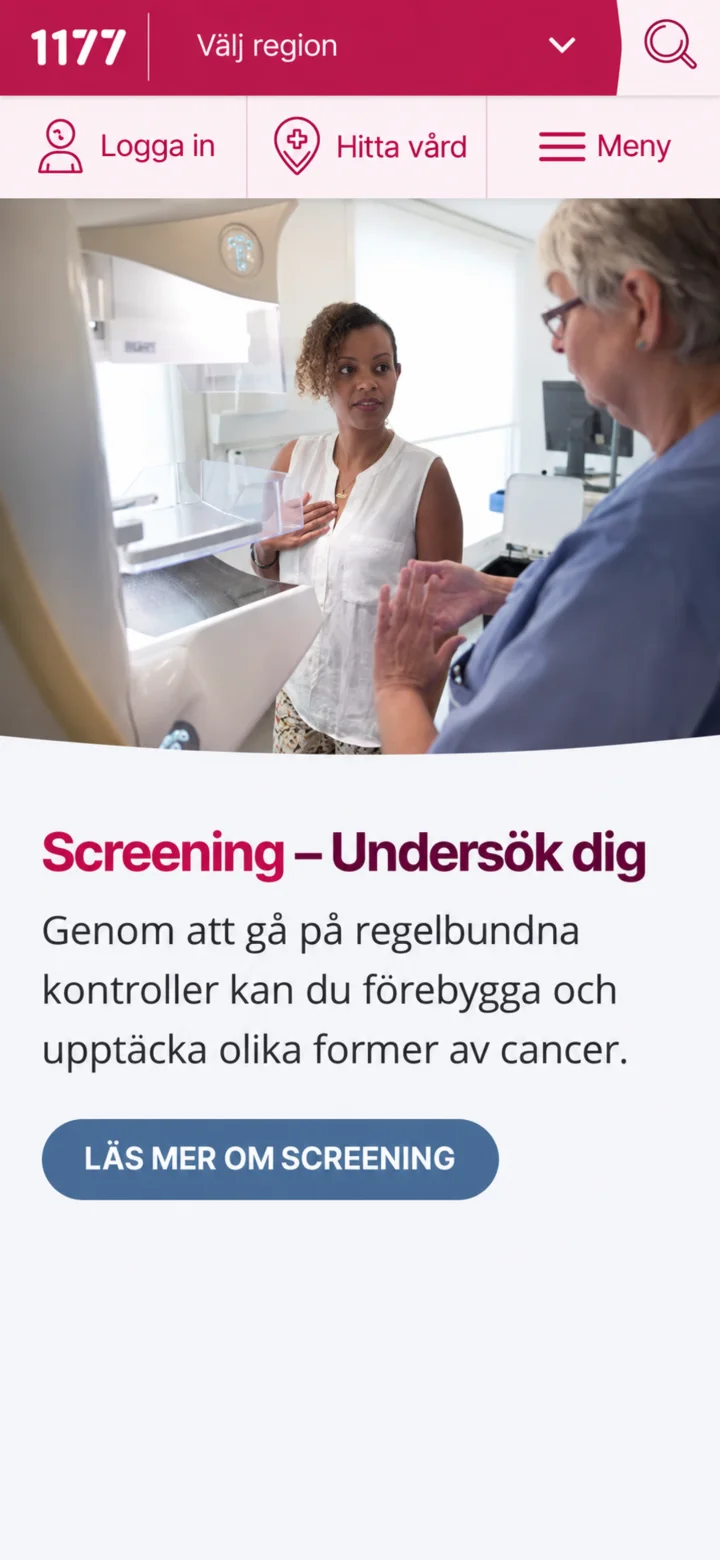 1Step 1 of 10 · iPhone
First, open the 1177 app on your phone and then tap on ”Logga in” (Log in).
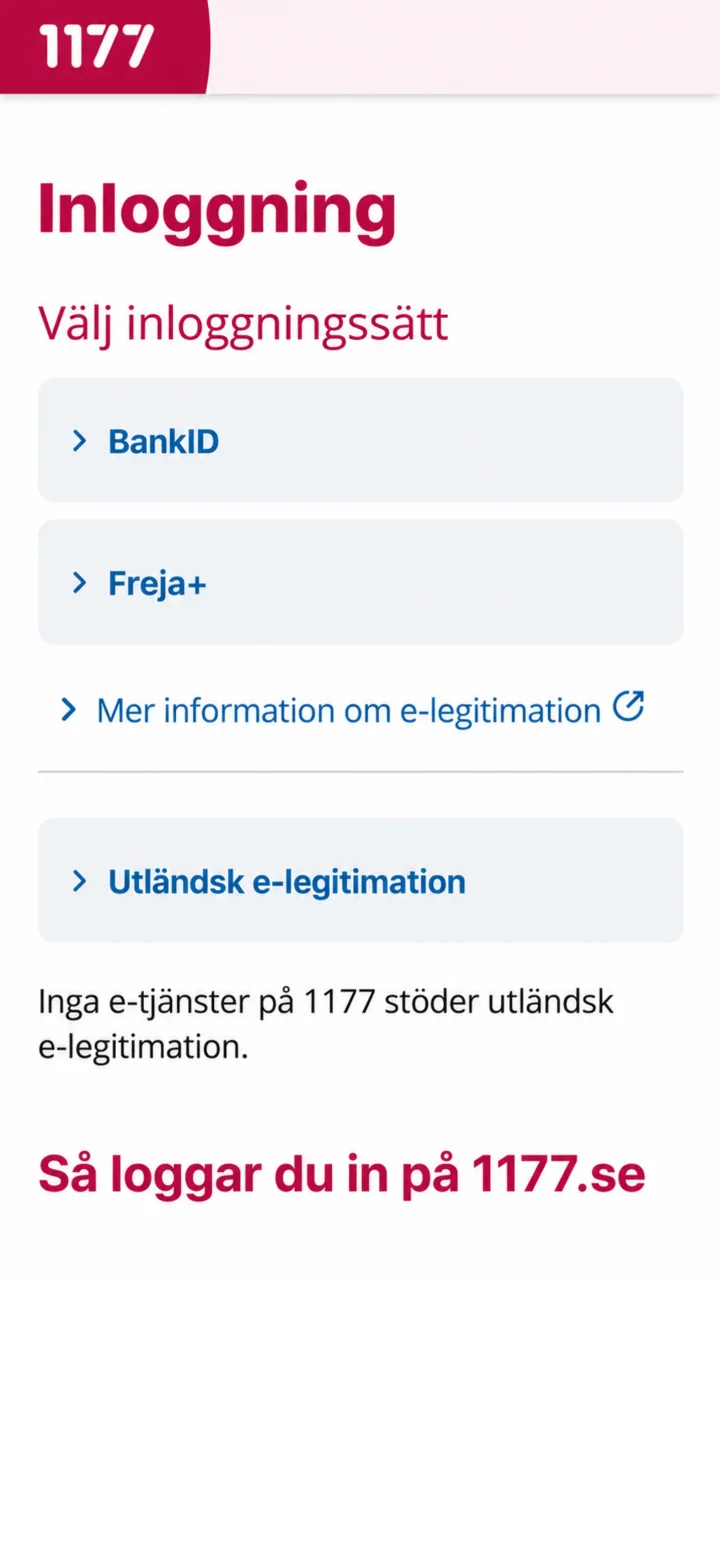 2Step 2 of 10 · iPhone
Next, choose BankID as the way you want to log in.
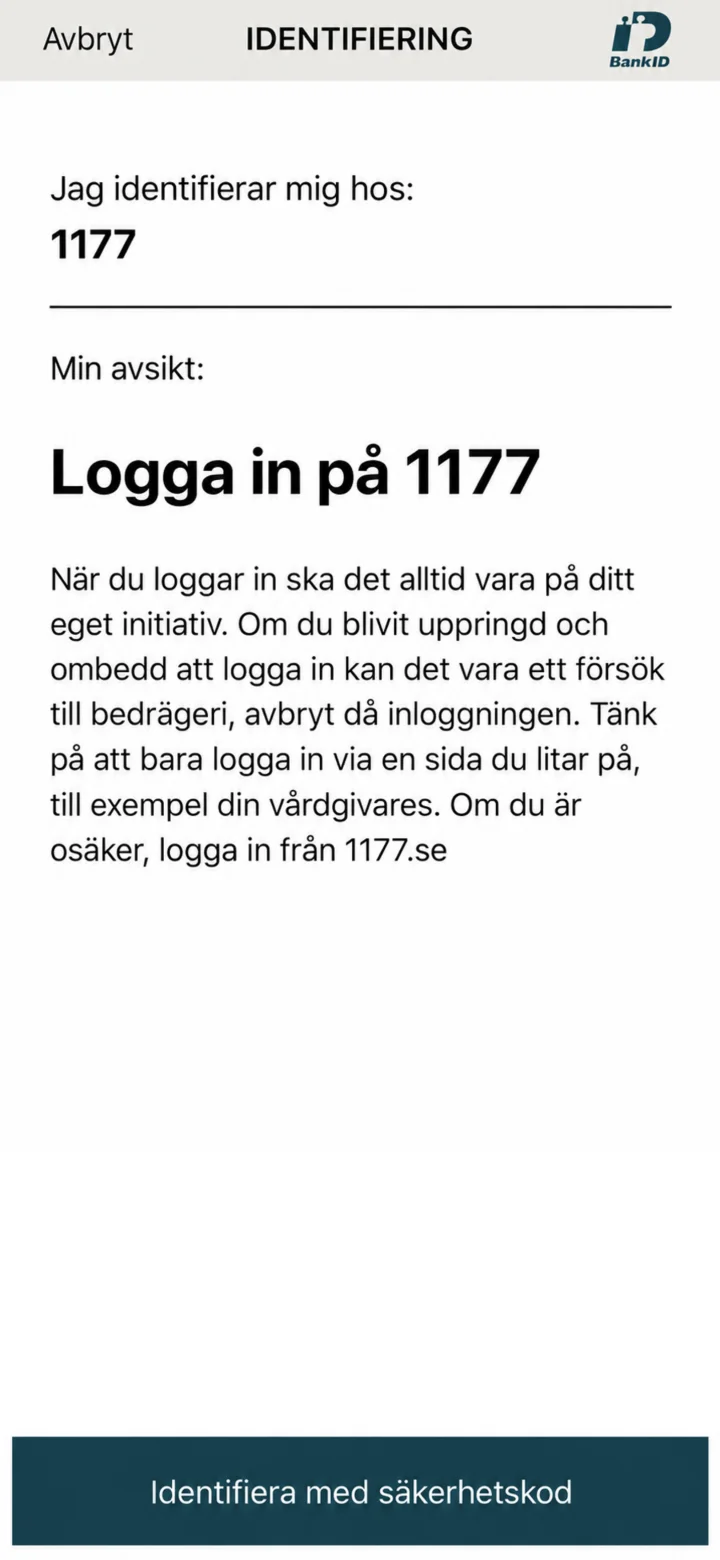 3Step 3 of 10 · iPhone
It's a good idea to double-check that the identification is indeed for 1177.
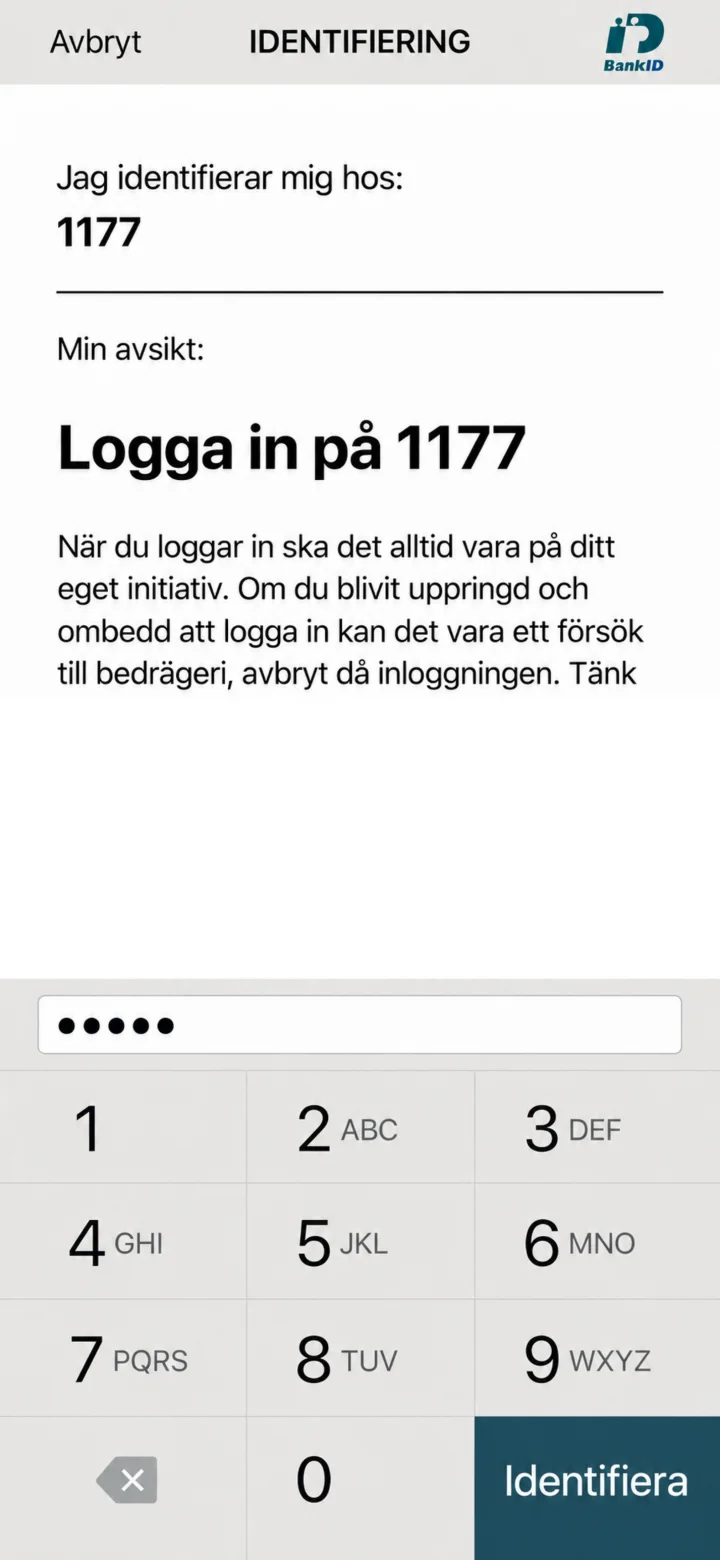 4Step 4 of 10 · iPhone
Now, enter your security code and then tap on ”Identifiera” (Identify).
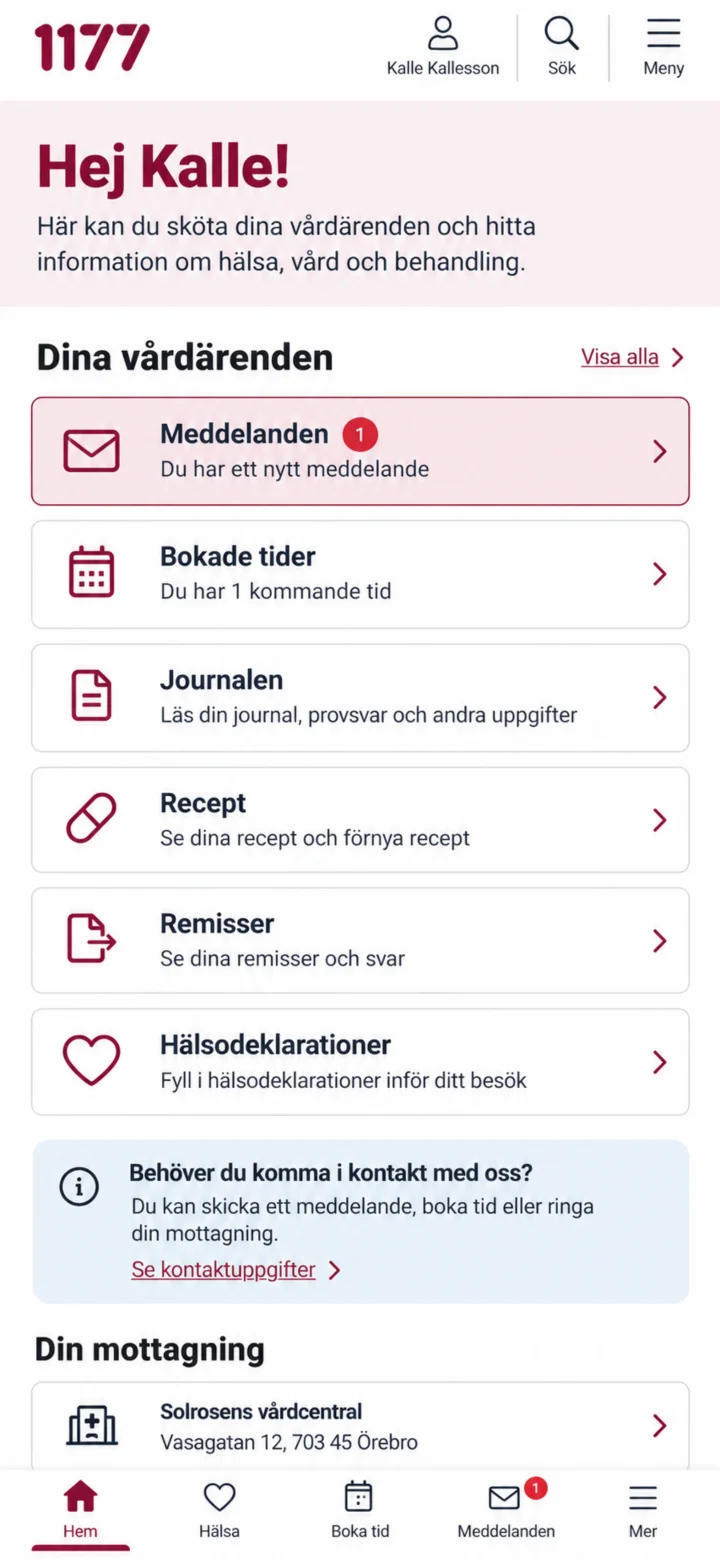 5Step 5 of 10 · iPhone
Once you're logged in, tap on ”Meddelanden” (Messages).
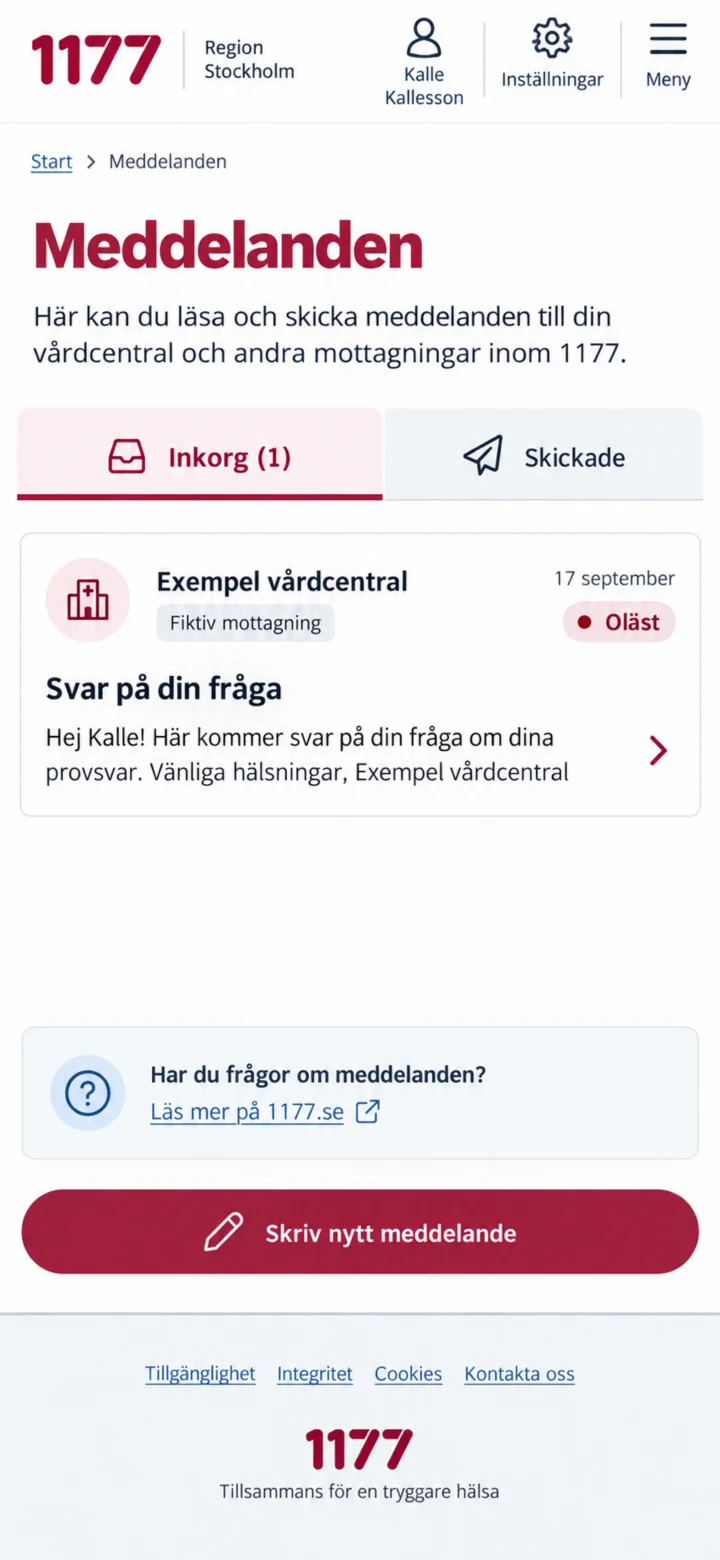 6Step 6 of 10 · iPhone
I inkorgen, tryck på det olästa meddelandet från mottagningen.
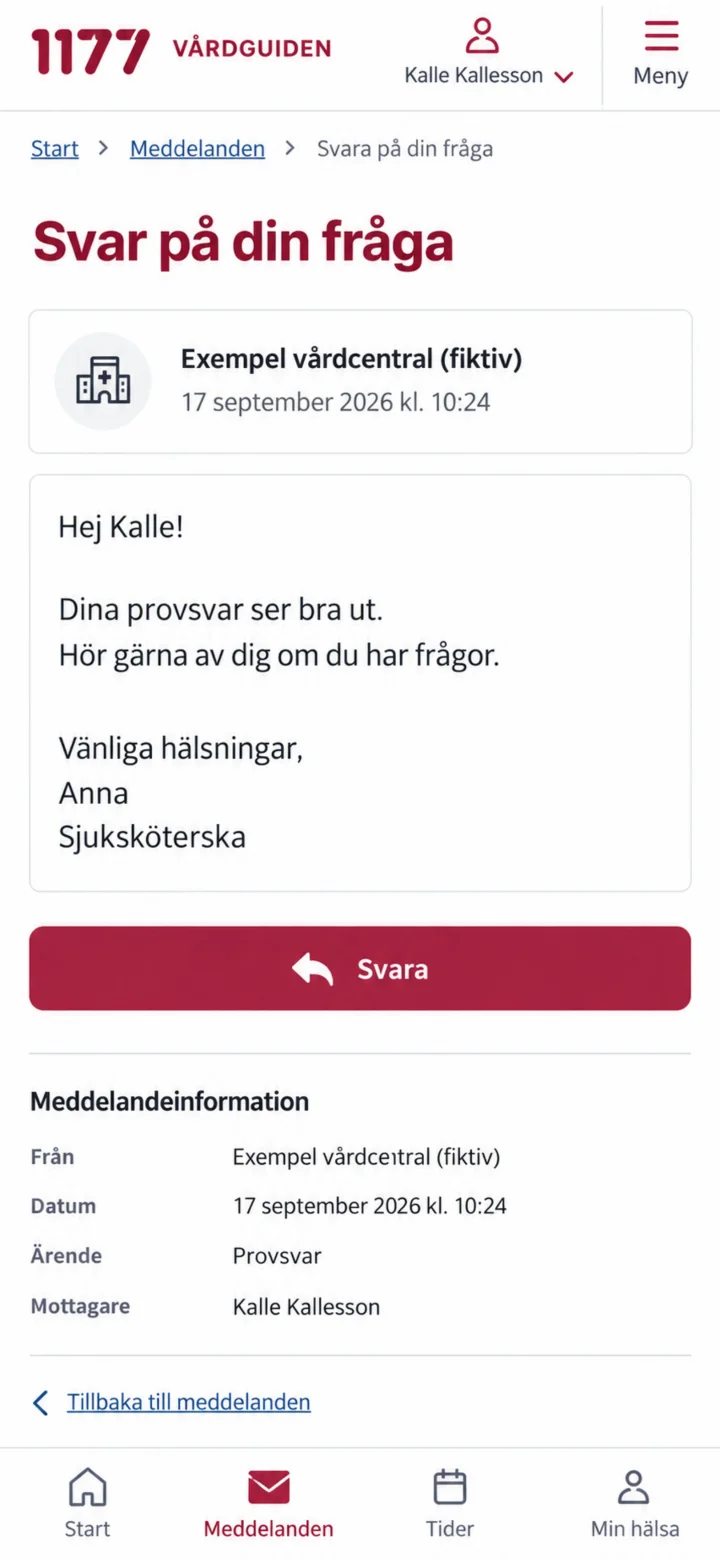 7Step 7 of 10 · iPhone
Läs hela meddelandet och tryck sedan på Svara.
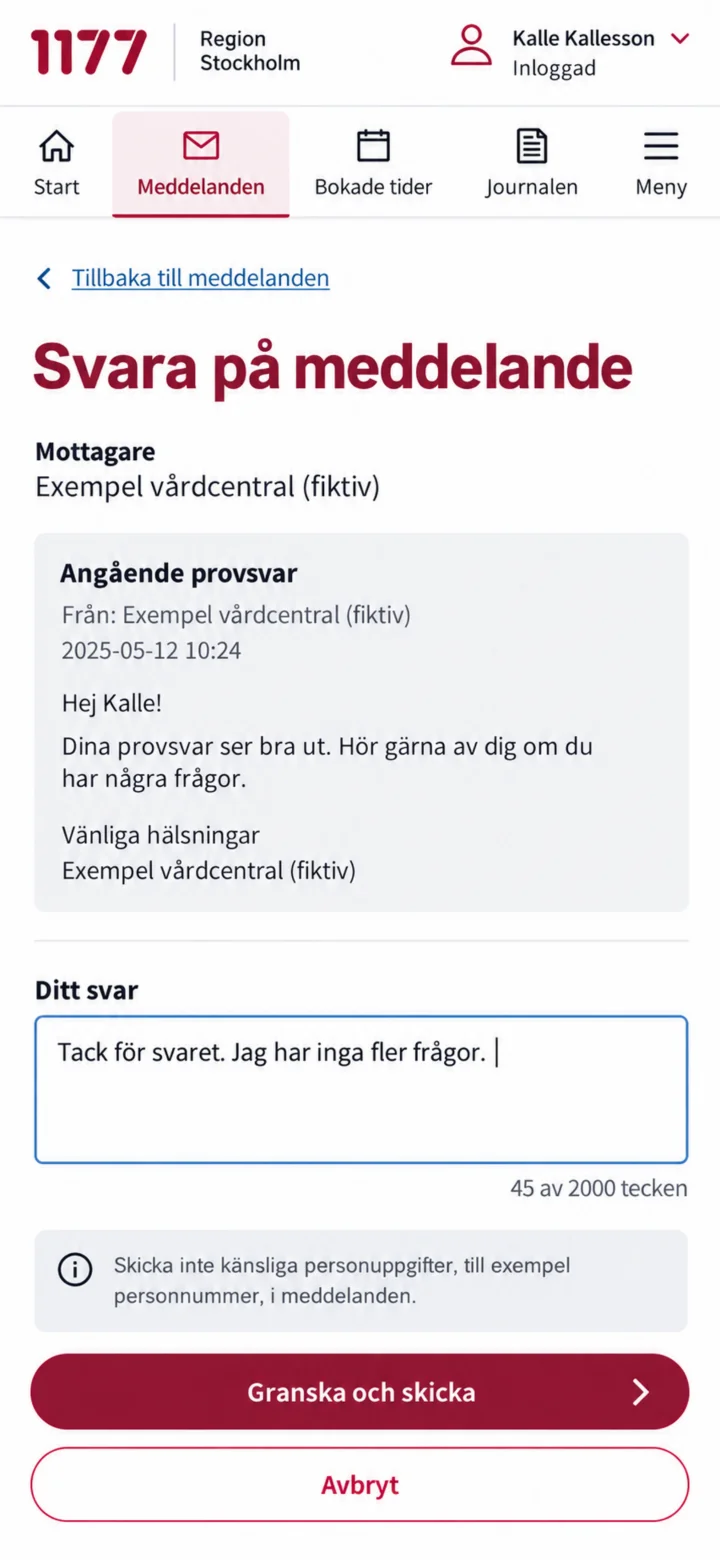 8Step 8 of 10 · iPhone
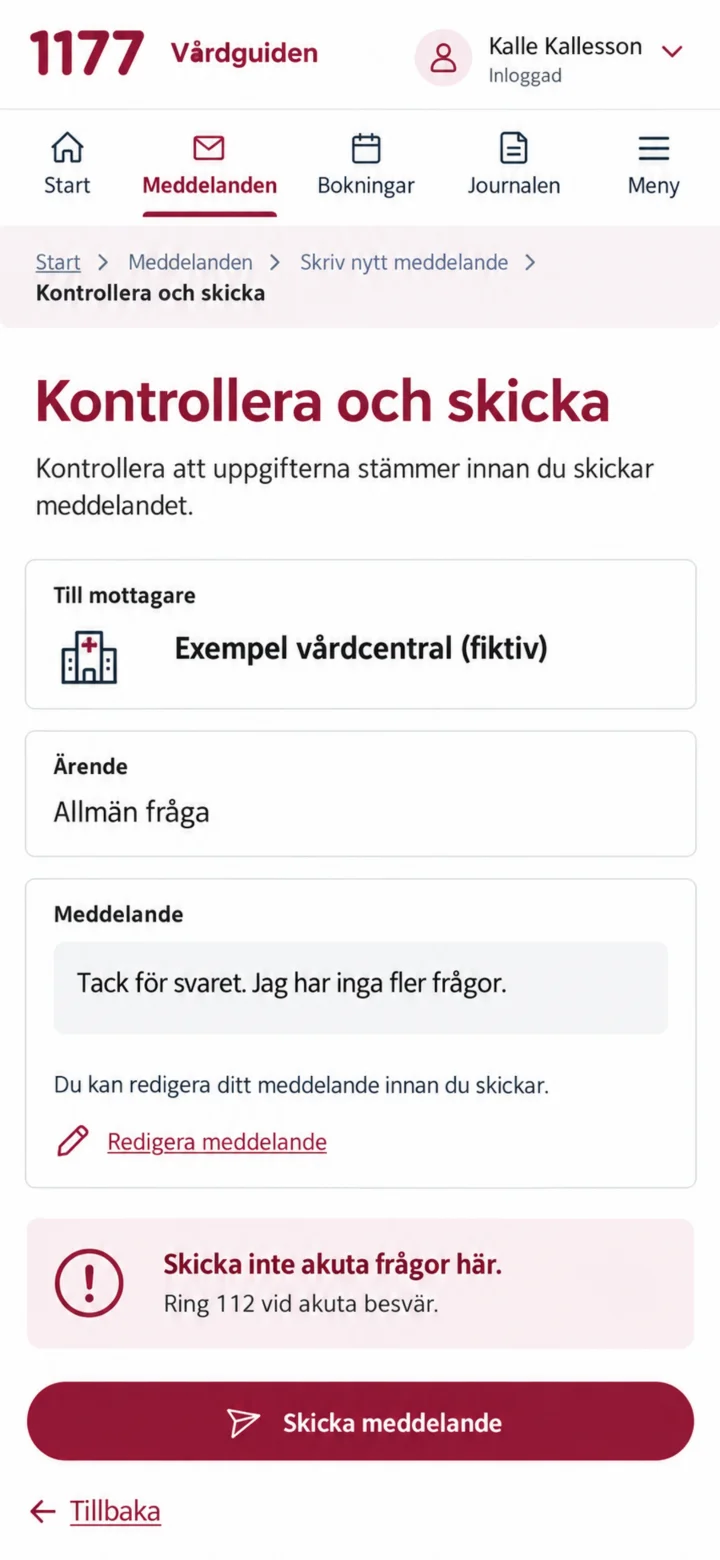
Write your reply in the text box, and then tap on ”Granska och skicka” (Review and send).
 9Step 9 of 10 · iPhone
Take a moment to check the recipient and your message. If everything looks good, tap on ”Skicka meddelande” (Send message).
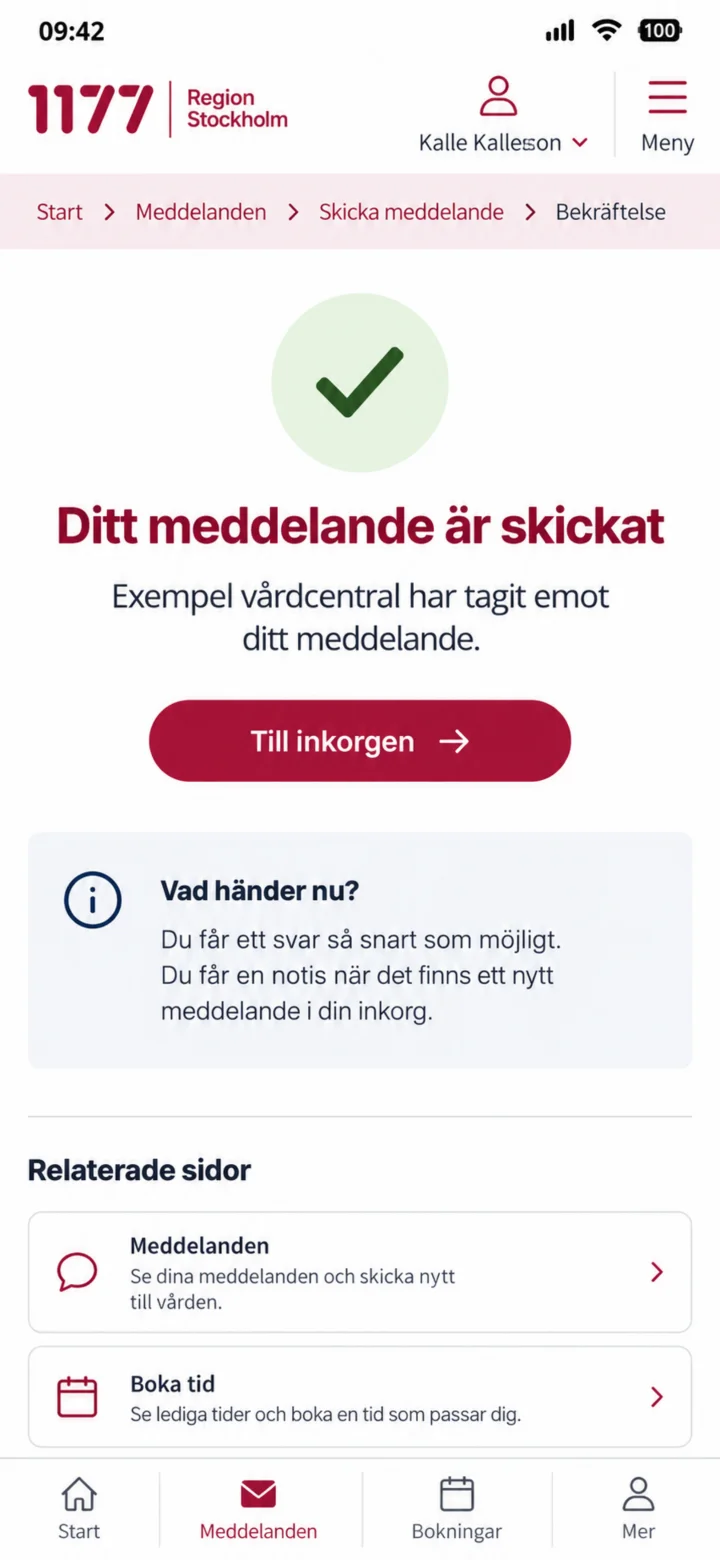 10Step 10 of 10 · iPhone
Great job! Your message has been sent, and the reception has received it.
How to log in and send a message on 1177
iPhone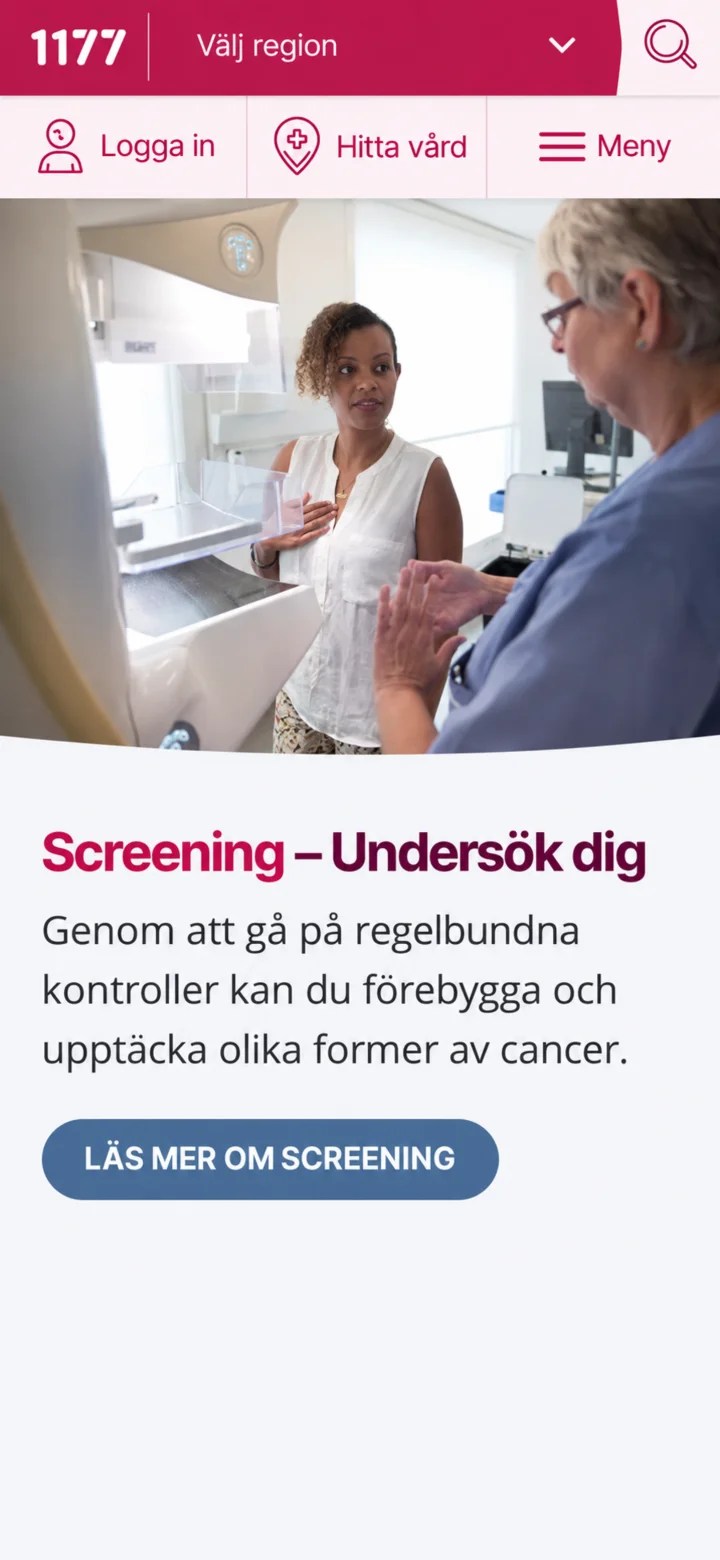 1Step 1 of 10 · iPhone
Open 1177 and tap ”Logga in” (Log in).
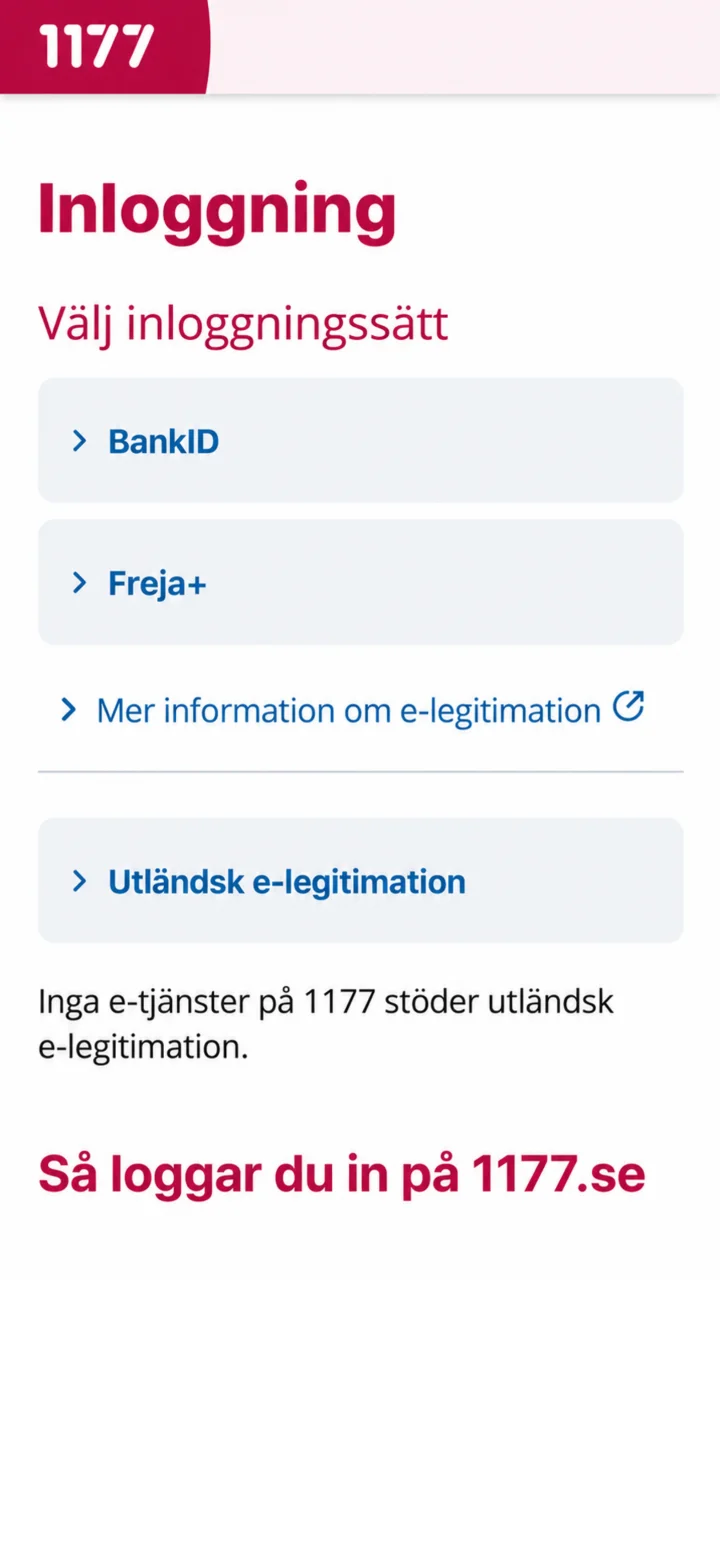 2Step 2 of 10 · iPhone
Choose BankID as your login method.
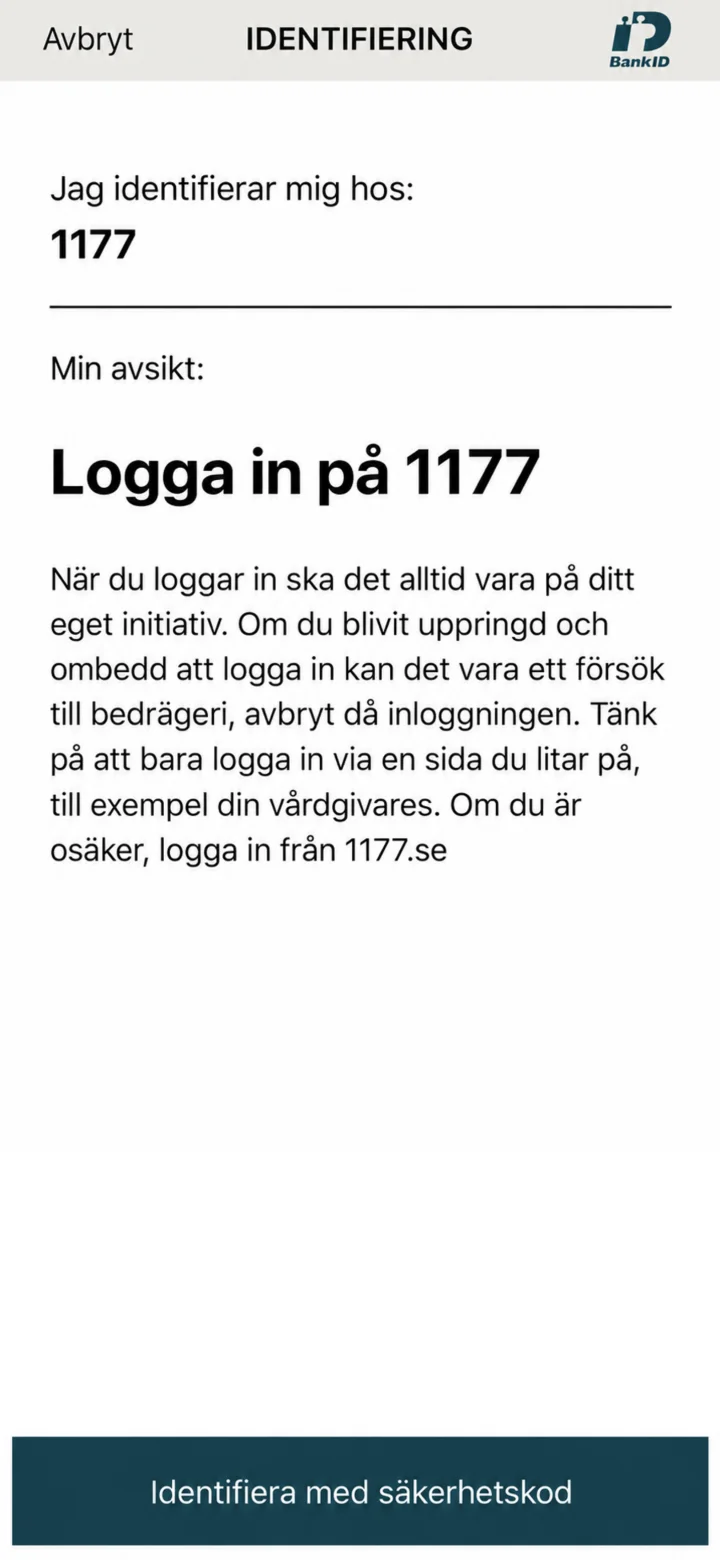 3Step 3 of 10 · iPhone
Kontrollera att identifieringen gäller 1177.
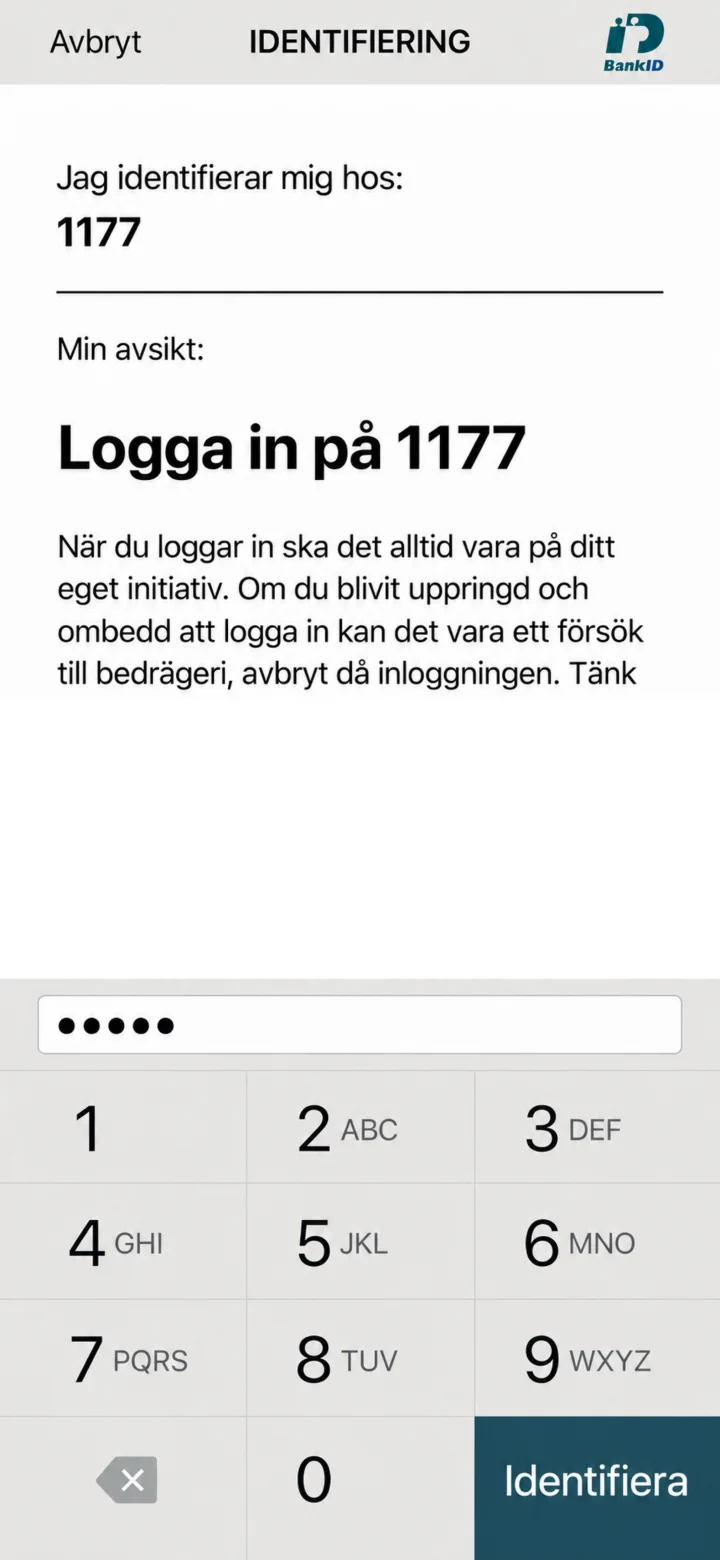 4Step 4 of 10 · iPhone
Enter your security code and tap ”Identifiera” (Identify).
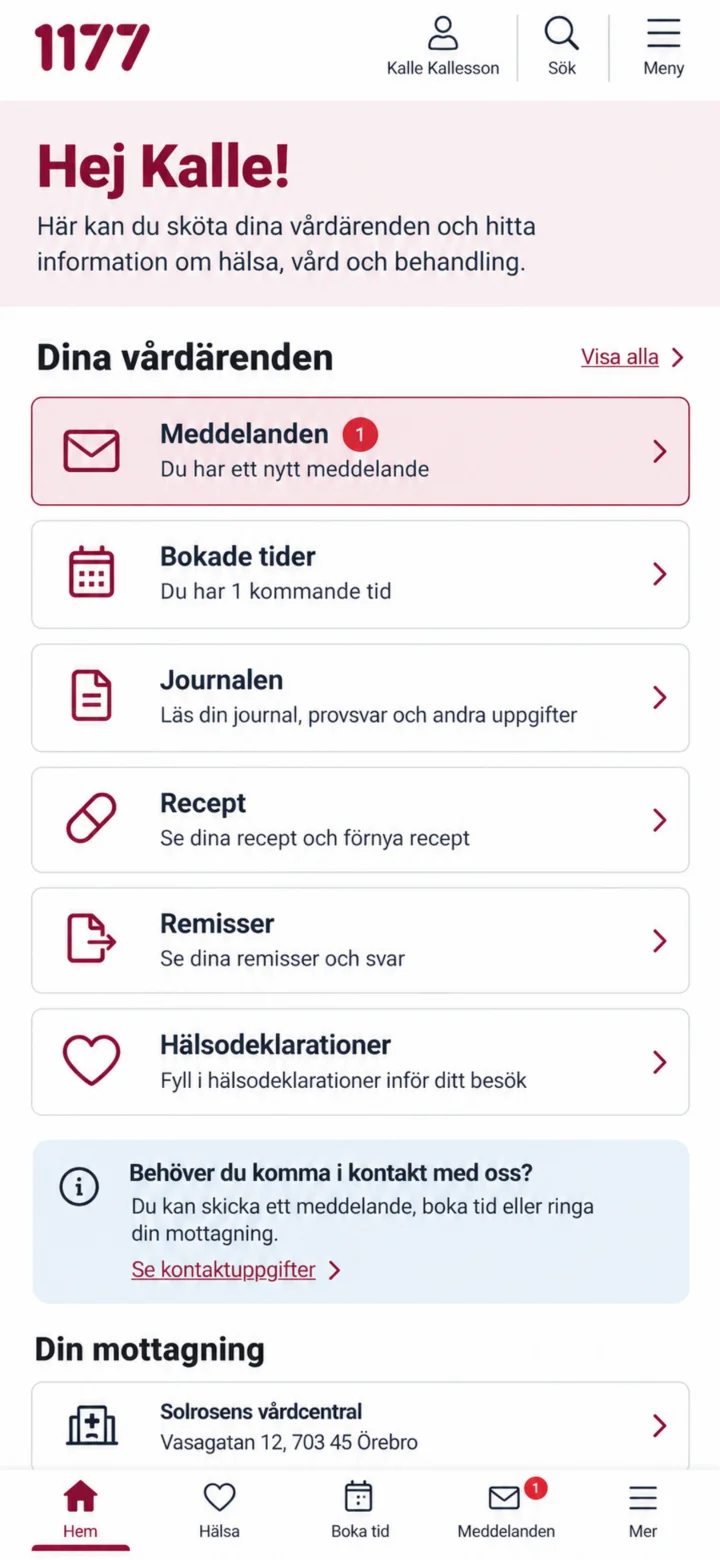 5Step 5 of 10 · iPhone
Once you're logged in, tap ”Meddelanden” (Messages).
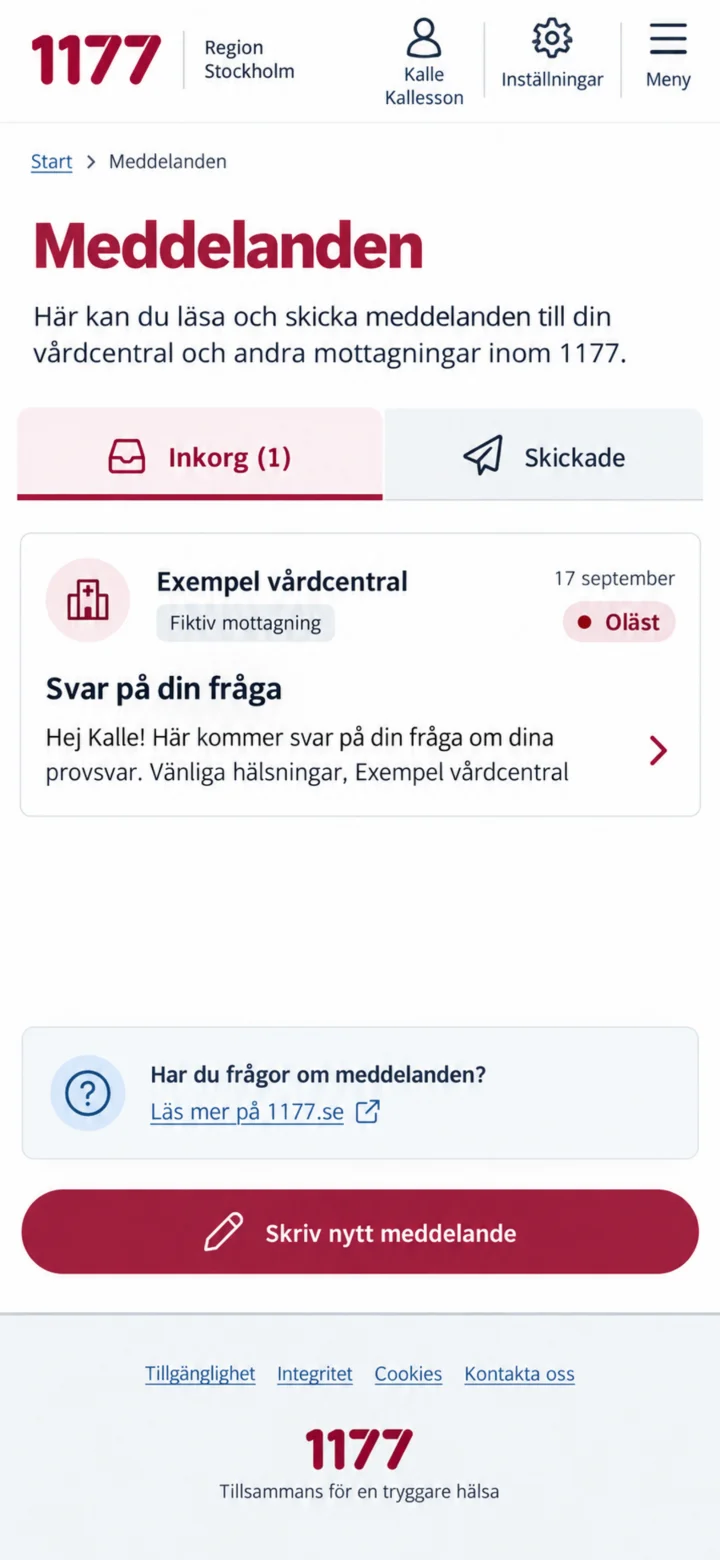 6Step 6 of 10 · iPhone
I inkorgen, tryck på det olästa meddelandet från mottagningen.
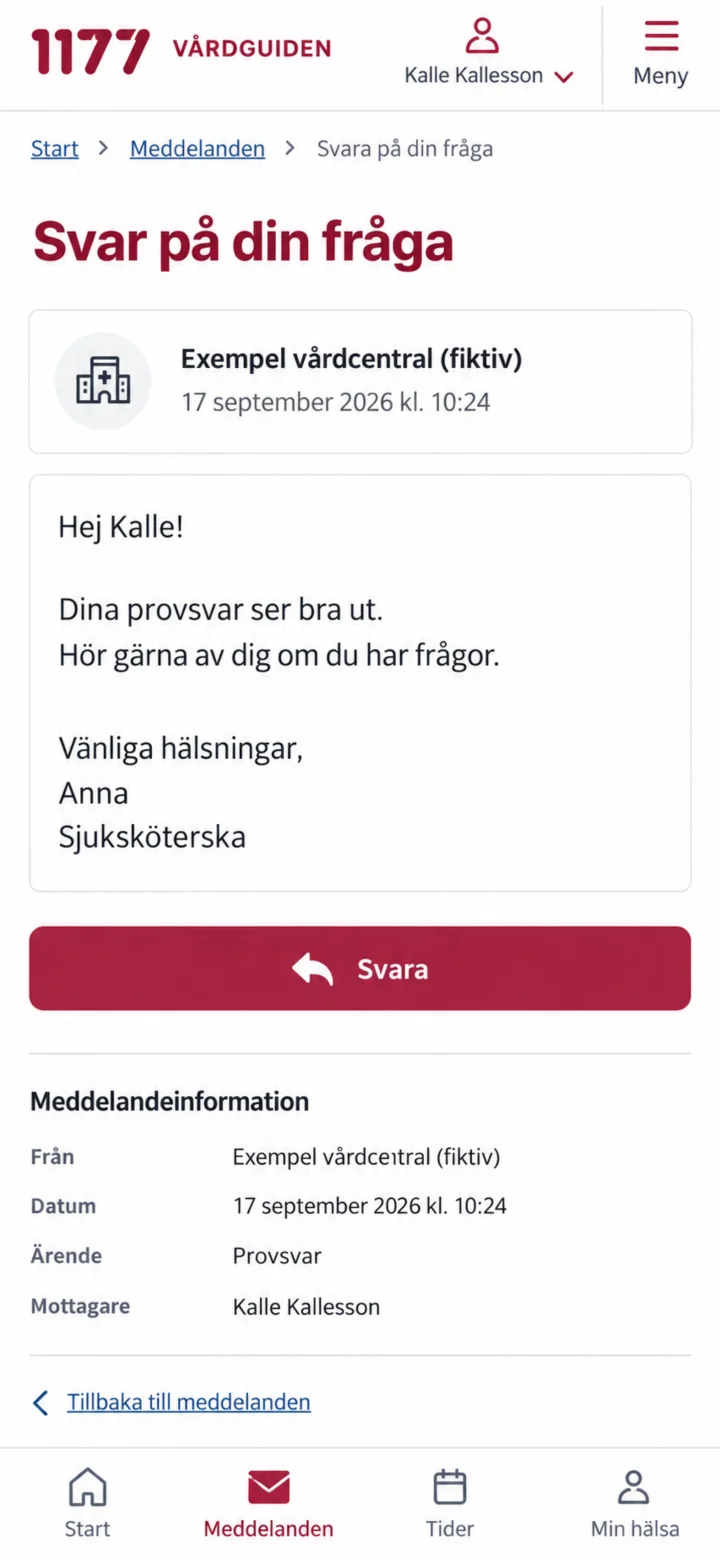 7Step 7 of 10 · iPhone
Read the entire message, then tap ”Svara” (Reply).
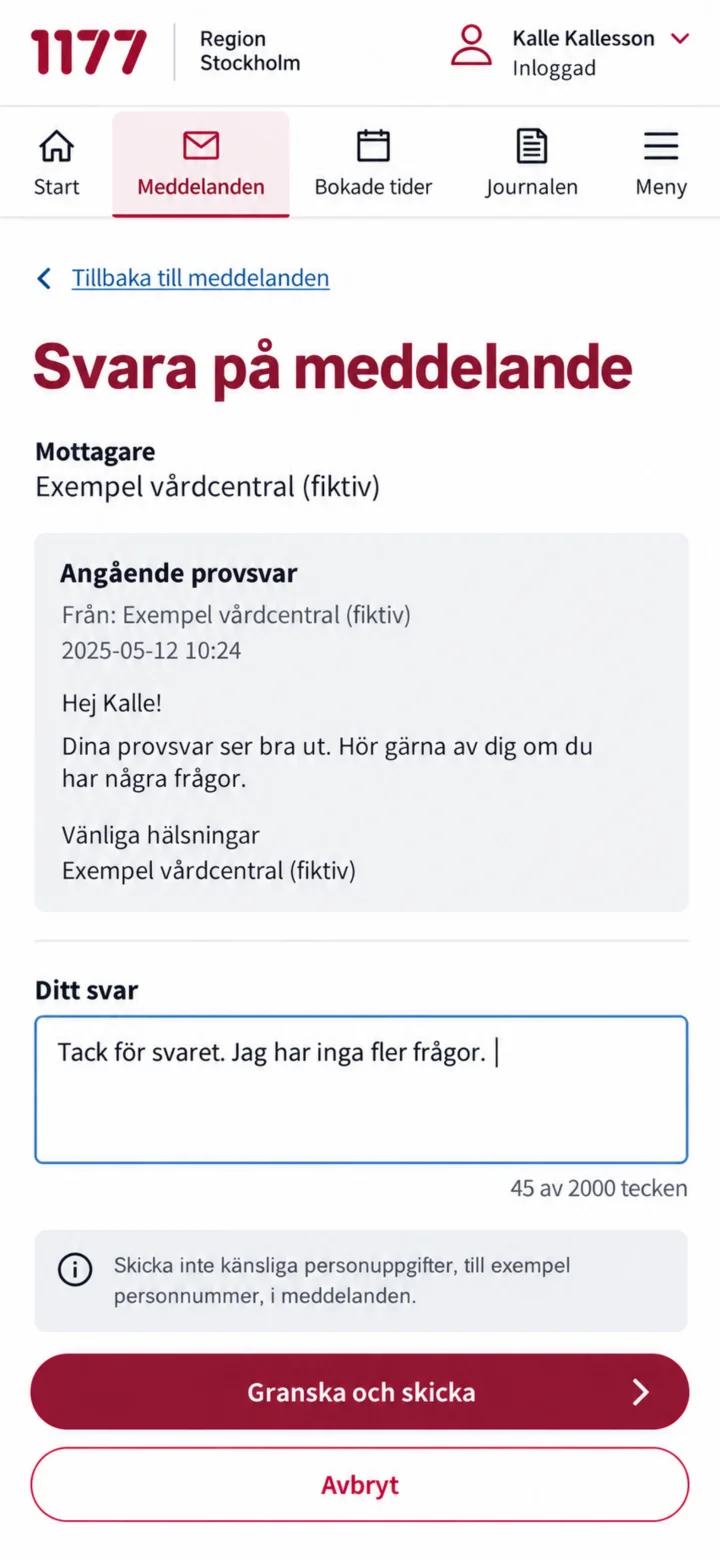 8Step 8 of 10 · iPhone
Write your reply and tap ”Granska och skicka” (Review and send).
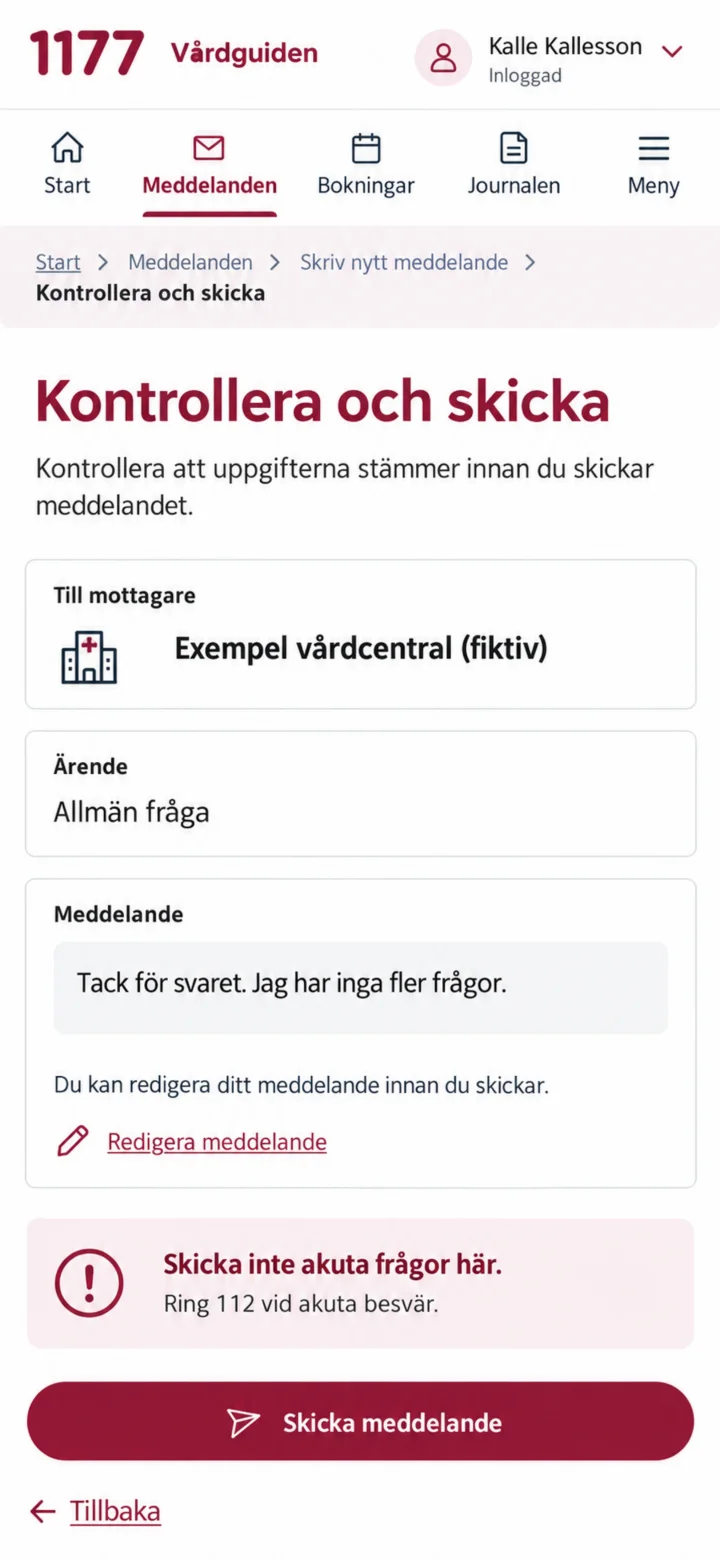 9Step 9 of 10 · iPhone
Check the recipient and your text. Then tap ”Skicka meddelande” (Send message).
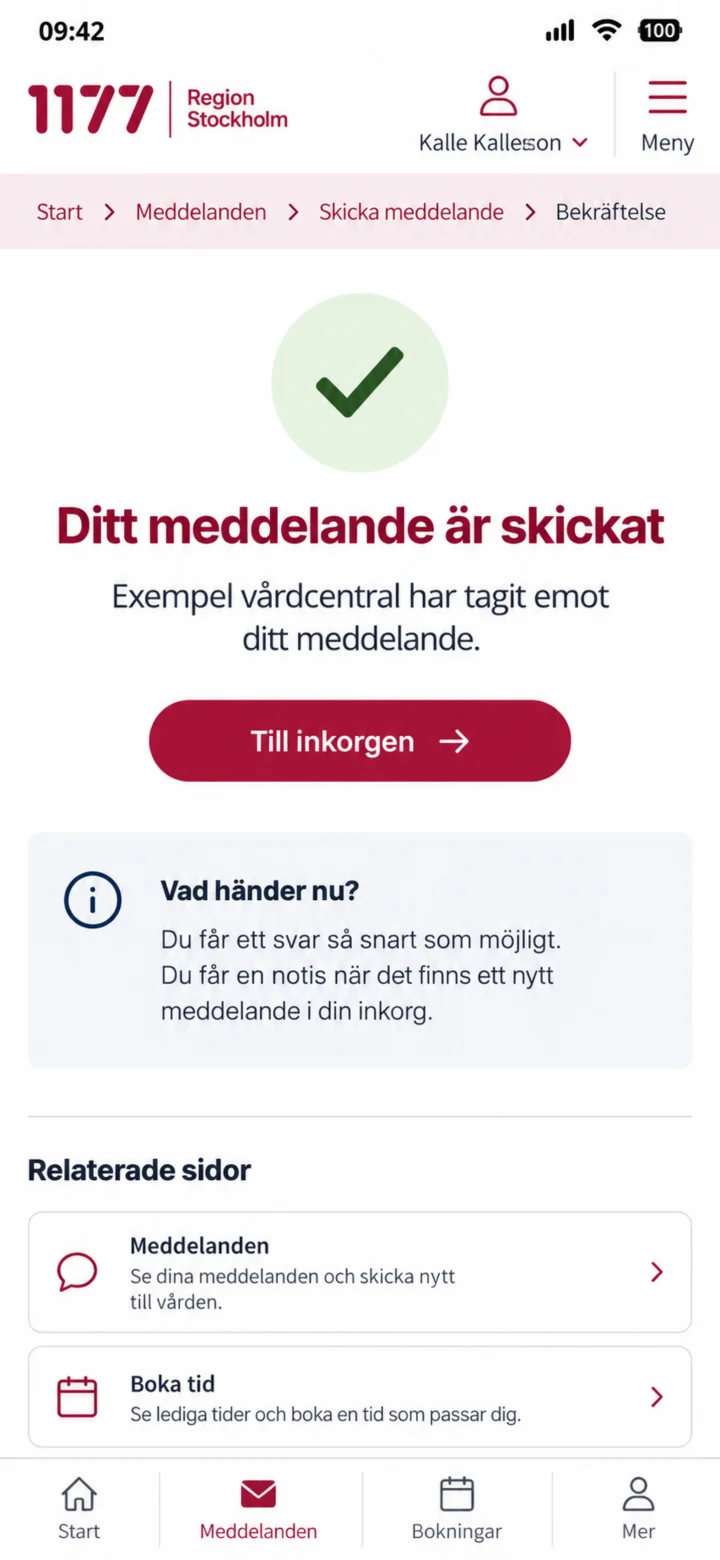 10Step 10 of 10 · iPhone
Your message has been sent, and the reception has received it.
How to log in to 1177
iPhone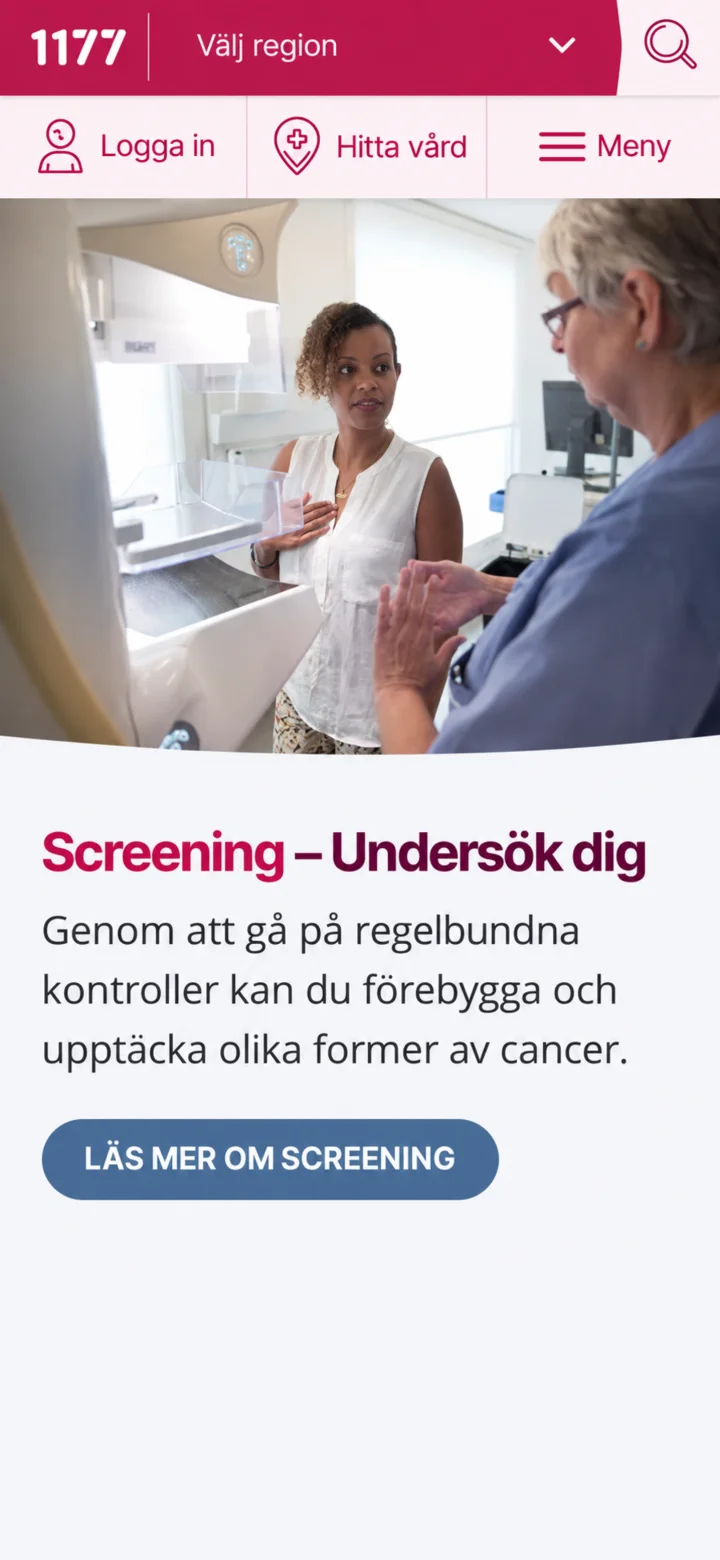 1Step 1 of 8 · iPhone
Hello! Here I'll show you how to log in to 1177 Vårdguiden. You can pause whenever you like and play again. Let's go! First, tap the button ”Logga in” (Log in) at the top left of the screen.
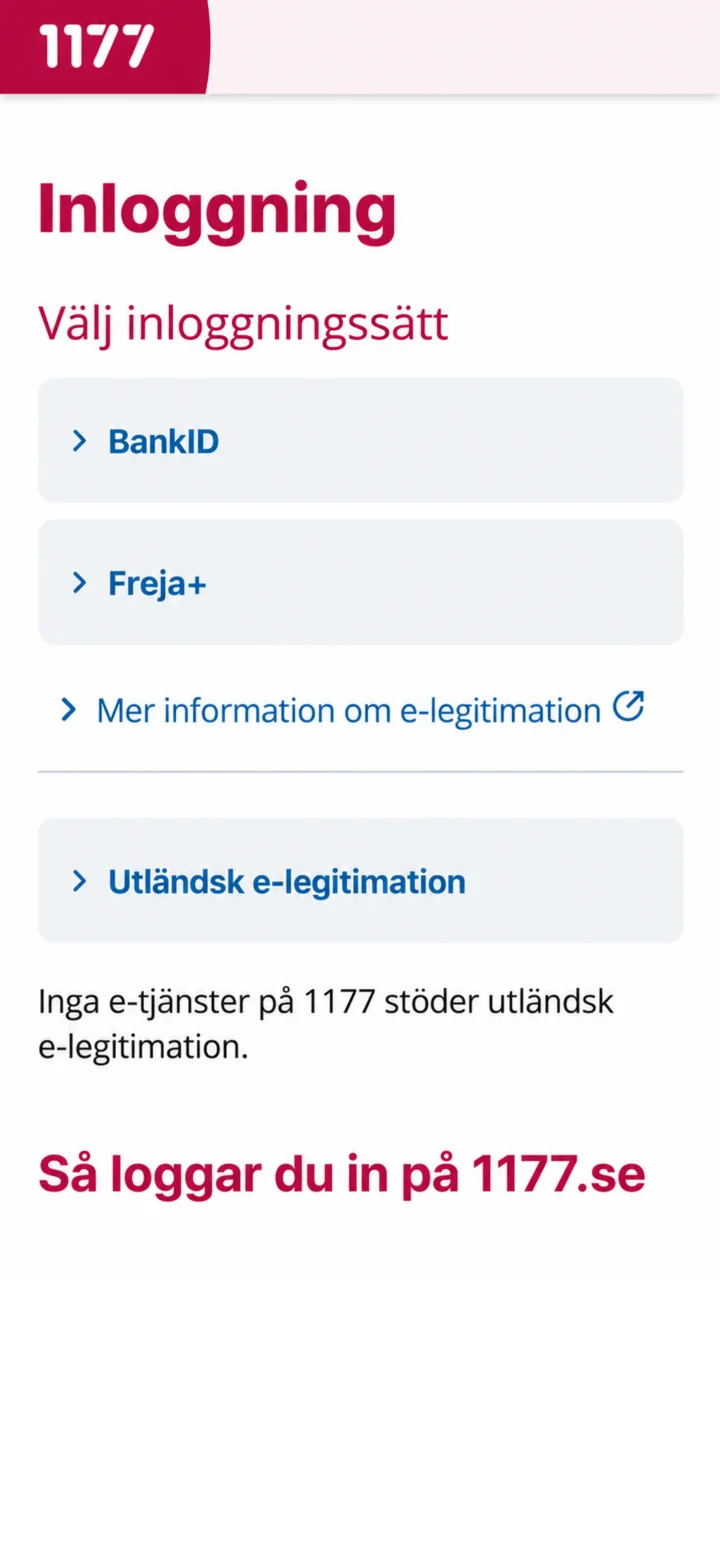 2Step 2 of 8 · iPhone
Now you'll choose how you want to log in. Tap the BankID button, which is the most common way to log in.
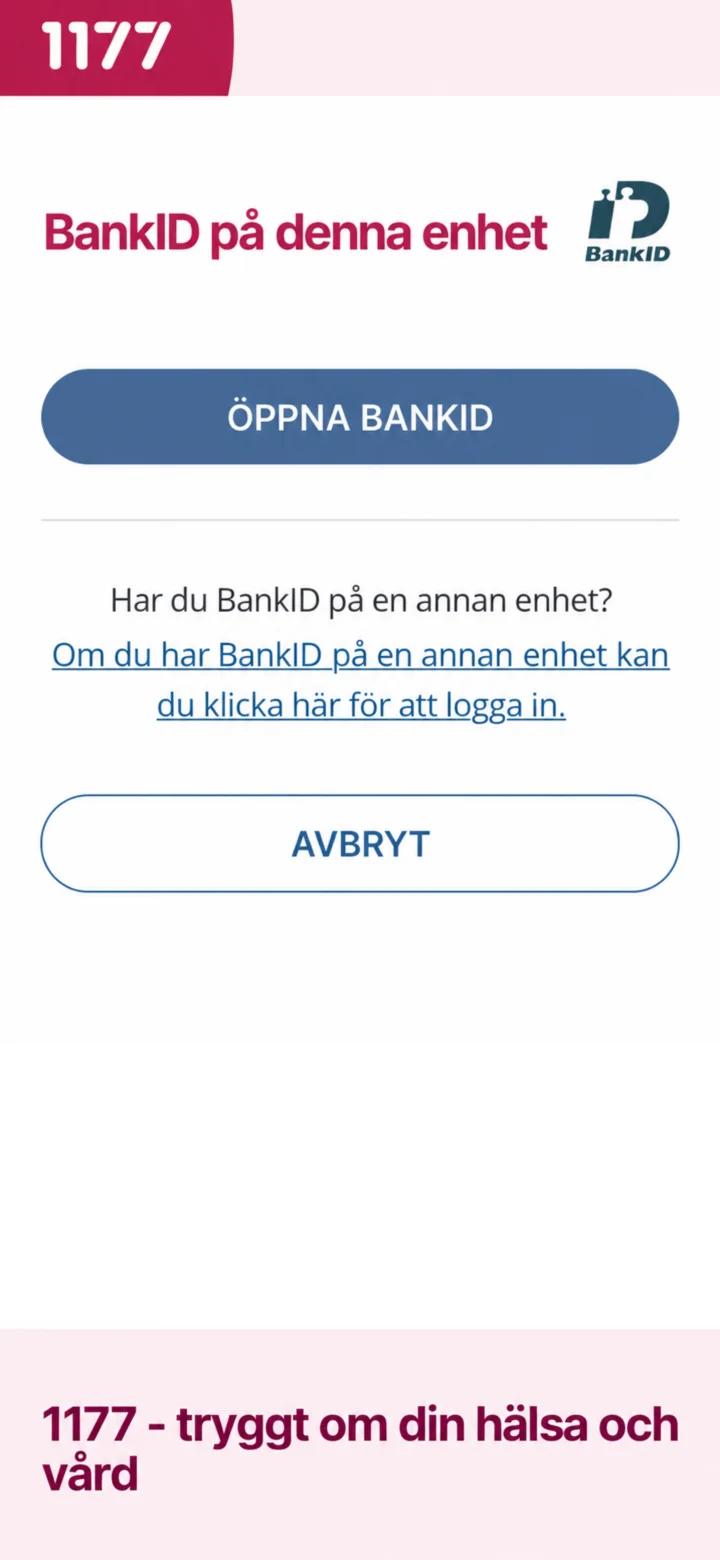 3Step 3 of 8 · iPhone
To continue, you need to open your BankID app. Tap the blue button ”Öppna BankID” (Open BankID) in the middle of the screen.
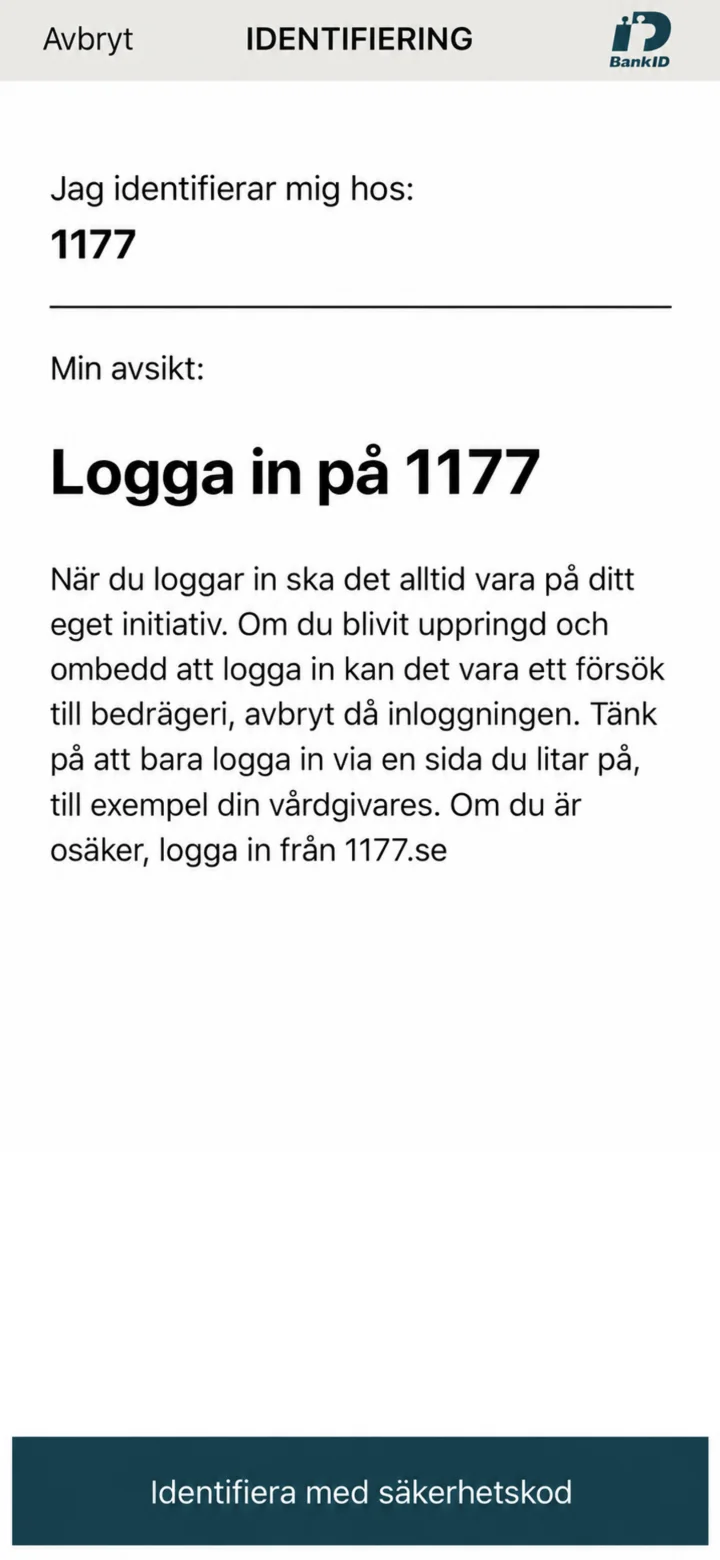 4Step 4 of 8 · iPhone
Now you are in the BankID app. To identify yourself, tap the dark blue button ”Identifiera med säkerhetskod” (Identify with security code) at the bottom of the screen.
 5Step 5 of 8 · iPhone
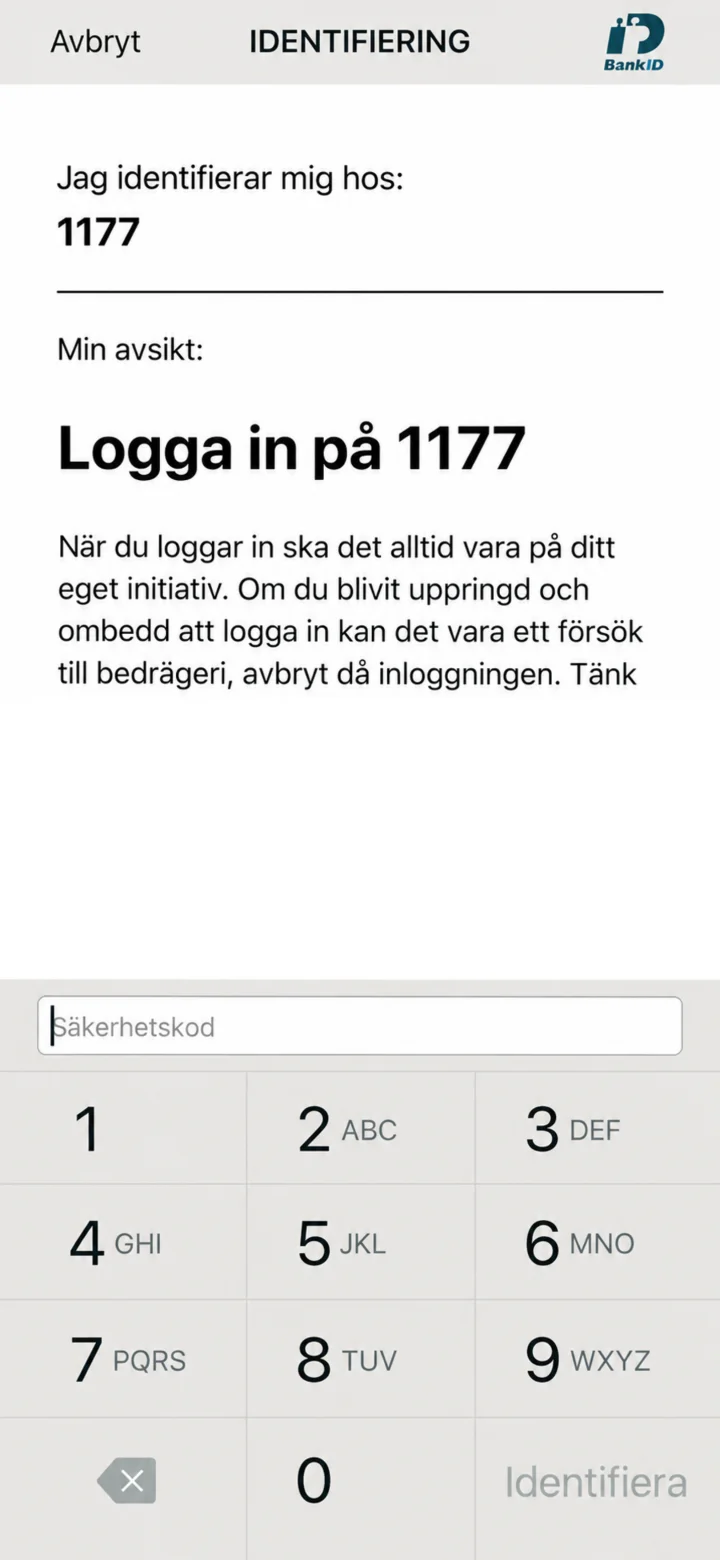
Now you need to enter your personal security code for BankID. Tap the numbers on the screen to fill in your code, and remember not to show the code to anyone.
 6Step 6 of 8 · iPhone
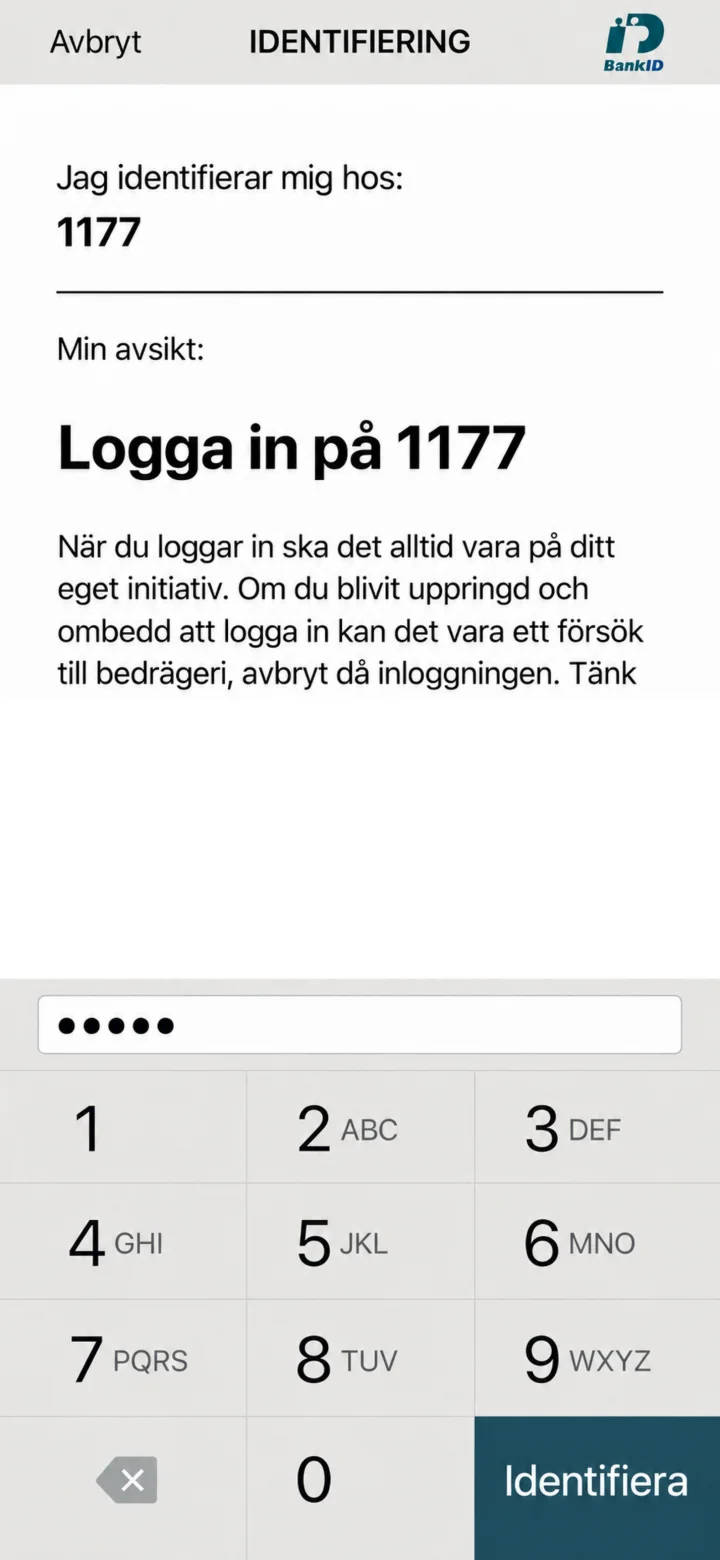
Once you have entered your security code, tap the dark blue button ”Identifiera” (Identify) at the bottom right of the screen.
 7Step 7 of 8 · iPhone
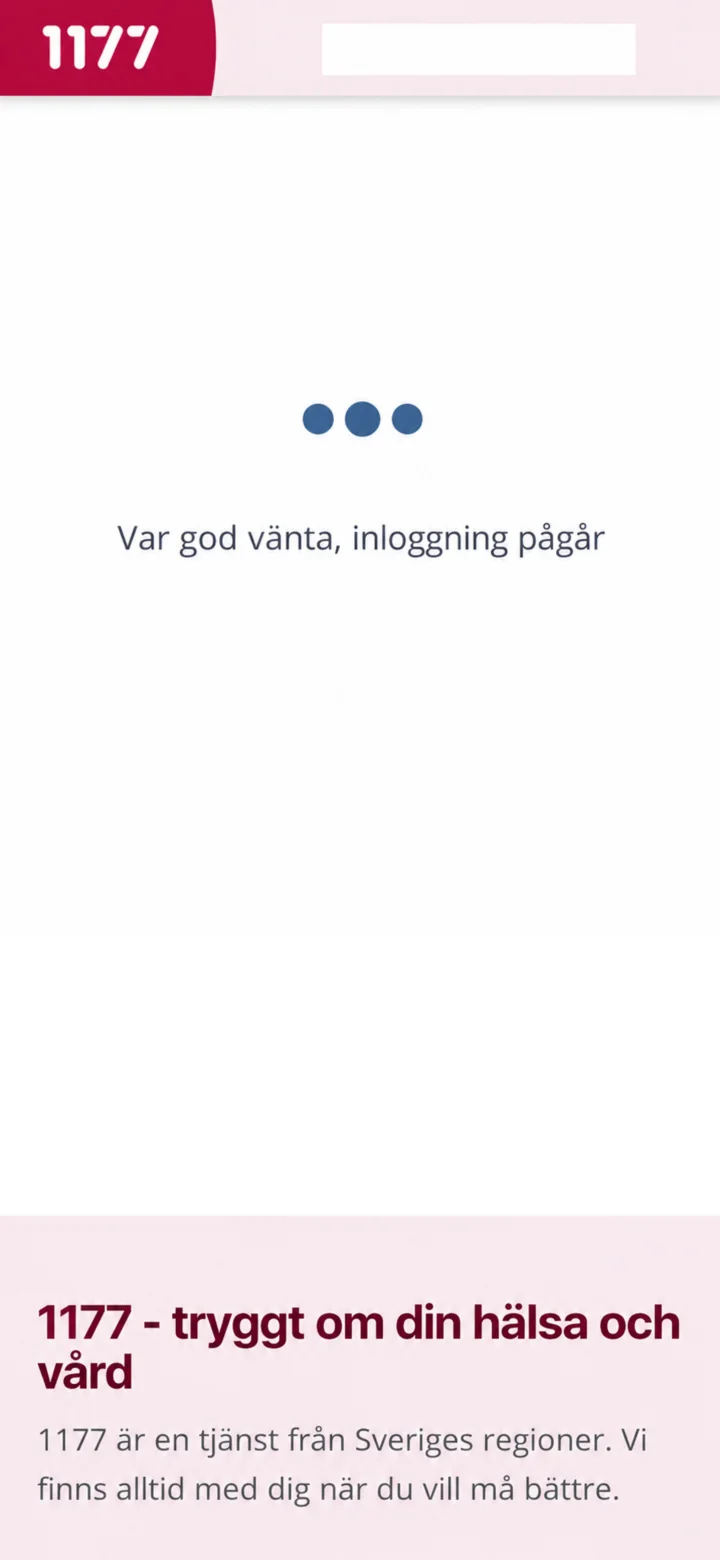
Now you are being logged in to 1177. This might take a moment, so please be patient while the system works.
 8Step 8 of 8 · iPhone
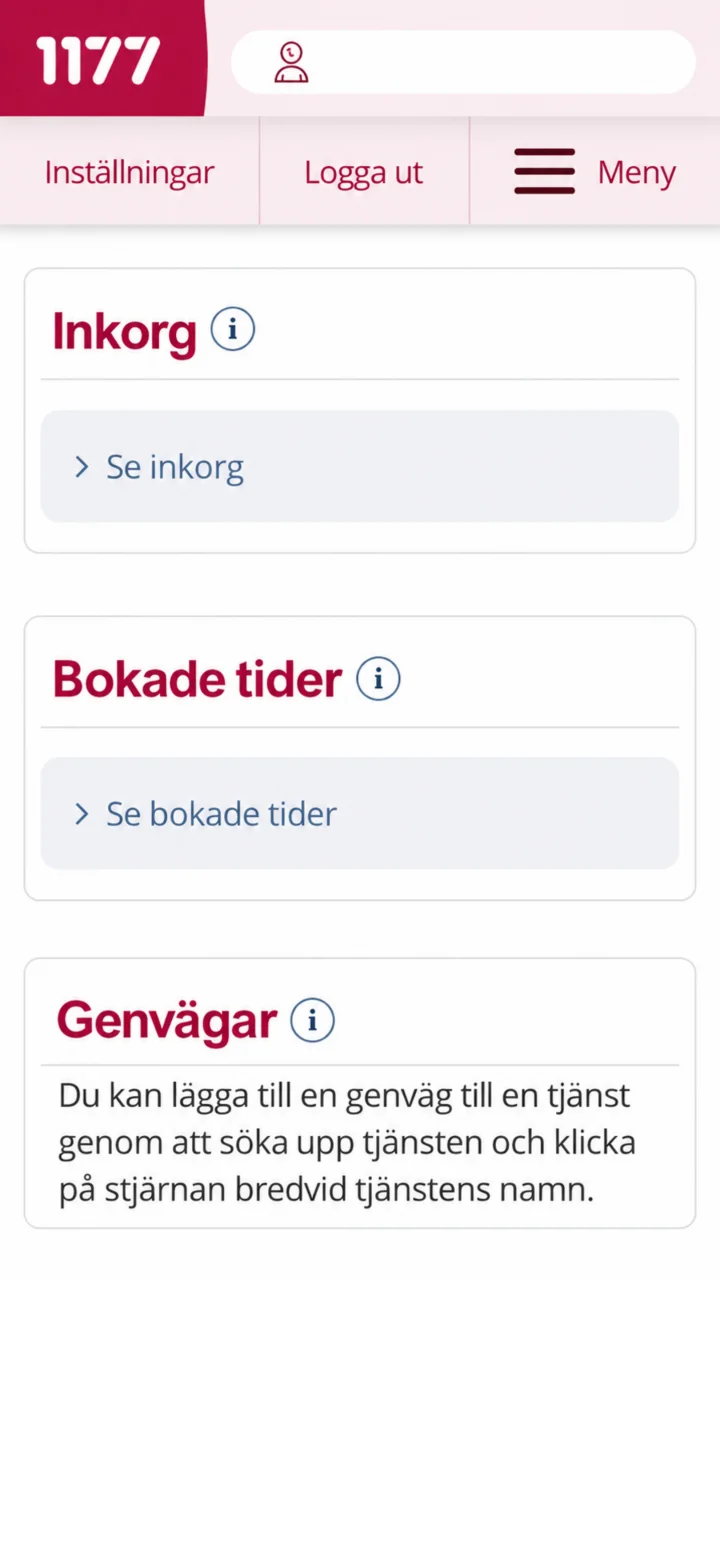
Congratulations! You are now logged in to 1177 Vårdguiden. Here you can see your inbox and booked appointments. Done! You are now logged in and can use the services. Great job!
How to renew your prescription on 1177
iPhone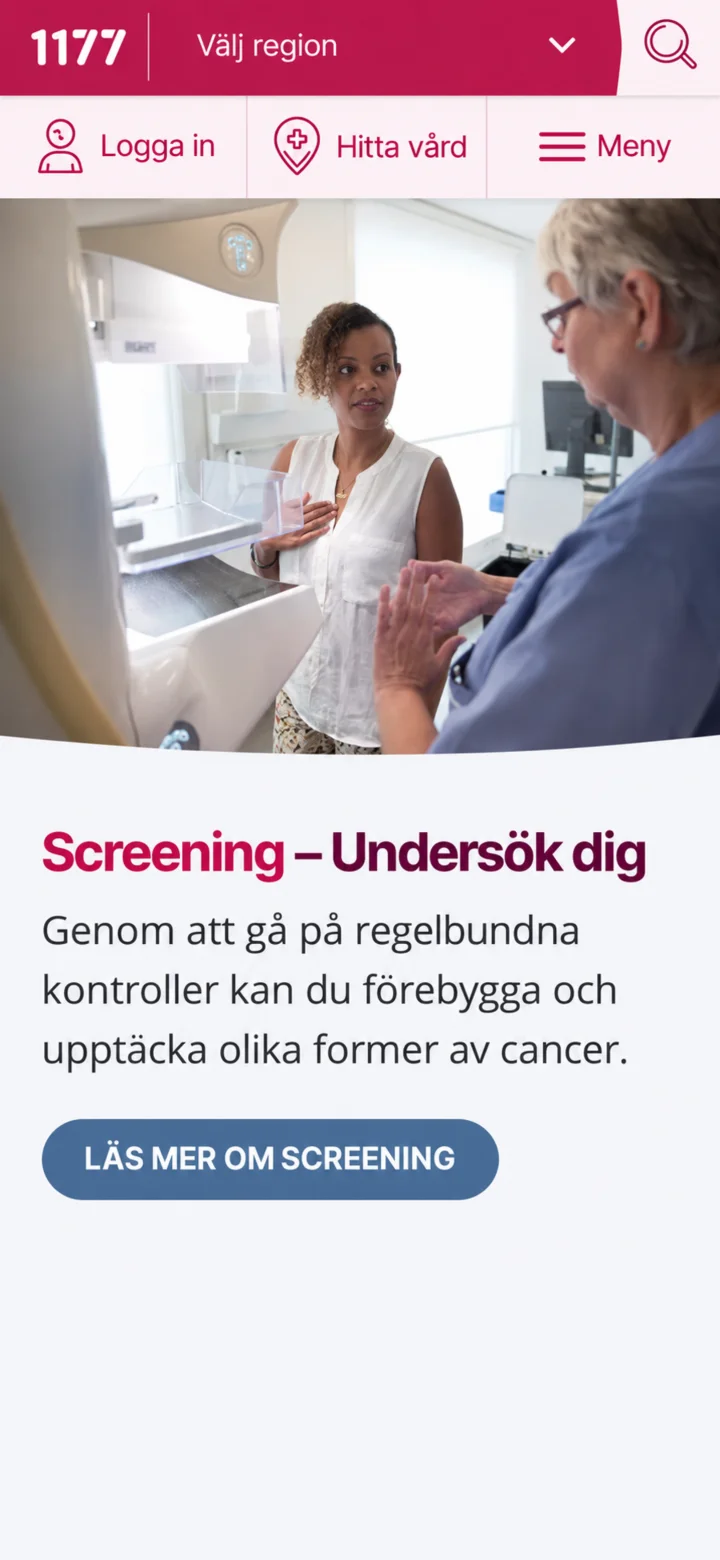 1Step 1 of 10 · iPhone
Open 1177 and tap ”Logga in” (Log in).
 2Step 2 of 10 · iPhone
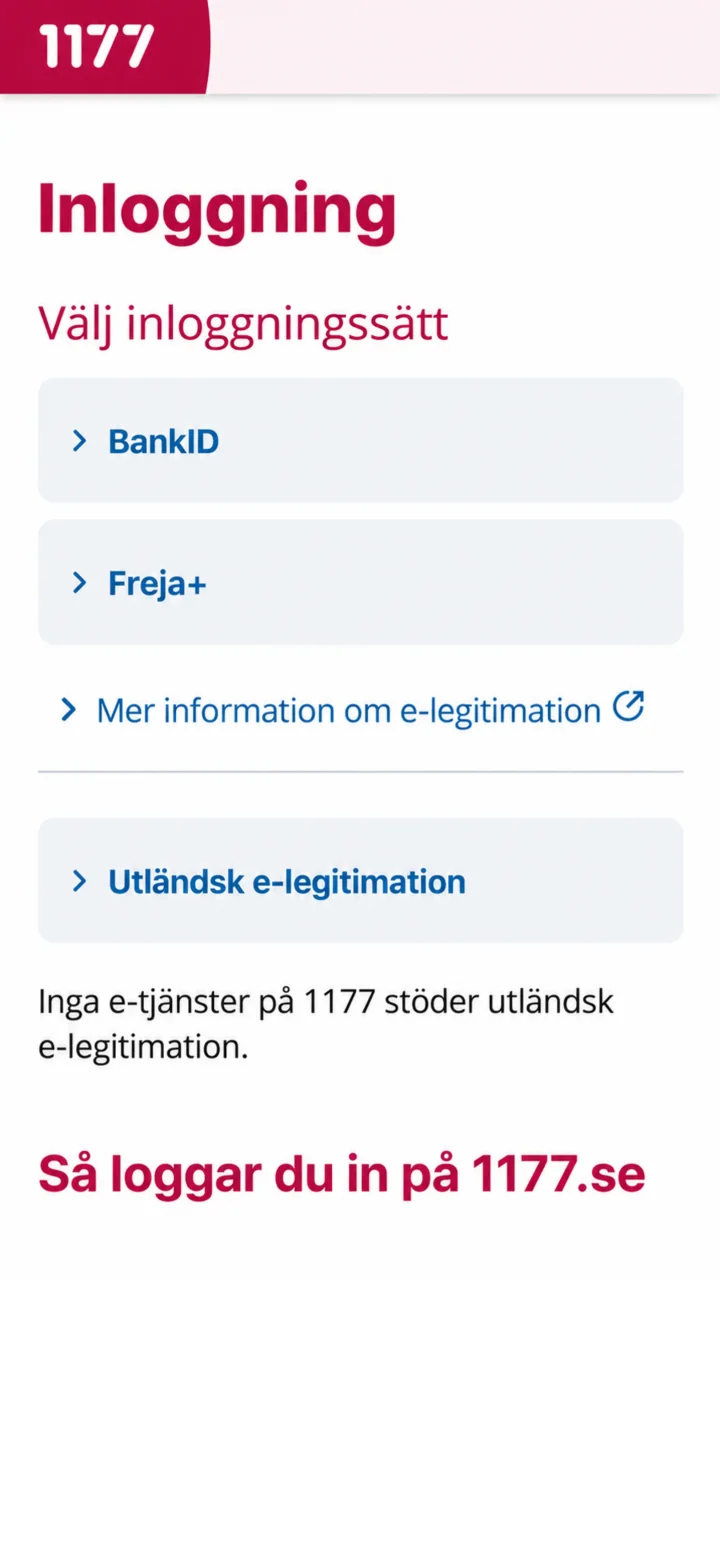
Choose BankID as your login method.
 3Step 3 of 10 · iPhone
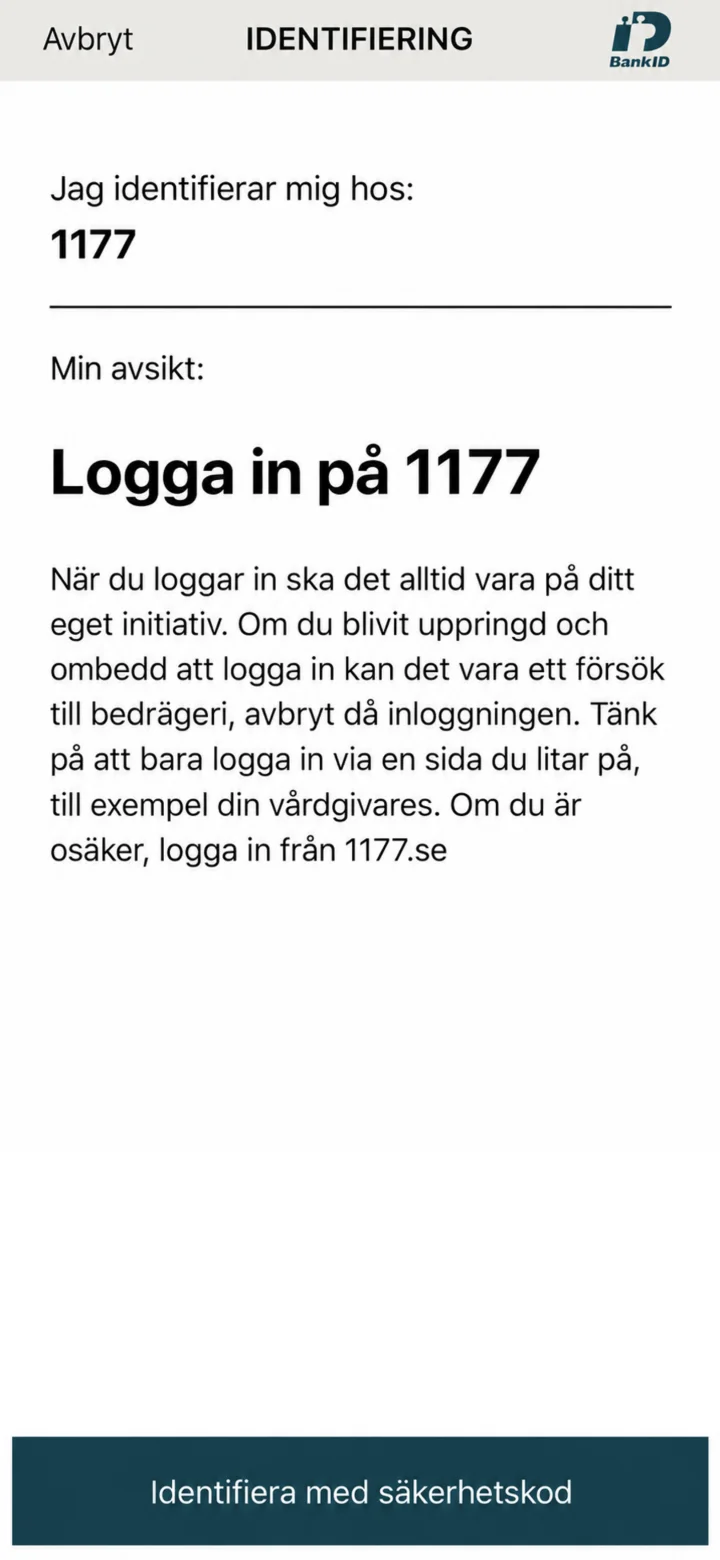
Check that the identification is for 1177.
 4Step 4 of 10 · iPhone
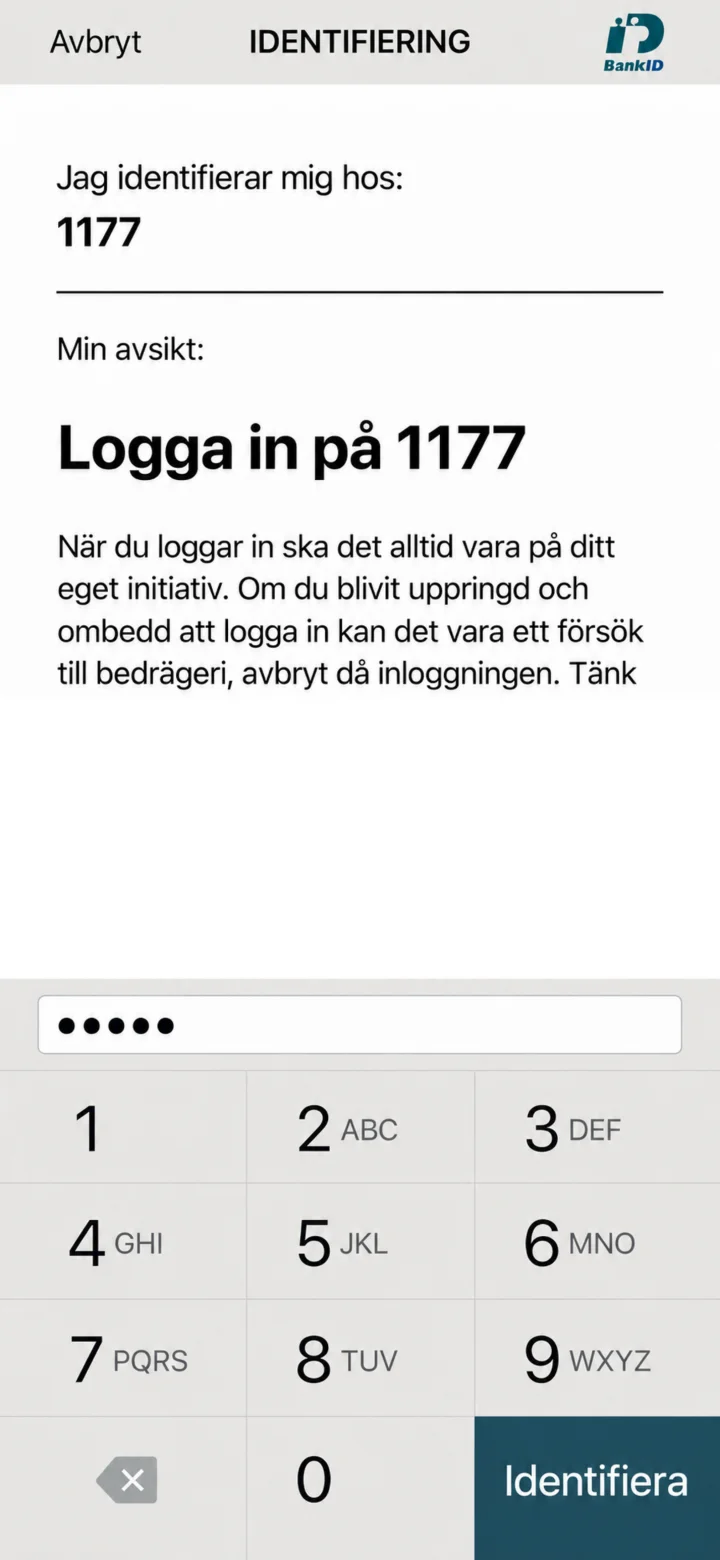
Enter your security code and tap ”Identifiera” (Identify).
 5Step 5 of 10 · iPhone
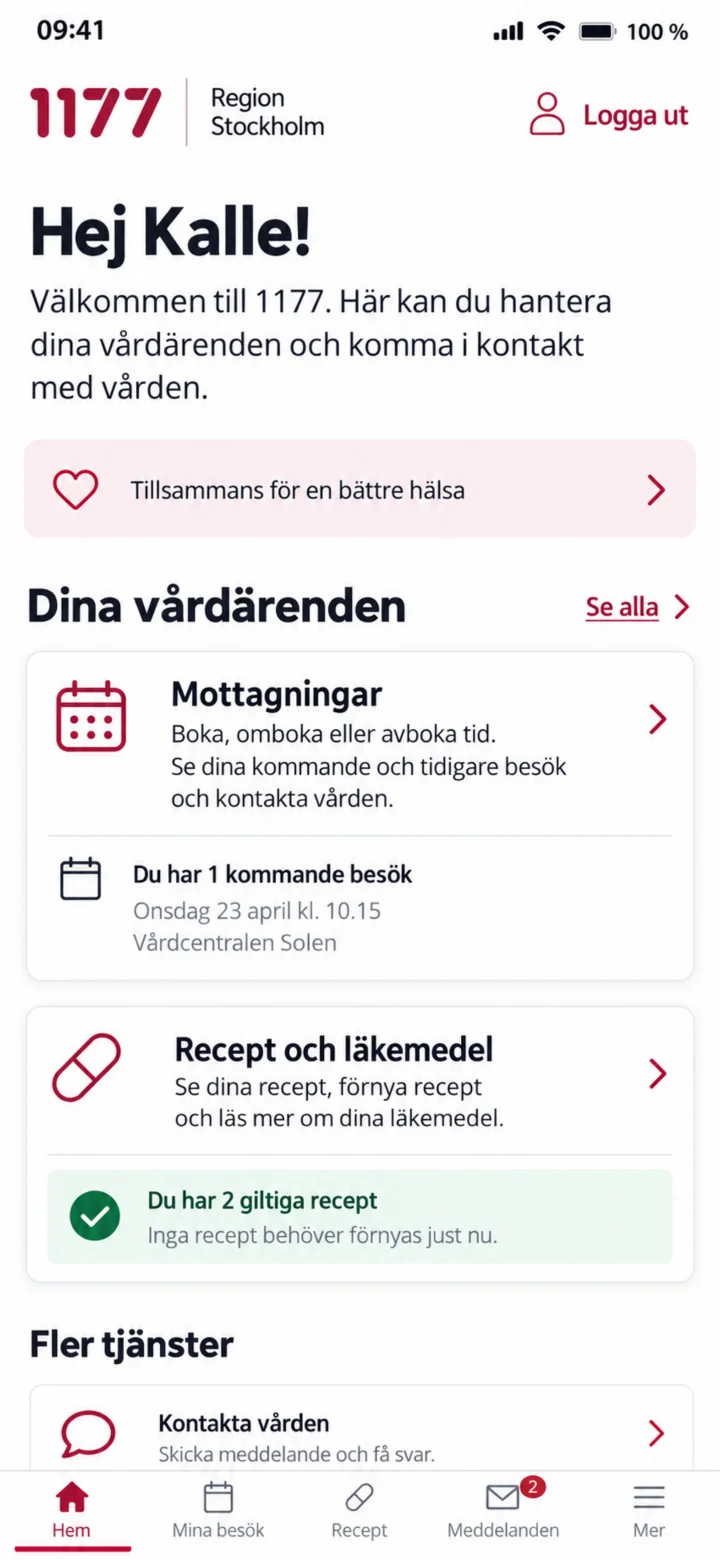
Once you are logged in, choose ”Mottagningar” (Care units) or ”Recept och läkemedel” (Prescriptions and medicines).
 6Step 6 of 10 · iPhone
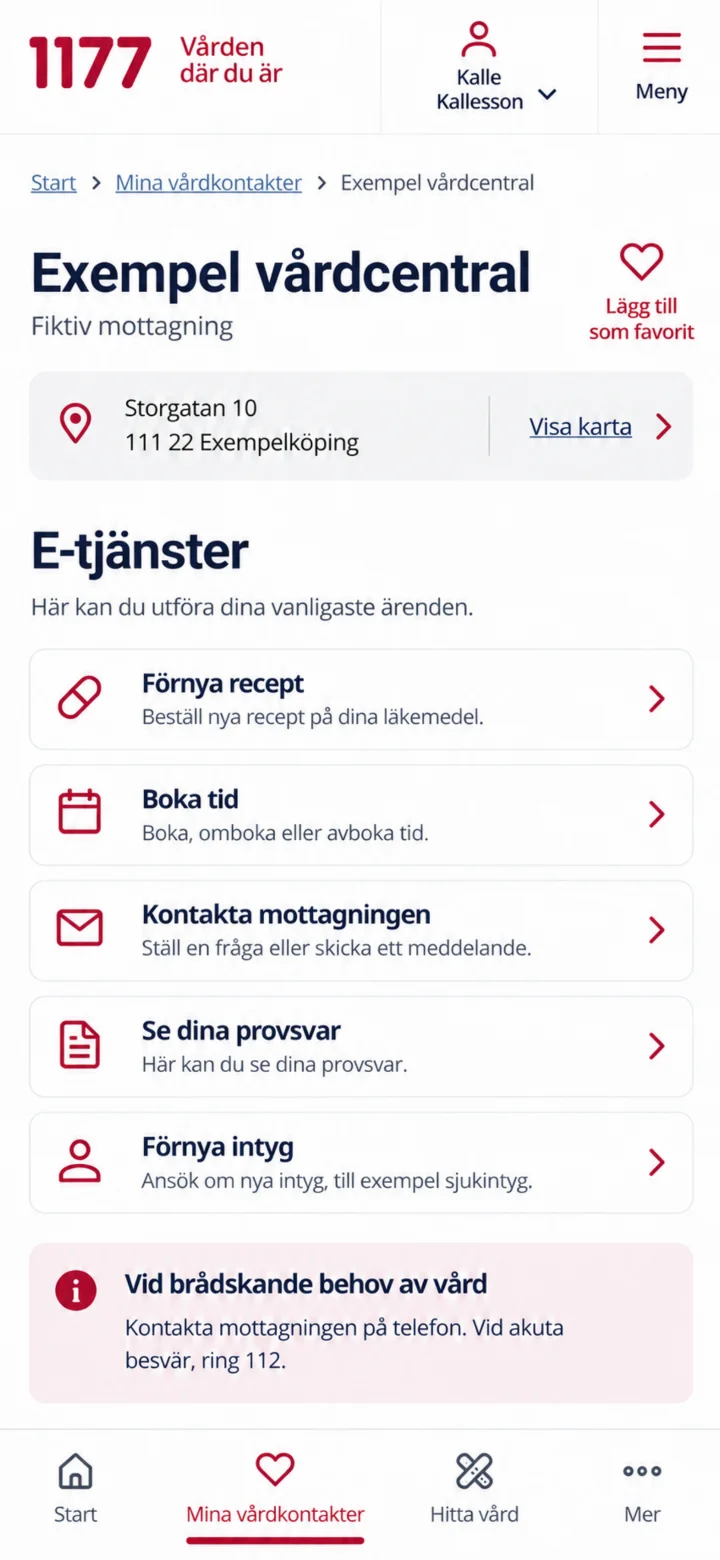
Open your care unit and tap ”Förnya recept” (Renew prescription).
 7Step 7 of 10 · iPhone
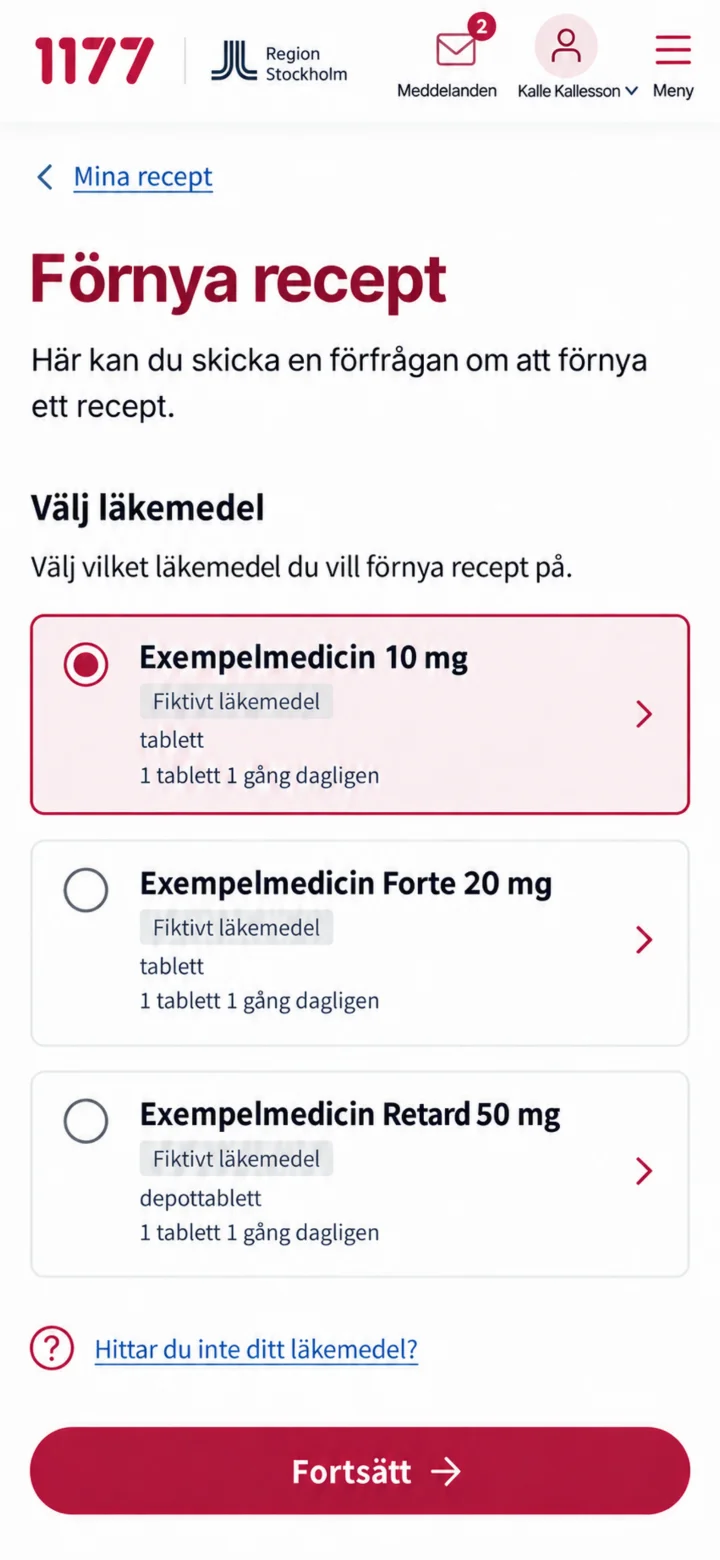
Choose the medicine your prescription is for and tap ”Fortsätt” (Continue).
 8Step 8 of 10 · iPhone
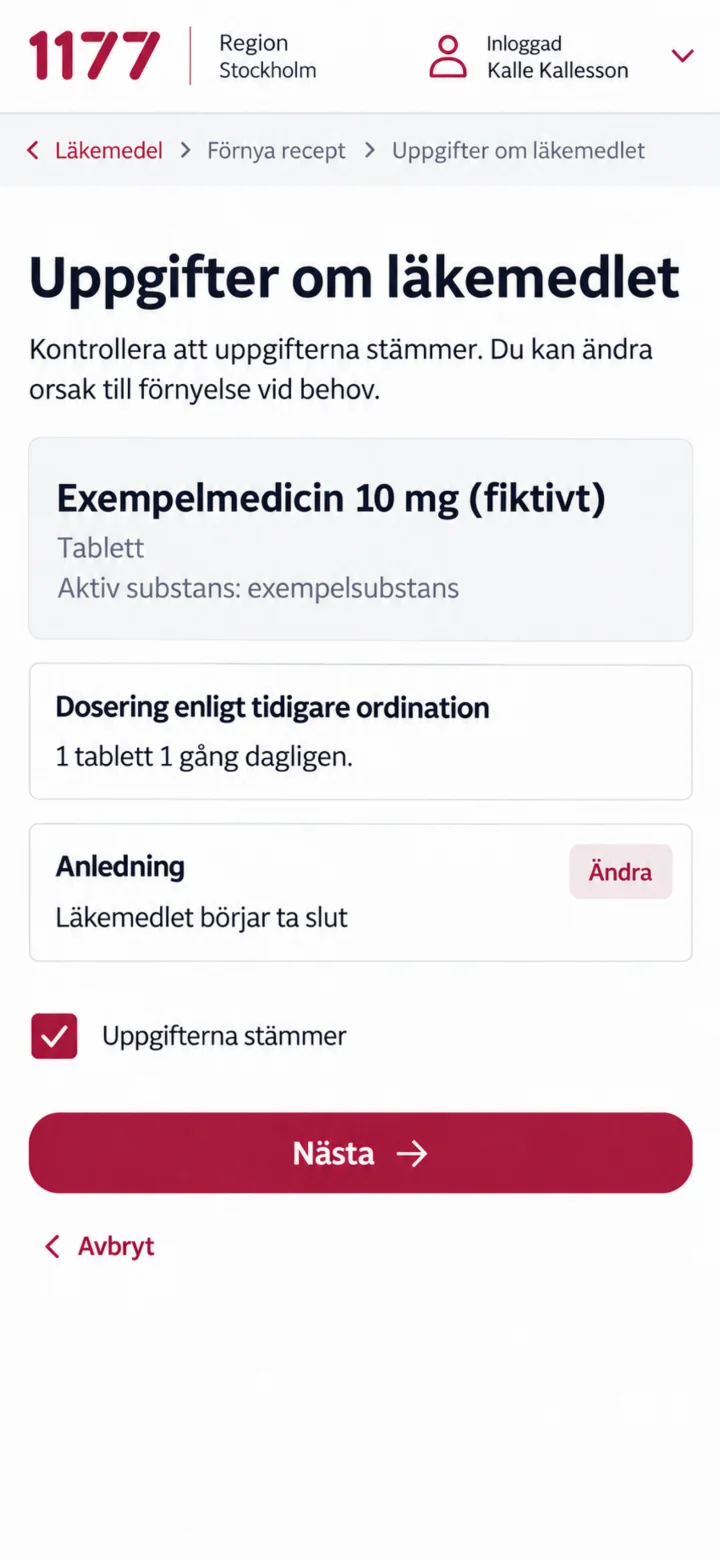
Check the dosage and reason. Mark that the information is correct and tap ”Nästa” (Next).
 9Step 9 of 10 · iPhone
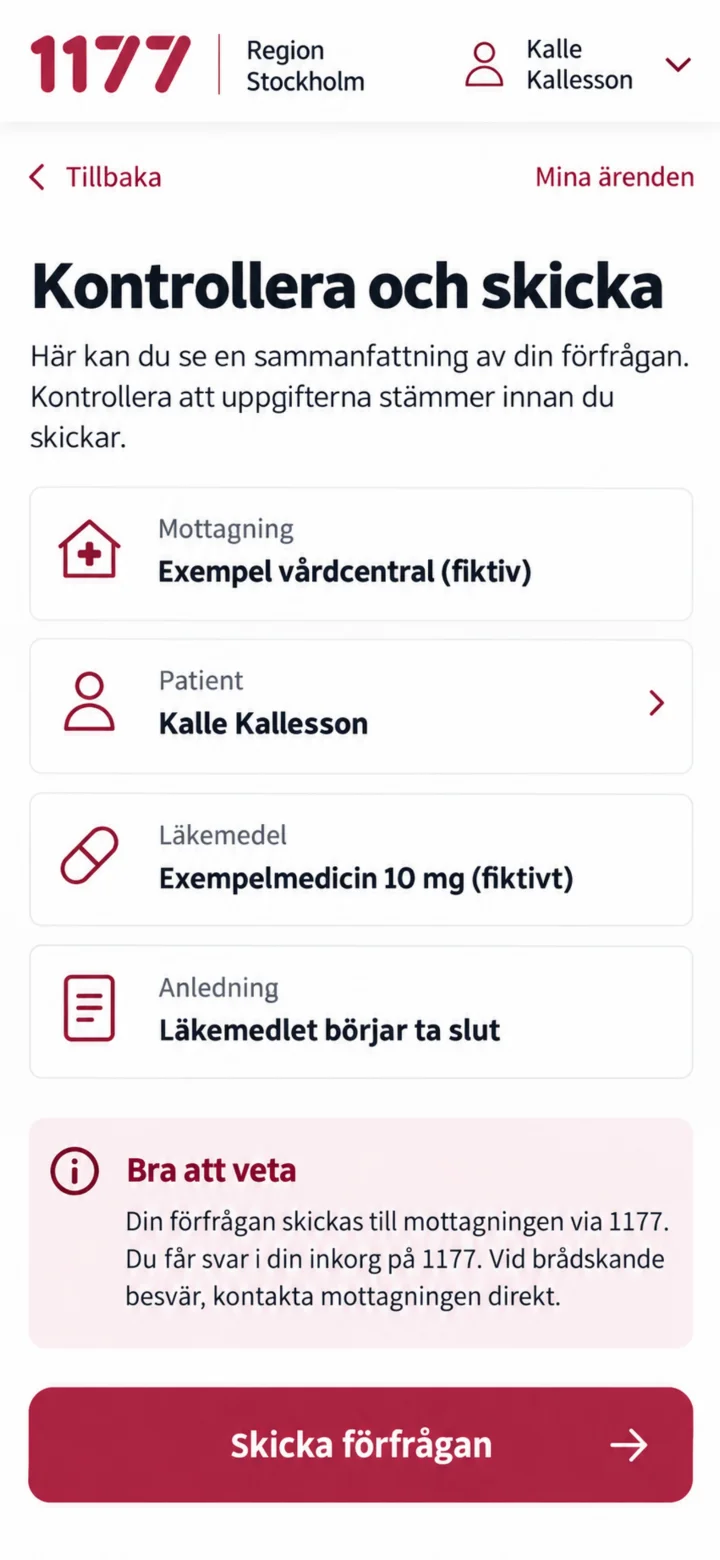
Check the care unit, patient, medicine, and reason. Then tap ”Skicka förfrågan” (Send request).
 10Step 10 of 10 · iPhone
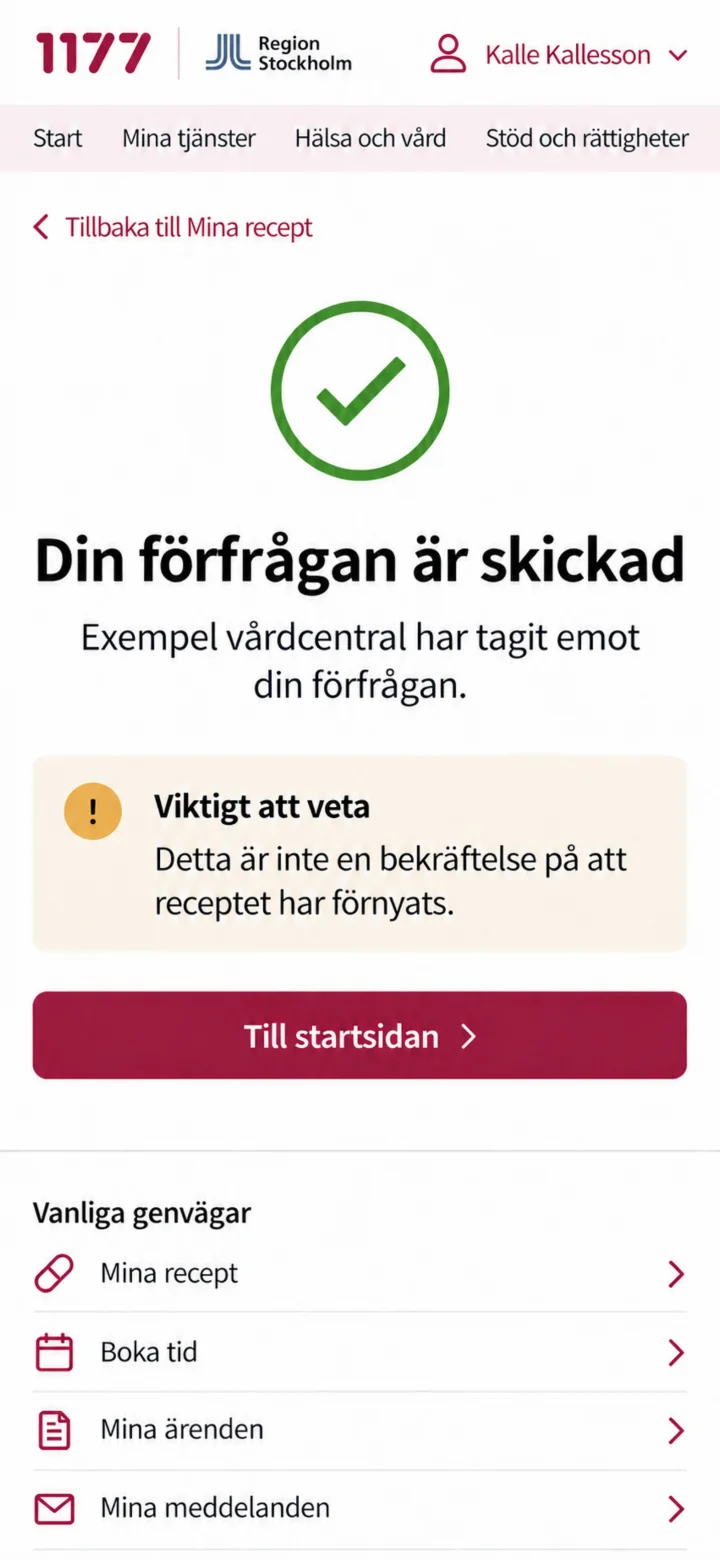
Your request has been sent. Please note that this does not mean the prescription has already been renewed.
Install Apoteket's app and log in with BankID
iPhone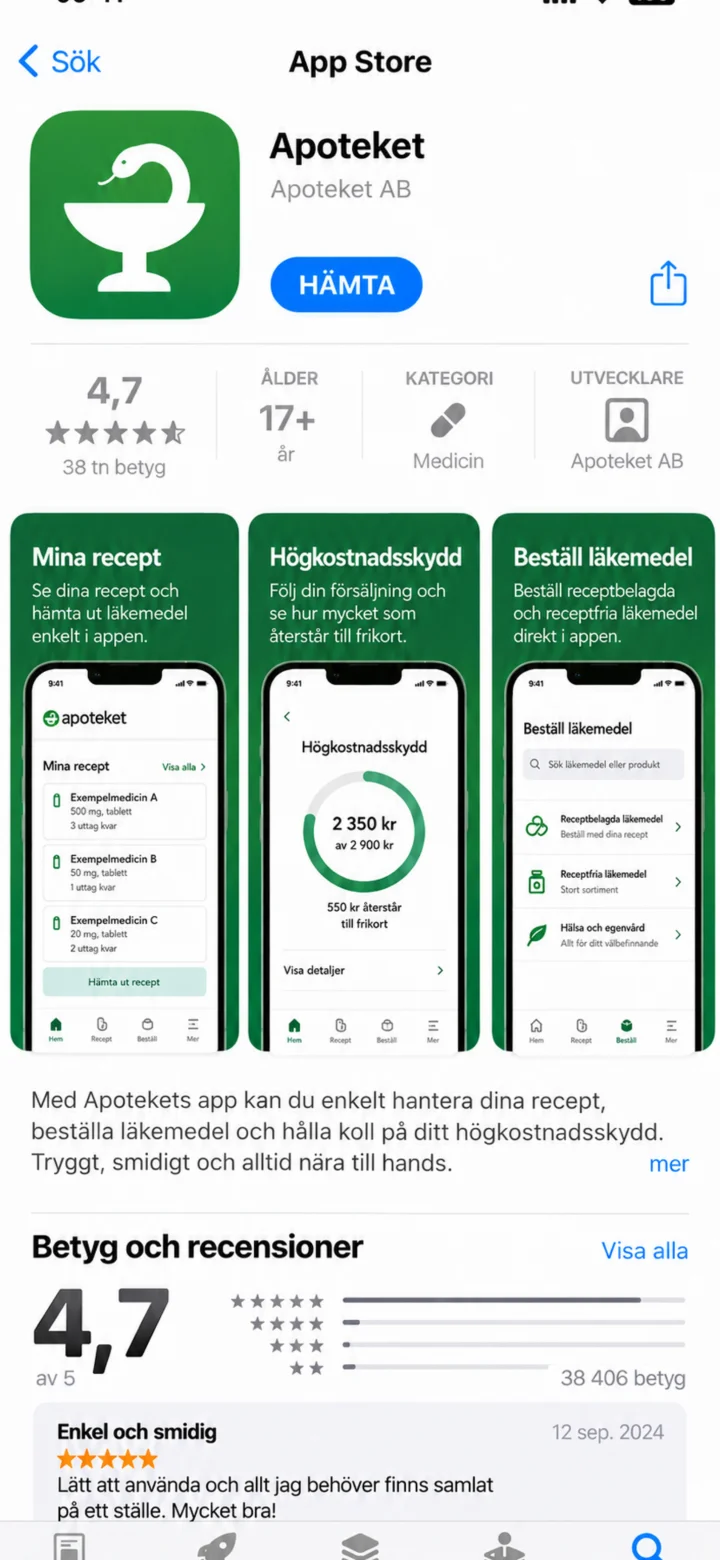 1Step 1 of 4 · iPhone
Öppna App Store. Sök efter Apoteket och tryck på Hämta.
 2Step 2 of 4 · iPhone
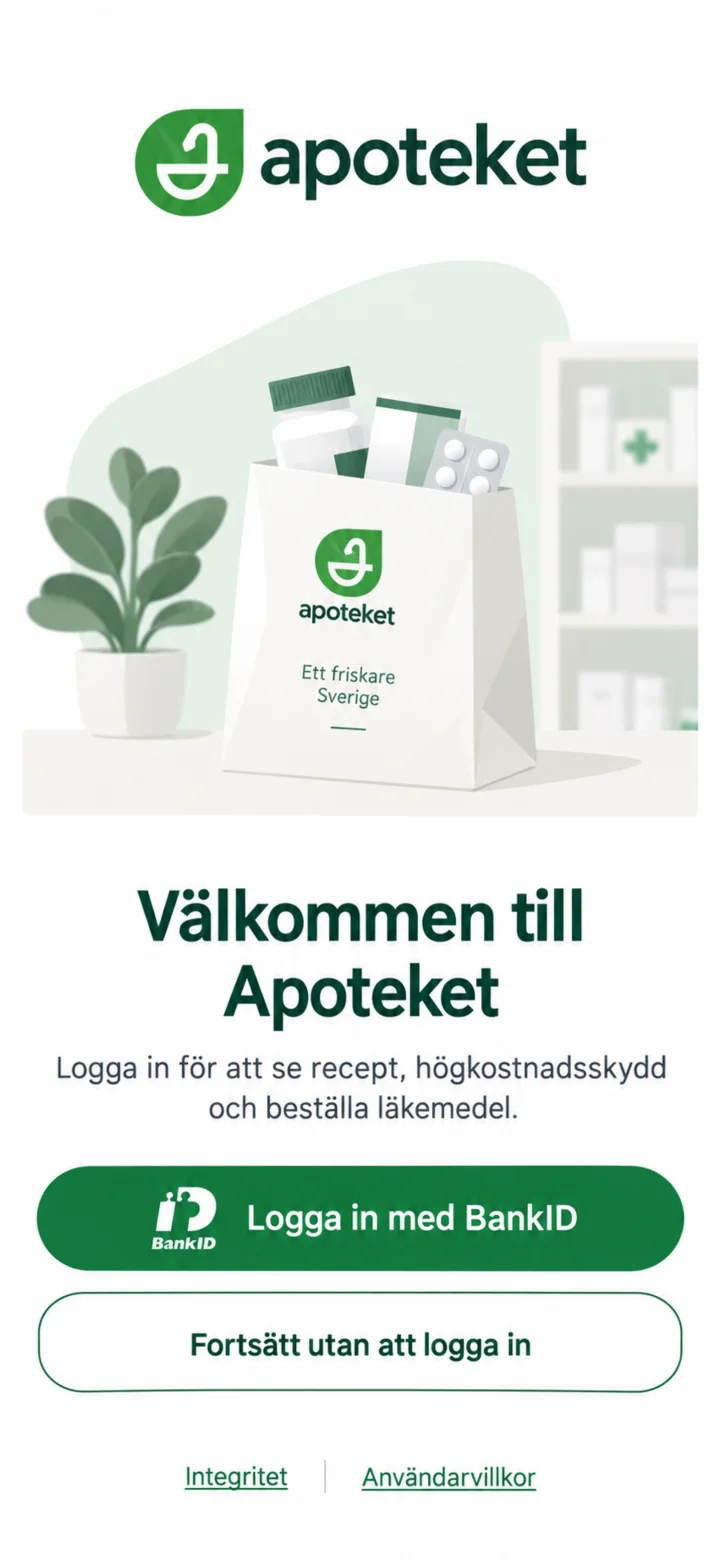
Open Apoteket's app and choose ”Logga in med BankID” (Log in with BankID).
 3Step 3 of 4 · iPhone
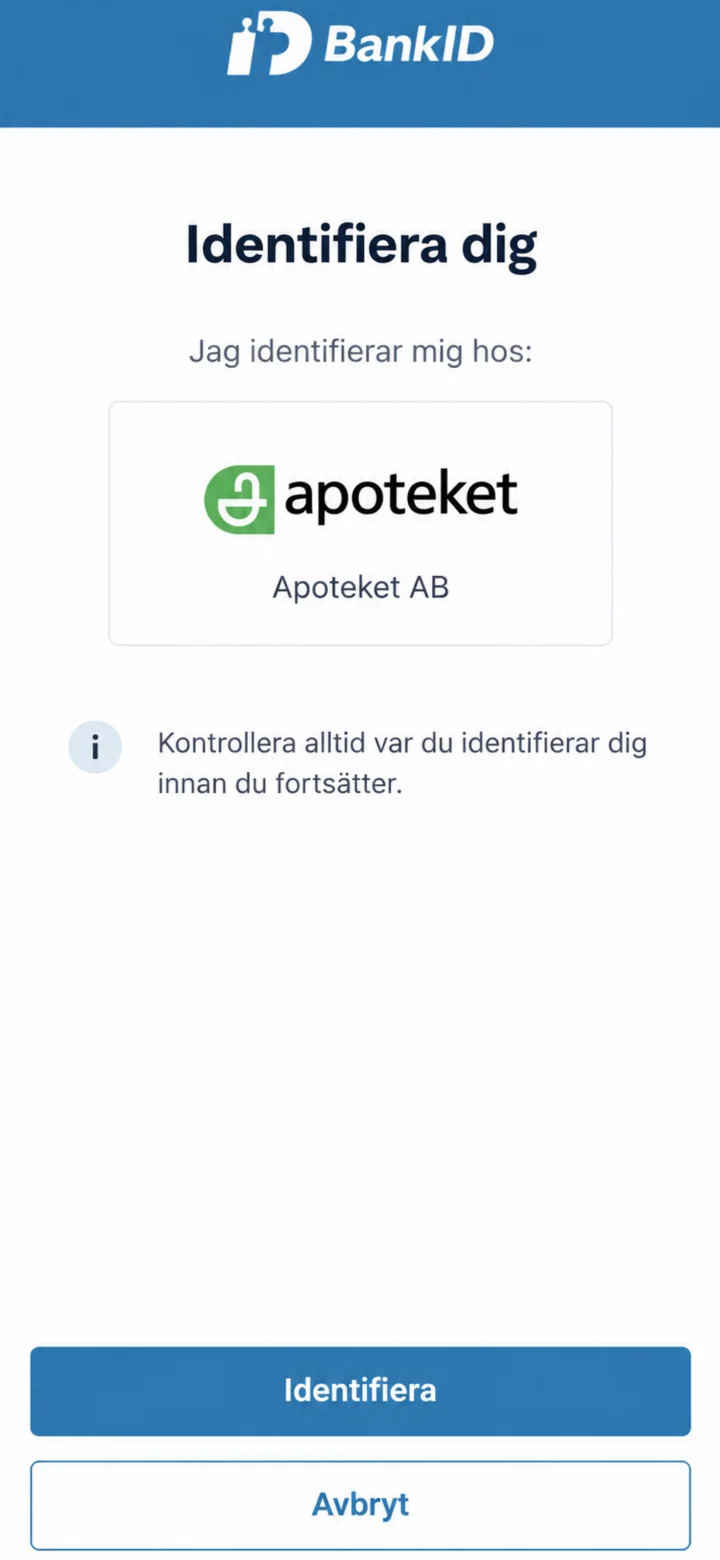
Check that BankID shows Apoteket AB. Then, identify yourself in the usual way.
 4Step 4 of 4 · iPhone
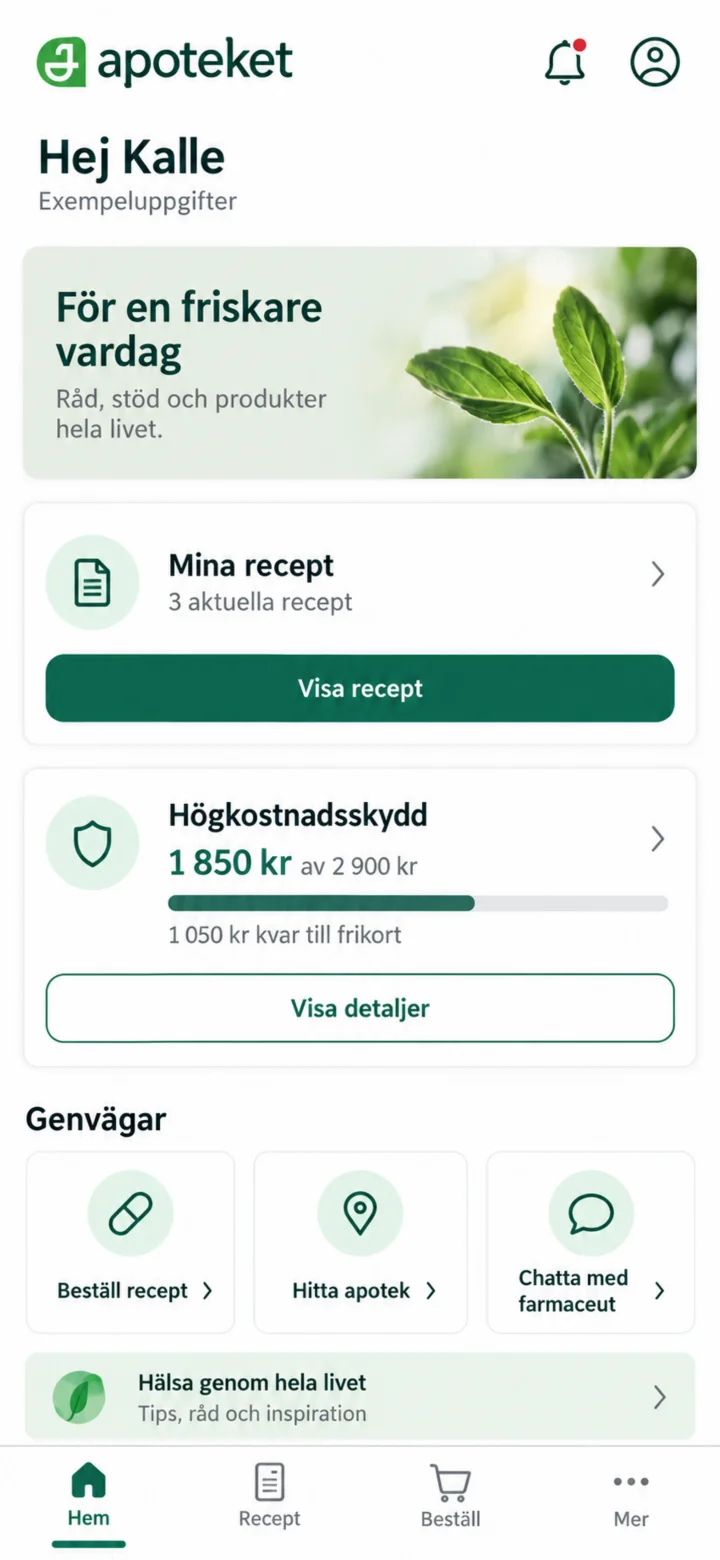
When the home page shows your name, you are logged in. The information in this guide is made up.
Order a prescription medicine
iPhone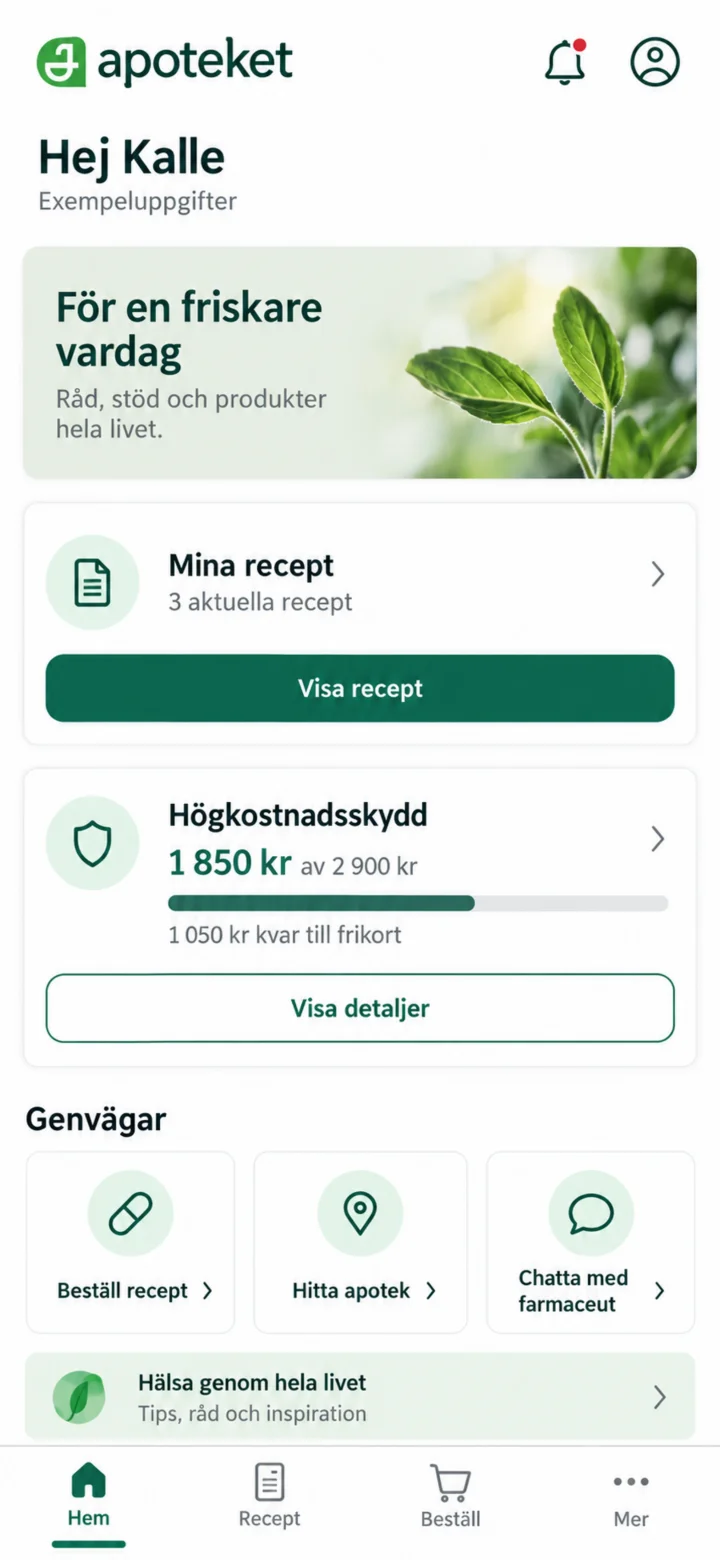 1Step 1 of 7 · iPhone
Log in to the Apoteket app and open ”Mina recept” (My prescriptions).
 2Step 2 of 7 · iPhone
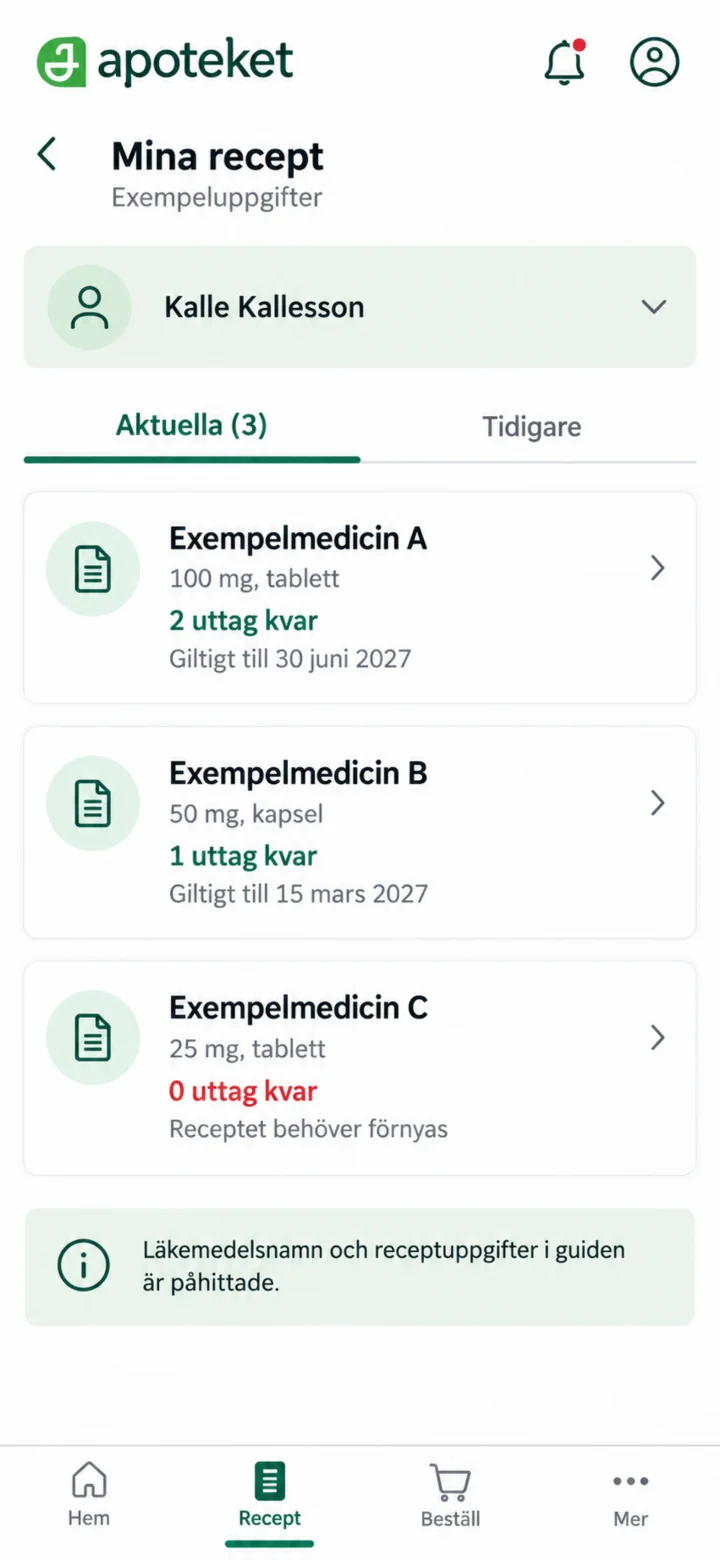
Check the name of the medicine and choose the prescription you want to use.
 3Step 3 of 7 · iPhone
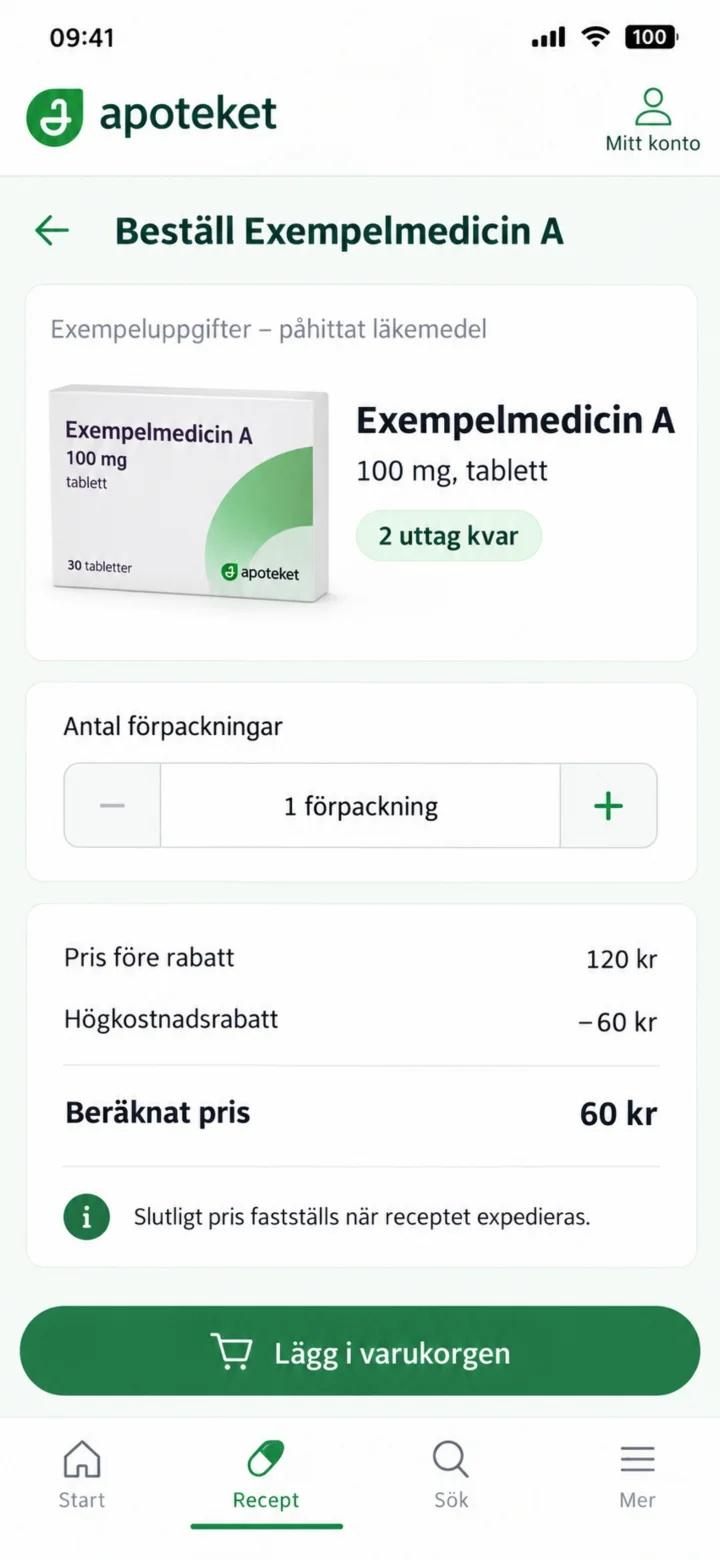
Check the number of withdrawals, number of packages, and estimated price. Then, tap ”Lägg i varukorgen” (Add to cart).
 4Step 4 of 7 · iPhone
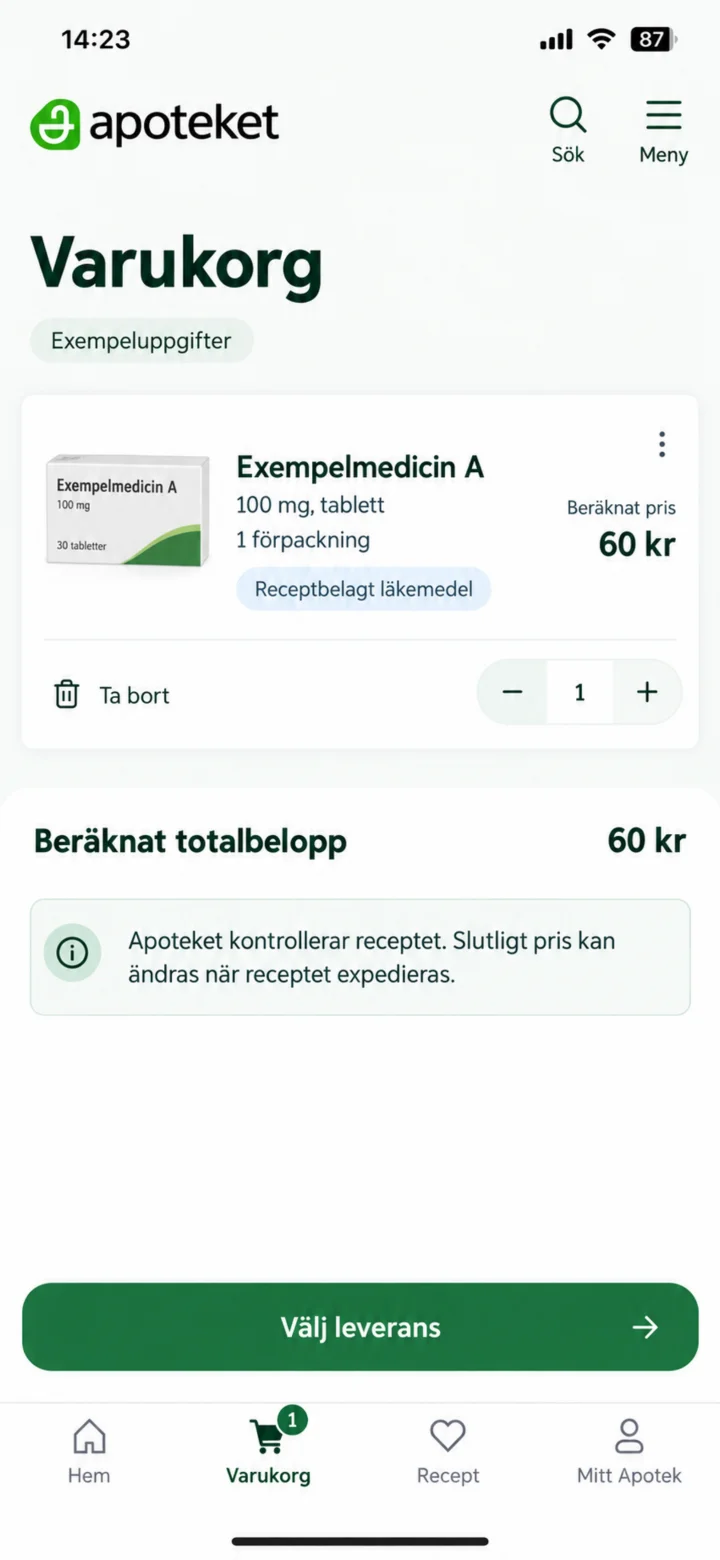
Check the medicine, quantity, and estimated total amount. Then, choose ”leverans” (delivery).
 5Step 5 of 7 · iPhone
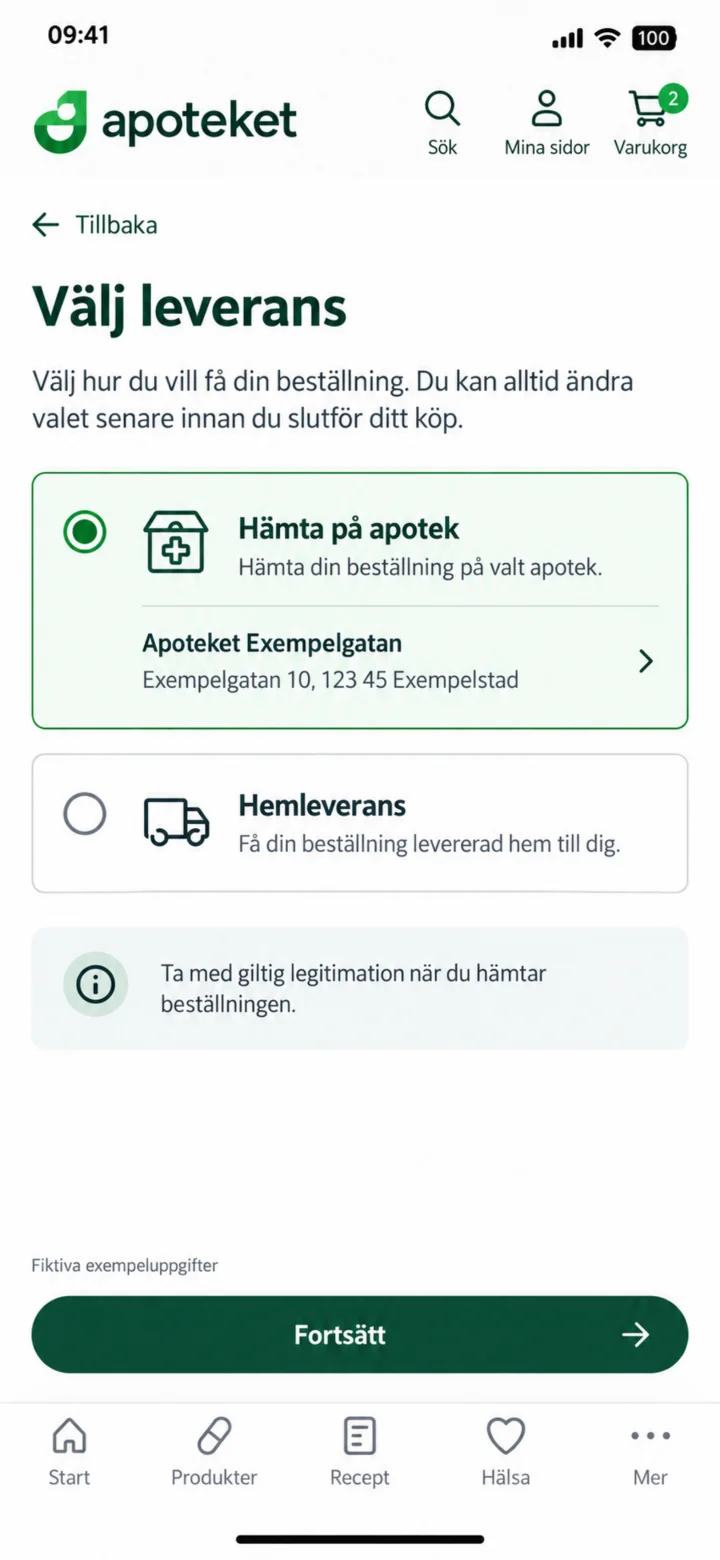
Välj hur du vill få beställningen. I exemplet hämtas den på ett fiktivt apotek.
 6Step 6 of 7 · iPhone
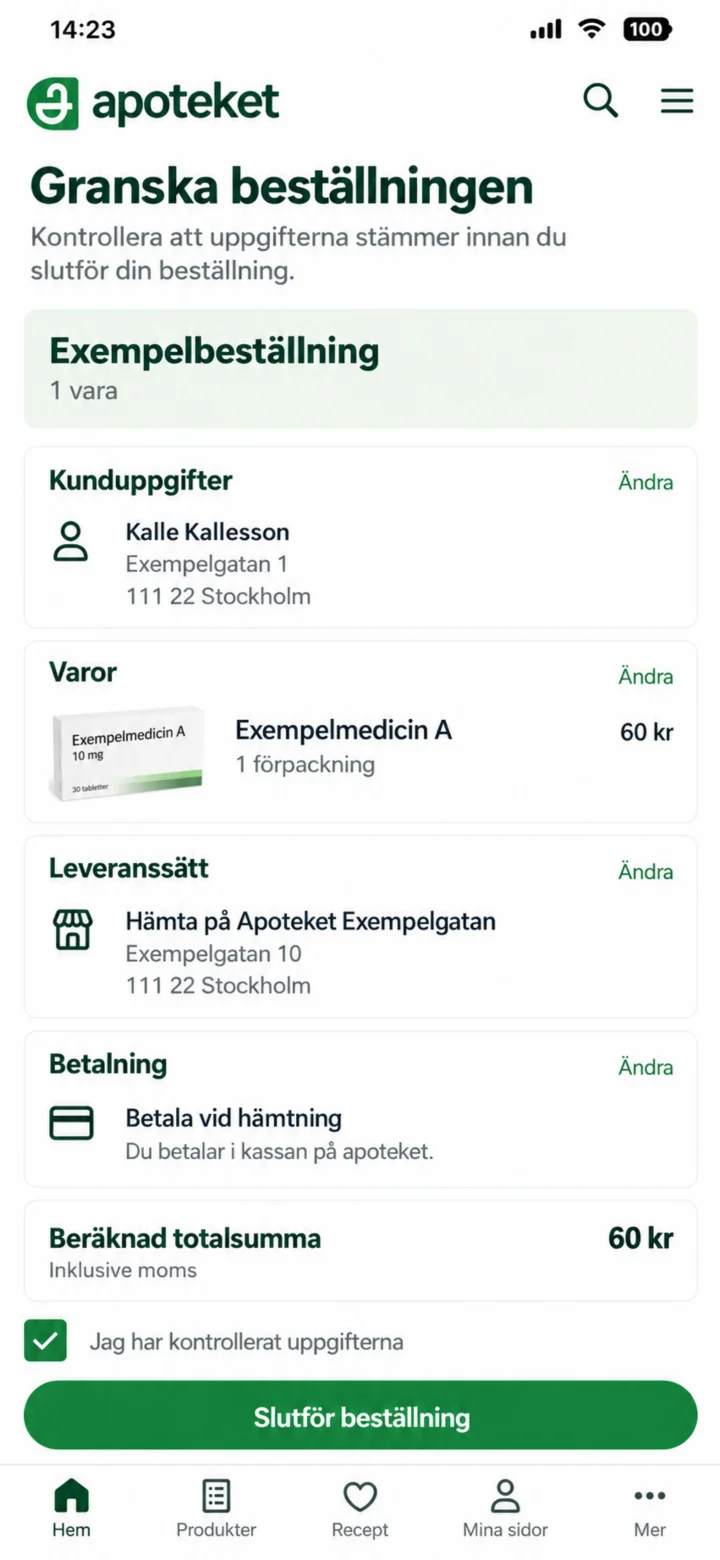
Check your customer details, item, delivery, payment, and total sum before you complete the order.
 7Step 7 of 7 · iPhone
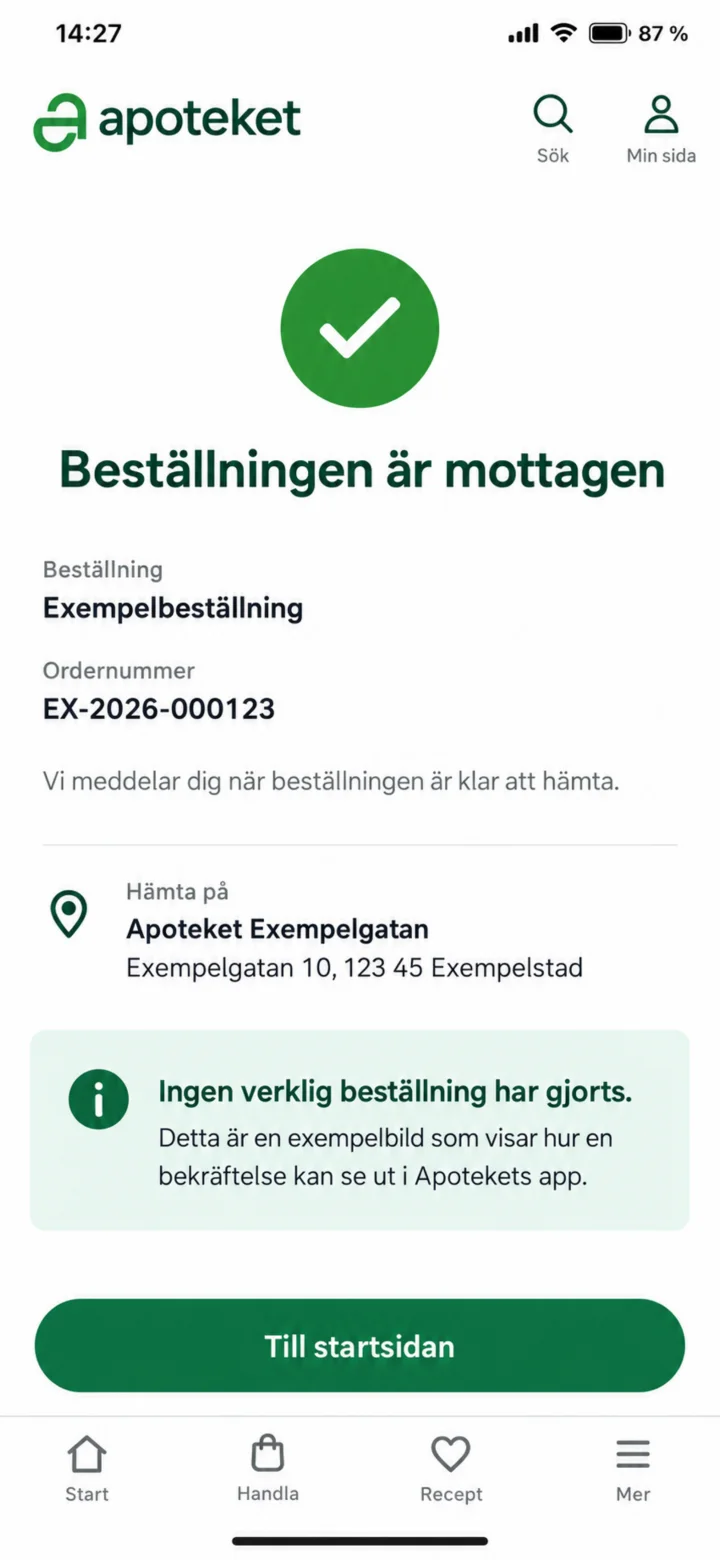
The confirmation shows that your order has been received. No actual order has been placed in this guide.
Order over-the-counter products with home delivery
iPhone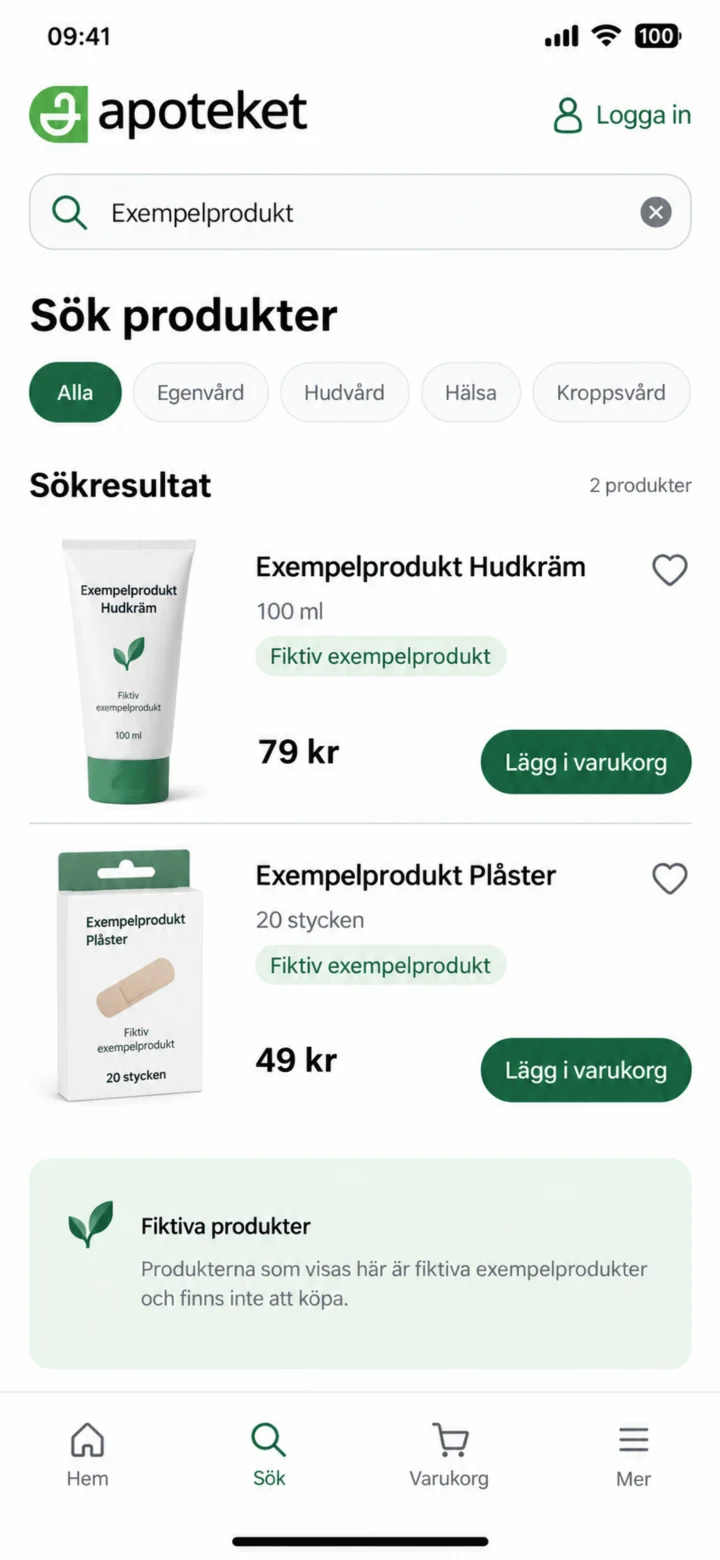 1Step 1 of 7 · iPhone
Search for the product you want. Please check the name, size, and price in the search results.
 2Step 2 of 7 · iPhone
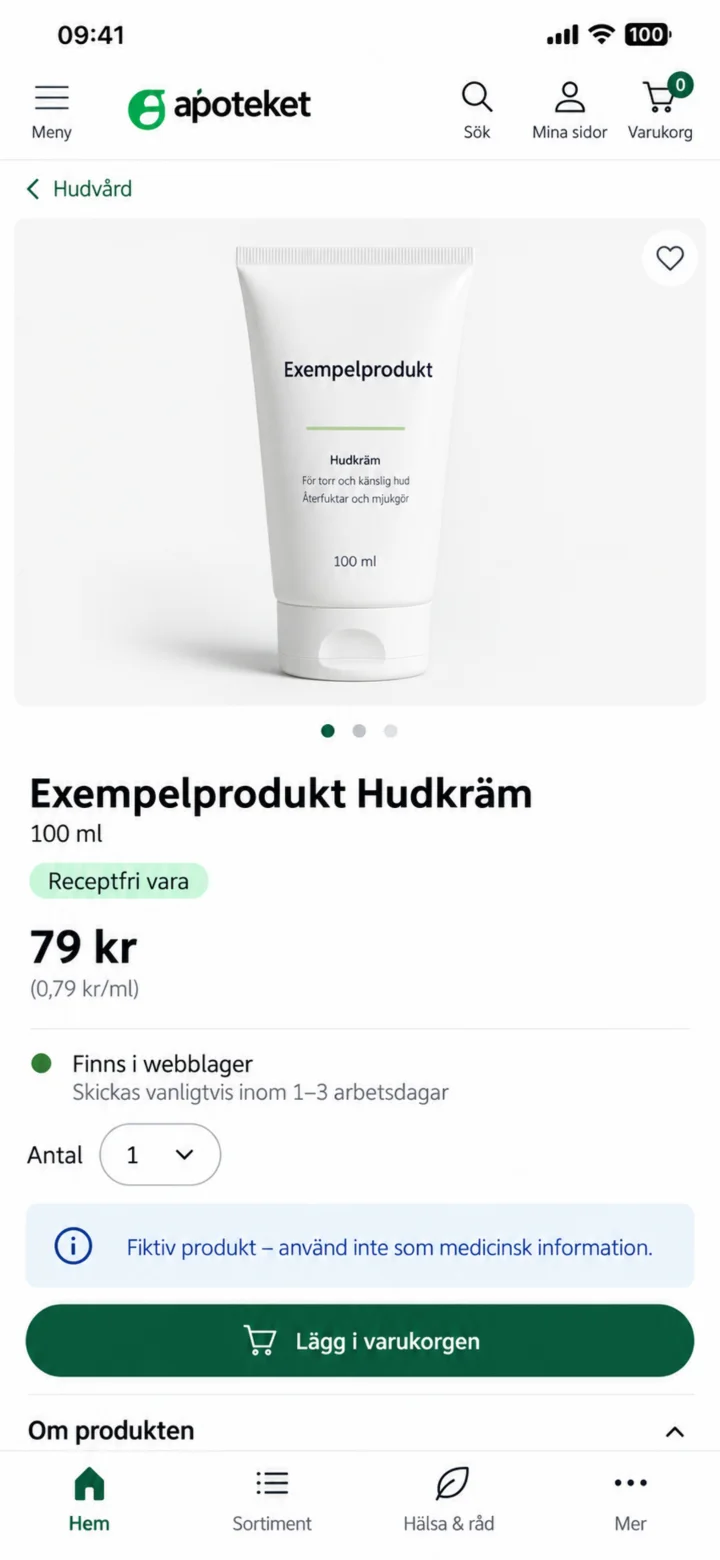
Open the product page. Carefully check the information, quantity, and if it's in stock. Then, add the product to your shopping cart.
 3Step 3 of 7 · iPhone
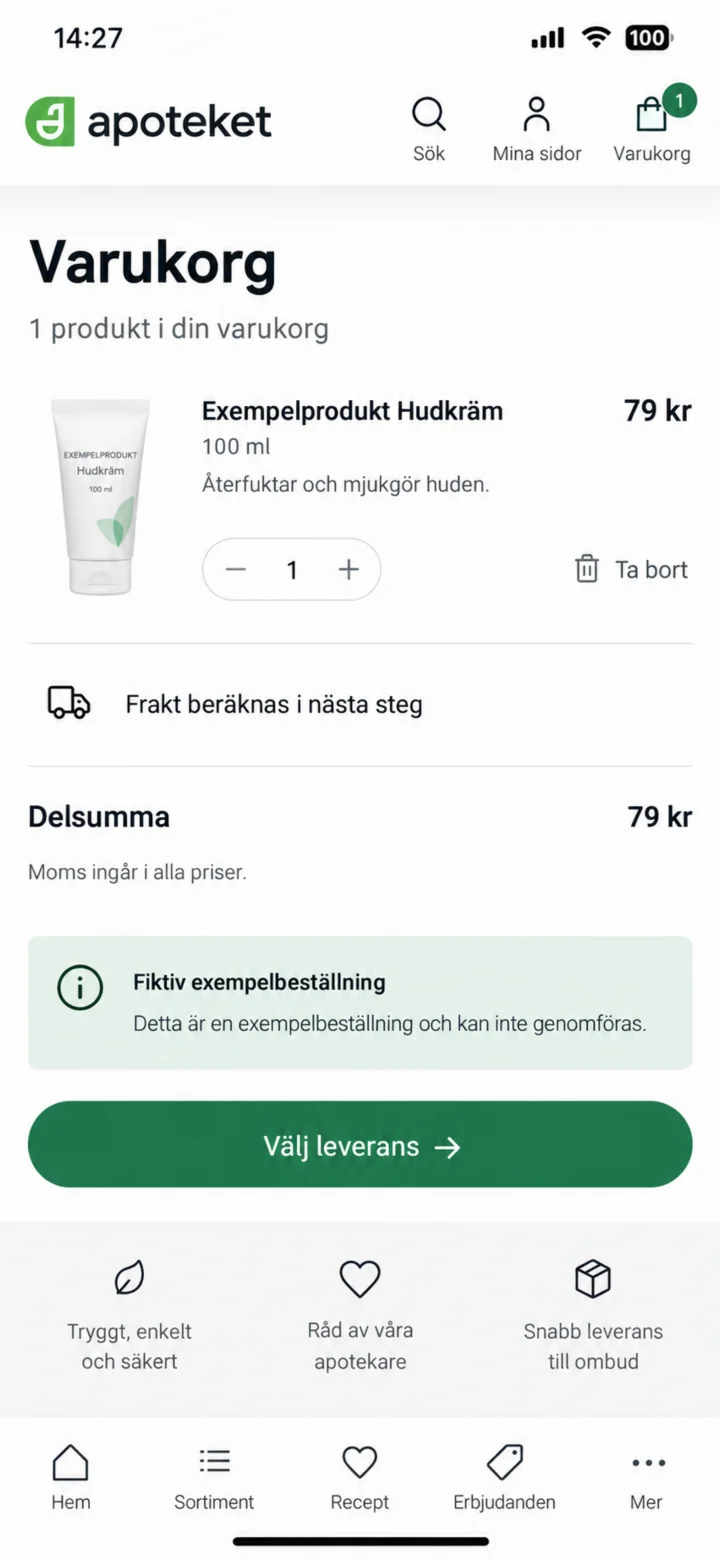
Check the product, quantity, and subtotal. After that, choose your delivery option.
 4Step 4 of 7 · iPhone
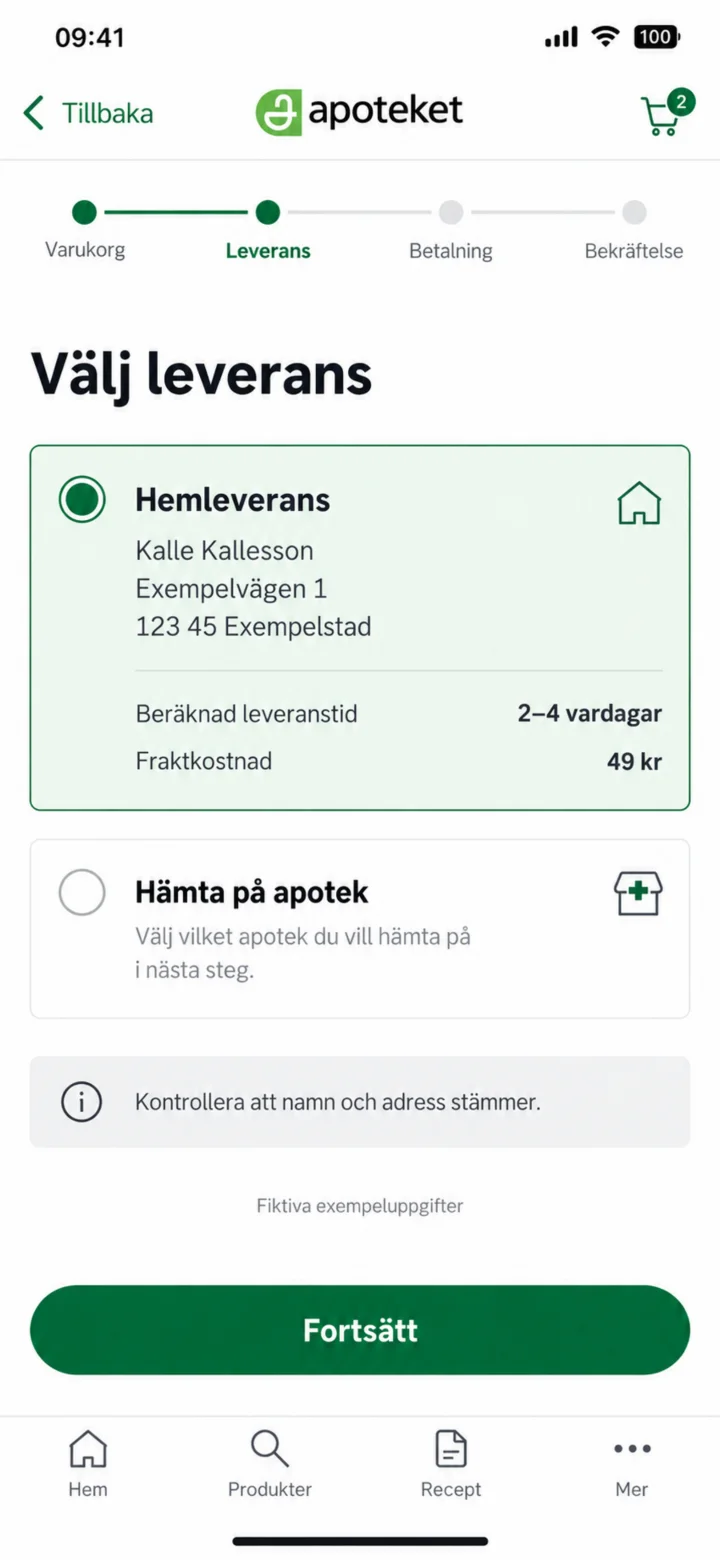
Choose Hemleverans (Home Delivery). Please check that your name and address are correct and see the shipping cost.
 5Step 5 of 7 · iPhone
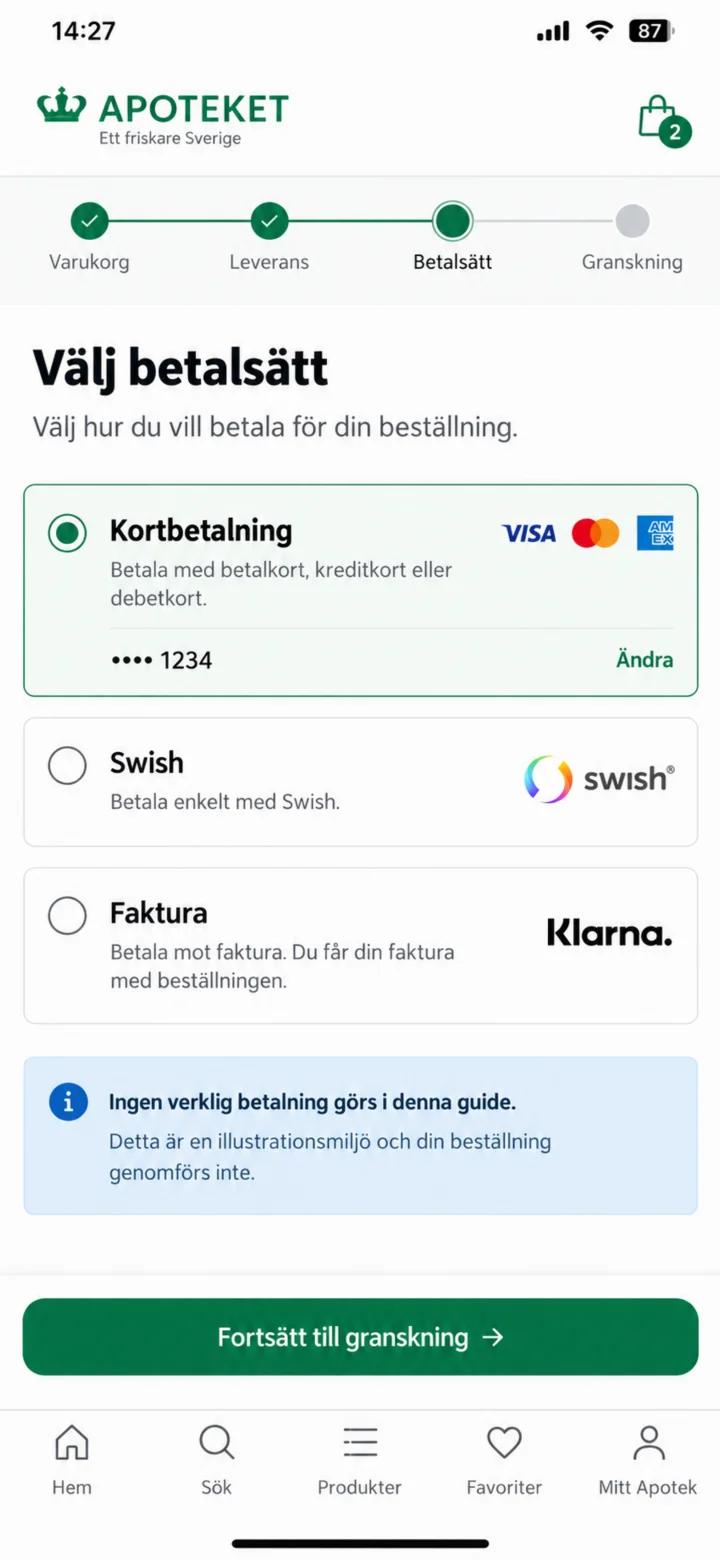
Välj betalsätt. Betalningsuppgifterna i guiden är påhittade.
 6Step 6 of 7 · iPhone
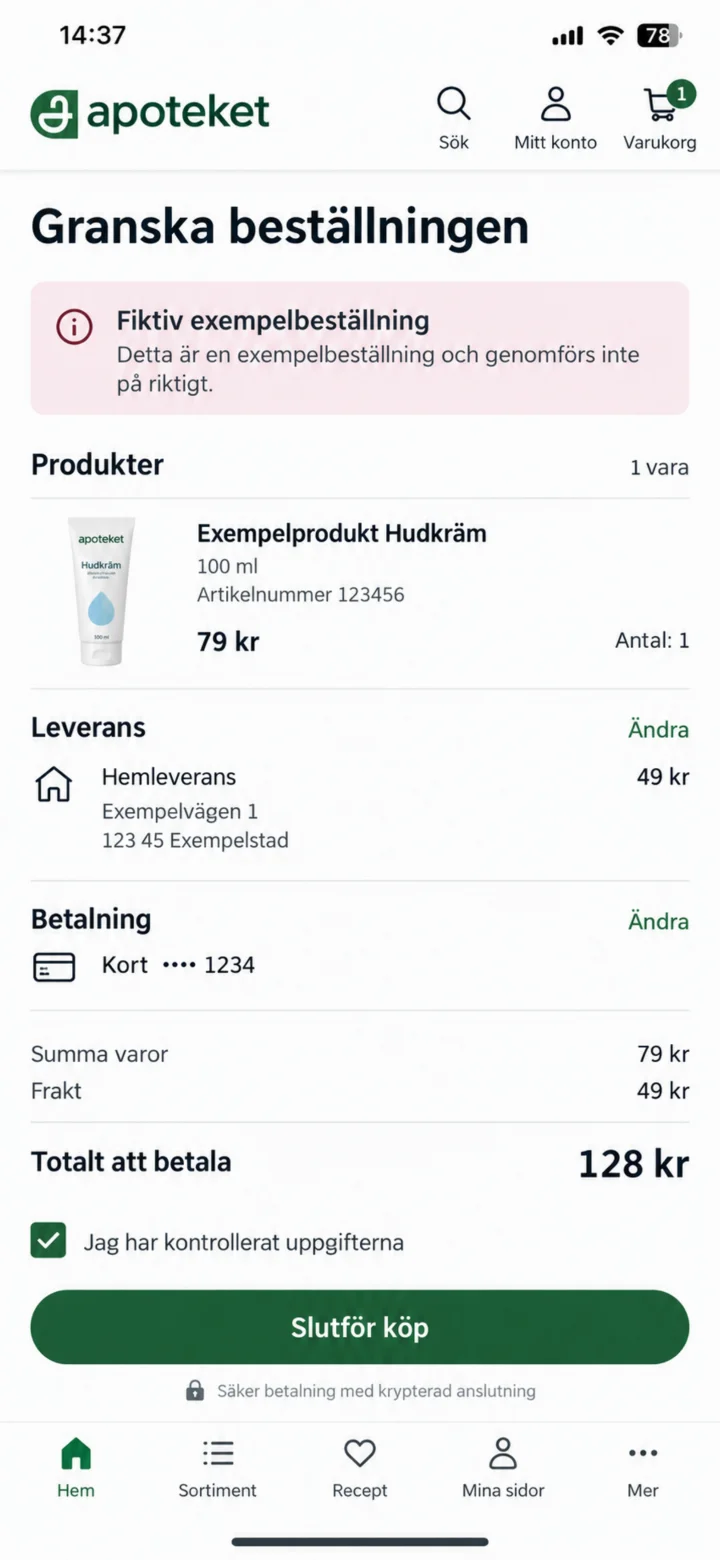
Before you complete your purchase, please check the product, delivery address, shipping cost, payment method, and the total sum one last time.
 7Step 7 of 7 · iPhone
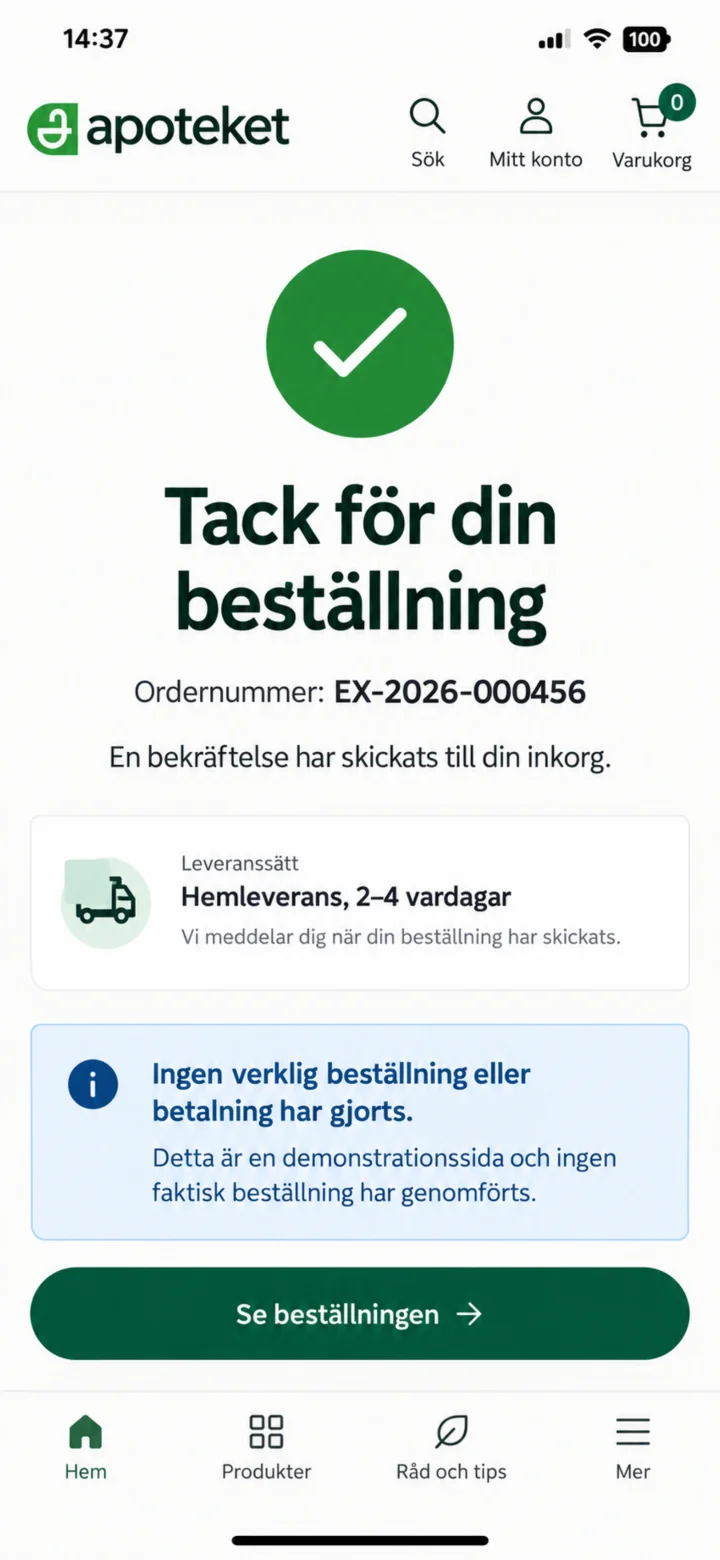
The confirmation will show your order number and the estimated delivery time. Remember, no actual order or payment has been made in this guide.
Renewing a Prescription Through Your Healthcare Provider
iPhone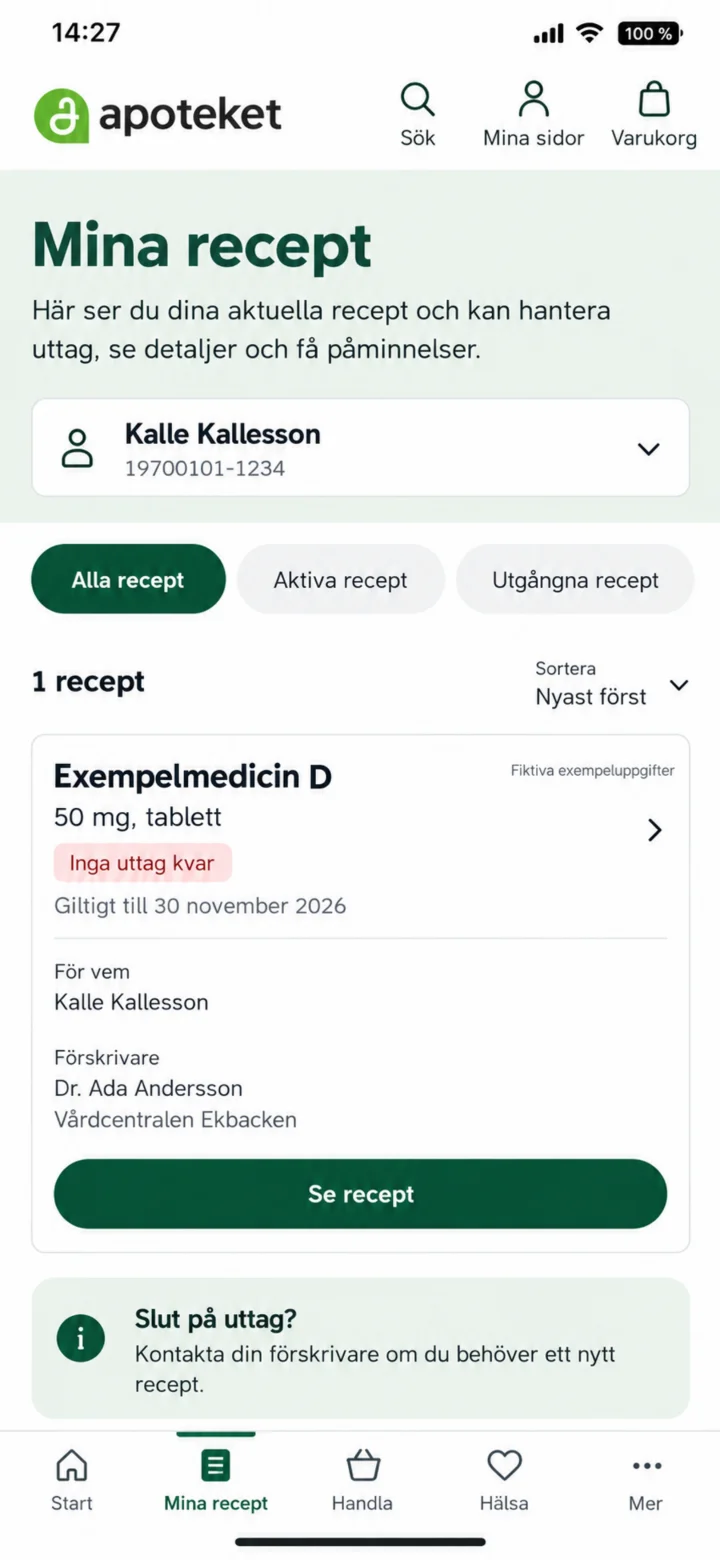 1Step 1 of 5 · iPhone
First, open Mina recept (My Prescriptions). Take a moment to check if you have any refills left.
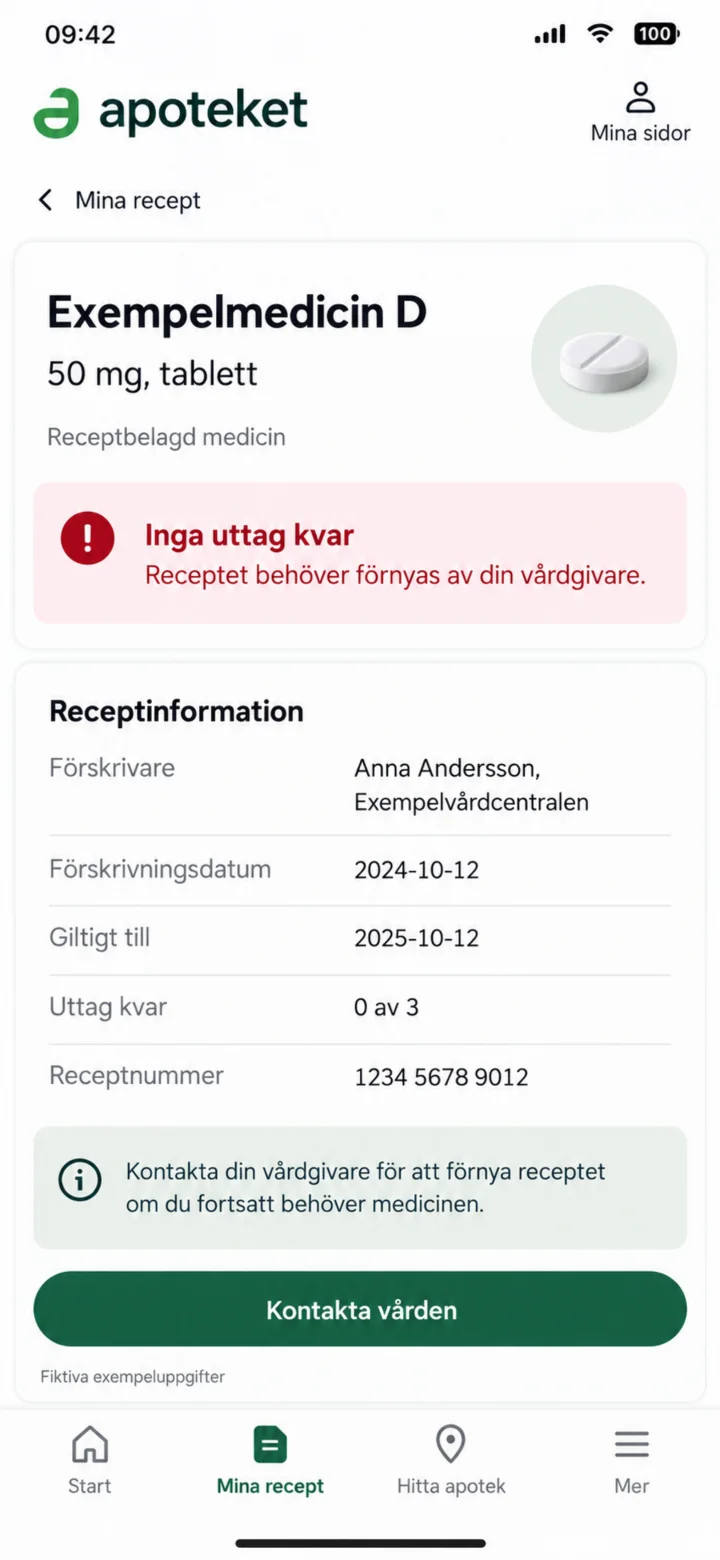 2Step 2 of 5 · iPhone
If there are no refills left, your healthcare provider needs to assess if your prescription can be renewed. Go ahead and choose ”Kontakta vården” (Contact healthcare).
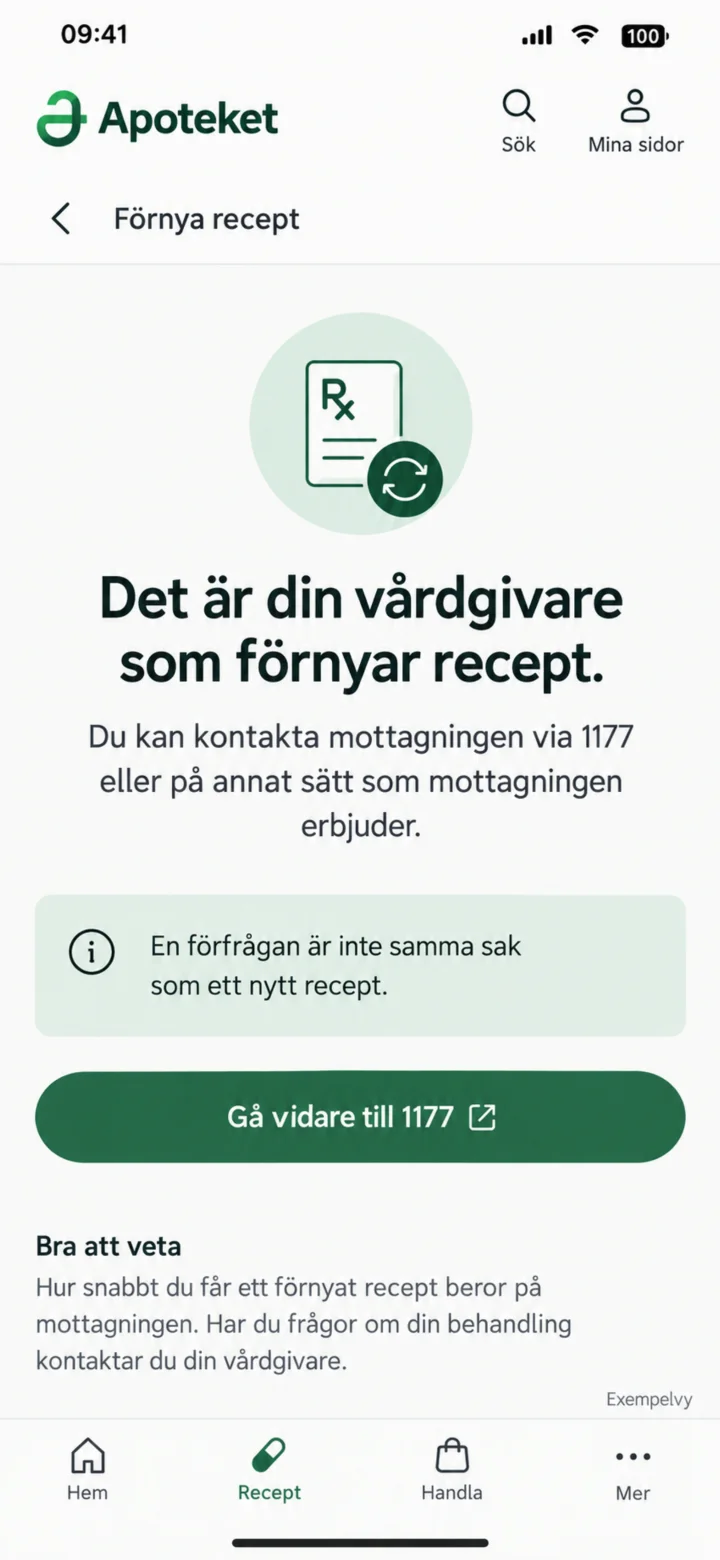 3Step 3 of 5 · iPhone
Please read the information carefully. Remember, a request is not the same as a new prescription. Then, you can proceed to 1177.
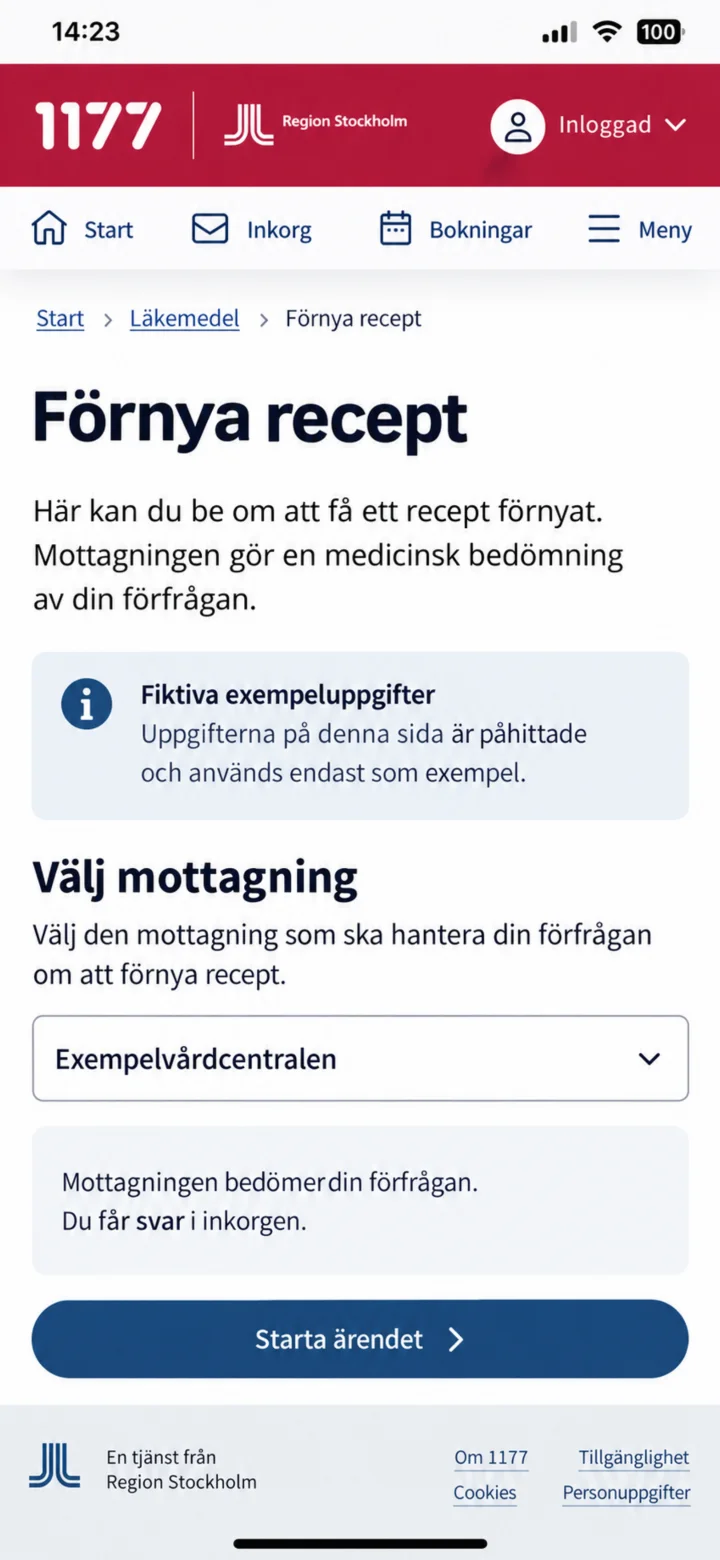 4Step 4 of 5 · iPhone
On 1177, you'll choose the specific clinic that will assess your request.
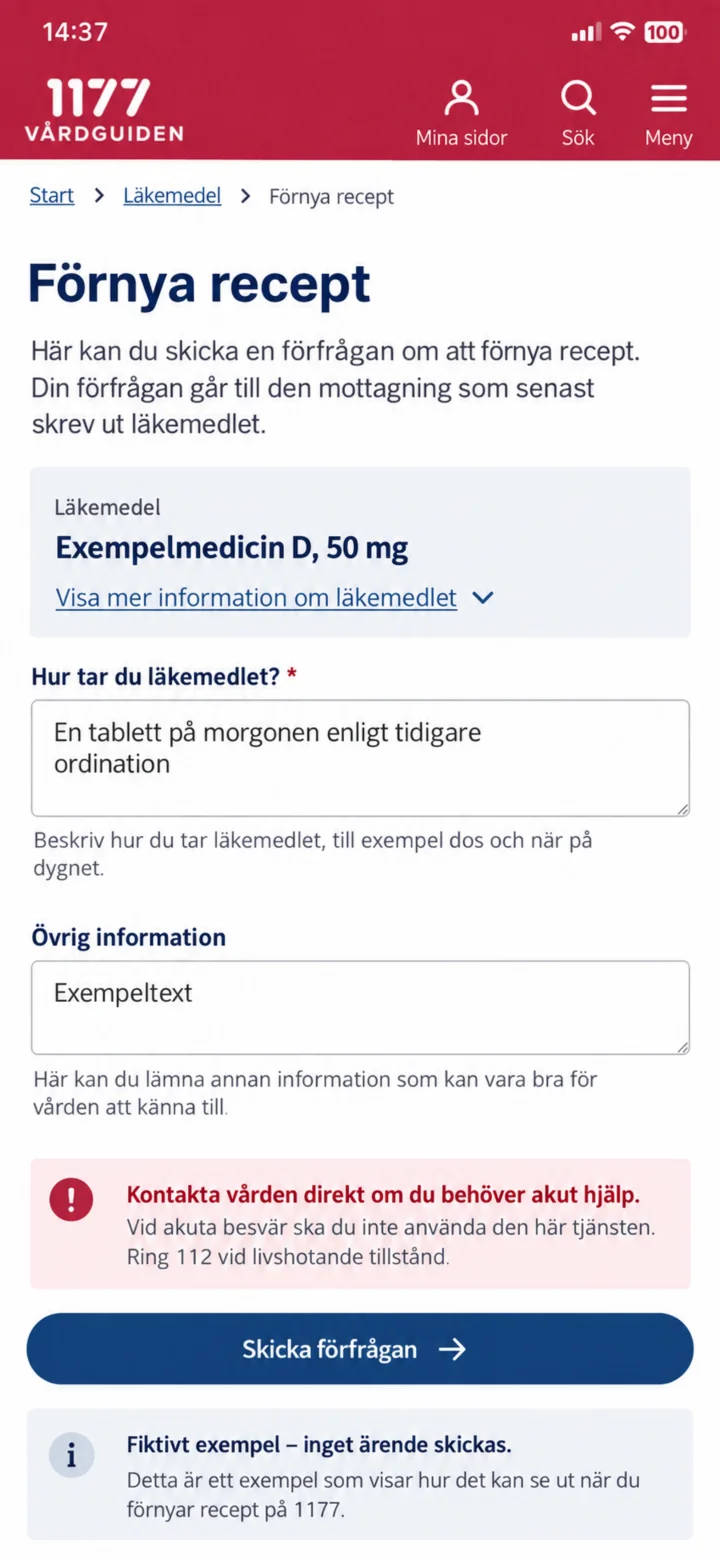 5Step 5 of 5 · iPhone
Double-check your medication and details before you send your request. If you're experiencing acute problems, contact healthcare directly.
See your prescriptions and your high-cost protection
iPhone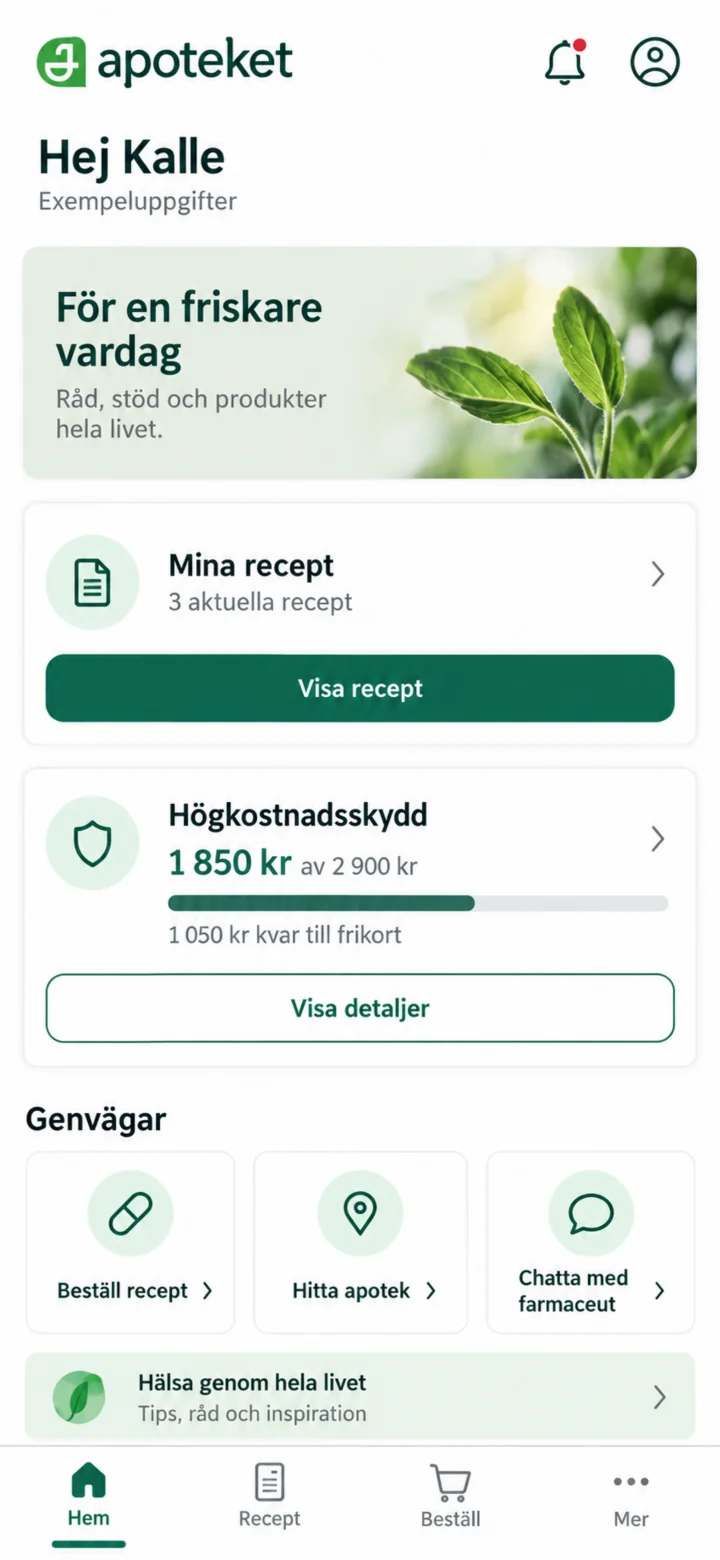 1Step 1 of 4 · iPhone
Log in to Apoteket's app. On the home page, you will find Mina recept (My prescriptions) and Högkostnadsskydd (High-cost protection).
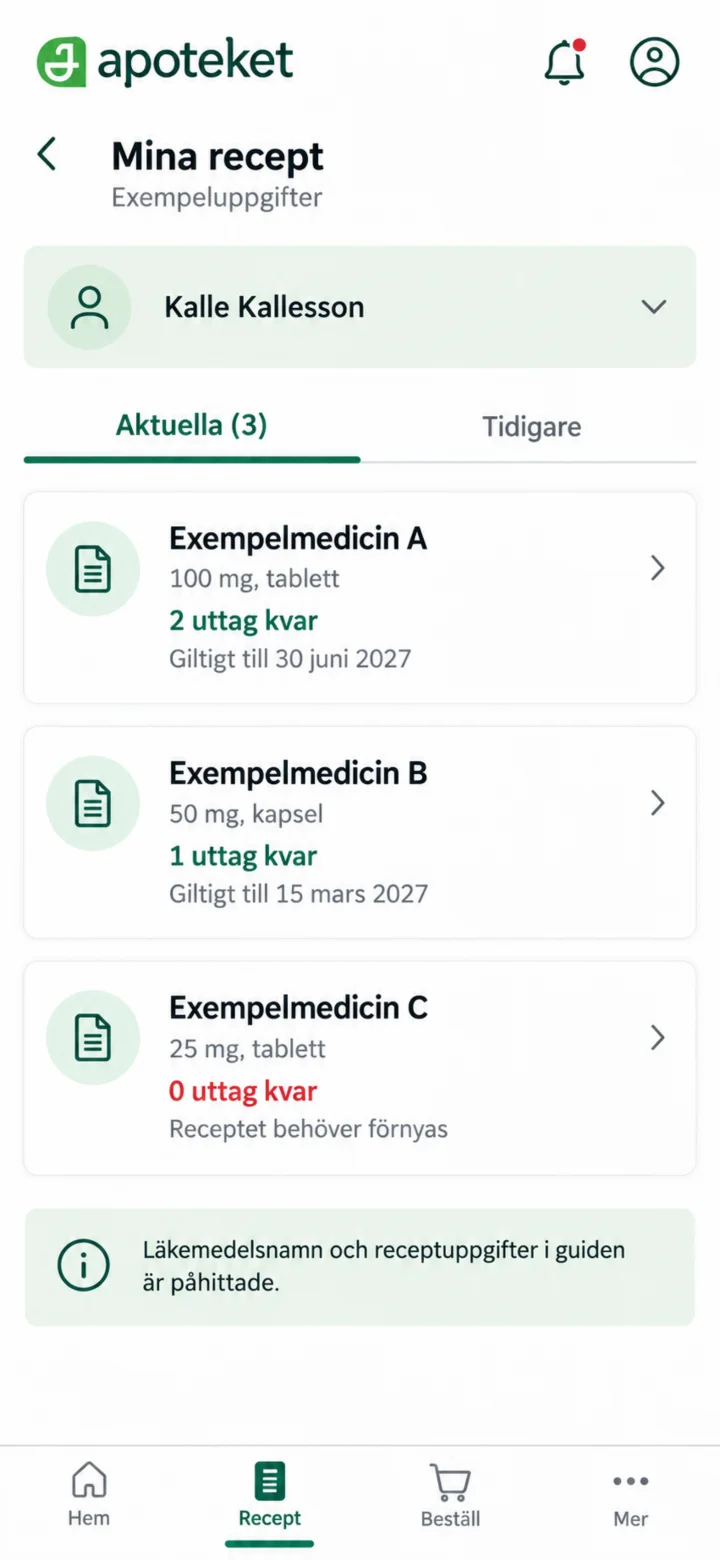 2Step 2 of 4 · iPhone
Open Mina recept (My prescriptions). Here you can see your current prescriptions and how many refills you have left.
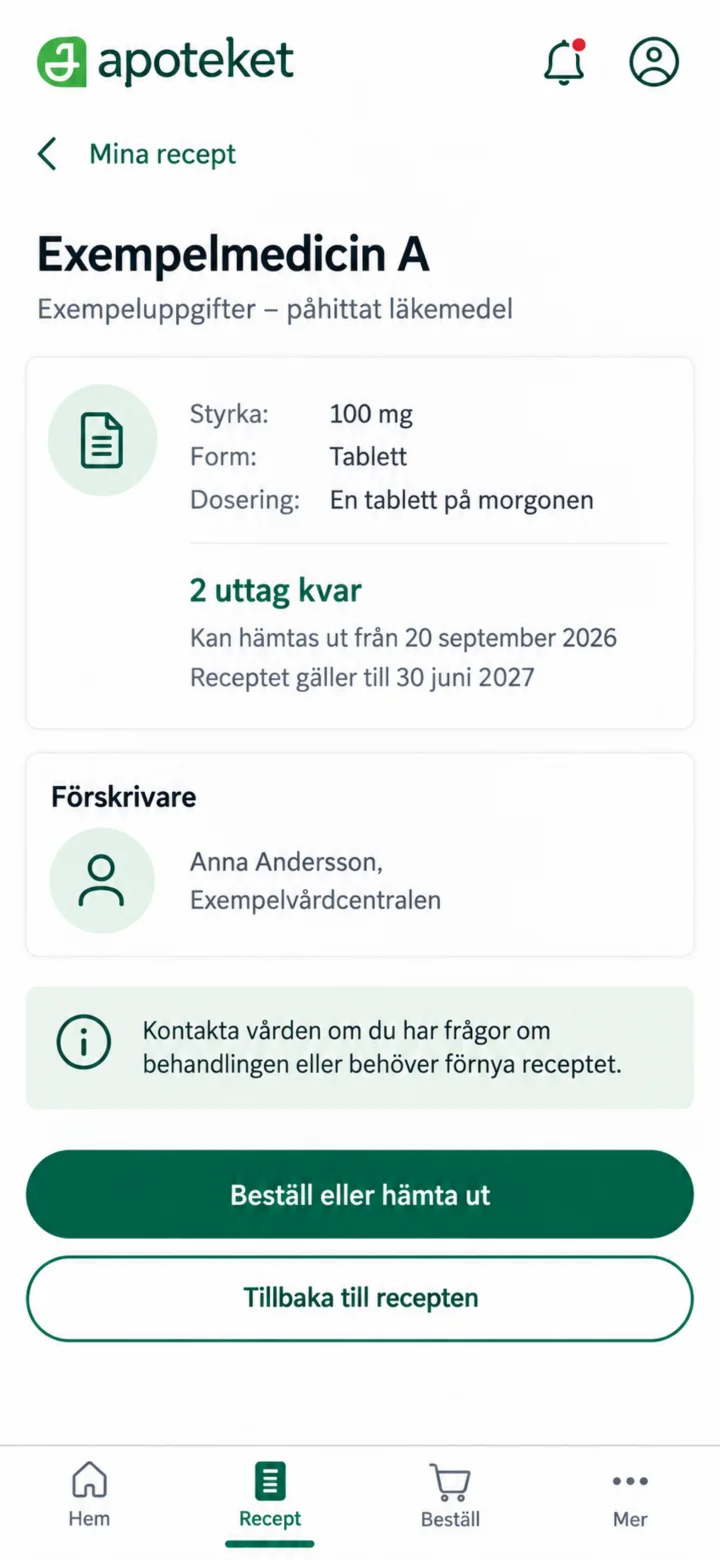 3Step 3 of 4 · iPhone
Open a prescription to see its strength, dosage, refills, and validity period.
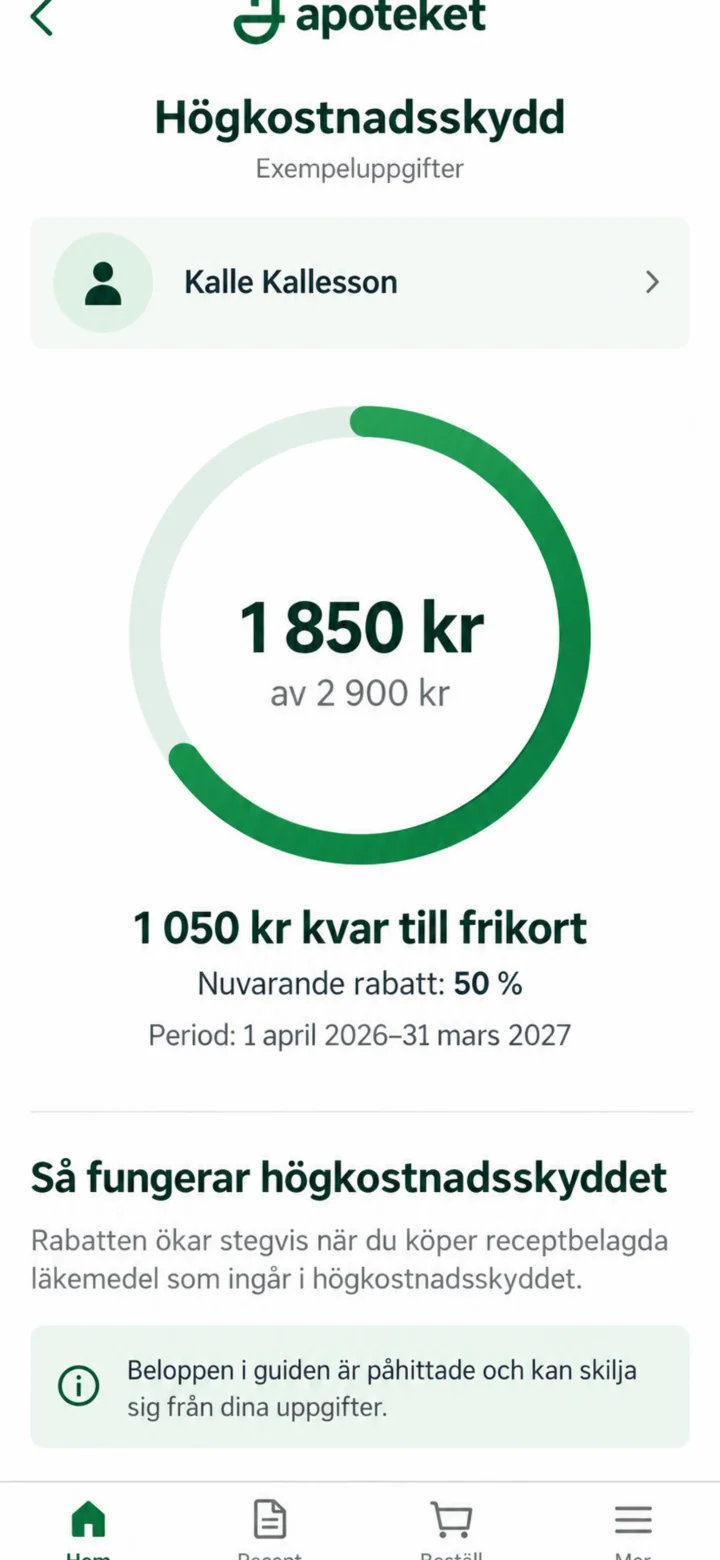 4Step 4 of 4 · iPhone
Open Högkostnadsskydd (High-cost protection) to see the registered amount and current period. The amounts in this guide are examples.