Every guide in the topic, each starting on a new page. 37 steps in total.
Tip: untick “Headers and footers” in the print dialog to leave out the web address.
Pensions and authorities
Step-by-step guides · 5 guides
 iPhone
Contents
- 1.Check if you can get a housing supplement6 steps
- 2.Download and start using Krisinformation12 steps
- 3.Get Min myndighetspost and read government mail7 steps
- 4.Order a Pensioner's Certificate6 steps
- 5.See your pension and next payment6 steps
Check if you can get a housing supplement
iPhone 1Step 1 of 6 · iPhone
Open the page Bostadstillägg för pensionärer (Housing supplement for pensioners) and tap on ”Beräkna bostadstillägg” (Calculate housing supplement). You don't need to log in to do the calculation.
 2Step 2 of 6 · iPhone
Indicate if you are single, married, or cohabiting, and choose the type of home you live in. Then tap on ”Fortsätt” (Continue).
 3Step 3 of 6 · iPhone
Fyll i din månadshyra eller boendekostnad och svara på frågorna om bostaden. Beloppen i guiden är bara exempel.
 4Step 4 of 6 · iPhone
Fill in your public pension, occupational pension, and any other income before tax. Use a monthly average.
 5Step 5 of 6 · iPhone
Fill in money in bank accounts, funds, stocks, and other assets. Then tap on ”Beräkna” (Calculate).
 6Step 6 of 6 · iPhone
Now a preliminary result is shown. This is not a decision. The final amount is only determined once Pensionsmyndigheten (the Swedish Pensions Agency) has reviewed a proper application.
Download and start using Krisinformation
iPhone 1Step 1 of 12 · iPhone
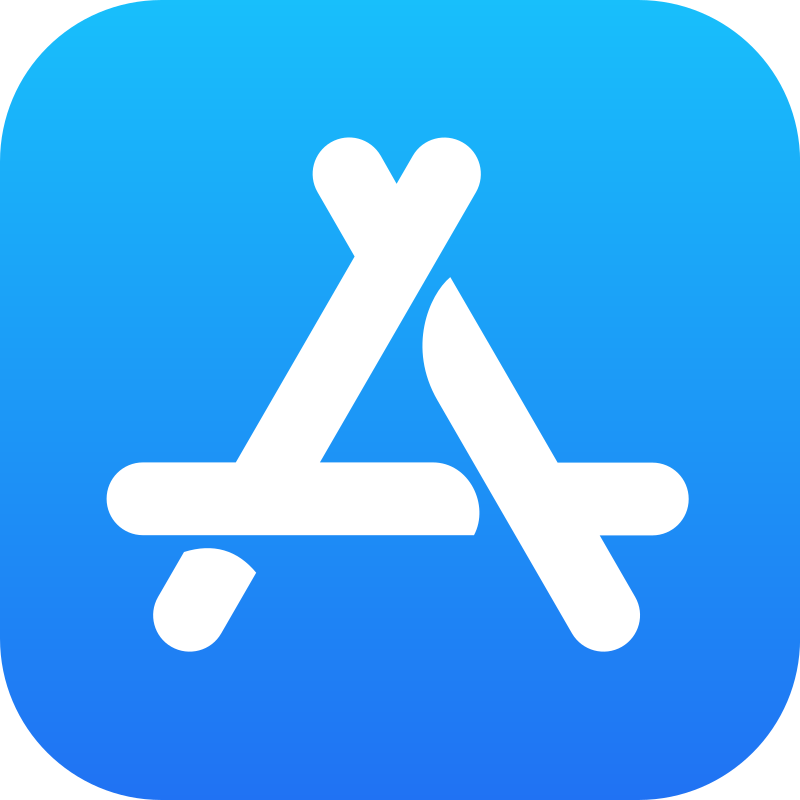
Start on your phone's home screen. Make sure you are connected to the internet. Tap the icon Appstore.
 2Step 2 of 12 · iPhone
Tap in the search field and type Krisinformation.
 3Step 3 of 12 · iPhone
When the app appears, tap "Hämta" (Get) and wait until the installation is finished.
 4Step 4 of 12 · iPhone
Once the app is installed, the button "Öppna" (Open) appears. Tap "Öppna" (Open) to start the app.
 5Step 5 of 12 · iPhone
Now the app's introduction is shown. Krisinformation gathers information from Swedish authorities. Read the information and tap "Nästa" (Next).
 6Step 6 of 12 · iPhone
Under "Förbered dig" (Prepare yourself) there is advice about different crises. Read the information and continue with "Nästa" (Next).
 7Step 7 of 12 · iPhone
Tap the yellow button "Kom igång" (Get started). You will then need to choose which counties you want to follow.
 8Step 8 of 12 · iPhone
The phone asks if Krisinformation may send notifications. Tap "Tillåt" (Allow) if you want to be able to receive notifications from the app. You may also need to check which notifications are enabled under "Mer" (More) and "Notiser" (Notifications).
 9Step 9 of 12 · iPhone
Now you are on the start page of the app. Here you can scroll and explore the content.
 10Step 10 of 12 · iPhone
Tap "Mer" (More) at the bottom right of the app. On the "Mer" (More) page, tap "Bevakade län" (Monitored counties). There, you choose which parts of Sweden you want to follow.
 11Step 11 of 12 · iPhone
Tap "Välj län" (Select county) and choose the county or counties you want to follow, for example Gävleborg if you live there. The image shows several already selected counties. You only need to follow the counties that are relevant to you. Also check "Mer" (More) and "Notiser" (Notifications) if you want to change which notifications you receive. Now you have installed the app and found the settings for your counties.
- 12Step 12 of 12 · iPhone
Well done! Now you know how this app works.
Get Min myndighetspost and read government mail
iPhone 1Step 1 of 7 · iPhone
Open minmyndighetspost.se and tap on ”Skaffa brevlåda” (Get mailbox).
 2Step 2 of 7 · iPhone
You will need a Swedish e-identification, an email address, and a mobile number. Tap on ”Fortsätt med e-legitimation” (Continue with e-identification).
 3Step 3 of 7 · iPhone
Choose Mobilt BankID. First, make sure you are on minmyndighetspost.se.
 4Step 4 of 7 · iPhone
Check that it says Min myndighetspost in BankID. Then tap on ”Identifiera” (Identify).
 5Step 5 of 7 · iPhone
Fill in your email address and mobile number. Choose if you want to receive notifications via email and SMS, accept the terms and conditions, and tap on ”Skapa brevlåda” (Create mailbox).
 6Step 6 of 7 · iPhone
Once your mailbox is ready, your inbox will be displayed. New letters are marked as unread. Tap on the letter you want to read.
 7Step 7 of 7 · iPhone
Check the sender and read the letter. If there is an attachment, you can tap on ”Öppna bilaga” (Open attachment). For government matters, you must go to the authority's website yourself.
Order a Pensioner's Certificate
iPhone 1Step 1 of 6 · iPhone
Open Pensionsmyndigheten's website and tap ”Logga in” (Log in).
 2Step 2 of 6 · iPhone
Choose Mobilt BankID. Only log in when you have personally navigated to Pensionsmyndigheten's website.
 3Step 3 of 6 · iPhone
Check that it says Pensionsmyndigheten in BankID. Then tap ”Identifiera” (Identify).
 4Step 4 of 6 · iPhone
On ”Mina sidor” (My pages), go to ”Mina tjänster” (My services) and tap ”Pensionärsintyg” (Pensioner's Certificate).
 5Step 5 of 6 · iPhone
Välj Svenska och tryck på Skapa pensionärsintyg. Intyget skapas som en PDF-fil.
 6Step 6 of 6 · iPhone
Once the certificate is ready, tap ”Hämta PDF” (Download PDF). After that, you can open, save, or print the file from your phone.
See your pension and next payment
iPhone 1Step 1 of 6 · iPhone
Open the Pensionsmyndigheten (Swedish Pensions Agency) website. Then, tap on ”Logga in” (Log in) at the top of the page.
 2Step 2 of 6 · iPhone
Choose Mobilt BankID. Only log in when you have navigated to the Pensionsmyndigheten website yourself.
 3Step 3 of 6 · iPhone
Check that it says Pensionsmyndigheten in BankID. Then, tap on ”Identifiera och legitimera dig” (Identify and authenticate yourself) in the usual way.
 4Step 4 of 6 · iPhone
When ”Mina sidor” (My pages) opens, you will see an overview. Tap on ”Se din pension” (See your pension) to view your pension amount and its different parts.
 5Step 5 of 6 · iPhone
Here you will see your general pension and how the amount is divided. The amounts in this guide are just examples. Tap on ”Se kommande utbetalningar” (See upcoming payments) if you wish to continue.
 6Step 6 of 6 · iPhone
Here you will see the next payment date, pension before tax, preliminary tax, and the amount to be paid out. You can also check which bank account is registered.