Wi-Fi at home: How to connect your phone and save on mobile data
Translated automatically.
Learn how to connect your phone to your home's wireless network. This way, you save your mobile data and can watch movies and look at pictures without any extra cost.
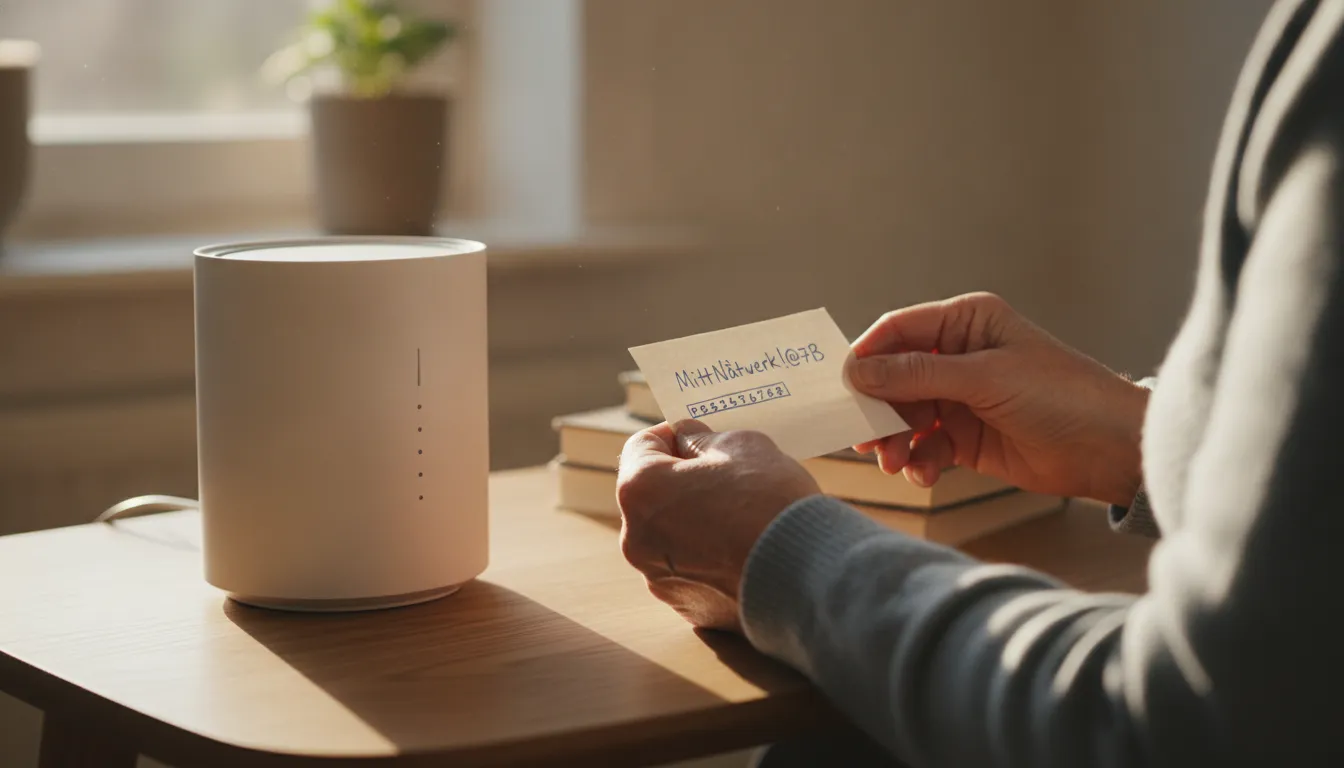
When you use the internet away from home, your phone connects to the mobile network (4G or 5G). This uses the amount of data included in your monthly mobile plan. When your data runs out, it can become expensive or very slow.
When you are at home, you can connect your phone to your home Wi-Fi (your wireless home network) instead. Then, your internet traffic goes through your fixed broadband connection. There is usually no limit to how much you can browse there.
Why take advantage of home Wi-Fi?
Some things use much more data than others. This is especially true when you:
- Watch moving images, for example on SVT Play or YouTube.
- Upload backups of your photos to the cloud (a digital storage space on the internet).
- Update apps or the phone's own system.
Once you have connected your phone to your home network, it will remember it. As soon as you step through the door at home, your phone will automatically switch from the mobile network to your own Wi-Fi.
How to connect your phone step by step
Connecting only takes a couple of minutes. Follow these simple steps, or read our guide on connecting to Wi-Fi:
- Open the settings: Tap the Inställningar (Settings) app on your phone and select Wi-Fi (on some phones it says Nätverk och internet (Network and internet)).
- Turn on the function: Make sure the switch next to Wi-Fi is turned on.
- Find your network: Look at the list that appears. Select the name of your own home network. If you do not know what it is called, the name is almost always on a sticker on the bottom or back of your router (the small box that sends out the wireless network).
- Enter the password: Fill in the password (often called WPA-nyckel (WPA key) on the router label) and tap Anslut (Connect). Be careful with capital and lowercase letters.
- Check automatic connection: Make sure the option "Anslut automatiskt" (Connect automatically) is selected.
Tips for a safe and secure network
To ensure your network is protected from unauthorized access, here are a few simple tips:
- Always have a password: Never leave your home network open without a password. Feel free to read more in our guide how to create and manage strong passwords.
- Do not turn off Wi-Fi at home: If you turn off the function on your phone, it will continue to use expensive mobile data instead.
- Watch out for weak coverage: Some phones have a feature that automatically switches to mobile data if the Wi-Fi signal becomes weak in a certain room. If you notice that your mobile data is decreasing even though you are at home, you may need to move closer to the router.
- Keep your equipment updated: Let both your phone and router install their security updates when they ask to do so.
Is it safe to use BankID on home Wi-Fi?
You may have heard warnings about not doing banking over Wi-Fi. However, the police and security experts mainly warn against open networks in public places, such as on trains, in cafes, and at hotels. In those places, outsiders could, in the worst case, intercept your traffic.
Your own password-protected home network, on the other hand, is safe to use. All traffic via BankID and bank apps is encrypted, which means that the information is sent in a secret code that no one else can read. You can read more about this in our guide use BankID safely.
Remember the most important rule: neither the bank, the police, nor 1177 will ever call, email, or send text messages to ask you to log in with BankID or provide your personal codes. If someone contacts you and demands this, hang up. If you suspect fraud, contact your bank immediately and call the police at phone number 114 14.