Download and get started with Facebook
Print the guideTranslated automatically.
Step 1 of 21
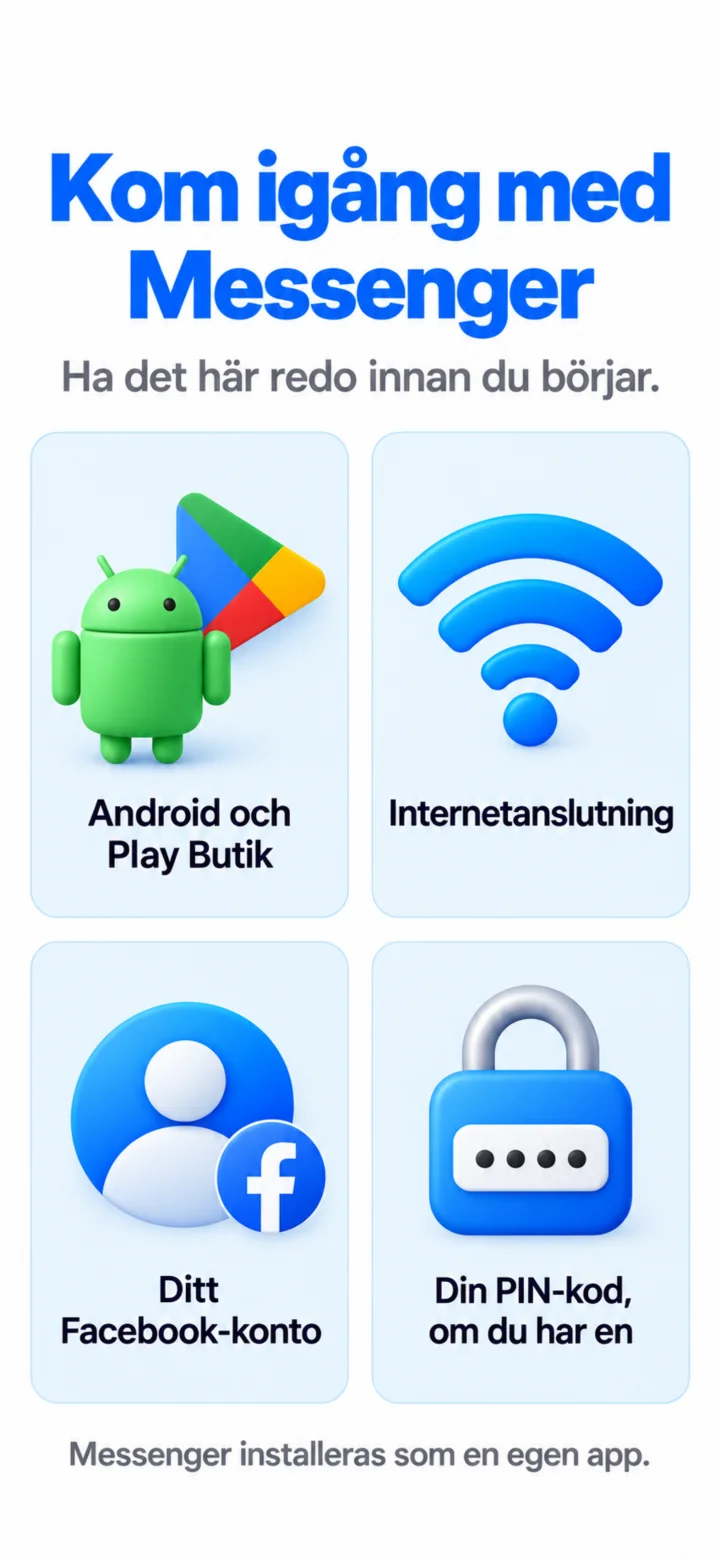
Have your Android phone and internet connection ready. You will also need an email address or a mobile number that you have access to. It's a good idea to have a picture of yourself ready. If you already have Facebook, you will need your login details.
This guide shows iPhone.
Show all steps as text
- Have your Android phone and internet connection ready. You will also need an email address or a mobile number that you have access to. It's a good idea to have a picture of yourself ready. If you already have Facebook, you will need your login details.
- Tap on Play Butik (Play Store) on the home screen. Then tap on the search bar in the store and type Facebook.
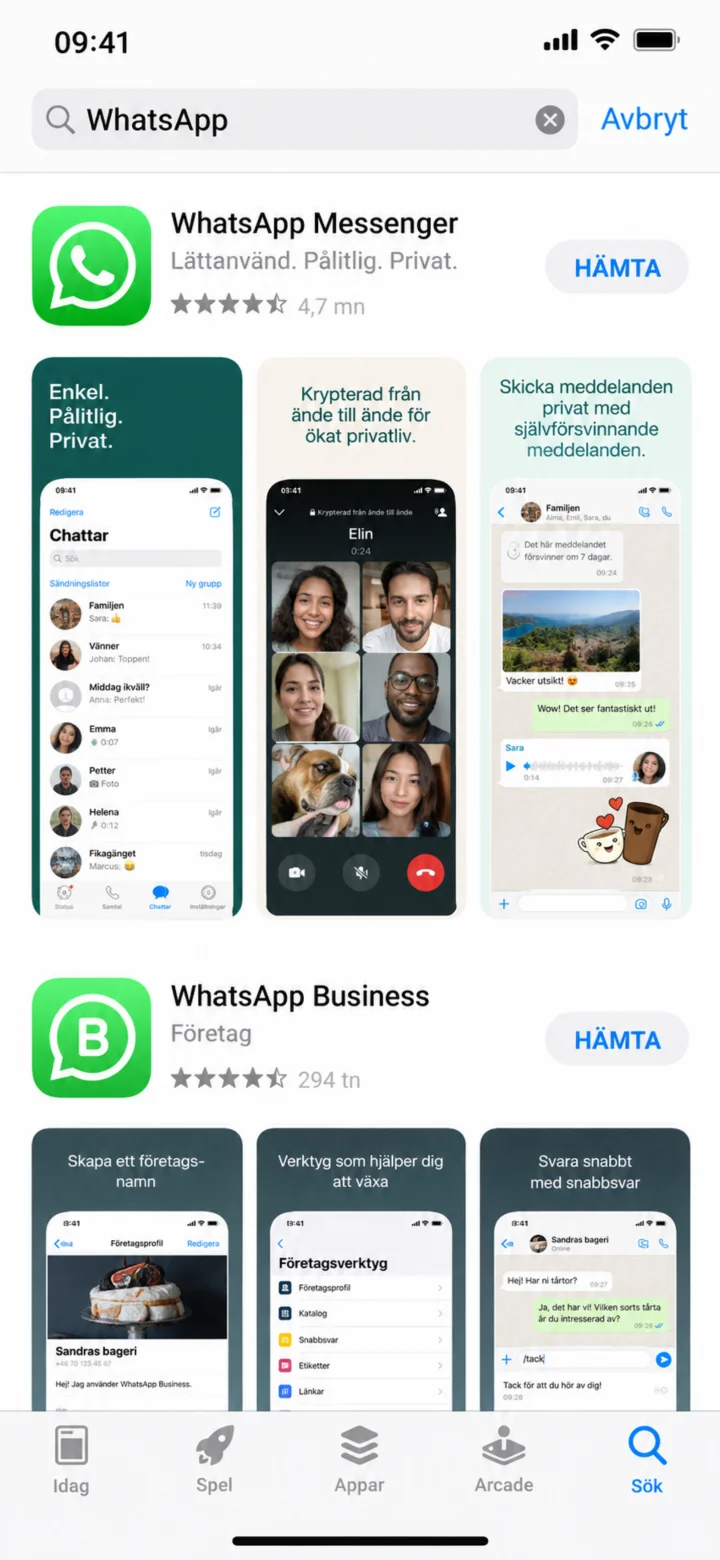
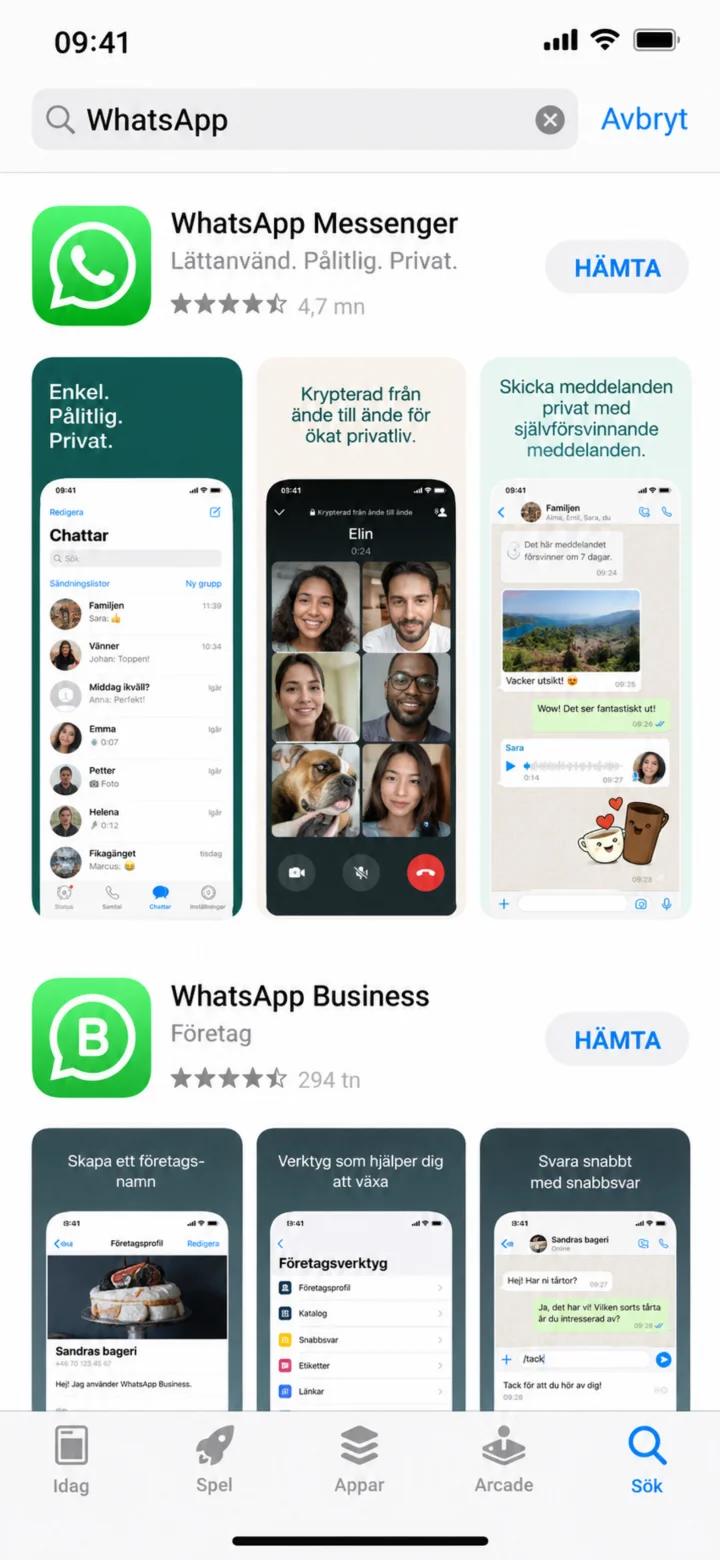
- iPhone: Tap on Appstore (App Store) on the home screen. Then tap on the search bar in the store and type Facebook.
- Choose Facebook from Meta Platforms, Inc. Tap on Installera (Install) and wait until the app has downloaded. If you already have the app installed, the button might instead say Öppna (Open).
- Once the installation is complete, tap on Öppna (Open). You can also open Facebook using the blue icon with a white 'f' among your apps.
- Type your mobile number or email address and your password. If you don't have a Facebook account, tap on Skapa nytt konto (Create new account).
- Tap on Kom igång (Get started). If you already have an account, choose Jag har redan ett konto (I already have an account) instead. You don't need to create a new account when you change phones.
- Type your first name and last name that you use every day. Tap on Nästa (Next).
- Tap on the date field and choose your own date of birth. Tap on Nästa (Next) when the date is correct. The date in the picture is just an example.
- Choose the option that suits you. Under Fler alternativ (More options) there are more choices. Then tap on Nästa (Next).
- Type your own mobile number and tap on Nästa (Next). If you want to use email instead, tap on Registrera dig med e-post (Sign up with email) and enter your email address when Facebook asks. You need to be able to receive a confirmation code on that number or address.
- When Facebook asks for a password, choose a long password that you don't use anywhere else. Type it into Facebook and proceed. Save it securely and never share it with anyone else. This is an informational image, not a screenshot from the app.
- Read Facebook's terms of use and information on how your data is used. If you want to continue and agree to the terms, tap on Jag godkänner (I agree). Button text and order may vary between versions.
- Open SMS or email and read the code that Facebook sent. Go back to Facebook, type the code in the field and tap on Nästa (Next). Didn't receive a code? Check your contact details and choose Jag fick ingen kod (I didn't receive a code). Never share the code with anyone else.
- On the home page, you will see posts and events. At the top is the field Vad gör du just nu? (What are you doing right now?) where you can start writing a post. The menu with three lines is in the upper left. Tap on it to go to your profile.
- When the side menu opens, tap on your name in the card at the very top. In the example, it says Kalle Kallesson. This will open your personal profile.
- On your profile, tap on Redigera profil (Edit profile), the button with a pen. There you can, among other things, change your profile picture. The large picture behind the profile picture is the cover photo and is changed separately.
- In Redigera profil (Edit profile), tap on the small camera located at the bottom right edge of the round profile picture. The camera out by the cover photo changes the large background image instead.
- Follow the image selection that opens on your phone. Choose a picture of yourself or take a new photo if that option appears. Grant access to the pictures you want to use if the phone asks. Adjust the picture so your face is clearly visible and confirm your choice according to the button shown. Then go back to your profile.
- Go back to your profile and check that the correct picture is displayed in the round profile picture. In the example, Kalle Kallesson and fictional profile details are used. The current profile picture is public and can be seen even by people who are not your friends.
- Do you want to find someone you know? Tap on the magnifying glass and search for the person's name. Make sure it's the right person before sending a friend request. When you see a post you appreciate, you can tap on Gilla (Like).