How to install and use the SOS Alarm 112 app
Print the guideThis text is not available in your language yet, so it is shown in Swedish.
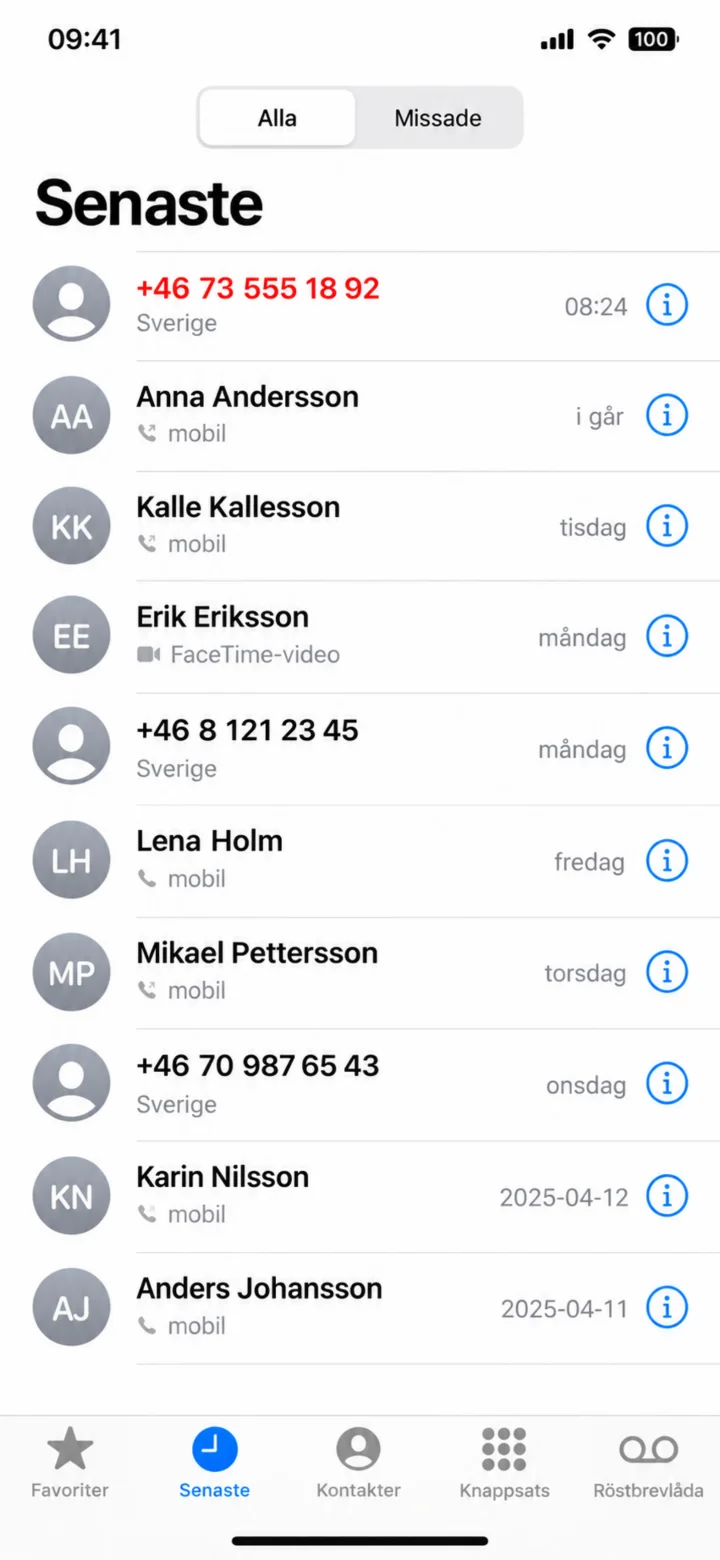
Which of these is on your phone?
Look at your phone’s screen and tap the one that looks the same. Then we only show the steps for your phone.
Can’t find either of them? An iPhone has an Apple symbol on the back. If the phone says Samsung, Google, Motorola or OnePlus, it is an Android.
Show all steps as text
- iPhone: Open the App Store and search for SOS Alarm 112.
- iPhone: Kontrollera att appen heter SOS Alarm 112 och att utvecklaren är SOS Alarm Sverige AB. Tryck sedan på Hämta.
- iPhone: Once the app is installed, tap ”Öppna”.
- Android: Open Google Play and search for SOS Alarm. Choose the app from SOS Alarm Sverige.
- Android: Check the app's name and developer. Then tap ”Installera”.
- Android: Once the installation is complete, tap ”Öppna”.
- Android: On the welcome page, it says Välkommen till SOS Alarm. Read the text and tap ”Godkänn och fortsätt”.
- Android: The app needs your location to inform you about important events and to send your position during a 112 call. Tap ”Välj platstjänster”.
- Android: Here you set up notifications for Viktigt meddelande till allmänheten. Tap ”Gå till inställningar”, or ”Hoppa över” if you want to do it later.
- Android: If you want to register a phone number, enter it and tap ”Verifiera telefonnummer”. You can also tap ”Hoppa över”. No real information is shown in the example.
- Android: Check the summary. Here you can see if location, Stör ej-åtkomst, phone number, and notifications are activated. Then tap ”Nästa”.
- Android: When the app is ready, it says that 112-appen is ready to use. Tap ”Klar”.
- Android: On the home screen, you'll see current events, your position, and the ”Ring 112” button. At the bottom, you'll find ”Hem”, ”Aktuellt”, ”Viktiga nummer”, and ”Profil”.
- Android: On the position page, you'll see latitude and longitude. Tap ”Visa på karta” if you want to see your location on the map.
- Android: Under ”Aktuellt”, you'll see nearby events. If the list is empty, you can tap ”Ladda om händelser”.
- Android: Under ”Viktiga nummer”, you'll find 112, 113 13, 114 14, and 1177. Tap ”Läs mer” next to the number you want to learn about.
- Android: Here you can read when to use 112. Call 112 in case of immediate danger to life, property, or the environment. The image shows the information and not an ongoing call.
- Android: Under ”Profil”, you'll find ”Kontakta oss”, ”Vanliga frågor om appen”, and ”Inställningar”.