How to save and change delivery in the PostNord app
Print the guideThis text is not available in your language yet, so it is shown in Swedish.
Which of these is on your phone?
Look at your phone’s screen and tap the one that looks the same. Then we only show the steps for your phone.
Can’t find either of them? An iPhone has an Apple symbol on the back. If the phone says Samsung, Google, Motorola or OnePlus, it is an Android.
Show all steps as text
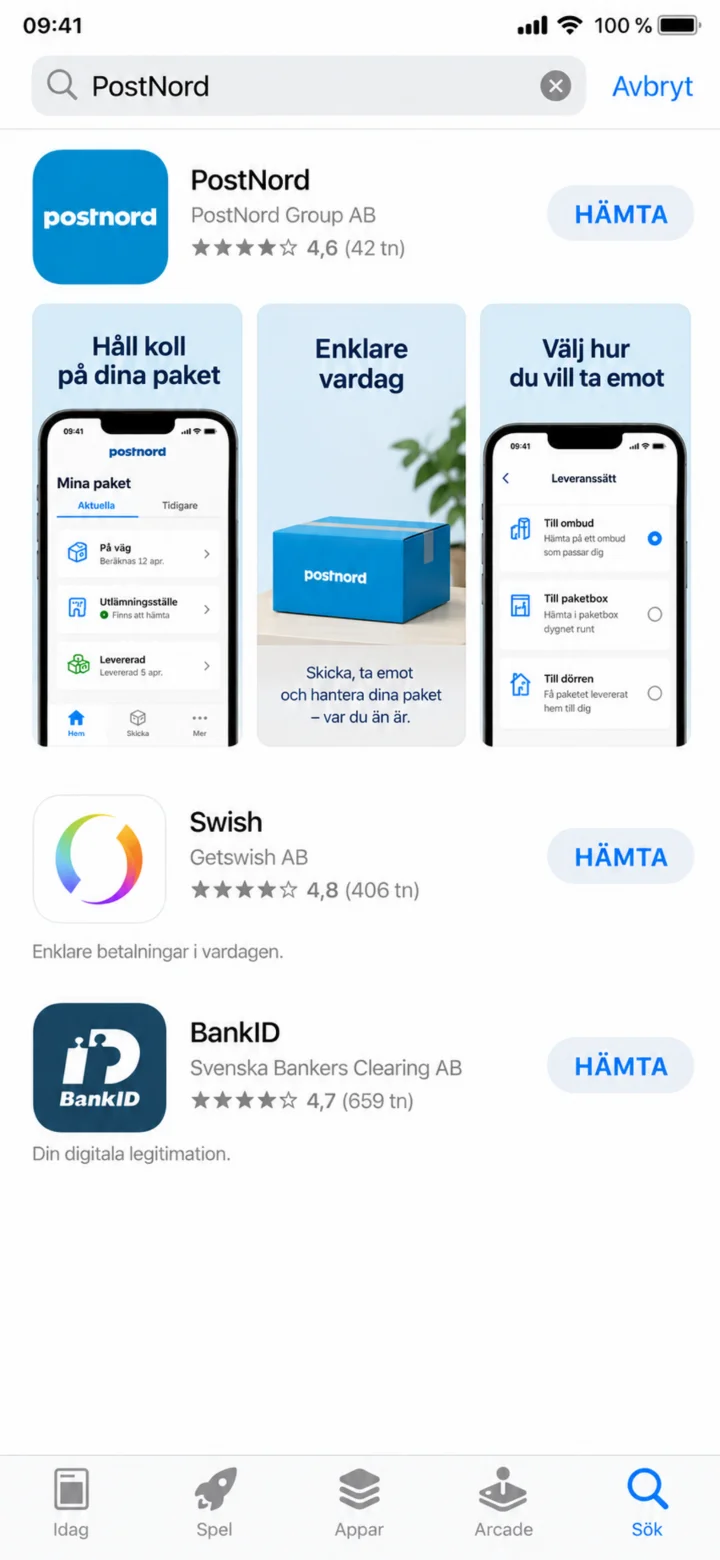
- iPhone: Open the App Store and search for PostNord.
- iPhone: Tap ”Hämta” (Get) to install the PostNord app.
- iPhone: Once the installation is complete, tap ”Öppna” (Open).
- Android: Open Google Play and search for PostNord.
- Android: Tap ”Installera” (Install).
- Android: Once the installation is complete, tap ”Öppna” (Open).
- On the home screen, tap the package from Exempelbutiken (Example Store).
- Här ser du paketets läge och beräknad leverans. Tryck på Följ paketet.
- To get information when the package moves, turn on ”Få aviseringar” (Get notifications).
- The green button shows that notifications are activated.
- Tap ”Ändra leverans” (Change delivery) and choose ”Byt utlämningsställe” (Change pick-up point).
- Välj ett nytt utlämningsställe och tryck på Bekräfta byte.
- The pick-up point has been changed. Please check the new address.